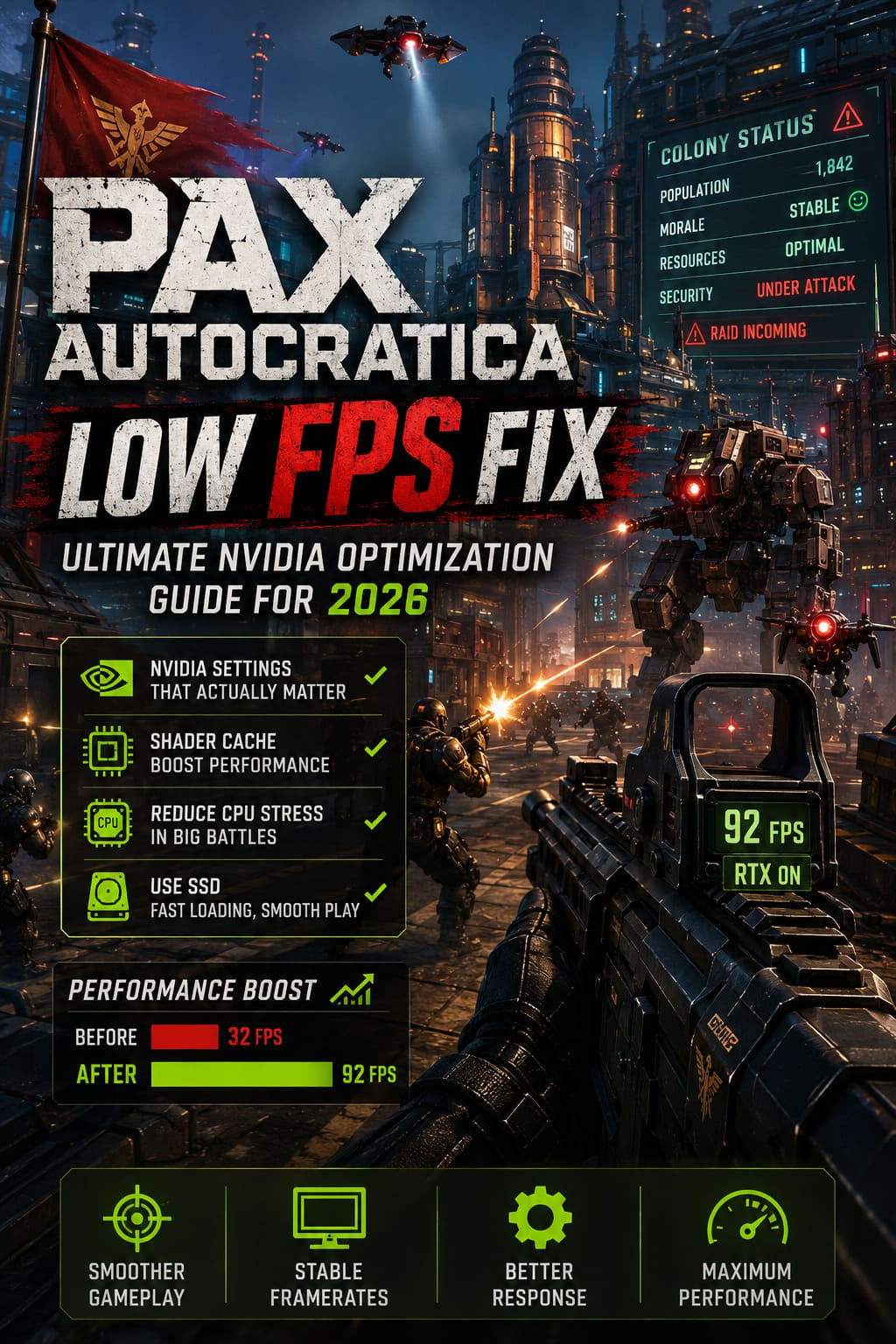
Pax Autocratica Low FPS Fix: Ultimate NVIDIA Optimization Guide for 2026
If there’s one thing that can ruin an incredible strategy game, it’s inconsistent performance. That’s exactly what happened when I jumped into Pax Autocratica for the first time. The colony management was addictive, the first-person combat felt surprisingly satisfying, and every decision seemed to matter. Then my frame rate decided to stage its own political uprising.
After spending hours experimenting with graphics settings, NVIDIA options, community tweaks, and driver adjustments, I finally managed to turn a stuttering mess into a smooth experience. If you’re dealing with random FPS drops, GPU underutilization, or annoying micro-stutters, this guide covers every optimization that genuinely made a difference on NVIDIA hardware.
This isn’t about magical ‘one-click’ fixes. Some settings help a lot, others barely move the needle. Knowing which ones are worth changing can save you a lot of frustration.
Pax Autocratica Best Settings AMD RX 5700 XT: Ultimate Optimization Guide
Why Pax Autocratica Is So Demanding
Pax Autocratica isn’t a typical city builder, and it definitely isn’t just another shooter. It constantly calculates colony economics, citizen behavior, AI routines, and world simulation while rendering large environments packed with dynamic objects.
The result is a game that pushes both your processor and graphics card simultaneously. In quieter moments, performance might look perfectly fine. The second a massive raid begins or your settlement grows into a sprawling industrial nightmare, CPU usage spikes and frame pacing often falls apart.
That combination explains why even players with powerful RTX cards sometimes struggle to maintain stable performance.
Disable the Current DLSS Problem if Necessary
One of the first things I noticed was that enabling DLSS wasn’t always the miracle solution it’s supposed to be.
Several players have experienced strange camera behavior when aiming, while others found that DLSS unexpectedly limited their frame rate regardless of hardware capability. Until future patches improve implementation, experimenting with different presets is worth the effort.
Recommended DLSS Settings
- Try Quality mode first.
- Switch to Balanced if performance still isn’t where you want it.
- If visual glitches appear, temporarily disable DLSS entirely.
Ironically, native resolution with a few lowered graphics settings often performs more consistently than aggressive DLSS modes. Sometimes newer technology simply needs another patch.
NVIDIA Control Panel Tweaks That Actually Matter
I’ve tested plenty of ‘optimization guides’ over the years, and many recommend changing dozens of driver options that accomplish absolutely nothing.
For Pax Autocratica, only a handful consistently improved stability.
| NVIDIA Setting | Recommended Value | Why It Helps |
|---|---|---|
| Vertical Sync | Off (or Driver Only with G-Sync) | Reduces additional latency |
| Power Management | Prefer Maximum Performance | Prevents GPU downclocking |
| Low Latency Mode | Ultra (Desktop) | Improves responsiveness |
| Max Frame Rate | Refresh Rate -3 FPS | Eliminates unnecessary GPU load |
Frame limiting deserves special attention. Without a cap, menu screens can send GPUs into absurd frame rates that serve absolutely no purpose except producing extra heat and annoying coil whine. Locking the game slightly below your monitor’s refresh rate usually creates noticeably smoother frame pacing.
Increase Your Shader Cache
This tweak surprised me more than almost anything else.
Every time Pax Autocratica loads a new district, larger structures, or fresh combat encounters, shaders are compiled in the background. That compilation often produces tiny freezes that become increasingly irritating during longer sessions.
Increasing NVIDIA’s Shader Cache Size gives the driver considerably more room to store compiled shaders instead of rebuilding them repeatedly.
How to Increase Shader Cache
- Open NVIDIA Control Panel.
- Navigate to Manage 3D Settings.
- Locate Shader Cache Size.
- Set it to 10 GB or Unlimited.
- Restart your PC.
Don’t expect miracles immediately. The first session still builds shaders, but later sessions generally become much smoother.
Your CPU Might Be the Real Problem
This is probably the biggest misunderstanding surrounding Pax Autocratica performance.
People often assume low FPS automatically means their graphics card isn’t powerful enough. In reality, the CPU frequently becomes the limiting factor.
Every citizen has routines. Every structure affects simulation. Every battle introduces more AI calculations. All of that places enormous pressure on your processor.
Lowering Streaming Distance produced one of the largest FPS gains during my testing because it dramatically reduced the amount of world data processed simultaneously.
If you’re running an older CPU alongside a newer RTX GPU, this single adjustment may outperform lowering expensive graphical effects.
Reduce CPU Stress During Large Battles
Late-game combat is where performance usually collapses.
Higher difficulties don’t simply increase enemy health. They generate larger encounters, smarter AI behavior, and significantly more simultaneous calculations.
Why Hard Difficulty Hurts Performance
- More enemies.
- More projectiles.
- More pathfinding.
- More AI decisions.
- More simulation updates.
Even excellent processors can begin struggling under that workload.
If raids suddenly tank your FPS while the colony itself runs smoothly, reducing difficulty or limiting squad size can provide a surprisingly noticeable performance improvement. It’s not the most glamorous solution, but it works.
SSD Installation Is Practically Mandatory
Modern games rely heavily on fast storage, and Pax Autocratica is no exception.
Installing the game on an older hard drive causes frequent asset streaming delays that feel like FPS problems even when your GPU isn’t fully utilized.
Moving the installation onto an NVMe SSD noticeably reduced loading hiccups during exploration and combat. If your operating system and games still share a mechanical HDD, upgrading storage will probably improve your experience more than another graphics setting ever could.
Perform a Completely Clean NVIDIA Driver Installation
Graphics drivers accumulate leftovers over time.
Installing new versions over older releases doesn’t always remove outdated components, and conflicts occasionally appear after major game launches.
When performance refuses to improve, I usually perform a completely fresh installation.
Clean Driver Installation Steps
- Remove the existing NVIDIA driver using DDU in Safe Mode.
- Restart Windows.
- Install the newest NVIDIA Game Ready Driver.
- Restart your PC once again.
It takes a little longer, but I’ve solved countless unexplained FPS issues this way over the years.
Don’t Ignore BIOS and Chipset Updates
This recommendation sounds boring. It’s also surprisingly important.
Recent AMD Ryzen and Intel processors regularly receive firmware improvements that enhance memory scheduling, thread management, and overall stability.
Pax Autocratica performs thousands of calculations every second, so even small improvements to CPU scheduling can result in smoother gameplay. Before assuming the game itself is broken, make sure your motherboard software isn’t years out of date.
Background Programs Can Quietly Destroy Performance
One mistake I still see constantly is leaving dozens of applications running while gaming.
- RGB software
- Recording tools
- Browser tabs
- Discord overlays
- Monitoring utilities
Individually they seem harmless. Combined, they consume memory, CPU resources, and background bandwidth that the game would much rather use.
Before launching Pax Autocratica, I usually close anything I don’t actively need. It’s a small habit that consistently delivers more stable performance.
Graphics Settings Worth Lowering First
Not every graphical option affects visuals equally.
If you’re chasing additional FPS, lower these before touching overall texture quality.
- Streaming Distance
- Shadow Quality
- Ambient Occlusion
- Volumetric Effects
- Reflection Quality
Texture Quality can often remain relatively high on modern RTX cards because VRAM usually isn’t the primary bottleneck.
Final Thoughts
Pax Autocratica deserves praise for combining deep colony simulation with surprisingly engaging FPS combat, but there’s no denying that its technical optimization still needs work. The game asks an enormous amount from both your CPU and GPU, and that becomes painfully obvious once your settlement expands or large-scale firefights begin.
The good news is that most performance problems aren’t permanent. After adjusting NVIDIA Control Panel settings, expanding the shader cache, reducing Streaming Distance, capping the frame rate, and making sure the game runs from a fast SSD, my experience improved dramatically. It still isn’t flawless, but it feels far closer to what the developers clearly intended.
If you’re running an RTX card and wondering why your expensive hardware isn’t delivering the frame rates you expected, don’t immediately blame the GPU. Pax Autocratica rewards careful optimization almost as much as smart colony management, and spending twenty minutes tweaking the right settings can easily save you from hours of frustrating stutters later on.