How to Fix Approximately Up Crash on Launch, Black Screen, and Startup Issues (2026 PC Guide)
When Approximately Up appeared on Steam, I knew I was going to lose an entire weekend to it. I’m a streamer who spends way too much time trying every new co-op survival, sandbox, and space-building game that looks even remotely interesting. This one immediately grabbed my attention with its physics-driven ship construction and the freedom to create absolutely ridiculous spacecraft with friends.
Unfortunately, my first launch didn’t exactly go as planned.
Instead of flying into space, I was staring at a black screen. Another launch attempt ended with a crash straight back to the desktop. After digging through community discussions, testing different fixes on my own system, and comparing notes with viewers who ran into the same problem, I managed to get everything working.
If your copy of Approximately Up refuses to start, keeps crashing during launch, freezes before the menu appears, or only shows a black screen, this guide walks through every solution that gave the best results.
Why Approximately Up Refuses to Start
Like many modern PC releases, Approximately Up depends on several different Windows components working together correctly. Even a small conflict can stop the game before it finishes loading.
The most common reasons include:
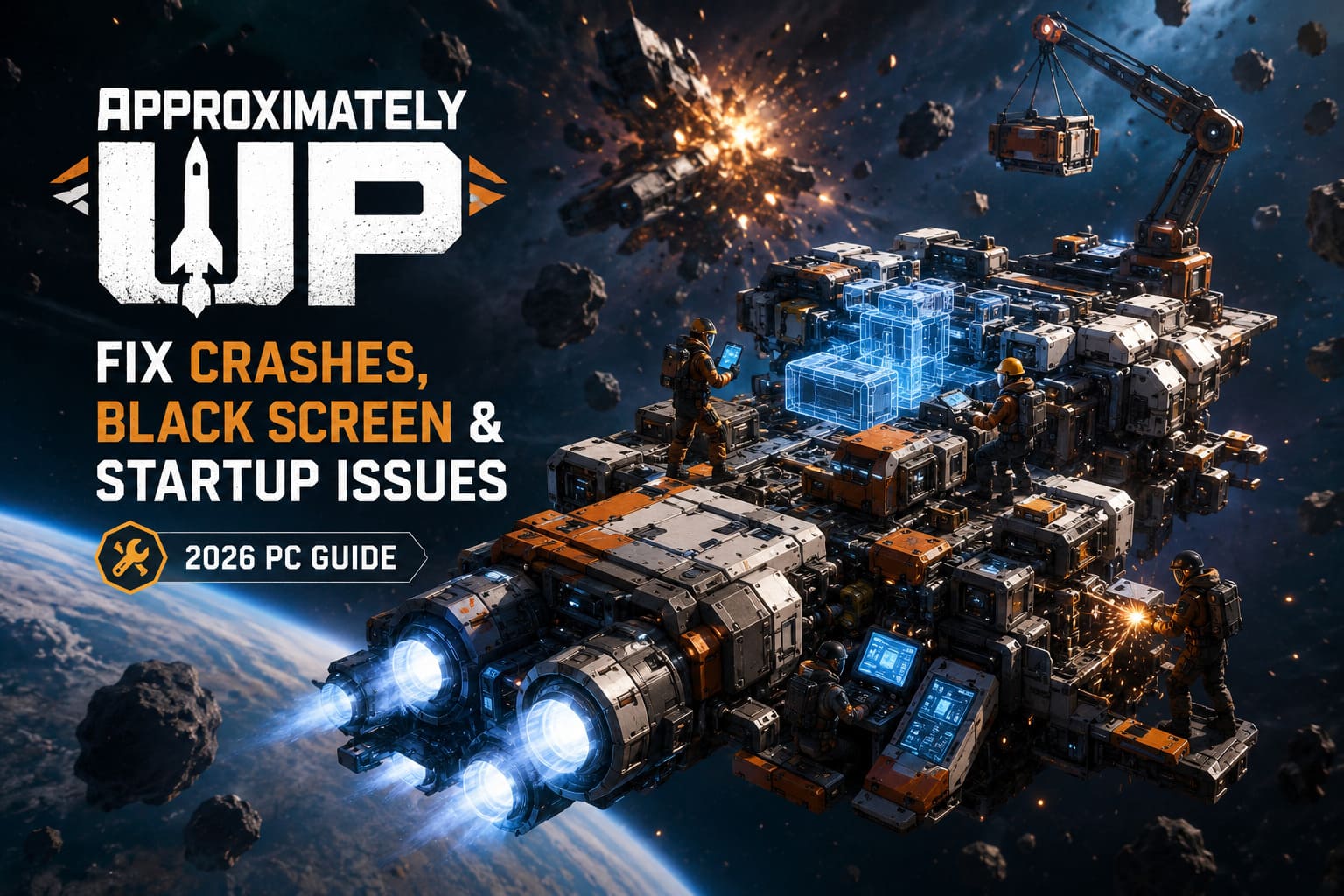
- Corrupted Steam installation files
- Old or damaged GPU drivers
- DirectX initialization failures
- Overlay software interfering with startup
- Windows security blocking game files
- Old cached configuration files
- Virtual memory limitations
- Missing Microsoft Visual C++ libraries
Most players only need one or two fixes before everything starts working normally.
Quick Overview
| Issue | Most Likely Cause | Recommended Fix |
|---|---|---|
| Black Screen | Driver conflict or display initialization | Clean GPU driver install |
| Crash to Desktop | Corrupted files | Verify Steam installation |
| Freeze on Loading | Old cache or configuration | Delete Local AppData cache |
| Game Doesn’t Open | Overlay or antivirus conflict | Disable overlays and whitelist folder |
1. Verify the Steam Installation
This is always the first thing I recommend during streams whenever someone says a brand-new game won’t launch.
Steam occasionally downloads incomplete files without making it obvious.
Simply:
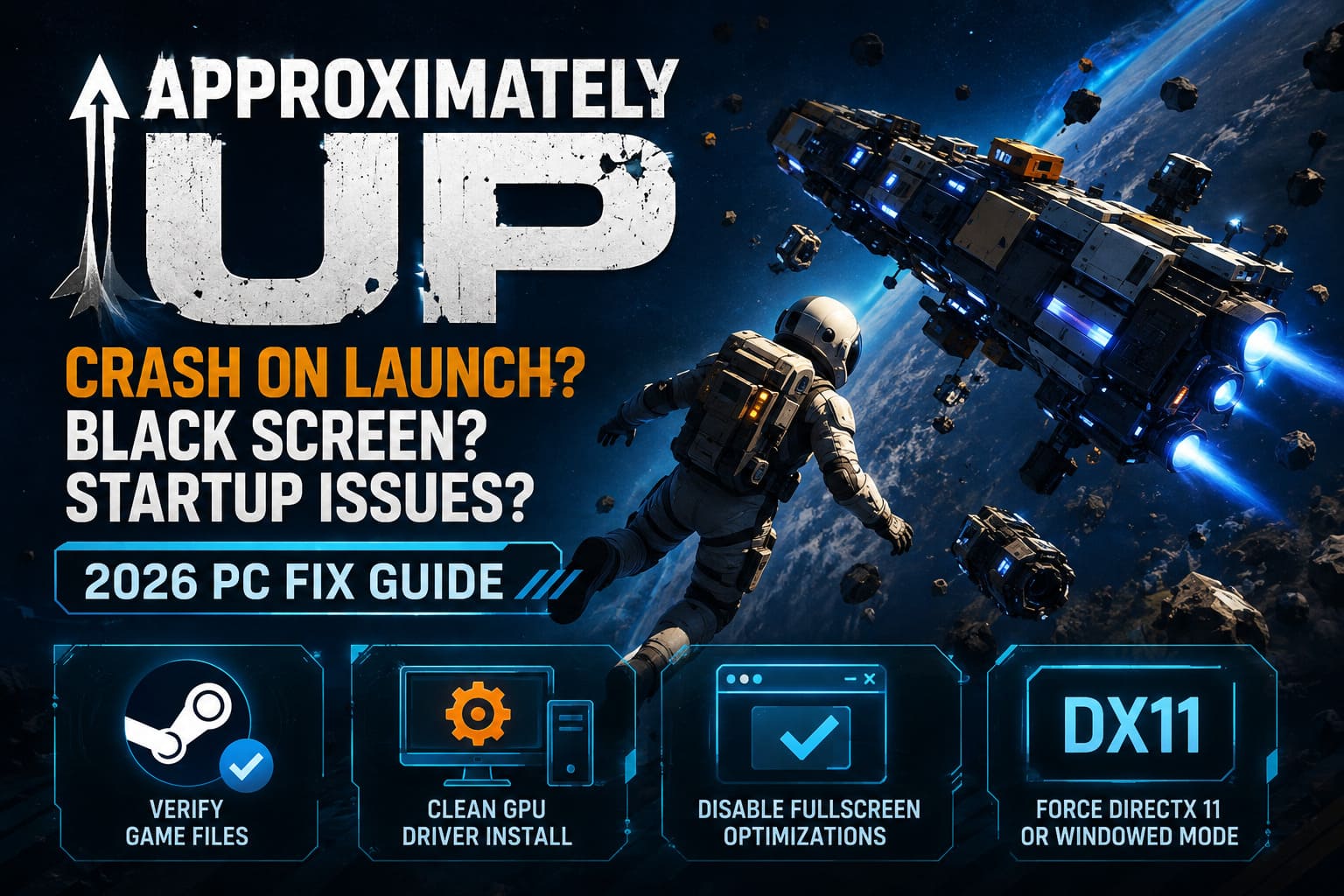
- Open Steam Library.
- Right-click Approximately Up.
- Open Properties.
- Select Installed Files.
- Click Verify integrity of game files.
Steam compares every file with the official version and automatically replaces anything that’s damaged.
It only takes a few minutes and often saves hours of troubleshooting.
2. Perform a Completely Clean GPU Driver Installation
This ended up fixing the problem on one of my streaming PCs.
Updating graphics drivers over old versions sometimes leaves behind broken profiles or cached shader data.
Instead of simply installing the newest NVIDIA, AMD, or Intel driver, remove the old one completely using Display Driver Uninstaller (DDU).
The process looks like this:
- Boot Windows into Safe Mode.
- Run DDU.
- Select your graphics card manufacturer.
- Choose Clean and Restart.
- Install the newest official driver.
- Restart once more.
It sounds like extra work, but it eliminates a surprising number of launch issues in newly released games.
3. Disable Fullscreen Optimizations
Windows has a habit of trying to “help” games.
Sometimes that help creates the problem.
Locate the game’s executable file inside the Steam installation folder and open Properties → Compatibility.
Enable:
- Disable fullscreen optimizations
- Run this program as Administrator
This small adjustment has solved launch problems in dozens of games I’ve tested over the last couple of years.
4. Force DirectX 11
Approximately Up normally launches with newer rendering features.
If DirectX 12 initialization fails on your PC, forcing DirectX 11 can bypass the issue.
Open Steam Properties for the game and enter the following inside Launch Options:
-dx11If the game still refuses to appear, try:
-windowedLaunching in windowed mode can avoid resolution conflicts, especially when multiple monitors are connected.
5. Delete Old Configuration Files
Players who participated in early demos or testing builds may still have outdated configuration files hidden inside Windows.
Those older settings can conflict with the retail release.
Delete the game’s folders from:
- %LocalAppData%
- Documents
Don’t worry.
The game automatically creates fresh configuration files the next time it launches.
You’ll lose graphics settings, but save yourself from corrupted startup data.
6. Check Your Antivirus
Launch-day releases occasionally trigger false positives.
Windows Security and third-party antivirus software sometimes quarantine executable files before they even finish loading.
Instead of disabling protection entirely, add the Approximately Up installation folder as an exclusion.
That way Windows stops interfering while your system remains protected.
7. Disable Every Overlay
This is probably the most overlooked fix.
Every overlay injects itself into the game before it starts rendering.
Usually everything works.
Sometimes it doesn’t.
Before launching Approximately Up, disable:
- Discord Overlay
- Steam Overlay
- NVIDIA ShadowPlay
- AMD Recording Overlay
- MSI Afterburner
- RivaTuner Statistics Server
- EVGA Precision X1
I’ve personally seen RTSS cause black screens in multiple Unreal Engine games over the years.
8. Repair Microsoft Visual C++ Redistributables
Approximately Up relies on Microsoft’s runtime libraries.
If they’re missing or corrupted, Windows may close the game before anything appears on screen.
Install or repair both:
- x64 package
- x86 package
Use the latest supported Visual Studio runtime.
Even if they’re already installed, selecting Repair can resolve damaged files.
9. Increase Windows Virtual Memory
This one surprised me.
Approximately Up loads a lot of physics objects immediately during startup.
That can create memory spikes on systems with limited RAM.
If Windows runs out of available virtual memory, the game may simply crash.
I recommend setting a custom page file on your SSD.
A solid starting point is:
| Setting | Value |
|---|---|
| Initial Size | 8192 MB |
| Maximum Size | 16384 MB |
Restart Windows afterward.
Extra Things Worth Trying
If none of the major fixes solved the issue, here are a few additional ideas that have helped members of my community:
- Install the game on an SSD instead of an HDD.
- Update Windows completely.
- Disconnect unnecessary USB devices before launching.
- Disable overclocking temporarily.
- Restart Steam after changing launch options.
- Reboot your PC after every major troubleshooting step instead of trying several fixes without restarting.
They’re simple, but sometimes the simplest fixes end up being the winning ones.
Approximately Up Pro Movement Guide: Air Strafe Controls & Pro Tips
My Personal Experience
One thing I’ve learned after covering dozens of PC launches is that the first week is always unpredictable.
Some games work flawlessly.
Others need one or two emergency patches before they stabilize across thousands of different hardware combinations.
Approximately Up falls somewhere in the middle.
Once I finally got past the startup issues, the game became exactly what I hoped it would be. Building absurd ships with viewers, watching entire creations explode because somebody added “just one more thruster,” and somehow surviving impossible landings created some genuinely hilarious moments on stream.
That makes these launch issues even more frustrating because underneath them is a really entertaining cooperative sandbox.
Hopefully the developers continue releasing optimization updates over the next few weeks because the foundation is definitely there.
Approximately Up Beginner’s Guide: Tips, Tricks, and Spaceship Building Strategies (2026)
Final Thoughts
If Approximately Up keeps crashing on launch, displaying a permanent black screen, or freezing before the main menu, don’t assume the game is completely broken.
In my testing—and judging from what I’ve seen across the community—the biggest success stories usually came from three solutions:
- Verifying Steam game files
- Performing a clean GPU driver installation with DDU
- Disabling fullscreen optimizations and unnecessary overlays
Those alone resolved the majority of startup problems reported by players.
As new patches arrive, many of these workarounds will hopefully become unnecessary. Until then, working through each fix patiently gives you the best chance of finally launching the game and getting back to what Approximately Up does best: building ridiculous spacecraft with friends and seeing whether they actually make it into orbit.