How to Fix Low FPS and Rhythm Mode Lag in hololive Dreams (2026 Performance Guide)
I’ve played rhythm games for years, and one thing I’ve learned is that smooth performance matters more than flashy graphics. You can have the best soundtrack, incredible visuals, and amazing character animations, but if the game starts dropping frames during a difficult chart, the experience falls apart instantly.
That’s exactly what happened to me when I jumped into hololive Dreams. I absolutely loved the presentation. Watching official music videos while performing songs with my favorite hololive talents is something I honestly didn’t expect to work this well. The game has style, personality, and plenty of content to keep both rhythm fans and VTuber fans busy.
Unfortunately, my first few sessions were far from perfect.
Random FPS drops appeared during concerts, skill animations caused annoying stutters, and a couple of songs even suffered from audio desynchronization. After spending time experimenting with different settings and comparing notes with other players across gaming communities, I eventually found a setup that made the game feel dramatically smoother.
If you’re struggling with lag in hololive Dreams, these are the changes that made the biggest difference for me.
Why Performance Drops Happen in hololive Dreams
Unlike many traditional rhythm games that focus almost entirely on the note highway, hololive Dreams is constantly rendering several demanding systems simultaneously.
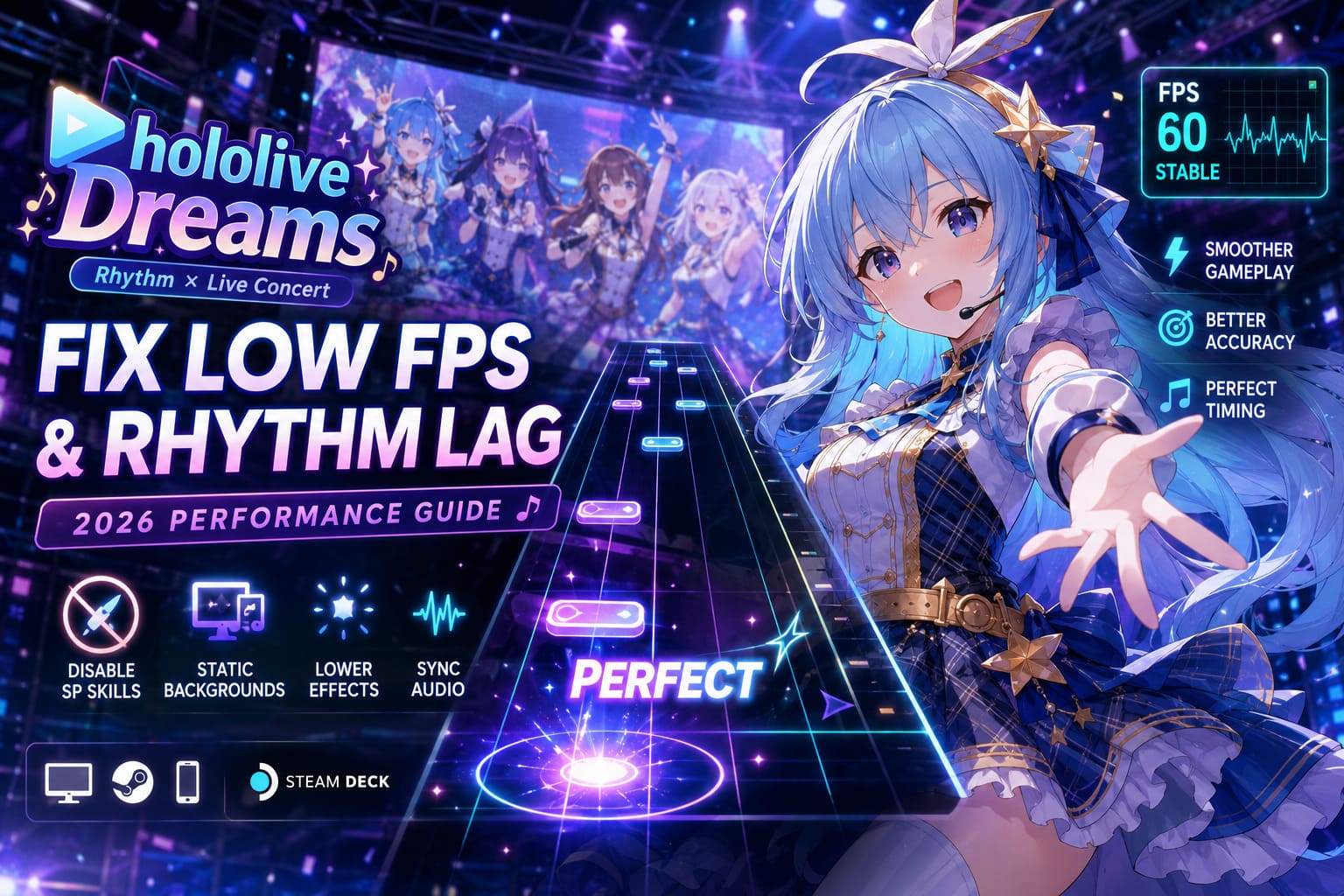
During every performance the game may display:
- High-quality background videos
- Live2D character animations
- SP Skill effects
- Particle explosions
- Dynamic UI transitions
- Multiple visual overlays
All of those effects compete for GPU power and system memory while the game is also trying to maintain perfectly accurate timing.
The result is simple.
When your hardware can’t keep up, frame pacing becomes inconsistent, notes appear to hesitate, and your timing windows suddenly feel unreliable even if your reactions are perfectly fine.
The First Settings I Changed
The very first thing I recommend is ignoring the graphics presets and customizing everything yourself.
These are the options that had the biggest impact.
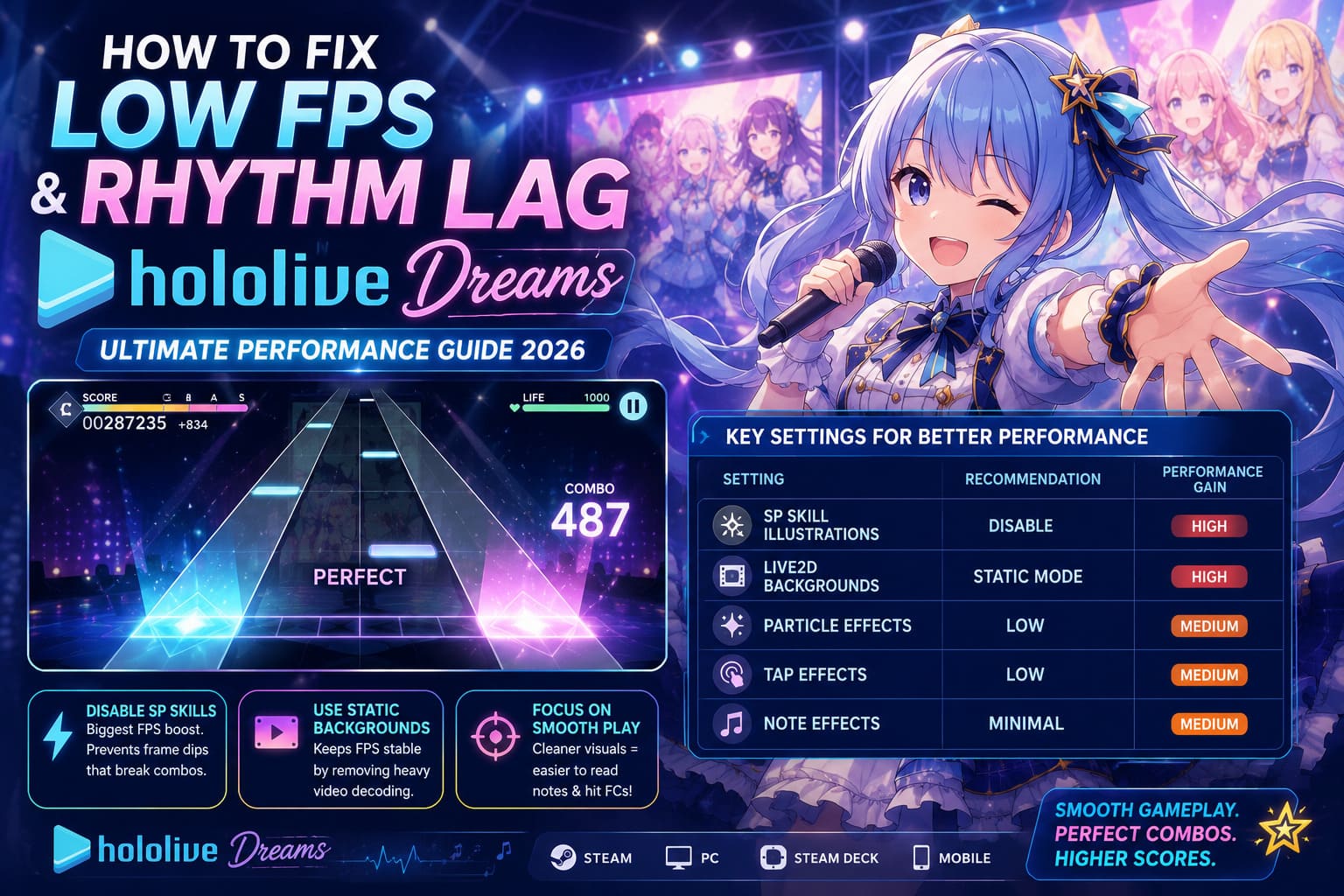
| Setting | Recommendation | Performance Gain |
|---|---|---|
| SP Skill Illustrations | Disable | High |
| Live2D Backgrounds | Static Mode | High |
| Particle Effects | Low | Medium |
| Tap Effects | Low | Medium |
| Note Effects | Minimal | Medium |
I honestly expected the game to look significantly worse after turning these options down.
It didn’t.
During gameplay you’re focused almost entirely on the incoming notes, not the visual fireworks happening behind them. Removing those effects actually made difficult songs easier to read.
SP Skills Look Amazing… Until They Destroy Your Combo
This was probably the biggest surprise.
Every time a character activated an SP Skill, my frame rate dipped for a second.
That doesn’t sound terrible until you’re playing Expert or Master charts.
One tiny hitch is enough to completely ruin a Full Combo attempt.
Disabling SP Skill illustrations solved this almost immediately on my system. I still enjoyed the gameplay, but the note highway remained consistent from beginning to end.
If you’re chasing higher scores, this is probably the single best optimization available.
Background Videos Are Beautiful—but They’re Expensive
One feature I genuinely love is the inclusion of official music videos during performances.
They’re fantastic.
They’re also surprisingly demanding.
If you’re playing on an older PC, Steam Deck, handheld device, or a mid-range phone, decoding HD video while simultaneously rendering Live2D models and rhythm gameplay can overwhelm your hardware.
Switching to static backgrounds instantly stabilized my frame rate.
Would I love to keep the videos enabled?
Absolutely.
But I’d rather enjoy perfectly smooth gameplay than miss notes because my GPU is busy decoding video in the background.
Don’t Ignore Audio Calibration
Many players assume they’re suddenly getting worse at rhythm games.
Sometimes that isn’t true.
When frame rates fluctuate, the audio usually continues playing normally while the visuals begin arriving slightly late.
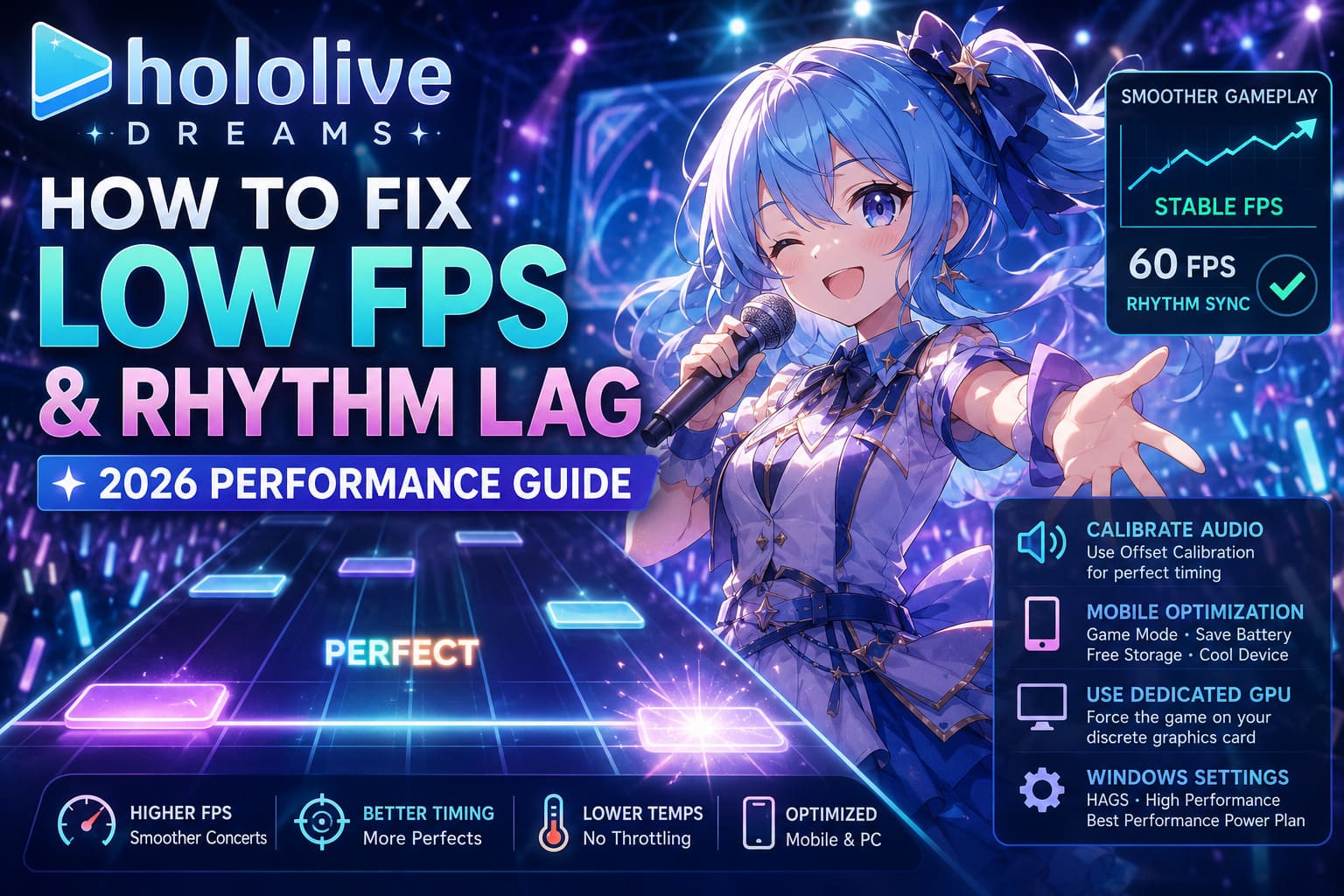
That creates the illusion that the timing windows are broken.
Spend a few minutes using the game’s Offset Calibration tool.
Even a tiny adjustment can completely change how natural the charts feel.
I recalibrated mine after optimizing performance and immediately noticed more Perfect judgments.
Mobile Players Have Even More to Gain
I’ve tested hololive Dreams on both Android and iPhone, and mobile devices need a little extra attention.
Here’s what I recommend before launching the game:
- Enable your phone’s Game Mode or Performance Mode.
- Disable battery-saving features.
- Close unnecessary background applications.
- Keep at least 10–15% of storage free.
- Restart the phone before long play sessions.
- Clear the game’s cache occasionally.
One mistake I see constantly is people playing while fast charging.
That creates additional heat, which often leads to thermal throttling.
Once your processor starts reducing clock speeds, FPS stability disappears surprisingly quickly.
Removing a thick phone case during long sessions can also help temperatures stay under control.
PC Players Should Double-Check GPU Settings
Laptop users should pay close attention here.
Many gaming laptops include both integrated graphics and a dedicated GPU.
Windows doesn’t always choose the correct one automatically.
If hololive Dreams launches using integrated graphics, performance can be dramatically worse than expected.
After forcing the game onto my dedicated GPU through the graphics control panel, average FPS increased immediately and frame pacing became noticeably smoother.
It’s a quick adjustment that’s definitely worth checking.
Windows Settings That Actually Helped
Not every Windows optimization guide on the internet is useful.
Some recommend registry edits or questionable tweaks that usually accomplish nothing.
The settings that actually helped me were much simpler.
Enable:
- Hardware Accelerated GPU Scheduling (if supported)
- High Performance graphics preference
- Best Performance power profile
These changes won’t magically double your frame rate, but together they create a more consistent experience during demanding concerts.
Is V-Sync Worth Using?
Personally, I leave it disabled.
Rhythm games depend heavily on low input latency.
Traditional V-Sync often introduces a small amount of input delay that becomes noticeable during faster songs.
Instead, I prefer limiting FPS through my graphics driver just below my monitor’s refresh rate.
This creates smoother frame pacing while keeping controls responsive.
Every system behaves differently, so experiment with both methods and see which feels better for your setup.
If Performance Gets Worse Over Time
I noticed something interesting after several hours of continuous play.
The first few concerts always ran well.
After multiple songs without restarting, occasional micro-stutters began appearing.
A quick restart usually fixed everything.
This suggests the game may gradually accumulate memory usage during longer sessions.
Until future updates improve resource management, restarting the client every so often isn’t a bad habit.
Hololive Dreams Walkthrough: Original Story Mode Complete Guide & Chapter Walkthrough (2026)
My Personal Performance Checklist
Whenever someone asks me how to improve hololive Dreams performance, this is the checklist I usually recommend.
- Disable SP Skill illustrations.
- Replace animated backgrounds with static ones.
- Lower particle effects.
- Calibrate audio offset.
- Use Performance Mode on mobile devices.
- Make sure the dedicated GPU is being used.
- Disable unnecessary background applications.
- Restart the game after several long sessions.
- Avoid overheating.
- Keep graphics drivers updated.
None of these changes require expensive hardware upgrades, yet together they can dramatically improve overall gameplay.
Final Thoughts
hololive Dreams is one of the most enjoyable rhythm games I’ve played recently because it understands its audience. It isn’t just about chasing high scores—it’s about celebrating the music, personalities, and energy of hololive in a genuinely entertaining way.
That said, I think the current version asks a little too much from older hardware. Some of the visual effects are gorgeous, but they don’t always justify the performance cost, especially during difficult songs where smooth input matters far more than cinematic presentation.
Thankfully, most of the biggest issues can be reduced with a few smart settings adjustments. After optimizing my own setup, the difference was night and day. Expert charts felt responsive again, timing became consistent, and I could finally focus on improving my scores instead of fighting random frame drops.
I’m also optimistic that future updates will continue improving optimization. The foundation is already excellent—it simply needs a bit more polish so players across PC, Android, and iOS can enjoy the concerts without technical distractions.
If you’re experiencing low FPS, input delay, or rhythm lag, don’t give up on the game just yet. Spend ten minutes tweaking the settings, keep your system running efficiently, and you’ll likely notice a much smoother performance that lets the music—and your skills—shine.