How to Fix The Division Resurgence DirectX 12 Crashing on Launch (2026 PC Guide)
If you’ve been staring at a black screen, watching The Division Resurgence instantly crash back to desktop, or getting stuck forever on the loading screen, you’re definitely not the only one. I spent hours digging through community reports, testing different solutions on my own rig, and comparing notes from players with NVIDIA, AMD, and Intel GPUs. After enough trial and error, one thing became obvious—this isn’t usually a hardware problem.
The game looks fantastic when everything works. Ubisoft’s PC version finally gives players the smooth controls and visual fidelity many of us wanted from the mobile release, especially with full cross-play and shared progression. But the current implementation of DirectX 12 can be surprisingly unstable depending on your drivers, Windows configuration, and even software running quietly in the background.
The good news? Almost every startup crash I’ve seen has been solved without reinstalling Windows or replacing expensive hardware. Below are the methods that consistently helped players get back into Washington instead of staring at error messages.
Best The Division Resurgence PC Graphics Settings for Maximum FPS (2026 Guide)
Why Does DirectX 12 Keep Crashing?
Modern games rely heavily on DirectX 12 because it allows developers to squeeze more performance from today’s CPUs and graphics cards. The downside is that DX12 is also much less forgiving than older APIs.
A tiny conflict can stop the engine before it even reaches the main menu.
Some of the biggest causes include:
- Corrupted graphics drivers
- DirectX 12 initialization failures
- Windows display scaling conflicts
- Overlay software injecting into the game
- Registry-related display issues
- Incorrect GPU selection on laptops
None of these necessarily indicate damaged hardware. More often than not, they’re software conflicts that can be fixed in a few minutes.
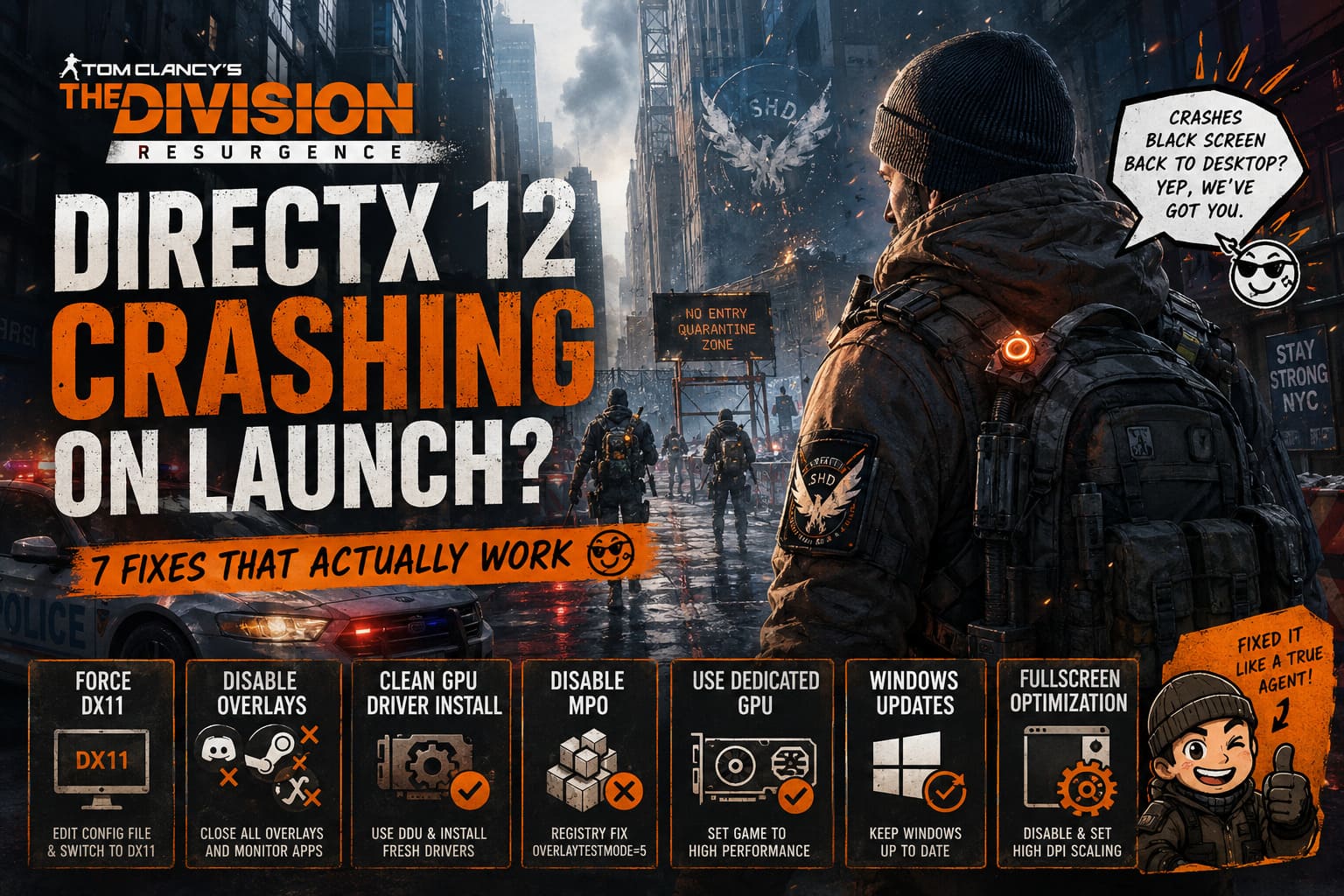
Fix 1: Force The Game to Use DirectX 11
This was the first solution that finally let me launch the game.
Since the crash usually happens before you can open the graphics settings, you’ll need to edit the configuration manually.
Navigate to your Ubisoft game configuration folder, usually inside your Documents, My Games, or AppData\Local directory.
Open one of these files:
- state.cfg
- GameUserSettings.ini
Search for something similar to:
m_enableDX12=Trueor
dx12=trueSimply change True to False, save the file, and launch the game again.
For many players, this immediately forces the game into DirectX 11, bypassing the unstable DX12 startup process entirely.
If the game launches successfully after this change, you’ve already confirmed that DX12 is the source of the crash.
Fix 2: Disable Windows Fullscreen Optimization
Windows tries to ‘help’ games with fullscreen optimizations, but in reality I’ve seen this feature break more launches than improve them.
Locate TheDivisionResurgence.exe, then follow these steps:
- Right-click the executable.
- Open Properties.
- Go to the Compatibility tab.
- Enable Disable fullscreen optimizations.
- Click Change high DPI settings.
- Enable Override high DPI scaling behavior.
- Select Application from the dropdown menu.
- Restart Windows before launching the game again.
This forces the game to control its own display scaling instead of letting Windows interfere during initialization.
Fix 3: Completely Reinstall Your Graphics Driver
Updating your driver isn’t always enough.
One mistake many players make is installing the newest NVIDIA or AMD driver over an older installation. Unfortunately, leftover files sometimes remain behind, especially after multiple GPU driver updates.
That’s why a clean installation is much more effective.
| Step | Action | Purpose |
|---|---|---|
| 1 | Download the newest graphics driver | Get the latest DirectX 12 improvements and bug fixes. |
| 2 | Restart Windows in Safe Mode | Prevent driver conflicts during removal. |
| 3 | Run Display Driver Uninstaller (DDU) | Remove every trace of the previous driver. |
| 4 | Install the fresh graphics driver | Create a clean driver environment. |
| 5 | Restart the PC again | Allow Windows to finalize the installation. |
I honestly recommend this even if your drivers already appear up to date. Several launch crashes disappeared immediately after performing a proper DDU cleanup.
Fix 4: Disable Every Overlay You Can Find
This is one of those fixes that sounds too simple until it suddenly works.
DirectX 12 doesn’t always cooperate with software trying to display extra information over the game.
Temporarily disable applications such as:
- Discord Overlay
- Steam Overlay
- Ubisoft Connect Overlay
- MSI Afterburner
- RivaTuner Statistics Server (RTSS)
- NZXT CAM
- EVGA Precision
- FPS counters
- RGB monitoring utilities
Personally, I closed absolutely everything except Windows itself before launching the game.
After confirming the game worked normally, I gradually turned each application back on one by one until I identified the software responsible for the conflict.
It takes a little patience, but this method has solved countless startup issues across multiple DX12 games.
Fix 5: Disable Multiplane Overlay (MPO)
This solution sounds technical, but it’s become one of the most recommended fixes within the Ubisoft community.
Windows introduced Multiplane Overlay (MPO) to improve rendering efficiency. Unfortunately, many DirectX 12 titles experience crashes, flickering, and severe stuttering because of it.
Open the Windows Registry Editor and navigate to:
HKEY_LOCAL_MACHINE\SOFTWARE\Microsoft\Windows\DwmCreate a new DWORD (32-bit) value named:
OverlayTestModeAssign it a hexadecimal value of:
5Restart your computer after saving the changes.
This disables MPO and allows Windows to handle desktop composition differently, which has helped stabilize DirectX 12 initialization for many Ubisoft games.
While this isn’t guaranteed to fix every crash, it’s absolutely worth trying if every other solution has failed.
Fix 6: Make Sure Windows Uses Your Dedicated GPU
Laptop users encounter this issue more often than desktop gamers.
Sometimes Windows mistakenly launches the game using the integrated graphics processor instead of the dedicated NVIDIA or AMD GPU.
To verify the correct GPU is selected:
- Open Graphics Settings in Windows.
- Browse to TheDivisionResurgence.exe.
- Click Options.
- Select High Performance.
- Confirm your dedicated graphics card is listed.
- Save the settings and relaunch the game.
I’ve personally seen this eliminate startup crashes on several gaming laptops without changing anything else.
Don’t Forget Windows Updates
It sounds obvious, but plenty of players overlook this step.
Major Windows updates often include improvements that directly affect modern games, including DirectX runtime updates, graphics scheduler optimizations, memory management fixes, and display compatibility patches.
Even if Windows says you’re fully updated, it’s still worth manually checking before moving on to more advanced troubleshooting.
Recommended Troubleshooting Order
If I were setting up a fresh installation today, this is exactly the order I’d follow:
- Force DirectX 11.
- Disable every overlay application.
- Turn off fullscreen optimization and configure High DPI settings.
- Assign the game to your dedicated GPU.
- Perform a complete DDU graphics driver reinstall.
- Disable Multiplane Overlay (MPO).
- Install every available Windows update.
This sequence solves the majority of startup crashes without wasting hours experimenting with random settings.
Final Thoughts
After spending far too much time experimenting with different configurations, I’ve come to the conclusion that The Division Resurgence’s DirectX 12 implementation is currently its weakest technical point on PC. The game itself is genuinely enjoyable once you’re inside the world, but reaching that point can be frustrating if your system runs into one of these compatibility issues.
Fortunately, startup crashes are usually caused by software conflicts rather than failing hardware. Graphics drivers, Windows display features, overlays, and DirectX initialization all play a role, and addressing them methodically almost always produces results.
If one solution doesn’t immediately fix the issue, don’t stop there. Several players—including myself—only achieved a stable launch after combining multiple fixes together. Once everything is working correctly, The Division Resurgence delivers smooth performance, excellent visuals, and the tactical gameplay that makes the series so addictive.