Hell Let Loose Vietnam CPU Overheating & Thread Allocation Fix Guide (2026)
After spending a lot of time with demanding PC games, I have learned that a game running at 90–100% CPU usage is not automatically a problem. Some engines simply love CPU resources. What matters is how that workload is distributed, how hot the processor gets, and whether performance actually improves as the CPU works harder.
That is exactly why Hell Let Loose: Vietnam can be frustrating on certain PCs.
The game’s huge 50v50 battles, dense jungle environments, long sightlines, physics, networking, asset streaming, and Unreal Engine 5 rendering features can create a surprisingly heavy CPU workload. In my experience with demanding multiplayer games, the most annoying situation is not necessarily low average FPS. It is seeing a powerful GPU sitting at relatively low utilization while one or two CPU cores are getting hammered and frame-time spikes appear at the same time.
Some players have also reported CPU temperatures approaching the upper 90°C range, particularly on high-end Intel and AMD processors. That does not mean every system will behave this way, and temperature limits vary considerably between CPUs and cooling solutions. Still, if your processor is repeatedly hitting its thermal limit, dropping clocks, or causing the entire PC to become unstable, it is worth investigating.
The good news is that you do not need to immediately start changing dozens of obscure Windows settings. There are several practical things I would try first.
Why Hell Let Loose: Vietnam Can Cause High CPU Temperatures
The first thing to understand is that CPU temperature and CPU utilization are connected, but they are not the same thing.

A processor can be at 70% overall usage while one or two important cores are working extremely hard. Multiplayer shooters are especially sensitive to this because the game has to process player positions, networking, game logic, physics, audio, world streaming, and rendering preparation alongside everything Windows is doing in the background.
Unreal Engine 5 can distribute workloads across multiple threads, but that does not guarantee perfectly even utilization across every logical processor.
This becomes particularly interesting on modern Intel CPUs with P-cores and E-cores. Windows has to decide where individual workloads should run, while Intel Thread Director provides additional information to the operating system scheduler. Under the wrong circumstances, a demanding game can still produce an uneven workload.
On AMD systems, the situation is different, but the same basic problem can occur: one heavily loaded game thread can become a performance bottleneck even when plenty of total CPU capacity remains available.
| Symptom | What It Usually Suggests | First Thing I’d Try |
|---|---|---|
| CPU reaches 90–100°C | Cooling or sustained power issue | Check cooler, fans, power limits |
| GPU stays below 70% | Possible CPU/game-thread bottleneck | Cap FPS and monitor individual cores |
| Stutters during large battles | Frame-time or CPU-thread spikes | Lower CPU-heavy settings |
| CPU clocks repeatedly drop | Thermal or power throttling | Check temperatures and throttling |
| High usage on one or two cores | Uneven game workload | Test affinity carefully |
Step 1: Start With a Sensible FPS Limit
This is probably the first change I would make before touching CPU affinity.
An unlimited frame rate can make a CPU work considerably harder than necessary. If your monitor is 144Hz, there is little practical reason to let the game render at 200–250 FPS if the processor is already struggling.
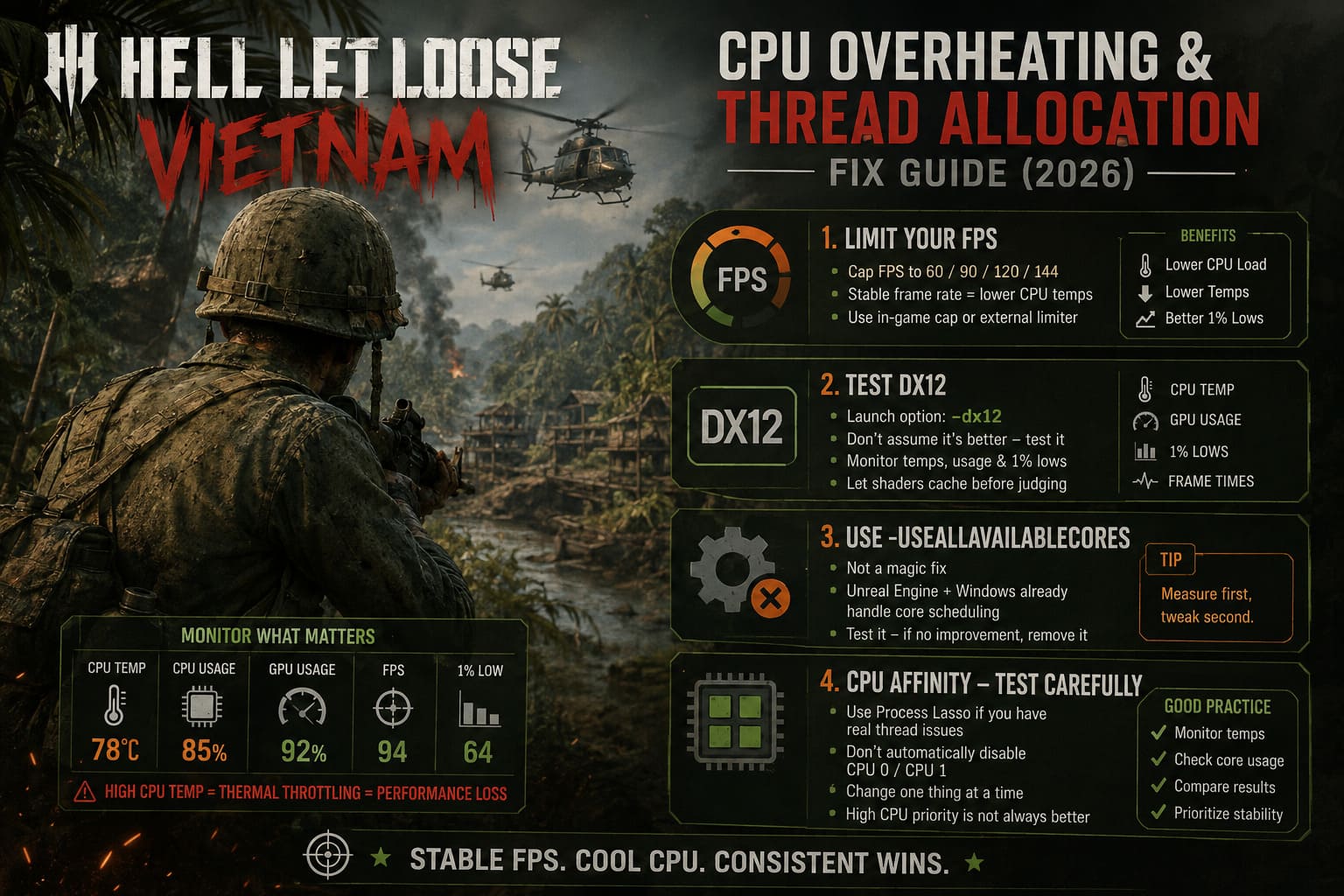
Try setting a reasonable limit such as 60, 90, 120, or 144 FPS, depending on your hardware.
You can use the game’s own frame limiter if available, or another reliable frame-limiting method.
For example, if your system normally jumps between 90 and 140 FPS but your CPU temperature reaches 95°C, locking the game around 90 or 100 FPS may produce a much better experience.
In my opinion, a stable frame rate with consistent frame times is far preferable to a higher average FPS number accompanied by constant CPU spikes.
Do not confuse a frame-rate cap with V-Sync. You can use either depending on your setup, and players with variable-refresh-rate monitors may prefer a carefully selected FPS limit rather than traditional V-Sync.
Step 2: Test DX12 Instead of Assuming It Is Better
If Hell Let Loose: Vietnam provides a DirectX 12 launch option, it is worth testing.
A common Steam launch argument is:
-dx12
The important word here is testing.
I would not blindly assume that DX12 will solve every CPU problem. Different systems can react differently, especially during shader compilation and after major game updates.
If you have been using another rendering API and are experiencing poor GPU utilization or inconsistent frame times, test DX12 for several matches rather than judging it from the main menu.
Give the game enough time to build its shader cache and monitor:
- CPU temperature
- GPU utilization
- GPU temperature
- Individual CPU core usage
- Average FPS
- 1% lows
- Frame-time consistency
Those numbers tell you much more than simply looking at the FPS counter.
Step 3: Be Careful With -USEALLAVAILABLECORES
You may see the launch parameter:
-USEALLAVAILABLECORES
recommended in community optimization guides.
I would treat this one differently.
It is often presented as a magic solution that forces Unreal Engine to use every CPU core. That explanation is too simplistic. Modern Unreal Engine games already have sophisticated task scheduling, and Windows handles processor scheduling as well.
Therefore, I would only test this argument if your particular build responds positively to it. If there is no measurable improvement, remove it.
There is no reason to keep a launch option simply because somebody on a forum says it “unlocks all cores.”
That is one of the biggest lessons I have learned from PC gaming optimization: measure first, tweak second.
Step 4: Test CPU Affinity Only If You Have a Real Thread Problem
Process Lasso can be useful for diagnosing unusual CPU scheduling behavior.
If you notice that one or two logical processors remain heavily loaded while other cores are barely being used, you can experiment with CPU affinity for the game’s executable.
However, I would not immediately recommend disabling CPU 0 and CPU 1 on every system.
The idea sounds logical: remove the first logical processors from the game and leave them available for Windows and background applications. Sometimes that can improve frame-time consistency. On another PC, however, it can do absolutely nothing or even make performance worse.
If you want to experiment, change one thing at a time.
Run the game normally first. Record your temperatures and 1% lows. Then test a different affinity configuration and compare the results.
Also, be careful with setting the game to High CPU priority. Higher priority is not automatically better. It can potentially reduce the CPU time available to other applications and system tasks.
I personally prefer stability over forcing a game into an aggressive priority configuration.
Step 5: Lower the Settings That Actually Matter
Not every graphical setting has the same effect on the CPU.
For Hell Let Loose: Vietnam, I would start with the settings that influence the amount of work required to maintain a huge battlefield.
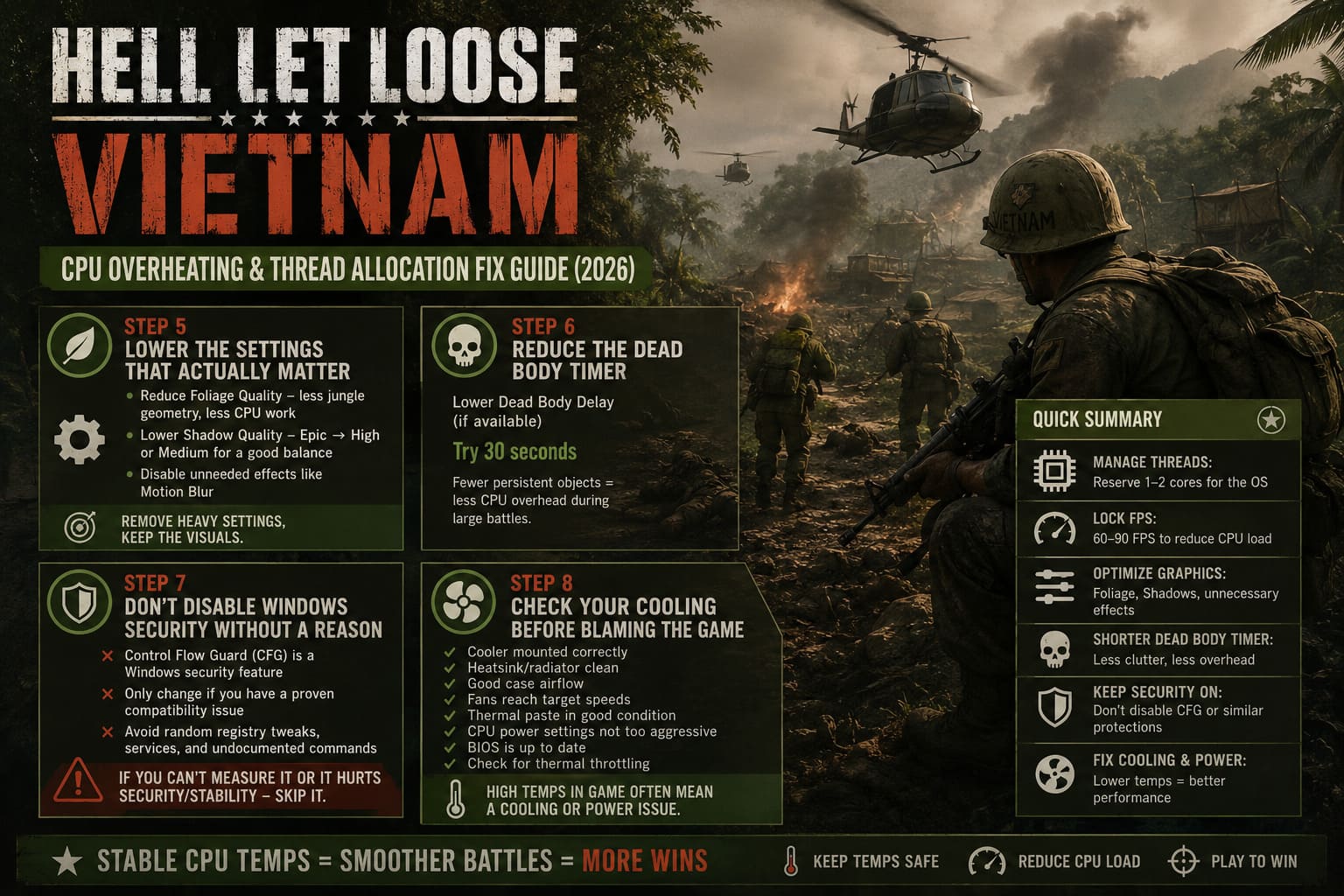
Foliage quality is one of the first settings worth testing. Dense vegetation can increase the amount of geometry, visibility, and world-management work involved in jungle environments.
Shadow quality is another setting worth experimenting with. You do not necessarily need to drop everything to Low. Moving from Epic to High or Medium can provide a useful compromise.
I would also disable unnecessary visual effects such as motion blur if they interfere with clarity, although these are not normally the primary solution to CPU overheating.
The goal is not to make the game look ugly.
The goal is to remove the settings that give you the smallest visual benefit for the largest performance cost.
Step 6: Reduce the Dead Body Timer If Available
Large multiplayer battles can leave a surprising number of objects in the world.
If the game provides a Dead Body Delay or similar setting, reducing it can potentially decrease the amount of persistent battlefield clutter that the engine has to maintain.
A shorter value, such as 30 seconds where supported, is worth testing if you are experiencing heavy performance degradation after prolonged firefights.
I would not claim that ragdolls alone are responsible for a 100°C CPU. That would be an oversimplification. But reducing unnecessary persistent objects can still be a sensible optimization when a game provides the option.
Step 7: Do Not Disable Windows Security Without a Good Reason
One of the more aggressive recommendations circulating in PC optimization guides involves disabling Control Flow Guard (CFG) for the game’s executable.
Personally, this is not something I would recommend as a standard Hell Let Loose: Vietnam optimization step.
CFG is a Windows security feature. Disabling security mitigations should not be treated like changing texture quality.
If you have a specific, reproducible compatibility problem and have already confirmed that CFG is involved, then it can be tested carefully. Otherwise, I would leave Windows security protections at their default settings.
The same philosophy applies to random registry tweaks, services, and undocumented Unreal Engine commands.
If a tweak cannot be measured and has a potential security or stability downside, I would skip it.
Step 8: Check Your Cooling Before Blaming the Game
This is the part many PC players overlook.
If your CPU reaches 95–100°C in Hell Let Loose: Vietnam, the game may simply be exposing a cooling problem that other games never revealed.
Check whether:
- Your CPU cooler is mounted correctly.
- The radiator or heatsink is free of dust.
- Your case has adequate airflow.
- CPU fans are actually reaching their configured speeds.
- The thermal paste is still in good condition.
- Your motherboard is applying unusually aggressive CPU power settings.
- Your BIOS is up to date.
- Your CPU is actually thermal throttling.
For high-end Intel and AMD processors, motherboard power settings can make a massive difference. A board running a CPU with unnecessarily aggressive voltage or power behavior can produce substantially more heat for relatively little performance gain.
Sometimes the best “game optimization” is simply reducing excessive CPU power consumption.
How to Fix Hell Let Loose: Vietnam “Out of Video Memory” Error on High-End Rigs 2026
My Recommended Starting Configuration
If I were troubleshooting a hot CPU in Hell Let Loose: Vietnam on my own PC, I would approach it in this order:
- Set a reasonable FPS cap.
- Monitor individual CPU cores rather than only total CPU usage.
- Test DX12 if available.
- Lower foliage and shadow quality.
- Check CPU cooling and motherboard power behavior.
- Compare 1% lows and frame times.
- Only then experiment with CPU affinity.
- Avoid unnecessary Windows security and registry modifications.
This approach takes longer than copying ten launch commands from a forum, but it is considerably safer.
Hell Let Loose Vietnam Controller Support Guide: How to Play on PC
Final Thoughts
Hell Let Loose: Vietnam is the kind of game that can expose weaknesses in a PC that other games completely hide. A processor that seems perfectly comfortable in ordinary shooters can suddenly encounter thermal limits when a massive multiplayer battlefield, dense vegetation, streaming assets, networking, physics, and Unreal Engine 5 rendering are all happening simultaneously.
The important thing is not to panic when you see high CPU utilization. Modern processors are designed to run under heavy loads. What matters is whether temperatures remain within the processor’s intended operating limits, whether the CPU is throttling, and whether those temperatures are accompanied by stuttering or instability.
I would also avoid the idea that there is one magical “Core 0 fix” for everyone. CPU scheduling is considerably more complicated than simply moving a game from CPU 0 and CPU 1 to CPU 2 and CPU 3.
For most players, the biggest wins will come from reasonable FPS limits, sensible graphics settings, proper cooling, and identifying the actual bottleneck. Advanced tools such as Process Lasso can be useful afterward, but they should be treated as diagnostic and experimental tools rather than mandatory software.
If your CPU is still sitting at 95–100°C after these changes, I would stop tweaking the game and investigate the hardware and BIOS configuration instead. A game can expose a thermal problem, but it should not be an excuse to ignore one.
And honestly, after playing enough demanding PC games, I’ve found that a stable 90 FPS at 75–80°C feels much better than chasing 140 FPS while the CPU is constantly fighting its thermal limit. In a tactical shooter like Hell Let Loose: Vietnam, consistent frame times and predictable performance are far more valuable than a screenshot showing a huge FPS number.