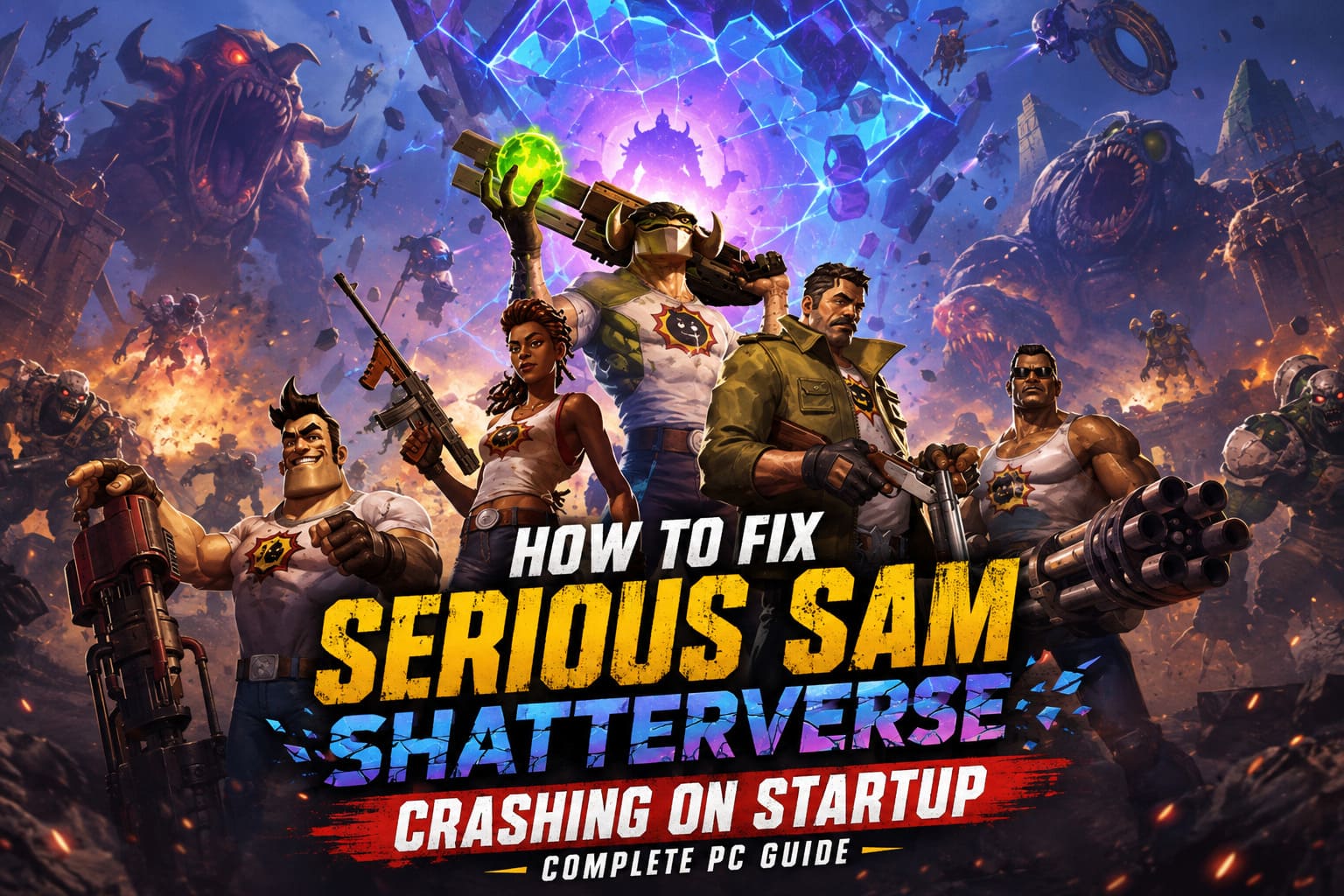
How to Fix Serious Sam Shatterverse Crashing on Startup (Complete PC Guide)
Serious Sam: Shatterverse is supposed to throw you straight into a ridiculous multiverse full of bullets, monsters, explosions, and the kind of FPS mayhem that barely gives your mouse hand time to breathe. So when you press Play and get a black screen, an instant desktop crash, or absolutely nothing at all, it is especially frustrating.
Startup crashes are some of the worst PC gaming problems because they give you almost nothing to work with. There is no boss pattern to learn, no weapon to upgrade, and no enemy to blame. The game simply disappears.
I’ve put together this guide for exactly that situation. These are the fixes I would work through on a gaming PC before even considering a complete reinstall. The focus is on the problems that can prevent Serious Sam: Shatterverse from reaching its main menu, including graphics API conflicts, broken drivers, damaged game files, Windows permissions, missing runtimes, overlays, and security software.
Don’t apply every fix randomly. Start at the top and test the game after each major change. That makes it much easier to figure out what actually solved the problem.
Quick Fix Checklist for Serious Sam: Shatterverse
 6
6
| Fix | What It Targets | Difficulty |
|---|---|---|
| Force DX12 or Vulkan | Graphics API crashes | Easy |
| Run as Administrator | Windows permission problems | Easy |
| Clean Install GPU Driver | Corrupted driver files | Medium |
| Verify Steam Files | Damaged game data | Easy |
| Repair Visual C++ | Missing Windows runtimes | Easy |
| Disable Overlays | Software conflicts | Easy |
| Check Antivirus | Blocked game files | Easy |
1. Force Serious Sam: Shatterverse to Use DirectX 12 or Vulkan
If the game crashes almost immediately after clicking Play, I’d start with the graphics API. Modern PC games can sometimes get themselves into a nasty situation where automatic renderer detection doesn’t play nicely with a particular GPU driver, Windows configuration, or previous graphics settings.
Instead of letting the game decide which API to use, you can tell it exactly what you want through Steam launch options.
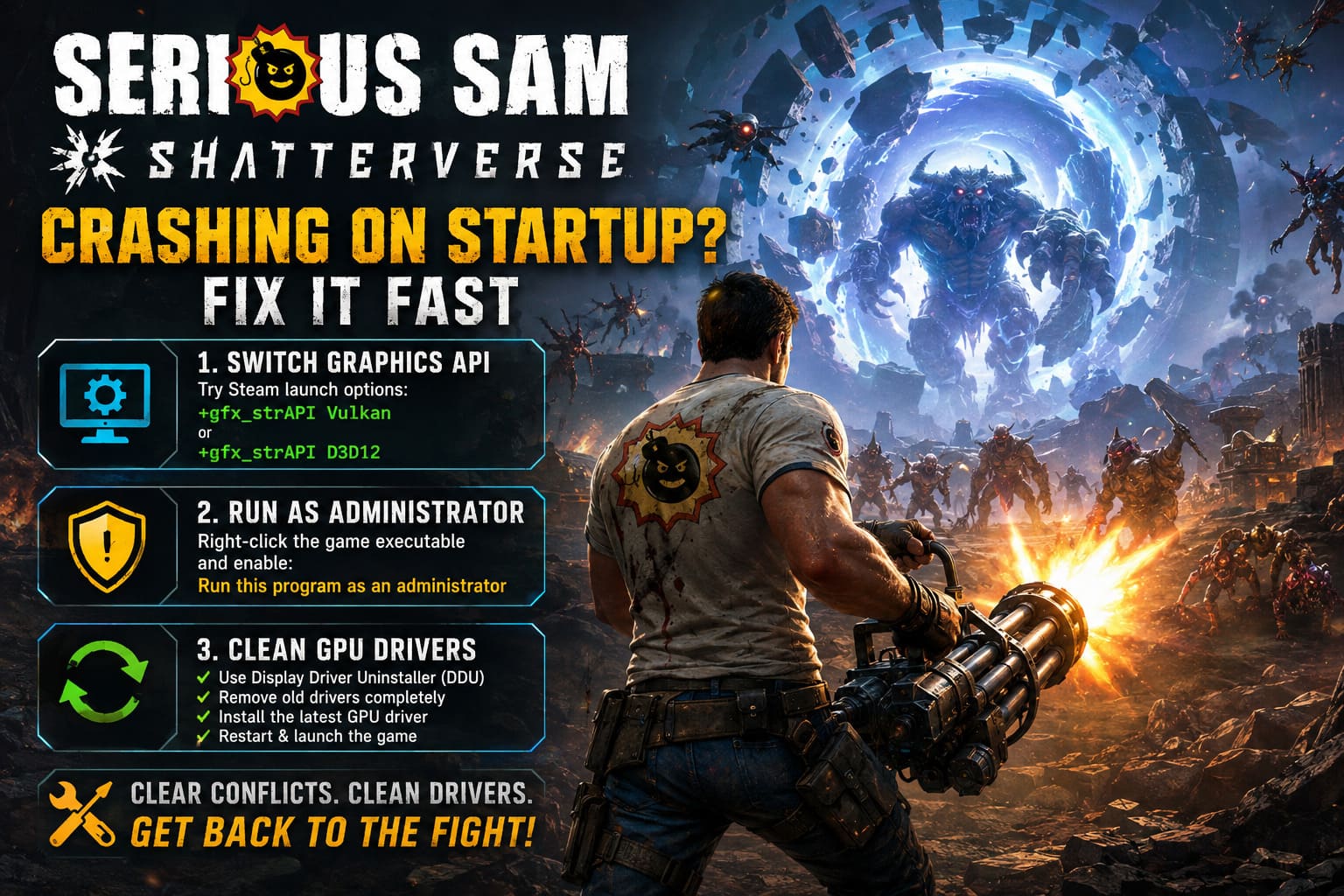
- Open Steam and go to your Library.
- Right-click Serious Sam: Shatterverse and select Properties.
- Stay on the General tab.
- Find the Launch Options field.
- Enter
+gfx_strAPI Vulkanand close the window. - Launch the game and check whether it reaches the main menu.
If Vulkan still crashes, don’t immediately give up. Remove that command and try:
+gfx_strAPI D3D12
In other words, you’re testing the two rendering paths instead of repeatedly launching the same broken configuration. This is one of those fixes that takes less than a minute and can save you an evening of unnecessary troubleshooting.
2. Run the Game Executable as Administrator
Windows permissions can occasionally get in the way before a game has even had a chance to show its first splash screen. If Serious Sam: Shatterverse is trying to access or create files in a protected location and Windows blocks the operation, the result can be a silent crash.
Steam makes finding the installation directory fairly painless.
- Open your Steam Library.
- Right-click Serious Sam: Shatterverse.
- Select Manage, then choose Browse local files.
- Navigate to the game’s
Binaries\Win64folder if present. - Find the main game executable, such as
SeriousSamShatterverse-Win64-Shipping.exe. - Right-click it and select Properties.
- Open the Compatibility tab.
- Enable Run this program as an administrator.
- Click Apply and then OK.
If Steam itself is running with different privilege levels, that can also create awkward behavior. Make sure the launcher and game aren’t being started under conflicting permission settings.
I wouldn’t leave administrator mode enabled forever unless you actually need it. Treat this as a troubleshooting test first. If the game suddenly works, you’ve learned something useful about the problem.
3. Perform a Clean GPU Driver Installation
This is the more serious fix, but it’s also one of my go-to solutions when a new game crashes before the menu. GPU drivers aren’t always as clean as their installers make them sound. Years of driver updates, profile changes, hotfixes, and different games can leave behind configurations that don’t play nicely with a fresh release.
A normal driver update may not be enough if the existing installation is corrupted. That’s where Display Driver Uninstaller (DDU) comes in.
The basic process is straightforward:
- Download the latest DDU release from a reputable source.
- Download the newest official driver for your NVIDIA or AMD graphics card.
- Restart Windows into Safe Mode.
- Run DDU and select your GPU manufacturer.
- Choose Clean and restart.
- After Windows boots normally, install the fresh GPU driver.
- Restart the PC once more.
- Try launching Serious Sam: Shatterverse before installing additional tweaking software.
The important part is not just getting the latest driver. You’re trying to eliminate the old driver installation as a variable.
4. Verify the Game Files Through Steam
Before you start deleting folders or reinstalling a massive game, let Steam check the installation. A corrupted download can be enough to cause a crash when the engine attempts to load a particular asset during startup.
This is particularly worth doing if the problem started after an update, an interrupted download, a system crash, or moving the game between drives.
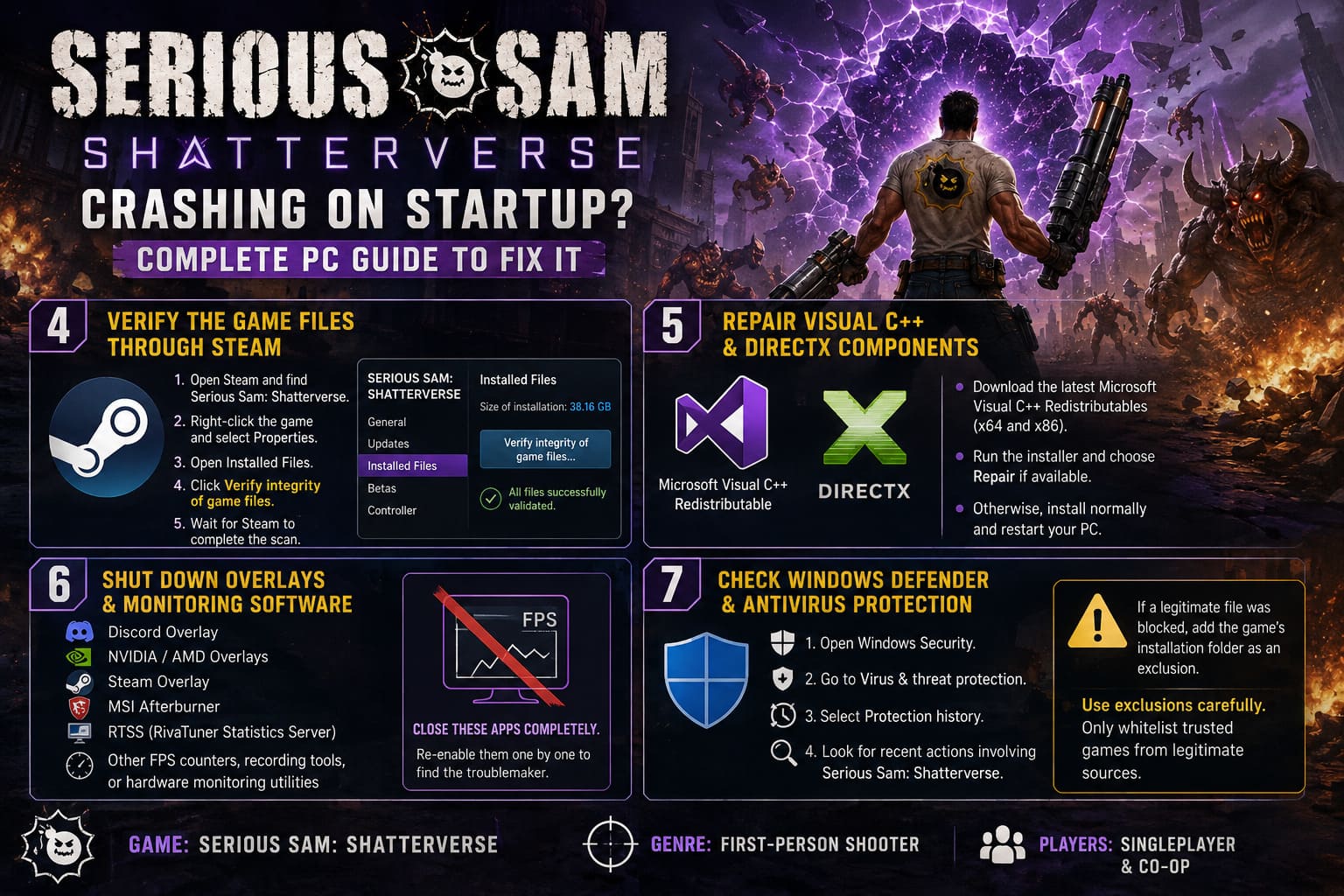
- Open Steam and find Serious Sam: Shatterverse.
- Right-click the game and select Properties.
- Open Installed Files.
- Click Verify integrity of game files.
- Wait for Steam to complete the scan.
Steam may discover files that don’t match the expected installation and download replacements automatically.
This isn’t a flashy fix, but honestly, it should be one of the first things you try with any Steam game that suddenly refuses to launch.
5. Repair Microsoft Visual C++ and DirectX Components
Sometimes the game isn’t the problem at all. Windows is missing or misconfigured runtime components that the game expects to be there.
Microsoft Visual C++ Redistributables are particularly important because many PC games depend on them for core application functionality. A missing runtime, damaged installation, or mismatched component can result in crashes that look completely unrelated to Visual C++.
Download the current supported Visual C++ Redistributable packages from Microsoft’s official support resources. On a modern 64-bit gaming PC, installing both x64 and x86 packages is often useful because different applications can depend on different architectures.
If the installer detects an existing package, choose Repair when available. Otherwise, complete the installation normally and restart Windows.
Don’t download random DLL files from sketchy websites because a game happens to complain about one missing library. That’s a fantastic way to replace one problem with three new ones.
6. Shut Down Overlays and Monitoring Software
This is another fix that looks almost too simple, but overlays can hook directly into the rendering pipeline. When you’re dealing with a game that crashes during early initialization, every additional piece of software touching the game is another variable.
For troubleshooting, temporarily disable:
- Discord Overlay
- NVIDIA or AMD in-game overlays
- Steam Overlay
- MSI Afterburner
- RivaTuner Statistics Server
- Other FPS counters, recording tools, or hardware monitoring utilities
For the Steam Overlay, right-click the game, open Properties, and look for the option controlling the overlay. Turn it off temporarily and launch the game again.
Don’t just minimize Afterburner or RTSS. If you’re testing for an overlay conflict, close the applications completely. The same applies to other tools that inject an overlay or monitoring layer into games.
If Shatterverse suddenly boots after you disable everything, turn your tools back on one at a time. That’s the fastest way to find the troublemaker.
7. Check Windows Defender and Antivirus Protection
Security software is another possible reason a newly installed game can vanish immediately after launch. Antivirus programs use behavioral detection as well as traditional file signatures, and a newly updated executable can occasionally trigger a false positive.
Before adding an exclusion, check whether Windows Security actually blocked something.
- Open the Windows Start menu.
- Search for Windows Security.
- Open Virus & threat protection.
- Select Protection history.
- Look for recent actions involving Serious Sam: Shatterverse or its executable files.
If you confirm that Windows Security or another antivirus program is blocking a legitimate game component, you can consider adding the game’s installation folder as an exclusion.
Use exclusions carefully. Don’t disable your entire antivirus just because a game won’t launch. If you’re going to whitelist anything, make sure the game came from a legitimate source and that you’re excluding only the necessary folder or executable.
Serious Sam Shatterverse Lobby Invite Not Working Glitch: How to Fix Co-op Connection Errors
What Should You Try First?
If I were sitting at my own PC staring at a crash-to-desktop every time I clicked Play, I wouldn’t start with the nuclear options. I’d work through the fixes in this order:
- Verify the Steam files.
- Test Vulkan and DirectX 12 launch options.
- Disable every overlay and monitoring tool.
- Restart Windows.
- Check Visual C++ and Windows components.
- Test administrator privileges.
- Use DDU for a genuinely clean GPU driver installation.
That order gives you a good balance between quick fixes and deeper troubleshooting. There’s no point spending an hour reinstalling drivers if Steam simply downloaded one corrupted game file.
Is Serious Sam Shatterverse Coming to Xbox and PS5? Release Date and Platforms Confirmed
Final Thoughts
Serious Sam: Shatterverse crashing on startup is exactly the sort of PC problem that can make an otherwise exciting launch feel broken before you’ve fired a single shot. The good news is that startup crashes are often caused by a relatively small group of issues: graphics API conflicts, bad driver installations, corrupted game data, missing runtimes, permissions, overlays, or security software.
Start with the easy stuff. Verify the files, test the rendering APIs, shut down overlays, and restart the system. If that doesn’t do it, move toward the deeper fixes, especially the clean GPU driver installation.
And don’t change ten things at once. That’s the classic PC troubleshooting trap. If you alter everything simultaneously and the game suddenly launches, you have no idea which fix worked. Change one major variable, launch the game, and keep track of the result.
Once Serious Sam: Shatterverse finally gets past that cursed startup screen, you can get back to what the game is actually supposed to be about: fast multiplayer FPS action, ridiculous enemy encounters, and enough explosions to make your GPU wonder what it did to deserve this.