Crimson Moon Best Settings Guide: Maximize FPS on RTX 4070 Ti
If you are playing Crimson Moon on an RTX 4070 Ti, you are sitting on a graphics card that can handle this gothic action RPG extremely well. The question is not whether the GPU can run the game, but how much visual quality you can keep before the frame rate starts falling apart during the nastiest fights in Gildenarch.
I have always been a little obsessive about performance in action games. When combat depends on split-second dodges, parries, aerial attacks, and reading a boss animation before it turns your character into a stain on the floor, I would rather sacrifice a few fancy shadow effects than deal with inconsistent frame pacing. Crimson Moon looks fantastic at Ultra, but you absolutely do not need every setting maxed out to get a great-looking game.
The RTX 4070 Ti is particularly comfortable at 1440p, while 4K is also perfectly realistic with the right combination of settings and DLSS. This guide focuses on the options that actually matter, the ones I would lower first, and the settings I would leave completely untouched.
Crimson Moon Best Settings for RTX 3060 High FPS Optimization Guide
What Performance Should You Expect From an RTX 4070 Ti?
Crimson Moon has plenty of graphical tricks working behind the scenes. Gildenarch is packed with detailed architecture, atmospheric fog, dynamic lighting, particle-heavy abilities, dense enemy groups, and large environments that can put serious pressure on both the GPU and CPU. The difference between running around an empty street and fighting several Hellgrowth creatures while magical effects explode everywhere can be surprisingly large.
At 1440p, the RTX 4070 Ti has enough horsepower to make high-refresh-rate gaming a realistic target. Native Ultra can generally sit somewhere around the 85–105 FPS range in demanding situations, although the exact result will depend heavily on your processor, memory configuration, game patch, and the location you’re testing.
With a few sensible changes and DLSS Quality, breaking past 100 FPS becomes much easier. If you own a 144Hz or 165Hz monitor, this is the resolution I would personally choose for the best combination of image quality, responsiveness, and performance.
4K is a different story. Rendering 3840×2160 natively puts considerably more pressure on the GPU. Ultra settings can push performance into the 45–55 FPS territory in the most demanding sections, particularly when lighting, fog, reflections, and combat effects all pile up at once.
That does not mean the RTX 4070 Ti is a bad 4K card for Crimson Moon. It simply means that DLSS becomes much more valuable. With DLSS Balanced or another appropriately selected preset and a few heavy settings reduced, a stable 60 FPS target becomes much more achievable.
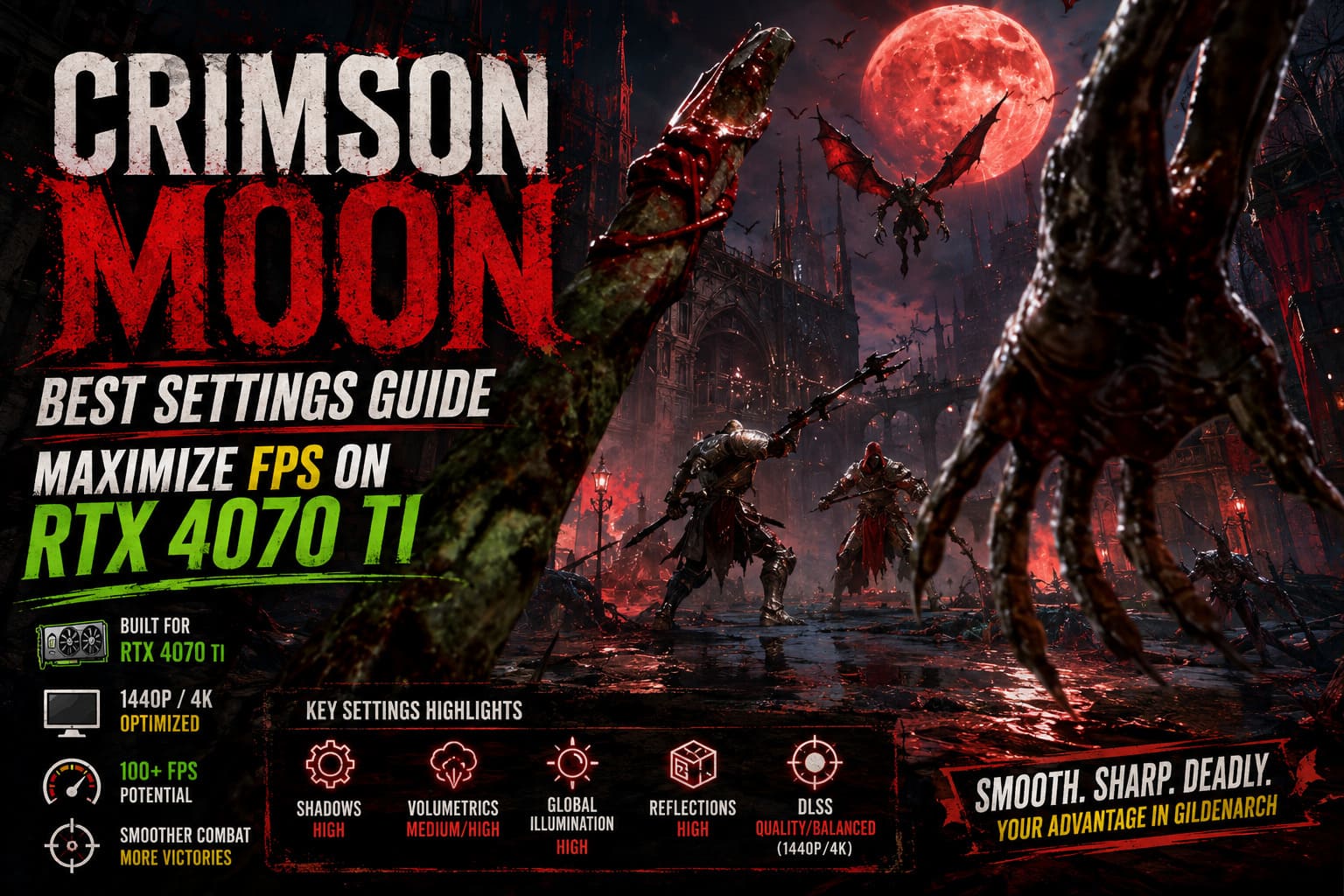
My Recommended Crimson Moon Settings for RTX 4070 Ti
If you just want the settings without spending an hour staring at every slider, this is the configuration I would start with. It keeps the parts of Crimson Moon that contribute most to its visual identity while cutting back on options that tend to consume performance for relatively small improvements.
| Setting | Recommended Value | Why |
|---|---|---|
| Display Mode | Fullscreen / Borderless | Both work well; use whichever gives better stability on your system. |
| Resolution | 2560×1440 / 3840×2160 | Choose according to your monitor and performance target. |
| V-Sync | Off | Prefer G-Sync or compatible VRR when available. |
| Frame Rate Limit | Monitor Refresh Rate | Helps maintain consistent frame pacing. |
| Anti-Aliasing | High | Good image quality without excessive GPU cost. |
| Texture Quality | Ultra | The 12GB VRAM buffer is useful here. |
| Texture Filtering | 16x | Very small performance cost for sharper surfaces. |
| Shadow Quality | High | Excellent performance-to-quality compromise. |
| Global Illumination | High | Preserves the game’s atmospheric lighting. |
| Volumetric Effects | Medium / High | One of the easiest ways to recover FPS. |
| Reflection Quality | High | Looks close to Ultra while reducing GPU load. |
| Ambient Occlusion | High | Adds depth without becoming excessively expensive. |
| Effects Quality | High | Keeps combat effects looking impressive. |
| Post-Processing | High | Good balance for image quality. |
| Motion Blur | Off | Improves combat clarity. |
| Depth of Field | Off | Keeps distant targets and environments sharper. |
Shadow Quality Is the First Setting I Would Lower
Ultra shadows are one of those settings that look amazing in screenshots but rarely justify their performance cost while actually playing. Crimson Moon’s gothic architecture naturally creates huge numbers of shadows, and the game has plenty of environmental geometry for the GPU to process.
Dropping Shadow Quality from Ultra to High is one of the easiest changes to make. You still get detailed shadows around Gildenarch’s buildings, streets, ruins, and enemies, but the GPU gets some breathing room. In demanding areas, this type of adjustment can provide a noticeable performance improvement without making the game suddenly look cheap.
I would not drop shadows straight to Low unless your hardware is struggling badly. The atmosphere takes a hit, and Crimson Moon relies heavily on darkness and contrast to sell its gothic aesthetic.
Do Not Waste Your 12GB VRAM on Low Textures
This is one setting where I would happily stay aggressive. The RTX 4070 Ti has 12GB of VRAM, and Crimson Moon benefits from keeping its texture assets at a high level.
Set Texture Quality to Ultra unless you are experiencing obvious VRAM-related problems. Lowering textures can make walls, clothing, weapons, architecture, and environmental details look noticeably softer while often providing less performance benefit than reducing shadows or volumetric effects.
Texture Filtering should also stay at 16x. Anisotropic filtering makes surfaces viewed at an angle look considerably cleaner, especially floors and long stretches of stone or pavement. On a modern RTX card, this is not where I would go hunting for extra frames.
Volumetric Fog Can Eat Your FPS
Gildenarch would not be nearly as memorable without its fog, mist, smoke, and atmospheric effects. Unfortunately, those beautiful clouds floating around ruined streets and battle arenas are also among the more expensive effects to render.
If your FPS collapses whenever a boss fills the screen with magical effects, Volumetric Effects should be one of your first suspects. Ultra looks excellent, but High usually gives you most of the atmosphere without demanding quite as much from the GPU.
If you are chasing a very high refresh rate at 1440p, Medium is also worth testing. Personally, I would use High first because I think Crimson Moon loses some of its visual mood when the volumetric effects are pushed too far down.
Global Illumination: Keep It High
Lighting is a huge part of what makes a dark fantasy game work. Crimson Moon’s ruined cathedrals, burning streets, glowing abilities, and supernatural enemies depend on convincing indirect illumination to create depth.
Ultra Global Illumination can be expensive, especially when several light sources appear during combat. High is the sweet spot. I would rather keep this at High and sacrifice a little reflection quality than destroy the lighting that gives Gildenarch its personality.
Reflections Are Another Easy Performance Win
Rain-covered streets, puddles, polished surfaces, and wet stone can look spectacular in Crimson Moon. The problem is that high-quality reflections become more expensive when the game has lots of characters and effects competing for screen space.
Set Reflection Quality to High. The difference from Ultra is much harder to notice while sprinting through an enemy-infested street than it is when comparing screenshots side by side. During actual gameplay, the extra FPS is much more valuable.
Motion Blur Should Go Straight to Off
This one is personal, but I would turn Motion Blur off immediately. Fast melee combat already throws enough information at your eyes without smearing the screen every time you dodge, rotate the camera, or perform a rapid attack.
With Motion Blur disabled, enemy animations and attack tells are easier to follow. That matters enormously in a souls-inspired combat system where recognizing a boss’s movement a fraction of a second earlier can be the difference between a perfect parry and a humiliating trip back to the checkpoint.
Depth of Field Is Optional, But I Prefer It Off
Depth of Field can make screenshots look more cinematic by blurring distant or background objects. During normal gameplay, though, I generally prefer a sharper image.
Turning it off makes distant enemies, environmental details, and objects around your character easier to distinguish. It is not going to magically add dozens of FPS, so consider this more of a clarity preference than a major optimization trick.
Best DLSS Settings for RTX 4070 Ti
If you own an RTX 4070 Ti, ignoring DLSS in a demanding modern game would be a strange choice. The technology exists specifically to make high-resolution gaming easier without forcing you to butcher the graphics settings.
For 1440p, I recommend starting with DLSS Quality. It provides a strong balance between native-looking image quality and increased performance. In motion, the difference from native rendering can be surprisingly difficult to notice, while the performance improvement can be substantial.
At 4K, DLSS Balanced becomes much more attractive. Rendering the game internally at a lower resolution and reconstructing the final image allows the RTX 4070 Ti to spend fewer resources pushing raw pixels while maintaining a sharp presentation.
| Resolution | Recommended DLSS Mode | Priority |
|---|---|---|
| 1440p | Quality | Best overall balance |
| 1440p High Refresh | Quality / Performance | Use Performance if you need maximum FPS |
| 4K | Balanced | Strong choice for 60 FPS targets |
| 4K High Refresh | Performance | Useful when chasing higher frame rates |
Should You Enable Frame Generation?
Yes, especially if your goal is a high-refresh-rate experience. The RTX 4070 Ti belongs to the generation of Nvidia GPUs that supports DLSS Frame Generation, and this can make a substantial difference to the displayed frame rate.
Frame Generation creates additional frames between traditionally rendered frames. The result can make camera movement and animation feel considerably smoother, particularly when the base frame rate is already reasonably high.
There is one thing I would not forget: Frame Generation is not a substitute for a healthy base frame rate. If your game is crawling along at 25–30 FPS because the GPU is completely overwhelmed, enabling Frame Generation will not suddenly turn the underlying experience into perfect 120 FPS gameplay.
For an action-heavy game like Crimson Moon, I would aim to get the native or DLSS-rendered base performance into a comfortable range first, then use Frame Generation to push the experience higher.
Nvidia Reflex and Input Responsiveness
When Frame Generation is available, low-latency technology becomes particularly important. For Crimson Moon’s melee combat, I would prioritize responsiveness over chasing an absurd FPS number on the counter.
If Nvidia Reflex is available in the game’s settings, enable it. A smooth 100+ FPS experience with good input latency feels dramatically better than a higher-looking number that comes with sluggish controls.
My Ideal 1440p RTX 4070 Ti Setup
If I were sitting down with an RTX 4070 Ti and a 1440p 144Hz or 165Hz monitor, this is the setup I would personally use:
- Resolution: 2560×1440
- DLSS: Quality
- Frame Generation: On
- Textures: Ultra
- Texture Filtering: 16x
- Shadows: High
- Global Illumination: High
- Volumetrics: High
- Reflections: High
- Ambient Occlusion: High
- Effects: High
- Motion Blur: Off
- Depth of Field: Off
- V-Sync: Off when using compatible VRR
This is the configuration I would choose for actual gaming rather than screenshot hunting. The game should still look rich and atmospheric, but the GPU has enough headroom to handle those moments when the screen suddenly fills with enemies, explosions, fog, glowing wings, and supernatural nonsense.
My Ideal 4K RTX 4070 Ti Setup
For 4K, I would be slightly more aggressive. The target should be a stable and responsive experience rather than stubbornly insisting on native Ultra rendering.
- Resolution: 3840×2160
- DLSS: Balanced
- Frame Generation: On
- Textures: Ultra
- Texture Filtering: 16x
- Shadows: High
- Global Illumination: High
- Volumetrics: Medium or High
- Reflections: High
- Ambient Occlusion: High
- Effects: High
- Post-Processing: High
- Motion Blur: Off
- Depth of Field: Off
If performance still dips below your target, I would lower volumetric effects before touching texture quality. That order matters because textures are one of the easiest settings to keep high on a 12GB card, while volumetric rendering can be far more demanding in visually busy scenes.
What If Your FPS Still Drops?
Before immediately dropping every setting to Medium, figure out what is actually causing the problem. A GPU sitting at nearly 100% usage suggests a graphics bottleneck, while low GPU utilization combined with poor FPS can point toward the CPU, background applications, shader compilation, or another system-level issue.
Also watch your frame times rather than obsessing over the average FPS number. A game reporting 90 FPS can still feel awful if it repeatedly produces severe frame-time spikes. For a combat-heavy title, consistent frame pacing is often more important than squeezing out another 10 FPS.
If the game begins stuttering after long sessions, check VRAM usage, background applications, overlays, and driver behavior. It is also worth testing the game after major patches because performance can change considerably as developers optimize shaders, streaming, lighting, and CPU workloads.
RTX 4070 Ti Crimson Moon Settings: Final Verdict
The RTX 4070 Ti is a very capable GPU for Crimson Moon, and you do not need to turn the game into a blurry mess to get strong performance. At 1440p, I would comfortably target high-refresh-rate gaming with DLSS Quality, while 4K players should make sensible use of DLSS Balanced and reduce the heaviest effects.
The biggest lesson is simple: do not treat every Ultra setting as sacred. Keep textures, texture filtering, lighting, and the settings that genuinely improve the atmosphere high. Cut back on shadows, volumetrics, and reflections where the performance cost is harder to justify.
For me, the perfect Crimson Moon setup is not the one that wins a screenshot comparison. It is the one that stays smooth when a giant boss is attacking, the screen is covered in particles, three enemies are coming from different directions, and I have half a second to decide whether to dodge or parry. That is where the RTX 4070 Ti really shines when it is paired with a smart settings configuration.
Recommended target: 1440p with DLSS Quality for the best overall experience, or 4K with DLSS Balanced when image resolution matters more than maximum refresh rate.