Crimson Moon Best Settings for RTX 3060: High FPS Optimization Guide
If you are playing Crimson Moon on an RTX 3060, I would not immediately reach for the Ultra preset and call it a day. On paper, the RTX 3060 still looks like a very capable 1080p card, especially with its 12GB of VRAM, but modern games can be brutally uneven when you push every graphics option to the ceiling. Crimson Moon is exactly that kind of game: beautiful, atmospheric, packed with detailed environments and lighting effects, but demanding enough to expose every weak setting choice.
After spending plenty of time tweaking graphics settings in demanding RPGs, I have learned one annoying truth: the highest preset is rarely the best-looking preset once performance starts falling apart. A stable frame rate makes combat feel better, camera movement feels cleaner, and even the visual presentation can look more impressive because you are not watching the image hitch every few seconds.
For the RTX 3060, the goal should be a smart High/Medium configuration rather than blindly chasing Ultra. At 1080p, you can aim for a very comfortable 60 FPS experience with the right compromises. At 1440p, you will need to lean harder on DLSS and trim a few expensive options, but the game can still look excellent.
Games Like Crimson Moon by ProbablyMonsters: Top Action RPGs to Play Next
Is the RTX 3060 Good Enough for Crimson Moon?
The desktop RTX 3060 remains an interesting GPU for modern gaming because of its 12GB VRAM capacity. That extra memory is particularly useful in a visually dense RPG such as Crimson Moon, where high-resolution textures, detailed character equipment, environmental assets, and large areas can consume VRAM quickly.
The important thing is not to confuse VRAM capacity with raw GPU performance. Having 12GB does not suddenly make the RTX 3060 capable of brute-forcing every setting at maximum quality. The card still has to render lighting, shadows, volumetric effects, reflections, and other expensive effects every frame.
In my experience, those expensive effects are exactly where you should make sacrifices. Keep the textures looking sharp and reduce the settings that hammer the GPU every frame. That usually produces a much better overall experience than dropping everything to Medium.
RTX 3060 Optimization Targets
| Resolution | Recommended Target | Upscaling | General Preset |
|---|---|---|---|
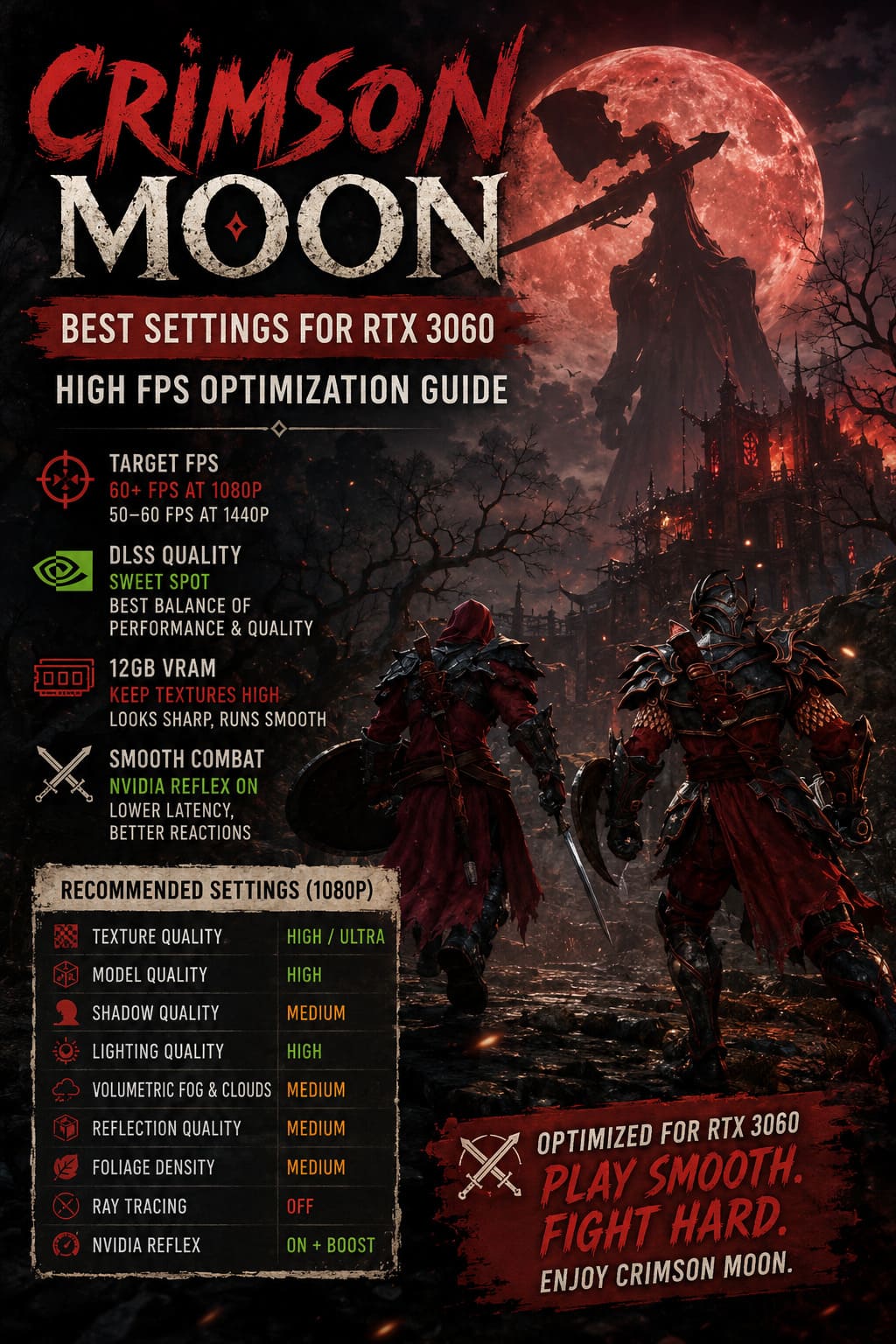
| 1920×1080 | 60+ FPS | DLSS Quality | High/Medium |
| 2560×1440 | 50–60 FPS | DLSS Balanced | High/Medium |
| 2560×1440 + RT | Around 40–50 FPS | DLSS Balanced | Medium/Low RT |
Your exact results will obviously depend on your CPU, RAM, driver version, game patch, and what is happening on screen. Busy combat encounters and heavily populated areas are usually much harder to run than a quiet corridor or empty outdoor section.
Best Crimson Moon Settings for RTX 3060 at 1080p
For most RTX 3060 owners, 1080p is where this GPU feels most comfortable. Rather than using Cinematic across the board, I recommend starting with this configuration.
| Graphics Setting | RTX 3060 Recommendation |
|---|---|
| Display Mode | Fullscreen / Borderless |
| Resolution | 1920×1080 |
| V-Sync | Off |
| Upscaling | DLSS |
| DLSS Mode | Quality |
| Frame Generation | Off |
| NVIDIA Reflex | On + Boost |
| Texture Quality | High / Ultra |
| Model Quality | High |
| Shadow Quality | Medium |
| Lighting Quality | High |
| Volumetric Fog & Clouds | Medium |
| Reflection Quality | Medium |
| Ray Tracing | Off |
| Ray Reconstruction | Off |
| Motion Blur | Off |
| Foliage Density | Medium |
| Post-Processing | High |
This is the setup I would personally start with. It preserves the parts of the game that you actually notice while playing and cuts back on the settings that are notorious for chewing through GPU performance.
DLSS Quality Is the Sweet Spot
DLSS Quality should be your first choice at 1080p.
Native rendering might sound like the obvious option when you have an RTX 3060, but demanding scenes can put unnecessary pressure on the GPU. DLSS Quality gives the card some breathing room while maintaining a surprisingly sharp image.
I would avoid immediately switching to DLSS Performance just because you want a higher FPS number. At 1080p, aggressive upscaling can make distant architecture, foliage, and fine environmental details noticeably softer. Crimson Moon’s dark gothic environments already contain plenty of visual noise, so excessive softness is not something I would willingly add.
DLSS Balanced makes more sense at 1440p, where the higher output resolution gives the reconstruction algorithm more pixels to work with.
Don’t Sacrifice Texture Quality on the RTX 3060
This is one setting where I would be stubborn.
If you have the 12GB RTX 3060, keep Texture Quality at High or Ultra unless you run into actual VRAM problems. Lowering textures is often one of the easiest ways to make a game look worse without gaining a huge amount of performance.
Crimson Moon’s armor, weapons, stone structures, wooden surfaces, and architectural details benefit heavily from good texture resolution. When you are exploring a dark fantasy environment, sharp surface detail helps sell the atmosphere.
If you need more FPS, I would lower shadows before touching textures.
Shadows Are One of the First Settings to Lower
Shadow Quality is a classic performance trap, and Crimson Moon is no exception.
Ultra or Cinematic shadows can look gorgeous when you stop and admire them, but during actual gameplay, the difference between Ultra and Medium is much harder to appreciate. Meanwhile, the performance cost can be significant.
Medium shadows are my preferred choice for the RTX 3060. You still get convincing character and environmental shadows, but the GPU has more room for the effects that matter during combat.
If you are sitting around 45–55 FPS and trying to reach a more stable 60, this is one of the first settings I would change.
Volumetric Fog Can Be Expensive
Crimson Moon’s atmosphere relies heavily on fog, mist, clouds, and dramatic lighting. Unfortunately, those effects can be extremely demanding.
I recommend Medium Volumetric Fog & Clouds for the RTX 3060. Going all the way down to Low can make the world lose some of its moody presentation, while Ultra can put a noticeable dent in performance during dense scenes.
Medium is the compromise I like here. You retain the atmosphere without making the GPU work overtime just to render layers of virtual mist.
Lighting Quality: Keep It High at 1080p
Lighting is one of the settings where I am willing to spend some performance.
Crimson Moon’s visual identity depends heavily on its lighting. Dark interiors, glowing effects, warm sources of light, and dramatic contrast are a huge part of the game’s presentation.
At 1080p, High Lighting Quality is a good target for the RTX 3060. If you are still struggling to hold your desired frame rate, move this to Medium before destroying other settings across the board.
The game will still look good. It just won’t have quite the same richness in complex lighting situations.
Ray Tracing: Looks Great, Costs Too Much
This is probably the easiest recommendation in the entire guide.
Turn Ray Tracing off if your priority is smooth 60 FPS gameplay.
The RTX 3060 technically supports ray tracing, but support and practicality are two very different things. Combining ray-traced effects with heavy lighting, volumetrics, and reflections can push the GPU far beyond the comfortable performance range.
If you absolutely love ray-traced visuals and do not mind dropping below 60 FPS, you can experiment with the lowest RT setting while keeping DLSS enabled. Personally, I would rather have a consistent frame rate.
In an action RPG, responsive controls are worth more to me than slightly prettier reflections.
Model Quality Should Stay High
Model Quality affects the complexity of geometry and how detailed objects remain as you move around the world.
I recommend High rather than Medium. Lowering geometry quality can become more noticeable during exploration because objects may look simpler or switch levels of detail more aggressively.
The RTX 3060 has enough horsepower to handle High model quality at 1080p without making this one of the first things you need to compromise.
Medium Foliage Is a Smart Trade-Off
Outdoor areas can be surprisingly demanding because the game has to draw large amounts of vegetation and environmental detail.
Medium Foliage Density is a good choice for the RTX 3060. You will lose some grass and smaller vegetation, but the world should still feel populated and atmospheric.
I would not sacrifice model quality or textures just to keep every blade of grass on screen. That is a terrible trade in my book.
Best RTX 3060 Settings for Crimson Moon at 1440p
Running Crimson Moon at 2560×1440 is considerably more demanding. The RTX 3060 can still deliver a good experience, but you need to give it some help.
Start with the 1080p configuration above, then make these changes:
- DLSS: Balanced
- Lighting Quality: Medium
- Post-Processing: Medium
- Keep Textures: High or Ultra
- Keep Model Quality: High
- Keep Shadows: Medium
- Keep Volumetrics: Medium
- Keep Ray Tracing: Off
The important thing is not to panic if you see the occasional drop during a particularly demanding sequence. A locked 60 FPS target at 1440p is much more ambitious for this class of GPU than 1080p.
For me, a stable 50–60 FPS at 1440p would be preferable to constantly bouncing between 40 and 70 FPS because every setting is fighting for GPU resources.
NVIDIA Reflex Can Help Combat Feel Better
If Crimson Moon supports NVIDIA Reflex, I recommend enabling it.
Reflex is not going to magically add 20 FPS to your game. That is not what it is for. Its purpose is to reduce system latency, which can make controls feel more responsive.
That matters in an action RPG. If you are trying to dodge an incoming attack, execute a parry, or react to a boss animation, responsiveness is more valuable than a tiny visual upgrade.
Use NVIDIA Reflex: On + Boost if the option is available and your system behaves normally with it enabled.
Windows Tweaks Worth Trying
Graphics settings are only part of the equation. If your frame rate looks good but the game still feels inconsistent, a few system-level adjustments are worth testing.
Hardware-Accelerated GPU Scheduling
In Windows, look under Settings → System → Display → Graphics → Default graphics settings and check whether Hardware-Accelerated GPU Scheduling is available.
If it is, enable it and restart Windows. On some systems it can improve frame pacing or latency, although results vary depending on the hardware and software combination.
I would not expect miracles from HAGS. Think of it as a small optimization rather than a secret FPS button.
NVIDIA Control Panel
For the Crimson Moon profile in NVIDIA Control Panel, you can experiment with:
- Power Management Mode: Prefer Maximum Performance
- Texture Filtering – Quality: High Performance
- Max Frame Rate: Use a cap slightly below your monitor’s refresh rate when appropriate
Frame limiting is particularly useful if your monitor supports variable refresh technology. For example, if you are using a 144Hz display and want consistent frame pacing, a reasonable FPS cap can prevent the GPU from constantly pushing unnecessary frames.
How to Fix Stuttering in Crimson Moon
If the average FPS looks fine but the game still feels jerky, don’t immediately lower every graphical setting.
First, check whether the stutter is caused by shader compilation, background applications, VRAM pressure, driver issues, or inconsistent frame pacing. A game can report 70 FPS and still feel terrible if frame delivery is uneven.
I would troubleshoot in this order:
- Update the GPU driver.
- Restart the PC after installing the driver.
- Close unnecessary overlays and background applications.
- Check GPU VRAM usage.
- Use DLSS Quality at 1080p or Balanced at 1440p.
- Lower Shadows and Volumetrics first.
- Add an FPS cap if frame pacing remains inconsistent.
- Test the game after a full restart rather than judging performance immediately after changing multiple settings.
Changing ten options simultaneously makes troubleshooting unnecessarily difficult. Change one or two expensive settings, test the same area, and compare the result.
My Recommended RTX 3060 Configuration
If I were setting up Crimson Moon on my own RTX 3060, I would keep things simple: 1080p, DLSS Quality, High textures, High models, Medium shadows, Medium volumetrics, High lighting, Medium foliage, and no ray tracing.
That combination gives the game room to breathe without making it look like you are playing an older console port. The RTX 3060’s 12GB VRAM is a genuine advantage here, so take advantage of it rather than automatically turning textures down.
At 1440p, I would switch DLSS to Balanced and reduce lighting and post-processing to Medium. I would also accept that chasing a perfectly locked 60 FPS in every single scene may require additional compromises.
Final Verdict
The RTX 3060 is still perfectly usable for Crimson Moon, but this is not a GPU where I would recommend blindly selecting Ultra and hoping for the best. The smarter approach is to protect image quality where your eyes notice it and cut settings that consume huge amounts of GPU power for relatively small visual improvements.
Textures and models should stay high. Shadows and volumetrics should come down. Ray tracing should stay disabled if smooth performance is the priority. DLSS should do the heavy lifting.
That is the setup I would use for a long playthrough. A gothic RPG like Crimson Moon is at its best when the combat feels responsive and the frame pacing stays consistent. I would happily sacrifice a little fog quality or shadow distance to keep that experience smooth.