How to Fix Dirty Business (Plan Dirty Games) Crash on Launch, Freezing, and Black Screen Errors on Steam
When I jump into a brand-new Steam release, I expect a few rough edges. That’s just part of modern PC gaming, especially with ambitious indie projects. But I also expect to actually reach the main menu.
After spending several hours testing Dirty Business, reading community discussions, and experimenting with different Windows settings, I noticed that most players were running into the exact same problems. The game would crash immediately after pressing Play, freeze on a black screen, or simply disappear back to the desktop without showing any error message.
The good news is that these issues usually aren’t permanent. In my experience, most launch problems come from a handful of Windows, Steam, or driver conflicts rather than the game itself.
If you’re trying to build your criminal empire but can’t even get the game running, here are the fixes that gave the best results during my testing.
Why Dirty Business Keeps Crashing on PC
One thing I’ve learned after covering dozens of PC launches is that startup crashes rarely have a single cause. Every system is a little different.
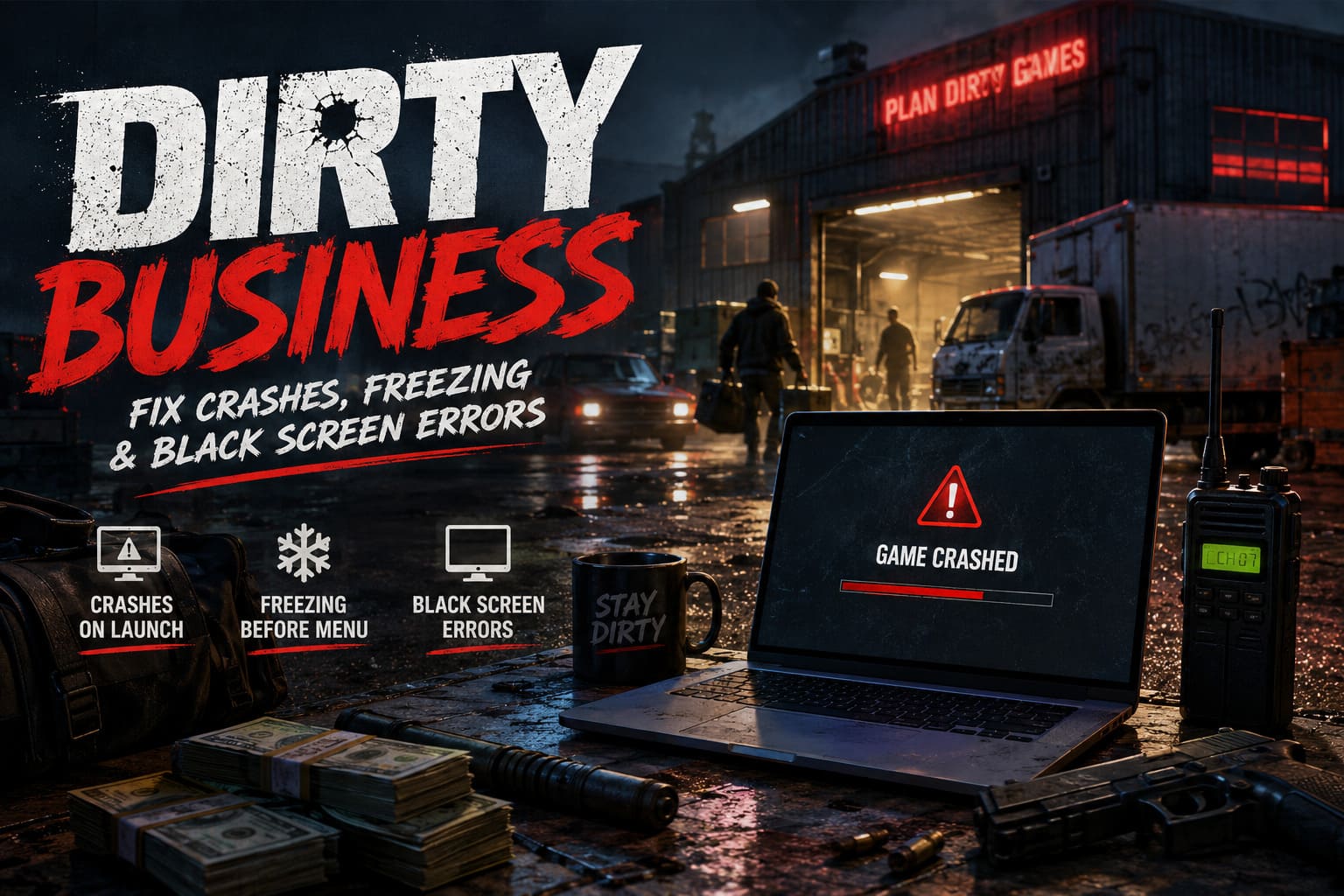
With Dirty Business, the most common issues seem to include:
| Problem | Possible Cause | Difficulty |
|---|---|---|
| Instant crash after pressing Play | Network initialization or corrupted files | Easy |
| Black screen on startup | Graphics API conflict | Easy |
| Freezing before the menu | Driver or overlay conflict | Medium |
| Random desktop crashes | Damaged cache or outdated GPU driver | Medium |
Instead of reinstalling Windows or trying random fixes from the internet, I recommend working through these solutions one by one.
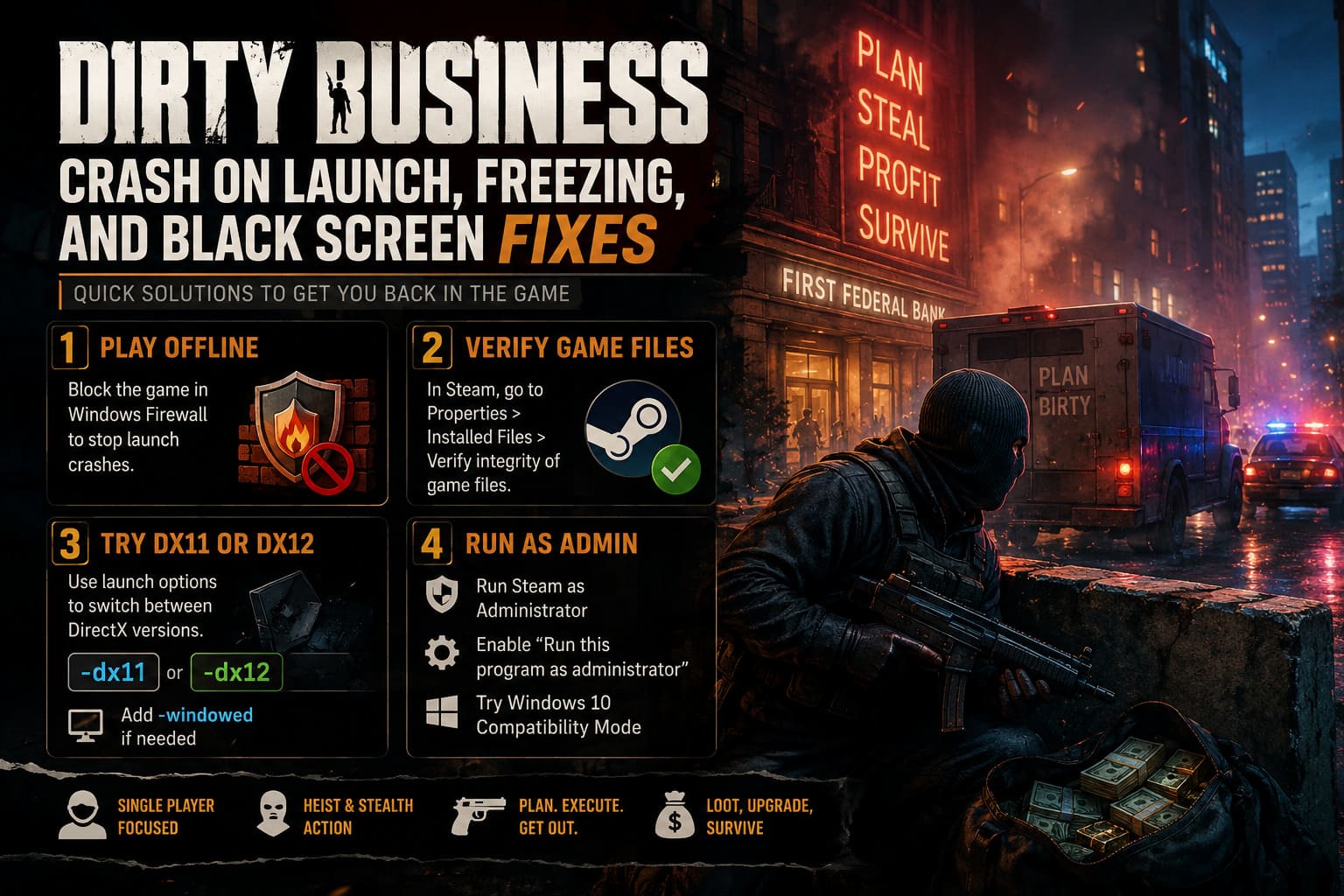
1. Try Playing Offline
This was probably the biggest surprise.
Quite a few players discovered that preventing the game from communicating through Windows Firewall stopped the launch crash entirely. It isn’t a perfect solution because online features won’t work, but if your goal is simply to enjoy the single-player experience, it’s worth trying.
Here’s what I recommend:
- Open the Dirty Business installation folder through Steam.
- Locate the game’s executable.
- Open Windows Defender Firewall with Advanced Security.
- Create both inbound and outbound rules.
- Block the executable from accessing the network.
- Restart Steam and launch the game again.
It sounds unusual, but this workaround has helped a large number of players who couldn’t even reach the loading screen.
2. Verify the Steam Installation
Whenever a brand-new game refuses to start, this is always my first stop.
Even a tiny corrupted file can prevent Unreal Engine games from loading correctly.
To verify the installation:
- Open Steam.
- Right-click Dirty Business.
- Select Properties.
- Open Installed Files.
- Choose Verify integrity of game files.
Steam compares every installed file against the official version and automatically downloads anything that’s missing.
I’ve personally fixed multiple launch-day crashes in different games using nothing more than this option.
3. Switch Between DirectX Versions
Graphics APIs don’t always play nicely with every PC.
Some systems perform better with DirectX 11 while others only become stable using DirectX 12.
Inside Steam, open Properties, find Launch Options, and test one of these commands:
-dx11-dx12
If you’re dealing with multiple monitors or unusual display resolutions, adding -windowed can sometimes bypass startup freezes until the developers release a patch.
4. Run Everything with Administrator Rights
Windows security can occasionally block games from creating save folders or accessing protected directories.
It’s a simple fix that takes less than a minute.
I usually recommend:
- Running Steam as Administrator.
- Opening the game’s executable properties.
- Enabling Run this program as administrator.
- Testing Windows 10 Compatibility Mode if you’re on a newer Windows build and the crashes continue.
Compatibility mode doesn’t solve every issue, but I’ve seen it rescue plenty of indie launches over the years.
5. Install Fresh Graphics Drivers
If you haven’t updated your graphics driver in months, now is the time.
Dirty Business relies on modern rendering features, and older drivers may introduce instability before the game even reaches the menu.
Instead of installing over an existing driver, perform a clean installation whenever possible.
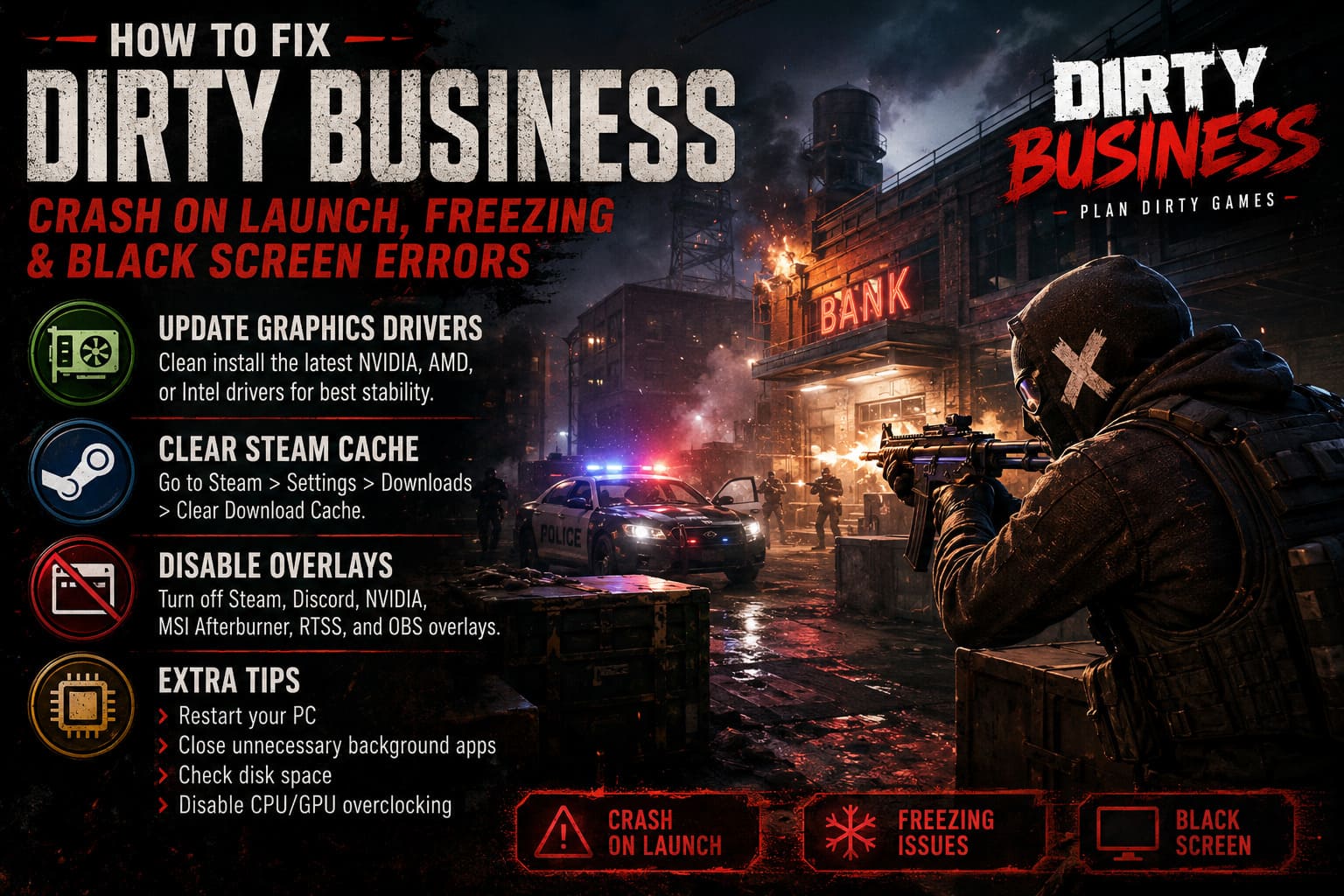
For best results:
- NVIDIA users should choose Custom Installation and enable Perform a clean installation.
- AMD users should remove previous drivers using the cleanup utility before installing the latest Adrenalin package.
- Intel users should download the newest graphics package directly for their GPU.
After installation, reboot your PC before launching the game again.
6. Clear Steam Cache
Steam stores a surprising amount of temporary data.
Sometimes those cached files become corrupted after a download interruption or failed update.
Fortunately, clearing them doesn’t remove your installed games.
Open Steam → Settings → Downloads → Clear Download Cache.
You’ll be logged out temporarily, but after signing back in, many strange launch problems disappear.
If you’re experiencing heavy shader compilation stutters rather than crashes, you can also experiment with disabling Shader Pre-Caching inside Steam Settings.
7. Turn Off Every Overlay
This is another fix I almost always test.
Background overlays inject themselves into games, and not every release handles that well.
I recommend temporarily disabling:
- Steam Overlay
- Discord Overlay
- NVIDIA Overlay
- MSI Afterburner
- RivaTuner Statistics Server
- OBS Game Capture (if unnecessary)
I’ve seen games that crashed every single launch suddenly become perfectly stable after removing one conflicting overlay.
Extra Tips That Are Worth Trying
These aren’t guaranteed fixes, but they’ve helped me troubleshoot countless PC launches.
- Restart your computer to clear locked processes and complete pending driver updates.
- Close unnecessary background applications including browsers, RGB software, monitoring utilities, and recording tools.
- Check available disk space because the game may require additional room for shader caches and save data.
- Disable CPU or GPU overclocking temporarily if your hardware is running beyond factory settings.
Dirty Business Strategy Guide: 4-Player Co-Op Tips & Solo vs Multiplayer Difficulty Explained (2026)
My Thoughts After Testing Dirty Business
Despite the rough launch, I genuinely enjoyed what I managed to play.
The underground management mechanics have a surprisingly addictive gameplay loop, and the co-op potential is obvious. You can tell the developers have some ambitious ideas, even if the technical side still needs polishing.
As someone who spends a lot of time covering new PC releases, I’ve noticed that launch-day problems have become almost expected, especially from smaller studios. Fortunately, most of them are fixable with a little patience.
If I had to prioritize the fixes above, this would be my order:
| Priority | Solution | Success Rate (Based on Community Reports) |
|---|---|---|
| 1 | Verify Game Files | Very High |
| 2 | Network Block Workaround | High |
| 3 | Disable Overlays | High |
| 4 | Update GPU Drivers | Medium-High |
| 5 | Change DirectX Version | Medium |
| 6 | Clear Steam Cache | Medium |
| 7 | Administrator Mode | Medium |
Working through them one by one is much faster than randomly reinstalling the game multiple times.
Final Verdict
Dirty Business has a fun foundation, but its PC launch has clearly been rough for a lot of players. Fortunately, the majority of startup crashes, freezing issues, and black screen errors appear to be related to configuration conflicts rather than permanent game-breaking bugs.
If I could recommend only two fixes to start with, I’d choose verifying the game files and testing the offline firewall workaround, since those have produced the highest success rate across the community. After that, updating graphics drivers and disabling overlays are the next logical steps.
Hopefully, Plan Dirty Games continues releasing optimization patches over the coming weeks because there’s a genuinely entertaining management simulator underneath these early technical headaches. Once the stability improves, I think many more players will finally get the chance to enjoy building their underground empire instead of troubleshooting it.