Special K Mod Setup Guide: How to Install and Optimize for PC Games
PC gaming has always been about freedom. We can upgrade hardware, tweak settings, install mods, and completely change how our favorite games look and perform. But after hundreds of hours spent testing different titles, one frustrating reality becomes obvious: even powerful gaming PCs can struggle with inconsistent frame pacing, random stutters, input delay, and poorly optimized ports.
This is exactly where Special K becomes one of the most interesting tools available for PC players. Created by developer Kaldaien, Special K is not just another FPS counter or simple graphics modification. It is a powerful framework designed to give players control over how games communicate with Windows, graphics APIs, and hardware.
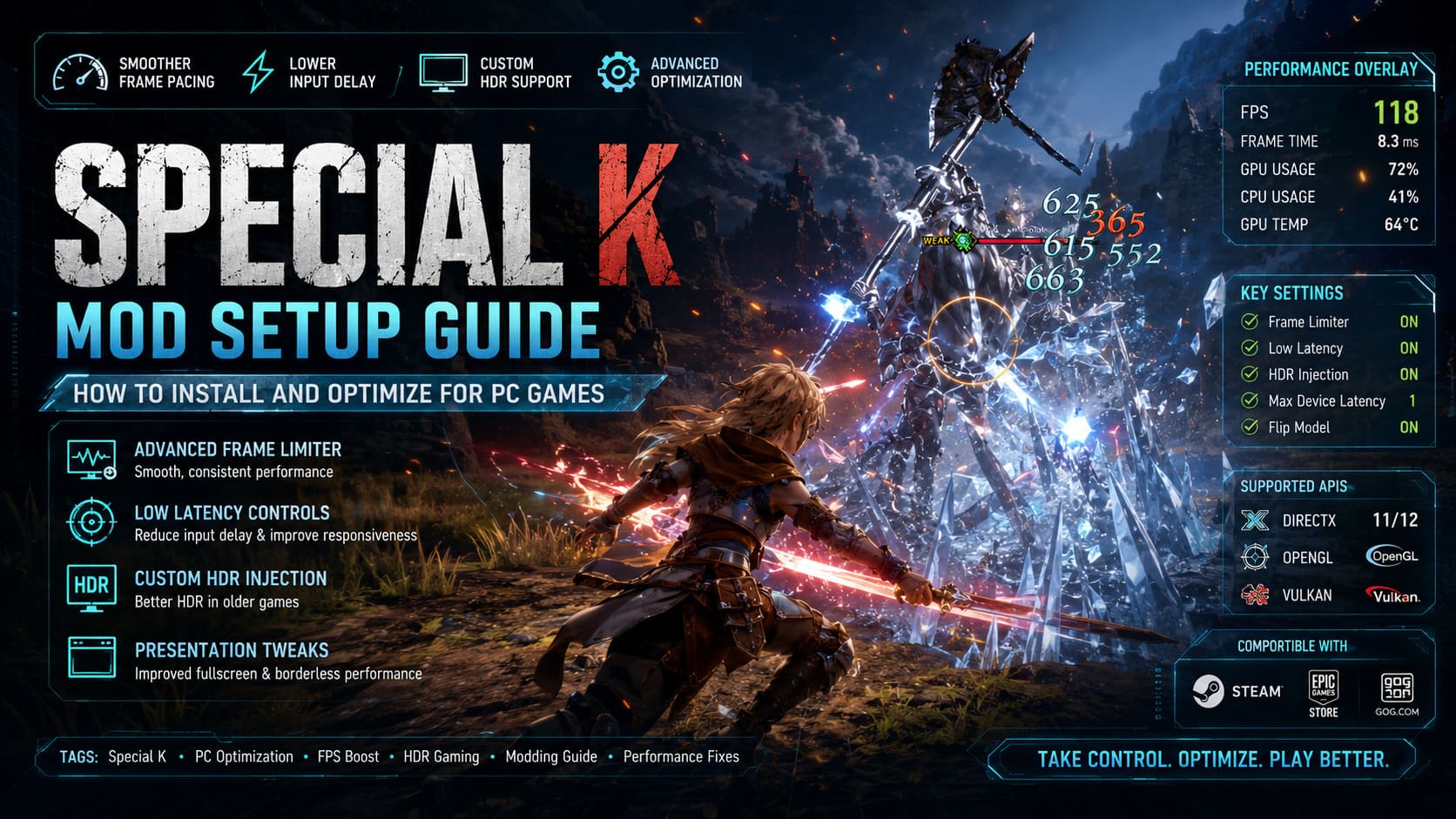
Special K can fix unstable frame delivery, improve latency, add advanced HDR support to older games, manage rendering behavior, and solve technical problems that developers sometimes leave untouched. The software looks intimidating at first because it offers an enormous number of options, but once properly configured, it becomes one of the strongest optimization tools in a PC gamer’s collection.
How to Force FSR 3 and Frame Generation in Granblue Fantasy Relink: Complete PC Performance Guide
What Is Special K and Why Should PC Gamers Use It?
Special K works as a modification framework that sits between your game and your graphics hardware. It intercepts rendering commands from technologies such as DirectX, OpenGL, and Vulkan, allowing users to adjust how frames are processed, displayed, and synchronized.
Instead of simply increasing FPS numbers, Special K focuses on improving the overall feel of a game. A title can run at 120 FPS and still feel terrible because frames are delivered unevenly. Another game may have noticeable input delay because of poor VSync implementation. Special K targets these problems directly.
| Feature | What It Does |
|---|---|
| Advanced Frame Limiter | Creates smoother frame pacing compared to many built-in FPS limiters. |
| Low Latency Controls | Reduces input delay and improves responsiveness. |
| Custom HDR Injection | Adds improved HDR support to older games without native HDR. |
| Texture Management | Provides advanced tools for texture modifications and visual adjustments. |
| Presentation Tweaks | Improves fullscreen and borderless window performance. |
Many PC players discovered Special K through games with problematic ports such as NieR: Automata, Monster Hunter: World, and various Final Fantasy titles. These games showed how powerful the tool could be when developers left technical issues unresolved.
Special K System Requirements Before Installation
Before installing Special K, it is worth making sure your system is ready. The program itself is lightweight, but having the correct software environment prevents unnecessary crashes and compatibility issues.
| Requirement | Recommended Setup |
|---|---|
| Operating System | Windows 10 or Windows 11 64-bit |
| Graphics Card | NVIDIA GeForce, AMD Radeon, or Intel Arc GPU |
| Graphics Drivers | Latest official GPU drivers installed |
| Dependencies | Microsoft Visual C++ Redistributable 2015-2022 |
| Permissions | Administrator access recommended |
You do not need an expensive enthusiast-level PC to benefit from Special K. In many cases, older systems gain the most from it because the software helps remove annoying micro-stutters and inconsistent performance.
Global vs Local Installation: Choosing the Best Special K Setup
Special K offers two main installation methods. Choosing the correct option depends on how much control you want and how many games you plan to modify.
Global Installation Using SKIF
The easiest method for most players is the Special K Injection Frontend (SKIF). This works as a central management application that automatically handles the injection process when supported games launch.
For beginners, this is usually the best choice because you do not need to manually edit every game folder or rename files. Everything stays organized in one place.
Advantages of Global Installation:
- Simple graphical interface.
- Automatic updates for Special K files.
- Keeps individual game folders clean.
- Easy management of multiple games.
Disadvantages of Global Installation:
- SKIF needs to remain active in the background.
- Some games may require additional configuration.
Local Installation For Individual Games
Local installation places Special K directly into a specific game’s directory. This method gives advanced users more control and can solve problems when global injection does not work correctly.
The installation usually requires placing the Special K DLL file beside the game’s executable and renaming it depending on the graphics API.
Examples include:
- dxgi.dll for DirectX 11 and DirectX 12 games.
- d3d9.dll for DirectX 9 games.
Advantages of Local Installation:
- No background manager required.
- Excellent control over individual games.
- Useful for difficult or older titles.
Disadvantages of Local Installation:
- Requires manual setup.
- More difficult to maintain.
- Updates may require replacing files manually.
How To Install Special K With SKIF Step-by-Step
Step 1: Download Special K
Download the latest stable version of Special K from the official source or verified community repository. Avoid random third-party websites because modified or outdated versions can cause unnecessary problems.
Step 2: Install Special K
Run the installer and choose a simple installation folder. A location such as C:\SpecialK is recommended because it keeps files easy to access during troubleshooting.
Step 3: Launch SKIF
Open the Special K Injection Frontend application. The program should automatically detect games installed through platforms like Steam, Epic Games Store, and GOG.
Step 4: Start The Injection Service
Click the Start Service button inside SKIF. When everything works correctly, the status indicator will turn green, showing that Special K is ready.
Step 5: Launch Your Game
Start your game normally or through SKIF. If the installation works, you should see a small Special K notification banner when the game loads.
Opening The Special K Configuration Menu
After Special K successfully loads, the real customization begins. The in-game interface gives access to dozens of performance and visual options.
Press:
Ctrl + Shift + Backspace
The Special K overlay will appear on your screen. From here you can adjust frame limits, HDR settings, latency options, and rendering behavior.
If your mouse cursor does not appear inside the overlay, press:
Scroll Lock
This switches mouse control between the game and the Special K interface.
Best Special K Settings For Better Performance
Special K contains hundreds of settings, but most players only need a few important adjustments to noticeably improve their experience.
Enable The Special K Frame Limiter
Many built-in game FPS limiters are surprisingly inconsistent. They may create uneven frame delivery, causing camera movement to feel rough even when your FPS counter looks high.
Special K’s limiter is one of its strongest features because it focuses on smooth frame pacing rather than just limiting numbers.
Recommended Setup:
- Disable the game’s internal FPS limiter.
- Disable unnecessary VSync options.
- Open the Special K overlay.
- Enable Framerate Limiter.
- Set your desired FPS target.
Common settings include 60 FPS for standard displays, 120 FPS for high refresh monitors, and 144 FPS or higher for competitive setups.
Reduce Input Delay With Advanced Latency Settings
For fast-paced games, latency can completely change how a game feels. Special K provides several options designed to make controls react faster.
Inside the presentation settings:
- Enable modern flip model options when available.
- Set Maximum Device Latency to 1.
- Increase it to 2 if you notice micro-stuttering.
These changes are especially useful for action games, fighting games, shooters, and racing titles where every millisecond matters.
Enable Custom HDR With Special K
One of the most impressive features of Special K is its HDR injection system. Many older games either lack HDR completely or use poor implementations that do not take advantage of modern displays.
Special K can create a better HDR pipeline and often produces a more impressive image than Windows Auto HDR in certain situations.
HDR Configuration Steps:
- Enable HDR inside Windows display settings.
- Open the Special K HDR tab.
- Select scRGB or HDR10 processing.
- Adjust peak luminance according to your monitor.
For example, a 600-nit display should use around 600 peak luminance, while a 1000-nit HDR monitor should be configured closer to 1000.
Common Special K Problems And Fixes
Game Crashes When Launching
The most common reason is a conflict with other overlays. Before starting the game, disable programs such as:
- Discord Overlay.
- NVIDIA Overlay.
- MSI Afterburner.
- RivaTuner Statistics Server.
- OBS overlays.
Anti-Cheat Problems
Special K should not be used with competitive online games. Because it injects itself into the game process, some anti-cheat systems may detect it as suspicious software.
Use Special K mainly for single-player adventures, offline games, and cooperative experiences where anti-cheat restrictions are not a concern.
Black Screen Issues
If a game launches but displays only a black screen, try switching from global installation to local installation. You can also experiment with disabling Windows fullscreen optimizations for the game’s executable.
Final Thoughts: Is Special K Worth Installing?
After spending years testing PC games and different optimization tools, Special K remains one of the most impressive solutions available for players who want more control over their gaming experience.
It will not magically increase your GPU power or transform a weak computer into a high-end machine. Its real strength is improving how games feel: smoother frame pacing, lower latency, better HDR, and more consistent performance.
The first setup can look complicated, but once you understand the basics, Special K becomes an essential tool for serious PC gamers. Keep it updated, avoid using it with competitive online games, and enjoy a smoother experience in your favorite single-player titles.