How to Fix Granblue Fantasy Relink Resolution Blur and Force Internal Scaling
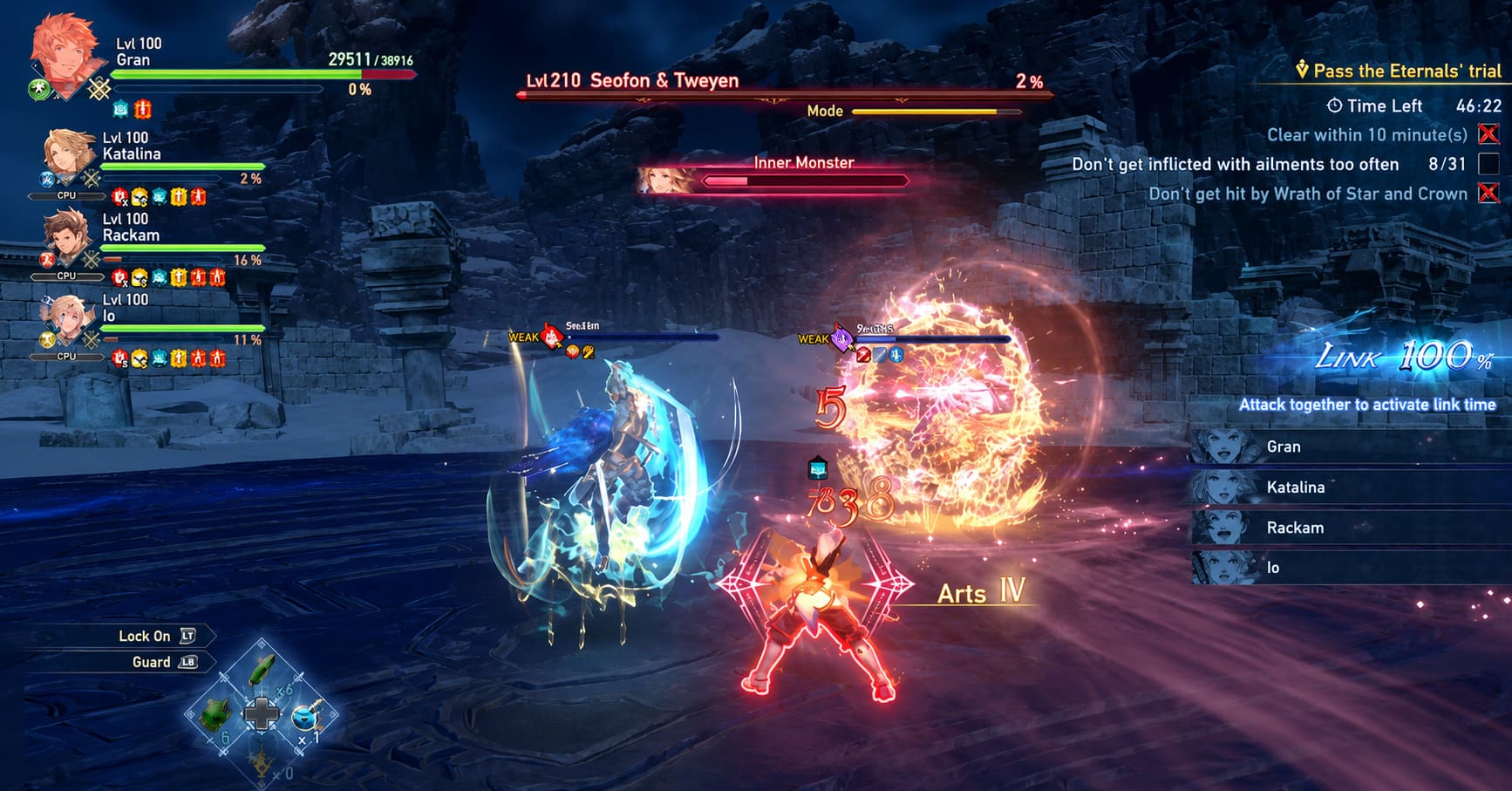
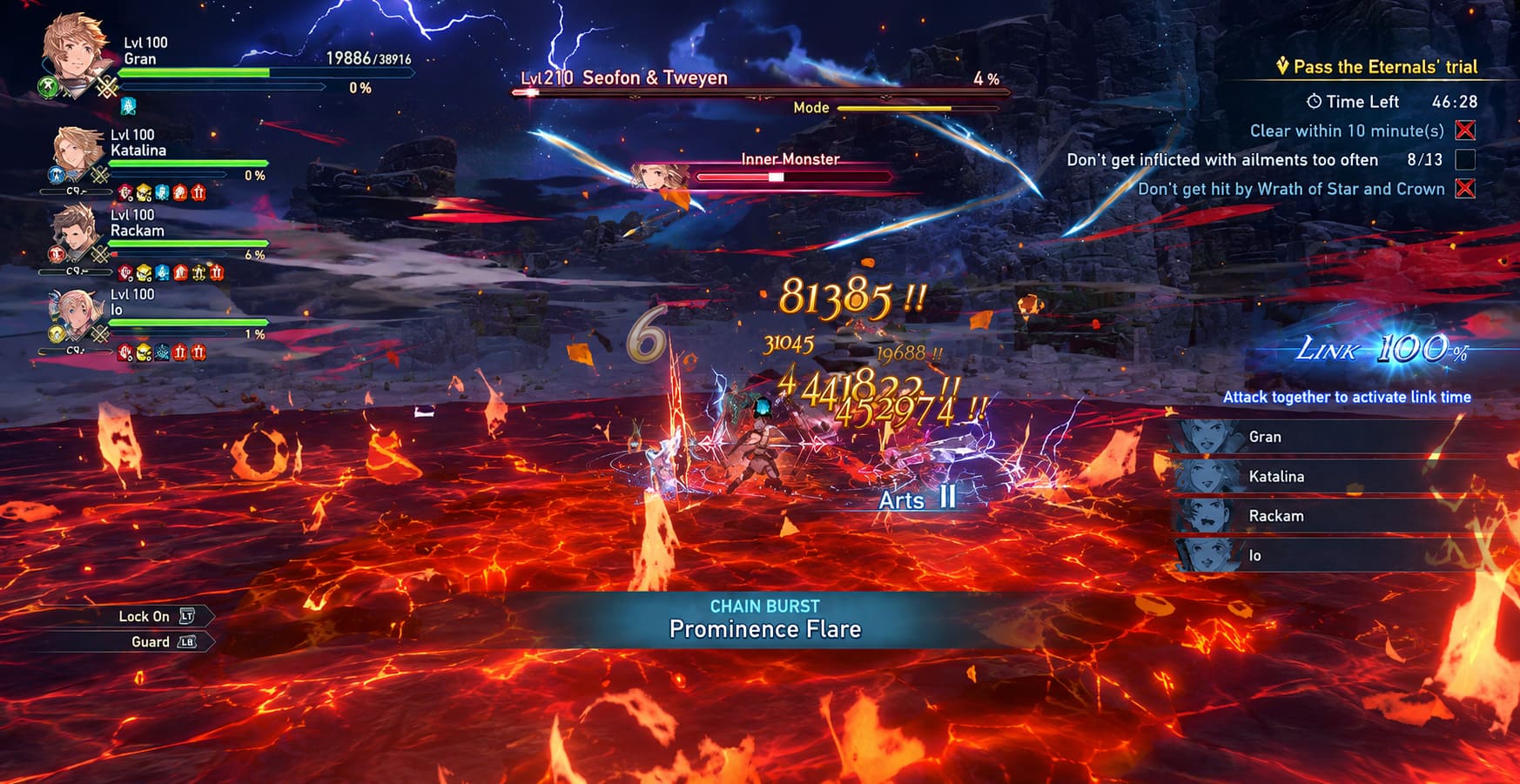
Granblue Fantasy Relink is one of those games that instantly grabs your attention. The flashy anime visuals, insane boss battles, and fast-paced party combat make it feel like you are controlling an interactive fantasy movie. After spending a lot of time with the game, I can confidently say that the combat system is excellent, but the PC version has one frustrating problem that many players immediately notice: the image quality does not always match the beauty of the game world.
Even players with powerful GPUs and expensive 1440p or 4K monitors often report that Granblue Fantasy Relink looks strangely soft. Character models, hair details, environmental textures, and distant objects can appear covered by a layer of blur. The reason is not your hardware. The game heavily depends on Temporal Anti-Aliasing (TAA) while also missing a proper internal resolution scaling option in the standard graphics menu.
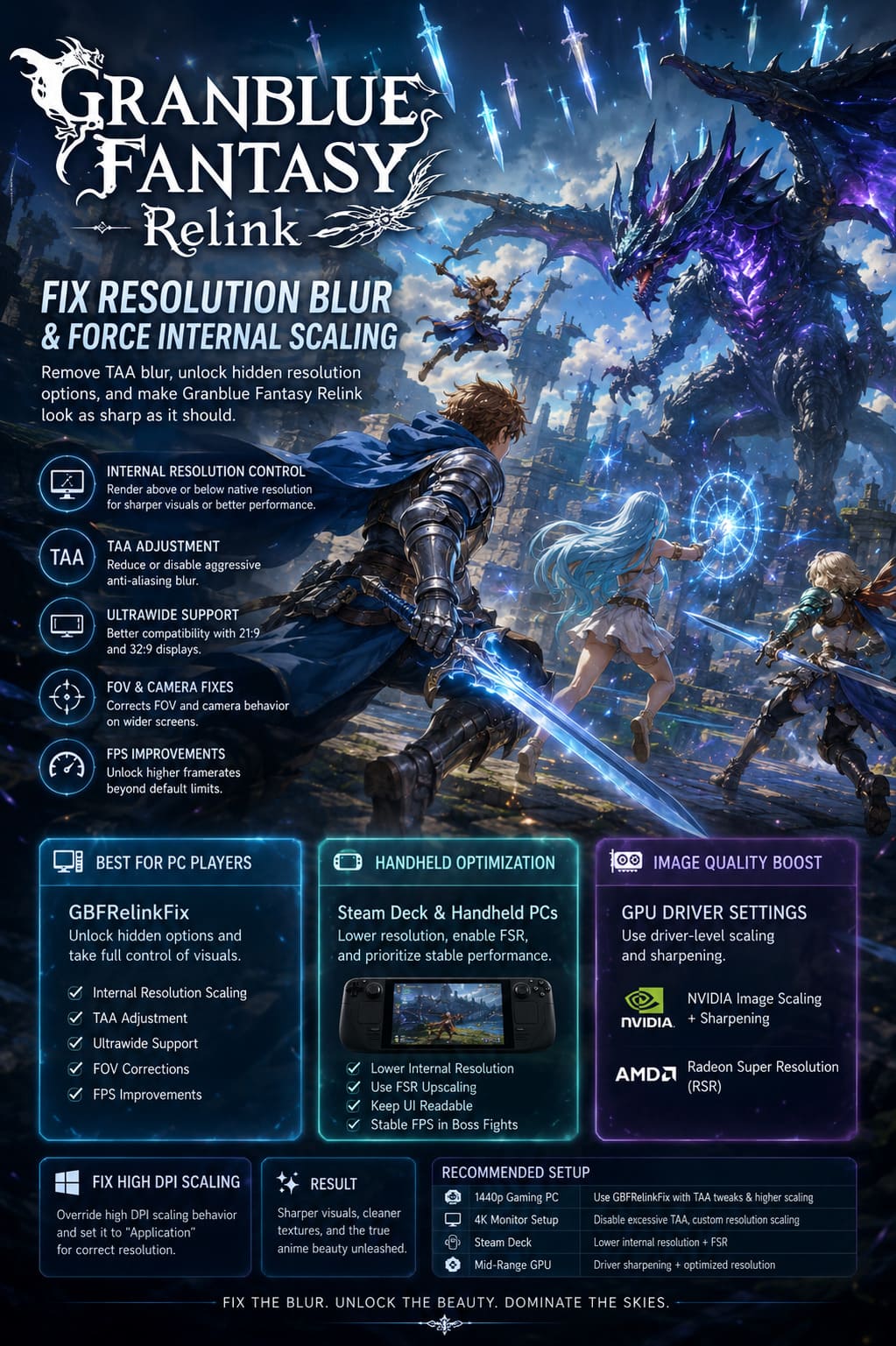
This creates a weird situation where a game running at Ultra settings can still look less sharp than expected. PC players have found ways around this limitation by using community fixes, editing configuration files, and taking advantage of GPU-level scaling technologies. These solutions can completely change how the game looks and make Granblue Fantasy Relink finally deliver the sharp anime-style presentation it deserves.
Granblue Fantasy Relink Best CPU Companions: Top AI Teammates Ranked
Why Granblue Fantasy Relink Looks Blurry Even on Ultra Settings
The biggest reason behind the blurry visuals is the forced TAA implementation. Temporal Anti-Aliasing is designed to remove jagged edges by combining information from multiple frames. When used correctly, it creates smoother visuals with fewer shimmering effects.
The problem appears when TAA becomes too aggressive. Instead of only cleaning up rough edges, it starts affecting fine details. In Granblue Fantasy Relink, this can make:
- Character hair textures look softer than they should.
- Weapon details lose sharpness during combat animations.
- Environmental objects appear slightly washed out.
- High-resolution monitors fail to deliver a true 1440p or 4K image.
The second major issue is the missing internal resolution slider. Many modern PC games allow players to increase rendering resolution above their monitor resolution for super-sampling or reduce it below native resolution for performance improvements.
Granblue Fantasy Relink does not offer this flexibility. A player with a powerful GPU cannot easily render at 150% or 200% resolution to fight against TAA softness. At the same time, handheld users cannot comfortably lower rendering resolution while keeping menus and UI elements clean.
That is where community solutions become extremely useful.
GBFRelinkFix Mod: The Best Way to Unlock Resolution Options
For most PC players, the best solution is the community-created GBFRelinkFix modification. This tool has become the go-to option for fixing several technical limitations in Granblue Fantasy Relink.
Instead of simply adding a sharpening filter, the mod changes how the game handles certain engine settings. It gives players access to hidden options that should have been available from the beginning.
The Biggest Advantages of GBFRelinkFix
| Feature | Benefit |
|---|---|
| Internal Resolution Control | Allows custom rendering resolution settings for sharper visuals or better performance. |
| TAA Adjustment | Provides options to reduce or disable the aggressive anti-aliasing blur. |
| Ultrawide Support | Improves compatibility with 21:9 and 32:9 monitors. |
| FOV Corrections | Fixes incorrect camera behavior on wider displays. |
| FPS Improvements | Can unlock higher frame rate options beyond default limits. |
How to Install GBFRelinkFix
- Download the latest GBFRelinkFix release from the community repository.
- Open your Steam library and find Granblue Fantasy Relink.
- Select Manage, then Browse Local Files.
- Extract the mod files into the main game folder where granblue_fantasy_relink.exe is located.
- Open the GBFRelinkFix.ini configuration file.
- Adjust the resolution settings and disable TAA if you want a sharper image.
- Save the changes and launch the game normally through Steam.
After installing this fix, the difference is immediately noticeable. The game keeps its beautiful anime style while removing that unnecessary soft filter sitting over everything.
Best Granblue Fantasy Relink Settings for Steam Deck and Handheld PCs
The situation is completely different for handheld devices. Players using Steam Deck, ASUS ROG Ally, or Lenovo Legion Go usually are not fighting blurry 4K visuals. Their main challenge is maintaining stable performance during massive boss encounters.
Granblue Fantasy Relink can become demanding during late-game missions where dozens of effects fill the screen. Particle effects, character abilities, and giant enemy attacks can quickly push handheld hardware.
The goal is not maximum resolution. The goal is a stable experience.
Recommended Handheld Optimization Approach
- Lower internal rendering resolution.
- Use FSR or similar upscaling technology.
- Keep UI elements readable.
- Prioritize stable frame rates during raids.
For Steam Deck users, lowering the game resolution to something like 1024×640 or 960×600 and enabling FSR can provide a much smoother experience. The handheld display handles the final upscale while the GPU spends fewer resources creating each frame.
This is especially useful during difficult encounters where frame drops can make dodging attacks feel inconsistent.
Fix Windows High DPI Scaling Problems
Another issue that some PC players encounter comes from Windows display scaling. Modern high-resolution monitors often use desktop scaling values like 125% or 150%.
While this makes Windows easier to read, certain games can incorrectly calculate their rendering area. Granblue Fantasy Relink may sometimes display softer visuals because the game is not properly handling Windows DPI scaling.
How to Fix High DPI Scaling
- Open your Granblue Fantasy Relink installation folder.
- Find granblue_fantasy_relink.exe.
- Right-click the file and choose Properties.
- Open the Compatibility tab.
- Select Change high DPI settings.
- Enable Override high DPI scaling behavior.
- Set scaling to Application.
- Apply the changes and restart the game.
This simple adjustment can fix strange resolution behavior, especially on 4K monitors and gaming laptops.
Improve Sharpness With NVIDIA and AMD Driver Settings
Players who do not want to install modifications can still improve image quality through GPU software.
NVIDIA Image Scaling and Sharpening
For NVIDIA users, NVIDIA Image Scaling (NIS) can help reduce the softness caused by TAA. Open the NVIDIA Control Panel, find the Granblue Fantasy Relink profile, and enable image sharpening options.
A useful trick is lowering the in-game resolution slightly while allowing the GPU driver to upscale the image. The sharpening pass helps restore some lost detail.
Advanced users can also experiment with community upscaling solutions that replace the game’s default rendering pipeline with DLSS-style solutions.
AMD Radeon Super Resolution
AMD users can use Radeon Super Resolution through AMD Software Adrenalin Edition. By lowering the game’s resolution and letting the driver upscale it, players can gain performance while improving perceived sharpness.
This method works especially well for players with mid-range Radeon graphics cards who want smoother gameplay without sacrificing too much visual quality.
My Recommended Granblue Fantasy Relink PC Setup
| Hardware | Recommended Solution |
|---|---|
| 1440p Gaming PC | GBFRelinkFix with TAA adjustments and higher internal scaling. |
| 4K Monitor Setup | Disable excessive TAA effects and use custom resolution scaling. |
| Steam Deck | Lower internal resolution with FSR enabled. |
| Mid-Range GPU | Use driver-level sharpening and optimized resolution settings. |
Final Thoughts: Make Granblue Fantasy Relink Look as Good as It Plays
Granblue Fantasy Relink is already one of the most visually impressive action RPGs available, but the default PC presentation holds it back. The forced TAA blur and missing internal scaling options prevent the game from showing its full potential.
The good news is that fixing these problems is not difficult. For desktop players, GBFRelinkFix remains the strongest option because it gives direct control over hidden rendering settings. For handheld users, smart resolution reduction combined with upscaling creates a much smoother experience without destroying image quality.
Once these changes are applied, Granblue Fantasy Relink feels like a completely different game visually. Characters become sharper, effects look cleaner, and the colorful fantasy world finally matches the incredible combat system underneath.
If you are already spending dozens or hundreds of hours mastering bosses and builds, there is no reason to accept a blurry image when a few simple tweaks can make the game look dramatically better.