Fix Aliens Fireteam Elite Out of Video Memory Error on RTX 3060 (2026 Guide)
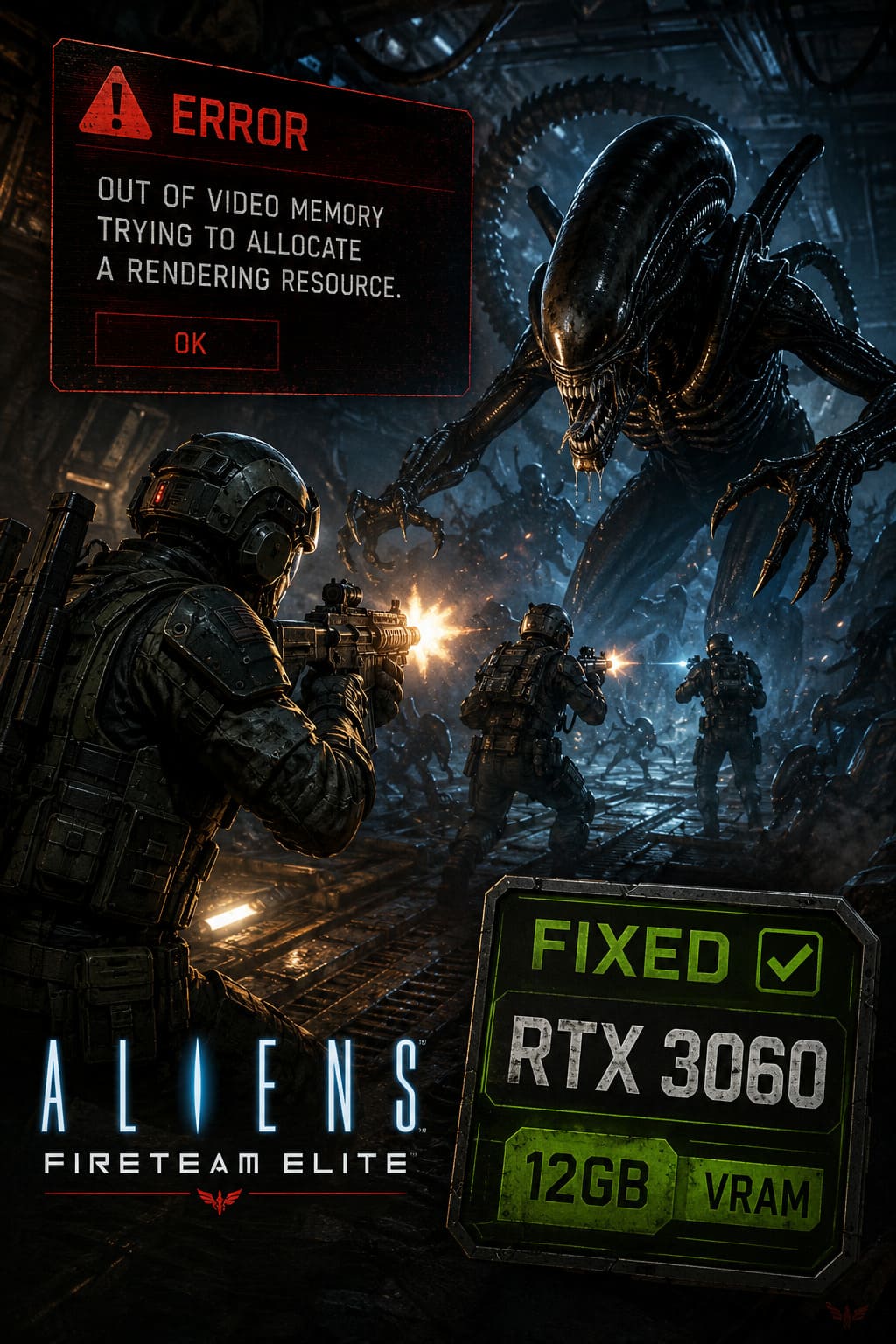
There are few things more annoying than launching a game that your PC should handle comfortably, only to be greeted by an “Out of video memory trying to allocate a rendering resource” crash before you even reach the action.
That is exactly what can happen in Aliens Fireteam Elite, and it is particularly confusing for RTX 3060 owners. The standard desktop RTX 3060 comes with 12GB of VRAM, which is still a respectable amount for 1080p gaming. Yet the game can sometimes behave as if the GPU has suddenly run out of memory, dumping you back to the Windows desktop during startup or while the main menu is loading.
I have dealt with plenty of PC games that throw misleading GPU errors, and one thing I have learned is that an “out of video memory” message does not automatically mean your graphics card is actually full. The problem can involve Windows virtual memory, corrupted configuration files, shader data, graphics drivers, background applications, API initialization, or even broader system instability.
The good news is that you usually don’t need to replace your RTX 3060 to get Aliens Fireteam Elite running again.
This guide walks through the fixes I would personally try, starting with the least invasive options and moving toward the more serious troubleshooting steps.
What Causes the Out of Video Memory Error in Aliens Fireteam Elite?
Before changing half of your Windows installation, it helps to understand what might actually be going wrong.
An Unreal Engine game doesn’t use your VRAM in isolation. During startup, it can also depend heavily on system RAM, the Windows pagefile, shader compilation and various driver-level memory allocations. If one part of that chain fails, the final error message can make the GPU look guilty even when it isn’t.
Here are the most common possibilities:
| Possible Cause | What Can Happen |
|---|---|
| Corrupted Configuration | The game loads invalid resolution or graphics settings and crashes during initialization |
| DirectX Compatibility Issue | The rendering API fails while allocating resources |
| Pagefile Too Small | Windows cannot provide enough virtual memory during heavy loading |
| Driver Problems | Corrupted or conflicting NVIDIA driver data causes incorrect resource handling |
| Background Applications | Browsers, overlays and recording software consume additional memory |
| Hardware Instability | CPU, RAM or GPU instability can trigger apparently unrelated crashes |
In my experience, resetting the game’s configuration and checking virtual memory are two of the first things worth trying. They are quick, reversible and don’t require you to start experimenting with BIOS settings.
1. Increase the Windows Pagefile
This is probably the first fix I would try if the game crashes during startup with an out-of-memory message.
The Windows pagefile acts as additional virtual memory. It isn’t a replacement for physical RAM or VRAM, and putting it on an SSD won’t magically increase your GPU’s memory. However, having an appropriately sized pagefile can prevent applications from failing when Windows needs more committed memory than your physical RAM alone can provide.
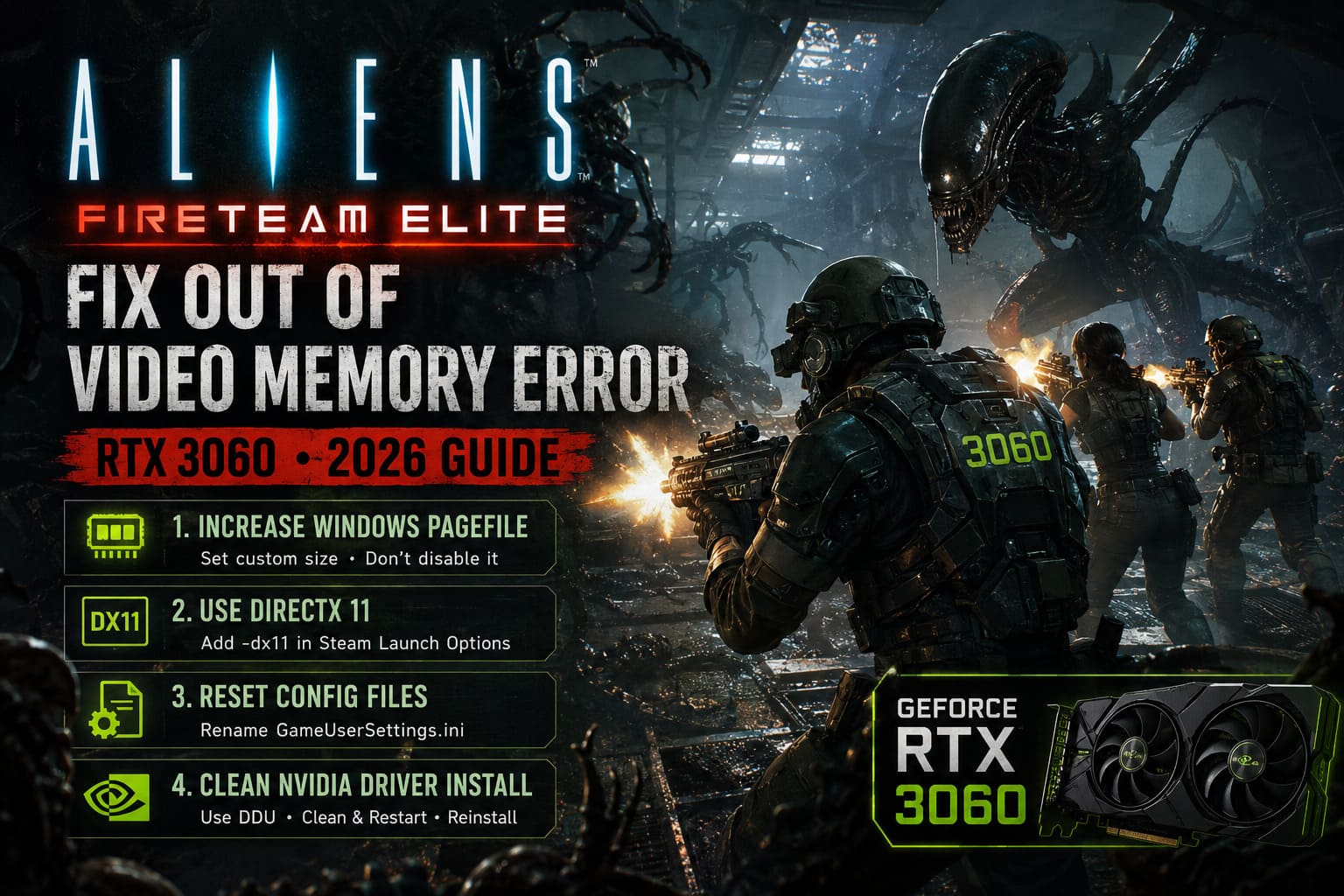
How to Increase Virtual Memory
- Press Windows + R.
- Type sysdm.cpl and press Enter.
- Open the Advanced tab.
- Under Performance, click Settings.
- Select the Advanced tab again.
- Find Virtual Memory and click Change.
- If necessary, disable Automatically manage paging file size for all drives.
- Select your Windows system drive, normally C:.
- Choose Custom size.
For a starting point, you can use values such as:
- 16GB RAM: Initial Size 16384 MB, Maximum Size 24576 MB
- 32GB RAM: Initial Size 32768 MB, Maximum Size 49152 MB
Click Set, then OK, and restart Windows.
That said, I generally recommend leaving the pagefile system-managed unless you have a specific reason to configure it manually. The important thing is not to disable the pagefile completely.
2. Try DirectX 11 Instead of DirectX 12
If your PC crashes specifically while the game is initializing its renderer, switching graphics APIs is worth testing.
This is one of those classic PC gaming fixes that sounds too simple until it actually works.
Force DX11 Through Steam
- Open Steam.
- Go to your Library.
- Right-click Aliens Fireteam Elite.
- Select Properties.
- Stay in the General section.
- Find Launch Options.
- Enter -dx11.
Close the window and launch the game.
If the game suddenly works, you have learned something useful: the problem is probably connected to the default rendering path or its interaction with your particular driver/system configuration.
I would leave DX11 enabled if the game is stable and performance is acceptable. There is no prize for forcing DX12 if it simply gives you a crash every time you launch.
If the launch option makes no difference, remove it and continue troubleshooting.
3. Reset Aliens Fireteam Elite’s Configuration Files
This is another fix I particularly like because configuration files can become corrupted after a driver update, Windows update, crash or change in graphics settings.
Sometimes a game remembers a resolution, scalability value or graphics option that your current configuration doesn’t handle correctly.
Instead of fighting the broken settings, let the game create fresh ones.
What to Do
- Press Windows + R.
- Enter %localappdata%.
- Press Enter.
- Locate the folder associated with Aliens Fireteam Elite.
- Look for its Saved directory.
- Check the Config folder.
- Look for a file such as GameUserSettings.ini.
Before deleting anything, I recommend renaming the file rather than permanently removing it.
For example:
GameUserSettings.ini → GameUserSettings.old
Then launch the game.
If it starts successfully, the original configuration was likely part of the problem.
The exact folder structure can vary depending on the game’s installation and account configuration, so don’t blindly delete unrelated folders from AppData.
4. Perform a Clean NVIDIA Driver Installation
If the RTX 3060 is reporting strange behavior across several games, I’d start looking at the driver.
A normal NVIDIA driver update doesn’t always eliminate every piece of old configuration or corrupted driver data. If Aliens Fireteam Elite is the only game crashing, this may be overkill. If multiple Unreal Engine games are suddenly producing GPU-related crashes, however, a clean installation becomes much more interesting.
For advanced troubleshooting, many PC gamers use Display Driver Uninstaller (DDU) to remove the existing display driver before reinstalling it.
Recommended Process
- Download the current NVIDIA Game Ready Driver for your RTX 3060.
- Download DDU from a reputable source.
- Disconnect from the internet temporarily if you want to prevent Windows from automatically installing another driver.
- Boot Windows into Safe Mode.
- Run DDU.
- Select GPU and NVIDIA.
- Choose Clean and restart.
- Once Windows starts normally, install the NVIDIA driver.
- Choose the Custom installation option if available.
- Use the clean-install option provided by NVIDIA’s installer.
Afterward, restart the PC and test the game before installing additional GPU utilities or overlays.
One important point: don’t immediately install five different optimization programs after cleaning your driver. Test the game in a relatively clean environment first.
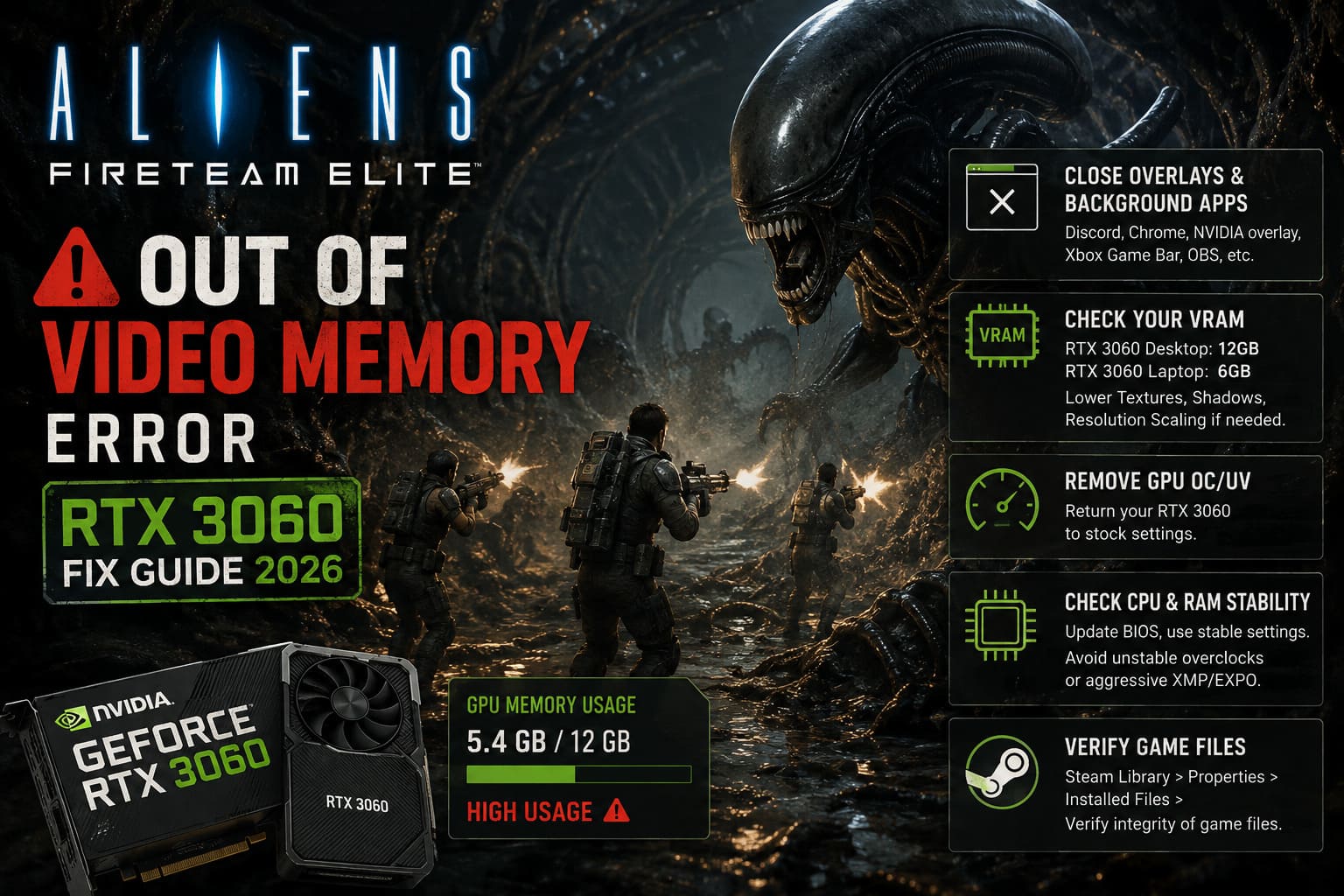
5. Close Overlays and Background Programs
This is probably the least glamorous fix on the list, but I’ve seen it solve plenty of strange PC gaming crashes.
If you have Chrome with 30 tabs open, Discord, OBS, NVIDIA overlay features, browser acceleration and several monitoring utilities running at the same time, you’re creating more variables than necessary.
Before launching the game, temporarily close:
- Chrome or Edge
- Discord overlay
- NVIDIA overlay
- Xbox Game Bar
- OBS or recording software
- MSI Afterburner/RivaTuner
- Other GPU monitoring or tuning utilities
Then launch Aliens Fireteam Elite again.
If the crash disappears, re-enable your applications one at a time. That can help identify the actual conflict instead of randomly changing ten settings at once.
6. Check Your Actual VRAM Situation
Not every RTX 3060 is identical.
The desktop RTX 3060 is commonly associated with 12GB of VRAM, while RTX 3060 laptop GPUs typically have 6GB. If you’re using the laptop version, memory pressure is considerably more plausible, particularly at higher resolutions.
You should also check whether another application is consuming GPU memory.
You can use Task Manager → Performance → GPU to get a basic view of memory usage. NVIDIA’s own tools and third-party monitoring software can provide additional information.
If you’re running a 6GB model, try lowering:
- Texture Quality
- Resolution
- Resolution Scaling
- Shadow Quality
- Effects Quality
You don’t necessarily need to turn everything to Low. Texture quality is often one of the first settings worth reducing when VRAM is genuinely the limitation.
7. Remove Any GPU Overclock or Undervolt
If you have an RTX 3060 that has been overclocked or undervolted, return it to stock settings temporarily.
A system can appear completely stable in benchmarks and still crash in a specific game. Different engines stress the GPU, CPU and memory subsystem in different ways.
For troubleshooting, I would rather have a boring stock RTX 3060 than a “+150 MHz” profile that makes the game crash every 20 minutes.
Reset your GPU tuning software to default values and test again.
If the game becomes stable, you can later experiment with your tuning profile and determine which setting is responsible.
8. Check for Broader CPU or RAM Instability
This is where I would be more cautious.
Some recent Intel desktop platforms have had well-publicized stability concerns, particularly involving certain 13th- and 14th-generation desktop processors. An unstable CPU can produce surprisingly misleading crashes, including errors that appear to blame the GPU.
If you’re using a high-end Intel desktop processor and multiple unrelated games are crashing with unusual memory or rendering errors, check your motherboard BIOS version and make sure you’re running an appropriate manufacturer-recommended configuration.
Do not immediately start lowering CPU multipliers or changing voltages unless you know exactly what you’re doing.
For most players, updating the BIOS and returning experimental overclocks to stable defaults is the safer first step.
The same principle applies to system RAM. If you recently enabled an aggressive XMP/EXPO profile and started getting random crashes, test the system at conservative memory settings.
9. Verify the Game Files Through Steam
Before doing anything drastic, make sure the installation itself isn’t damaged.
Steam provides a built-in verification tool:
- Open your Steam Library.
- Right-click Aliens Fireteam Elite.
- Select Properties.
- Open Installed Files.
- Select Verify integrity of game files.
- Wait for the process to finish.
- Restart Steam and launch the game.
This is especially worth doing if the crash started immediately after an update, interrupted download or unexpected shutdown.
Aliens Fireteam Elite 2 Heavy Weapons Guide: Best Options to Shred Xenomorphs
My Recommended Order of Fixes
If you don’t want to spend your entire afternoon changing Windows settings, I’d approach the problem in this order:
- Verify the game files.
- Close overlays and background applications.
- Reset GameUserSettings.ini.
- Try the DX11 launch option.
- Check your pagefile configuration.
- Reset GPU overclocks/undervolts.
- Clean-install the NVIDIA driver.
- Investigate BIOS, CPU and RAM stability if other games are also crashing.
This order matters because the first few fixes are relatively harmless. There is no reason to jump straight into BIOS tweaking because one game produced a scary-looking memory error.
Aliens Fireteam Elite 2 Matchmaking Not Working: How to Fix Co-Op and Connection Errors
Final Thoughts
The Aliens Fireteam Elite out-of-video-memory error on an RTX 3060 is a perfect example of why PC gaming troubleshooting can be so frustrating. The message sounds like the GPU is simply too weak, but that isn’t necessarily what is happening.
If you’re using a desktop RTX 3060 with 12GB of VRAM, I would not immediately assume that the card has reached its limits. Start with the game files, configuration reset, background applications and DirectX 11 test. Those are relatively quick and can tell you a lot about where the problem is coming from.
If none of those work, move on to the Windows pagefile and NVIDIA driver installation. Only after those steps would I start investigating deeper system-level instability involving BIOS settings, CPU behavior, RAM or GPU tuning.
Personally, I prefer this approach because it avoids the classic PC troubleshooting mistake of changing everything at once. If one fix solves the crash, you actually know what fixed it.
And if Aliens Fireteam Elite finally launches without that dreaded memory allocation popup, leave the working configuration alone for a while. In PC gaming, a stable 60 FPS and a game that actually reaches the main menu are often worth more than another evening spent chasing the “perfect” graphics settings.