Pax Autocratica Steam Deck OLED: Best Graphics Settings for Stable 45 FPS
I’ve spent a ridiculous amount of time tweaking games on the Steam Deck OLED. Sometimes I enjoy the process almost as much as playing the game itself. There’s something satisfying about taking a demanding PC title, finding the settings that make it behave properly on a handheld, and then sitting back with a game that feels like it was actually designed for portable play.
Pax Autocratica gave me exactly that challenge.
On paper, it sounds like the kind of game that should run comfortably on modern hardware. It combines colony management, economic systems, tactical decision-making, and first-person roguelite shooting. In reality, it can be surprisingly demanding, particularly once your colony becomes more complicated and the game starts throwing larger battles, more AI calculations, and increasingly busy environments at the CPU.
I tested several different configurations on the Steam Deck OLED, and eventually settled on one that I genuinely prefer: 45 FPS at 90 Hz.
It isn’t perfect in every situation. I wouldn’t pretend that the Deck can magically turn Pax Autocratica into a locked 90 FPS experience. It can’t. But 45 FPS hits a really nice balance between responsiveness, image quality, battery consumption, and overall smoothness.
And for me, it feels much better than playing this particular game at a sluggish 30 FPS.
Why I Prefer 45 FPS on the Steam Deck OLED
The biggest advantage of the Steam Deck OLED isn’t simply its brighter display or improved battery characteristics. For demanding games, that 90 Hz refresh rate opens up another option that wasn’t available in quite the same way on the original LCD model.
Set the display to 90 Hz and cap the game at 45 FPS, and every frame gets two refresh cycles.
That sounds like a small technical detail, but you can absolutely feel the difference.
Pax Autocratica isn’t a pure shooter, so you don’t need an extremely high frame rate all the time. You’re going to spend plenty of time managing your colony, checking resources, moving units around, and making strategic decisions. But when you suddenly find yourself behind a weapon and trying to track enemies during a chaotic firefight, 30 FPS starts feeling noticeably heavy.
At 45 FPS, aiming feels considerably more responsive.
The game also feels more comfortable when moving around your base. Camera movement is smoother, menus don’t feel as sluggish, and the whole experience has a more modern PC-game feel.
For my playstyle, 45 FPS is the sweet spot.
My Steam Deck OLED Performance Profile
Before changing anything inside the game, I recommend setting up a dedicated SteamOS profile for Pax Autocratica.
Open the Steam Deck’s Quick Access Menu, then head into the Performance section. I don’t recommend changing these settings globally because other games may benefit from completely different power limits or refresh rates.
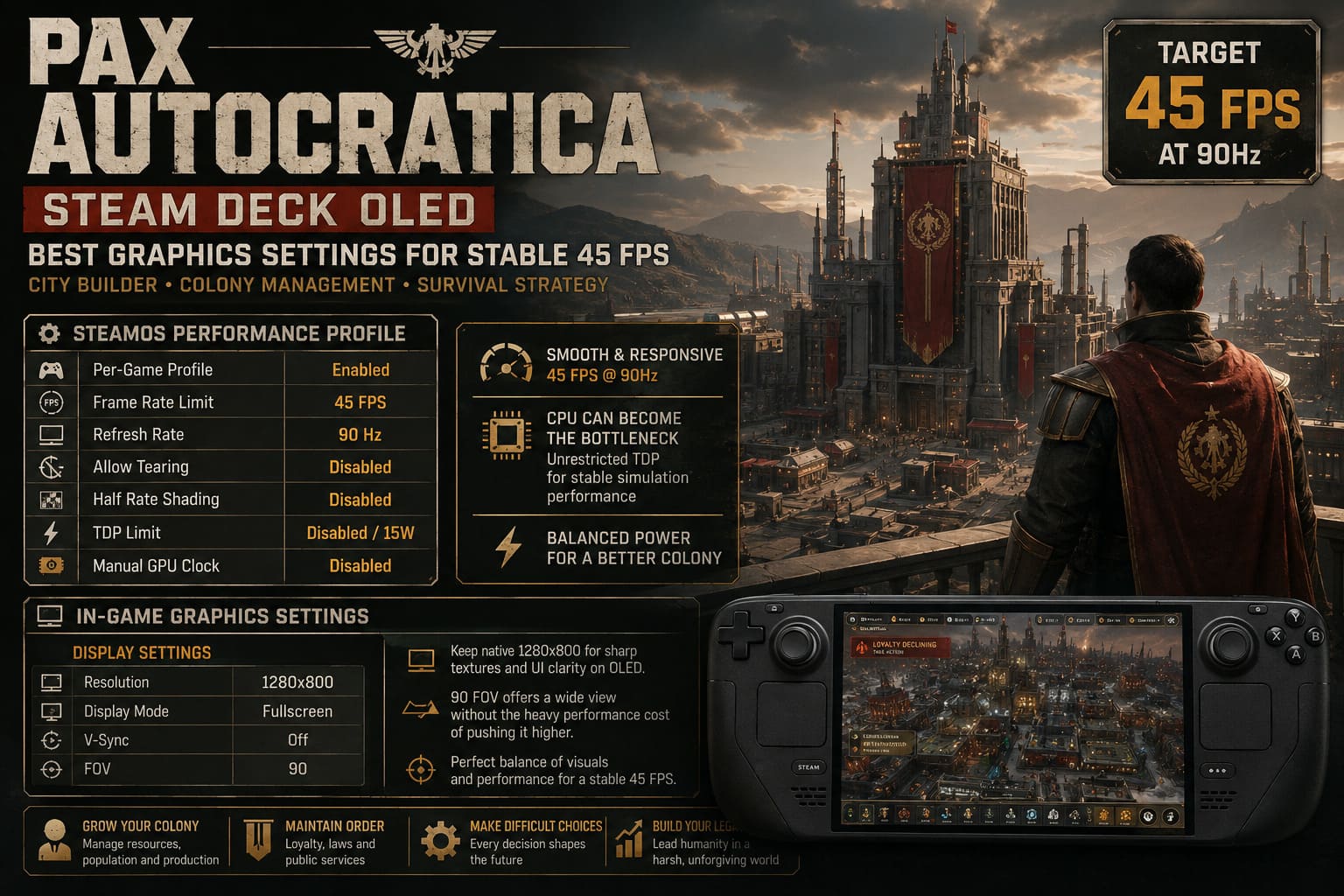
Here is the profile I ended up using:
| SteamOS Setting | My Recommendation |
|---|---|
| Per-Game Profile | Enabled |
| Frame Rate Limit | 45 FPS |
| Refresh Rate | 90 Hz |
| Allow Tearing | Disabled |
| Half Rate Shading | Disabled |
| TDP Limit | Disabled / 15W |
| Manual GPU Clock | Disabled |
The most important settings here are obviously 45 FPS and 90 Hz.
I leave the TDP unrestricted because Pax Autocratica isn’t purely GPU-bound. In fact, one of the things I noticed while playing is that the CPU can become the real problem once the colony grows and the game has more simulation work to perform.
That’s why I don’t like aggressively restricting the Deck’s power budget.
A game that is mostly GPU-bound can sometimes tolerate a lower TDP surprisingly well. Pax Autocratica isn’t always that kind of game.
The Graphics Settings I Actually Use
Inside the game, I don’t recommend simply selecting the lowest preset and calling it a day.
That approach technically improves performance, but it also destroys a lot of the visual character that makes Pax Autocratica enjoyable.
The game has plenty of small environmental details, and the colony-management side benefits from keeping textures reasonably sharp. On a 7.4-inch OLED display, you can get away with reducing some expensive effects without making the game look terrible.
These are the settings I settled on.
Display Settings
- Resolution: 1280×800
- Display Mode: Fullscreen
- V-Sync: Off
- FOV: 90
I keep the native 1280×800 resolution because I don’t see enough benefit from lowering the output resolution when using a sensible upscaling solution.
The 90 FOV setting is another deliberate compromise. You can push it higher, but you’re asking the hardware to render more of the environment. During normal exploration, the difference isn’t particularly important. During large combat sequences, however, that additional rendering workload can contribute to performance drops.
For me, 90 is wide enough without becoming unnecessarily expensive.
Upscaling: The Setting That Makes the Biggest Difference
If your version of Pax Autocratica offers FSR 2 or FSR 3, this is one of the first settings I’d experiment with.
I generally prefer the Quality or Balanced modes rather than immediately dropping everything to an aggressive performance preset.
The Steam Deck OLED’s native resolution is relatively modest, which means a good temporal upscaler can do a surprisingly convincing job.
My preferred configuration is:
- Upscaler: FSR 2/FSR 3, if available
- Upscaling Quality: Quality or Balanced
- Render Scale: 100% if running native, otherwise use the selected FSR preset
- Sharpness: Moderate
The exact sharpness value may differ depending on the game’s implementation. If the slider uses a scale such as 0–1, I tend to start around 0.5–0.6 and adjust it from there.
Too much sharpening makes the image look noisy and artificial. Too little makes the UI and distant objects look soft.
On the OLED screen, I personally prefer a slightly sharper presentation because small interface elements are a major part of Pax Autocratica.
The Settings I Turn Down First
This is where I think a lot of Steam Deck optimization guides go wrong.
They tell you to reduce everything.
I don’t.
Instead, I try to identify the settings that cost a lot of performance while providing relatively little visual benefit on a handheld screen.
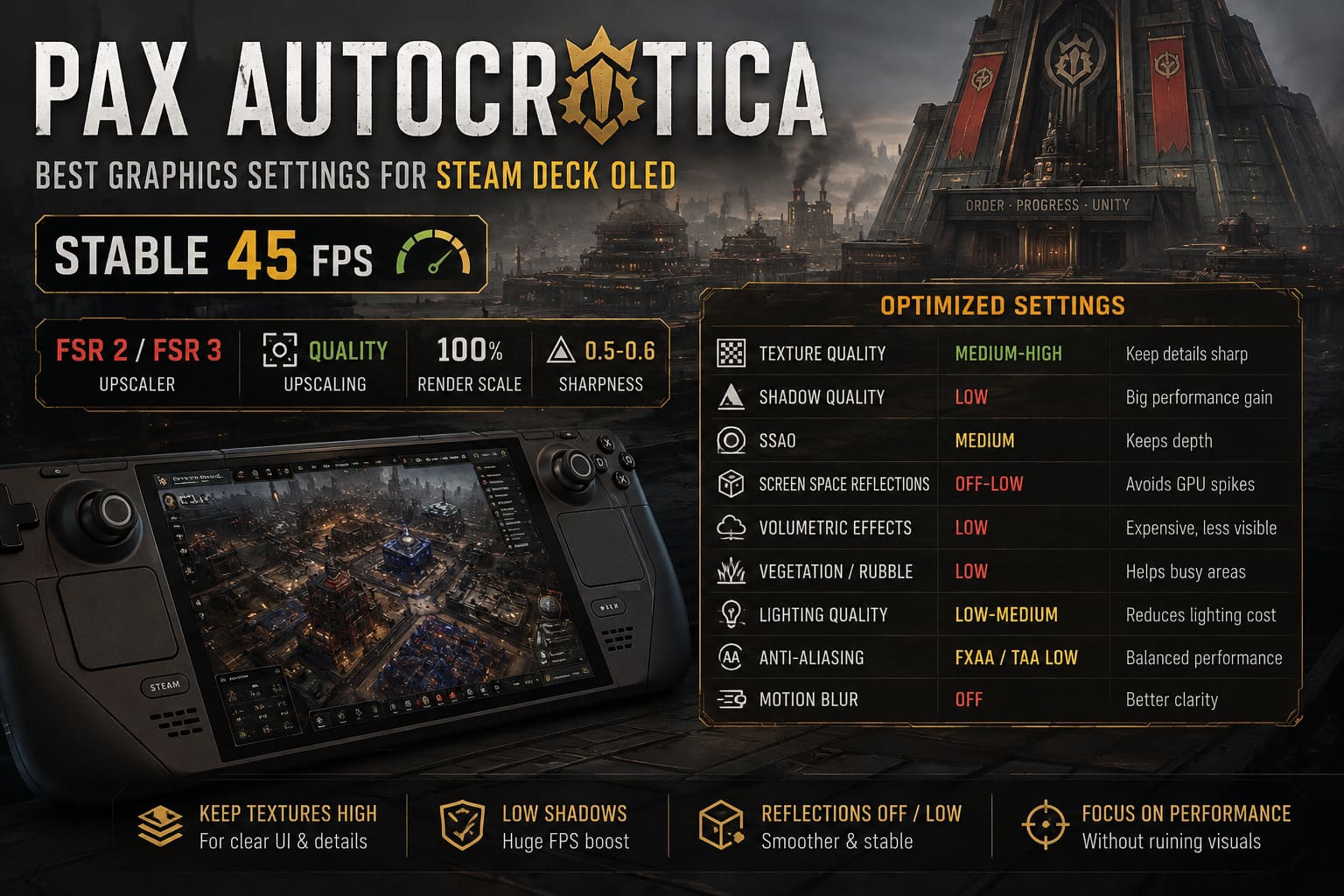
For Pax Autocratica, these are the settings I’d prioritize:
| Graphics Option | Recommended Setting | Why |
|---|---|---|
| Texture Quality | Medium-High | Keeps UI and surfaces sharp |
| Shadow Quality | Low | Significant performance savings |
| SSAO | Medium | Preserves environmental depth |
| Screen Space Reflections | Off-Low | Reduces GPU spikes |
| Volumetric Effects | Low | Expensive and less noticeable |
| Vegetation/Rubble | Low | Helps busy outdoor areas |
| Lighting Quality | Low-Medium | Reduces dynamic lighting cost |
| Anti-Aliasing | FXAA/TAA Low | Avoids excessive overhead |
| Motion Blur | Off | Better clarity during combat |
Keep Textures Higher
Textures are one of the settings I don’t like sacrificing unless I absolutely have to.
Pax Autocratica has a lot of information on screen. Units, structures, menus, resource panels, weapons, and environmental objects all benefit from a relatively sharp presentation.
Reducing textures to Low can make the entire game look muddy.
If you’re struggling with performance, I’d rather reduce shadows, reflections, vegetation, and volumetric effects first.
Shadows: Turn Them Down
Shadow Quality is one of my easiest recommendations: set it to Low.
High-quality shadows can consume a surprising amount of GPU resources, particularly in scenes with lots of objects and dynamic lighting.
And honestly, I barely notice the difference while actually playing.
When I’m managing a colony, I’m looking at buildings and interface elements. During combat, I’m concentrating on enemies and positioning. I’m not stopping to admire the resolution of a distant shadow.
Low is good enough.
Reflections Are Another Easy Sacrifice
Screen Space Reflections can look great in screenshots, but they’re not something I need running at high quality on the Deck.
Water, metal surfaces, wet environments, and industrial locations can become particularly expensive when reflections are active.
I use Off or Low here.
The game still looks good, and the performance is much more predictable.
Don’t Ignore the CPU Bottleneck
This is probably the most important thing to understand about optimizing Pax Autocratica on Steam Deck.
Not every frame drop is caused by the GPU.
As your colony becomes larger and the game starts simulating more units, enemies, production chains, pathfinding calculations, and automated systems, the CPU workload can become the limiting factor.
This is why you might see something strange happen: lowering the resolution doesn’t necessarily fix a particular frame drop.
If you’re already running at 800p and using an upscaler, reducing image quality further may accomplish almost nothing when the CPU is the bottleneck.
That’s especially noticeable during large-scale colony events and battles.
When that happens, I recommend lowering settings such as:
- Vegetation Density
- Vegetation Range
- Rubble Density
- Effects Quality
- Lighting Quality
These can reduce the amount of environmental and simulation work without completely destroying the image quality.
What Happens During Huge Battles?
Here’s where I want to set realistic expectations.
My 45 FPS profile works very well during normal exploration, colony management, and smaller encounters. But I wouldn’t promise a completely locked 45 FPS in every late-game scenario.
There are situations where Pax Autocratica simply has too much going on.
If your colony is enormous, enemies are attacking from multiple directions, AI-controlled units are pathfinding across a complicated battlefield, and you’re simultaneously dealing with explosions and environmental effects, the Steam Deck can struggle.
You may see the frame rate dip into the high 30s.
That’s not necessarily a sign that your graphics settings are wrong.
In those situations, the problem can simply be the game’s simulation workload.
And personally, I’d rather have a mostly stable 45 FPS with occasional CPU-related dips than destroy the image quality trying to force an unrealistic number.
My Battery-Friendly Alternative
Of course, 45 FPS isn’t always the right choice.
If I’m sitting on the couch near a charger, I use my full 45 FPS profile without thinking twice.
But when I’m traveling, battery life becomes much more important.
For longer sessions, I switch to a second profile built around 30 FPS at 60 Hz.
A lower power target can make a substantial difference to battery consumption, especially when you’re not trying to push the Deck as hard.
A configuration around 10–11W TDP can be worth experimenting with, although the exact result will vary depending on the game version, environment, brightness, background processes, and how demanding your current colony is.
I wouldn’t blindly lock the GPU to a specific clock speed and assume it will be optimal for everyone. Pax Autocratica’s CPU/GPU workload changes considerably depending on what you’re doing.
For me, the important distinction is simple:
45 FPS when I want the best experience.
30 FPS when I want the longest session.
How to Fix Pax Autocratica Low FPS, Lag Spikes & Stuttering (2026 Guide)
My Final Steam Deck OLED Setup
After experimenting with different combinations, this is the configuration I’d recommend starting with:
SteamOS
- 90 Hz refresh rate
- 45 FPS limit
- 15W/unrestricted TDP
- Manual GPU clock disabled
- Allow Tearing disabled
- Half Rate Shading disabled
In Game
- 1280×800
- Fullscreen
- V-Sync Off
- FOV 90
- FSR Quality/Balanced
- Medium-High Textures
- Low Shadows
- Medium SSAO
- Off/Low Reflections
- Low Volumetrics
- Low Vegetation
- Low-Medium Lighting
- Low FXAA/TAA
- Motion Blur Off
If you’re still getting frequent drops, don’t immediately lower the resolution.
Start with vegetation, effects, shadows, and lighting.
Those adjustments make more sense for the type of performance problems Pax Autocratica can produce on a handheld.
How to Fix Pax Autocratica Graphic Glitch on RTX 3060 Laptops (2026 Workaround)
Is 45 FPS Worth It?
Absolutely.
I’ve played enough games at 30 FPS on handhelds to know that sometimes 30 is perfectly acceptable. For strategy games, turn-based titles, and slower experiences, I have no problem locking to it.
Pax Autocratica is different.
The moment the game transitions from managing your colony to first-person combat, that extra responsiveness becomes much more valuable. Turning, aiming, moving through an environment, and reacting to enemies all feel better at 45 FPS.
And the Steam Deck OLED’s 90 Hz display makes that target particularly attractive.
The important thing is not to chase a number just because it looks good on a performance overlay. A stable, well-paced 45 FPS experience is far more enjoyable than constantly bouncing between 50, 40, 35, and 28 FPS while trying to maintain an unnecessarily ambitious target.
After tweaking the game for myself, I’ve landed on a simple philosophy: keep the image quality where I notice it, and cut performance-heavy effects that I don’t.
That means keeping textures relatively high, preserving some ambient occlusion, and running the native 800p output, while sacrificing expensive shadows, reflections, vegetation, and volumetrics.
The result is a version of Pax Autocratica that feels genuinely comfortable on the Steam Deck OLED.
It won’t magically eliminate every late-game performance drop. No graphics preset can fix every CPU bottleneck. But for everyday play, 45 FPS at 90 Hz is the setup I’d choose without hesitation.
For a game as complicated and demanding as Pax Autocratica, that’s a pretty impressive result for a handheld.