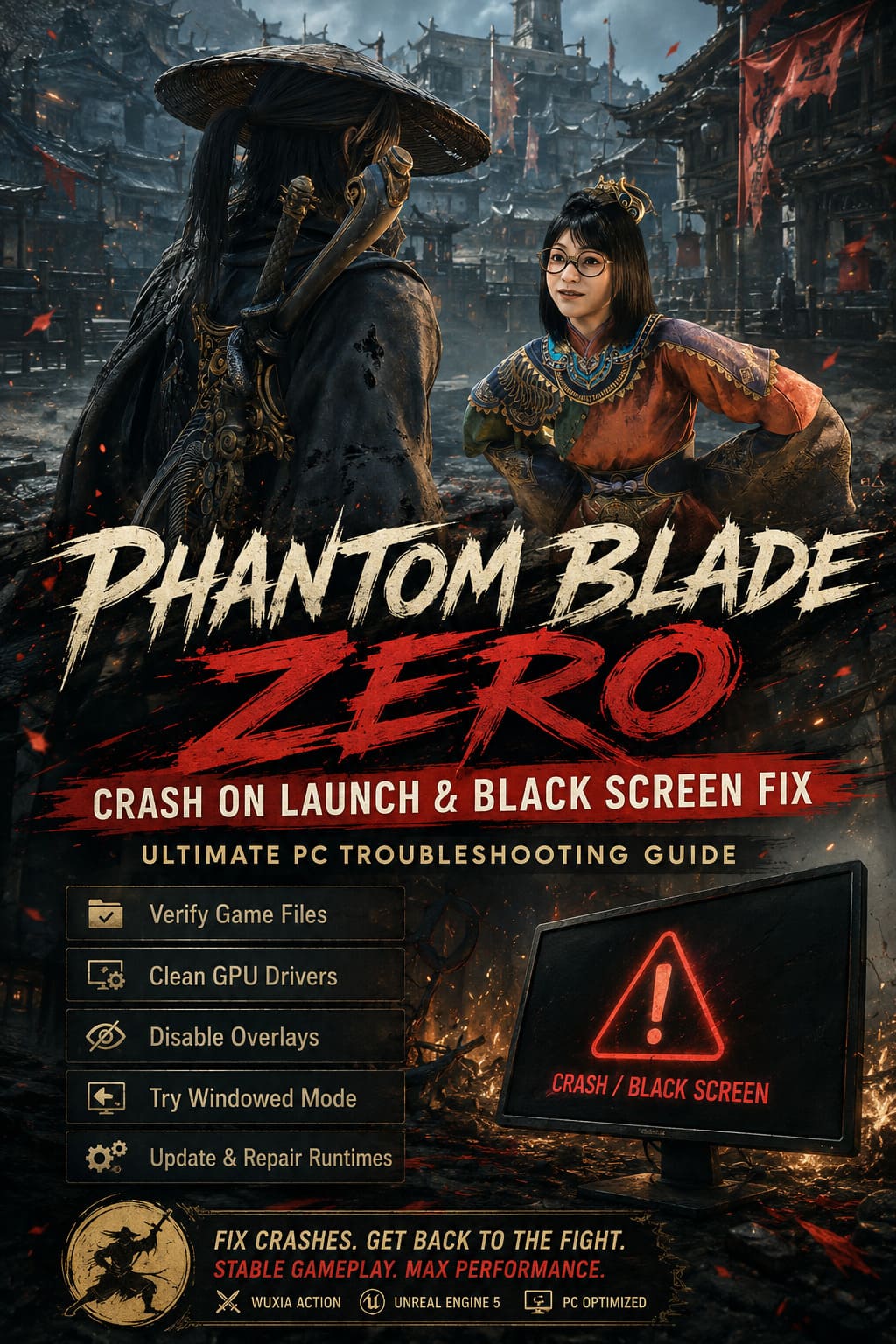
Phantom Blade Zero Crash on Launch and Black Screen Fix: Ultimate PC Troubleshooting Guide
Phantom Blade Zero looks like the kind of action game that was built to make a modern gaming PC sweat. S-GAME’s dark wuxia-inspired action title leans heavily on Unreal Engine 5, fast combat, dense environments, dramatic effects, and plenty of visual detail. That’s great when you’re already slicing through enemies at a stable frame rate, but it’s a completely different story when the game crashes before the first menu appears or leaves you staring at a black screen.
I’ve dealt with enough stubborn PC launches to know that these problems are rarely caused by one magical setting. A game can crash because of damaged files, a messy GPU driver installation, an overlay fighting with Unreal Engine, corrupted shader data, Windows permissions, or a rendering API that simply doesn’t agree with your particular hardware. The trick is to work through the fixes in the right order instead of randomly changing ten things at once.
This guide focuses on the most useful ways to troubleshoot Phantom Blade Zero crashing on launch, black screen issues, startup freezes, and immediate desktop crashes on PC.
Phantom Blade Zero Micro Stutters During Combat: Ultimate Fix Guide
Phantom Blade Zero Crash and Black Screen Fixes at a Glance
| Problem | First Fix To Try | More Advanced Fix |
|---|---|---|
| Crash immediately after launching | Verify game files | Clean GPU driver installation |
| Black screen with sound | Disable overlays | Try windowed or alternate rendering options |
| Crash after splash screen | Clear configuration/cache files | Repair Visual C++ runtimes |
| Game refuses to start | Update Windows and GPU drivers | Run executable as administrator |
| DX12-related crash | Test another rendering mode | Rebuild shader/cache data |
| Random startup failure | Close background utilities | Check virtual memory |
Start With Steam’s File Verification
Before touching Windows settings, GPU drivers, launch arguments, or system memory, make sure the game installation itself isn’t broken. This is boring advice, but it’s also one of the fixes I would try first because corrupted files can create incredibly misleading symptoms.
A failed update, interrupted download, storage problem, or damaged asset can cause an Unreal Engine game to crash during its initial loading sequence. You might see a splash screen for a few seconds and then get dumped straight back to the desktop.
On Steam, open your Library and right-click Phantom Blade Zero. Select Properties, open Installed Files, and choose Verify integrity of game files.
Let Steam finish the scan without launching the game in the background. If damaged files are discovered, Steam should download replacements automatically.
Don’t skip this step just because the game installed successfully. A game can install without errors and still have one or two damaged files that are enough to break startup.
Give Your GPU Drivers a Proper Clean Install
If Phantom Blade Zero crashes immediately or produces a black screen after the initial logo, your graphics driver deserves serious attention. Installing the newest driver over the top of an old installation sometimes works, but it doesn’t always remove corrupted profiles, leftover components, or conflicts from previous versions.
For persistent problems, I prefer a genuine clean installation with Display Driver Uninstaller (DDU) rather than repeatedly clicking the normal update button.
Download the latest driver for your GPU directly from the manufacturer’s official website. NVIDIA, AMD, and Intel all provide current drivers for their respective graphics hardware.
Then:
- Boot Windows into Safe Mode.
- Run DDU and select your graphics manufacturer.
- Use the Clean and restart option.
- Allow Windows to boot normally.
- Install the freshly downloaded GPU driver.
- Restart the PC before launching Phantom Blade Zero.
This takes longer than a normal driver update, but if you’re fighting a black screen that refuses to disappear, it’s absolutely worth the extra few minutes.
Test a Different Rendering Mode
One of the nastiest startup situations is when the game itself is running but the rendering pipeline fails to initialize correctly. You may hear music, Windows may register that the application is active, yet your monitor displays nothing but black.
That’s where launch options can be useful.
In Steam, open Phantom Blade Zero > Properties > General and find the launch options field. If your installation supports the corresponding Unreal Engine command, testing -d3d11 can determine whether DirectX 12 is involved in the failure.
If that doesn’t help, remove the argument and test -windowed.
The windowed option is particularly useful when the game is crashing during fullscreen initialization or when Windows and the display driver aren’t agreeing on the selected resolution or refresh mode.
I wouldn’t pile several launch commands into the box immediately. Change one thing at a time. Otherwise, you won’t know which setting actually solved the problem.
Turn Off Every Overlay You Don’t Need
Overlays are convenient until they aren’t.
Steam, Discord, GPU software, recording applications, performance monitors, RGB utilities, and hardware monitoring tools can all hook into a game’s rendering process. Most games tolerate this perfectly well, but a demanding Unreal Engine title can occasionally react badly to one particular combination.
Start by disabling the Steam overlay. Then disable Discord’s game overlay and any GPU software overlay you have enabled.
I’d also close programs such as:
- MSI Afterburner
- RivaTuner Statistics Server
- RGB control software
- GPU monitoring utilities
- Third-party recording tools
- Aggressive system tuning applications
You don’t necessarily need to uninstall these programs. Just close them temporarily while testing the game.
If Phantom Blade Zero suddenly launches normally, you’ve narrowed the problem down considerably.
Try Running the Game as Administrator
Windows permissions can occasionally interfere with a game’s ability to create configuration files, write shader data, or access certain folders.
Find the game’s executable through Steam by opening the game’s local files. Locate the main .exe file, right-click it, select Properties, and open the Compatibility tab.
You can test Run this program as an administrator and, if you’re experiencing fullscreen-related problems, also test Disable fullscreen optimizations.
I wouldn’t automatically recommend administrator mode as a permanent requirement for every PC game. Think of it as a troubleshooting step. If it fixes the crash, that’s useful information about what was happening behind the scenes.
Delete Corrupted Configuration and Cache Data
This is one of my favorite fixes for weird launch behavior because configuration files can become corrupted without giving you any obvious warning.
A failed crash recovery, old graphics configuration, incomplete update, or broken shader cache can leave the game trying to load settings that no longer work properly.
Press Windows + R, enter %localappdata%, and press Enter.
Look for folders associated with Phantom Blade Zero or S-GAME. Depending on the current PC build, relevant data may be stored under directories such as Saved, Config, or crash/cache folders.
Before deleting anything important, make a backup of the folder. Removing configuration data can reset your graphics, audio, and other local preferences.
The goal here isn’t to delete your entire gaming life. You’re trying to force the game to rebuild broken local settings.
After clearing the relevant cache or configuration data, restart Windows and test the game again.
Update Windows and Repair Microsoft Runtimes
A modern PC game depends on much more than its own executable. Windows components, graphics APIs, runtime libraries, and supporting frameworks all have to cooperate.
Open Windows Update and install pending updates, particularly major quality and system component updates. Restart afterward rather than immediately launching the game.
You should also make sure the current Microsoft Visual C++ Redistributable packages are installed correctly. If you already have them installed, repairing the packages can still help when a runtime component has become damaged.
Both x64 and x86 Visual C++ packages can be relevant because different components may rely on different architectures.
DirectX components should also be kept current. Don’t download random ‘DirectX fixes’ from questionable websites. For something this fundamental, stick to Microsoft’s official distribution channels.
Check Your Windows Page File
This is a less obvious problem, but it’s worth checking if Phantom Blade Zero crashes during heavy loading rather than immediately at startup.
Unreal Engine 5 games can consume substantial amounts of memory while loading assets, compiling shaders, and preparing a large scene. If your physical RAM becomes exhausted and Windows has insufficient virtual memory available, applications can become unstable.
Open Advanced System Settings in Windows and navigate to the performance settings. Under the Advanced section, find Virtual Memory and inspect your paging file configuration.
For most users, I recommend allowing Windows to manage the page file automatically unless you have a specific reason to configure it manually. A properly managed system page file is generally safer than disabling it or setting an unnecessarily tiny limit.
If you’ve previously disabled virtual memory because you wanted to ‘save SSD space,’ I’d reverse that decision. Modern PC gaming is not a great place to run with an artificially restricted page file.
Check for GPU Overclocking and Undervolting Instability
Here’s a fix that gets overlooked constantly.
Your graphics card might appear completely stable in older games while crashing in Phantom Blade Zero. A GPU overclock or undervolt that survived dozens of hours in other titles isn’t automatically stable under every Unreal Engine workload.
If you’re using a custom GPU profile, return the GPU to stock settings temporarily. Do the same for aggressive CPU tuning if you’ve changed processor voltages, clocks, or memory settings.
This doesn’t mean your hardware is defective. It simply means Phantom Blade Zero may be exposing an instability that another game never managed to trigger.
If the game becomes stable at stock settings, start experimenting again later with smaller changes.
Don’t Ignore Your Storage Drive
If you’ve verified the files and still experience crashes during loading, check the drive where Phantom Blade Zero is installed.
A nearly full SSD can behave poorly, especially when Windows and the game are both competing for temporary storage. Leave a reasonable amount of free space on the drive and make sure Windows isn’t reporting storage errors.
If the game is installed on an older mechanical hard drive, moving it to a modern SSD can also improve loading behavior and reduce asset-streaming headaches.
The important point is that not every crash is a GPU problem. Modern games constantly stream data, create caches, and write temporary files. Storage health matters.
Use a Simple Troubleshooting Order
When a game refuses to launch, the biggest mistake is changing everything simultaneously. I’ve made that mistake myself, and it’s incredibly easy to end up with a working game while having absolutely no idea why it works.
For Phantom Blade Zero, I’d tackle the problem in this order:
- Verify the game files.
- Restart Windows.
- Disable Steam, Discord, GPU, and monitoring overlays.
- Return GPU/CPU overclocks to stock.
- Update the graphics driver.
- Perform a DDU clean installation if normal updating fails.
- Reset local configuration/cache files.
- Test windowed mode or another supported rendering option.
- Update Windows and repair Visual C++ components.
- Check RAM usage, virtual memory, and storage health.
This approach keeps troubleshooting controlled instead of turning your PC into a science experiment.
What If Phantom Blade Zero Still Crashes?
If none of these fixes works, stop guessing and start collecting evidence.
Check Windows Event Viewer, reliability history, and any crash reports generated by the game. Look for the crashing module, exception code, graphics driver component, or DLL mentioned around the exact time of the failure.
That information can tell you whether you’re dealing with a GPU driver issue, application exception, missing runtime, memory problem, or something completely different.
Also pay attention to when the crash occurs. A crash before the first logo points toward a different problem than a crash when loading a save, entering a particular area, changing graphics settings, or compiling shaders.
That’s the detail that separates useful troubleshooting from blindly reinstalling Windows.
Final Thoughts
Phantom Blade Zero is exactly the kind of PC game where technical problems can feel especially frustrating because the actual game is what you want to be playing. When the screen goes black instead of throwing you into a brutal sword fight, patience disappears pretty quickly.
The good news is that most launch crashes aren’t automatically signs that your GPU or CPU is dying. Corrupted files, dirty drivers, overlays, broken configuration data, rendering-mode conflicts, and system dependencies are much more realistic places to start.
Work through the fixes methodically, change one variable at a time, and don’t underestimate the boring solutions. In my experience, file verification, a genuinely clean GPU driver installation, disabling overlays, and rebuilding local configuration data solve a surprising number of stubborn PC launch problems.