How to Fix Bodycam Out of Video Memory Error: 2026 Troubleshooting Guide
There are few things more annoying than getting ready for a serious Bodycam session, loading into a map, and suddenly watching the game disappear behind an Unreal Engine crash window. You can have a powerful GPU, plenty of RAM, a fast SSD, and a modern CPU, yet the game can still throw the infamous “Out of Video Memory trying to allocate a rendering resource” message at you.
I’ve run into this kind of problem enough times to know that immediately blaming the graphics card is usually the wrong move. Bodycam is an unusually demanding game, and its combination of photorealistic environments, advanced lighting, detailed textures, and Unreal Engine 5 rendering can put serious pressure on both VRAM and system memory. Sometimes the crash happens on startup. Other times it appears while loading a map or right in the middle of a firefight, which is arguably the worst possible moment.
The good news is that you don’t necessarily need to replace your GPU to fix it. In my experience, Windows virtual memory, graphics settings, CPU stability, drivers, and background overlays are all worth checking before spending money on new hardware.
So, if Bodycam keeps crashing with an out-of-video-memory error in 2026, this is the troubleshooting order I’d personally use.
Why Does Bodycam Say I’m Out of Video Memory?
First, let’s clear up one confusing point. Seeing an “Out of Video Memory” error doesn’t always mean your graphics card has literally run out of physical VRAM.
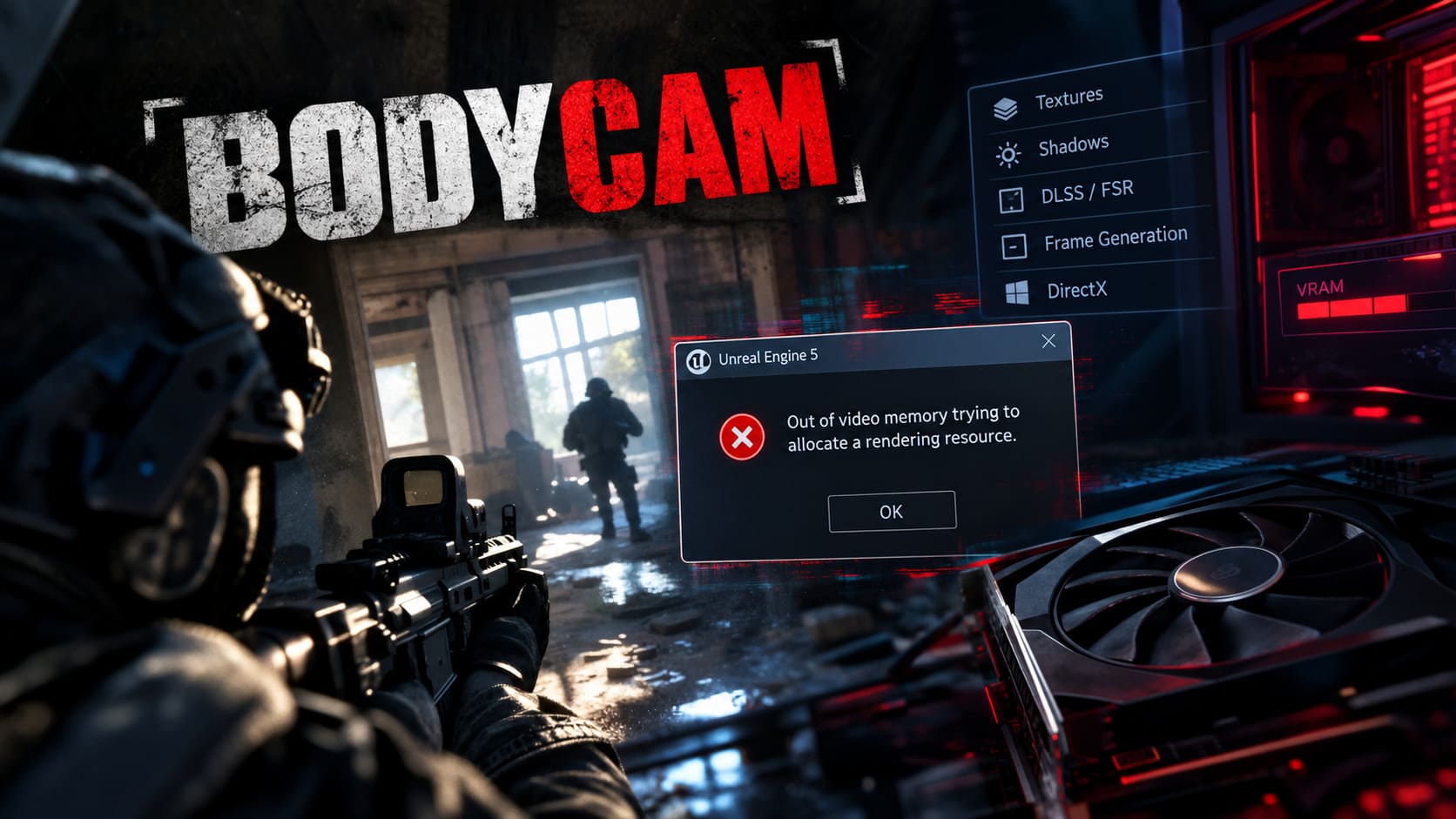
Unreal Engine has to manage enormous amounts of data between your GPU memory, system RAM, storage, and Windows virtual memory. When the engine can’t secure the allocation it expects, the resulting crash can look like a straightforward VRAM problem even when your GPU technically has enough memory.
Bodycam makes this particularly noticeable because it is designed around visual realism rather than lightweight competitive-shooter performance. High-resolution textures, complex shadows, lighting effects, reflections, and high internal rendering resolutions can quickly increase memory consumption.
There are also other potential causes. An unstable CPU, an aggressive motherboard power profile, a corrupted graphics driver, an overclock, or an overlay hooking into the game can turn a borderline memory situation into a complete crash.
| Possible Cause | What You May Notice | What I’d Try First |
|---|---|---|
| High VRAM Usage | Crash while loading maps or during heavy scenes | Lower textures and rendering settings |
| Windows Pagefile Issues | Random Unreal Engine allocation crashes | Check virtual memory settings |
| CPU Instability | Crashes during startup or shader compilation | Update BIOS and use Intel default settings |
| Driver Problems | Crashes after GPU or driver updates | Clean-install the graphics driver |
| Overlays / OC Tools | Random crashes, stutters, or instability | Disable overlays and remove overclocks |
1. Check Windows Virtual Memory Before Doing Anything Extreme
This is one of the first things I’d check because it costs nothing and can make a surprisingly big difference in games that constantly stream large amounts of data.
Your pagefile is basically an extension of system memory stored on your drive. It isn’t a replacement for real RAM, and I wouldn’t pretend that increasing it magically creates more GPU VRAM. What it can do is give Windows and applications more room when memory commitments become unusually large.
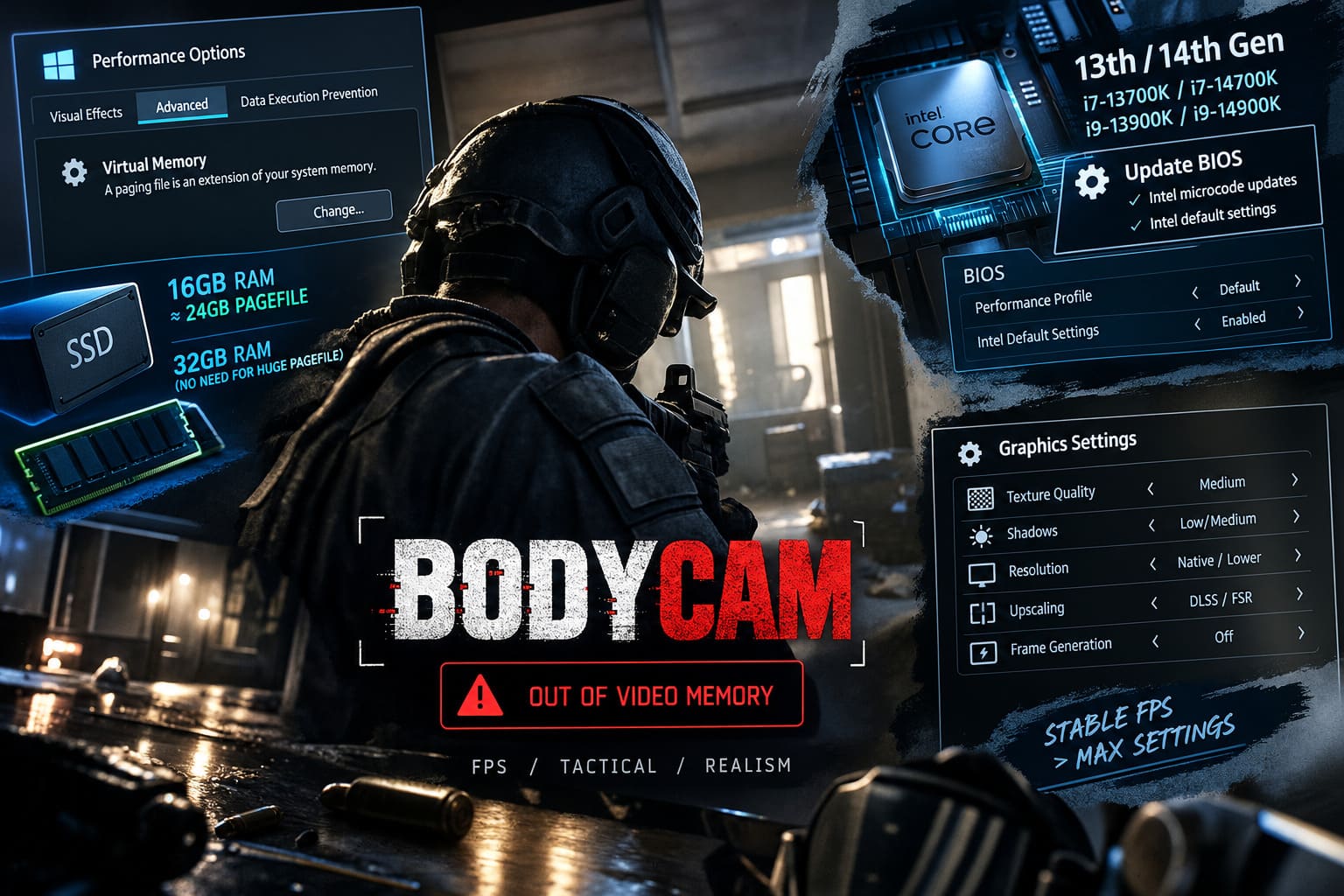
To check it, press the Windows key and search for “Adjust the appearance and performance of Windows.” Open the result and switch to the Advanced tab. Under Virtual Memory, click Change.
If Windows is managing the pagefile automatically, I’d normally leave that alone unless you’re specifically troubleshooting memory-related crashes. If you want to test a manual configuration, use a fast SSD with sufficient free space and avoid putting the pagefile on an old mechanical hard drive.
For a 16GB RAM gaming PC, something around 24GB of pagefile capacity can be a reasonable troubleshooting value. With 32GB of RAM, you generally don’t need an enormous pagefile just because you’re playing Bodycam. The exact requirement varies from system to system, so I would treat these numbers as troubleshooting starting points rather than universal rules.
After changing the setting, restart Windows and test Bodycam again.
2. If You Have an Intel 13th or 14th Gen CPU, Check Stability
This is the part I would take seriously if you’re running a high-end Intel system, particularly something like a Core i7-13700K, i7-14700K, i9-13900K, or i9-14900K.
There were widespread stability concerns surrounding some 13th- and 14th-generation desktop processors, with motherboard power and voltage behavior becoming an important part of the discussion. Unreal Engine games could be particularly good at exposing instability because shader compilation and heavy workloads aren’t exactly gentle on a CPU.
So if Bodycam crashes during startup, shader compilation, or loading and you have one of these processors, don’t immediately assume the GPU is dying.
My first recommendation is updating your motherboard BIOS. Look for the latest stable BIOS from your motherboard manufacturer and check its notes for Intel microcode updates and Intel default/baseline power settings.
After updating, enter the BIOS and avoid aggressive motherboard “enhanced performance” profiles while troubleshooting. If your board offers Intel Default Settings, that’s the profile I’d test first.
I also wouldn’t start randomly lowering CPU voltages or changing advanced settings if you aren’t comfortable with BIOS tuning. A stable default configuration is much more useful for troubleshooting than a complicated undervolt that introduces another variable.
3. Stop Trying to Run Bodycam at Maximum Everything
I’ll admit it: I love turning graphics settings all the way up when a game looks this good. Bodycam is one of those titles where you can genuinely appreciate high-quality textures and lighting. But there’s a difference between making a game look incredible and forcing every setting to its maximum regardless of your hardware.
If you’re getting Bodycam VRAM crashes, textures should be one of the first settings you experiment with.
- Texture Quality: Drop from Epic/High to Medium if your GPU has limited VRAM.
- Shadows: Reduce them if you’re still experiencing memory pressure.
- Resolution: Avoid unnecessarily high native resolutions while troubleshooting.
- Upscaling: Test DLSS on NVIDIA GPUs or FSR where supported on AMD hardware.
- Frame Generation: Turn it off temporarily if stability is more important than maximum displayed FPS.
My approach is simple: don’t change ten settings at once. Start with textures and the rendering resolution. Launch the game and reproduce the situation that normally crashes it. If the problem disappears, you’ve learned something useful.
And honestly, I’d rather play Bodycam at a stable 80 FPS with slightly reduced textures than watch a gorgeous 120 FPS image freeze before sending me back to the desktop.
4. Be Careful With DLSS, FSR, and Frame Generation
Upscaling technologies are fantastic, but they’re not a universal cure for memory problems.
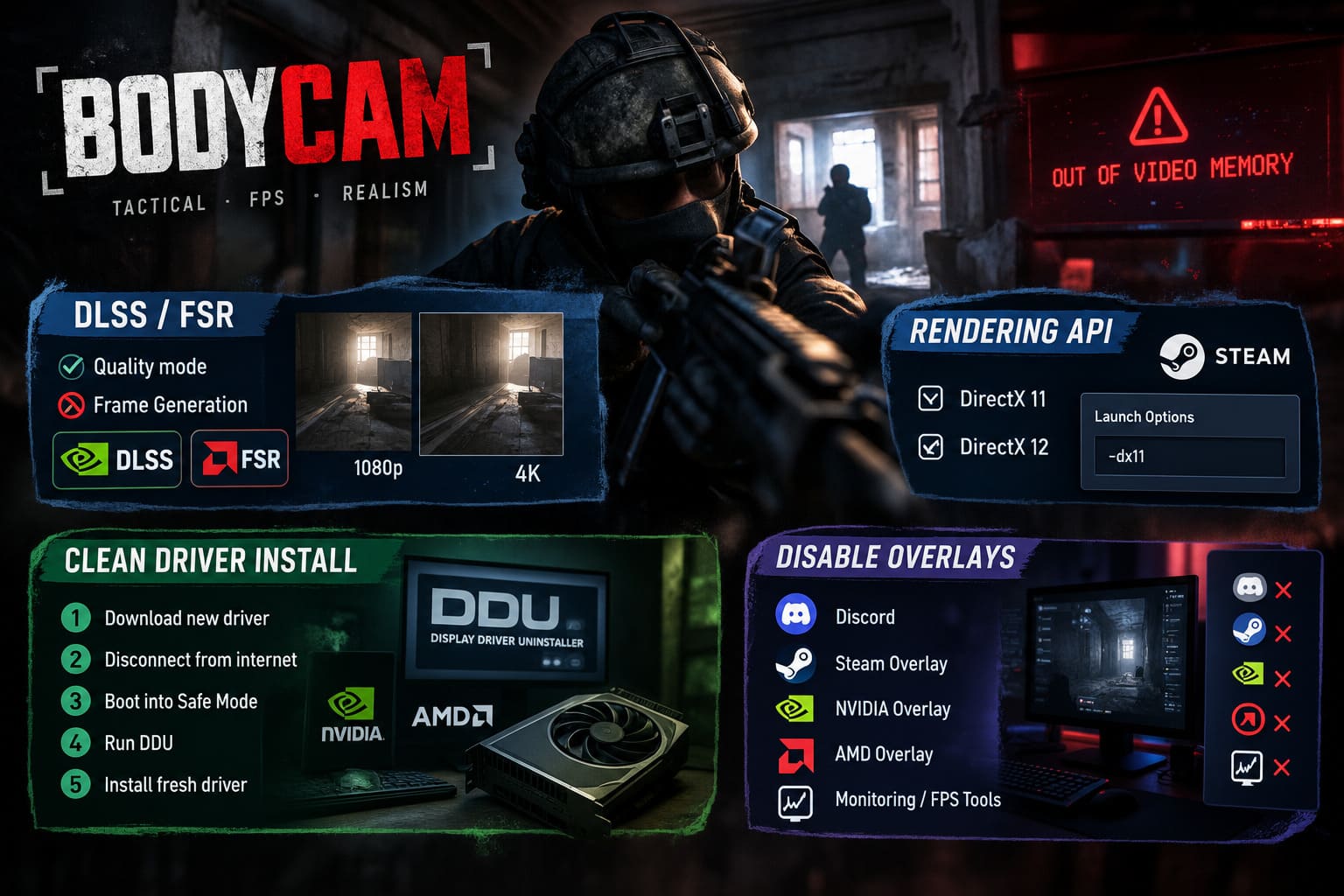
DLSS and FSR can significantly reduce the internal rendering resolution and improve performance. That’s particularly useful if you’re playing at 1440p or 4K. However, different rendering features can have different memory costs, and enabling every available feature at once isn’t always the best way to troubleshoot instability.
If you’re crashing, start with a conservative configuration. Try an upscaling mode such as Quality, disable frame generation temporarily, and test the game again.
Once Bodycam becomes stable, you can start adding features back one at a time. That’s much better than turning everything back on simultaneously and wondering which setting caused the next crash.
5. Test the Rendering API Carefully
Steam launch options are another troubleshooting tool, although I wouldn’t throw random commands into the launch box just because someone on a forum said they “boost FPS.”
Open Steam, right-click Bodycam, select Properties, and look at the Launch Options field.
If the game officially supports an alternative rendering API on your current version, testing the appropriate DirectX mode can help determine whether the crash is related to the rendering path. For example, some Unreal Engine games can behave differently between DirectX 11 and DirectX 12.
However, don’t assume every Unreal Engine launch command is useful just because it exists. Unsupported or obsolete arguments can do nothing or potentially make troubleshooting more confusing. If you’re testing a launch option, use one change at a time and remove it if it doesn’t help.
6. Give Your Graphics Driver a Proper Clean Install
If Bodycam started crashing after a GPU upgrade or a series of driver updates, I’d put driver cleanup fairly high on the list.
A normal driver update usually works perfectly well, but when you’re dealing with persistent crashes, corrupted profiles or leftovers from previous installations are worth eliminating.
You can use Display Driver Uninstaller (DDU) to completely remove the existing graphics driver before installing a fresh package from NVIDIA or AMD.
My preferred troubleshooting sequence is:
- Download the current driver for your GPU before removing the existing one.
- Disconnect from the internet temporarily if you want to prevent Windows Update from interfering.
- Boot into Windows Safe Mode.
- Run DDU and remove the appropriate NVIDIA or AMD driver.
- Restart Windows.
- Install the fresh graphics driver.
- Restart again and test Bodycam before installing extra GPU utilities.
This gives you a much cleaner baseline and makes it easier to determine whether the driver was part of the problem.
7. Turn Off Overlays While You Troubleshoot
Overlays are convenient. I use them too. Discord, Steam, GPU software, recording tools, FPS counters and hardware monitoring utilities can all be useful when you’re gaming.
But when a game is already unstable, I don’t want five different programs hooking into the rendering pipeline.
Temporarily disable the Discord overlay, NVIDIA or AMD in-game overlay, and other unnecessary overlay applications. If you’re running MSI Afterburner or RTSS, close them for the test as well.
This is especially important if you’re overclocking your GPU memory. A memory overclock can look completely stable in one game and crash spectacularly in another. Unreal Engine titles can be excellent at exposing marginal GPU stability.
For troubleshooting, I’d return the GPU to stock settings first. Once Bodycam is stable, you can experiment with your performance tuning again.
My Recommended Bodycam Troubleshooting Order
If I were sitting at my own gaming PC and Bodycam suddenly started throwing the out-of-video-memory error, I wouldn’t reinstall Windows or start changing BIOS settings randomly. I’d work through the problem from the least invasive fix to the most involved one.
- Restart the PC and test the game again.
- Lower texture quality and rendering resolution.
- Disable frame generation and unnecessary overlays.
- Check Windows virtual memory.
- Return GPU and CPU overclocks to stock.
- Update the motherboard BIOS if using a potentially affected Intel CPU.
- Clean-install the GPU driver.
- Test supported rendering API options individually.
This order matters because it keeps the troubleshooting process readable. If you change fifteen things simultaneously and Bodycam stops crashing, you won’t know what actually fixed it.
Don’t Forget the Obvious Hardware Checks
Sometimes the solution isn’t some mysterious Unreal Engine bug. Check that your GPU has adequate cooling, your fans are operating normally, and your system isn’t running out of storage space.
Also keep an eye on GPU memory usage while playing. If your VRAM sits at or near its limit whenever you’re entering a demanding map, that’s useful evidence. Lowering texture quality may then be a much more sensible solution than trying increasingly complicated Windows tweaks.
And if your system crashes in several different Unreal Engine games—not just Bodycam—that’s a bigger clue. At that point, I’d investigate GPU stability, system RAM, CPU stability, temperatures, BIOS configuration, and power delivery rather than treating it as a Bodycam-specific problem.
Bodycam Best Settings for High FPS: 2026 Competitive Optimization Guide
Final Thoughts: Don’t Let One Unreal Engine Error Ruin Bodycam
Bodycam is exactly the kind of game where I understand why players want to push the graphics as far as possible. The whole appeal is that absurdly realistic presentation. When the lighting, environments, weapon models, and camera effects all come together, it can look fantastic.
But that visual ambition also means the game can punish unstable hardware configurations and overly aggressive settings.
If you’re dealing with the Bodycam Out of Video Memory error in 2026, don’t panic and don’t assume you need a new graphics card. Start by reducing VRAM-heavy settings, checking your Windows memory configuration, disabling overlays and overclocks, and making sure your drivers and motherboard firmware are current.
If you have an Intel 13th- or 14th-generation desktop CPU, I’d pay particular attention to BIOS updates and Intel-recommended default power behavior. If you have a GPU with limited VRAM, I’d prioritize texture quality and resolution scaling.
Most importantly, change things methodically. Bodycam is demanding enough without turning troubleshooting into another boss fight.
For me, stable performance always wins over maximum settings. Once the crashes are gone, then you can start pushing the graphics back up and find that sweet spot where Bodycam still looks incredible without turning every map load into a gamble.