How to Fix Resonance: A Plague Tale Legacy Memory Leak Error on Windows 11
There is nothing more annoying than a game that runs beautifully for the first hour and then slowly turns into a technical disaster. That seems to be the experience some PC players are reporting with Resonance: A Plague Tale Legacy on Windows 11. The game can start with smooth frame rates, impressive lighting, and a surprisingly stable feel, only for performance to deteriorate during a longer session. Stuttering becomes more frequent, frame rates dip harder, and eventually some players are met with crashes or Out of Memory messages.
I know this kind of problem all too well. When a game starts at a comfortable 60 FPS and gradually becomes a slideshow without you changing a single graphics setting, it is incredibly tempting to blame the GPU immediately. But a progressive performance collapse can point toward memory management rather than raw rendering power. That distinction matters, because throwing a more aggressive graphics preset at the problem usually makes things worse.
The good news is that there are several Windows 11 and PC-side adjustments worth trying. None should be treated as a guaranteed permanent fix for a possible game-engine memory leak, especially if the underlying problem requires an update from Asobo Studio. Still, these steps can reduce pressure on system memory and VRAM, clean up potentially problematic caches, and make the game considerably more stable for some configurations.
How to Fix Audio Out of Sync in Resonance: A Plague Tale Legacy
What Causes the Memory Leak Problem in Resonance: A Plague Tale Legacy?
A memory leak happens when software continues holding onto memory that it should have released. Instead of RAM or VRAM returning to the pool for other tasks, the game’s memory footprint can continue growing during gameplay.
That can produce a very recognizable pattern. The game runs fine initially, performance gradually gets worse, and restarting the application temporarily restores normal performance. If that sounds familiar, memory management is definitely worth investigating.
Resonance: A Plague Tale Legacy is particularly demanding because modern action-adventure games are constantly streaming textures, lighting data, geometry, effects, animation information, and environmental assets. A game that also shifts between different visual or gameplay environments has even more data to manage.
One important detail: high RAM usage by itself does not prove that the game has a memory leak. Windows 11 deliberately uses available memory for caching, and modern games can consume enormous amounts of RAM without anything being broken. The stronger warning sign is memory usage continuing to climb while performance progressively deteriorates and does not recover until the game is restarted.
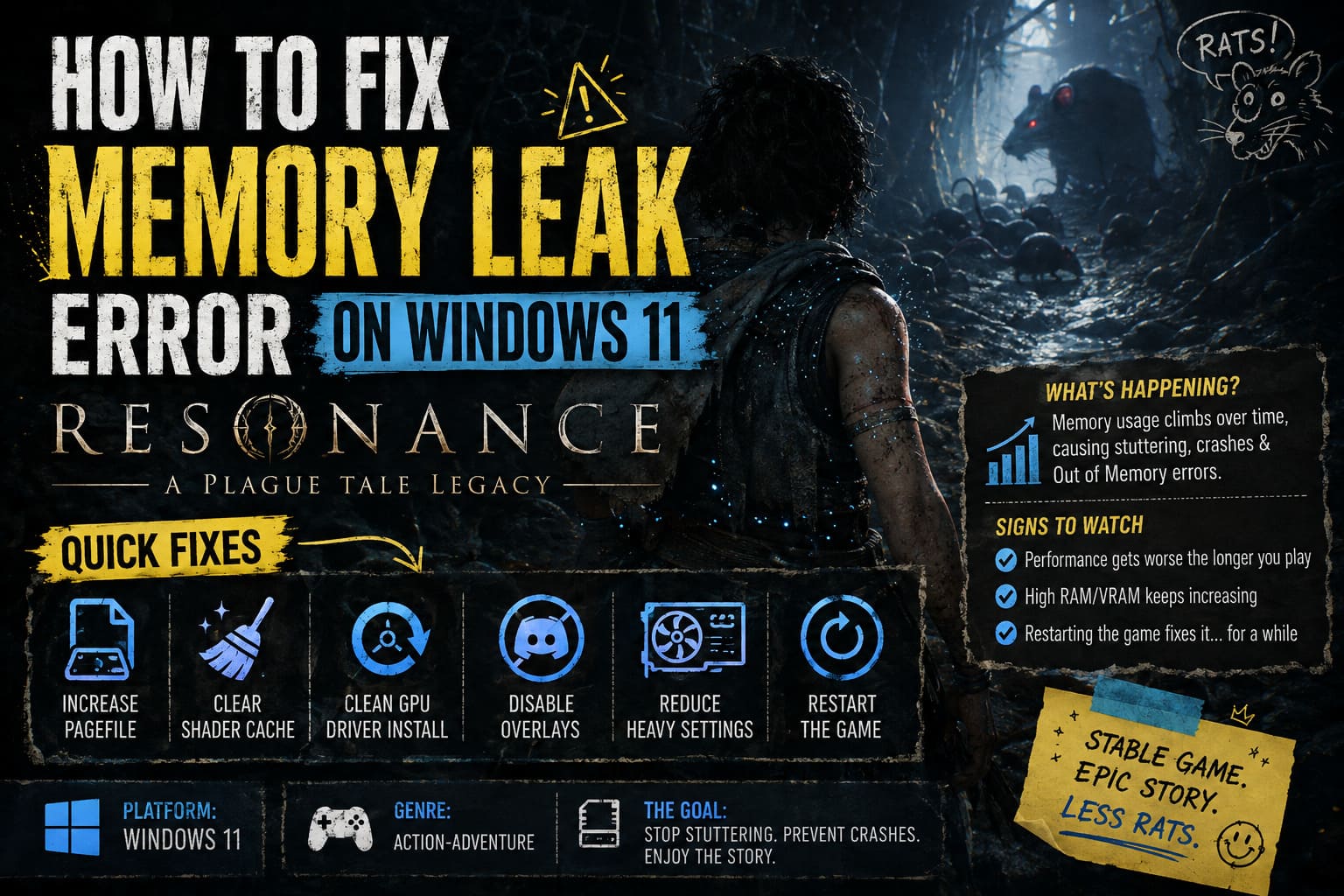
Quick Fix Overview
| Fix | What It Targets | Difficulty | Worth Trying? |
|---|---|---|---|
| Increase Pagefile | System Memory Pressure | Easy | Yes |
| Clear Shader Cache | DX12 Shader Data | Easy | Yes |
| Clean GPU Driver Install | Driver Conflicts | Medium | Yes |
| Disable Overlays | Background VRAM/RAM Usage | Easy | Yes |
| Reduce Heavy Graphics Settings | VRAM Pressure | Easy | Yes |
| Disable Selected Services | Background Windows Activity | Advanced | Only If Needed |
| Restart the Game Periodically | Accumulated Memory Usage | Very Easy | Good Temporary Workaround |
Fix 1: Increase the Windows 11 Pagefile
If the game is exhausting physical RAM, Windows needs enough virtual memory to keep applications alive instead of immediately running into allocation failures. The pagefile is not a replacement for actual RAM, and putting it on an extremely slow drive will not magically improve performance, but having a reasonably sized pagefile can help prevent certain crashes.
To change it, press the Windows key, search for Advanced System Settings, and open the corresponding system properties panel.
Go to Advanced > Performance > Settings > Advanced > Virtual Memory > Change. You can disable automatic management and manually select the SSD where you want Windows to maintain the pagefile.
The source recommendation suggests using roughly 1.5 times your physical RAM for the initial size and 3 times your physical RAM for the maximum size. For example, a 16 GB system would use 24,576 MB initially and 49,152 MB maximum, while a 32 GB system would use 49,152 MB initially and 98,304 MB maximum.
Personally, I would not blindly treat those numbers as magic values. Windows’ automatic pagefile management is perfectly fine for many gaming PCs. If you already have a healthy pagefile on a fast SSD, manually making it enormous may accomplish very little. The real goal is to ensure Windows has enough virtual memory available during a worst-case memory spike.
Restart Windows after changing the setting.
Fix 2: Clear the DirectX Shader Cache
Shader compilation can cause stutters in PC games, and corrupted or problematic cached shader data can sometimes create additional headaches after driver or game updates.
Windows 11 makes clearing the DirectX Shader Cache relatively painless. Search for Disk Cleanup, select your Windows drive, and look for DirectX Shader Cache in the cleanup options.
Delete that cache and allow the game to rebuild the necessary shader data when you launch it again.
Do not panic if the first launch afterward takes longer or produces some temporary shader-related stuttering. The game may simply be rebuilding data that was previously cached.
If you use an Nvidia GPU, also check the shader cache settings in the Nvidia software available for your driver. A larger cache can be useful for some modern games, but there is no universal setting that guarantees better performance. I would focus on clearing potentially corrupted cache data before obsessing over the exact cache-size number.
Fix 3: Perform a Clean GPU Driver Installation
A normal driver update does not always give you the cleanest possible starting point. Driver profiles, old files, and configuration leftovers can occasionally complicate troubleshooting, especially when a game has already experienced instability.
For Nvidia, AMD, or Intel graphics hardware, download the appropriate driver directly from the manufacturer’s official website. For a deeper cleanup, Display Driver Uninstaller (DDU) can remove existing display-driver components before reinstalling a fresh package.
The general process is:
- Download the correct GPU driver before removing the current one.
- Download DDU from a reputable source.
- Boot Windows 11 into Safe Mode.
- Run DDU and select your graphics manufacturer.
- Choose the option to clean the driver and restart.
- Install the freshly downloaded graphics driver after Windows starts normally.
This is more work than clicking ‘Update Driver,’ so I would not make it the first thing you do after one crash. If the game consistently suffers from graphical corruption, crashes, unexplained performance drops, or problems that started immediately after a driver update, however, a clean installation becomes much more reasonable.
Fix 4: Turn Off Discord and Other Overlays
Overlays are convenient, but they are also another layer sitting between your game and the desktop. Discord, GPU software, Steam, Xbox-related software, recording utilities, RGB programs, monitoring tools, and other applications can all interact with a demanding game.
For testing purposes, strip things back.
In Discord, disable Hardware Acceleration and turn off the Game Overlay. Do the same with your GPU software’s in-game overlay. If you are playing through Steam or another launcher with an overlay feature, disable it temporarily as well.
You do not necessarily need to keep every overlay disabled forever. The point is to establish a clean baseline. If Resonance: A Plague Tale Legacy suddenly becomes stable after removing overlays, you have a much stronger clue about where the conflict may be coming from.

Fix 5: Reduce the Settings That Hammer VRAM
This is the fix I would try before changing obscure Windows services.
If you are running everything on Ultra, especially with ray tracing enabled, you are giving the GPU an enormous amount of work. Lower volumetric lighting, shadows, and other memory-heavy effects to Medium or High rather than Ultra.
Ray tracing deserves special attention. If you are experiencing crashes or severe stutters with ray-traced effects enabled, switch them off temporarily. There is no shame in doing this. A stable game at 60 FPS is infinitely more enjoyable than a gorgeous screenshot followed by a crash.
Upscaling technologies such as DLSS, FSR, or XeSS can also reduce the rendering workload. Try Quality first, then Balanced if necessary.
The important thing here is not simply chasing higher FPS. You are trying to reduce memory pressure and find out whether the degradation is connected to the GPU workload.
Fix 6: Experiment With Windows Services Carefully
The original community recommendations also point toward disabling SysMain and GameInput Service. I would approach this one with considerably more caution.
SysMain is a Windows service designed to improve application responsiveness, while GameInput supports gaming-related input functionality. Disabling Windows services at random is not something I recommend as a standard gaming optimization trick.
If you want to test this theory, change one service at a time and record what happens. Press Win + R, enter services.msc, locate the relevant service, and check its properties.
If disabling a service changes nothing, restore its normal startup behavior. There is little point leaving Windows components disabled simply because an internet troubleshooting guide told you they might help.
Don’t Ignore the Simplest Workaround: Restart the Game
Here is the unglamorous fix that can sometimes work surprisingly well: restart the game before the memory problem becomes catastrophic.
If you notice that Resonance: A Plague Tale Legacy begins at 70 FPS, slowly drops into the 50s, then starts hitching heavily after a long session, restart it and see whether performance immediately returns.
That behavior is useful diagnostic information. If a restart consistently restores performance, it strengthens the case that something is accumulating during the session rather than your hardware simply being too weak.
It is not a real solution, obviously. Nobody buys a big-budget adventure game hoping to schedule application restarts every couple of hours. But until an official patch addresses the underlying issue, it can be a practical way to keep a long play session from ending in a crash.
My Recommended Order of Attack
I would not start by changing ten Windows settings simultaneously. That makes troubleshooting almost impossible because you will have no idea which change actually mattered.
My order would be:
- Disable overlays and unnecessary background recording software.
- Clear the DirectX shader cache.
- Lower ray tracing, volumetric effects, and shadows.
- Test DLSS, FSR, or XeSS on Quality.
- Check RAM and VRAM usage while the game is running.
- Perform a clean GPU driver installation if instability continues.
- Check that Windows 11 and the GPU driver are fully updated.
- Adjust the pagefile if you are genuinely hitting virtual-memory limits.
- Only then experiment with Windows services.
This approach is much less painful than immediately turning Windows into a science experiment.
How to Tell If the Problem Is Actually a Memory Leak
Keep an eye on RAM usage, VRAM usage, frame rate, and the amount of time the game has been running.
If RAM usage steadily climbs from, say, 10 GB to 20 GB and continues rising without falling even after scenes change, while stuttering becomes increasingly severe, that is much more suspicious than simply seeing high memory usage during a demanding scene.
Also watch what happens after returning to the main menu or restarting the game. If performance instantly returns to normal after a restart, write down the approximate playtime when the problem appeared. Repeating the test can give you a useful pattern.
Windows Task Manager is enough for basic monitoring, while GPU monitoring utilities can provide more detailed VRAM and frame-time information.
The Bigger Problem May Need a Developer Fix
There is a limit to what players can accomplish with configuration tweaks. If the root cause is genuinely inside the game engine, changing Windows settings can only reduce the symptoms.
That is why I would keep Resonance: A Plague Tale Legacy updated and watch for official patches, hotfixes, and developer statements. A proper memory-management fix is preferable to forcing players to restart the game every couple of hours.
For now, the smartest strategy is to reduce unnecessary memory pressure, eliminate overlays, keep drivers clean, avoid unnecessarily aggressive graphics settings, and monitor the system rather than blindly applying every ‘FPS boost’ trick found online.
A memory leak is frustrating precisely because your hardware can appear perfectly capable at first. If the game starts smoothly and only collapses after extended play, don’t immediately assume your PC needs an upgrade. Track the behavior, test one change at a time, and use the restart workaround as a diagnostic tool as much as a temporary fix. That gives you a far better chance of identifying the real culprit while waiting for a proper game-side solution.