The Division Resurgence Best PC Settings: RTX 4070 Ti Optimization Guide for Max FPS
After spending hundreds of hours testing shooters, adjusting graphics options, and chasing the perfect balance between visual quality and performance, I have learned one important thing: expensive hardware does not automatically guarantee a flawless gaming experience. Even powerful GPUs like the NVIDIA GeForce RTX 4070 Ti can suffer from random frame drops, inconsistent frame pacing, and annoying stutters when a game is not configured correctly.
Tom Clancy’s The Division Resurgence finally made its way from mobile platforms to PC, bringing the tactical looter-shooter experience to players with powerful desktop systems. Exploring the destroyed streets of New York feels completely different with a mouse, keyboard, high refresh rate monitor, and proper PC hardware. The larger screen, sharper image quality, and improved controls make every firefight much more intense.
However, the PC version still carries some characteristics from its mobile origins. The game engine was originally built around smartphone hardware, meaning some performance problems appear in situations where modern PCs should easily handle the workload. Large battles, explosions, smoke effects, and crowded Dark Zone encounters can sometimes create unexpected FPS drops.
The Division Resurgence Low FPS RTX 3060 Fix: Complete PC Optimization Guide
The RTX 4070 Ti is more than capable of running The Division Resurgence at excellent frame rates, but choosing the right settings is still important. A beautiful screenshot means nothing if your game freezes for half a second when an enemy agent appears during a firefight.
Why The Division Resurgence Can Stutter Even on Powerful PCs
The RTX 4070 Ti features 12GB of VRAM, NVIDIA Ada Lovelace architecture, and enough raw power to handle demanding modern games. In normal situations, this GPU should have no trouble running The Division Resurgence at high settings. The main problem is not usually graphics power, but how the engine handles resources.
During testing, the biggest performance issues appeared when entering new areas, loading large environments, or fighting multiple enemies with heavy visual effects. The game sometimes needs extra time to process assets, shaders, and environmental details.
The most common causes of performance drops include:
- Heavy particle effects during explosions and abilities.
- Shader compilation during new encounters.
- Large multiplayer battles with many active players.
- High volumetric effects such as fog and clouds.
- Excessive background asset streaming.
Because of these issues, simply selecting the Ultra preset is not always the best solution. Several graphics options provide only small visual improvements while reducing frame stability.
Best Display Settings for RTX 4070 Ti
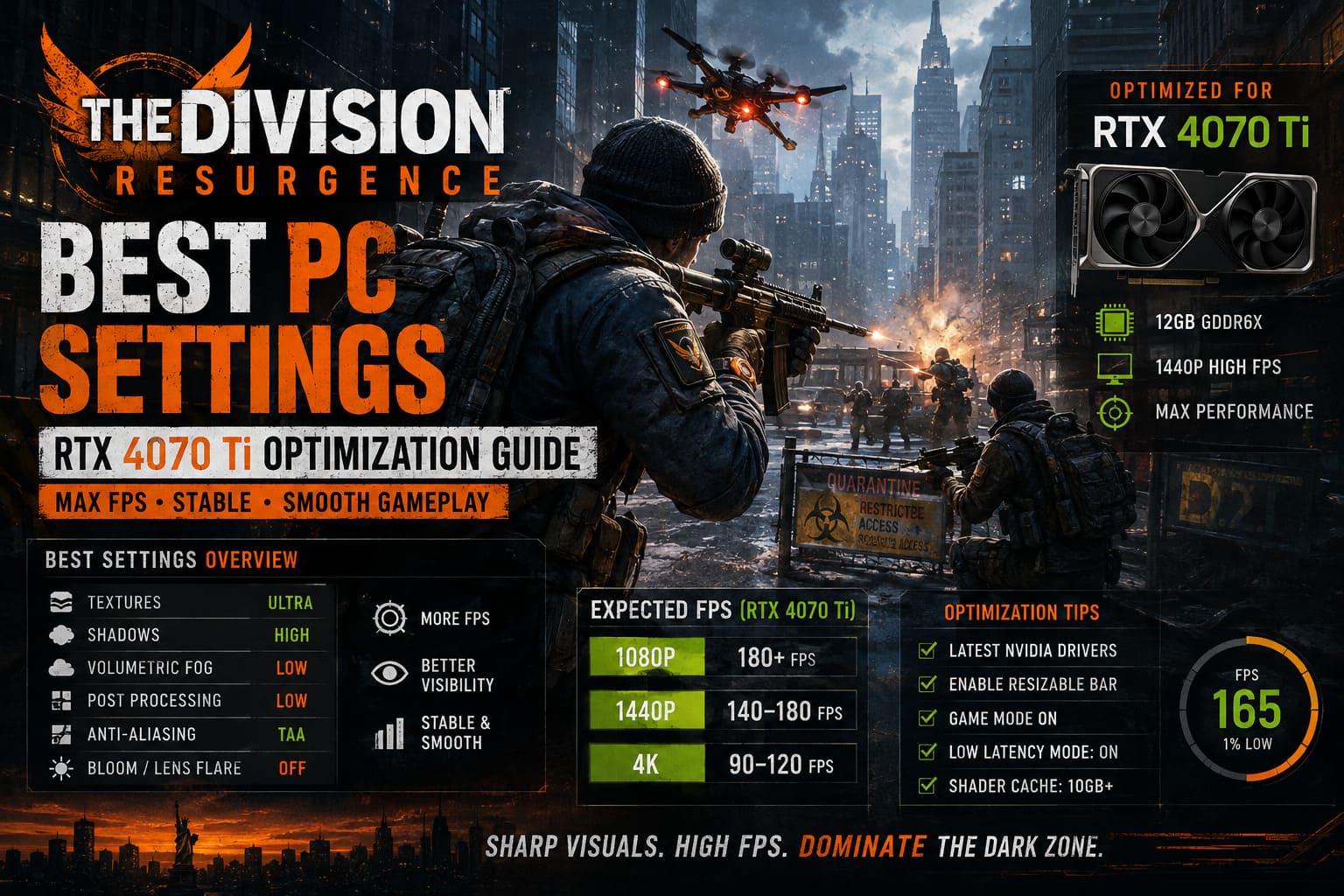
The first step is configuring the basic display options correctly. These settings reduce unnecessary latency and allow your GPU to work efficiently.
| Setting | Recommended Option |
|---|---|
| Display Mode | Fullscreen |
| Resolution | Native Monitor Resolution |
| Recommended Resolution | 2560×1440 |
| V-Sync | Off |
| Frame Rate Limit | Match Monitor Refresh Rate |
| Dynamic Resolution | Off |
| Refresh Rate | Maximum Available |
For RTX 4070 Ti owners, 1440p resolution remains the ideal choice. It provides a sharp image while keeping performance high enough for competitive gameplay. The card can handle higher resolutions, but most players will notice the benefits of higher FPS and lower input delay more than extra pixels.
I personally recommend avoiding standard V-Sync in competitive shooters. The additional input delay can make aiming feel slower. If your monitor supports G-Sync, that is usually the better option for smooth gameplay without sacrificing responsiveness.
Best Graphics Settings for The Division Resurgence on RTX 4070 Ti
The RTX 4070 Ti can easily handle high-quality textures and demanding visuals, but some settings are simply not worth the performance cost. The following configuration focuses on stable FPS, clear visibility, and smooth combat.
| Graphics Option | Best Setting | Performance Reason |
|---|---|---|
| Resolution Scale | 100% | Keeps image quality sharp without unnecessary rendering load. |
| Texture Quality | Ultra | The 12GB VRAM handles high-resolution textures easily. |
| Texture Filtering | 16x Anisotropic | Improves surface details with almost no FPS loss. |
| Shadow Quality | High | Good visual quality without Ultra performance cost. |
| Contact Shadows | Medium | Adds depth while keeping stable performance. |
| Volumetric Fog | Low/Medium | One of the biggest FPS improvements. |
| Volumetric Clouds | Low/Off | Saves GPU resources. |
| Post Processing | Low/Medium | Removes unnecessary effects. |
| Anti-Aliasing | TAA | Balanced image quality and performance. |
| Object Detail Distance | 100-120 | Prevents unnecessary asset loading. |
| Vegetation Density | Medium | Improves visibility during combat. |
| Bloom | Off | Reduces distracting light effects. |
| Lens Flare | Off | Keeps enemy visibility clearer. |
Competitive Settings for Better Visibility
If your main goal is winning fights rather than creating cinematic screenshots, I would personally adjust the game toward competitive performance. Clear visuals and stable frames are much more valuable when fighting other players.
- Textures: Ultra
- Shadows: High
- Fog: Low
- Clouds: Off
- Bloom: Off
- Lens Flare: Off
- Vegetation: Medium
- Post Processing: Low
Heavy fog and cinematic effects might look impressive while walking around the city, but they can become a disadvantage during intense battles. Reducing these options makes enemies easier to see and keeps your frame rate stable.
Upscaling and Image Sharpening Settings
The Division Resurgence does not fully depend on the newest DLSS technologies, so traditional sharpening adjustments can provide better results. Temporal anti-aliasing improves image stability but can make distant objects slightly softer.
My recommended configuration:
- FidelityFX CAS: Enabled
- Sharpening Amount: 50-70%
I usually prefer around 60% sharpening. It improves texture clarity without creating unnatural edges around objects. This is especially useful when tracking distant enemies or spotting details across long streets.
NVIDIA Control Panel Settings for The Division Resurgence
Small NVIDIA Control Panel adjustments can improve frame consistency and reduce background performance issues. Create a dedicated profile for The Division Resurgence and apply these options.
| NVIDIA Setting | Recommended Value |
|---|---|
| Low Latency Mode | On or Ultra |
| Power Management Mode | Normal/Optimal |
| Shader Cache Size | 10GB or Higher |
| Threaded Optimization | On |
| Texture Filtering Quality | Quality |
The shader cache option deserves special attention. Ubisoft games often experience small stutters when shaders are processed during gameplay. Increasing cache size allows frequently used files to remain stored, reducing repeated shader compilation.
I do not recommend forcing Maximum Performance mode because modern NVIDIA GPUs already manage clock speeds intelligently. Keeping the card permanently boosted increases power usage without always improving real gameplay performance.
Windows 11 Optimization for Higher FPS
Your operating system settings can also influence performance. Before launching The Division Resurgence, make sure Windows is configured correctly.
- Enable Windows Game Mode.
- Enable Hardware-Accelerated GPU Scheduling.
- Install the latest NVIDIA drivers.
- Enable Resizable BAR if supported by your motherboard.
Resizable BAR allows your CPU to access the GPU memory more efficiently, which can improve frame consistency in certain games. It will not magically double your FPS, but it can help reduce small performance drops.
Expected RTX 4070 Ti Performance
| Resolution | Expected FPS |
|---|---|
| 1080p Optimized Settings | 180+ FPS |
| 1440p High Settings | 140-180 FPS |
| 4K Optimized Settings | 90-120 FPS |
The biggest improvement is not just average FPS. Stable 1% lows create a much smoother experience, especially during Dark Zone fights where every reaction matters.
Final Thoughts: The Best Way to Play The Division Resurgence on RTX 4070 Ti
The RTX 4070 Ti is easily powerful enough for The Division Resurgence, but smart optimization still makes a difference. The best experience does not come from blindly maxing every option. It comes from choosing settings that improve clarity while protecting performance.
Keep textures high, reduce expensive environmental effects, remove distracting cinematic filters, and focus on consistent frame delivery. The streets of New York are already dangerous enough without your own graphics settings becoming another problem.
With this configuration, your RTX 4070 Ti can deliver a fast, clean, and responsive experience that lets you focus on what matters most: surviving battles, working with your squad, and dominating the Dark Zone.