Bodycam FSR 3 Performance Mode Settings: 2026 FPS Optimization Guide
I have spent a ridiculous amount of time tweaking graphics settings in PC games. Usually, there is a pretty obvious trade-off: lower a few expensive options, gain some FPS, and move on. Bodycam is not quite that simple. Its Unreal Engine 5 visuals can look absolutely fantastic one minute and then make your GPU beg for mercy the next.
That is the price of the game’s distinctive visual style. Bodycam is built around the appearance of real body-camera footage, with aggressive lighting, detailed environments, reflections, shadows, foliage, and atmospheric effects all working together. When everything comes together, the result is one of the more convincing-looking multiplayer shooters I have played. Unfortunately, that realism can also produce ugly frametime spikes, especially when a match becomes chaotic.
For me, the biggest improvement came from experimenting with AMD FSR 3 Performance Mode. It is not my favorite option from an image-quality perspective, but when the priority is getting Bodycam running at a much higher frame rate, it is difficult to ignore.
There is an important catch, though. You cannot simply enable FSR 3 Performance, turn on Frame Generation, and expect the game to magically become perfect. Some settings work well together, while others can make the reconstructed image look like a blurry security-camera recording.
After trying different combinations, this is the setup I would recommend for players who care more about competitive FPS and responsiveness than having every graphical option maxed out.
What FSR 3 Performance Mode Actually Changes
FSR 3 works by rendering the game at a lower internal resolution and reconstructing that image toward your display resolution. Performance Mode is particularly aggressive. At 1080p, the internal rendering resolution is approximately 540p before reconstruction. At 1440p, it drops to around 720p.
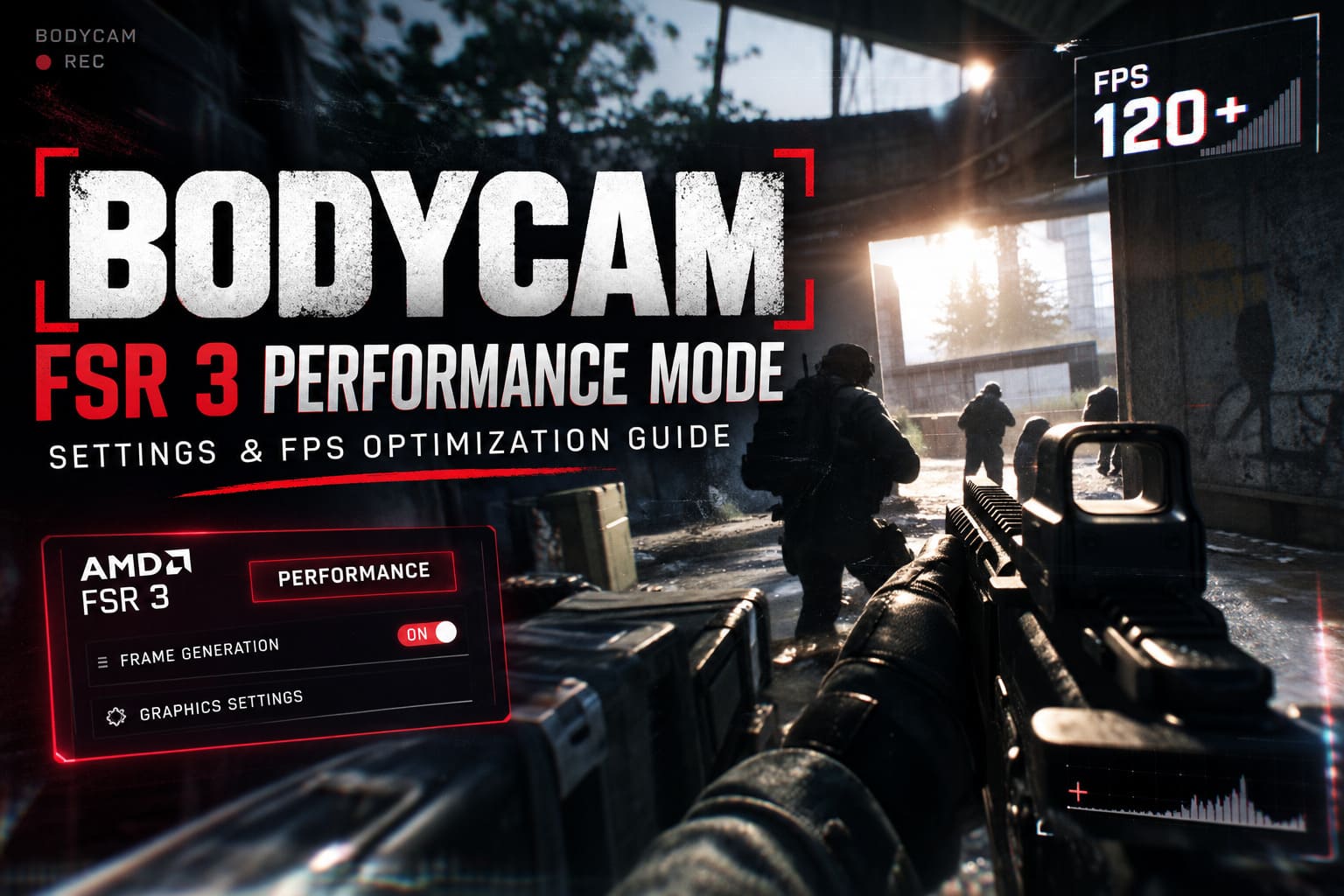
That sounds terrible on paper, and honestly, it can look pretty rough in some games. Bodycam is no exception. Fine details, distant objects, foliage, and weapon edges can lose definition when the image is pushed too far.
But there is another side to the equation: the GPU has substantially less work to do.
If your graphics card is struggling to maintain a stable frame rate at native resolution, the performance gain can be much more valuable than perfect pixel-level clarity. I would rather play at a consistent high frame rate with a slightly softer image than have a beautiful 45 FPS presentation where every firefight turns into a slideshow.
My advice is simple: use Performance Mode when FPS is the problem, not because it is automatically the best-looking mode. If your GPU is already comfortably above your target frame rate, Quality or Balanced is usually the more sensible choice.
My Recommended Bodycam FSR 3 Settings
Here is the configuration I would start with on a mid-range gaming PC. It is not intended to make Bodycam look cinematic. The goal is to keep the image readable while cutting away the settings that provide relatively little competitive value.
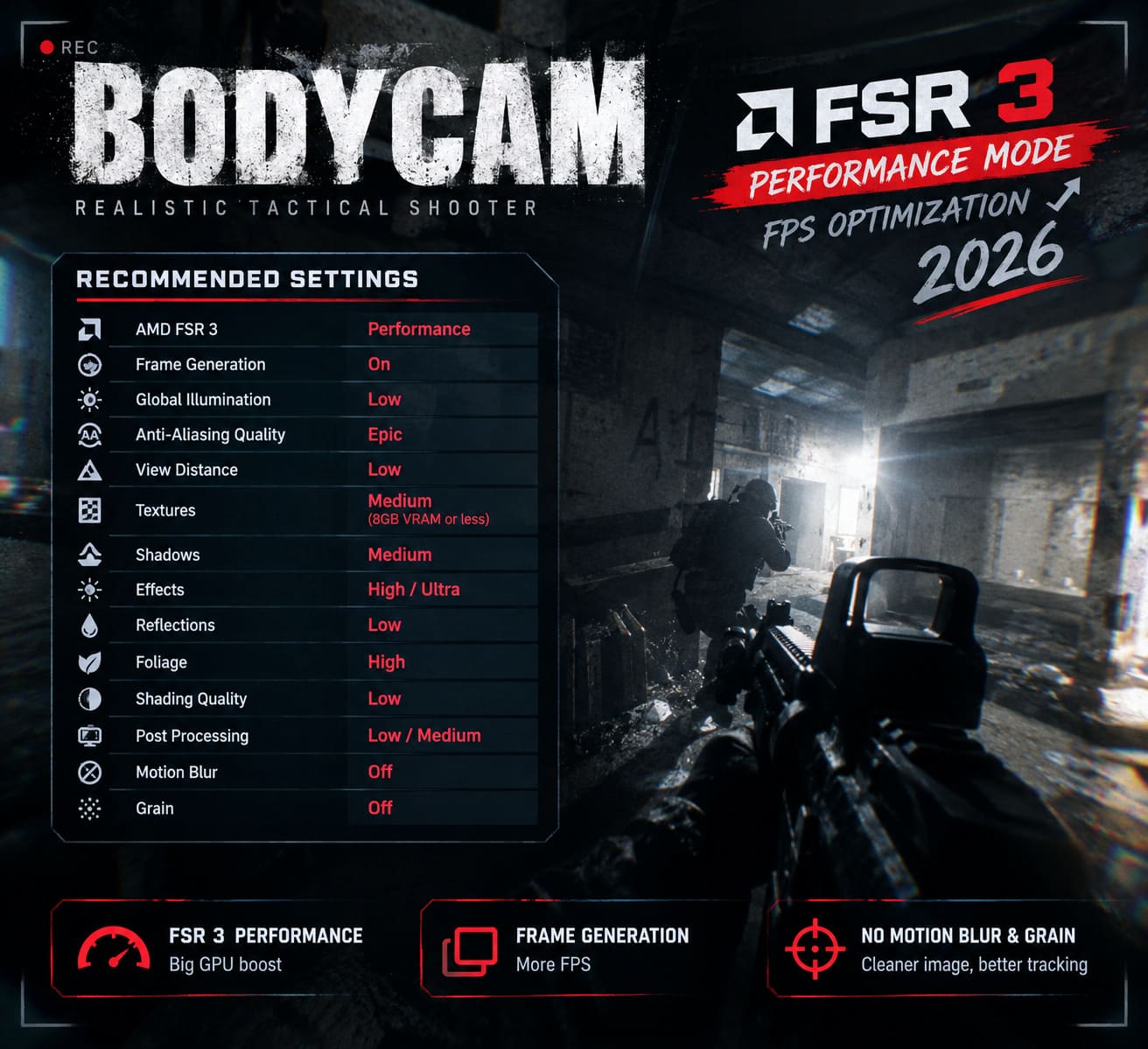
| Setting | Recommended Value | Why I Use It |
|---|---|---|
| AMD FSR 3 | Performance | Large GPU performance improvement |
| FSR 3 Frame Generation | On | Higher displayed FPS |
| Global Illumination | Low | Reduces expensive lighting calculations |
| Anti-Aliasing Quality | Epic | Helps stabilize reconstructed edges |
| View Distance | Low | Helps reduce CPU workload |
| Textures | Medium for 8GB VRAM or less | Reduces VRAM pressure |
| Shadows | Medium | Good visual compromise |
| Effects | High/Ultra | Preserves important environmental effects |
| Reflections | Low | Cheap way to recover GPU performance |
| Foliage | High | Maintains the intended environment appearance |
| Shading Quality | Low | Reduces additional rendering workload |
| Post Processing | Low/Medium | Cleaner image with less visual noise |
| Motion Blur | Off | Better target tracking |
| Grain | Off | Cleaner FSR reconstruction |
The Settings I Would Not Max Out
Global Illumination
This is one of the first options I reduce. Bodycam’s lighting is a huge part of its identity, but expensive global illumination is not going to win you a firefight. It can make indoor areas look gorgeous, yet the performance cost becomes increasingly painful when several effects are happening simultaneously.
Low is my starting point. If you have an exceptionally powerful GPU and plenty of performance headroom, increase it later. I would not begin with High or Epic on a mid-range system.
Reflections
Reflections are another classic example of an option that looks great in screenshots but is difficult to justify when chasing competitive performance. Wet surfaces and metallic objects can become noticeably more attractive at higher settings, but I found that lowering reflections was one of the easier ways to free GPU resources without destroying the overall presentation.
Set them to Low and spend those saved frames somewhere more useful.
Shadows
I prefer Medium here. Going all the way down to Low can make Bodycam’s environments feel strangely flat, particularly in darker locations. At the same time, Epic shadows are not something I consider essential for a competitive shooter.
Medium gives me enough visual depth without making the GPU work unnecessarily hard.
Why I Keep Anti-Aliasing High
This is probably the setting that looks strangest in a performance guide. You would expect me to recommend lowering anti-aliasing when using FSR 3 Performance, but I actually prefer keeping the relevant quality setting high.
The reason is image stability.
FSR 3 Performance already gives the reconstruction algorithm a much lower-resolution source image to work with. If you simultaneously reduce anti-aliasing quality, edges can become noticeably unstable. Thin objects shimmer, distant details crawl across the screen, and weapon geometry can look messy while moving.
In Bodycam, I would rather sacrifice a small amount of raw performance elsewhere than make the entire image visually unstable.
Textures Depend More on VRAM Than Raw GPU Speed
Texture quality is another area where people often make the wrong adjustment. A faster GPU does not automatically mean you should max out textures.
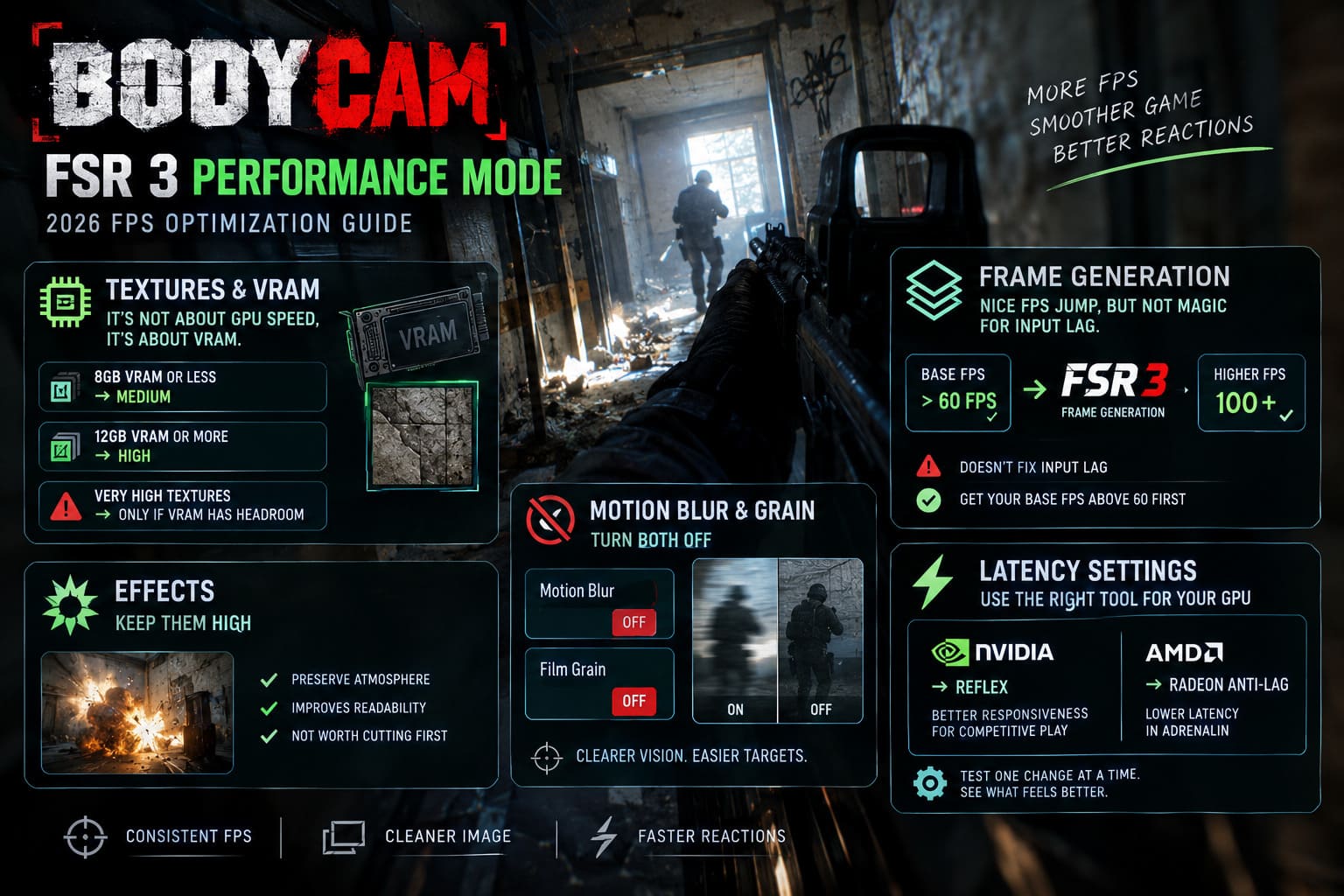
What matters here is available VRAM. If your graphics card has limited memory, extremely high texture settings can contribute to stuttering when the game has to move assets between GPU memory and system memory.
- 8GB VRAM or less: Medium is the safer choice.
- 12GB VRAM or more: High becomes much easier to justify.
- Very high texture settings: Use them only if monitoring confirms that your VRAM has plenty of headroom.
I would rather have slightly less detailed textures and consistent frametimes than beautiful surfaces followed by a nasty hitch during a firefight.
Do Not Destroy Effects Just to Gain a Few Frames
This is one of my more unusual recommendations. I would keep Effects relatively high.
When optimizing most games, Effects is one of the first settings I start cutting. Bodycam is different because environmental effects and interactions contribute to the game’s gameplay readability and atmosphere. Dropping everything aggressively can make the game feel stripped down without necessarily giving you a dramatic performance improvement.
If you still need more FPS after lowering lighting, reflections, shading, and post-processing, then experiment with Effects. It would not be my first target.
Motion Blur and Grain Should Go Immediately
These two options are almost automatic for me in competitive shooters.
Motion Blur: Off.
Film Grain: Off.
There is no reason for me to intentionally make a moving target harder to see. Bodycam already has a deliberately unstable, camera-like presentation. Adding more artificial blur on top of aggressive FSR reconstruction can make distant targets and moving objects significantly harder to distinguish.
Turning these effects off also makes the game feel cleaner to me. It is one of those changes where I notice the difference immediately but never miss the effect afterward.
Frame Generation: Great for FPS, Not Magic for Input Lag
FSR 3 Frame Generation deserves some caution.
Seeing your FPS counter jump from 60 to well over 100 can be extremely satisfying, but generated frames do not mean your mouse and keyboard are suddenly responding like a native 100+ FPS game.
Your underlying frame rate still matters.
If Bodycam is producing only around 40 FPS before Frame Generation, I would not expect the resulting high displayed FPS number to suddenly make the game feel like a true 120 FPS competitive shooter. The additional generated frames improve visual smoothness, but the responsiveness is still heavily influenced by the original rendering pipeline.
My preferred approach is to first get the base FPS comfortably above 60 FPS, then enable Frame Generation if I want an even smoother presentation.
This is particularly important in a game where quick aiming and reaction shots matter. A higher FPS counter is nice; a responsive weapon and mouse are much more important.
NVIDIA and AMD Latency Settings
If you are using NVIDIA hardware and Bodycam exposes the appropriate latency features, I recommend experimenting with NVIDIA Reflex, particularly if your priority is competitive responsiveness.
AMD users should similarly look at Radeon Anti-Lag in the Adrenalin software.
I would not blindly enable every latency feature available in Windows, your GPU driver, and the game simultaneously. Test one change at a time. If something makes the game feel worse, remove it. Personal perception matters here because frametime behavior, refresh rate, CPU load, and GPU load all affect how a game feels.
What About Steam Launch Options and INI Tweaks?
This is where I would be more conservative than many PC optimization guides.
You will find plenty of launch-option recommendations online claiming that parameters such as -high, -useallavailablecores, or memory allocator switches can completely transform Unreal Engine games. Sometimes they help. Sometimes they do nothing. In some cases, forcing old or unsupported engine behavior can create another problem that is harder to diagnose than the original FPS issue.
I would not treat launch options as a guaranteed FPS boost.
The same goes for manually editing Engine.ini. Configuration tweaks can be useful for advanced troubleshooting, but you should back up the original file before experimenting. If a game update changes its configuration behavior, an old tweak may no longer be beneficial.
In particular, I would avoid blindly locking the configuration file to Read-only. It can prevent the game from updating settings correctly and can turn a simple graphics problem into a configuration headache.
If you want to experiment with Engine.ini, change one value at a time and benchmark after every change. That is much more useful than dumping twenty lines of commands into the file and hoping something works.
My Favorite Alternative: TSR When FSR Looks Too Soft
If FSR 3 Performance looks terrible on your monitor, I would not immediately give up on upscaling.
Try the game’s other temporal reconstruction options. TSR can sometimes produce an image that feels more natural to me, especially when aggressive FSR settings make fine details look overly soft.
The important thing is not to assume that one upscaler is universally superior. Different resolutions, GPUs, monitors, sharpening levels, and game versions can change the result dramatically.
For competitive play, I would compare the options while actually moving through a map rather than staring at a wall. Look at distant player-sized objects, foliage, weapon edges, signs, and shadows. Those are the areas where reconstruction differences become obvious.
How to Fix Bodycam Out of Video Memory Error: 2026 Troubleshooting Guide
My Final Bodycam Performance Setup
If I were setting up Bodycam on a new mid-range gaming PC today, I would start with FSR 3 Performance, Frame Generation enabled only after establishing a healthy base FPS, Low Global Illumination, Low Reflections, Medium Shadows, Medium Textures for an 8GB card, High Effects, High Foliage, Low Shading, and Low-to-Medium Post Processing.
I would also immediately disable motion blur and grain.
Then I would play several actual matches and watch the behavior rather than obsessing over a single benchmark number. Bodycam can behave very differently depending on the map, player count, effects on screen, and what is happening around you.
Most importantly, do not optimize purely for the highest possible FPS counter. A stable 90 FPS with good input response can be far more enjoyable than an unstable 140 FPS that constantly jumps between different frametimes.
Final Verdict
Bodycam is one of those games where optimization genuinely matters. Its visual ambition comes with a significant hardware cost, and simply lowering every setting to minimum is not necessarily the smartest solution.
FSR 3 Performance Mode is a powerful tool when your GPU is the limiting factor, but it works best as part of a complete configuration rather than as a magic switch. Reduce the expensive lighting and reflection options, keep enough anti-aliasing quality to prevent the reconstructed image from falling apart, manage textures according to your VRAM, and eliminate unnecessary visual effects such as motion blur and grain.
And when using Frame Generation, remember the most important rule: generated FPS cannot replace a healthy base frame rate.
That is ultimately how I approach PC optimization after years of playing demanding games. I do not want the prettiest settings menu screenshot. I want the game to feel good when the match gets chaotic, when three enemies appear at once, and when I have half a second to react.
For Bodycam in 2026, that means finding the point where visual quality is still convincing but the frame time stays predictable. Once you hit that balance, the game becomes considerably more enjoyable—and you stop thinking about your graphics settings and start thinking about the match.