Bodycam Best Settings for High FPS: 2026 Competitive Optimization Guide
Bodycam is one of those shooters that makes your graphics card beg for mercy. It looks ridiculously good, and that is exactly the problem. Reissad Studio built the game around Unreal Engine 5, photorealistic environments, demanding lighting, detailed geometry, and a body-camera presentation that constantly throws complicated scenes at your hardware.
That visual quality is fantastic when you’re casually exploring a map. The moment you’re in a competitive firefight, though, I couldn’t care less about cinematic shadows or pretty post-processing effects. I want stable frames, clean visibility, predictable mouse movement, and the lowest possible input latency. If an enemy appears for half a second and my frame time suddenly explodes, all that fancy graphical fidelity isn’t doing me any favors.
After treating Bodycam like the competitive shooter it really is, the best approach is pretty straightforward: cut the settings that add visual decoration, preserve the settings that help you identify enemies, and use upscaling intelligently. Here’s the setup I’d recommend for players chasing high FPS in Bodycam in 2026.
Best Bodycam Settings for Competitive FPS
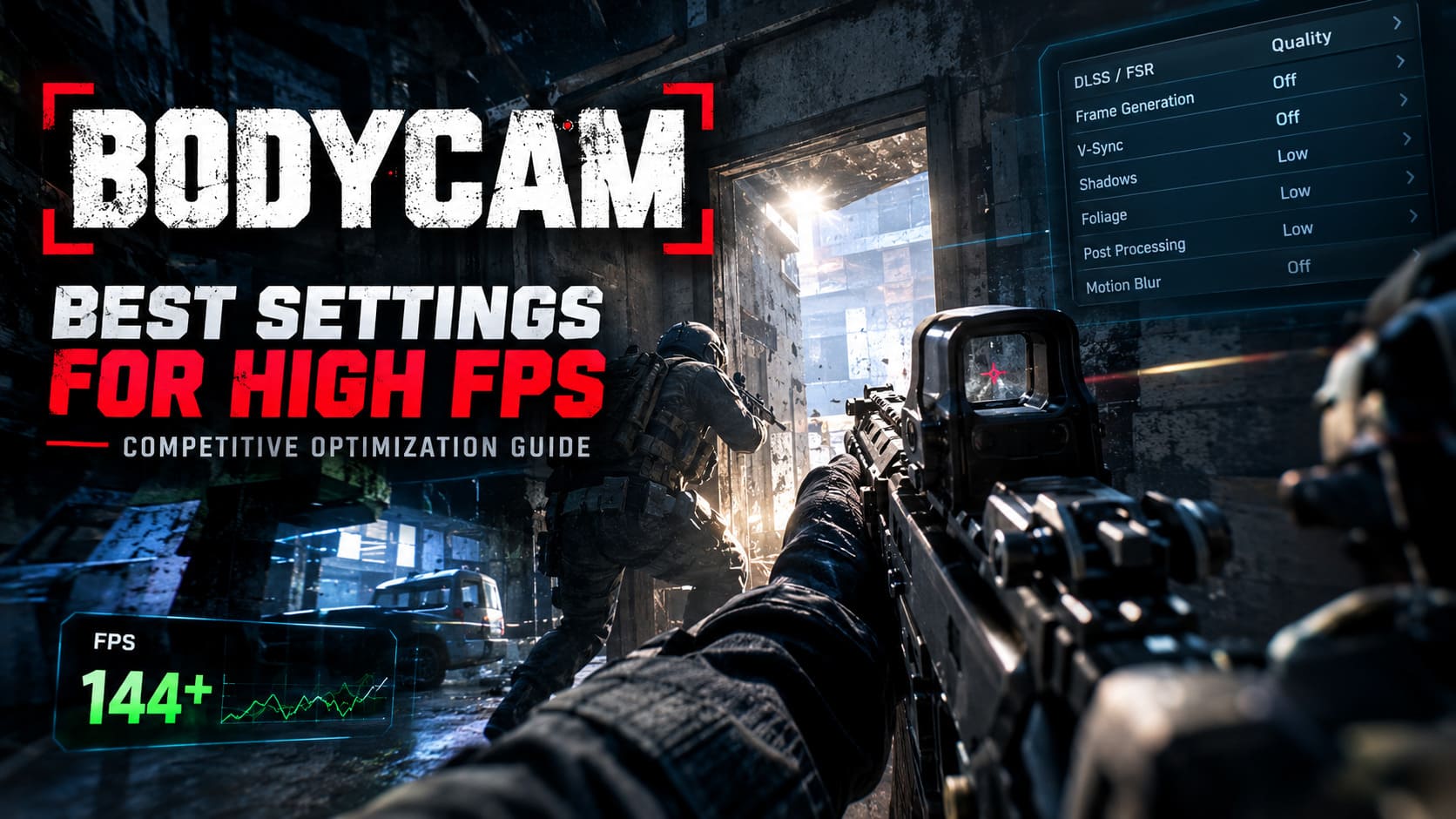
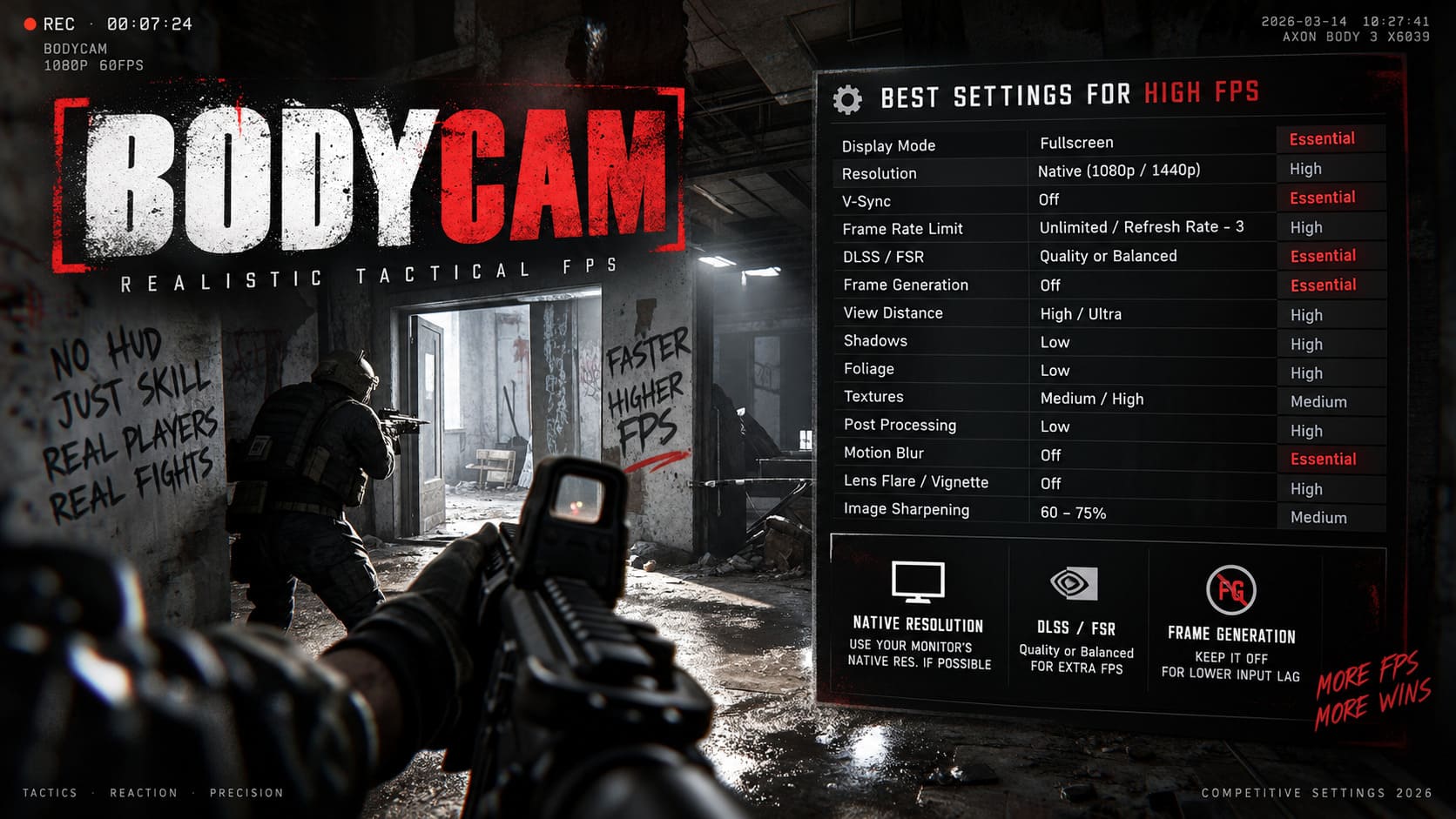
| Setting | Recommended Value | Competitive Priority |
|---|---|---|
| Display Mode | Fullscreen | Essential |
| Resolution | Native | High |
| V-Sync | Off | Essential |
| Frame Rate Limit | Unlimited / Refresh Rate – 3 FPS | High |
| DLSS / FSR | Quality or Balanced | Essential |
| Frame Generation | Off | Essential |
| View Distance | High / Ultra | High |
| Shadows | Low | High |
| Foliage | Low | High |
| Textures | Medium / High | Medium |
| Post Processing | Low | High |
| Motion Blur | Off | Essential |
| Lens Flare / Vignette | Off | High |
| Image Sharpening | 60–75% | Medium |
Fullscreen Is Still the First Setting I’d Change
If you’re serious about competitive Bodycam, start with Fullscreen. I wouldn’t bother with Borderless unless you have a specific reason to use it.
Borderless Windowed is convenient, but it also keeps Windows’ desktop composition and background activity involved in the rendering process. On a game as demanding as Bodycam, I prefer removing every unnecessary layer possible. Fullscreen gives the game a cleaner path to the display and can help produce more consistent input behavior.
For a competitive shooter, that’s important. You’re not trying to make screenshots look pretty. You’re trying to make your mouse movement feel exactly the same every single time you flick toward a doorway.
Native Resolution vs Upscaling
My first choice is always your monitor’s native resolution. If you’re playing at 2560×1440, start at 1440p. If you’re using a 1080p display, stick with 1080p.
But there’s an important exception. If native resolution is crushing your GPU and you’re struggling to maintain a stable frame rate, don’t immediately destroy the resolution slider. DLSS or FSR can be a much smarter compromise.
On an RTX GPU, I’d start with DLSS Quality. If the frame rate still isn’t where you want it, move to Balanced. Performance mode is the emergency option for weaker hardware.
For AMD hardware and GPUs without DLSS support, FSR Balanced is a strong starting point. Performance can provide another substantial FPS boost, but the lower internal rendering resolution can make distant players noticeably harder to read.
And that’s the key trade-off: more FPS isn’t automatically better if your enemy turns into a blurry collection of pixels.
Why I Keep Frame Generation Off for Competitive Matches
This is one setting where I strongly favor responsiveness over the FPS number displayed in the corner.
DLSS Frame Generation and FSR Frame Generation should generally be disabled for competitive Bodycam. Frame generation can make the game appear dramatically smoother by inserting generated frames between traditionally rendered frames. That’s great technology, but the number your FPS counter shows isn’t the whole story.
Your actual rendered frames still determine much of the game’s underlying responsiveness, while frame generation adds another stage of processing. If you’re already getting a healthy native FPS, I’d rather have those real frames than chase a massive artificial FPS number.
If you’re stuck at an extremely low base frame rate, around 40 FPS or lower, the equation changes. At that point, smoother perceived motion may be worth the latency trade-off. For a competitive player with adequate hardware, though, Frame Gen stays off.
V-Sync: Turn It Off
V-Sync should be disabled.
There’s no reason to deliberately introduce additional synchronization latency when you’re playing a tactical shooter where a fraction of a second can decide a gunfight.
If tearing bothers you and you have a compatible display, consider using G-Sync or FreeSync through your monitor and GPU configuration instead. For players who prioritize absolute responsiveness and don’t mind some tearing, an uncapped frame rate can also make sense.
For a G-Sync or FreeSync setup, I generally like capping FPS a few frames below the monitor’s refresh rate. A 144Hz display, for example, can be capped around 141 FPS. The important thing isn’t blindly copying one number; it’s keeping frame delivery stable.
Don’t Sacrifice View Distance
This is where I disagree with the usual “turn everything to Low” advice.
View Distance should remain High or Ultra.
Bodycam’s maps contain long sightlines, dark rooms, cluttered environments, windows, doorways, and plenty of places where a player can blend into the scenery. Reducing view distance simply to squeeze out another handful of frames isn’t always worth it.
I’d rather sacrifice shadow quality, foliage, and cinematic effects while keeping the geometry and important objects visible at range. If your hardware can handle Ultra view distance, use it. If not, High is the sweet spot.
Shadows: One of the Easiest Performance Cuts
Shadow Quality belongs on Low for competitive play.
Complex dynamic shadows can be surprisingly expensive, particularly in detailed environments. They also aren’t particularly useful when you’re trying to identify an enemy hiding behind cover.
Lowering shadows can free up GPU resources and make frame times more consistent. It also reduces some of the visual darkness and clutter that can make enemies harder to distinguish.
I wouldn’t hesitate to put this setting on Low. This is exactly the kind of graphical sacrifice that makes sense in a competitive configuration.
Foliage Quality: Cut the Grass, Keep the Frames
Dense vegetation looks great in screenshots. In an actual match, I’d happily delete half the virtual grass if it means my frame rate stops dipping.
Set Foliage Quality to Low.
Outdoor areas can become particularly expensive when the engine has to render large quantities of grass, leaves, and other vegetation. Lower foliage density can reduce the rendering workload while also making certain hiding spots less visually chaotic.
That’s a win-win from my perspective: better performance and a cleaner competitive image.
Texture Quality Shouldn’t Automatically Be Set to Low
This is another common optimization mistake.
Texture Quality mostly becomes a VRAM question. If your GPU has 8GB of VRAM or more and Bodycam isn’t experiencing memory pressure, Medium or High textures are preferable.
Dropping textures to Low can make walls, weapons, surfaces, and environmental details look muddy. That’s particularly annoying in Bodycam because player silhouettes can already disappear into realistic environments.
I’d rather reduce shadows and post-processing aggressively and keep textures at Medium or High. If you have limited VRAM, Medium is the safer choice.
Turn Off the Cinematic Stuff
Competitive shooters and cinematic camera effects don’t mix very well.
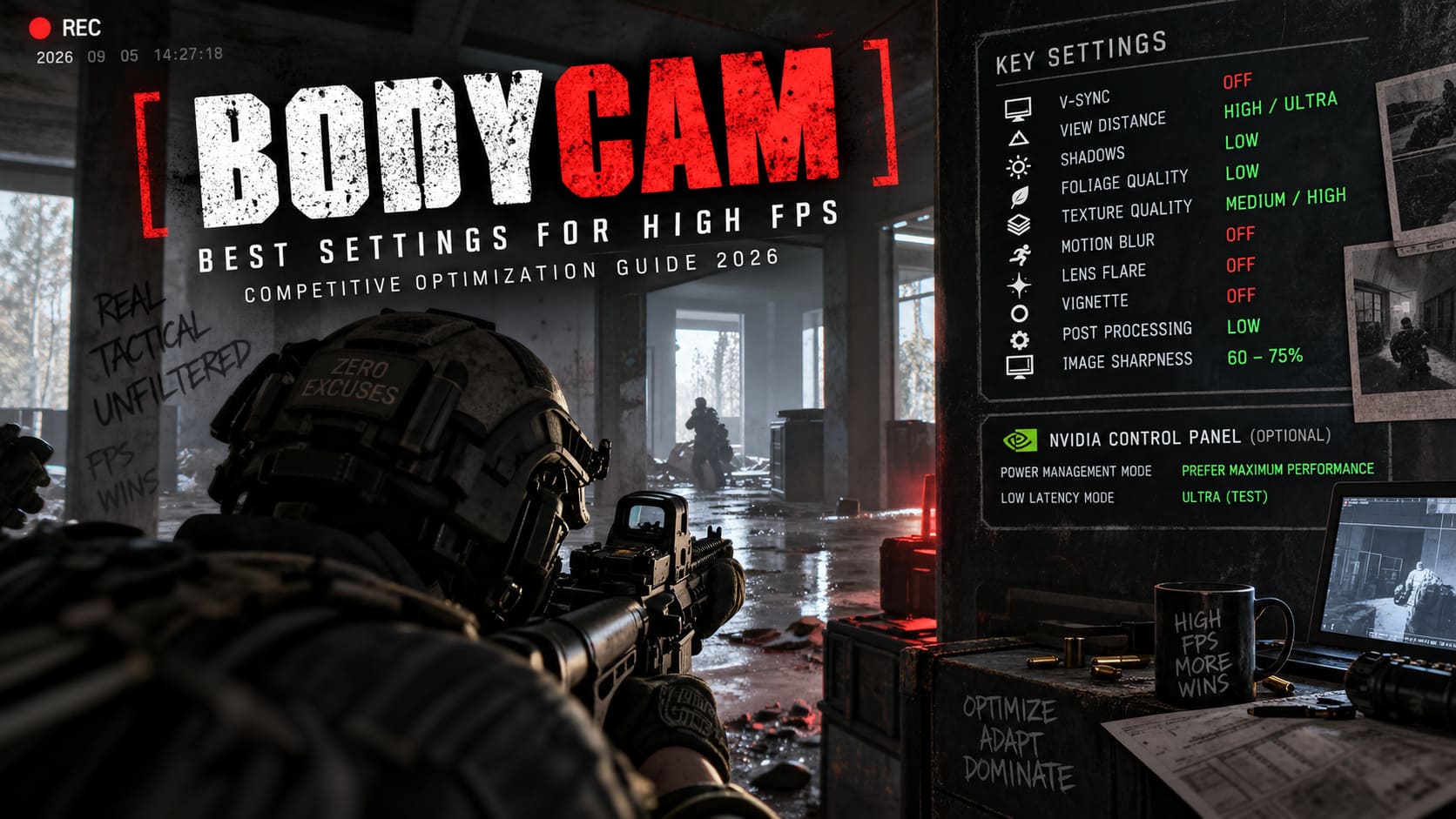
- Motion Blur: Off — eliminates artificial smearing during fast mouse movements.
- Lens Flare: Off — removes distracting streaks around bright light sources.
- Vignette: Off — prevents artificial darkening around the edges of the screen.
- Post Processing: Low — reduces unnecessary image effects and keeps the picture cleaner.
Motion blur is the easiest one. Turn it off immediately. I don’t want my screen looking like an action movie when I’m trying to track somebody sprinting across a doorway.
Sharpening: The Secret Sauce for DLSS and FSR
Temporal reconstruction can sometimes leave the image looking slightly soft, especially when you move away from native resolution.
That’s where Image Sharpness around 60–75% becomes useful.
Don’t crank sharpening to 100% and expect miracles. Excessive sharpening can create ugly halos and artificial edges. A moderate setting gives distant objects and player outlines more definition without turning the entire image into a crunchy mess.
Nvidia Control Panel Settings for Bodycam
If you’re using an Nvidia GPU, there are a couple of driver-level settings worth checking.
- Open Nvidia Control Panel.
- Go to Manage 3D Settings.
- Open Program Settings.
- Select Bodycam from the application list.
- Set Power Management Mode to Prefer Maximum Performance.
- Test Low Latency Mode: Ultra if your configuration benefits from it.
The maximum-performance setting prevents aggressive GPU power-state changes while you’re playing. On a demanding UE5 title, I’d rather have the GPU ready to work than constantly changing its behavior.
For Low Latency Mode, don’t blindly assume Ultra is universally superior. If the game already provides its own latency-management technology, driver-level settings can interact with it differently depending on the system. Test it rather than treating the option as magic.
Windows Game Mode and HAGS
Windows has a couple of gaming features worth checking before you start blaming Bodycam for every stutter.
Game Mode should be enabled. It is designed to prioritize gaming workloads and reduce interference from certain background activities.
Hardware-Accelerated GPU Scheduling (HAGS) can also be enabled through Windows graphics settings on supported systems. Whether it produces a measurable improvement depends heavily on your hardware, drivers, and game version, so I wouldn’t promise a universal FPS boost.
The important thing is to test changes individually. If you change fifteen settings at once, discover that the game feels better, and then forget what you changed, troubleshooting becomes a complete nightmare.
Should You Use -dx11 in Bodycam?
This one deserves a giant “TEST IT YOURSELF” label.
Bodycam’s Unreal Engine 5 foundation means DirectX 12 is the obvious modern rendering path, but some PC configurations can experience unusual stuttering, crashes, or inconsistent frame pacing. If DX12 is giving you a horrible experience, forcing DX11 is worth testing.
To try it:
- Open Steam and find Bodycam.
- Right-click the game and select Properties.
- Stay in the General tab.
- Find the Launch Options field.
- Enter -dx11.
- Launch the game and compare performance.
Don’t assume DX11 will automatically increase FPS. Depending on your GPU and driver combination, you may see lower peak performance, different reflections, or other visual differences. The reason to test it is stability and frame pacing, not because “DX11 is faster” as a universal rule.
RAM, Drivers, and Thermals Matter More Than People Admit
You can have the perfect graphics configuration and still get terrible performance if the rest of the PC is struggling.
16GB of RAM should be considered the practical starting point for a modern gaming PC running Bodycam, while 32GB gives you considerably more breathing room. If you’re experiencing severe stutters while other applications are running in the background, insufficient memory can absolutely become part of the problem.
Keep Bodycam installed on an SSD, close unnecessary background applications, and make sure your GPU drivers are reasonably current. If a major Bodycam update lands, it’s also worth checking whether your Nvidia or AMD driver has a game-specific update.
Thermals are another silent FPS killer. A GPU or CPU that constantly hits thermal limits can reduce clock speeds and turn a theoretically powerful PC into a machine that feels strangely sluggish. Monitor temperatures and clocks before deciding that your settings are the problem.
Can You Play Bodycam on ASUS ROG Ally X at 60FPS? Best Settings Guide (2026)
My Final Competitive Bodycam Setup
If I were setting up Bodycam on my own gaming PC before jumping into a serious session, this is the profile I’d start with:
- Fullscreen: On
- Native Resolution: Preferred
- V-Sync: Off
- DLSS / FSR: Quality or Balanced
- Frame Generation: Off
- View Distance: High or Ultra
- Shadows: Low
- Foliage: Low
- Textures: Medium or High depending on VRAM
- Post Processing: Low
- Motion Blur: Off
- Lens Flare: Off
- Vignette: Off
- Sharpening: 60–75%
- Frame Cap: Unlimited or approximately 3 FPS below refresh rate with VRR
That’s the configuration I’d call the competitive sweet spot. It doesn’t turn Bodycam into an ugly Low-settings simulator, but it ruthlessly removes the graphical effects that provide little value during a firefight.
Bodycam Zombies Mode Co-Op Guide: How to Play, Best Strategies, and 2026 Status
Final Verdict: Chasing FPS Without Destroying Visibility
The biggest mistake with Bodycam optimization is thinking that “maximum FPS” means putting every slider on Low. That’s not how I’d approach it.
Protect visibility first. Keep View Distance high, preserve reasonable texture quality, and use DLSS or FSR before you start murdering your resolution. Then attack the expensive settings that don’t help you win: shadows, foliage, post-processing, motion blur, lens effects, and other cinematic nonsense.
Most importantly, don’t worship the FPS counter. A system producing 120 FPS with ugly frametime spikes can feel worse than one producing a consistent 100 FPS. Stable frame delivery, low latency, and predictable mouse response are what you actually feel when the shooting starts.
Bodycam is never going to be a lightweight shooter. That’s part of its charm and part of its frustration. But with the right settings, a sensible upscaling mode, disciplined Windows configuration, and hardware that isn’t overheating, you can strip away a huge amount of unnecessary rendering overhead while keeping the visual information that actually matters.
And when you’re staring through a doorway at a silhouette that appears for half a second, I’d take a clean, responsive 100+ FPS experience over a beautiful slideshow every single time.