How to Fix Audio Out of Sync in Resonance: A Plague Tale Legacy
If you have been waiting for Resonance: A Plague Tale Legacy because you loved the grim atmosphere, stealth-heavy gameplay, and emotional storytelling of the series, the last thing you want is a cutscene where Sophia starts talking and her voice arrives several seconds later. Nothing kills a dramatic moment faster than watching a character finish a sentence while the audio is still trying to catch up.
Audio desynchronization can be especially annoying in a story-driven game. Combat can survive the occasional stutter, but cinematic dialogue is a different beast. When voices, animations, sound effects, and music stop lining up, the entire scene suddenly feels broken. Thankfully, there are several things PC players can try before resorting to a reinstall or assuming the game itself is permanently busted.
I have run into enough audio problems across PC games to know that these issues are often caused by a combination of hardware load, Windows audio settings, frame pacing, drivers, and background software rather than one magical broken setting. If Resonance: A Plague Tale Legacy audio is delayed, crackling, missing, or out of sync, work through the fixes below in order. Start with the simple stuff and only move into the deeper Windows and GPU settings if the problem sticks around.
How to Fix Resonance A Plague Tale Legacy Black Screen After Intro Cutscene
What Causes Audio Desynchronization in Resonance: A Plague Tale Legacy?
Audio sync problems are usually more complicated than simply saying, ‘the sound is lagging.’ Modern games constantly stream textures, animations, dialogue, environmental sounds, and cinematic assets while rendering everything in real time.
When the system struggles to keep up, something can fall behind. You might notice the problem as delayed dialogue, sound effects playing late, music continuing after a scene has changed, or characters’ mouths moving before their voices come through.
Some of the most common PC causes include:
- Heavy CPU or GPU usage during demanding scenes.
- Installing the game on a slow HDD instead of an SSD.
- Unstable frame pacing or extremely high FPS.
- Windows spatial audio or virtual surround processing.
- Incorrect audio sample-rate settings.
- Multiple playback devices fighting for priority.
- Outdated graphics or audio drivers.
- Discord, Steam, NVIDIA, recording, or other overlays.
- Frame Generation and other latency-related graphics features.
The good news is that most of these problems are relatively easy to test.
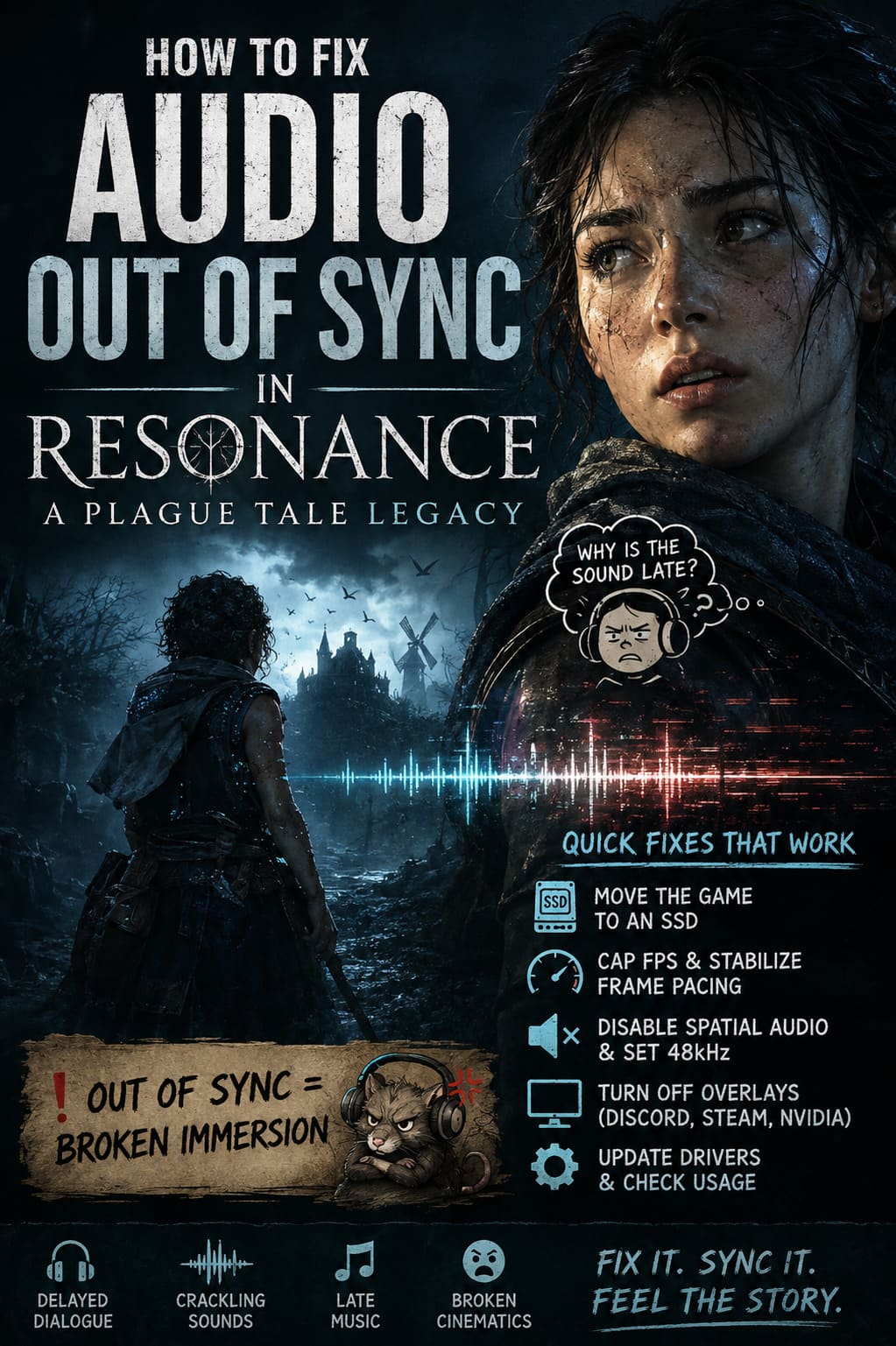
1. Move Resonance to an SSD
If the game is installed on an old mechanical hard drive, this is the first thing I would investigate. Modern games are increasingly aggressive about streaming data from storage, and an HDD can become a serious bottleneck when the engine needs to pull multiple assets into memory quickly.
An SSD does not magically fix every audio problem, but it can dramatically improve asset streaming and reduce the little pauses and hitching that sometimes accompany delayed dialogue.
How to Move the Game to an SSD on Steam
- Open your Steam Library.
- Right-click Resonance: A Plague Tale Legacy.
- Select Properties.
- Open Installed Files.
- Choose Move install folder.
- Select an available SSD and start the transfer.
Ideally, use a reasonably fast internal SSD rather than an old external drive. If your system has an NVMe SSD, that is even better for this type of workload.
For players with both an SSD and HDD, I would absolutely put the game on the SSD while troubleshooting. It removes one major variable from the equation.
2. Stop Chasing Huge FPS and Stabilize Frame Pacing
This one sounds strange until you have spent enough time troubleshooting PC games. More FPS is not automatically better if the frame delivery is all over the place.
A game running at 150 FPS one second, dropping to 82, jumping back to 140, and then hitching during a cinematic can have worse frame pacing than a machine locked consistently at 60 FPS.
Open the game’s graphics settings and look for a Frame Rate Limit option. Start with a stable 60 FPS target. If your hardware can comfortably maintain 120 FPS, you can try that instead.
I would also test V-Sync rather than immediately assuming it should always be disabled. The goal here is not maximum benchmark numbers. The goal is consistent frame delivery.
If the game’s own limiter does not behave properly, you can create a profile for the game through NVIDIA Control Panel or AMD Software and apply a frame-rate limit externally.
Try playing the same problematic cutscene after changing the cap. If the voices suddenly line up, you have probably found a frame-pacing problem rather than an actual audio-device failure.
3. Turn Off Spatial Audio Temporarily
Windows audio processing is another place where things can get surprisingly messy.
If you use Windows Sonic, Dolby Atmos, DTS processing, headset surround software, or another virtual spatial-audio solution, disable it temporarily. You can always turn it back on later.
Right-click the speaker icon in Windows and open your sound settings. Select the playback device you actually use, find the Spatial Sound option, and switch it to Off.
Then check the advanced properties for the same device.
For troubleshooting, I recommend testing 24-bit, 48,000 Hz or 16-bit, 48,000 Hz.
The important part is the 48 kHz sample rate. Games commonly work around this standard, and keeping your Windows playback device on a conventional format can eliminate strange compatibility issues.
Don’t assume your expensive gaming headset needs every enhancement enabled. Sometimes the boring stereo configuration is the one that simply works.
4. Test Frame Generation Without It
Frame Generation is fantastic when you want higher displayed FPS, but it changes the way frames are produced. If you are already experiencing unusual timing or synchronization behavior, it is worth removing that extra layer while troubleshooting.
If Resonance has an option for DLSS Frame Generation, FSR Frame Generation, or another frame-generation technology, turn it off temporarily.
You do not have to abandon the feature permanently. Play through the section where the audio goes out of sync and see whether the problem disappears.
If everything suddenly behaves normally, you have narrowed the problem down considerably.
You can also experiment with NVIDIA Reflex or similar latency options. If you are using an aggressive setting such as Reflex On + Boost, try the standard mode or disable it temporarily for testing.
The same rule applies here as with the FPS cap: change one thing at a time. Otherwise, you will never know which setting actually fixed the problem.
5. Disable Unused Playback Devices
This is one of those Windows problems that is easy to overlook.
Your PC might have several audio devices available at once:
- Gaming headset.
- Monitor speakers.
- HDMI audio.
- VR headset.
- USB audio interface.
- Bluetooth headphones.
- Virtual audio devices from recording software.
Most of the time Windows handles this perfectly well, but when troubleshooting synchronization issues, I prefer keeping the setup as clean as possible.
Press Windows Key + R, enter mmsys.cpl, and press Enter. This opens the classic Windows Sound panel.
Go to the Playback tab and look through the devices listed there. Disable hardware you are not currently using, then make sure your actual headset or speakers are selected as the Default Device.
Restart the game after changing these settings.
This is particularly worth trying if the audio problem appeared after connecting a new monitor, headset, controller, VR device, or USB sound interface.
6. Kill the Overlay Army
PC gamers love overlays. Steam has one. Discord has one. NVIDIA has one. AMD has one. Recording software has one. Some motherboard utilities even want their own little overlay sitting on top of your game.
The problem is that every additional layer creates another opportunity for conflicts, capture hooks, or micro-stutters.
For testing, disable the major ones.
Discord
Open Discord settings and find Game Overlay. Turn off the in-game overlay.
You can also experiment with disabling Discord hardware acceleration if the issue continues.
Steam
Open Steam settings and locate the In-Game section. Disable the Steam Overlay while playing the game.
NVIDIA App
If you use NVIDIA’s overlay features, disable the in-game overlay temporarily and restart Resonance.
You do not need to permanently play without these features. This is a troubleshooting step designed to answer one question: does the audio problem disappear when third-party overlays are removed?
If yes, start enabling them again individually until you find the culprit.
7. Update Your GPU and Audio Drivers
Driver problems can be frustrating because everything else on the computer may appear completely normal.
Your games launch. Windows sounds work. YouTube works. Your headset works. Then one specific game starts behaving like its dialogue is being broadcast through a time machine.
Install the latest stable graphics driver available for your GPU and make sure Windows has the appropriate audio drivers installed.
For NVIDIA users, a clean graphics-driver installation can also be worth considering if the problem started immediately after a driver update. AMD users should perform the equivalent troubleshooting through AMD Software.
Don’t forget chipset drivers either, particularly if you are dealing with broader performance or USB audio problems.
8. Check CPU and GPU Usage During the Problem
If the audio becomes delayed specifically during heavy scenes, watch your system utilization.
A sudden CPU spike, GPU saturation, VRAM pressure, or severe storage activity can provide an important clue.
The most useful question is not simply ‘what is my FPS?’ Ask: What happens to my CPU, GPU, VRAM, RAM, and disk usage at the exact moment the audio falls behind?
If the entire game freezes for a fraction of a second and then dialogue catches up, you are probably looking at a performance or streaming problem.
If the game remains perfectly smooth but voices are consistently delayed, audio configuration becomes much more suspicious.
That distinction can save a lot of pointless tweaking.
9. Restart the Game After Every Major Audio Change
This sounds obvious, but it is easy to forget.
Some audio and graphics settings do not fully initialize again until the game is restarted. If you change Windows audio format, disable spatial sound, switch playback devices, or alter frame-generation settings, completely close Resonance and launch it again.
For stubborn cases, restarting Windows after changing the default playback device is also worth doing.
Quick Resonance Audio Troubleshooting Checklist
- Install the game on an SSD.
- Cap FPS to a stable value such as 60 or 120.
- Test with V-Sync enabled.
- Disable Windows Spatial Sound.
- Set the playback device to 48 kHz.
- Disable Frame Generation temporarily.
- Test NVIDIA Reflex or similar latency features without aggressive modes.
- Disable unused playback devices.
- Turn off Steam, Discord, and GPU overlays.
- Update graphics and audio drivers.
- Monitor CPU, GPU, VRAM, RAM, and disk usage during the issue.
- Restart the game after making major changes.
What I Would Try First
If I were sitting at my own PC and the voices in a Resonance: A Plague Tale Legacy cutscene were several seconds behind the characters, I would not start randomly flipping every graphics option.
My first pass would be simple: move the game to an SSD, cap the FPS, disable spatial audio, switch Windows to 48 kHz stereo, and turn off overlays. Those changes target the most obvious sources of streaming, frame-pacing, and audio-processing trouble without wrecking the visual quality of the game.
If the problem remained, I would disable Frame Generation and test the game again. After that, I would check playback devices and drivers before touching anything more complicated.
The important thing is to change settings methodically. If you disable fifteen options simultaneously and the audio suddenly works, congratulations — you fixed it and have absolutely no idea why.
Final Thoughts
An audio delay problem is especially painful in a game built around atmosphere and storytelling. Resonance: A Plague Tale Legacy needs its dialogue, music, environmental effects, and visuals to hit at the right moment. When Sophia speaks and the sound arrives late, the emotional impact of an otherwise excellent scene can disappear instantly.
Fortunately, audio desynchronization on PC is often fixable without doing anything extreme. Storage performance, frame pacing, Windows audio processing, playback-device conflicts, overlays, drivers, and frame-generation features are all worth checking.
Start with the least invasive fixes and test the same troublesome scene after each change. In my experience, that approach is far less frustrating than blindly reinstalling the game and hoping for the best.