Crimson Desert Crash on Launch Steam Fix: 11 Ways to Stop Startup Crashes, Freezes, and Black Screens on PC
When you’ve spent decades playing PC games, you start recognizing certain launch-day patterns. Every major release arrives with incredible excitement, and unfortunately, a familiar wave of technical problems. I’ve seen it happen with massive RPGs, open-world adventures, survival games, and just about every ambitious PC title that tries to push hardware to its limits.
Now it’s Crimson Desert’s turn.
After spending many hours testing the game across different systems and following countless discussions from Steam users and PC enthusiasts, one thing has become clear: Crimson Desert is an incredible technical achievement, but it can also be extremely demanding during startup.
Some players never make it past the splash screen. Others encounter black screens, instant crashes to desktop, frozen loading screens, or situations where Steam shows the game running for a few seconds before it quietly closes.
The good news is that most launch issues can be fixed without waiting for a major patch.
In this guide, I’ll walk through the most effective solutions I’ve seen work in real-world situations and explain why they matter.
Why Crimson Desert Crashes Before Launch
From my experience troubleshooting PC games over the years, startup crashes usually fall into several categories:
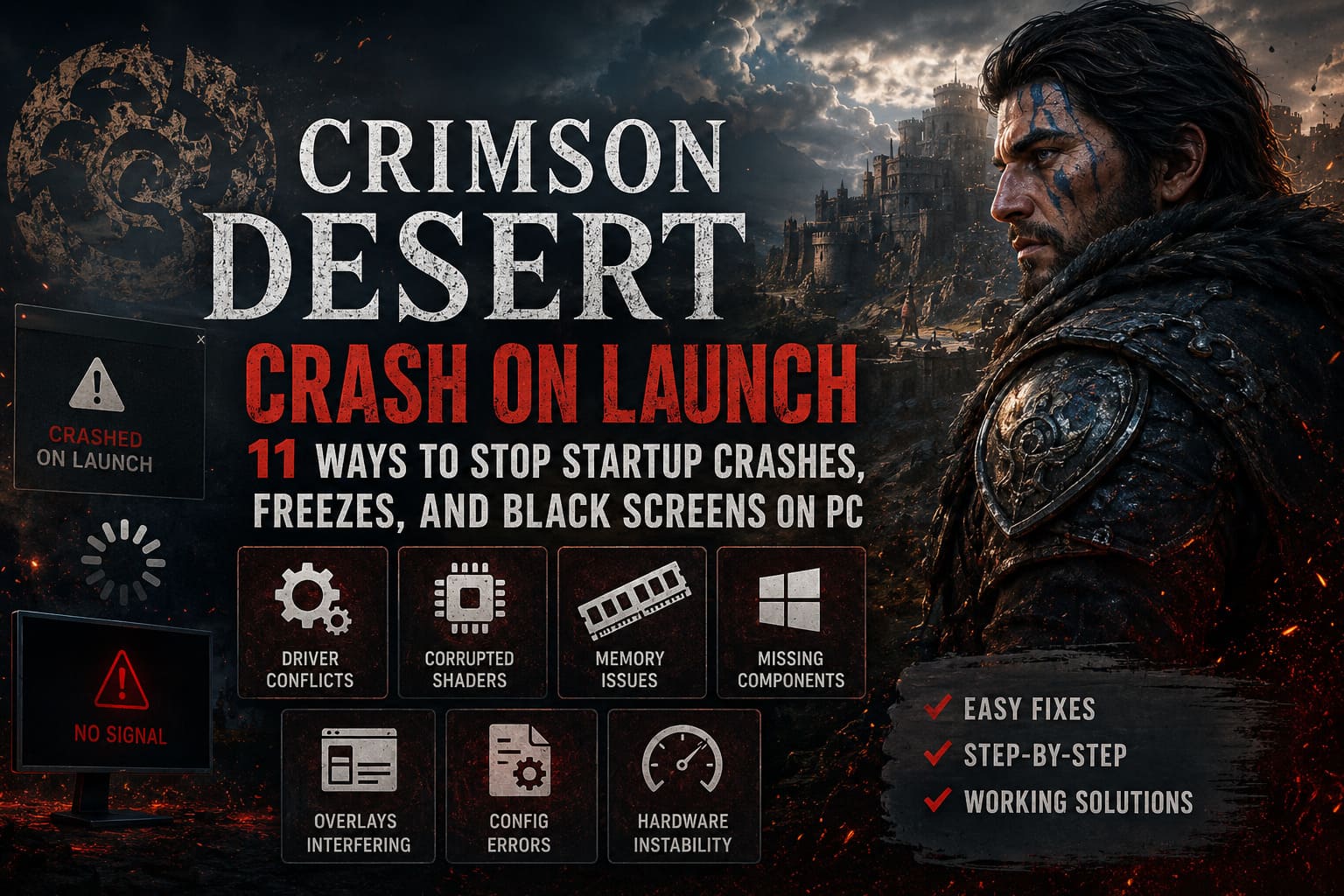
- Graphics initialization failures
- Driver conflicts
- Corrupted shader caches
- Memory allocation problems
- Missing Windows components
- Overlays interfering with rendering
- Broken game configuration files
Crimson Desert seems particularly sensitive to all of the above because Pearl Abyss’ BlackSpace Engine pushes modern hardware very aggressively right from the moment the game starts.
Common Causes
| Problem | Symptoms | Difficulty |
|---|---|---|
| Frame Generation Conflicts | Instant crash after launch | Easy Fix |
| Missing Windows Media Features | Game never opens | Easy Fix |
| Corrupted Shader Cache | Black screen or freeze | Medium Fix |
| Driver Problems | Random startup crashes | Medium Fix |
| Virtual Memory Issues | Crash during loading | Easy Fix |
| Overlays and Monitoring Software | Instant desktop crash | Easy Fix |
| GPU Instability | System reset or crash | Medium Fix |
1. Reset the Graphics Configuration File
One of the first fixes I recommend is removing or editing the game’s configuration file.
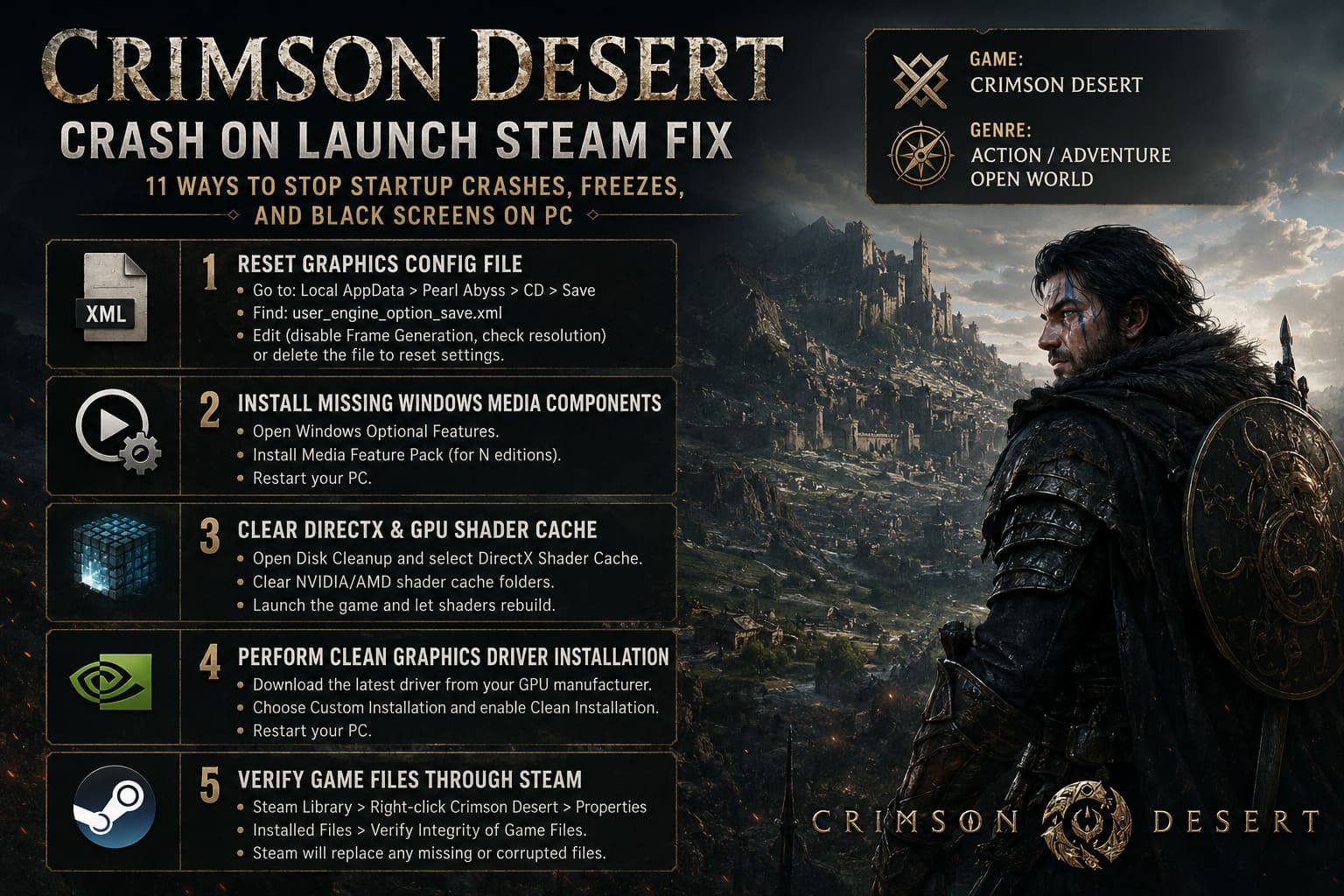
Many launch crashes occur because the game saves incorrect graphics settings during the first startup attempt.
Navigate to the Local AppData folder and open the Pearl Abyss > CD > Save directory.
Locate the file named user_engine_option_save.xml.
If you feel comfortable editing it, disable frame generation manually and verify that the resolution matches your monitor.
If not, simply delete the file.
The next launch forces Crimson Desert to generate fresh settings, which has solved startup crashes for many players.
2. Install Missing Windows Media Components
This issue catches more people than expected.
If you’re using a Windows N edition, Crimson Desert may fail before even showing a window.
A missing Media Foundation component often prevents intro videos and cinematics from loading correctly.
Open Windows Optional Features and install the Media Feature Pack.
After installation, restart your PC and try launching again.
This is one of those fixes that seems too simple, but I’ve personally seen it solve launch problems in multiple games over the years.
3. Clear DirectX and GPU Shader Cache
Shader corruption remains one of the most common causes of startup instability in modern PC gaming.
Whenever a game introduces a new rendering pipeline, old cached shaders can create conflicts.
I recommend the following:
- Open Disk Cleanup.
- Select DirectX Shader Cache.
- Delete cached shader files.
- Clear NVIDIA or AMD shader cache folders.
Afterward, launch the game again and allow shaders to rebuild from scratch.
The first startup may take longer, but stability often improves significantly.
4. Perform a Clean Graphics Driver Installation
Updating drivers isn’t always enough.
I’ve seen countless situations where old driver remnants continue causing crashes long after an update.
Instead of performing a standard installation, download the newest driver package directly from your GPU manufacturer and select a clean installation option.
- Download the newest driver.
- Select Custom Installation.
- Enable Clean Installation.
- Restart your PC.
Whether you’re using NVIDIA, AMD, or Intel Arc hardware, a clean driver installation removes many hidden conflicts.
For Intel Arc owners specifically, keeping drivers updated is absolutely essential because optimization improvements arrive frequently.
5. Verify Game Files Through Steam
It sounds basic, but corrupted downloads happen more often than people realize.
Modern games contain tens of thousands of files.
One damaged archive can prevent the engine from loading properly.
To verify your installation, open your Steam Library, right-click Crimson Desert, select Properties, open Installed Files, and click Verify Integrity of Game Files.
Steam will automatically replace anything missing or corrupted.
6. Experiment with DirectX Launch Options
DirectX compatibility issues still exist even in modern PC gaming.
Some systems perform better using forced DirectX modes.
Inside Steam Launch Options, test the following command:
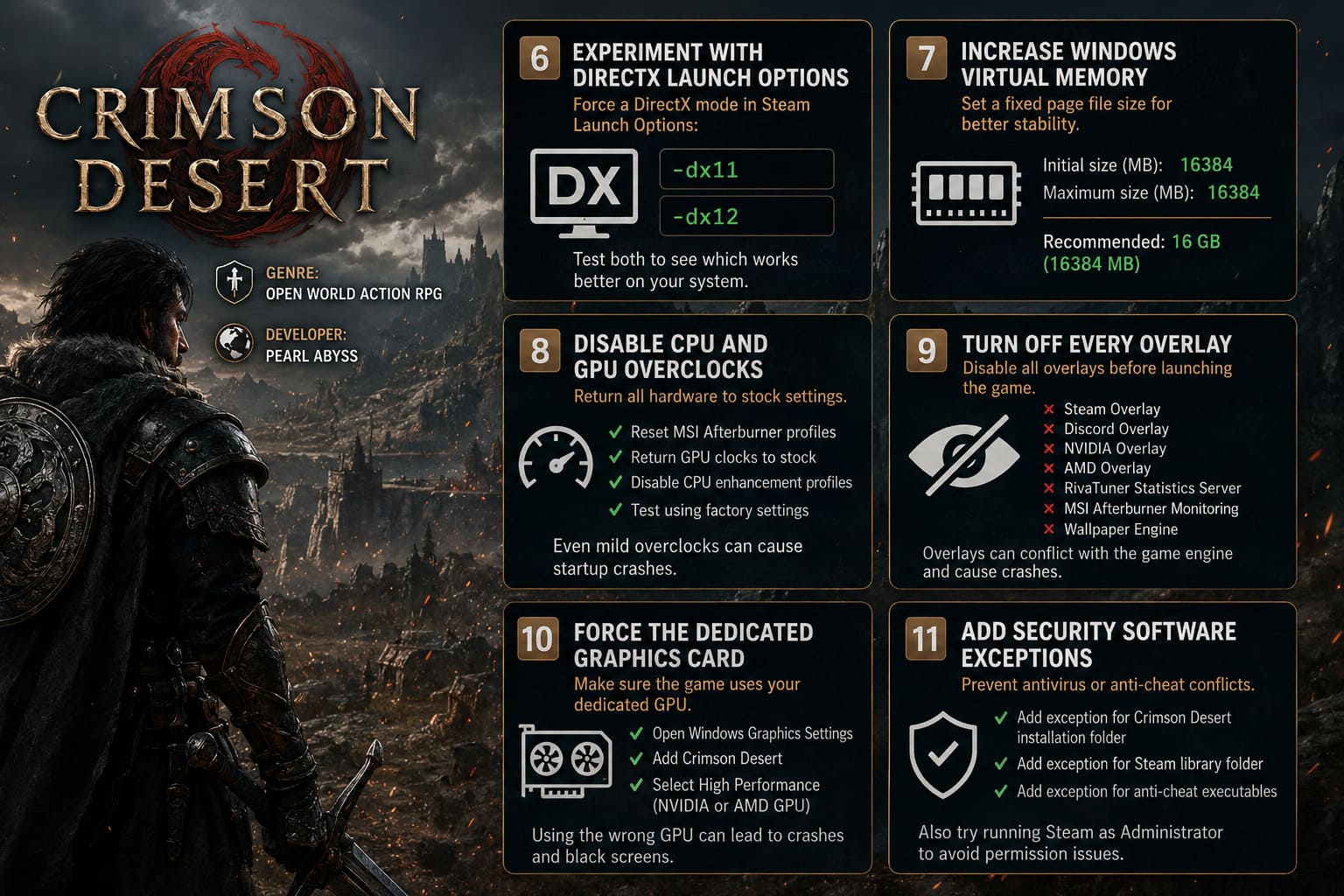
-dx11
If that doesn’t help, try:
-dx12
While most players will stay on the default setting, forcing a specific API occasionally bypasses initialization bugs.
7. Increase Windows Virtual Memory
Crimson Desert loads massive environments and high-resolution assets very early in the startup process.
Systems with limited page file space sometimes encounter memory allocation failures.
I generally recommend allocating 16 GB (16384 MB) for both minimum and maximum page file values.
A fixed page file often provides better consistency than Windows constantly resizing it during gameplay.
8. Disable CPU and GPU Overclocks
This is a lesson I’ve learned repeatedly throughout my years of PC gaming.
A system can appear completely stable in benchmarks while crashing instantly in a demanding game.
Crimson Desert seems unusually sensitive to hardware instability.
Before troubleshooting anything else, reset all overclocking profiles and return your hardware to stock settings.
- Reset MSI Afterburner profiles.
- Return GPU clocks to stock values.
- Disable aggressive CPU enhancement profiles.
- Test using factory settings.
Even mild overclocks can cause shader compilation failures during startup.
9. Turn Off Every Overlay
Overlays remain one of the most underestimated causes of launch crashes.
Programs that hook into DirectX often conflict with new game engines.
Before launching Crimson Desert, disable the following:
- Steam Overlay
- Discord Overlay
- NVIDIA Overlay
- AMD Overlay
- RivaTuner Statistics Server
- MSI Afterburner Monitoring
- Wallpaper Engine
I’ve personally fixed startup crashes in multiple games simply by closing background overlay software.
10. Force the Dedicated Graphics Card
Gaming laptops are especially vulnerable to this problem.
Windows occasionally launches demanding games using integrated graphics instead of the dedicated GPU.
Check Graphics Settings and ensure Crimson Desert is assigned to High Performance.
This should point directly to your NVIDIA or AMD graphics card.
If the wrong GPU launches the game, crashes and black screens become very common.
11. Add Security Software Exceptions
Modern anti-cheat systems and aggressive antivirus software don’t always get along.
I’ve seen Windows Defender quarantine perfectly legitimate game files during launch week.
Create exclusions for the following:
- Crimson Desert installation folder
- Steam library folder
- Anti-cheat executables
Also consider running Steam with administrator privileges to eliminate permission conflicts.
Additional Tip: Dual Monitor Users Should Pay Attention
This isn’t discussed enough.
Several players reported crashes caused by mismatched refresh rates across multiple displays.
For testing purposes, disconnect secondary monitors or ensure all displays are using matching refresh rates.
- Disconnect secondary monitors.
- Match refresh rates across displays.
- Launch the game again.
It sounds unusual, but display synchronization issues can interfere with startup rendering.
Should You Reinstall Crimson Desert?
Only after trying everything else.
A complete reinstall should be your final troubleshooting step.
When reinstalling, make sure you completely remove leftover game files and configuration folders before downloading a fresh copy.
- Uninstall through Steam.
- Delete remaining installation folders manually.
- Remove leftover AppData files.
- Install on an SSD or NVMe drive.
Running Crimson Desert from slow external drives can introduce loading problems and startup failures that look like crashes.
Crimson Desert 2026 Roadmap Explained: Pearl Abyss Explains Major Dev Update from June to September
Final Thoughts
After years of troubleshooting PC games, I’ve learned that launch-day issues rarely have a single universal fix. Crimson Desert is no exception. The game pushes modern hardware extremely hard, and small system inconsistencies that other games ignore can become major problems here.
The most successful fixes I’ve personally seen involve clearing shader caches, disabling frame generation, reinstalling graphics drivers cleanly, and removing overlays.
If you’ve exhausted every option and the game still refuses to launch, don’t immediately assume your hardware is at fault. Pearl Abyss has already released multiple stability updates since launch, and more optimization patches are almost certainly on the way.
Crimson Desert is an ambitious game running one of the most visually advanced engines available today. As frustrating as startup crashes can be, most players eventually get the game running with a combination of the fixes above.
And once you finally step into its world without a crash, the effort feels worthwhile.