How to Fix Resonance: A Plague Tale Legacy Black Screen After Intro Cutscene
There’s nothing quite as annoying as finally sitting down to play a game you’ve been waiting for, watching an impressive opening sequence, and then getting rewarded with a completely black screen. That’s the situation some PC players are running into with Resonance: A Plague Tale Legacy. The intro plays normally, the atmosphere is doing its thing, music may continue in the background, and then… nothing. No gameplay, no menu, sometimes not even a useful error message.
If you’ve encountered the Resonance: A Plague Tale Legacy black screen after the intro cutscene, don’t immediately assume your GPU is dying or that you need to reinstall the entire game. Problems like this are often caused by the awkward handoff between a pre-rendered cinematic and the actual game engine. Display synchronization, shader compilation, overlays, outdated drivers, fullscreen settings, and even Windows audio configuration can all get involved.
I’ve dealt with enough PC game launches to know that the most frustrating bugs are often the ones that make absolutely no sense. A game can run at 100 FPS one second and refuse to display a single frame the next. Here are the fixes I’d try, starting with the quickest ones.
Resonance A Plague Tale Legacy Deluxe Edition Physical Steelbook: Ultimate Preorder Guide
First, Figure Out What Kind of Black Screen You Have
Before changing half of Windows, pay attention to what the game is actually doing.
If you can hear music, ambient sounds, character dialogue, or menu clicks, that’s a useful clue. It usually means the game itself hasn’t completely crashed. The rendering or display pipeline may simply be stuck.
If the entire PC freezes, the game closes by itself, or Windows reports that the application stopped responding, you may be dealing with a broader driver or stability problem.
For the classic situation where the intro finishes and the screen stays black while audio continues, I’d start with the display-related fixes below.
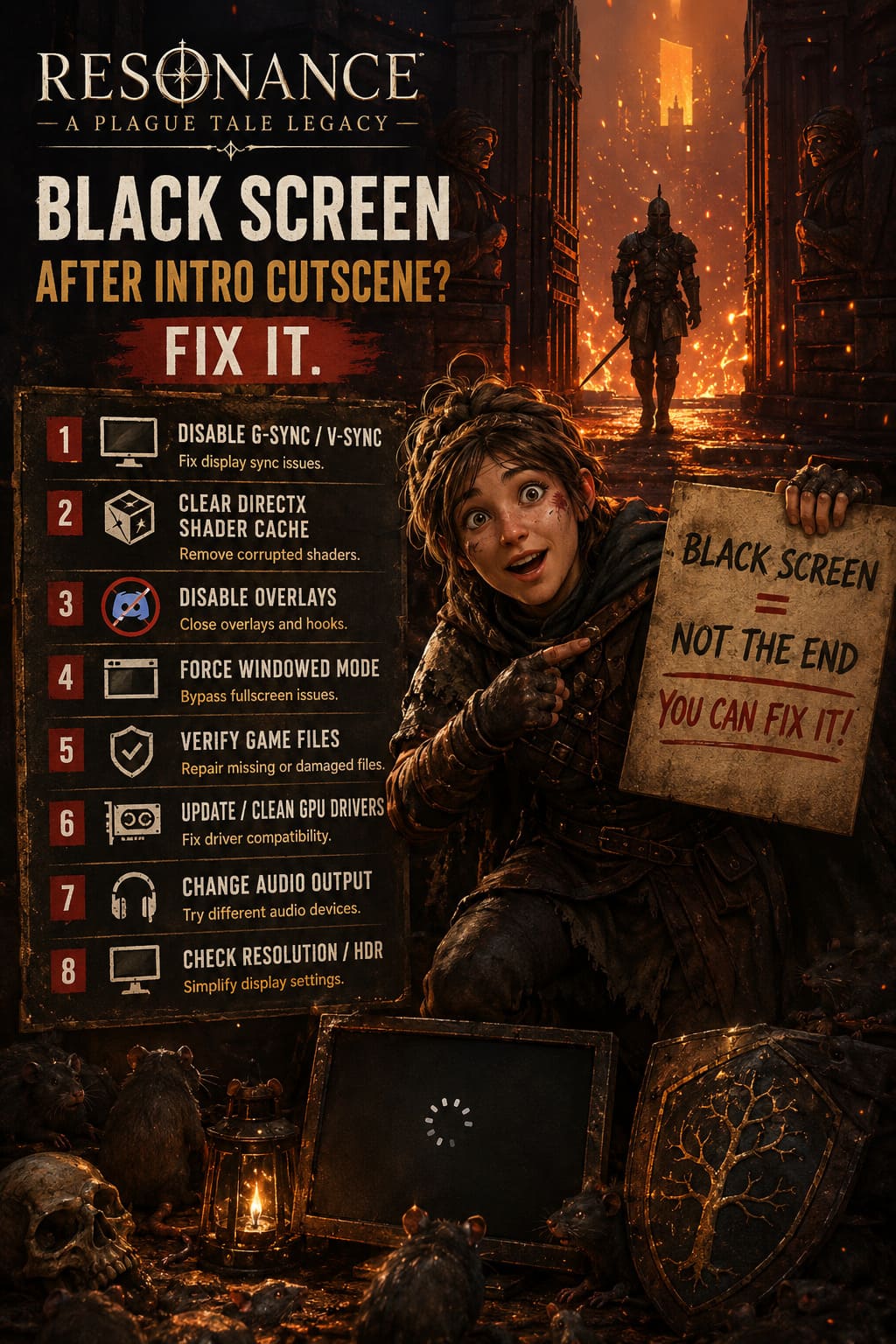
1. Temporarily Disable G-Sync and V-Sync
This would be one of my first tests, especially on an Nvidia-equipped gaming PC.
Technologies such as G-Sync and V-Sync are normally great. They can smooth out frame delivery and eliminate tearing, but transitions between cinematic playback and real-time rendering can occasionally expose compatibility problems.
On Nvidia hardware, open the Nvidia Control Panel and go to Manage 3D Settings. Select Program Settings, add Resonance: A Plague Tale Legacy, and temporarily set Vertical Sync to Off.
If you use G-Sync, open the G-Sync section and disable it for the test as well. Launch the game again and see whether the transition from the intro into gameplay finally works.
You don’t have to leave everything disabled forever. If the game starts correctly, you can experiment with enabling these features again one at a time. Personally, I’d rather spend two minutes testing this than immediately start reinstalling drivers or deleting configuration folders.
2. Clear the DirectX Shader Cache
Shader compilation is one of those invisible PC gaming processes that can cause spectacularly weird problems when something goes wrong.
Modern games constantly build and reuse shader data. If that cache becomes corrupted or an incompatible shader is left behind after a driver update, a game can potentially stall when moving into a new rendering environment.
Windows makes clearing the DirectX cache surprisingly easy.
Open the Start menu and search for Disk Cleanup. Select your Windows system drive, usually C:, and wait for the list of removable files to appear. Find DirectX Shader Cache, select it, and remove it.
You don’t need to start deleting random folders while you’re there. Keep the cleanup focused on the shader cache.
Afterward, launch the game again. The first loading process may take longer because the engine has to rebuild shader data. That’s normal. If the black screen was caused by corrupted cached shaders, this simple reset can be enough to get past the intro.
3. Force Windowed Mode
Fullscreen mode is another classic suspect.
Games sometimes struggle when they switch resolutions, refresh rates, HDR states, or display modes immediately after a cinematic. If the game is attempting to move from a video sequence into fullscreen gameplay and something doesn’t match your monitor configuration, you can end up staring at blackness while the game continues running underneath it.
The easiest workaround is to force the game into Windowed Mode.
Look in the game’s configuration folder, typically somewhere inside your Documents or My Games directory. Depending on the final PC configuration and version of the game, the settings filename may differ, so don’t panic if you don’t see a file with exactly the same name mentioned in another guide.
Look for a display or window mode setting and change fullscreen to windowed if available. If you find an entry such as:
Windowed 0
try changing it to:
Windowed 1
Save the configuration and launch the game.
If you finally reach the main menu, you’ve learned something important: the game can render correctly, but your previous display mode was probably causing the transition to fail.
From there, switch to Borderless Fullscreen inside the game’s graphics settings. I generally prefer borderless anyway on modern Windows systems because alt-tabbing is usually much less painful.
4. Shut Down Every Overlay You Don’t Need
PC gaming overlays are convenient right up until they aren’t.
Steam, Discord, Nvidia software, Xbox features, recording utilities, monitoring applications, RGB software, and other background programs can hook into games to display notifications, FPS counters, chat messages, or hardware information.
Most of the time, nothing goes wrong. But when a game is already struggling during a cinematic-to-gameplay transition, an overlay injection can be the final ingredient needed to produce a black screen.
For testing, go aggressive.
Disable the Steam Overlay for the game through its Properties menu. If Discord Overlay is enabled, turn that off too. Do the same with Nvidia’s in-game overlay or Xbox Game Bar if you normally have them active.
I also recommend temporarily disabling hardware acceleration in applications such as Discord if you’re troubleshooting a particularly stubborn rendering problem.
Don’t just disable one overlay and assume it didn’t help because the game still failed. If you have five different programs injecting themselves into the game, remove all of them for one clean test.
5. Update Your GPU Driver — Or Perform a Clean Installation
A brand-new game meeting an older graphics driver is a recipe for random nonsense.
Even if other games are working perfectly, a new title can expose a driver issue that you’ve never encountered before. The fact that your favorite games run fine doesn’t automatically mean the current driver is ideal for a newly released engine build.
Check for the latest driver for your Nvidia, AMD, or Intel GPU.
If you’ve recently upgraded drivers several times, however, I’d consider going one step further. A clean GPU driver installation can remove remnants of previous configurations that may be causing conflicts.
Tools such as Display Driver Uninstaller are commonly used for this purpose. If you’re comfortable with the process, boot Windows into Safe Mode, remove the existing graphics driver, restart, and install the current driver fresh.
This is more work than clearing a shader cache, so I wouldn’t make it my first move. But if you’re experiencing black screens in multiple games, graphical crashes, or strange driver behavior outside Resonance, a clean installation becomes much more interesting.
6. Try a Different Audio Output
This one sounds ridiculous until you encounter a game that actually cares about the Windows audio configuration.
If the game continues playing sound while the screen is black, I’d absolutely test your audio device.
Switch Windows to a different playback device before starting the game. If you’re using speakers, try headphones. If you’re using wireless headphones, test a wired headset or another output device if possible.
You can also check your Windows sound settings and temporarily disable Spatial Sound or other virtual surround features.
For the audio format, a standard configuration such as 24-bit, 48 kHz is worth testing. You don’t necessarily need to keep it that way permanently. The point is to eliminate unusual audio configurations as a potential trigger.
It’s not the first fix I’d try, but when the usual graphics tricks fail, this is exactly the kind of weird PC workaround worth testing.
7. Check Your Resolution and Refresh Rate
If you have a high-refresh-rate monitor, ultrawide display, multiple monitors, HDR, or an unusual resolution, simplify your setup temporarily.
Try launching the game with your primary monitor set to a standard resolution and refresh rate. If you’re running something like 3440×1440 at an unusually high refresh rate, dropping temporarily to a more conventional configuration can help determine whether the display handshake is involved.
I’d also test with HDR disabled in Windows if you’re using it.
Once the game successfully reaches gameplay, restore your preferred settings one by one. That way, if the black screen returns, you’ll know exactly which option caused the problem.
8. Verify the Game Files
Sometimes the answer really is boring.
If a game file associated with the opening sequence or its transition into gameplay is damaged, no amount of messing with G-Sync is going to repair it.
Use Steam’s Verify Integrity of Game Files option from the game’s Properties menu. Let Steam complete the scan and replace anything it identifies as damaged or missing.
This is particularly worth trying if the problem appeared after an interrupted update, crash, failed installation, or moving the game between drives.
The Fixes I’d Try First
If I were sitting at my own PC with the black screen staring back at me, I wouldn’t randomly change every setting at once. I’d go through the troubleshooting process in a controlled order.
| Priority | Fix | Why Try It |
|---|---|---|
| 1 | Disable G-Sync/V-Sync | Quick test for display synchronization conflicts |
| 2 | Clear DirectX Shader Cache | Removes potentially corrupted shader data |
| 3 | Disable Overlays | Eliminates third-party rendering hooks |
| 4 | Force Windowed Mode | Bypasses fullscreen and resolution transition issues |
| 5 | Verify Game Files | Repairs damaged or missing game data |
| 6 | Update/Clean GPU Drivers | Addresses driver compatibility problems |
| 7 | Change Audio Output | Tests unusual audio-device conflicts |
| 8 | Simplify Resolution/HDR | Rules out display configuration problems |
Don’t Change Everything at Once
This is probably the biggest piece of advice I can give.
When a PC game refuses to cooperate, it’s tempting to disable G-Sync, reinstall drivers, delete every configuration file, reinstall DirectX, change your monitor refresh rate, and sacrifice a keyboard to the gaming gods all in the same five-minute session.
Don’t.
Change one major thing at a time and test the game after each change. Otherwise, you might accidentally fix the problem without knowing what actually fixed it. That makes the next crash much harder to troubleshoot.
Start with the easy stuff: overlays, synchronization settings, shader cache, and window mode. Move toward driver maintenance and deeper configuration changes only if those fail.
What If None of These Fixes Work?
If Resonance: A Plague Tale Legacy still goes black after all of these tests, there’s a good chance you’re looking at a game-side compatibility bug rather than a problem with your hardware.
At that point, collect useful information before reporting it: your GPU model, driver version, Windows version, resolution, refresh rate, HDR status, whether audio continues during the black screen, and whether windowed mode changes anything.
That information is far more useful to developers than simply saying, ‘The game is broken.’
Also keep an eye on patches. Launch-day PC problems can disappear surprisingly quickly once developers identify a specific GPU, driver, or rendering-path conflict.
Final Thoughts
A black screen immediately after an intro is one of those bugs that makes you question everything about your PC. The reassuring part is that you probably don’t need to rebuild your entire system just because Resonance: A Plague Tale Legacy decides to stop displaying frames after its opening sequence.
I’d start with G-Sync and V-Sync, clear the DirectX shader cache, kill every overlay, and force Windowed Mode. Those are quick, reversible changes and they target the exact point where the game appears to be getting stuck.
If that doesn’t do it, move on to file verification, a clean GPU driver installation, audio-device testing, and simplified display settings. It may take a little patience, but troubleshooting a black screen systematically is much less painful than blindly reinstalling the game three times and hoping for the best.
And honestly, after spending money on a new game, the last thing anyone wants is to become a Windows technician before reaching the first playable section. Hopefully one of these fixes gets you past that cursed black screen and back into the game where you actually belong.