Aliens Fireteam Elite 2 Steam Deck OLED Best Settings for Smooth 45FPS
There are plenty of games that feel perfectly fine at 30 FPS on Steam Deck. Aliens: Fireteam Elite 2 isn’t one of them. When a corridor suddenly fills with Xenomorphs, acid blood, muzzle flashes, explosions, and three teammates desperately trying to reload at the same time, sluggish frame pacing becomes painfully obvious.
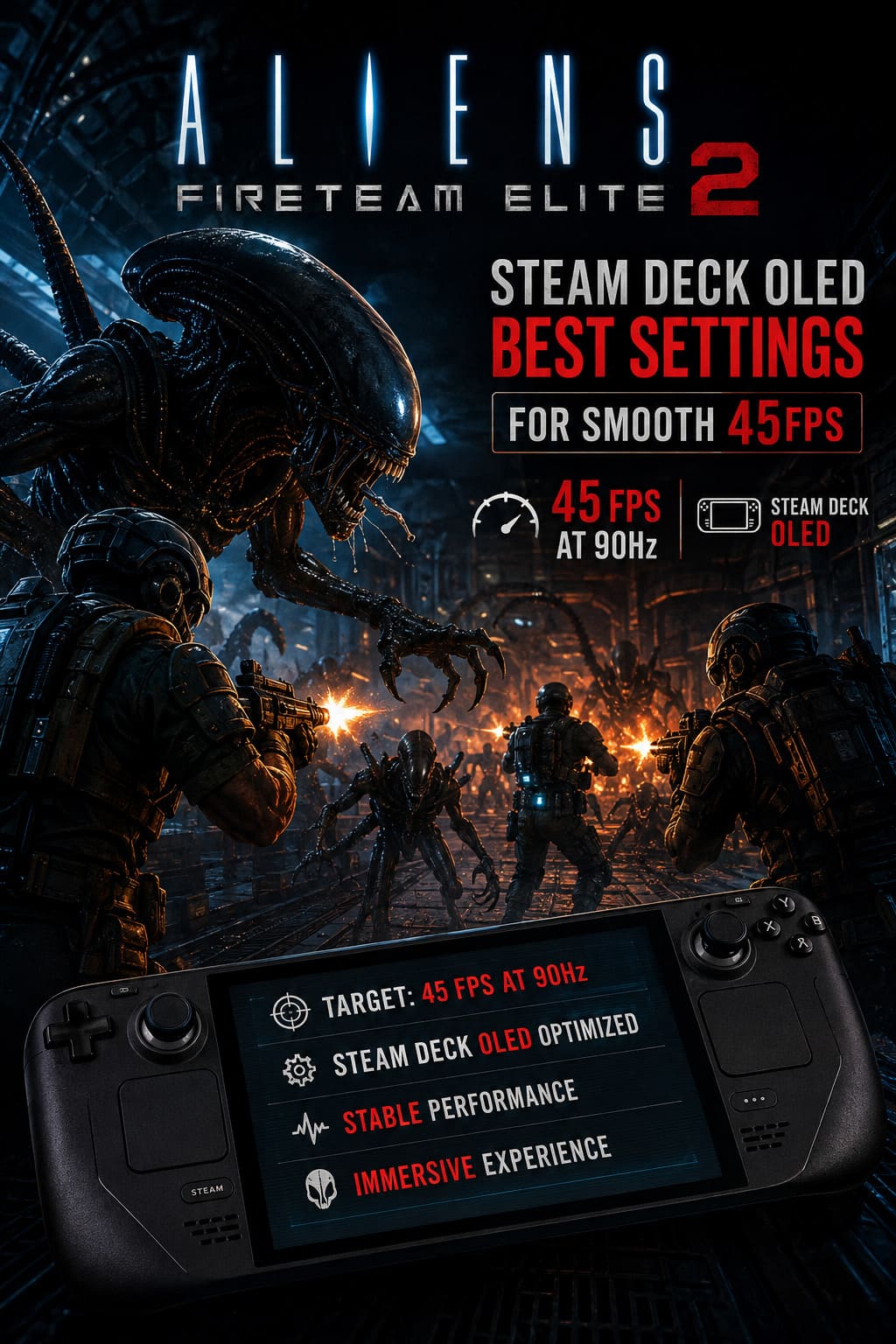
After spending time with the game and tweaking the Steam Deck OLED, I found that 45 FPS at 90Hz is the sweet spot I would personally recommend. It doesn’t have the battery cost of chasing 60 FPS, but it feels substantially more responsive than a 30 FPS lock. More importantly, it gives the hardware enough breathing room to survive those ugly moments when the game throws an entire alien family reunion at your squad.
The OLED screen makes this target especially attractive. With the display locked to 90Hz, 45 FPS fits perfectly into the refresh cycle, producing consistent frame delivery instead of the uneven feeling you can get when a frame-rate target doesn’t line up with the display refresh.
So, if you’re looking for the best Aliens: Fireteam Elite 2 Steam Deck OLED settings, this is the configuration I’d start with.
Why 45 FPS Is the Right Target on Steam Deck OLED
The Steam Deck OLED has a 90Hz display, and that changes the optimization game quite a bit.
On the original LCD Steam Deck, 40 FPS at 40Hz became a popular compromise because it offered noticeably better responsiveness than 30 FPS without requiring the hardware to chase 60. The OLED model gives us another option: 45 FPS at 90Hz.
That combination is particularly nice in a game like Fireteam Elite 2.
At 45 FPS, you’re getting a new frame approximately every 22.2 milliseconds. At 30 FPS, that’s 33.3 milliseconds. You can absolutely feel the difference when you’re turning quickly, tracking a Runner, or trying to put a burst into a Xenomorph before it reaches the squad.
The other advantage is headroom.
I would much rather have the Steam Deck sitting comfortably around a 45 FPS target than constantly bouncing between 48 and 60 FPS while the GPU is screaming. A stable 45 FPS is more enjoyable than an unstable 60 FPS, especially in a cooperative shooter where sudden drops can ruin your aim.
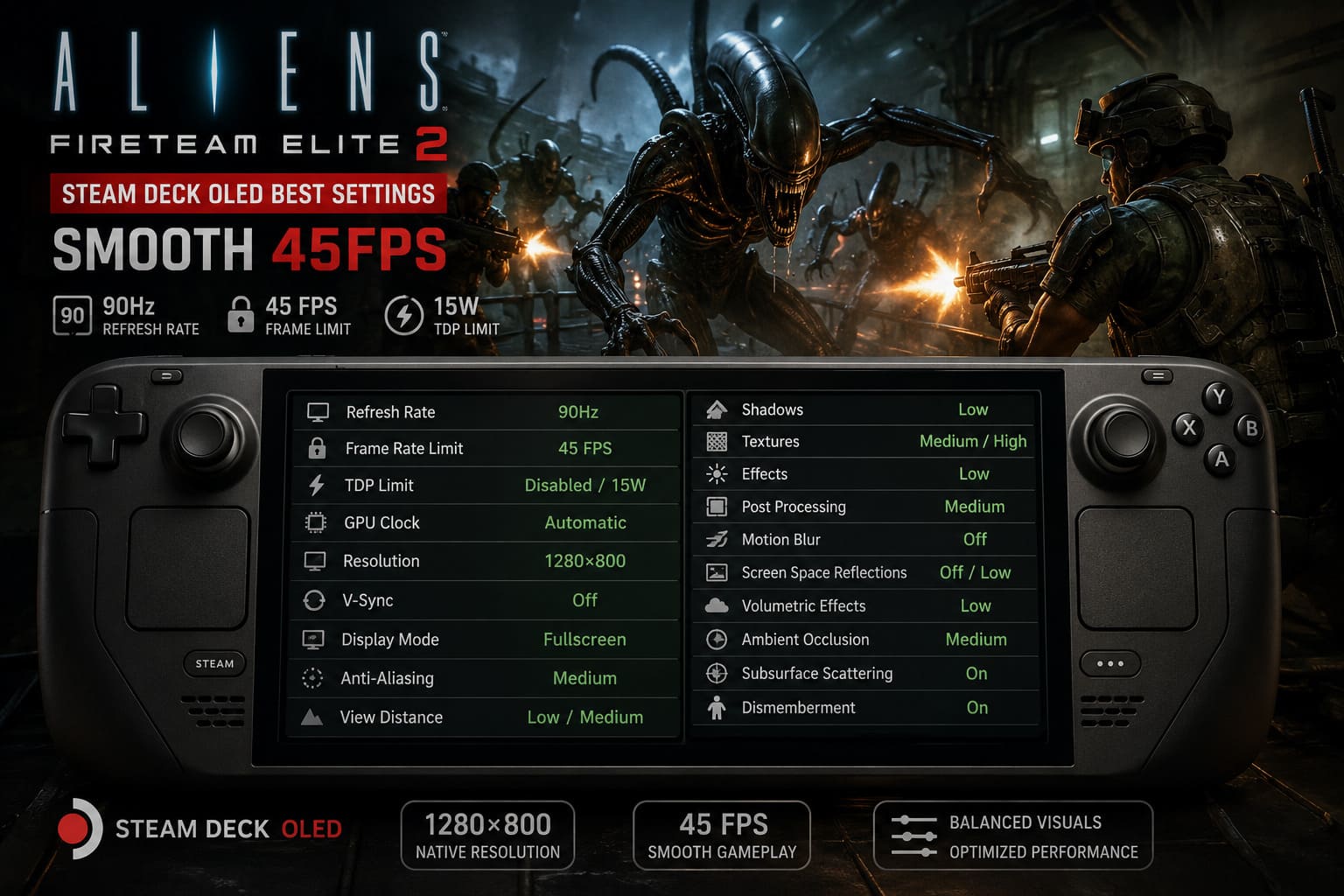
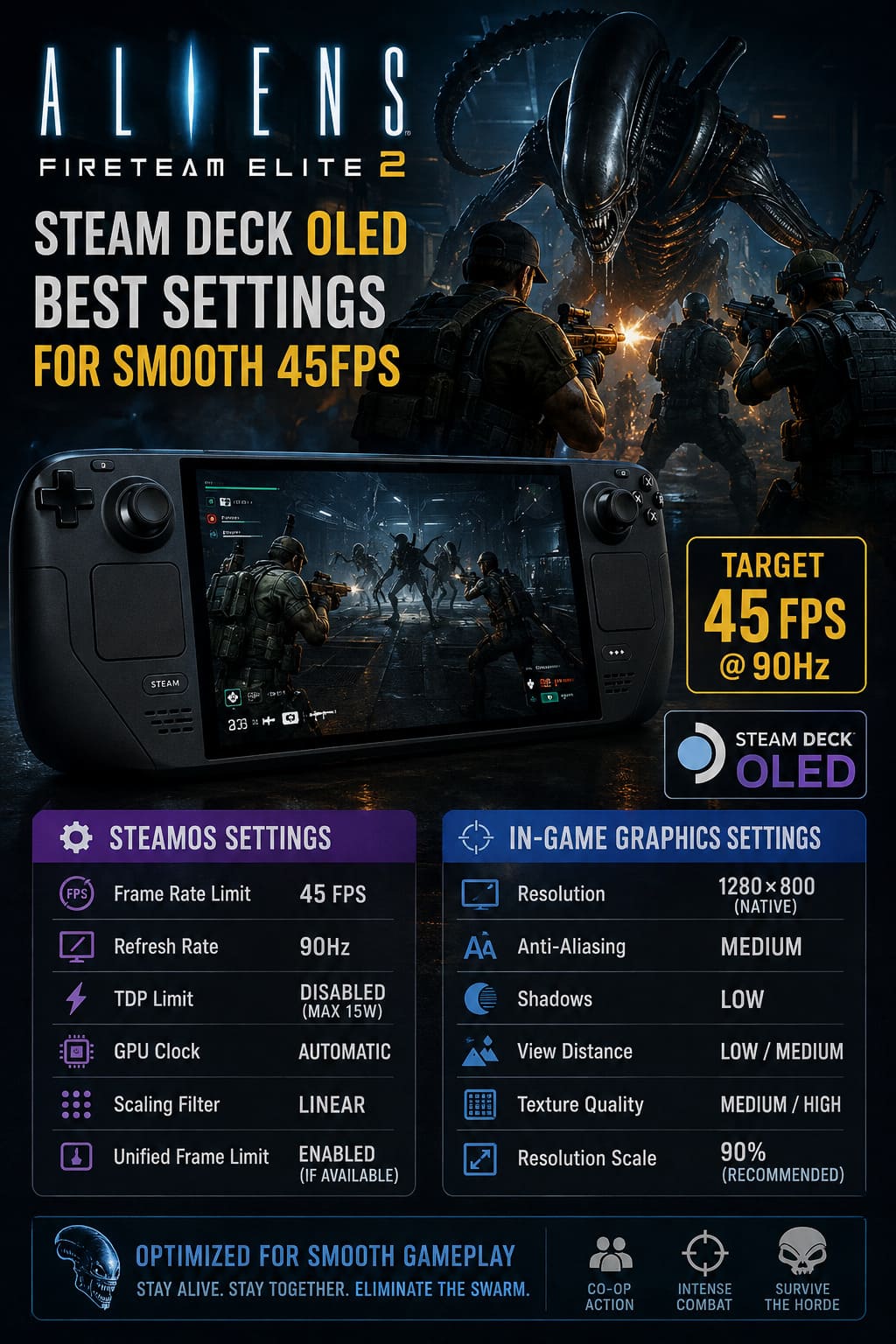
My Steam Deck OLED 45 FPS Preset
Here’s the setup I’d use before changing anything else.
| Setting | Recommended Value |
|---|---|
| Refresh Rate | 90Hz |
| Frame Rate Limit | 45 FPS |
| TDP Limit | Disabled / 15W |
| GPU Clock | Automatic |
| Resolution | 1280×800 |
| V-Sync | Off |
| Display Mode | Fullscreen |
| Anti-Aliasing | Medium |
| View Distance | Low / Medium |
| Shadows | Low |
| Textures | Medium / High |
| Effects | Low |
| Post Processing | Medium |
| Motion Blur | Off |
| Screen Space Reflections | Off / Low |
| Volumetric Effects | Low |
| Ambient Occlusion | Medium |
| Subsurface Scattering | On |
| Dismemberment | On |
This isn’t a “turn everything to Low and hope for the best” preset. That’s important.
The Steam Deck OLED is capable of producing a surprisingly good-looking image, so I prefer sacrificing expensive effects that are difficult to appreciate during combat rather than destroying texture quality and environmental detail.
SteamOS Settings You Should Change First
Before touching the game’s graphics menu, open the Steam Deck’s Quick Access Menu using the three-dot button.
This is where you want to establish your performance target.
Set the Refresh Rate to 90Hz and the Frame Rate Limit to 45 FPS.
That’s the foundation of the entire configuration.
If you leave the refresh rate at 60Hz while trying to run 45 FPS, you’re not getting the same clean relationship between the game’s frame output and the display refresh. With OLED, there’s really no reason not to take advantage of the 90Hz panel when you’re targeting 45 FPS.
I also recommend leaving TDP Limit disabled. In other words, let the Deck use its available 15W power envelope.
Fireteam Elite 2 isn’t just rendering pretty environments. There is a lot happening behind the scenes when a swarm appears. Enemy AI, animation, physics, particles and combat calculations can all pile up at once.
Trying to save a few watts by forcing the system down to 10W or 12W can turn a perfectly playable firefight into a stuttery mess.
My SteamOS configuration
- Frame Rate Limit: 45 FPS
- Refresh Rate: 90Hz
- TDP: Disabled / maximum available
- GPU Clock: Automatic
- Scaling Filter: Linear
- Unified Frame Limit: Enabled, if available
I wouldn’t bother manually locking the GPU clock unless you’re troubleshooting a specific performance problem. The automatic behavior generally gives the hardware more flexibility to balance CPU and GPU workloads.
The Best In-Game Graphics Settings
Now we get to the fun part.
Fireteam Elite 2 is exactly the kind of game where blindly lowering every setting isn’t necessary. Some options barely matter during a firefight, while others can absolutely hammer the Steam Deck.
The goal is to identify those expensive settings and cut them first.
Resolution: Stay at 1280×800
The native Steam Deck OLED resolution is 1280×800, and that’s where I recommend staying.
The 16:10 image fills the display properly and keeps the HUD and text sharp. Dropping to something like 1280×720 may provide some additional performance, but the image becomes less attractive on the Deck’s relatively small screen.
I’d only use a lower resolution if you’ve already reduced the expensive graphics options and still can’t maintain your target.
And honestly, I’d rather use 90% resolution scaling at 1280×800 than drop the entire output resolution.
Anti-Aliasing: Medium
Medium is the sweet spot here.
High-quality anti-aliasing can consume valuable GPU resources, but turning it down too far can make the game look messy, particularly around Xenomorph silhouettes and environmental geometry.
Medium keeps the image reasonably clean without wasting performance.
Shadows: Low
This is one of the first settings I would sacrifice.
High-quality shadows look great in screenshots, but during an actual mission you’re usually too busy trying not to get eaten to admire the shadow quality of a pipe.
Set Shadows to Low.
The dark environments also help hide much of the reduction in shadow quality.
View Distance: Low or Medium
Fireteam Elite 2 isn’t an open-world game where you’re standing on a mountain looking at a city 2 kilometers away.
Most encounters happen in relatively enclosed environments.
That’s why I don’t think maxing out view distance makes much sense on Steam Deck. Set it to Low or Medium, then use the saved performance elsewhere.
Texture Quality: Medium or High
This is one setting where I don’t recommend going straight to Low.
Textures don’t always hit performance as hard as effects, shadows or volumetric lighting. They also have a huge impact on perceived image quality.
The Steam Deck OLED has 16GB of shared system memory, so Medium is the safe choice, while High can be worth trying if you’re happy with the overall stability.
If you’re seeing stutters when moving between areas, I’d test Medium first.
For me, texture quality is one of those settings where I would rather keep the image looking good and cut something like reflections.
Effects Quality Is a Big One
If there is one setting I’d keep an eye on during actual gameplay, it’s Effects Quality.
This is where Fireteam Elite 2 can get nasty.
Imagine three Marines firing weapons at a wall of Xenomorphs while grenades are exploding, muzzle flashes are filling the screen and acid blood is flying everywhere.
That’s a lot of effects.
Set Effects Quality to Low.
This doesn’t make the game look terrible. It simply prevents the GPU from spending precious milliseconds rendering effects that aren’t important when you’re trying to survive.
And you’ll notice the difference during the exact moments where performance matters.
Volumetric Lighting: Low
This one hurts a little.
The Alien universe practically lives on dramatic lighting. Dark corridors, fog, beams of light and atmospheric haze are a huge part of the visual identity.
Unfortunately, volumetric effects can be expensive.
I’d use Low on Steam Deck OLED.
The game still retains its atmosphere, and the OLED display helps darker scenes look excellent even with reduced volumetric quality.
If you are desperate for a few extra frames, this is one of the settings I’d rather lower than textures.
Screen Space Reflections: Off or Low
Reflections are another classic performance trap.
They look fantastic when you’re standing still and looking at a wet metal floor. They matter considerably less when twelve Xenomorphs are sprinting toward your face.
Set SSR to Off or Low.
That’s an easy performance trade in my book.
Settings I Would Keep On
Not everything needs to be sacrificed.
Ambient Occlusion: Medium
Keep this around Medium.
Ambient occlusion adds small contact shadows around objects and helps prevent the environments from looking flat. The improvement is subtle, but it contributes a lot to the game’s gloomy industrial atmosphere.
Subsurface Scattering: On
I’d leave this enabled.
It helps organic surfaces react to lighting more naturally. Xenomorphs and character models generally benefit from it, and the performance cost isn’t something I’d prioritize cutting.
Dismemberment: On
This is non-negotiable for me.
If I’m playing an Aliens game, I want the combat to feel appropriately brutal.
Turning off dismemberment just to squeeze out a little performance would remove part of the fun. Assuming you’re already giving the Deck access to its full power envelope, I’d leave it enabled.
What About FSR?
If Fireteam Elite 2 provides a proper AMD FSR option, it’s worth experimenting with.
I’d start with FSR Quality rather than immediately jumping to a more aggressive preset.
The benefit is straightforward: the game can render internally below 1280×800 and reconstruct the image back to the Deck’s native output resolution. That reduces the amount of work the GPU has to do.
During particularly heavy swarm encounters, that extra breathing room can be useful.
However, there’s a catch.
Aggressive upscaling can introduce shimmering around thin geometry, railings, grates and other fine details. In a dark game, temporal artifacts can also become surprisingly noticeable.
If FSR Quality looks clean, keep it.
If it starts looking like the entire hive is covered in digital noise, I’d rather use a 90% resolution scale with a cleaner image.
What If You Can’t Hold 45 FPS?
Don’t panic and immediately turn everything to Low.
I’d reduce settings in this order:
- Volumetric Effects
- Effects Quality
- Screen Space Reflections
- Shadows
- View Distance
- Ambient Occlusion
- Resolution Scale
Textures would be one of the last things I’d reduce.
The important thing is to watch what happens during actual combat. Walking through an empty corridor isn’t a useful performance test. The real benchmark is when the game throws a huge swarm at you.
If you’re holding 45 FPS while exploring but dropping into the mid-30s whenever the screen becomes chaotic, you need more GPU headroom.
Best Aliens: Fireteam Elite 2 Squad Compositions: Meta 4-Player Team Guides
Battery Life: Don’t Expect Miracles
There’s a trade-off to running a demanding modern shooter at 45 FPS.
The Steam Deck OLED has excellent battery efficiency compared with the original hardware, but 45 FPS at 15W is still a demanding workload.
For this type of configuration, I’d expect roughly 2 to 2.5 hours depending on brightness, volume, scene complexity and how hard the hardware is working.
That’s perfectly acceptable for me when I’m playing a game like this. If I’m sitting at home, I’m probably near a charger anyway.
For longer trips, I’d use a secondary profile.
Set:
- 30 FPS
- 60Hz
- TDP around 11W
- Lower graphics settings where necessary
The experience isn’t as responsive, but it can dramatically reduce power consumption and make longer sessions much more practical.
Fix Aliens Fireteam Elite Out of Video Memory Error on RTX 3060 (2026 Guide)
Final Verdict: 45 FPS Is Where I’d Play It
After tweaking a demanding game like this, I always come back to the same question: does the optimization actually make the game more fun?
With this Steam Deck OLED setup, the answer is yes.
The 45 FPS / 90Hz combination gives Aliens: Fireteam Elite 2 a responsive feel without forcing the hardware to chase an unrealistic 60 FPS target. Low shadows, effects and volumetrics remove some of the biggest performance drains, while Medium textures, ambient occlusion and subsurface scattering keep the image from looking like a heavily compromised console port.
Most importantly, this setup is built around what actually happens during a mission.
You’re not optimizing for an empty corridor.
You’re optimizing for the moment when the motion tracker starts screaming and an entire Xenomorph swarm pours through the door.
That’s where a stable frame rate matters most.
If I were setting up a Steam Deck OLED specifically for Aliens: Fireteam Elite 2 today, 45 FPS at 90Hz would be my starting point without hesitation. It offers the right mix of responsiveness, image quality, battery consumption and performance headroom, and it makes the OLED screen feel like exactly what it was designed for.