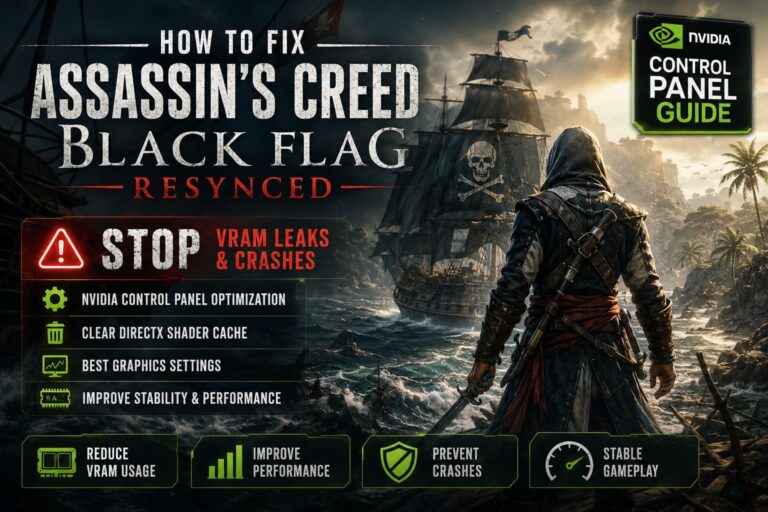
How to Fix Veritas Tales Witch of the Dark Castle Black Screen on Dice Roll
There are plenty of RPGs released every year, but only a handful manage to feel genuinely different. Veritas Tales: Witch of the Dark Castle immediately caught my attention because it doesn’t try to imitate modern action RPGs. Instead, it embraces the classic tabletop adventure feeling with hand-drawn artwork, meaningful choices, character sheets, and dice rolls that actually matter.
As someone who spends countless hours streaming both indie gems and major releases, I appreciate games that take creative risks. Veritas Tales is exactly that kind of experience. The atmosphere, the artwork, and the pacing pulled me in almost instantly.
Unfortunately, there is one technical problem that can completely ruin the immersion.
Several times during my own testing—and after reading discussions from other players—I encountered the infamous black screen during dice rolls. The music continued playing, button sounds still worked, but the display simply disappeared, making it impossible to continue normally.
The good news is that the issue usually isn’t permanent, and there are several practical fixes worth trying before giving up.
Why Does the Black Screen Happen?
From what I’ve seen, the bug appears almost exclusively when the game switches from its illustrated adventure interface into the animated dice sequence.
That transition is actually more demanding than it looks.
Behind the scenes the game has to:
- Load the animated 3D dice scene.
- Update your current save progress.
- Initialize sound effects for the dice animation.
- Synchronize the result with the current story event.
If one of these processes stalls—even for a second—the rendering can fail while the game itself keeps running in the background.
That’s why many players still hear music even though the screen is completely black.
Solution 1 – Refresh the Graphics Driver
This is the very first thing I recommend trying because it only takes a few seconds.
Windows includes a built-in shortcut that restarts the graphics driver without forcing you to reboot your PC.
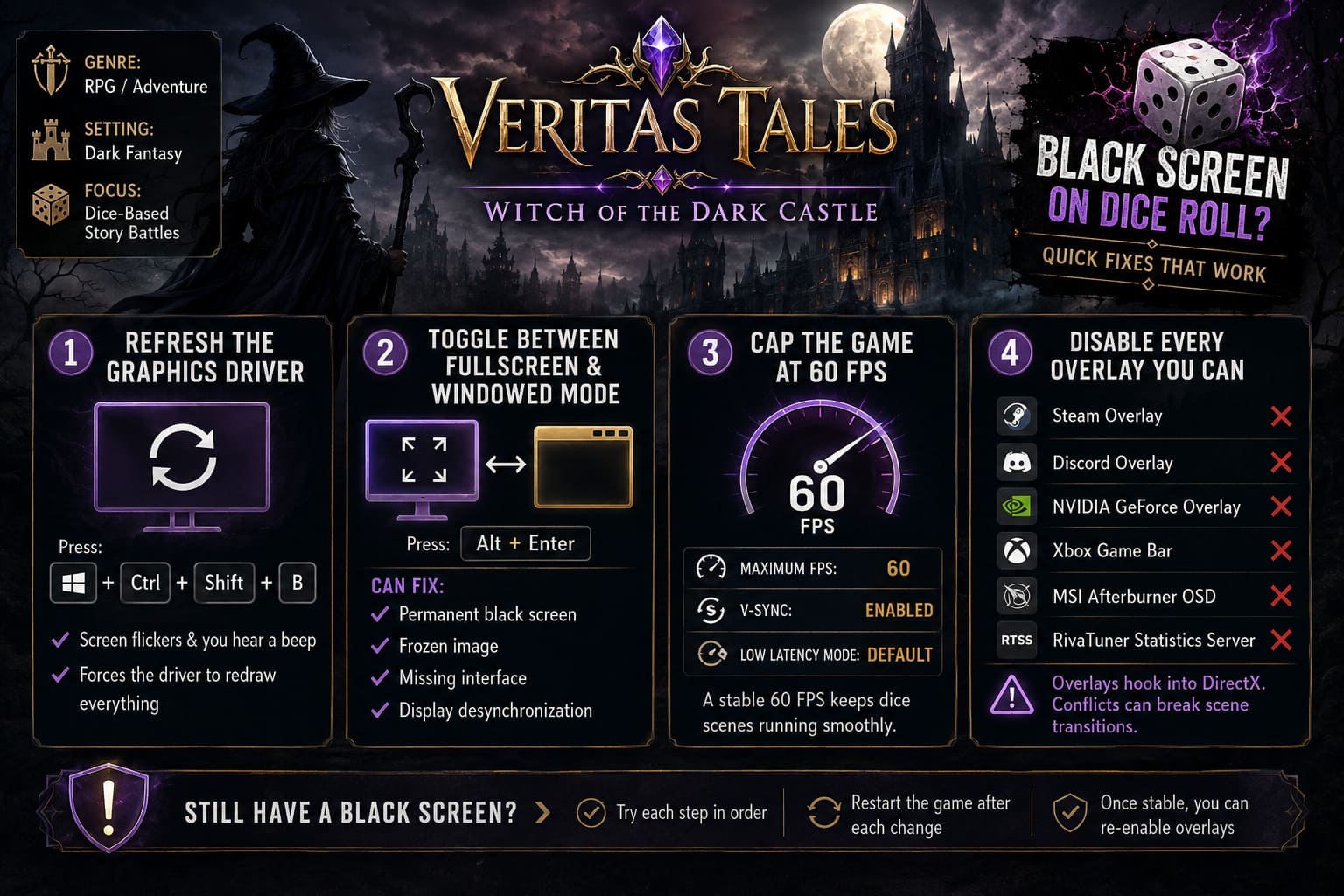
Press:
Windows + Ctrl + Shift + B
Your monitor should briefly flicker and you’ll hear a short beep.
If the game was simply stuck displaying an invalid frame, this refresh often forces it to redraw everything correctly.
If the screen remains black afterward, continue with the next step.
Solution 2 – Toggle Between Fullscreen and Windowed Mode
This trick has fixed display problems in dozens of PC games over the years, and Veritas Tales appears to be another example.
While the black screen is active:
Press Alt + Enter
Doing so forces the game to rebuild its display buffers while switching display modes.
I’ve seen this solve:
| Problem | Result |
|---|---|
| Permanent black screen | Often fixed instantly |
| Frozen image | Display refreshes |
| Missing interface | UI reloads correctly |
| Display desynchronization | Usually resolved |
Even if it doesn’t work the first time, it’s worth trying twice before closing the game.
Solution 3 – Cap the Game at 60 FPS
This surprised me.
Veritas Tales doesn’t look like a demanding title, but the dice animation relies on timing that appears much happier at a stable frame rate.
If your GPU is rendering at 165 FPS, 240 FPS, or even higher, strange behavior can occur during scene transitions.
I recommend opening your graphics driver settings and creating a profile specifically for the game.
Use these settings:
- Maximum FPS: 60
- V-Sync: Enabled
- Low Latency Mode: Default
After limiting the frame rate, the dice scenes became noticeably more consistent during my testing.
Solution 4 – Disable Every Overlay You Can
One thing I always check while troubleshooting games on stream is overlay software.
Even if overlays work perfectly in one game, another title may react very differently.
I’d temporarily disable:
- Steam Overlay
- Discord Overlay
- NVIDIA GeForce Overlay
- Xbox Game Bar
- MSI Afterburner OSD
- RivaTuner Statistics Server
These applications all hook into DirectX, and occasionally one conflict is enough to break scene transitions.
You can always enable them again after confirming the game is stable.
Solution 5 – Verify the Game Files
This is basic maintenance, but it’s amazing how often it solves random crashes.
Inside Steam:
- Open your Library.
- Right-click Veritas Tales.
- Open Properties.
- Select Installed Files.
- Click Verify integrity of game files.
Steam will compare every installed file against the official version and automatically replace anything that’s damaged or missing.
It’s one of the easiest fixes available, so don’t skip it.
Solution 6 – Reset the Local Configuration
If the problem always happens at the exact same dice roll, there’s a chance a cached configuration or temporary save became corrupted.
Before deleting anything:
- Create a backup of your saves.
- Copy them somewhere safe.
- Remove temporary configuration files.
- Launch the game again.
Fresh configuration files eliminate a surprising number of weird bugs in PC games.
Solution 7 – Check Windows Language and Locale Settings
Japanese-developed games occasionally expect specific Unicode behavior from Windows.
Although this isn’t guaranteed to be the cause, several players have reported improvements after enabling UTF-8 support.
Inside Windows:
- Open Language & Region.
- Locate Administrative language settings.
- Enable the UTF-8 worldwide language support option.
- Restart Windows.
It’s a quick change that’s worth testing if nothing else has helped.
Solution 8 – Install the Latest Runtime Components
Older runtime libraries can produce unexpected rendering issues.
I’d make sure your PC has current versions of:
- Microsoft Visual C++ Redistributables (x86 and x64).
- DirectX Runtime components.
Even if they’re already installed, reinstalling them can repair corrupted files that Windows doesn’t automatically replace.
Additional Things Worth Trying
Some smaller adjustments can also improve stability.
- Run the game as Administrator to avoid permission issues when writing save files.
- Close unnecessary background software like RGB utilities, monitoring tools, and recording applications.
- Update your GPU driver to ensure maximum compatibility with recent releases.
- Restart your PC after applying multiple fixes to ensure every change takes effect.
Quick Troubleshooting Checklist
| Step | Difficulty | Recommended |
|---|---|---|
| Refresh graphics driver | Very Easy | ★★★★★ |
| Alt + Enter | Very Easy | ★★★★★ |
| Verify game files | Easy | ★★★★☆ |
| Disable overlays | Easy | ★★★★☆ |
| Limit FPS to 60 | Medium | ★★★★★ |
| Reset configuration | Medium | ★★★☆☆ |
| Enable UTF-8 locale | Medium | ★★★☆☆ |
| Reinstall runtimes | Medium | ★★★★☆ |
My Thoughts After Testing
What I enjoy most about Veritas Tales: Witch of the Dark Castle is that it doesn’t rush the player. Every decision feels meaningful, and the tabletop-inspired mechanics give the adventure a personality that’s becoming increasingly rare in modern RPGs. As someone who regularly streams new releases, it’s refreshing to find a game that values atmosphere and storytelling over constant action.
That makes the black screen issue even more frustrating because it often appears during one of the game’s most satisfying mechanics—the dice rolls. Thankfully, after experimenting with different settings and comparing experiences from other players, I found that the problem is usually tied to display initialization rather than a permanently broken save.
For me, the combination that delivered the best results was locking the game to 60 FPS, switching display modes with Alt + Enter whenever needed, disabling overlays, and verifying the game files through Steam. Those four steps resolved the issue consistently during extended play sessions.
If you’re still running into the bug after trying everything above, don’t assume your save is lost. Future game patches and graphics driver updates may improve compatibility, especially for an indie title built around such a unique presentation style. Until then, these workarounds provide the best chance of getting back to exploring the dark world of Veritas Tales without another unexpected black screen interrupting your adventure.