Corsair Cove Cliff Face Building Snapping Fix: How to Build Vertically Without Bugs
After spending countless hours in city builders, survival games, and management sims, I can say one thing with confidence: Corsair Cove’s vertical construction system is one of the most exciting ideas in the genre, but it can also become extremely frustrating when the building grid decides to fight against you. Limbic Entertainment clearly wanted to move away from the usual flat-map city builder formula, and forcing players to create pirate settlements on cliffs, mountain walls, and dangerous coastal heights is honestly one of the game’s most memorable features.
The problem is that ambitious mechanics often come with technical problems. Since early playable versions and community testing builds, many players have reported issues with cliff-side construction. Buildings refuse to attach, platforms rotate in strange directions, and sometimes the placement preview simply stays red no matter how carefully you adjust the camera.
If you are trying to build a massive pirate fortress hanging from a mountain wall and the snapping system is ruining your perfect layout, this guide covers the best Corsair Cove cliff building fixes, tricks, and workarounds discovered by players.
Corsair Cove Low FPS Fix How to Boost Performance on RTX 3060
Why Does the Cliff Face Building Snap Bug Happen in Corsair Cove?
The vertical building system in Corsair Cove is much more complicated than traditional city builders. Instead of placing objects on predictable flat terrain, the game has to calculate several different systems at the same time to make sure structures connect correctly.
| System | What It Controls |
|---|---|
| Terrain Collision | Determines whether the building properly connects with the cliff surface. |
| Structural Anchoring | Checks if the structure has enough support from foundations and attachment points. |
| Object Orientation | Controls rotation, entrances, pathways, and connection locations. |
| Transportation Links | Handles winches, rope bridges, ziplines, and vertical logistics systems. |
The main issue appears when the game tries to understand irregular cliff surfaces. Unlike flat terrain where every building has predictable coordinates, mountain walls contain hundreds of small differences in shape. Even a tiny mismatch between the building model and the cliff collision can confuse the snapping system.
Players usually notice the problem through several annoying symptoms:
- The building outline stays permanently red.
- The structure rotates into impossible positions.
- The blueprint clips inside the mountain.
- Platforms float slightly away from the cliff.
- Walkways and transportation structures refuse to connect.
The good news is that these problems usually do not damage your save file. In most situations, a few simple placement tricks can force the building system to work correctly again.
Best Corsair Cove Cliff Snap Fixes and Workarounds
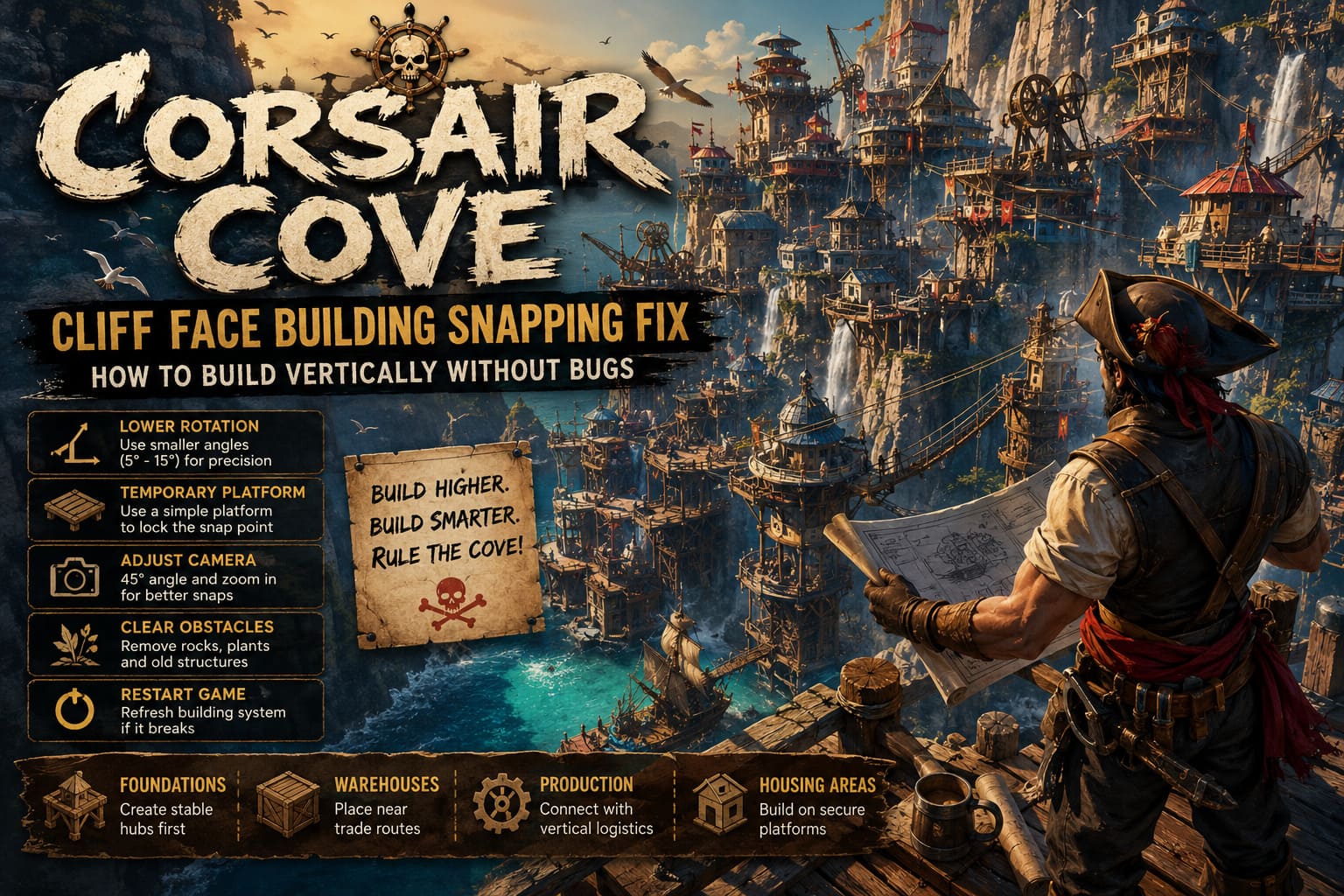
1. Reduce Building Rotation Increments
This is the first solution I would recommend trying. The default rotation settings can be too aggressive when you are working with narrow cliff surfaces or awkward mountain angles.
Large rotation steps often cause the blueprint to jump over the correct attachment point instead of locking into position. Smaller movement adjustments give you much more control and make precision construction far easier.
- Select the cliff building, platform, or structure you want to place.
- Open the building adjustment options.
- Lower the rotation angle to smaller increments.
- Try values around 15 degrees or even 5 degrees for difficult placements.
- Slowly rotate the structure until the preview turns green.
This small adjustment can completely change how building feels. Personally, I prefer using smaller rotation values whenever I create important structures because it avoids those frustrating moments where a building is almost connected but refuses to snap.
Keep in mind that some players have noticed rotation preferences may reset after loading a save. If the system suddenly feels inaccurate again, check your rotation settings before rebuilding everything.
2. Use the Temporary Platform Snap Trick
This workaround feels like something taken directly from the survival game building community, but it works surprisingly well. Sometimes Corsair Cove recognizes simple objects more easily than complex structures, and you can use that behavior to create a temporary snap point.
The idea is simple: use a basic platform to force the engine to recognize the correct location, then quickly switch back to your desired building.
- Select a simple wooden platform or basic foundation piece.
- Move it toward the cliff until the placement indicator turns green.
- Keep your camera and cursor completely still.
- Switch back to the structure you actually want to build.
- Attempt placement in the same location.
The game often remembers the last valid coordinate, allowing the larger building to attach correctly. It may feel like you are tricking the system, but experienced builders know that sometimes working around the engine is faster than fighting it.
3. Change Your Camera Angle Before Placing
Camera positioning plays a much bigger role in Corsair Cove than many players expect. Looking directly at a cliff wall can limit the information the game uses to calculate depth and attachment points.
For better results, adjust your camera before placing any difficult structure:
- Move the camera to roughly a 45-degree angle from the cliff.
- Zoom closer to the exact connection point.
- Avoid fast mouse movements while adjusting placement.
- Make tiny cursor movements around the snap area.
This method works especially well for smaller objects like walkways, storage attachments, and transportation connections. Corsair Cove is not a simple grid-based builder where everything instantly locks into place. Sometimes you need to treat construction like precision engineering.
4. Remove Hidden Obstacles Around the Cliff
Sometimes the problem is not the building itself. Environmental objects can interfere with the placement system, even when they are difficult to notice.
Small rocks, plants, roots, old platforms, or unused transportation anchors may create invisible collision problems around your construction area.
- Clear vegetation near the building location.
- Remove old structures that are no longer needed.
- Clean the terrain if possible.
- Try rebuilding from a completely empty cliff section.
This becomes more important later in the game when your pirate settlement grows into a massive vertical city. Large bases create more possible collision problems, and sometimes the simplest solution is just cleaning the area before expanding.
5. Restart the Game to Refresh the Building System
The classic restart solution still works surprisingly often. If the placement system completely stops responding, the construction script may have entered a broken state.
Typical signs include:
- The blueprint preview never changes color.
- The structure cannot rotate anymore.
- The object remains frozen in one position.
- Every possible location refuses placement.
Try these steps:
- Save your current game.
- Return to the main menu.
- Close Corsair Cove completely.
- Restart the game.
- Reload your settlement save.
This refreshes the active world systems and can clear temporary building glitches without affecting your progress.
How to Build Better Vertical Pirate Cities in Corsair Cove
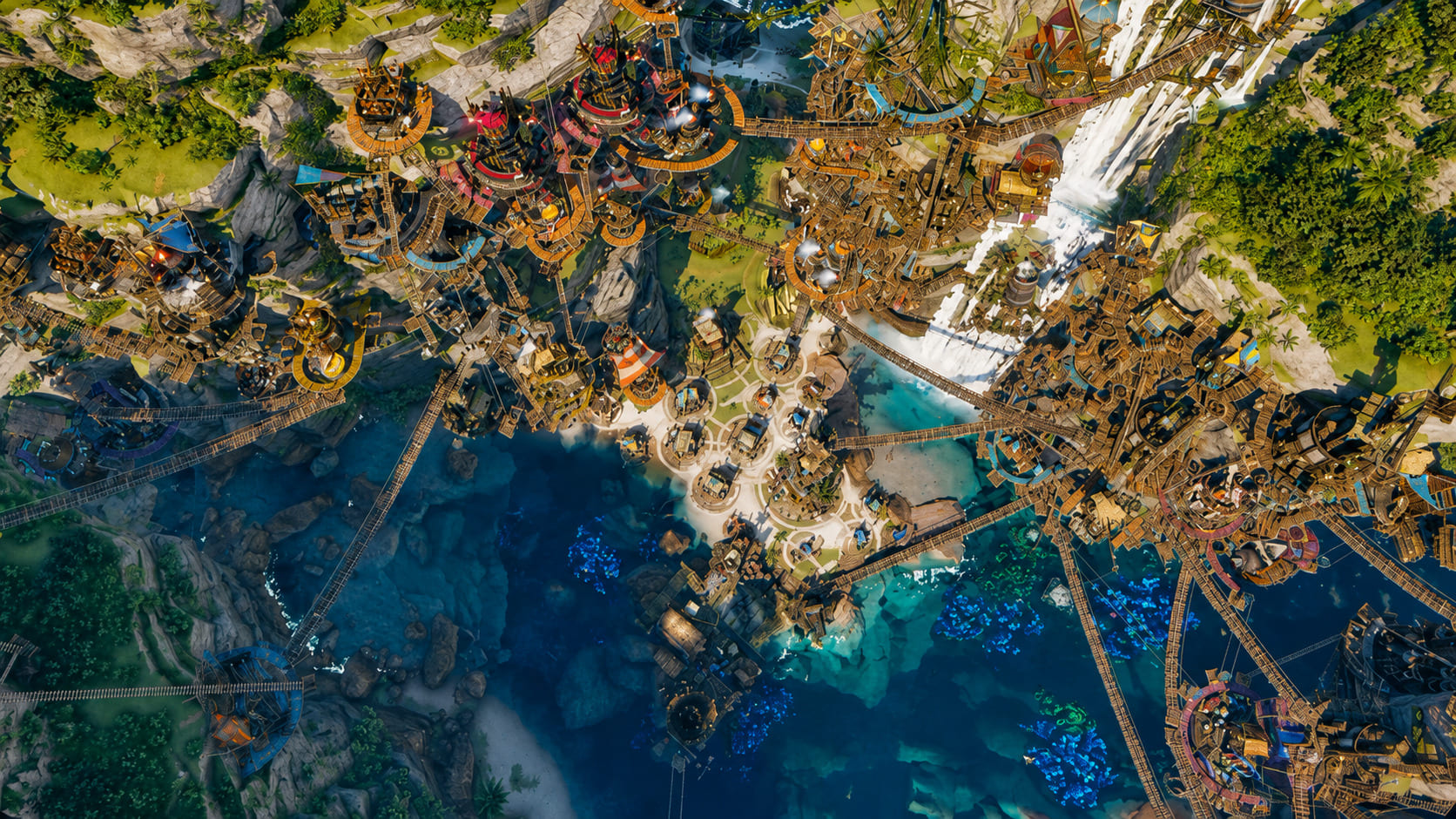
Fixing the snapping problem is only the first step. Creating a successful cliff empire requires a different mindset compared to traditional city builders.
The biggest mistake new players make is attaching everything directly to raw cliff walls. It looks impressive, but later it creates serious logistical problems when your production chains become more complicated.
A better approach is building strong anchor points first. Large foundations provide stable connections for future expansion and make it much easier to attach smaller structures later.
| Structure Type | Recommended Placement Strategy |
|---|---|
| Main Foundations | Create stable hubs before adding smaller buildings. |
| Warehouses | Place close to important transportation routes. |
| Production Buildings | Connect them with reliable vertical logistics systems. |
| Living Areas | Build around secure platforms instead of random cliff edges. |
Think vertically from the beginning. Resources moving between lower mining zones and high production areas can become a serious bottleneck. A beautiful pirate fortress means nothing if your supply network constantly collapses.
Start with reliable foundations, then expand outward with rope bridges, winches, housing areas, and production buildings. This approach creates a settlement that looks impressive while still functioning efficiently.
Final Thoughts on Corsair Cove Cliff Building Bugs
Corsair Cove’s vertical construction system is ambitious, and that ambition naturally creates some technical rough edges. The cliff snapping bug can interrupt the creative flow when you are trying to build a massive pirate kingdom, but most problems have simple solutions.
The most effective fixes are lowering rotation precision, using temporary snap anchors, adjusting camera angles, removing nearby obstacles, and restarting the game when the building grid completely breaks.
Personally, I think the vertical building mechanic is worth dealing with occasional frustration. Very few strategy games make you feel like you are designing a real fortress carved into a mountain. Once everything starts connecting properly, watching your pirate city rise higher and higher is one of the most satisfying experiences Corsair Cove offers.
Future updates will hopefully improve the snapping system even further, but until then, these tricks should help you create taller, cleaner, and more impressive pirate settlements without constantly fighting against the construction menu.