How to Fix Dead by Daylight Black Screen on Startup (2026 PC Guide)
If there’s one thing I genuinely enjoy after finishing a long stream, it’s jumping into a few matches of Dead by Daylight. Whether I’m trying to outsmart a killer with friends or testing the latest chapter solo, DBD still delivers some of the best multiplayer horror moments available in 2026.
But let’s be honest—nothing kills the mood faster than launching the game only to stare at a black screen.
I’ve dealt with this issue more than once over the years, especially after major patches. Sometimes the menu music plays, sometimes I can even hear the intro movie, but the screen refuses to display anything. Other times the game freezes completely before I even reach the main menu.
After spending hours experimenting with different solutions, comparing community discussions, and troubleshooting my own PC, I found that this problem usually isn’t caused by one single bug. Instead, it’s often a combination of graphics settings, Unreal Engine initialization issues, Easy Anti-Cheat problems, or corrupted configuration files.
Here’s everything that actually worked for me.
Why Does Dead by Daylight Get Stuck on a Black Screen?
Unlike many games that simply crash when something goes wrong, Dead by Daylight often continues running in the background while the display fails to initialize correctly.
In most situations, the game itself isn’t completely broken—it simply can’t render the first visible frame.
The most common causes include:
- Display initialization conflicts
- Incorrect DirectX rendering mode
- Corrupted game configuration
- Easy Anti-Cheat errors
- Graphics driver conflicts
- Overlay software interference
- Broken or modified game files
- Multi-monitor issues
Fortunately, most of these can be fixed without reinstalling Windows or replacing hardware.
1. The Weird Background Window Trick That Surprisingly Works
I honestly thought this sounded ridiculous until I tried it myself.
Sometimes Dead by Daylight struggles to properly capture the active desktop window during startup. Instead of loading normally, it sits on a black screen waiting for something that never happens.
Here’s what I do:
- Open Chrome, Firefox, Notepad, or any lightweight application.
- Launch Dead by Daylight from Steam.
- Immediately press Alt + Tab.
- Keep your browser or Notepad selected while the game loads in the background.
- Wait until you hear menu music or intro audio.
- Switch back into Dead by Daylight.
For whatever reason, this forces the game to initialize correctly on some systems.
It feels like a strange workaround—but it has saved me multiple times.
2. Change the DirectX Launch Mode
Dead by Daylight runs on Unreal Engine, and Unreal Engine games occasionally disagree with specific GPU driver versions.
Changing the rendering API is one of the quickest fixes.
Open Steam:
Library → Dead by Daylight → Properties → Launch Options
Then try one command at a time:
| Launch Option | When to Use |
|---|---|
| -dx11 | Best starting point for older or unstable drivers. |
| -d3d11 | Alternative DirectX 11 initialization. |
| -dx12 | Works well on newer hardware. |
| -windowed | Bypasses fullscreen startup issues. |
Only test one option before moving to the next.
3. Repair Easy Anti-Cheat
Easy Anti-Cheat is necessary for online play, but I’ve seen it become corrupted after Windows updates more than once.
Instead of displaying a clear error message, Dead by Daylight may simply hang forever during launch.
Repairing EAC only takes a couple of minutes:
- Open the local game folder.
- Navigate to the EasyAntiCheat installation.
- Run the setup executable as Administrator.
- Select Dead by Daylight.
- Choose Repair or Install.
- Restart Windows.
This is one of those maintenance tasks that fixes far more problems than most players expect.
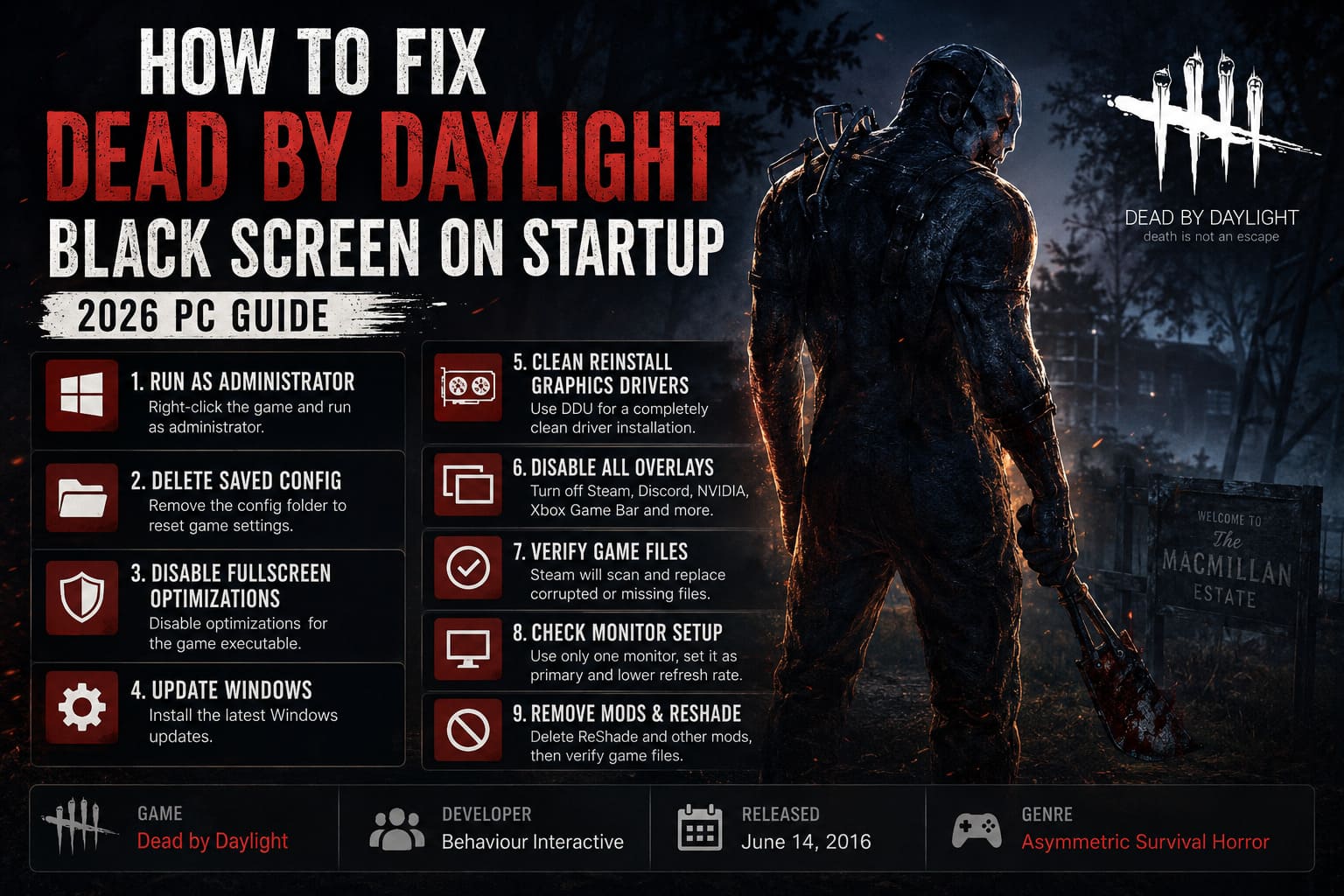
4. Delete Corrupted Configuration Files
This is probably my favorite fix because it’s incredibly effective.
Whenever a major DBD update changes graphics settings or monitor detection, the old configuration files sometimes become incompatible.
Deleting them forces Unreal Engine to generate completely fresh settings.
Navigate to:
%localappdata%\DeadByDaylight\Saved\Config
Delete the entire WindowsClient (or WindowsNoEditor) folder.
Don’t worry.
The game automatically recreates everything during the next launch.
You’ll lose custom graphics settings, but that’s a tiny price compared to staring at a permanent black screen.
5. Perform a Proper Graphics Driver Reinstallation
One mistake I see many PC players make is simply clicking “Update Driver.”
That rarely removes old driver components.
Instead, leftover files continue creating conflicts.
When I experience repeated Unreal Engine issues, I prefer performing a completely clean installation using Display Driver Uninstaller (DDU).
The process looks like this:
- Download DDU.
- Download your newest GPU driver directly from NVIDIA, AMD, or Intel.
- Disconnect your internet.
- Boot into Safe Mode.
- Run DDU.
- Clean and restart.
- Install the latest driver manually.
It takes longer than a standard update, but the difference can be dramatic.
6. Disable Every Overlay
If I had to rank the biggest troublemakers in modern PC gaming, overlays would definitely be near the top.
Each overlay injects additional code into the game.
Sometimes everything works perfectly.
Sometimes Unreal Engine absolutely hates it.
Before launching Dead by Daylight, I usually disable:
- Steam Overlay
- Discord Overlay
- NVIDIA Overlay
- AMD Overlay
- Xbox Game Bar
- MSI Afterburner
- RivaTuner Statistics Server
- OBS Game Capture overlays (if not actively streaming)
If the game launches successfully afterward, simply re-enable each overlay one at a time until you discover the culprit.
7. Verify Game Files
After every large update, I always verify my installation.
Downloads occasionally become corrupted without Steam even noticing.
To check:
Steam → Library → Dead by Daylight → Properties → Installed Files → Verify Integrity of Game Files
Steam automatically replaces damaged files.
It only takes a few minutes and can eliminate missing textures, corrupted shaders, or broken startup assets.
8. Check Your Monitor Configuration
Players with dual-monitor or triple-monitor setups encounter black screen issues more frequently than those using a single display.
I’ve personally experienced situations where Dead by Daylight attempted to launch on a monitor that wasn’t even powered on.
Here’s what I recommend:
- Make your gaming monitor the primary display.
- Disconnect additional monitors temporarily.
- Test launching with only one display connected.
- Lower refresh rates temporarily if necessary.
- Avoid unusual custom resolutions until the game starts correctly.
Sometimes the simplest hardware configuration is the easiest way to identify the actual problem.
9. Remove ReShade and Other Modifications
I completely understand why people enjoy customizing Dead by Daylight.
Sharper visuals, custom perk icons, and ReShade presets can make the game look fantastic.
Unfortunately, every major update risks breaking those modifications.
If you’re using ReShade, remove files like:
- dxgi.dll
- d3d11.dll
- reshade-shaders folder
Afterward, verify the game files through Steam.
Running a completely clean installation is often the fastest way to confirm whether mods are responsible.
Dead by Daylight Low FPS on High End PC: 2026 Definitive Optimization Guide
My Recommended Troubleshooting Order
Rather than trying everything randomly, I suggest following this sequence:
| Priority | Solution | Difficulty |
|---|---|---|
| 1 | Background window trick | Very Easy |
| 2 | Verify game files | Easy |
| 3 | Delete configuration folder | Easy |
| 4 | Disable overlays | Easy |
| 5 | Change DirectX launch option | Easy |
| 6 | Repair Easy Anti-Cheat | Medium |
| 7 | Remove ReShade or mods | Medium |
| 8 | Test a single monitor | Medium |
| 9 | Clean reinstall GPU drivers | Advanced |
How to Fix Dead by Daylight Connection to Host Lost Error (2026 Guide)
Final Thoughts
After streaming and playing PC games for years, I’ve learned one important lesson: not every black screen means the game is broken.
Dead by Daylight is updated constantly, and every new chapter introduces fresh opportunities for small compatibility issues. Most startup problems actually come from Windows, graphics drivers, overlays, or old configuration files rather than the game itself.
Whenever DBD refuses to load, I don’t panic anymore. I simply work through the fixes in the order above, and almost every time one of them gets me back into the Fog within minutes.
If I had to recommend only three solutions, they’d be these:
- Delete the configuration folder.
- Disable every overlay.
- Repair Easy Anti-Cheat.
Those three fixes have solved the black screen problem on multiple systems I’ve tested.
Hopefully they’ll save you from wasting hours troubleshooting—and let you get back to what really matters: surviving another trial… or becoming the killer everyone fears.