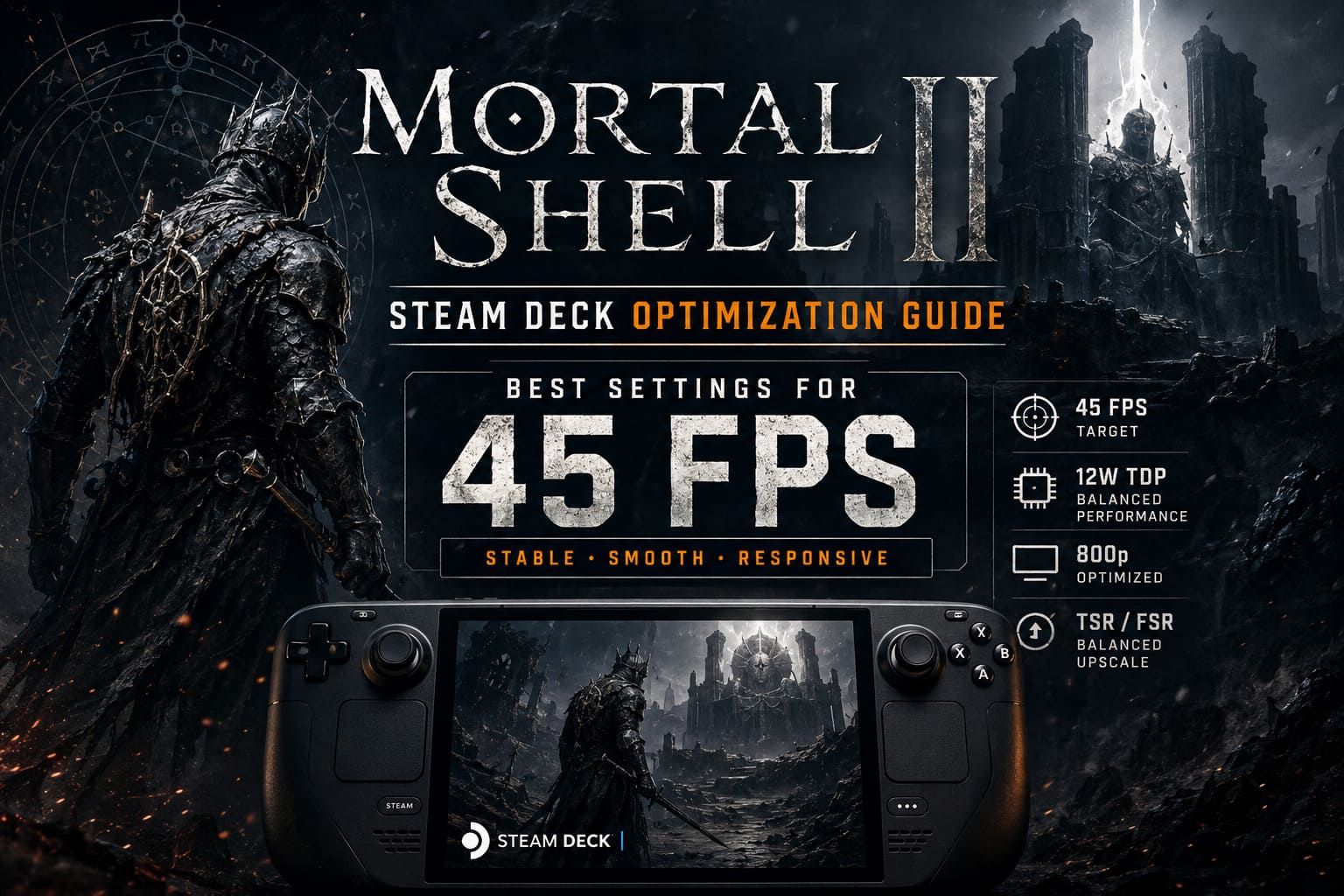
Mortal Shell 2 Steam Deck Optimization Guide: Best Settings for Stable 45 FPS
Mortal Shell 2 is the kind of game that makes you appreciate the Steam Deck and question its hardware at the same time. I have played plenty of demanding action RPGs on Valve’s handheld, and there is always a point where you have to decide what matters more: maximum visual quality or consistent gameplay.
For Mortal Shell 2, I would choose performance every time.
Cold Symmetry’s sequel pushes a lot more visual information than the original. The environments are denser, combat is faster, effects are heavier, and the interconnected world can put considerably more pressure on the Steam Deck than a simple corridor-based encounter. The result is a game that can look excellent on the handheld but needs some sensible tuning if you want it to feel good during actual combat.
After experimenting with the available graphics options, I found that 45 FPS is the sweet spot for Mortal Shell 2 on Steam Deck. A locked 30 FPS is playable, but it makes dodging and parrying feel noticeably heavier. Trying to chase 60 FPS, meanwhile, means sacrificing too much image quality and still dealing with drops in the busiest scenes.
The 45 FPS target sits comfortably between those two extremes.
This is the setup I would recommend if your priority is smooth combat, consistent frame pacing, reasonable battery life, and an image that still looks good on the Steam Deck screen.
My Recommended Steam Deck Settings for Mortal Shell 2
Before getting into the individual options, here is the configuration I ended up using as my starting point.
| Setting | Recommended Value |
|---|---|
| FPS Limit | 45 FPS |
| Display Refresh Rate | 90 Hz OLED / 45 Hz LCD |
| TDP Limit | 12W |
| Resolution | 1280×800 |
| Window Mode | Borderless Fullscreen |
| V-Sync | Off |
| Ray Tracing | Off |
| View Distance | Medium |
| Textures | Medium |
| Shadows | Medium |
| Global Illumination | Low |
| Post-Processing | Low |
| Visual Effects | Medium |
| Reflections | Medium |
| Upscaling | TSR Balanced / FSR Performance |
The important thing here is that I am not recommending everything on Low. That usually produces a technically faster game that looks unnecessarily rough. Mortal Shell 2 benefits from keeping several settings at Medium because the Steam Deck’s 800p display hides some compromises very well.
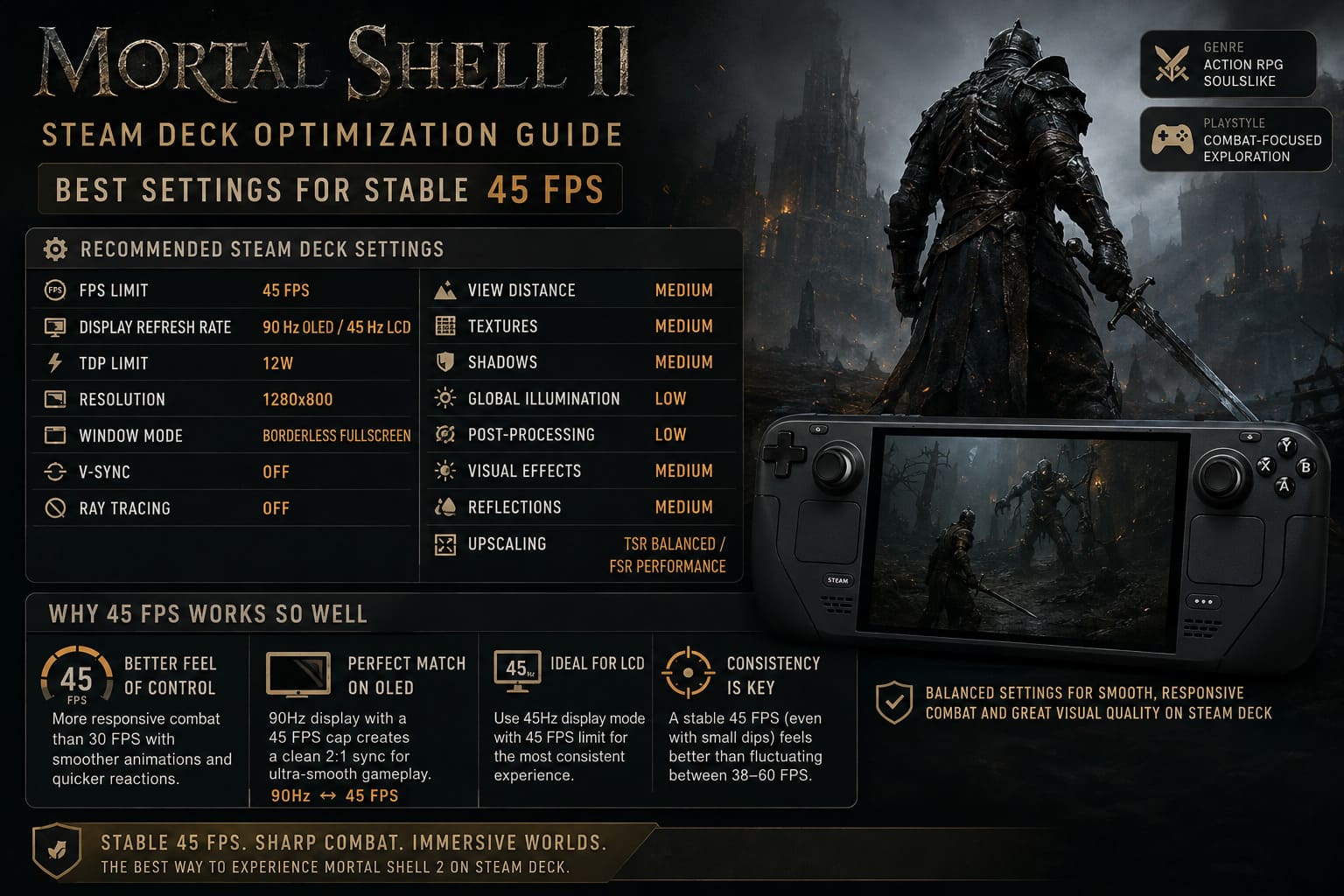
Why 45 FPS Works So Well
I have always found 45 FPS particularly useful on handhelds when a game has reaction-heavy combat.
At 30 FPS, Mortal Shell 2 feels noticeably less immediate. You can still play it, obviously, but the animation updates are less frequent and quick defensive actions don’t feel quite as sharp.
A properly configured 45 FPS target is different. It gives you a much better feeling of direct control without forcing the Steam Deck to spend all of its available power chasing an unstable 60 FPS.
There is also a nice advantage on the Steam Deck OLED. Running the display at 90 Hz with a 45 FPS cap creates a clean 2:1 relationship between frames and refreshes. In practice, this gives the game a very consistent presentation.
On the LCD model, I prefer matching a 45 Hz display setting with the 45 FPS limit when possible.
The important word is consistent. I’d rather have 45 FPS that occasionally dips into the low 40s than a game constantly jumping between 38, 47, 53 and 60 FPS.
SteamOS Settings I Recommend
Start with the Steam Deck’s Quick Access Menu rather than immediately changing every option inside the game.
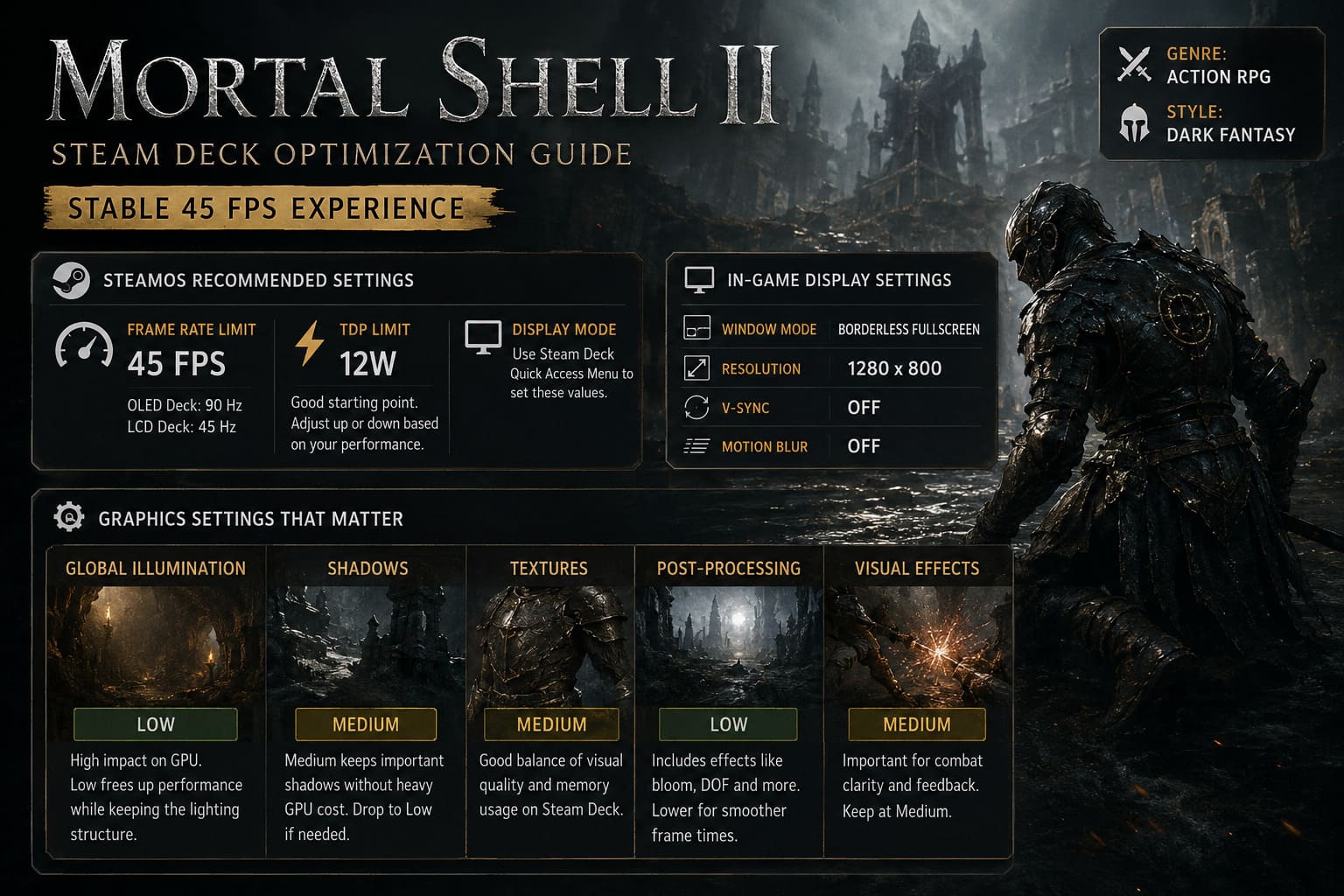
Set the Frame Rate Limit to 45 FPS
This is the first thing I would change.
Don’t leave the game completely unrestricted and hope the Steam Deck finds the right balance itself. Mortal Shell 2 can push the APU hard in demanding areas, and allowing the frame rate to run freely wastes power when the hardware is already struggling to maintain a higher target.
Set the Frame Rate Limit to 45 FPS.
If you’re using an OLED Steam Deck, set the screen refresh rate to 90 Hz.
For an LCD Deck, a 45 Hz display mode paired with a 45 FPS cap can provide similarly consistent frame delivery.
TDP: Start at 12W
A 12W TDP limit is a good starting point for this particular setup.
The Steam Deck’s CPU and GPU share the same overall power budget. If you simply remove all restrictions, the system can spend considerably more energy trying to maintain performance that isn’t necessary for a 45 FPS target.
At 12W, the hardware has a more manageable workload.
That said, I wouldn’t treat 12W as a universal rule. If your particular Steam Deck struggles in CPU-heavy sections, try increasing the limit slightly. If performance remains stable and you want better battery efficiency, experiment with lowering it.
Think of 12W as the baseline rather than a magic number.
Mortal Shell 2 Graphics Settings
Inside the game, I recommend creating a Custom graphics profile instead of relying entirely on the game’s presets.
Display
- Window Mode: Borderless Fullscreen
- Resolution: 1280×800
- V-Sync: Off
- Motion Blur: Off
The native 1280×800 resolution is important because there is little reason to render the game at a higher resolution on the Steam Deck.
I also prefer Motion Blur turned off. This is partly personal preference, but fast combat looks much cleaner to me without an artificial blur layer covering every dodge and camera movement.
The Settings That Matter Most
Not every graphics option has the same impact on performance. Some are worth lowering immediately, while others can stay at Medium without causing major problems.
Global Illumination — Low
Global Illumination is one of the first settings I would reduce.
Mortal Shell 2’s dark fantasy environments rely heavily on lighting to create atmosphere. Unfortunately, advanced lighting calculations can be expensive for the Steam Deck GPU.
Moving Global Illumination to Low gives the GPU some breathing room while retaining the overall lighting structure of the environments.
I noticed that this was a much better compromise than simply dropping every setting to Low.
Shadows — Medium
I recommend Medium Shadows.
High-quality shadows can become surprisingly expensive in large environments, especially when multiple objects and characters are visible simultaneously. Medium keeps characters and architecture from looking completely flat without spending unnecessary GPU resources on distant shadow detail.
I would only move this to Low if you are still struggling to maintain your target.
Textures — Medium
Keep Textures at Medium.
This is one of those settings where going from Medium to Low doesn’t necessarily produce the performance improvement you might expect. At the same time, higher texture settings can put additional pressure on the Steam Deck’s shared memory pool.
Medium gives you a much better balance.
Armor, environmental surfaces and character models retain enough detail to look convincing on the handheld display.
Post-Processing — Low
This is another setting I am comfortable lowering.
Post-processing can include effects such as depth of field, bloom and other screen-space effects. On a small handheld screen, many of these effects are less important than stable frame delivery.
Set Post-Processing to Low.
I would rather have a cleaner, sharper combat image than excessive cinematic effects that contribute to frame-time spikes.
Visual Effects — Medium
This one deserves to stay at Medium.
Mortal Shell 2’s combat depends heavily on visual feedback. Weapon impacts, parry effects, hardening effects and elemental attacks all need to remain readable.
Dropping everything to Low can make combat look strangely muted.
So I recommend Medium Visual Effects, at least initially.
Recommended Upscaling Settings
This is arguably the most important part of the configuration.
A demanding modern game can struggle to maintain 45 FPS when rendered at a full native resolution with expensive lighting, effects and geometry. Upscaling lets the GPU render fewer pixels internally and reconstruct the final image.
If Mortal Shell 2 gives you access to TSR, start with:
TSR: Balanced
Balanced is my preferred option because it provides a useful compromise between image quality and GPU performance.
If you encounter substantial drops during visually complex encounters, switch to:
TSR: Performance
The image will become softer, but on the Steam Deck’s 800p display the difference isn’t always as dramatic as you might expect.
If you prefer AMD’s reconstruction option, FSR 4.1 Performance can also be used as an alternative. I would not run multiple upscaling solutions simultaneously. Pick the one that produces the cleanest image on your particular Deck.
My Final Graphics Configuration
For a quick reference, this is the profile I would start with:
| Graphics Option | Setting |
|---|---|
| Scalability Preset | Custom |
| Hardware Ray Tracing | Off |
| View Distance | Medium |
| Anti-Aliasing | Medium |
| Post-Processing | Low |
| Shadows | Medium |
| Textures | Medium |
| Global Illumination | Low |
| Visual Effects | Medium |
| Reflections | Medium |
| Environment | Medium |
| TSR | Balanced |
| FSR | Performance if preferred |
Ray tracing should stay disabled.
There is simply no reason to sacrifice a large amount of performance for ray-traced effects on the Steam Deck when the goal is a stable 45 FPS.
Proton and Compatibility Options
This is where I would be more cautious.
If the standard Proton version gives you good performance, don’t change it just because someone online recommends a custom build. In my experience with Steam Deck games, unnecessary compatibility-layer changes can sometimes solve one problem while creating another.
That said, experimenting with a current Proton-GE release can be worthwhile if you encounter shader compilation problems, crashes or unusual rendering issues.
To test it:
- Open Mortal Shell 2 in your Steam Library.
- Open Properties.
- Select Compatibility.
- Enable the option to force a specific Steam Play compatibility tool.
- Test a current Proton-GE release.
I would test the game normally first and only move to a custom Proton build if there is an actual problem to solve.
What Performance Should You Expect?
With the settings above, I would consider 45 FPS the target rather than an absolute guarantee in every situation.
Exploration and regular dungeon encounters should be the easiest areas for the Steam Deck. The biggest problems are likely to appear during scenes with large numbers of enemies, heavy particles, complex lighting or large areas loading additional assets.
A sensible expectation is a mostly stable 45 FPS experience with occasional drops into the low 40s during particularly demanding moments.
Those brief drops are far less distracting than constantly chasing a 60 FPS target.
And that’s really the point of this setup.
Battery Life and Thermals
A 45 FPS cap also makes more sense for the Steam Deck from a battery perspective.
An unrestricted frame rate forces the APU to work harder even when the additional frames don’t meaningfully improve the experience. By controlling the frame rate and power budget, you can reduce unnecessary load.
With a 12W TDP target and a 45 FPS cap, total system power can still vary considerably depending on brightness, audio, Wi-Fi, game area and other factors, so I wouldn’t treat any single battery-life number as guaranteed.
The important thing is that 45 FPS is substantially more sensible than trying to force 60 FPS at all times.
Fix Mortal Shell 2 Save File Corruption Error on Steam: Full Guide (2026)
Should You Use 30 FPS Instead?
If you want the best battery life, absolutely.
A 30 FPS cap is still perfectly playable, and if you are particularly sensitive to fan noise or heat, it can be the better choice.
But for Mortal Shell 2, I personally prefer 45 FPS.
This is a combat-heavy action RPG. Dodges, parries and quick attacks benefit from the additional fluidity. Once you’ve spent enough time playing at 45 FPS, dropping back to 30 makes the difference obvious.
How to Fix Mortal Shell 2 Black Screen During Cinematic Transitions
Final Verdict
Mortal Shell 2 can work surprisingly well on Steam Deck when you stop trying to make it behave like a desktop PC.
The trick is not maxing out every setting or chasing an unstable 60 FPS. Instead, focus on the parts of the image that actually matter while cutting the expensive effects that provide relatively little benefit on a small screen.
My preferred setup is 45 FPS, 1280×800, Medium textures and shadows, Low global illumination and post-processing, Medium visual effects, ray tracing disabled, and TSR Balanced or FSR Performance.
If you are still seeing drops, lower Global Illumination and Shadows first. If that isn’t enough, move the upscaler to Performance. I would avoid immediately destroying the texture quality or turning everything to Low.
After spending time tweaking demanding games on the Steam Deck, I’ve learned that the best settings are rarely the ones with the lowest possible graphics quality. They’re the ones that give you a stable frame-time without making the game look like it belongs on a much older machine.
For Mortal Shell 2, that balance is 45 FPS.