Serious Sam Shatterverse Multiplayer Not Working With Friends Fix (2026)
If there is one thing I absolutely do not want to see when I launch a brand-new co-op shooter, it is a message telling me that I cannot connect to my friends.
That is exactly the kind of frustration some players are running into with Serious Sam Shatterverse. The game has all the ingredients I want from a modern Serious Sam experience: ridiculous amounts of enemies, frantic shooting, bizarre dimensions, and the kind of chaotic action that becomes ten times better when you have a few friends screaming over voice chat.
But getting everyone into the same lobby can be surprisingly difficult.
Since the game’s launch on August 31, 2026, players on PC, PlayStation 5, and Xbox Series X/S have reported problems including failed lobby connections, endless loading screens, invitations that do nothing, and connection timeout errors. I have always considered multiplayer troubleshooting one of the least exciting parts of PC gaming, but with Shatterverse, there are several things worth trying before giving up on your co-op session.
So, if Serious Sam Shatterverse multiplayer is not working with friends, here is what I would check first.
Why Is Serious Sam Shatterverse Multiplayer Not Working?
The first thing to understand is that Shatterverse does not behave like a typical game where every multiplayer session is handled entirely by a dedicated server.
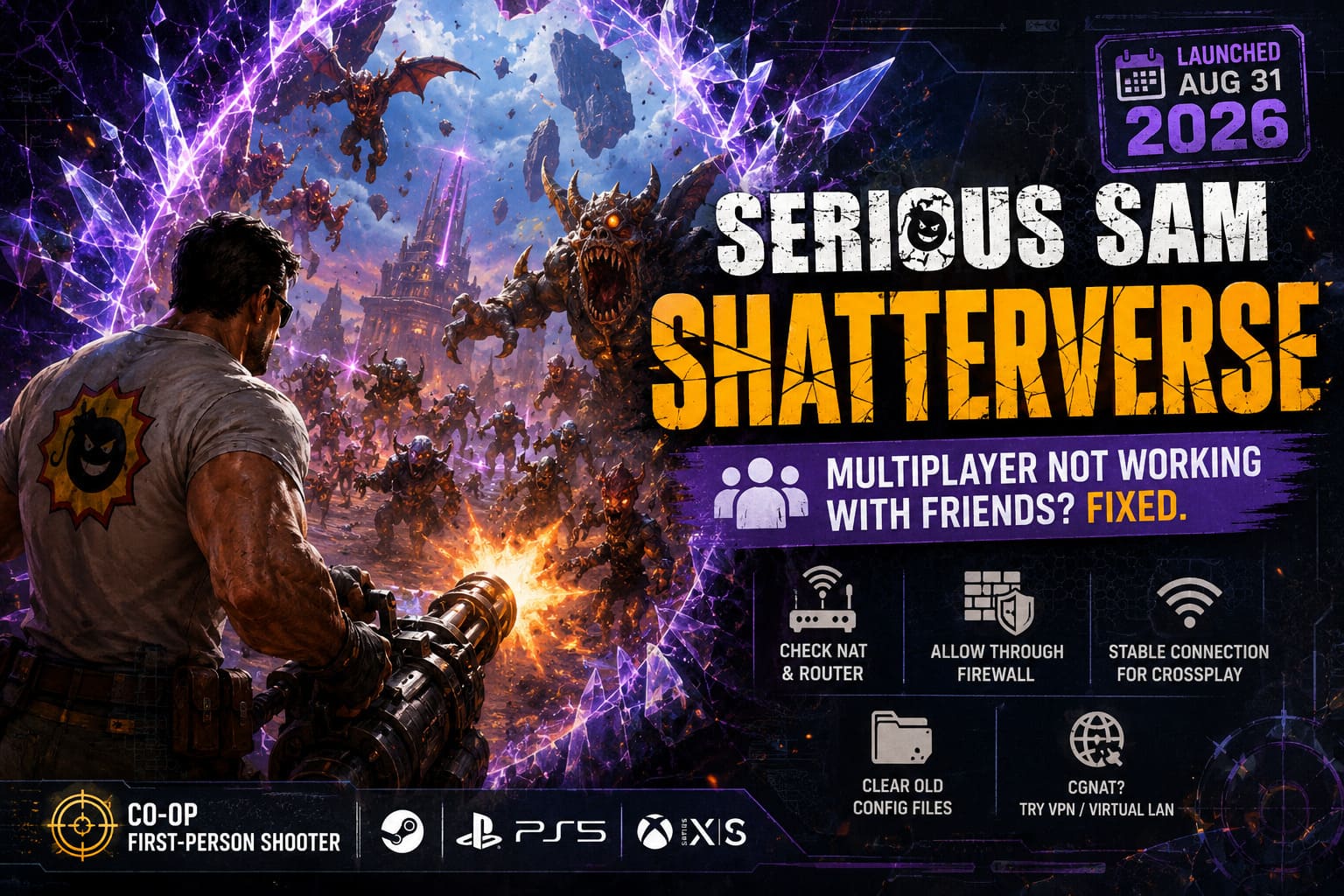
Its multiplayer experience relies heavily on peer-to-peer connectivity, meaning the host’s connection can have a huge impact on whether everyone else is able to join.
In simple terms, one player’s router, firewall, NAT configuration, Wi-Fi stability, or ISP setup can potentially ruin the entire session.
That is why you might see something particularly annoying: your game works perfectly when playing solo, but suddenly refuses to cooperate the moment you invite three friends.
I have seen this kind of problem plenty of times in co-op games. Everything looks fine until the networking starts negotiating connections between several different machines.
Here is the quick version of what I would check:
| Problem | What I Would Try First |
|---|---|
| Steam invite does nothing | Restart Steam and use the Steam Overlay |
| Friends cannot join your lobby | Check NAT and router settings |
| Game is blocked online | Allow the game through Windows Firewall |
| Console crossplay fails | Check privacy and cross-network settings |
| Problems started after a playtest | Clear old configuration files |
| ISP uses CGNAT | Consider a virtual LAN solution on PC |
Now let’s go through each solution properly.
1. Try Steam Invitations Through the Overlay
This is the first thing I would try on PC because it is quick, harmless, and takes almost no effort.
Sometimes the in-game invitation system simply does not behave properly. You click an invite button, wait, and absolutely nothing happens. Your friend says they never received anything, and five minutes later everyone is wondering why you are still staring at the lobby screen.
Instead of relying exclusively on the game’s own interface, try using the Steam Overlay.
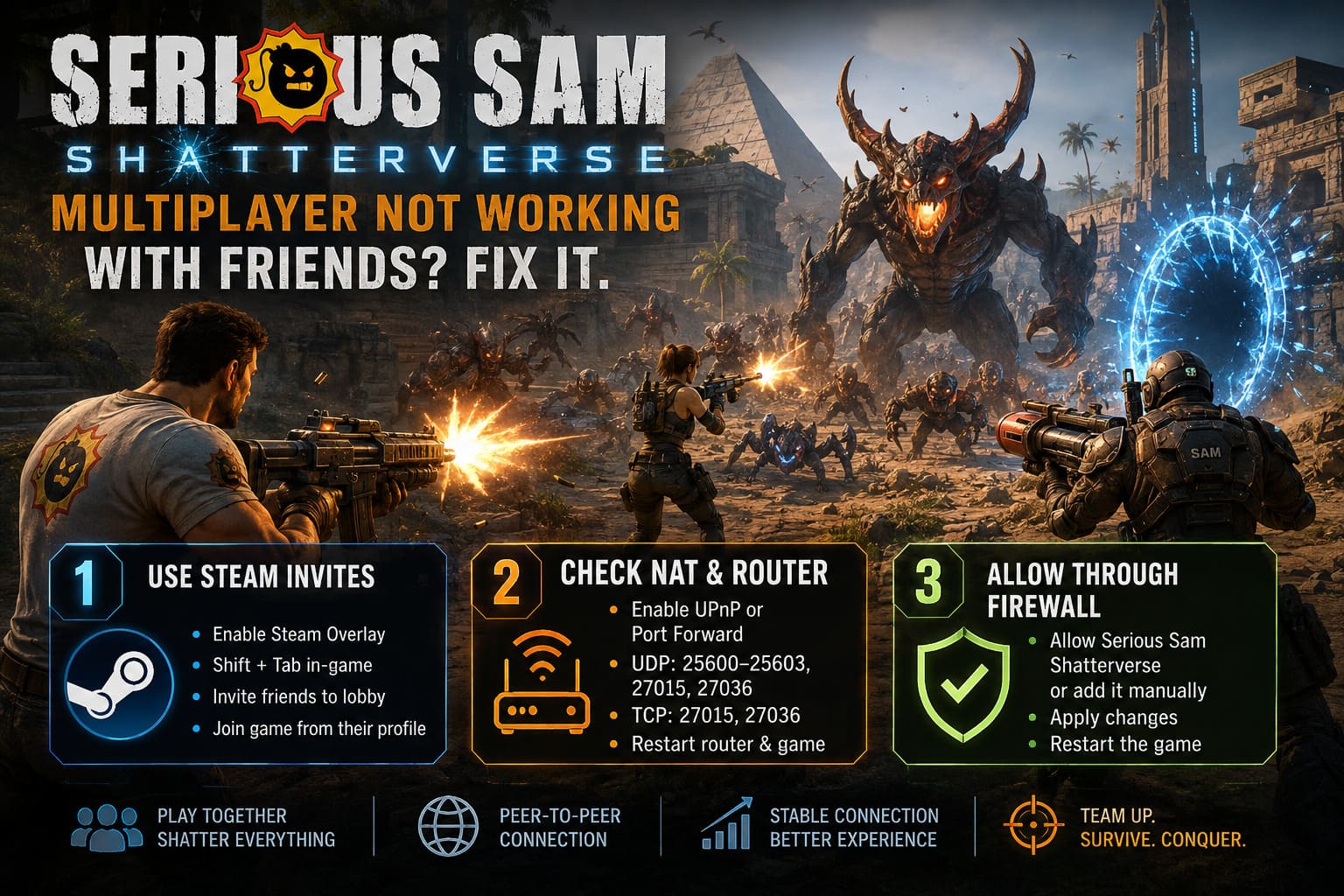
First, completely close Serious Sam Shatterverse. Then open Steam and go to Settings > In Game.
Make sure Enable the Steam Overlay while in-game is turned on.
Launch Shatterverse again and wait until you reach the main lobby. Press Shift + Tab to open the Steam Overlay.
From there, open your Friends List and right-click the friend you want to play with. Use the option to Invite to Lobby.
If you are trying to join somebody else’s session, I would actually let them create the lobby first. Once their game is ready, open your Steam Overlay and use Join Game from their profile if the option appears.
It sounds almost too simple, but sometimes the old-fashioned Steam invitation route is more reliable than fighting with a broken in-game menu.
2. Check Your NAT Type and Router
If the Steam invitation works but your friend still cannot enter the lobby, the next suspect on my list is NAT.
NAT determines how devices on your home network communicate with the wider internet. When you are hosting a peer-to-peer game, restrictive NAT can become a serious problem.
A Strict NAT configuration is particularly troublesome because incoming connections may be blocked before Shatterverse gets a chance to establish the session.
If your router supports UPnP, I would start there. Make sure it is enabled and then restart the router and the game.
If that does not help, port forwarding is another option. The ports reported for the game’s networking setup include:
- UDP: 25600–25603, 27015, 27036
- TCP: 27015, 27036
You can usually find port forwarding under your router’s Advanced, NAT, or Virtual Server settings.
Assign the forwarding rules to the local IP address of the PC or console you are using as the host.
One important warning from me here: do not blindly expose random ports just because a gaming guide tells you to. Only configure ports you actually need, and preferably reserve a local IP address for the host device so the forwarding rule does not break later.
After saving everything, restart the router and try creating the Shatterverse lobby again.
3. Give Shatterverse Permission Through Windows Firewall
Windows Firewall is another classic multiplayer headache.
Your game can launch normally, connect to Steam, download updates, and run at 100 FPS — while Windows quietly decides that its incoming multiplayer traffic looks suspicious.
If you are playing on PC, open Windows Defender Firewall and select Allow an app or feature through Windows Defender Firewall.
Click Change settings, find Serious Sam Shatterverse, and make sure it is allowed through the appropriate network types.
If the game does not appear in the list, use Allow another app and manually browse to the game’s executable inside your Steam installation.
After applying the change, I recommend restarting the game rather than simply returning to the lobby.
This is one of those boring fixes that I would rather try immediately than spend another half hour blaming the game.
4. Fix Wi-Fi and Crossplay Problems on PS5 and Xbox
Console players are not immune to networking problems, especially when crossplay enters the equation.
The first thing I would look at is the actual network connection.
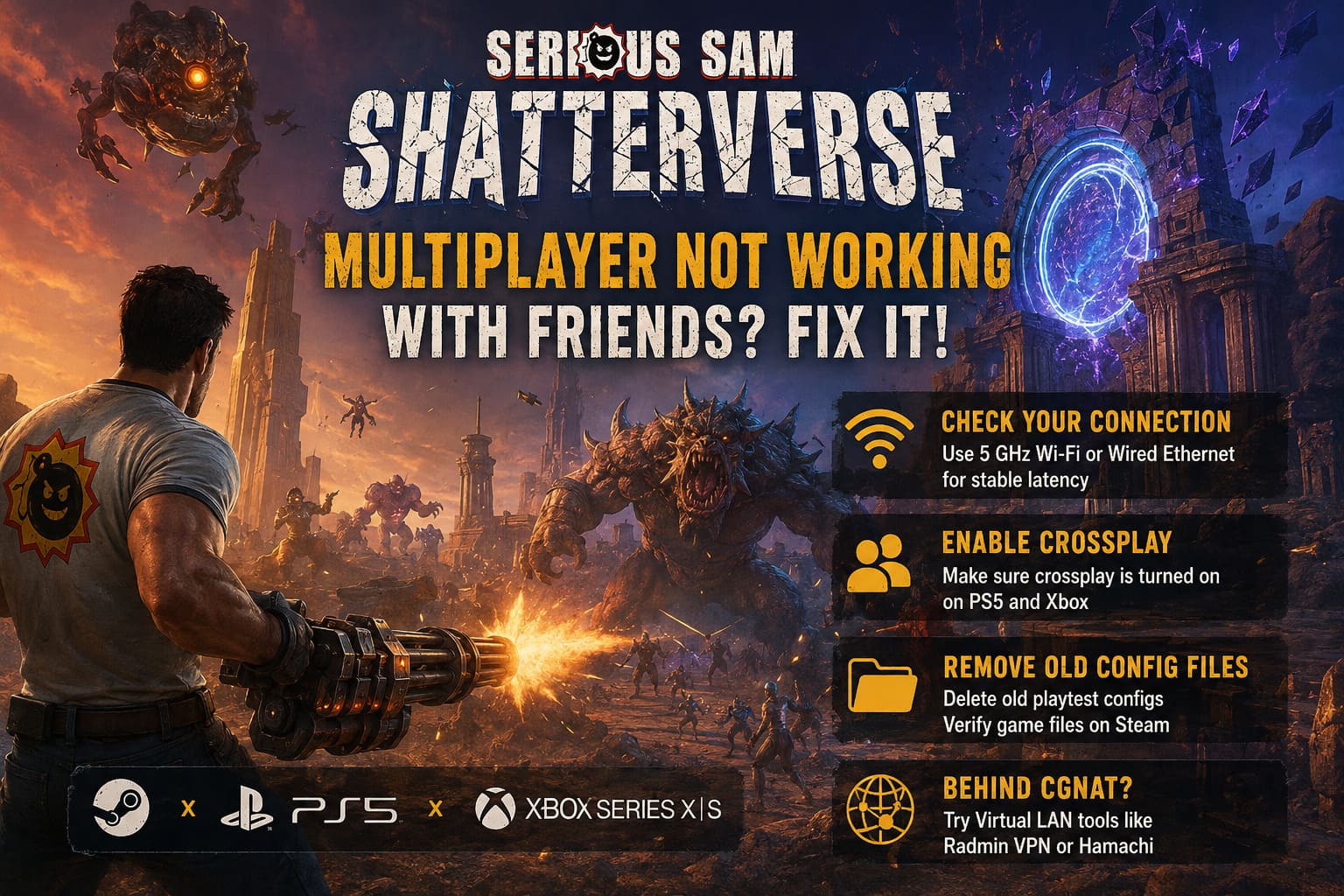
If your console is connected through a busy 2.4 GHz Wi-Fi network, try switching to 5 GHz if your router supports it. Even better, connect the console using Ethernet.
For a multiplayer shooter as chaotic as Shatterverse, I would always choose wired Ethernet when it is practical. Stable latency is far more important than having the fastest theoretical download speed.
A connection that occasionally jumps from 40–50 ms to several hundred milliseconds can cause a peer-to-peer session to collapse.
Check Xbox Multiplayer Privacy
On Xbox, look under:
Settings > Account > Privacy & online safety > Xbox privacy > View details & customize > Communication & multiplayer
Make sure the option allowing cross-network play is permitted.
If this setting is restricted, crossplay with PC or other platforms may fail regardless of how good your internet connection is.
Check PlayStation Crossplay
On PS5, open the game’s multiplayer or gameplay settings and make sure the crossplay option is enabled if the game provides the setting.
Also check that both players are using compatible multiplayer settings.
I would make sure both players restart the game after changing these options. Networking settings do not always refresh cleanly while the game is already running.
5. Remove Old Playtest Configuration Files
This one is particularly interesting if you played one of the earlier Shatterverse tests.
Whenever I participate in a beta or playtest, I assume there is a possibility that old configuration files will eventually cause problems. Usually everything gets overwritten properly, but games do not always clean up after themselves as perfectly as we would like.
If you previously participated in a Shatterverse playtest and multiplayer suddenly started behaving strangely after moving to the full version, consider clearing the old configuration.
Press Windows + R, enter:
%localappdata%
Look for folders associated with Shatterverse or its developer and search for saved configuration data.
Depending on the current installation structure, networking-related configuration may be stored inside folders such as Saved, Configuration, or similar directories.
Before deleting anything, I recommend making a backup of the folder.
If you find obvious old configuration files such as GameUserSettings.ini or networking-related settings, move them somewhere safe rather than permanently deleting them immediately.
Then launch Steam and use:
Properties > Installed Files > Verify integrity of game files
Steam will check the installation and replace missing or damaged files.
Personally, this is one of my favorite troubleshooting methods because it gives the game a chance to rebuild a clean configuration without forcing me to reinstall the entire thing.
6. What If Your ISP Uses CGNAT?
This is where things get more complicated.
Some internet providers use Carrier-Grade NAT, commonly called CGNAT. If your connection is behind CGNAT, traditional port forwarding may not solve the problem because your router does not actually have a directly reachable public IPv4 address.
You can spend an entire evening changing router settings and still get nowhere.
If you are on PC and strongly suspect CGNAT is responsible, one workaround worth experimenting with is a virtual LAN application.
Tools such as Radmin VPN or Hamachi can create a virtual network between participating computers.
The basic idea is straightforward: the host creates a virtual network, your friends join it, and everyone appears to be connected through the same virtual LAN environment.
Whether this works with Shatterverse depends on how the game exposes its multiplayer networking, so I would treat this as a last-resort workaround, not the first solution.
If the game has a dedicated LAN option, this approach becomes much more interesting. If it does not, a virtual LAN may not solve the problem at all.
Serious Sam Shatterverse Co-Op Guide: How to Play with Friends (2026)
My Recommended Order for Troubleshooting
I would not start changing router ports and Windows networking settings immediately.
For most players, I would go through the fixes in this order:
Steam Overlay → Restart Game/Steam → Ethernet or 5 GHz Wi-Fi → Firewall → NAT/UPnP → Crossplay Settings → Configuration Reset → CGNAT Workaround
That order saves a lot of unnecessary work.
There is no point spending an hour configuring port forwarding if the actual problem is simply that Steam failed to deliver the invitation.
How to Fix Serious Sam Shatterverse Crashing on Startup (Complete PC Guide)
Final Thoughts
I really like what Serious Sam Shatterverse is trying to do. The franchise has never been shy about throwing ridiculous amounts of enemies at the player, and turning that formula into a chaotic cooperative roguelite experience feels like a natural evolution.
That is exactly why multiplayer connection problems are so frustrating.
Serious Sam is at its best when the screen is overflowing with enemies and everyone is desperately trying to survive together. Having four people ready to play only to get stuck on a loading screen is basically the opposite of what this game is supposed to deliver.
If your Serious Sam Shatterverse multiplayer is not working with friends, start with the easy solutions. Restart Steam, use the Steam Overlay for invitations, check your firewall, and make sure your network connection is stable. Console players should also verify crossplay and privacy settings.
If those fail, move toward NAT and router troubleshooting. And if you are dealing with CGNAT, remember that the problem may be outside your home network entirely.
Hopefully, future patches will smooth out some of these early multiplayer issues. New games can have rough launches, and networking bugs are particularly difficult because they involve different routers, platforms, ISPs, and configurations.
For now, though, I would rather spend ten minutes working through these fixes than canceling a co-op session.
After all, Mental’s multiversal army is not going to destroy itself.