Fix Mortal Shell 2 Save File Corruption Error on Steam: Full Guide (2026)
Mortal Shell 2 is exactly the kind of game I like to lose an unreasonable number of hours in. The combat is brutal, the world feels hostile in all the right ways, and every new area has that classic soulslike feeling of “I probably shouldn’t be here yet, but let’s see what happens.” When a game is this demanding, losing progress because of a technical problem is especially frustrating.
Unfortunately, some PC players running Mortal Shell 2 through Steam have run into a nasty save file corruption error. Instead of loading your character normally, the game can get stuck on an endless loading screen, reject the save entirely, or appear to wipe recent progression.
That’s the last thing anyone wants after spending an evening learning a boss, finding a new Shell, or pushing through a dangerous section of the open world.
The good news is that a corrupted save doesn’t always mean your entire playthrough is gone. There are several things worth trying before you surrender and start a new character. I’ve put together the methods I’d personally work through, starting with the safest options and moving toward the more aggressive fixes.
Why Is Mortal Shell 2 Corrupting Save Files?
Save corruption usually isn’t caused by one single problem. On PC, several systems are working together whenever the game saves your progress: Mortal Shell 2 itself, Windows permissions, Steam’s local files, Steam Cloud synchronization, your storage drive, and the graphics/engine pipeline.
If something interrupts a save operation at exactly the wrong moment, the resulting file can become unreadable.
Here are the most common scenarios to keep in mind:
| Possible Cause | What Can Happen |
|---|---|
| Steam Cloud conflict | An older or damaged cloud save replaces a newer local save |
| Interrupted autosave | The save operation stops before the file is completely written |
| Windows security restrictions | The game cannot properly modify its save directory |
| Game or driver crash | The engine stops while writing progression data |
| Damaged Steam files | Broken installation data can cause strange loading or saving behavior |
From my perspective, Steam Cloud is the first thing I’d investigate. Cloud saves are fantastic when they work, but when the local and cloud versions disagree, Steam can sometimes make a bad situation much worse.
Method 1: Look for a Local Save Backup First
Before deleting anything, make a backup of whatever files you currently have.
Seriously. Don’t skip this part.
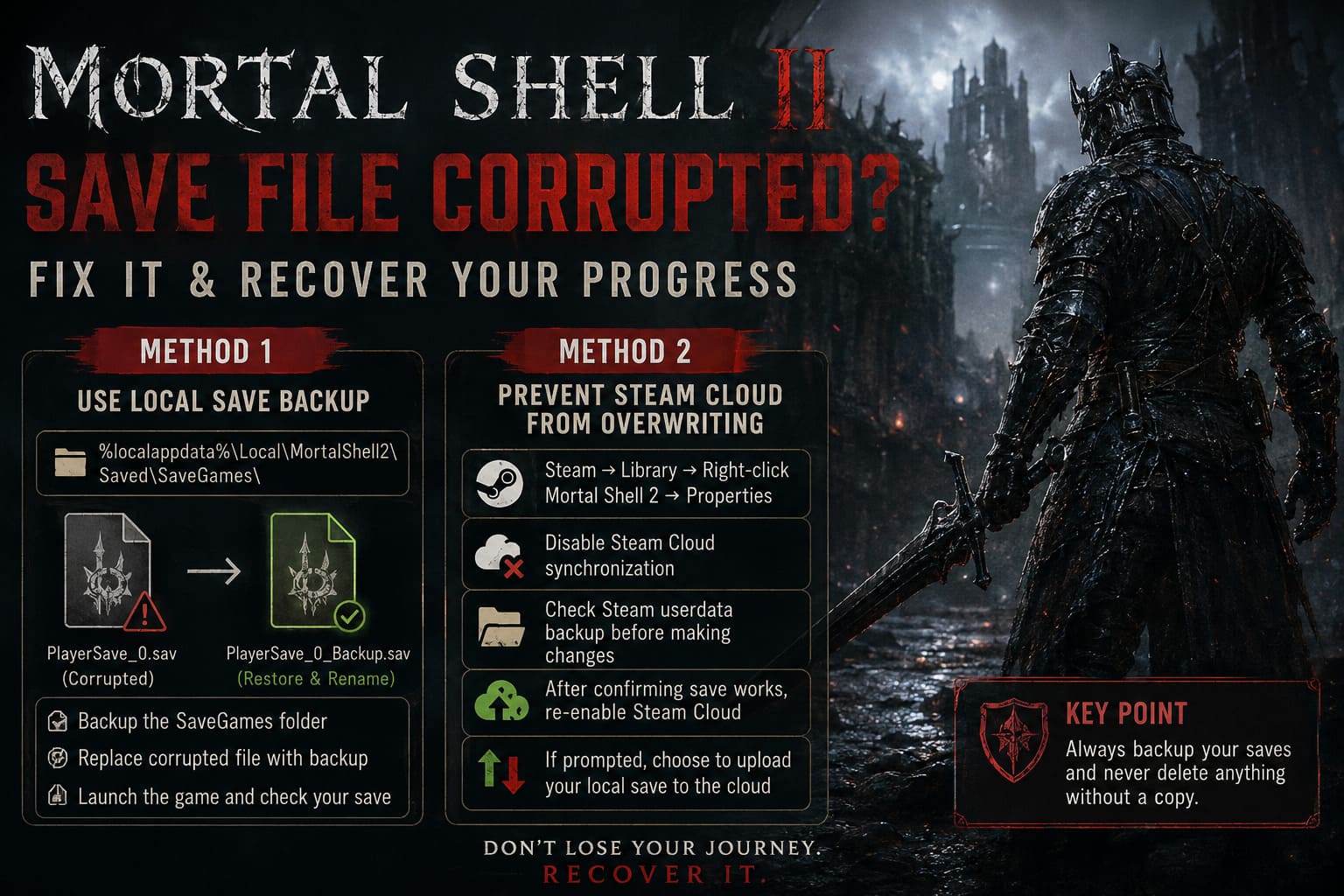
Even if Windows reports that the save is corrupted, keep a copy. A supposedly useless file can become important later if another recovery method depends on it.
Press Windows + R, enter:
%localappdata%
Then look for the Mortal Shell 2 save directory.
The expected structure is:
Local\MortalShell2\Saved\SaveGames\
If the game is using this directory structure on your installation, you may find your active save along with a backup version.
Typical examples could include:
PlayerSave_0.savPlayerSave_0_Backup.sav
The active file represents your primary save slot, while the backup may contain an earlier version of your progression.
Before Changing Anything
Copy the entire SaveGames folder somewhere safe, preferably onto your desktop or another drive.
I’d actually recommend making two copies if the save contains dozens of hours of progress. One copy can be your untouched original, while the second can be used for experimentation.
Once that’s done, you can try the following:
- Close Mortal Shell 2 completely.
- Exit Steam rather than simply closing the game window.
- Open the SaveGames folder.
- Remove or move the corrupted
PlayerSave_0.savfile. - Keep the original somewhere safe instead of permanently deleting it.
- If a valid
PlayerSave_0_Backup.savexists, make a copy of it. - Rename the copied backup to
PlayerSave_0.sav. - Launch Steam and start Mortal Shell 2.
If the backup is healthy and compatible with the current game version, your character may load normally.
And if it doesn’t? Don’t panic. That’s why we created the backup before touching anything.
Method 2: Stop Steam Cloud From Replacing Your Repaired Save
This is the method I’d pay particular attention to.
Imagine you successfully restore your local save, launch the game, and Steam immediately downloads the corrupted cloud version over it. You can end up right back where you started.
To prevent that, temporarily disable Steam Cloud synchronization for Mortal Shell 2.
Open your Steam Library, right-click the game and select Properties. Under the General section, find the Steam Cloud option and turn synchronization off.
Now Steam won’t immediately attempt to replace your local data with its cloud copy.
Next, you can inspect your Steam userdata directory. The standard Windows location is:
C:\Program Files (x86)\Steam\userdata\
Inside are folders associated with individual Steam accounts. Your exact account folder will have its own numeric identifier.
The game’s Steam AppID may then appear inside that structure if the game uses Steam’s remote-save directory.
If you find a remote folder associated with Mortal Shell 2, make a backup before deleting or replacing anything.
The important principle here is simple: don’t blindly wipe Steam userdata because you found a guide telling you to. Steam userdata contains information for multiple games, and deleting the wrong folder can create a completely unnecessary headache.
Once you have a known-good local save, keep Steam Cloud disabled, launch Mortal Shell 2, and check whether your restored character works.
If the game saves successfully, close it normally.
Then turn Steam Cloud back on.
Steam may detect a conflict between the local and cloud versions. If it gives you a choice, select the option that uploads the local, healthy save to Steam Cloud rather than downloading the older cloud version.
That can prevent the corrupted cloud copy from coming back.
Method 3: Check Windows Security and Folder Permissions
Another possibility is that Windows isn’t allowing Mortal Shell 2 to finish writing its save data.
Windows Defender’s Controlled Folder Access is designed to prevent unauthorized applications from modifying protected folders. It’s useful security technology, but legitimate games can occasionally run into permission problems.
Open Windows Security from the Start menu.
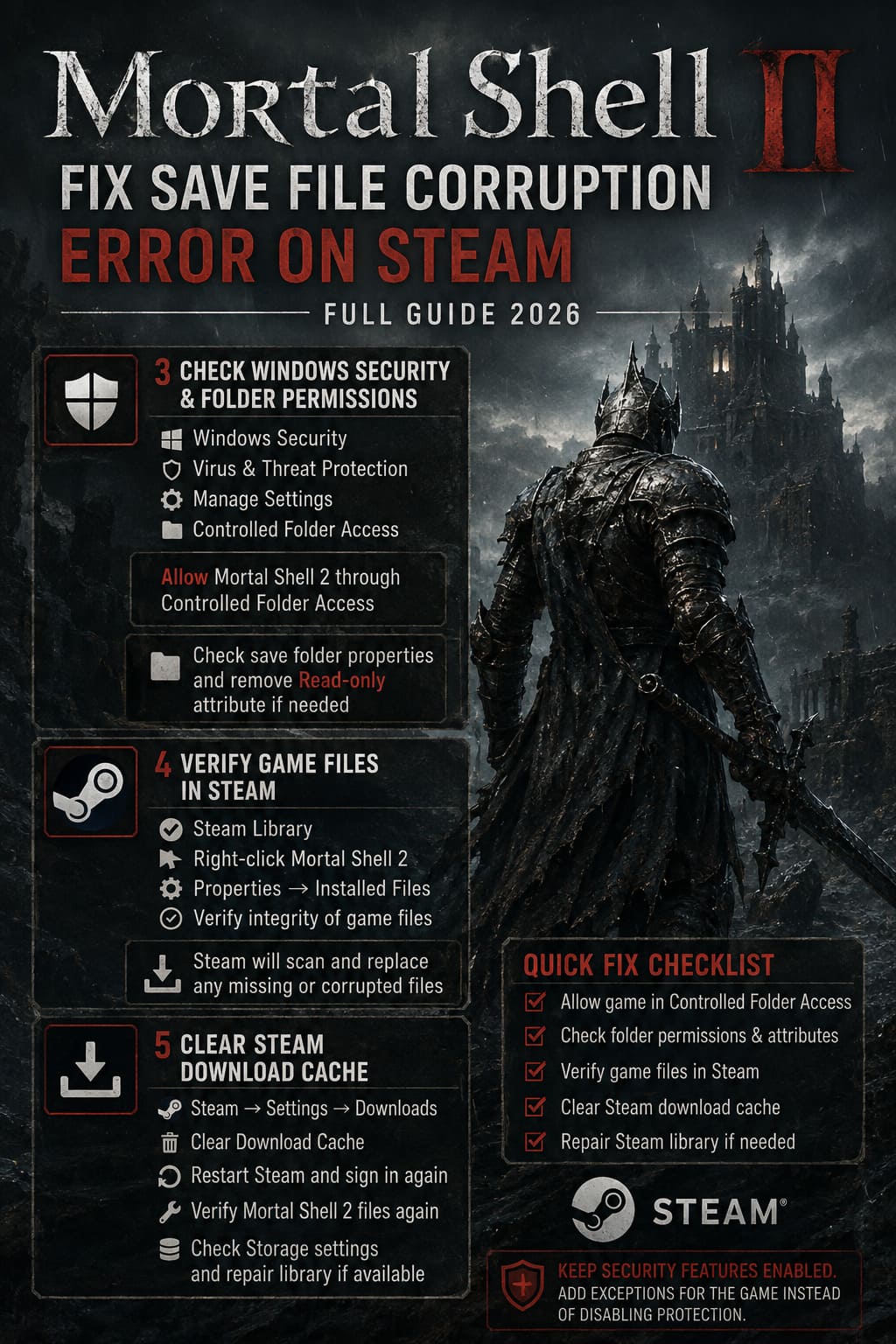
Go to:
Virus & Threat Protection → Manage Settings → Controlled Folder Access
If Controlled Folder Access is enabled, you have two approaches.
The first is temporarily disabling it for testing.
The better long-term option, in my opinion, is keeping the security feature enabled and adding the game’s executable as an allowed application if Windows is actually blocking it.
The executable name can vary depending on the game’s build, so don’t blindly assume a particular filename. Find the actual Mortal Shell 2 executable inside your Steam installation directory.
You can also check the folder where the game’s saves are stored and make sure Windows isn’t treating the files as read-only.
Right-click the relevant folder, select Properties, and inspect the attributes.
If the files are unexpectedly read-only, remove that restriction and apply the change where appropriate.
Don’t Turn Off Security Features Permanently
I’d strongly recommend against leaving Windows security protections disabled just because you’re troubleshooting a game.
Use this as a diagnostic step. If Windows Security is the culprit, creating a proper exception for the game is generally preferable to permanently lowering your system’s protection.
Method 4: Verify Mortal Shell 2 Through Steam
Before going nuclear and reinstalling the entire game, let Steam check the installation.
This is particularly useful if the corruption problem started after a crash, patch, interrupted update, or failed download.
Go to your Steam Library and right-click Mortal Shell 2.
Select:
Properties → Installed Files → Verify integrity of game files
Steam will compare the installed files against the files it expects and redownload anything that is missing or damaged.
This doesn’t magically repair every corrupted save, but it can eliminate damaged game files as a potential cause.
And honestly, it’s one of those fixes that’s worth doing because it costs you very little beyond waiting for Steam to finish.
Method 5: Clear the Steam Download Cache
If Steam itself is behaving strangely, clearing its download cache can sometimes help.
Open Steam and go to:
Steam → Settings → Downloads
Find Clear Download Cache and follow the confirmation prompts.
Steam will restart and you’ll need to sign back in.
Afterward, return to your game installation and verify the Mortal Shell 2 files again.
You can also inspect Steam’s Storage settings and use the available library repair functionality if your Steam version provides it.
This is particularly useful when the game is installed on a drive that has experienced permission or library-management problems.
What I Would Do First
If this happened to me after 30 hours of Mortal Shell 2, I wouldn’t immediately reinstall the game or start deleting folders.
I’d work through the recovery process in this order:
- Close Mortal Shell 2 and Steam completely.
- Back up the entire SaveGames folder.
- Look for a usable local backup save.
- Temporarily disable Steam Cloud.
- Test the repaired local save.
- Check Windows Security and folder permissions.
- Verify Mortal Shell 2’s Steam files.
- Clear Steam’s download cache if problems continue.
- Only consider more drastic measures after the previous steps fail.
The big rule is backup first, delete second.
How to Prevent Another Corrupted Save
Once you’ve recovered your character, I’d change a few habits.
Don’t Kill the Game During an Autosave
Avoid using Alt + F4 or terminating the process through Task Manager while Mortal Shell 2 is saving or loading a new area.
Give the game a moment to finish whatever it’s doing. Soulslike games already have enough ways to punish you without Windows adding another one.
Be Careful With Overlays
If you’re experiencing crashes during area transitions, temporarily disable unnecessary overlays from applications such as Discord, GPU software, or performance-monitoring tools.
Overlays don’t automatically cause corrupted saves, but if an overlay contributes to a crash at the wrong moment, the resulting interruption can happen while the game is writing data.
Keep Manual Backups
This is probably the most boring recommendation here, but it’s also the one that can save you the most frustration.
After a major session, copy your Mortal Shell 2 save folder to another location.
If you’re particularly invested in the character, keep several historical backups rather than replacing the same backup every time.
For example:
- Backup before a major boss
- Backup after unlocking a new region
- Backup after a long exploration session
- Weekly backup of your latest save
That way, if something goes wrong, you have multiple recovery points instead of one potentially damaged copy.
How to Fix Mortal Shell 2 Black Screen During Cinematic Transitions
Final Thoughts
Mortal Shell 2 is the kind of game where losing progress hurts more than it would in a casual title. The whole experience is built around learning, experimentation, exploration, and slowly becoming stronger through failure.
That’s why a save corruption error on Steam is especially brutal.
The good news is that you shouldn’t assume your entire character is gone the moment the game refuses to load. Local backups, Steam Cloud conflicts, Windows permissions, and damaged installation files are all worth investigating before you give up.
Personally, I’d start with the local save backup and Steam Cloud. Those two areas are the most important when the game suddenly stops recognizing an otherwise healthy character.
Most importantly, don’t delete your original files while troubleshooting. Make copies first, work methodically, and change one thing at a time.
If you manage to recover the save, make another backup immediately. Because after surviving Mortal Shell 2’s bosses, enemies, traps, and unforgiving world, the last thing you should have to fight is a corrupted .sav file.