How to Fix Mortal Shell 2 Black Screen During Cinematic Transitions
There are few things more annoying in an action RPG than finally beating a difficult boss, grabbing a new warrior body, and then being rewarded with… a completely black screen.
That is exactly the kind of problem some Mortal Shell 2 players have been running into during cinematic transitions. The frustrating part is that the game doesn’t always look completely frozen. You may still hear footsteps, combat sounds, music, dialogue, or other environmental effects. Sometimes the HUD even remains visible. The game is clearly alive — it just isn’t showing you the game.
As someone who spends far too much time tweaking games instead of actually playing them, this is the sort of technical problem I hate. A crash is easy to understand: the game closes, you relaunch it, and move on. A black screen with working audio is different. It makes you wonder whether you’ve broken your save, whether the next cutscene is permanently corrupted, or whether you’re about to lose an hour of progress.
The good news is that a black screen during a Mortal Shell 2 cinematic transition doesn’t automatically mean your save is dead.
Based on the problems players have been reporting and the fixes that make the most sense for Unreal Engine 5-based games, there are several things worth trying before you start reinstalling everything.
First, Figure Out What Kind of Black Screen You’re Dealing With
Before changing ten settings at once, take a second to identify the problem.
If you still have:
- Game audio
- Voice dialogue
- HUD or menu elements
- Controller or keyboard input
- Background environmental sounds
then the game itself may still be running. In that situation, I would treat the problem as a rendering or asset-streaming issue, not immediately as a corrupted save.
If the entire game has stopped responding, there is no audio, and Windows reports that the application isn’t responding, you’re dealing with a different problem.
That distinction matters because you may be able to recover from the first situation without touching your save files.
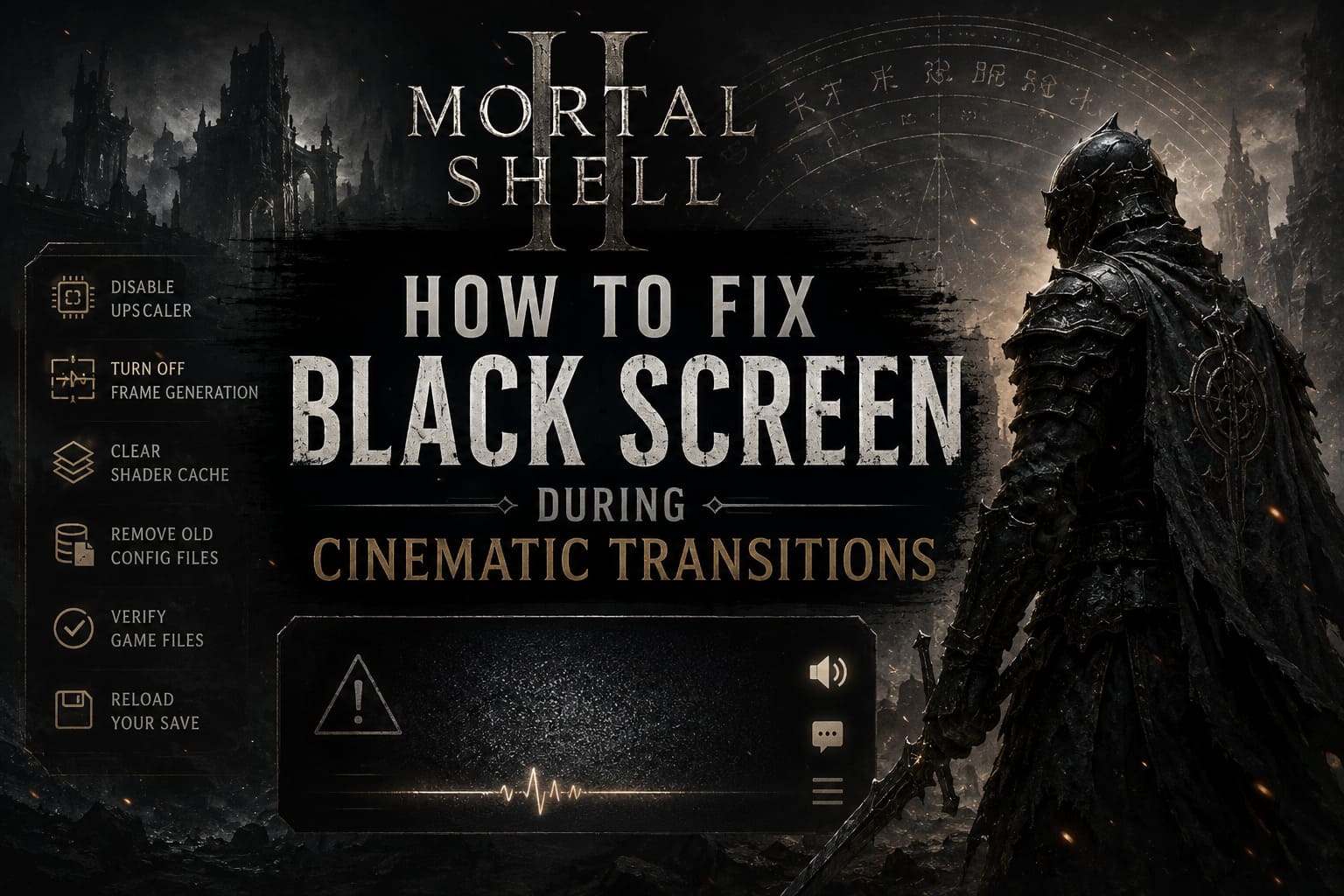
1. Start With the Upscaler — Seriously
If I had to choose the first setting to experiment with, it would be the upscaling option.
Modern PC games increasingly depend on technologies such as NVIDIA DLSS and AMD FSR, and they’re fantastic when they work properly. I’m a big fan of using an upscaler when a game needs the extra performance. But transitions between normal gameplay, scripted sequences, and cinematic camera states can expose rendering bugs that you won’t notice during regular combat.
So if Mortal Shell 2 suddenly goes black immediately before or after a cinematic, try simplifying the graphics pipeline.
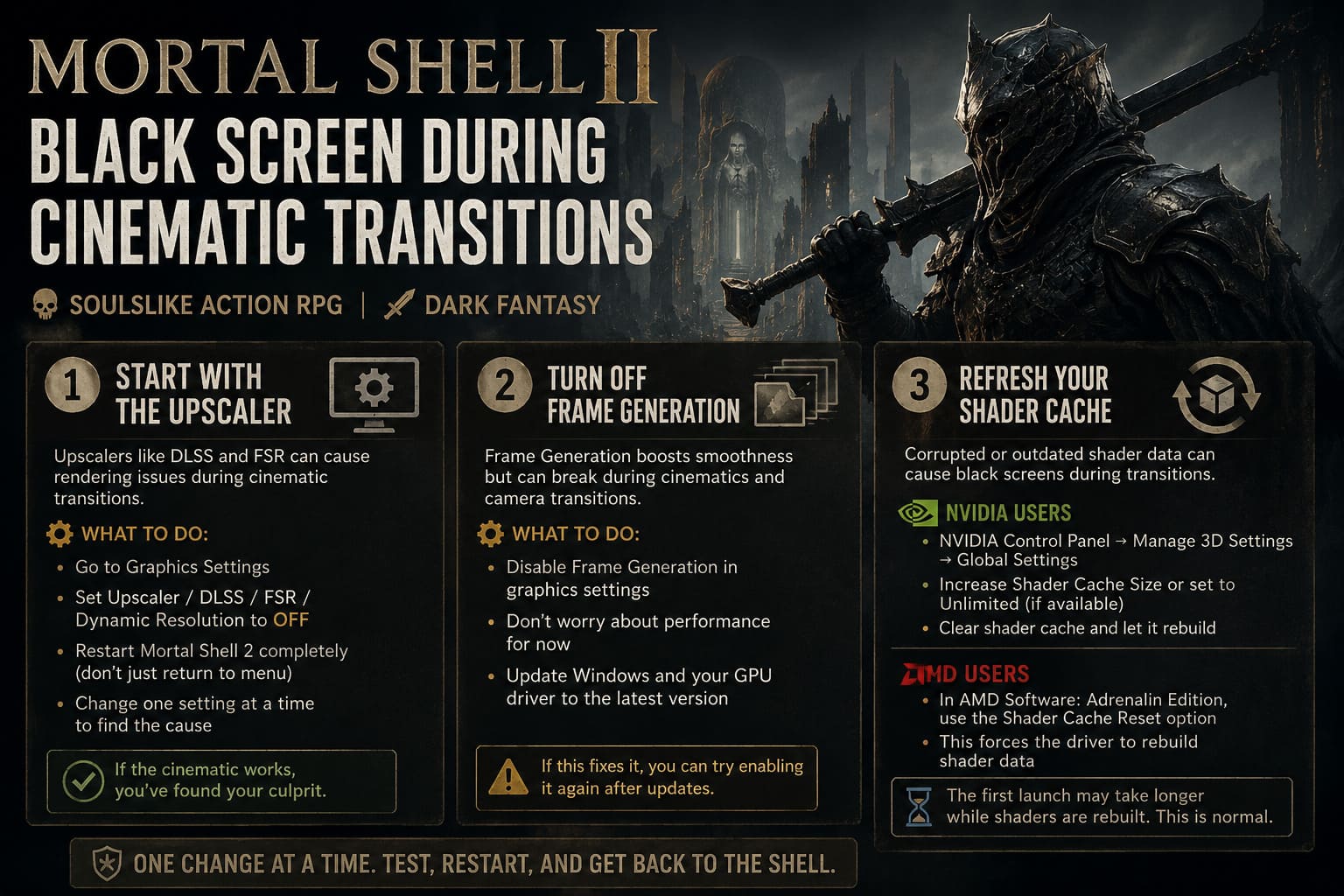
Open the game’s graphics settings and look for options such as:
- Upscaler
- Super Resolution
- DLSS
- FSR
- Dynamic Resolution
Set the upscaler to Off or the game’s default/native option temporarily.
Then completely restart Mortal Shell 2 rather than simply returning to the main menu.
Personally, I prefer changing one setting at a time. If you turn off DLSS, frame generation, ray tracing, and half the graphics menu simultaneously, you won’t know which setting actually solved the problem.
If the cinematic works afterward, you’ve found your suspect.
2. Turn Off Frame Generation
This is another setting I’d test early, especially if you’re playing on newer NVIDIA or AMD hardware.
Frame generation is brilliant for increasing perceived smoothness, but it adds another layer to the rendering pipeline. Cinematics and abrupt camera transitions are exactly the moments where unusual motion-vector or frame-pacing behavior can become visible.
For troubleshooting, disable Frame Generation completely.
Don’t worry about performance for the moment. The goal isn’t to achieve the highest possible FPS; it’s to get the game through the cinematic without turning your monitor into a black rectangle.
If disabling frame generation fixes the transition, you can later experiment with enabling it again after updating the game and graphics driver.
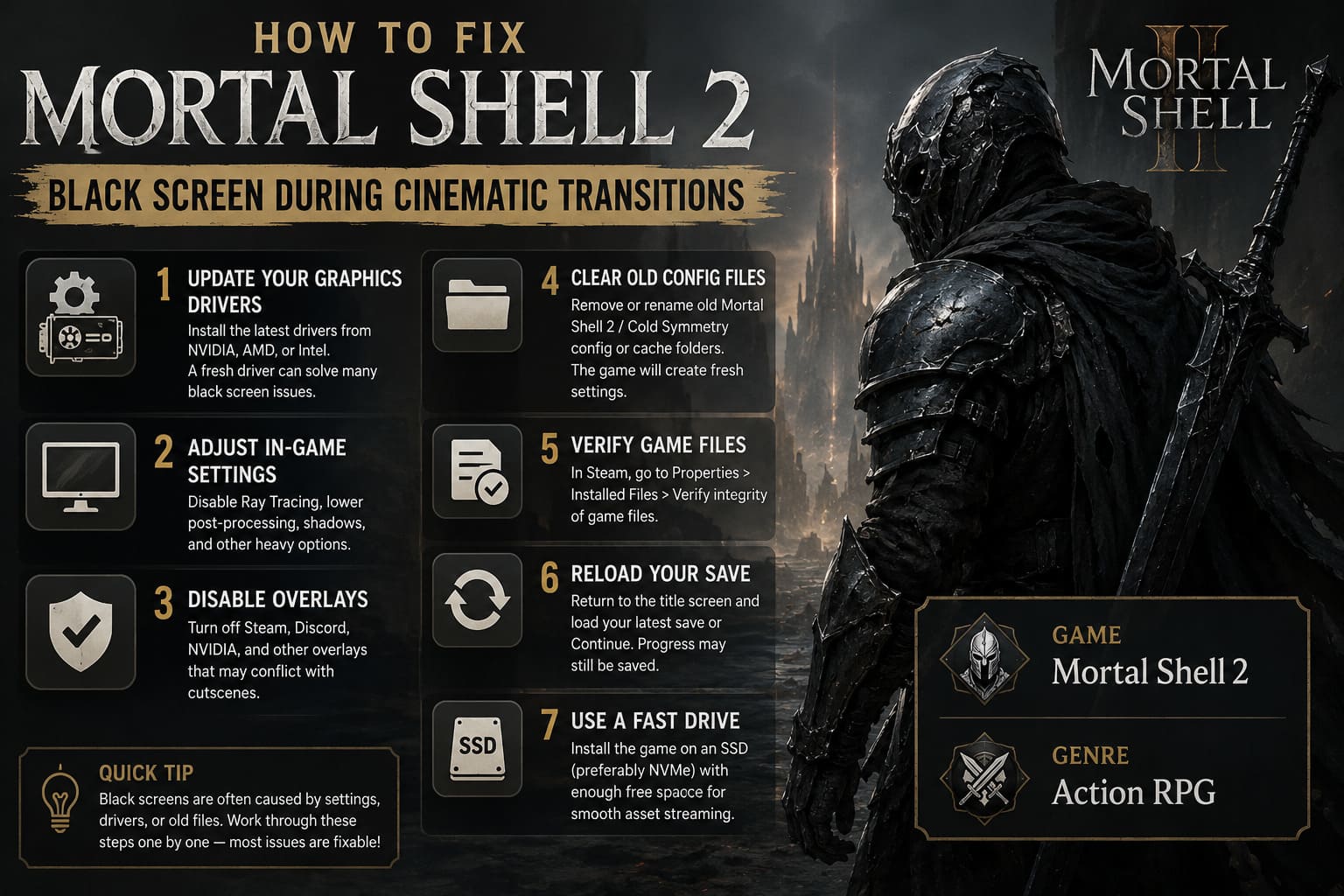
I would also make sure Windows and your GPU driver are reasonably up to date. You don’t need to install every optional piece of software imaginable, but running an outdated display driver while troubleshooting a new Unreal Engine 5 release isn’t doing yourself any favors.
3. Give Your Shader Cache a Fresh Start
Shader compilation is one of those invisible PC gaming problems that players usually don’t think about until something breaks.
A game can appear perfectly normal for hours and then suddenly hit a rendering problem because the driver or engine is dealing with stale shader data.
If you’ve played a beta, preview build, or earlier version of Mortal Shell 2, I’d be especially suspicious of leftover cached data.
NVIDIA users
Open the NVIDIA Control Panel and go to:
Manage 3D Settings → Global Settings
Look for Shader Cache Size.
If available, increasing the allocation or temporarily using Unlimited can be useful for testing. The exact options can vary depending on your driver version, so don’t worry if your menu looks slightly different.
You can also clear the existing shader cache through Windows or your NVIDIA software and allow it to rebuild.
AMD users
In AMD Software: Adrenalin Edition, look through the graphics settings for the shader cache reset option.
Resetting the cache forces the driver to rebuild shader data rather than continuing to rely on potentially outdated files.
The first launch after doing this can take longer than usual. That’s normal. You’re effectively asking the system to do some of the work again.
4. Don’t Ignore Old Beta Configuration Files
This is one of the less glamorous fixes, but sometimes the boring fixes are the ones that work.
If you participated in an earlier Mortal Shell 2 test or beta, your PC may have configuration data left behind from that version. Normally, this isn’t a problem. But when a game moves between builds, old graphics settings and configuration files can occasionally cause strange behavior.
Close Mortal Shell 2 and Steam completely.
Press:
Windows Key + R
Then enter:
%localappdata%
Look for a folder associated with Mortal Shell 2 or Cold Symmetry.
Before deleting anything, make a backup.
That’s important.
You want to remove or rename old configuration/cache folders, not randomly delete your entire save directory. If you’re unsure which folder contains your saves, don’t touch it.
My preferred approach is actually to rename the configuration folder first rather than immediately deleting it. For example, adding something like _backup to the folder name gives you an easy way to restore it if necessary.
Launch the game again and allow it to generate fresh configuration files.
If the black screen disappears, you’ve probably been dealing with a bad local setting rather than a broken installation.
5. Verify the Game Files Through Steam
This is one of the easiest steps, so there’s really no reason not to do it.
In Steam:
- Open your Library.
- Right-click Mortal Shell 2.
- Select Properties.
- Open Installed Files.
- Select Verify integrity of game files.
Steam will compare your local installation with the files it expects and replace anything that appears damaged or missing.
I wouldn’t expect this to solve every black-screen problem. If the issue is caused by a graphics setting or driver cache, file verification won’t magically repair it.
Still, if a cinematic asset or game file has been corrupted, this is considerably easier than reinstalling the entire game.
6. Try Reloading Your Save Before Panicking
This is probably my favorite workaround because it costs almost nothing.
Imagine you’ve just completed a major encounter. The screen fades to black, but you can still hear the game.
Don’t immediately force-close it.
Give it some time.
If you can still open the menu or interact with the game, see whether you can return to the title screen. Then load your most recent save or choose Continue.
Why can this work?
The important gameplay event may already have been registered before the cinematic failed to render. In other words, the game could have saved your progression even though the visual transition itself didn’t finish correctly.
When you reload, the game may place your character into the new state without replaying the problematic transition.
It’s not elegant. It’s not the kind of solution developers dream about. But as a player, I care about one thing: getting back into the game without losing progress.
7. Check Where the Game Is Installed
Storage speed isn’t always the first thing I’d blame for a black screen, but modern Unreal Engine games are extremely dependent on asset streaming.
If Mortal Shell 2 is installed on an old mechanical hard drive, a slow external drive, or a storage device that’s struggling with free-space issues, moving it to a fast internal SSD is worth considering.
Ideally, use a modern NVMe SSD with plenty of free space.
I wouldn’t immediately start manually changing Windows’ virtual memory settings, though. That’s one of those PC troubleshooting tips that gets repeated everywhere and can create more variables than it solves.
Before touching the paging file, make sure you have enough free storage and that Windows is managing virtual memory normally.
My Recommended Troubleshooting Order
If you don’t want to spend an entire evening changing every PC setting you can find, this is the order I’d personally follow:
| Step | Fix | Difficulty | My Take |
|---|---|---|---|
| 1 | Disable Upscaling | Easy | Do this first |
| 2 | Disable Frame Generation | Easy | Very worth testing |
| 3 | Reset Shader Cache | Easy | Good second-line fix |
| 4 | Verify Steam Files | Easy | Always worth trying |
| 5 | Reset Config Files | Medium | Useful after beta builds |
| 6 | Reload the Save | Easy | Can bypass a broken cinematic |
| 7 | Move to NVMe SSD | Medium | Worth it for slow storage |
The important thing is not to change everything simultaneously.
Make one adjustment, launch the game, reproduce the problem, and see what happens.
That’s how you actually diagnose a PC game instead of performing digital exorcism.
How to Fix Last Pirates: Die Together Black Screen Error on Launch (2026 Guide)
Should You Delete Your Save?
No — not as your first reaction.
A cinematic rendering problem is not the same thing as a corrupted save.
If your character still responds, audio continues, menus work, or the game successfully reaches the title screen, there is a decent reason to believe your progression data is still intact.
Back up your saves before experimenting with local configuration folders, particularly if you’ve spent dozens of hours building your character.
I would only consider more aggressive measures after exhausting the simple options above.
Final Thoughts
Mortal Shell 2 is exactly the sort of game where technical problems can feel especially painful. The atmosphere, boss encounters, character transformations, and cinematic transitions are a huge part of the experience. When the screen disappears at the exact moment the game is supposed to deliver something dramatic, it completely kills the mood.
But a black screen doesn’t necessarily mean you’re finished.
Start with the rendering pipeline. Disable the upscaler and frame generation, rebuild the shader cache, verify your files, and only then start digging into configuration folders. If the game has already registered your progression, try reloading the save instead of immediately starting over.
And if you’re playing on PC, remember the golden rule of troubleshooting: change one thing at a time.
I’ve lost enough evenings to mysterious graphics settings to know that throwing twenty fixes at a problem feels productive but usually teaches you absolutely nothing.
Hopefully, by the time you reach the next major cinematic, Mortal Shell 2 will simply do what it was supposed to do in the first place — show you the damn cutscene.