How to Fix Shift At Midnight Asset Loading Failed and Game Crashing Issues
There is nothing more frustrating than getting ready for a tense co-op horror session, inviting your friends, preparing for another strange night shift, and then watching Shift At Midnight completely fall apart with an “Asset Loading Failed” error. One moment you are checking suspicious customers at the gas station, the next moment you are staring at a frozen screen, a black display, or a sudden desktop crash.
As someone who has spent countless hours testing survival horror games, tweaking graphics settings, fighting Unreal Engine crashes, and digging through endless Steam discussions, I can say this type of issue is becoming increasingly common in modern PC games. The ambition of these titles keeps growing, but sometimes the technology behind them struggles to keep up.
Shift At Midnight delivers an impressive mix of detective gameplay, gas station management, multiplayer horror, and unpredictable doppelganger encounters. The problem is that all of those systems rely heavily on fast asset streaming. Characters, textures, lighting effects, audio files, animations, and environmental details are constantly being loaded and unloaded in the background.
When something breaks during that process, the result is usually the dreaded Asset Loading Failed message.
The good news? In most cases, this problem is completely fixable.
This guide covers the most effective solutions for fixing Shift At Midnight crashes on Windows PC, including DirectX adjustments, Steam file repairs, memory optimization, driver cleanup, and hidden configuration fixes.
Why Does Shift At Midnight Keep Showing Asset Loading Failed?
Before changing random settings, it helps to understand what is actually happening behind the scenes.
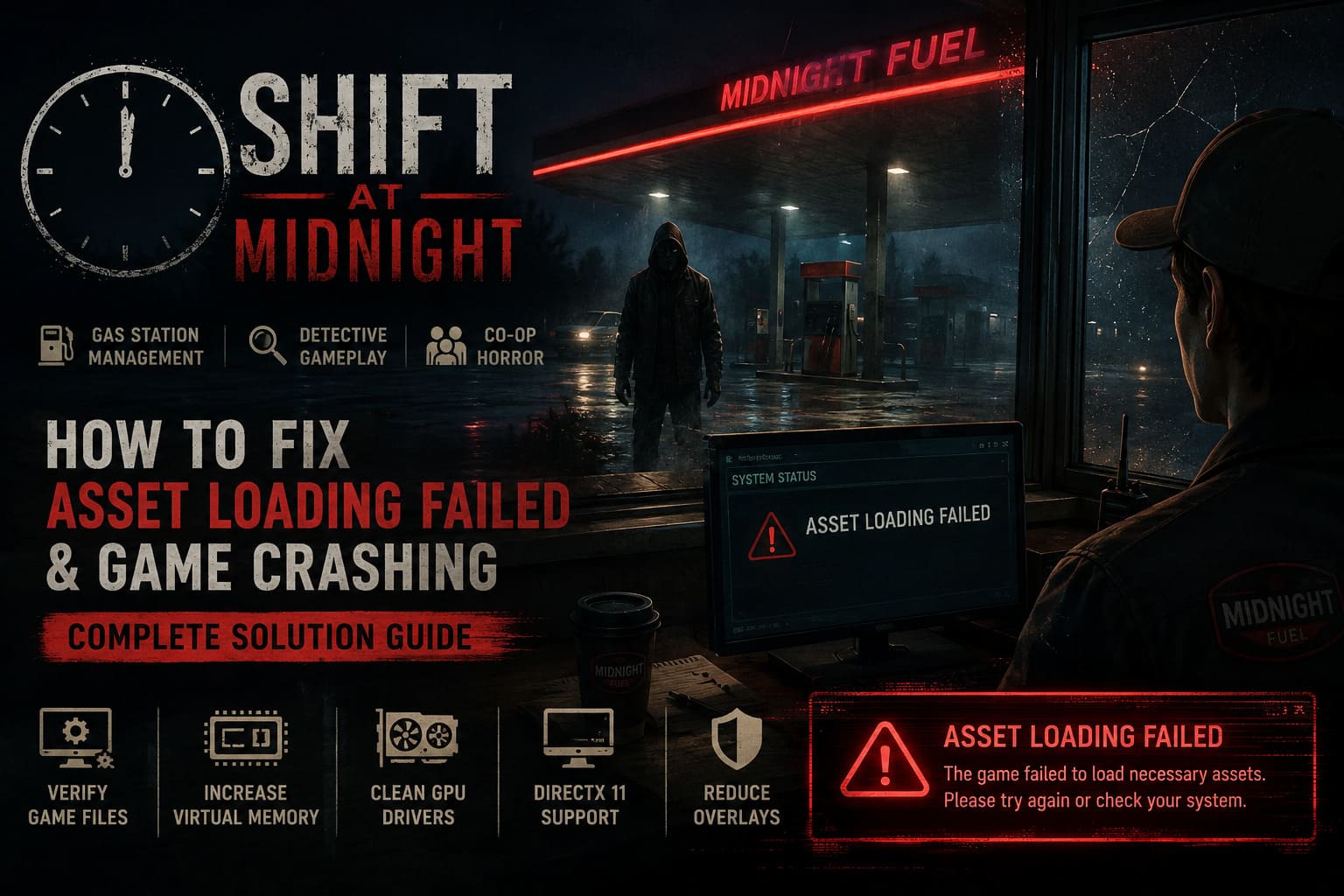
Modern horror games are extremely demanding because they are constantly moving huge amounts of data between your storage drive, system RAM, and GPU VRAM.
During a normal gameplay moment, Shift At Midnight may need to load:
- High-resolution environment textures
- Character models and animations
- Enemy AI assets
- Dynamic lighting information
- Multiplayer synchronization files
- Sound effects and voice data
When the game cannot properly access one of these resources, it can trigger crashes, freezing, or loading loops.
| Problem | What Happens |
|---|---|
| Corrupted Game Files | Missing or damaged assets prevent the game from loading correctly |
| VRAM Overflow | Your graphics card runs out of available video memory |
| DirectX Conflicts | The rendering API crashes during asset processing |
| Driver Problems | Old GPU files interfere with new game updates |
| Memory Limits | Windows cannot provide enough virtual memory |
| Network Errors | Multiplayer synchronization fails during loading |
In my experience, the majority of players are not dealing with a “broken game.” They are usually dealing with a system configuration that does not match what the game expects.
Fix 1: Force Shift At Midnight to Use DirectX 11
One of the first fixes I recommend trying is switching away from newer rendering systems.
Many modern PC games automatically use newer DirectX versions because they offer better graphics features. However, they can also create instability, especially on older GPUs or systems with limited VRAM.
DirectX 11 is often less demanding and much more predictable.
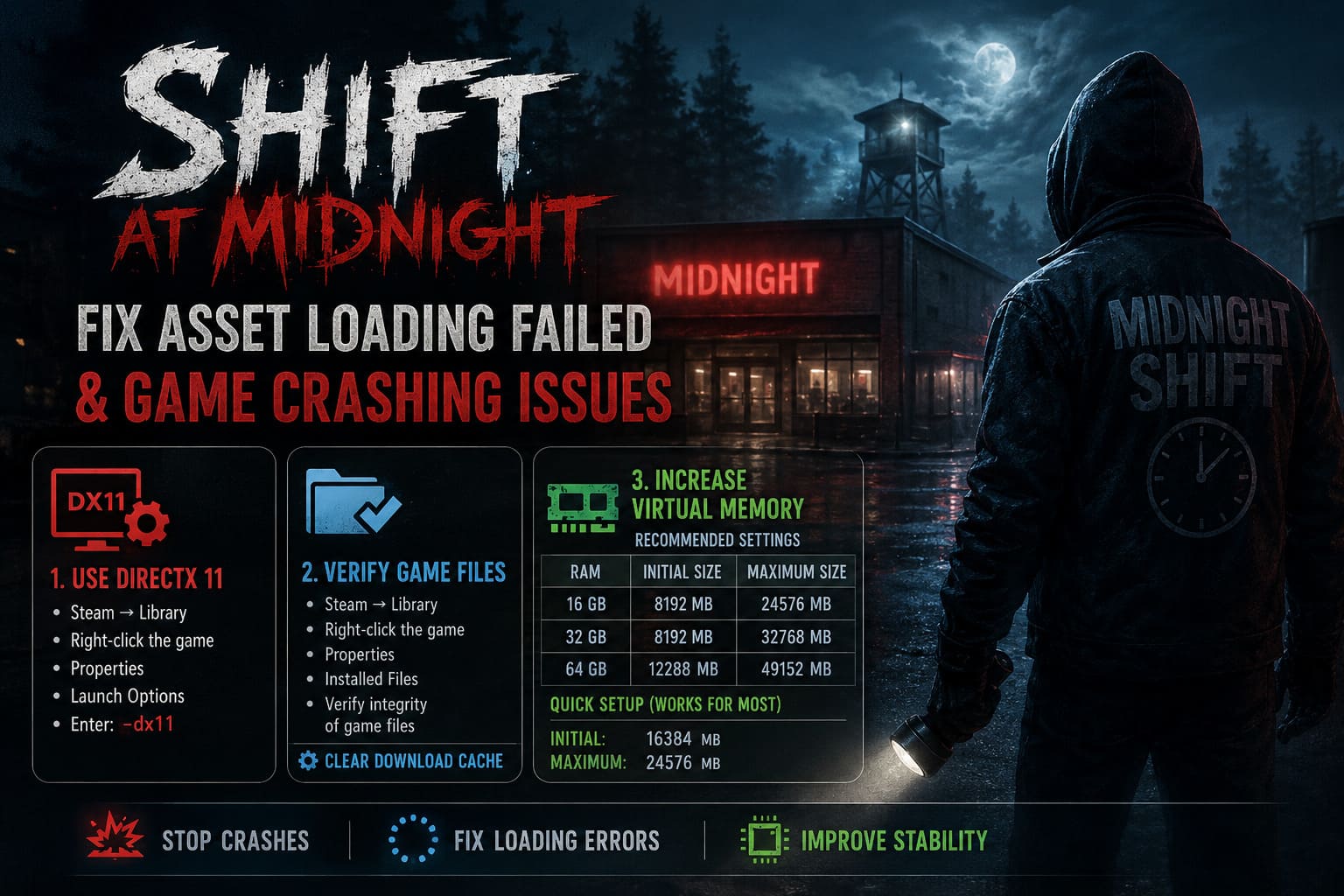
How to enable DirectX 11:
- Open Steam.
- Go to your Library.
- Right-click Shift At Midnight.
- Select Properties.
- Find the Launch Options section.
- Enter: -dx11
- Close the window and restart the game.
This simple command can solve:
- Random crashes during loading
- Black screens
- Asset streaming failures
- GPU memory spikes
For many players, this should be the first thing to test.
Fix 2: Verify Shift At Midnight Game Files Through Steam
A surprising number of crashes are caused by incomplete updates.
Maybe Steam lost connection during a patch. Maybe your PC shut down while downloading. Maybe one important texture file became corrupted.
Instead of reinstalling the entire game, Steam can repair damaged files automatically.
Steps:
- Open Steam Library.
- Right-click Shift At Midnight.
- Select Properties.
- Open Installed Files.
- Click Verify integrity of game files.
Steam will scan every file and replace anything damaged.
After finishing, also clear Steam’s download cache:
- Open Steam.
- Go to Settings.
- Select Downloads.
- Choose Clear Download Cache.
Restart Steam afterward.
This combination fixes a lot of strange launch and loading issues.
Fix 3: Increase Windows Virtual Memory (Page File)
This is one of the most overlooked solutions.
A lot of PC gamers disable Windows page files because they have plenty of RAM. That sounds logical, but modern games do not always behave logically.
Large multiplayer horror games can suddenly demand more memory during:
- Player joining sequences
- New area loading
- Shader compilation
- Night transitions
- Enemy spawning
When Windows cannot provide additional virtual memory, the game may simply crash.
| Installed RAM | Initial Size | Maximum Size |
|---|---|---|
| 16GB RAM | 8192 MB | 24576 MB |
| 32GB RAM | 8192 MB | 32768 MB |
| 64GB RAM | 12288 MB | 49152 MB |
For a quick universal setting:
- Initial Size: 16384 MB
- Maximum Size: 24576 MB
How to change it:
- Press Windows key.
- Search Advanced System Settings.
- Open it.
- Go to Advanced → Performance Settings.
- Select another Advanced tab.
- Find Virtual Memory.
- Click Change.
- Disable automatic management.
- Enter your custom values.
- Restart your PC.
This can dramatically reduce memory-related crashes.
Fix 4: Clean Install Your GPU Drivers Using DDU
GPU drivers are often the hidden enemy behind strange game crashes.
Updating through NVIDIA App, AMD Software, or Windows Update does not always remove old driver leftovers. Those old files can conflict with newer game engines.
A clean driver installation is much more effective.
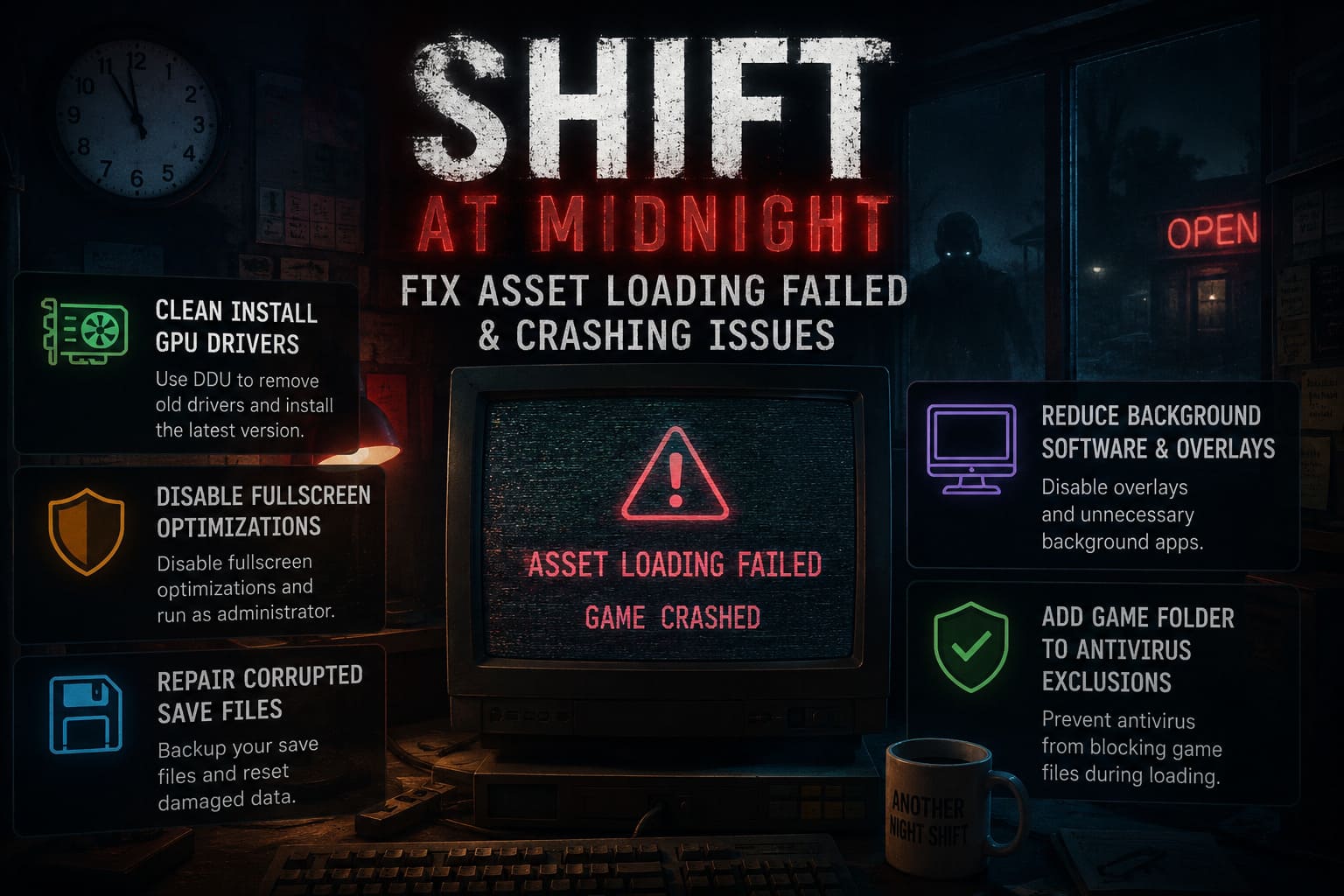
Recommended process:
- Download the latest GPU driver from your graphics manufacturer.
- Download Display Driver Uninstaller (DDU).
- Restart Windows into Safe Mode.
- Open DDU.
- Select your GPU manufacturer.
- Choose Clean and Restart.
- Install the newest driver normally.
This removes:
- Old registry entries
- Broken shader caches
- Previous driver profiles
- Corrupted GPU settings
If Shift At Midnight started crashing after a graphics driver update, this method is especially important.
Fix 5: Disable Fullscreen Optimizations and Run as Administrator
Windows sometimes tries to “help” games by adding fullscreen enhancements. Unfortunately, these features occasionally create more problems than they solve.
Disabling them gives the game direct control over the rendering pipeline.
Steps:
- Open Steam Library.
- Right-click Shift At Midnight.
- Select Manage → Browse Local Files.
- Find the main game executable.
- Right-click it.
- Open Properties.
- Select Compatibility.
Enable:
- Disable fullscreen optimizations
- Run this program as administrator
Apply changes.
This can fix:
- Black screens
- Random freezes
- Loading crashes
- Window switching problems
Fix 6: Repair Corrupted Save Files
Sometimes the game itself is fine.
The real problem is your save.
This usually happens after:
- A crash during saving
- A power outage
- Multiplayer disconnect during progression
- Interrupted night transition
Backup and reset save data:
- Press Windows + R.
- Enter %localappdata%.
- Find the Shift At Midnight folder.
- Open Saved.
- Copy the entire folder somewhere safe.
- Remove the damaged save file.
- Launch the game again.
The game should generate a fresh save.
If Steam Cloud restores the broken save, disable cloud synchronization temporarily until you confirm the new save works.
Fix 7: Reduce Background Software and Overlays
Many players underestimate how much background applications affect modern games.
Shift At Midnight already uses heavy resources. Adding multiple overlays can push your system over the edge.
Before launching the game, disable:
- Discord overlay
- NVIDIA overlay
- AMD recording software
- Browser tabs with hardware acceleration
- RGB control software
- Background recording tools
Also consider adding the game folder to your Windows Defender exclusion list.
Sometimes antivirus scanning interrupts asset loading by locking files while the game tries to access them.
Shift At Midnight Shop Upgrades Priority List: Survival Strategy Guide
Recommended Stable Settings for Shift At Midnight
| Setting | Recommendation |
|---|---|
| Display Mode | Fullscreen |
| Resolution | Native Monitor Resolution |
| Texture Quality | High Instead of Ultra |
| Shadows | Medium |
| Effects | Medium |
| Ray Tracing | Off |
| FPS Limit | Match Monitor Refresh Rate |
| V-Sync | Enable If Stuttering Appears |
A stable 60 FPS experience is much better than unstable ultra graphics with constant crashes.
Shift At Midnight Coin Farming Guide: How to Get Shift Coins Fast (2026 Strategy)
Final Thoughts: Is Shift At Midnight Broken?
After testing and following community troubleshooting reports, the Asset Loading Failed issue does not appear to be caused by one single problem. It is usually a combination of aggressive asset streaming, unstable settings, outdated drivers, and memory limitations.
The fixes that have the highest success rate are:
- Force DirectX 11 with -dx11
- Verify Steam files
- Increase Windows virtual memory
- Perform a clean GPU driver installation
- Disable fullscreen optimizations
- Repair corrupted saves
Shift At Midnight is exactly the kind of ambitious horror game that pushes modern PCs hard. When everything works, the atmosphere, tension, and multiplayer chaos are fantastic. But when the engine starts fighting your hardware, it can quickly turn a fun night hunt into a frustrating crash simulator.
Follow these steps, and you should be back behind the counter, checking suspicious customers, and surviving another terrifying midnight shift without your game collapsing.