How to Fix REPO Proximity Voice Chat Audio Crackling, Static, and Mic Not Working Bugs (2026 Guide)
There are plenty of co-op horror games out there, but very few manage to create the same level of tension that REPO does. A huge part of that experience comes from proximity voice chat. Hearing your teammate whisper from another hallway or suddenly scream when something goes wrong adds a level of immersion that text chat could never replace.
Unfortunately, voice chat has also become one of the biggest frustrations for many players. During my recent sessions, I kept running into people whose microphones randomly stopped working, voices turned robotic, or audio became filled with static after only a few minutes. The strange part? Everything worked perfectly in Discord, Windows, and every other game.
After experimenting with different Windows settings, comparing community suggestions, and testing multiple hardware configurations myself, I finally found several fixes that consistently solved the problem. If your REPO voice chat sounds distorted or refuses to work at all, these are the methods worth trying before blaming your headset.
Why REPO Voice Chat Starts Breaking
Unlike many multiplayer games that simply transmit microphone audio, REPO constantly processes positional voice, distance attenuation, environmental effects, and multiplayer synchronization simultaneously.
That means even a small conflict between Windows, Steam, drivers, or external audio software can create problems such as:
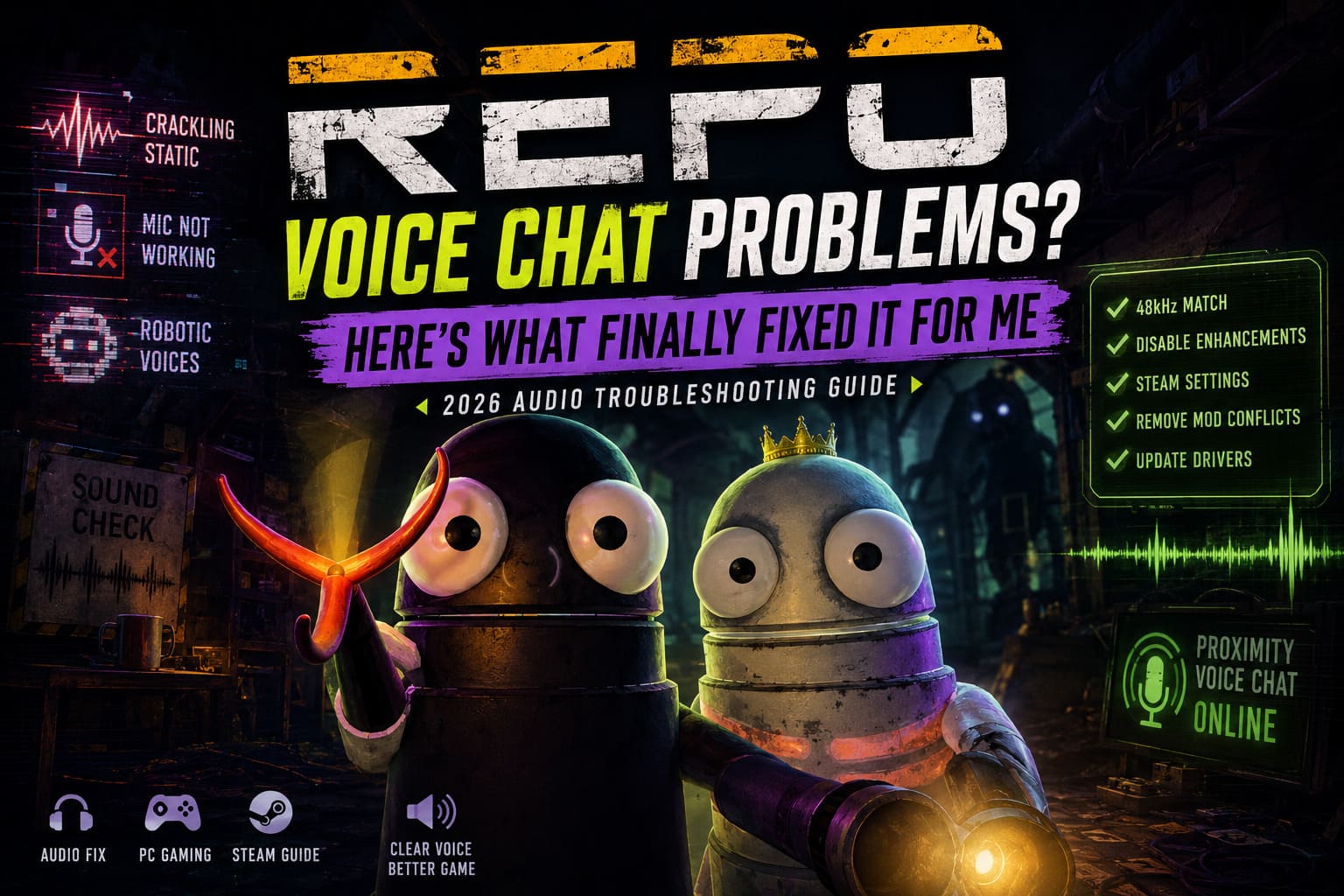
- Crackling or popping sounds.
- Robotic voices.
- Microphone not being detected.
- Teammates hearing only fragments of your speech.
- Complete voice chat failures after joining a lobby.
The good news is that most of these issues don’t require reinstalling the game.
Match Your Audio Sample Rate First
If I had to recommend only one fix, this would be it.
Windows often assigns different sample rates to your speakers and microphone. REPO doesn’t always handle this mismatch gracefully, resulting in buzzing, distortion, or digital artifacts.
I switched both devices to 48 kHz, restarted the game, and the audio immediately became cleaner.
Here is the process I recommend:
- Open the classic Windows Sound Control Panel.
- Select your playback device.
- Open Properties → Advanced.
- Choose 48,000 Hz.
- Repeat the same process for your microphone.
- Restart REPO.
Using the exact same sample rate on both devices prevents Windows from constantly converting audio while you’re playing. In my experience, this single adjustment solved the majority of crackling complaints almost instantly.
Professional Microphones May Need Mono Output
Most gaming headsets send a mono voice signal automatically, so this issue usually goes unnoticed.
However, if you’re using studio equipment like USB interfaces, XLR microphones, or streaming hardware, REPO sometimes reads only one audio channel. That can make the game think your microphone isn’t working correctly even though Windows detects it without any issues.
I tested this using an external audio interface, and forcing the microphone into mono restored proper voice detection immediately.
If you’re using Voicemeeter or another virtual mixer, enable the Mono option before routing your microphone into Windows. It’s a quick adjustment that has helped many creators and streamers avoid inconsistent voice chat behavior.
Disable Audio Enhancements
Windows includes numerous audio processing features designed for movies and music, but those enhancements don’t always play nicely with games that already perform advanced positional audio calculations.
If you experience loud static, sudden buzzing, strange echoes, or inconsistent directional sound, try disabling:
- Windows Sonic.
- Dolby Atmos.
- DTS processing.
- Manufacturer audio enhancements.
I personally prefer leaving all positional audio processing to the game itself. Horror games depend heavily on accurate sound positioning, and adding multiple processing layers often creates more problems than improvements.
Steam Voice Processing Can Get in the Way
One thing many players overlook is Steam’s own voice processing.
Even though REPO relies on Steam networking, Steam’s built-in microphone enhancements can sometimes conflict with the game’s own voice system.
I recommend disabling the following options inside Steam’s Voice settings:
- Echo Cancellation.
- Noise Cancellation.
- Automatic Gain Control.
After turning these features off, my microphone sounded much more natural, and teammates reported far fewer random cut-outs during extended sessions. If you already own a quality microphone, these enhancements usually aren’t necessary.
Mods Can Break Voice Chat
I’m a big fan of modding, especially when a game has a creative community that keeps adding fresh content. Some cosmetic additions and quality-of-life improvements make REPO even more enjoyable.
That said, outdated plugins can create surprisingly strange issues. During one evening of testing, several players lost voice chat entirely the moment new monsters spawned into the map.
Removing outdated mods solved the issue almost immediately.
If you’re troubleshooting voice problems, always launch the game without modifications before changing Windows settings or reinstalling drivers. A clean installation is often the fastest way to determine whether the problem comes from the game or a third-party plugin.
Verify Your Game Files
Corrupted files are relatively uncommon, but they’re easy to eliminate as a possible cause.
Open Steam, verify the integrity of your REPO installation, and let the client replace any damaged files. I usually perform this check after major updates just to make sure every file downloaded correctly.
It only takes a few minutes and can save you hours of unnecessary troubleshooting.
Update or Simplify Your Audio Driver
Many motherboard manufacturers bundle their audio drivers with additional software, effects, and enhancement panels.
Ironically, those extra features sometimes introduce instability instead of improving audio quality.
If you’re using onboard Realtek audio, consider temporarily switching to Microsoft’s generic High Definition Audio Device driver.
Several friends noticed immediate improvements after making the change, including:
- Cleaner microphone quality.
- Less crackling.
- More stable voice communication.
- Fewer unexpected audio glitches.
If the generic driver works better, you can always reinstall the latest Realtek package later and compare performance.
Extra Tips That Improved My Experience
These aren’t guaranteed fixes, but they’ve consistently helped keep multiplayer sessions stable.

| Problem | Recommendation | Expected Result |
|---|---|---|
| Robotic voices | Restart the lobby instead of simply reconnecting. | Voice synchronization usually returns to normal. |
| Audio crackles after long sessions | Restart the game every few hours. | Temporary audio glitches disappear. |
| Wrong microphone selected | Confirm your default Windows input before launching the game. | Prevents incorrect device detection. |
| Voice suddenly disappears | Disconnect unused virtual audio devices. | Reduces driver conflicts. |
These habits may seem simple, but together they’ve made my co-op sessions noticeably smoother.
REPO Game Matchmaking Fix: How to Play with Randoms & Public Lobbies Guide
My Personal Thoughts After Dozens of Matches
As someone who spends countless hours exploring new multiplayer releases, I genuinely believe REPO offers one of the most immersive proximity voice systems available today.
When everything works correctly, conversations naturally become part of the horror experience. Quiet whispers, distant warnings, and sudden screams create moments that simply wouldn’t exist with traditional voice chat.
That’s exactly why these audio bugs are so frustrating. They interfere with one of the game’s strongest features.
Thankfully, after testing multiple hardware setups and comparing notes with other players, I found that most issues were related to Windows configuration rather than the game itself. Matching sample rates, disabling unnecessary enhancements, keeping mods updated, and simplifying the audio chain produced the biggest improvements.
The Surprisingly Dark R.E.P.O. Game Lore Explained: Deep Dive Into the Lore and Timeline Secrets
Final Verdict
Voice communication is one of REPO’s defining features, making it well worth spending a few minutes optimizing your setup before jumping into another co-op session.
Start with the simplest fixes first. Match your playback and recording sample rates, disable unnecessary Windows audio enhancements, review Steam’s voice settings, and test the game without mods if you’re using them. If you rely on professional recording hardware, verify that your microphone is outputting a compatible mono signal.
Since applying these changes, my own gameplay sessions have become significantly more reliable. Audio crackling disappeared, voice detection became consistent, and conversations remained clear throughout long matches. Hopefully these same adjustments help you spend less time troubleshooting and more time surviving everything REPO throws at you alongside your friends.