Star Wars Zero Company Steam Deck Performance Guide: Best Settings and Controller Layouts
I have played enough demanding PC games on the Steam Deck to know the difference between a game that is genuinely portable and one that technically runs but makes you regret trying it. Star Wars Zero Company sits somewhere in the middle. It is playable on Valve’s handheld, but you cannot simply install it, launch it, leave everything on the default preset, and expect a smooth experience.
Developed by Bit Reactor and Respawn Entertainment and published by Electronic Arts, Star Wars Zero Company arrives on August 27, 2026, with a single-player tactical campaign set in the Clone Wars era. You take command of Hawks and the Zero Company, a group of specialists thrown into a conflict that quickly becomes much bigger than a standard military operation.
The interesting thing about this game on Steam Deck is that its demanding technology does not completely destroy the experience. In fact, the turn-based combat system gives the handheld a little breathing room. You are not playing a competitive shooter where dropping from 60 FPS to 25 FPS means instant death. You have time to think, move your squad, select abilities, study the battlefield, and plan your next turn.
That does not mean performance problems are harmless.
I would still recommend spending some time tweaking the game before starting a serious campaign. The difference between default settings and a properly configured Steam Deck profile is noticeable.
How Well Does Star Wars Zero Company Run on Steam Deck?
My biggest concern with demanding games on the Deck is rarely the average frame rate. It is frame pacing.
A game sitting around 30 FPS can feel perfectly acceptable when those frames arrive consistently. Another game can report similar numbers and feel awful because the frame time constantly jumps around.
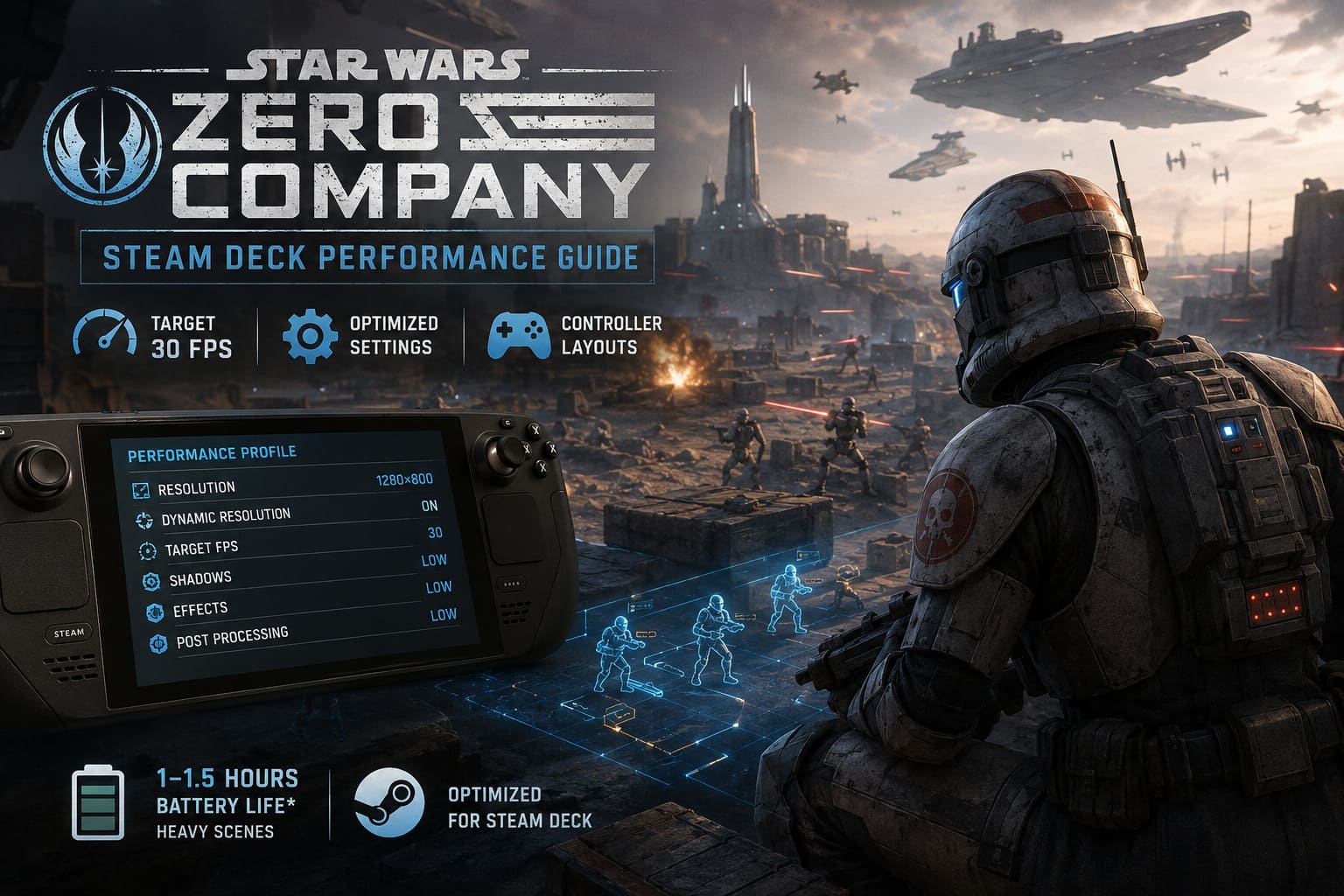
Star Wars Zero Company has several situations that put considerable pressure on the Steam Deck’s hardware. Large combat environments, destructible objects, visual effects and cinematic camera movements can all cause sudden performance drops.
The most problematic moments are usually:
- Large tactical arenas with plenty of environmental detail and destruction.
- Camera movement across complicated scenes, particularly when zooming between tactical and cinematic perspectives.
- Explosions, grenades and Force-based effects occurring together.
- Third-person exploration around the Zero Company base.
- Heavier scenes where the engine is loading or streaming additional assets.
Under poorly optimized settings, performance can fall well below the 30 FPS target. That is the part I dislike most. A stable 30 FPS would be an easy recommendation for this type of game. Sudden drops into the teens are much harder to tolerate.
The good news is that you don’t need to chase 60 FPS to enjoy Zero Company.
I would treat 30 FPS as the realistic Steam Deck target. Trying to force a higher frame rate means sacrificing too much image quality for a game that simply doesn’t benefit enough from it.
My Recommended Steam Deck Graphics Settings
The default presets are not where I would leave things. A custom configuration gives you much better control over the trade-off between image quality and performance.
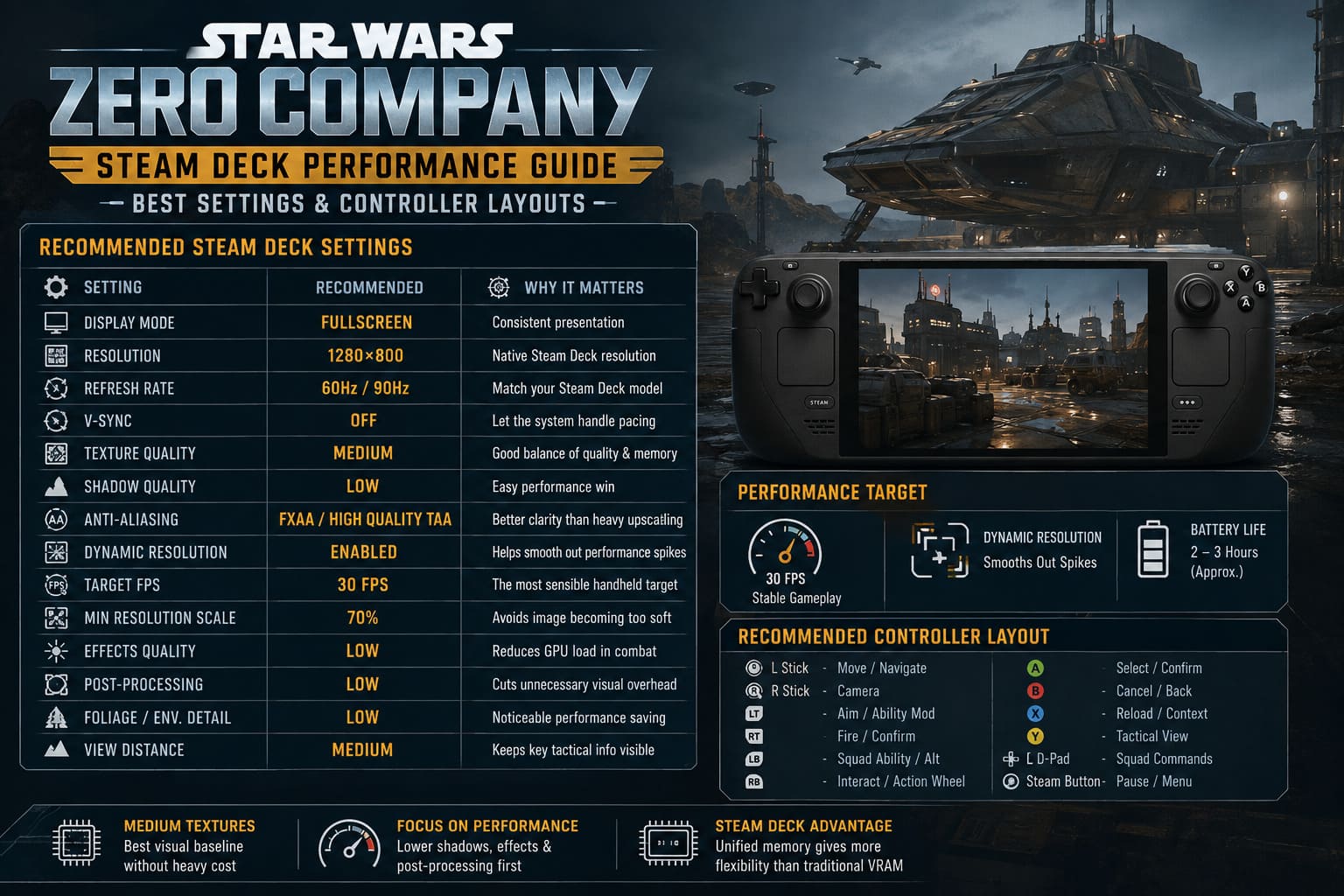
| Setting | Recommended Value | Why |
|---|---|---|
| Display Mode | Fullscreen | Helps maintain consistent presentation |
| Resolution | 1280×800 | Native Steam Deck resolution |
| Refresh Rate | 60Hz / 90Hz | Match your Steam Deck model |
| V-Sync | Off | Let the system handle frame pacing |
| Texture Quality | Medium | Good balance between clarity and memory use |
| Shadow Quality | Low | One of the easier settings to sacrifice |
| Anti-Aliasing | FXAA / High Quality TAA | Better clarity than extremely aggressive upscaling |
| Dynamic Resolution | Enabled | Helps control heavy performance spikes |
| Target FPS | 30 FPS | The most sensible handheld target |
| Minimum Resolution Scale | 70% | Prevents the image from becoming excessively soft |
| Effects Quality | Low | Reduces GPU spikes during combat |
| Post-Processing | Low | Cuts unnecessary visual overhead |
| Foliage / Environment Detail | Low | Useful performance saving |
| View Distance | Medium | Keeps important tactical information visible |
Why I Keep Textures at Medium
Some people immediately turn textures down to Low when a game struggles on Steam Deck. I don’t always agree with that approach.
In Star Wars Zero Company, Medium textures provide a much better visual baseline without being the setting I would sacrifice first. Low textures can make characters, environments and objects look noticeably worse while giving you relatively little in return.
Instead, I would attack shadows, effects and post-processing first.
The Steam Deck’s unified memory architecture also gives the system more flexibility than the old-school “VRAM number” discussion might suggest. That does not magically solve the game’s performance problems, but it is another reason why Medium textures make more sense than dropping everything to Low.
Dynamic Resolution Is More Useful Than Chasing Ultra-Clean Image Quality
This is one of those compromises that depends heavily on the type of player you are.
I would rather have a slightly softer image that stays close to 30 FPS than a beautifully sharp frame that suddenly collapses during a major combat sequence.
Set Dynamic Resolution to Enabled, use a 30 FPS target and keep the minimum resolution scale around 70%.
I would avoid extremely aggressive TSR or FSR configurations. Yes, they can help the frame rate, but the resulting image can become unpleasantly blurry. Tactical games depend on being able to read small objects, character silhouettes, enemy positions and interface elements.
There is no point gaining several frames if the battlefield turns into a watercolor painting.
SteamOS Quick Access Settings
The in-game options are only half of the setup. The SteamOS Quick Access menu can make a difference as well.
For my profile, I would use:
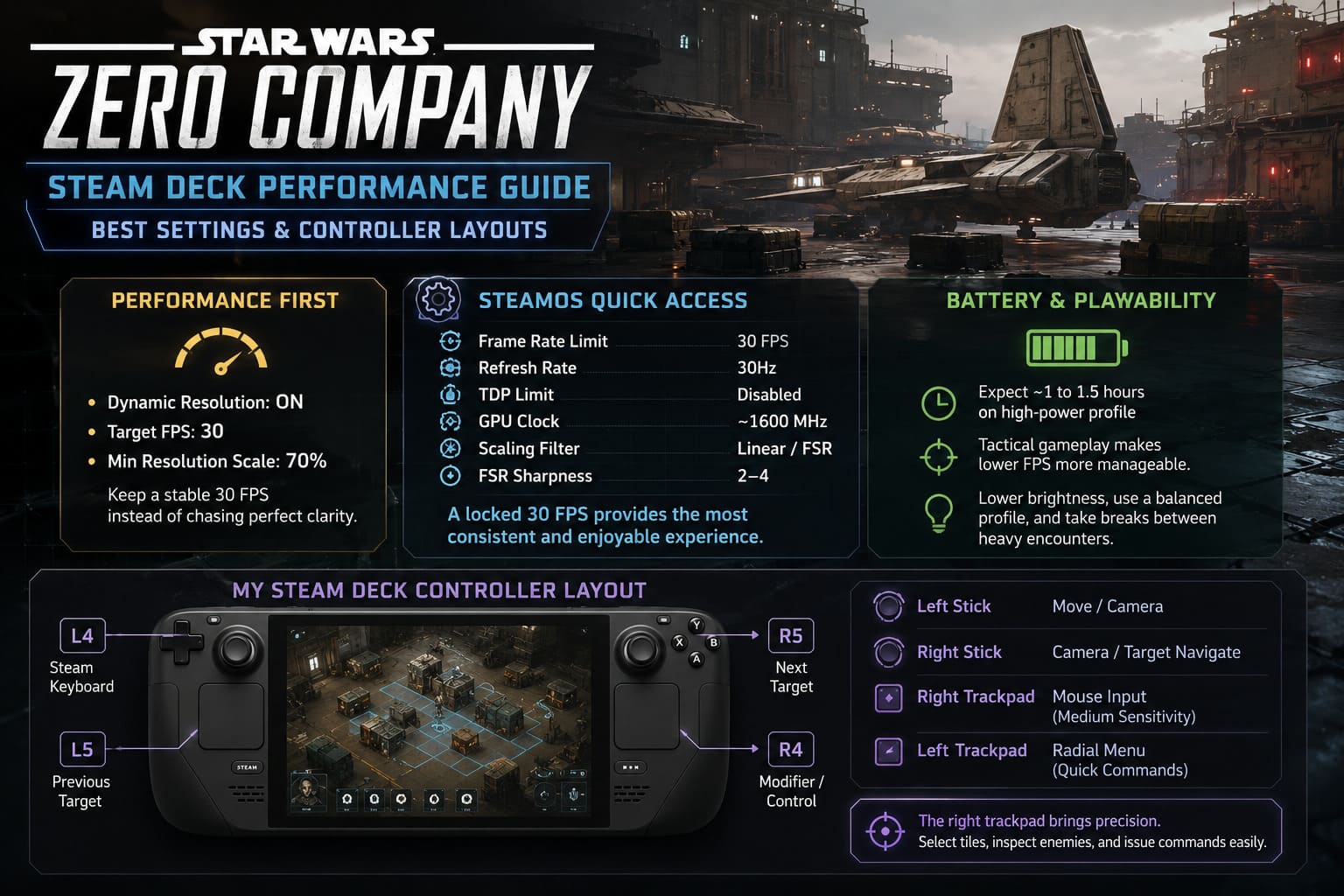
| SteamOS Option | Recommended Setting |
|---|---|
| Frame Rate Limit | 30 FPS |
| Refresh Rate | 30Hz when using the locked 30 FPS profile |
| TDP Limit | Disabled |
| GPU Clock | Around 1600 MHz when manual control is needed |
| Scaling Filter | Linear or FSR |
| FSR Sharpness | Around 2–4 |
The most important setting here is the 30 FPS cap.
You can technically leave the display at 60Hz and cap the game at 30 FPS, which works well. A 30Hz profile can also make sense if you want to prioritize power efficiency and consistency.
Personally, I prefer a clean 30 FPS target rather than letting the system bounce between 27, 34, 41 and 50 FPS. Those fluctuations are much more noticeable than they look on paper.
I would also avoid unnecessarily restricting TDP. Zero Company is already pushing the Deck, particularly during its heavier scenes. This is not the game where I would aggressively cut power just to gain a little extra battery life.
Battery Life Is Going to Be the Trade-Off
This is where the Steam Deck’s limitations become obvious.
A demanding modern game running with a high-power profile can drain the battery surprisingly quickly. Expect roughly 1 to 1.5 hours in particularly demanding scenarios if you are pushing the hardware hard.
That is not great.
But there is an important distinction between battery life and playability. A tactical game like Zero Company is easier to play at a low frame rate than something like a fast action game. You can also pause between encounters, spend time in menus and take breaks from the heaviest sections.
If you want longer sessions, lowering brightness, using a reasonable GPU profile and avoiding unnecessary power consumption will help. Just don’t expect miracles.
My Steam Deck Controller Layout
This is where I think a custom control scheme becomes genuinely useful.
Star Wars Zero Company may have proper controller support, but tactical games often expose weaknesses in standard layouts. Selecting exact tiles, hovering over targets and navigating menus with a stick can become tedious.
My preferred setup would look like this:
- Left Stick: Standard movement and camera control.
- Right Stick: Camera and target navigation.
- Right Trackpad: Mouse input with medium sensitivity.
- Left Trackpad: Radial menu for frequently used commands.
- L4: Steam virtual keyboard shortcut.
- R4: Modifier or Control input.
- L5/R5: Previous and next target commands.
The right trackpad is the star of the setup.
When I play strategy games on Steam Deck, I often find myself reaching for the trackpad whenever the controls require precision. It is much easier to place a cursor exactly where I want than to fight against an analog stick.
That becomes particularly useful when selecting individual tiles, checking enemy information or choosing precise targets.
The back buttons are also worth using. L4 is especially handy if you encounter situations where the SteamOS keyboard does not automatically appear. Having a dedicated shortcut means you don’t have to stop playing and wrestle with the touchscreen every time you need text input.
Don’t Ignore the Base Exploration Sections
One thing I would not underestimate is the performance impact of the third-person exploration sections.
Turn-based combat may appear to be the most demanding part of Zero Company, but the base and other exploration areas can create their own performance problems. There are more assets on screen, additional character animations and potentially more complicated streaming behavior.
If you notice that the game feels fine during a quiet tactical encounter but suddenly becomes rough while walking around the base, don’t assume your settings are broken.
The engine simply has different workloads to deal with.
This is another reason why I recommend locking the experience to 30 FPS instead of chasing an unstable higher number.
Is GeForce Now a Better Option?
If image quality is more important to you than playing locally, cloud streaming is worth considering.
GeForce Now can move the heavy rendering workload away from the Steam Deck and allow you to experience Star Wars Zero Company with significantly higher visual settings. For players with a strong Wi-Fi connection, this can be a dramatic upgrade.
The obvious downside is latency.
For a turn-based tactical game, latency is much less irritating than it would be in a competitive shooter. You are not trying to win a gunfight in 120 milliseconds. You are selecting commands and planning moves.
That makes Zero Company one of the better candidates for cloud streaming.
You also get the obvious battery advantage. Instead of forcing the Steam Deck’s APU to run near its limits, the handheld is mostly decoding the streamed video.
Still, I would only recommend this route if your network connection is genuinely reliable. A great cloud image is worthless when your Wi-Fi decides to fall apart halfway through a major mission.
Star Wars Zero Company Holotable Operations Guide: How to Maximize Influence Across All 12 Zones
Steam Deck OLED or LCD?
Both Steam Deck versions face essentially the same fundamental hardware limitation.
The OLED model has several advantages, particularly its display quality and battery improvements, but it does not transform Star Wars Zero Company into a 60 FPS handheld game.
The OLED screen does make the game’s cinematic presentation look better, though. Dark environments, glowing effects and Star Wars-style lighting benefit from the superior display characteristics.
If you already own an LCD Deck, I would not buy an OLED specifically for Zero Company performance. The game is still fundamentally limited by the APU.
If you are choosing between the two for a new purchase, however, the OLED is the better overall handheld.
Star Wars Zero Company Buy or Skip? Full Game Overview, Review & Verdict (2026)
Final Verdict: Is Star Wars Zero Company Worth Playing on Steam Deck?
Yes, with realistic expectations.
I wouldn’t describe Star Wars Zero Company as a perfect Steam Deck game. It is too demanding for that. The hardware has to work hard, frame drops can appear in complicated scenes, and some areas are clearly more comfortable on a desktop PC.
But this is also one of those games where the genre works in its favor.
A locked 30 FPS tactical game is a completely different proposition from a 30 FPS action game. You have time to think. You can study the battlefield. You can plan your squad’s next move instead of relying on lightning-fast reactions.
For the best experience, I would start with 1280×800, Medium textures, Low shadows, Low effects, Dynamic Resolution enabled and a hard 30 FPS cap. Then add a custom controller profile that makes heavy use of the right trackpad and rear buttons.
Don’t waste hours trying to force 60 FPS. The visual sacrifice isn’t worth it.
Star Wars Zero Company is demanding, but it doesn’t need to run like a desktop powerhouse to work on Steam Deck. With sensible settings and a control layout built around tactical precision, Hawks and the Zero Company can make a surprisingly good handheld squad.
My recommendation: play it at 30 FPS, accept a few rough edges, and focus on the strategy. That’s where the game is strongest anyway.