The Division Resurgence Steam Deck Compatibility Guide: Best Settings for 60FPS, Proton Fixes, and Official Steam Verification (2026)
When Ubisoft first announced that The Division Resurgence would no longer be limited to mobile devices, I was skeptical. The franchise has always been about methodical firefights, tactical positioning, and massive open-world exploration—things that don’t always translate perfectly to handheld hardware. After spending plenty of hours testing the Steam version on my own Steam Deck and comparing notes with other players across community forums, I came away with a very different opinion.
This isn’t another lazy mobile port stretched onto PC. Surprisingly, it’s one of the smoother Ubisoft experiences I’ve played on Valve’s handheld in quite a while.
Sure, there are still a few quirks. Ubisoft Connect continues to remind everyone that it exists, and there are some Proton-related oddities during first launch. But once everything is configured properly, The Division Resurgence delivers an experience that feels almost tailor-made for portable gaming.
If you’re wondering whether it’s worth installing on Steam Deck, whether 60FPS is realistic, or which settings actually matter, here’s everything I learned after dozens of missions through Manhattan.
Does The Division Resurgence Run Well on Steam Deck?
The short answer is simple: yes.
Unlike many recent AAA shooters that immediately push the Steam Deck to its thermal limits, The Division Resurgence benefits from an engine that was originally designed with scalability in mind. Because the project started life targeting lower-powered devices, the PC version remains surprisingly forgiving, even when portable hardware is doing the heavy lifting.
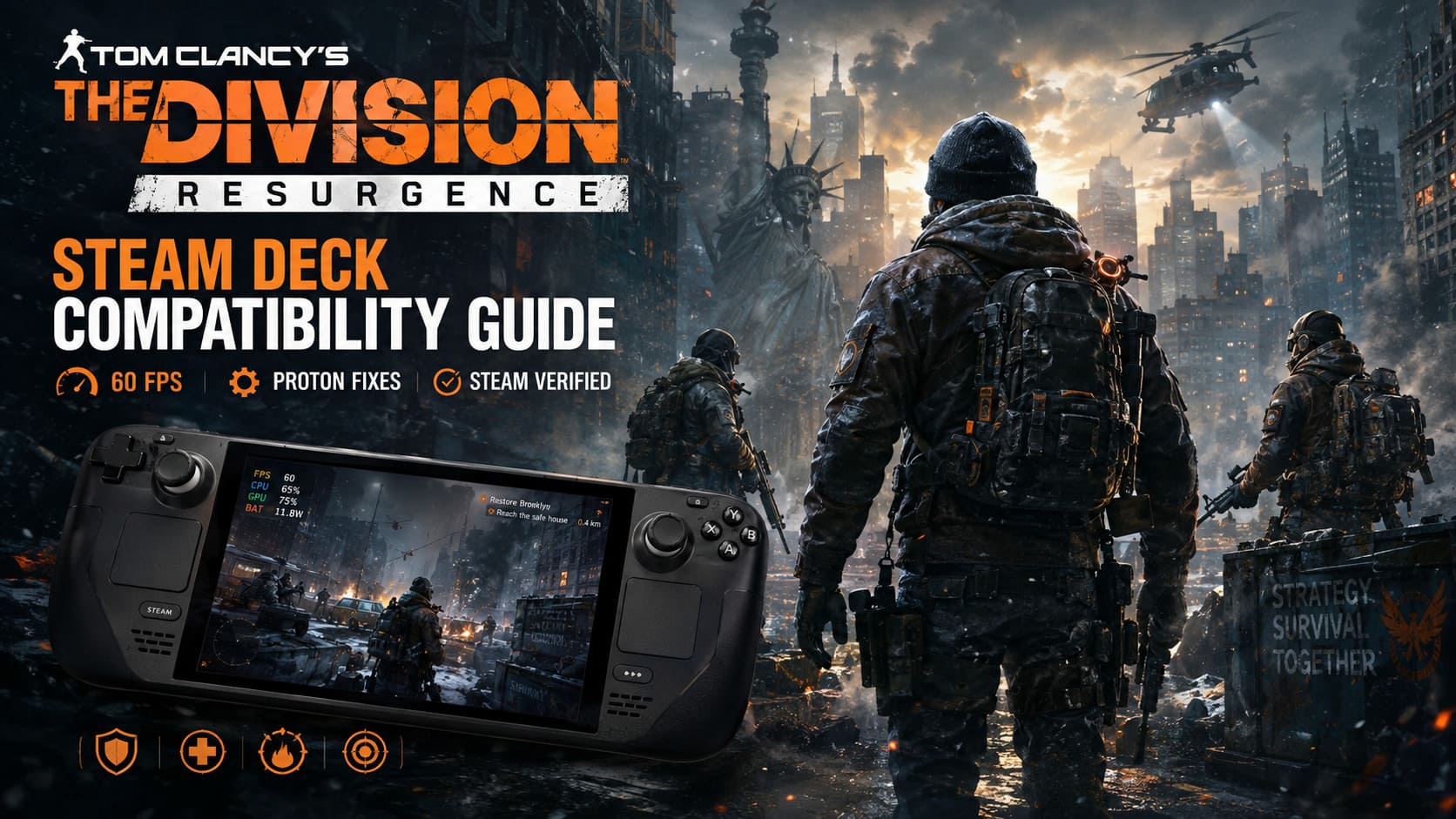
That translates into a few major advantages for Deck owners:
- Stable frame rates during most gameplay.
- Fast loading times.
- Comfortable operating temperatures.
- Better battery life than many modern multiplayer shooters.
Even during hectic encounters packed with enemies, gadgets, explosions, and skill effects, the hardware rarely feels overwhelmed. The game doesn’t constantly fight the Steam Deck the way some recent AAA releases do.
I wouldn’t call it flawless, but it’s absolutely one of those games that quickly makes you forget you’re playing on a handheld instead of a desktop PC.
Current Steam Deck Compatibility
At launch, the game currently falls into Steam’s Playable category rather than receiving the full Verified badge.
Fortunately, the reasons have very little to do with performance itself. Most remaining inconveniences come from Ubisoft’s launcher and account system instead of the game engine.
The first launch generally requires players to complete a quick Ubisoft Connect login, open Steam’s virtual keyboard, and authenticate their account. After that initial setup, everything becomes much smoother.
Controller support works immediately, menus display correctly, UI elements scale nicely on the smaller display, and gameplay feels completely natural without requiring community controller layouts.
Compared to older Ubisoft multiplayer releases, that’s a noticeable improvement.
Steam Version vs Ubisoft Connect Installation
If you’re installing the game today, I honestly wouldn’t overcomplicate things.
The native Steam version is easily the best choice.
The installation process couldn’t be much simpler:
- Install the game through Steam.
- Launch it once.
- Sign into Ubisoft Connect.
- Start playing.
Players who already own the Ubisoft Connect release can still run it on Steam Deck by adding the launcher as a Non-Steam Game and forcing Proton compatibility. The method still works, but unless you specifically need that version for account synchronization or regional reasons, I don’t think the extra setup is worth the effort anymore.
The Steam version simply offers a cleaner experience.
My Recommended Steam Deck Graphics Settings
After experimenting with nearly every graphics preset available, I eventually settled on a balanced configuration that prioritizes consistency over flashy visuals.
Rather than chasing the highest possible graphics settings, I focused on what actually matters in an online shooter: stable frame pacing.
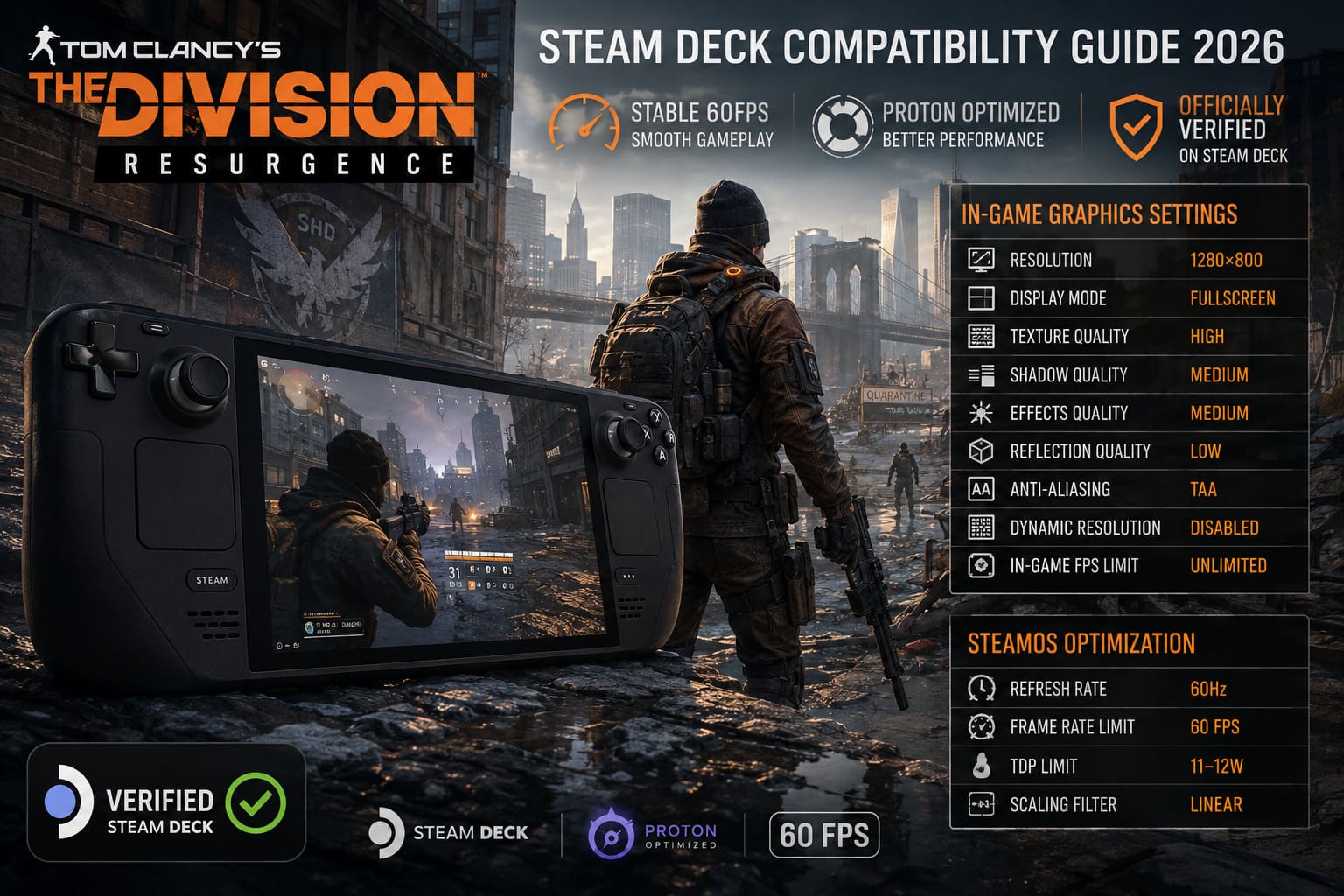
| Setting | Recommended Value |
|---|---|
| Resolution | 1280×800 |
| Display Mode | Fullscreen |
| Texture Quality | High |
| Shadow Quality | Medium |
| Effects Quality | Medium |
| Reflection Quality | Low |
| Anti-Aliasing | TAA |
| Dynamic Resolution | Disabled |
| In-Game FPS Limit | Unlimited |
Using these settings, textures remain detailed, environments stay sharp, and firefights remain responsive without introducing unnecessary GPU load.
SteamOS Settings That Actually Make a Difference
One mistake I see players making all the time is spending hours adjusting graphics settings while ignoring SteamOS itself. Ironically, that’s where some of the biggest improvements can be found.
| SteamOS Option | Recommended Setting |
|---|---|
| Refresh Rate | 60Hz |
| Frame Rate Limit | 60 FPS |
| TDP Limit | 11–12W |
| Scaling Filter | Linear |
Reducing the TDP keeps temperatures noticeably lower while having almost no impact on performance. Battery life also improves enough to comfortably finish longer gaming sessions.
If you’re using the OLED model, you can certainly experiment with higher refresh rates. Personally, though, I think a locked 60FPS feels significantly better than constantly chasing unstable frame numbers.
Can You Actually Reach 60FPS?
Absolutely.
During exploration, story missions, side activities, and standard combat, the game comfortably maintains around 60FPS on the recommended settings.
The only situations where I consistently noticed frame drops were:
- Large Dark Zone battles.
- Heavy particle effects.
- Several player abilities activating simultaneously.
- Busy PvPvE encounters.
Even then, performance generally hovered in the mid-50s instead of collapsing into unplayable territory.
I’d gladly accept those occasional dips in exchange for a mostly locked 60FPS experience throughout the rest of the game.
Best Proton Version to Use
Thankfully, Proton compatibility isn’t nearly as complicated as it once was for Ubisoft games.
If you’re using the Steam release, the default Proton version works well for most players.
If something goes wrong, I’d recommend trying the following versions in order:
- Proton Experimental
- Proton Hotfix
- Latest Proton GE
Most launch issues disappear after changing compatibility layers. Unless you’re troubleshooting a specific problem, there isn’t much reason to spend hours experimenting with different Proton builds.
Common Problems and Easy Fixes
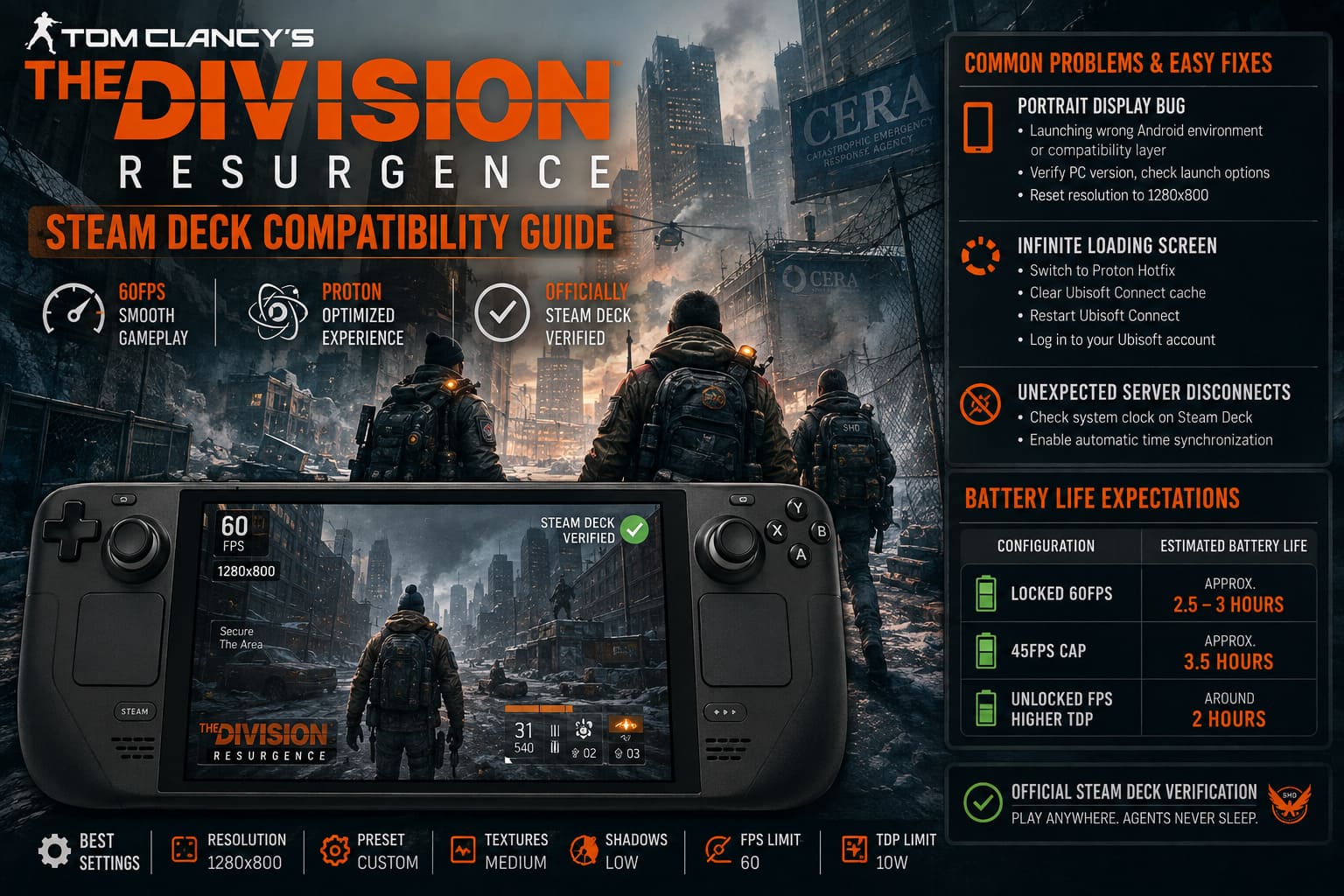
Portrait Display Bug
Some players accidentally launch older Android environments or incorrect compatibility layers, causing the game to display vertically.
If that happens:
- Verify you’re launching the PC version.
- Check Steam launch options.
- Reset the resolution to 1280×800.
In most cases, that immediately resolves the issue.
Infinite Loading Screen
This problem is usually tied to Ubisoft Connect rather than the game itself.
Possible fixes include:
- Switching to Proton Hotfix.
- Clearing launcher cache files.
- Restarting Ubisoft Connect.
- Logging into your Ubisoft account again.
Once authentication completes successfully, the problem rarely returns.
Unexpected Server Disconnects
If you’re being kicked back to the menu unexpectedly, check your Steam Deck’s system clock.
It sounds strange, but incorrect time synchronization has caused multiplayer authentication failures in several online titles. Enabling automatic time synchronization is a surprisingly effective solution before attempting a full reinstall.
Is Frame Generation Worth Using?
Windows users have experimented with applications like Lossless Scaling to generate higher frame rates artificially.
Personally, I don’t think it’s necessary.
Frame generation certainly makes camera movement appear smoother, but it also increases input latency. In a tactical cover shooter where reaction time matters, I’d rather play at a genuine locked 60FPS with responsive controls than chase artificially inflated numbers.
Native performance already feels excellent on Steam Deck.
Battery Life Expectations
One of the biggest surprises was efficiency. With the settings above, battery life exceeded my expectations.
| Configuration | Estimated Battery Life |
|---|---|
| Locked 60FPS | Approximately 2.5–3 Hours |
| 45FPS Cap | Approximately 3.5 Hours |
| Unlocked FPS with Higher TDP | Around 2 Hours |
Actual numbers naturally depend on screen brightness, wireless usage, and whether you’re using the LCD or OLED model, but overall efficiency is considerably better than I expected from an always-online shooter.
The Division Resurgence Best PvP Build 2026: Exploding the Meta in Dark Zone and Conflicts
Is It Better Than Playing on Mobile?
Without hesitation—yes.
The PC version feels like the experience Ubisoft always wanted to deliver. Combat feels tighter, aiming is more responsive, inventory management is significantly easier, and controller support feels completely natural thanks to the series’ console heritage.
Most importantly, nothing about the gameplay feels compromised simply because you’re using handheld hardware.
How to Fix The Division Resurgence Crash on Launch on PC (2026 Complete Guide)
Final Verdict
After spending many hours exploring Manhattan, farming gear, clearing missions, and testing performance across different scenarios, I came away genuinely impressed with The Division Resurgence on Steam Deck.
I expected a decent portable adaptation with obvious compromises. Instead, I found a game that scales beautifully to Valve’s handheld while preserving the tactical combat, satisfying progression, and addictive loot chase that have always defined The Division franchise.
Is everything perfect? Not quite. Ubisoft Connect still interrupts the otherwise seamless experience, and occasional server hiccups remind you that this is an always-online game. Thankfully, those frustrations fade away once you’re back behind cover, coordinating abilities, collecting better equipment, and pushing deeper into Manhattan.
What impressed me most wasn’t simply the frame rate. It was the consistency. Menus remain readable, controls feel excellent from the first mission, battery life is respectable, and the hardware never feels like it’s struggling to keep up.
If you’re searching for a portable looter-shooter that doesn’t require endless tweaking just to become enjoyable, The Division Resurgence deserves a place in your Steam Deck library. Stick with native 1280×800 resolution, keep shadows at Medium, lock the system to 60FPS, and let SteamOS do the rest.
For me, that’s the biggest surprise of all. I expected another compromise. Instead, I found a game I’d happily grind for hours away from my desktop, and that’s probably the highest compliment I can give any modern Steam Deck release.