How to Fix Rock Bottom Game Crash on Launch: Comprehensive PC Startup Guide (2026)
I’ve played PC games long enough to know that launch-day problems are almost a tradition. Some titles crash because of outdated drivers, others because Windows decides to use the wrong GPU, and sometimes it’s simply an engine update that doesn’t get along with certain hardware. After spending quite a few hours with Rock Bottom, reading community discussions, experimenting with different fixes, and helping friends troubleshoot their installations, I noticed that most startup problems come from the same handful of issues.
If Rock Bottom closes instantly after pressing Play, freezes on a black screen, or never reaches the main menu, don’t rush to reinstall Windows or assume your PC can’t handle the game. In most cases, the solution is surprisingly simple.
This guide combines the fixes that worked best for me with practical advice that saves time instead of forcing you to try dozens of random tweaks.
Why Rock Bottom Crashes Before It Starts
Modern PC games rely on several systems working together perfectly. The graphics API, GPU drivers, Windows security features, overlays, monitor settings, and game configuration files all interact during startup.
When one of those pieces fails, the game may:
- crash immediately after clicking Play
- remain stuck on a black screen
- open briefly before closing
- never create a visible game window
The good news is that these issues are usually software-related rather than hardware failures.
My First Fix: Force the Game to Run with DirectX 11
This was the first solution I tried, and surprisingly, it solved the problem immediately.
Many newer games launch with DirectX 12 by default. While DX12 usually delivers better performance, it’s also more sensitive to driver issues and certain graphics settings.
To test whether DirectX is the problem:
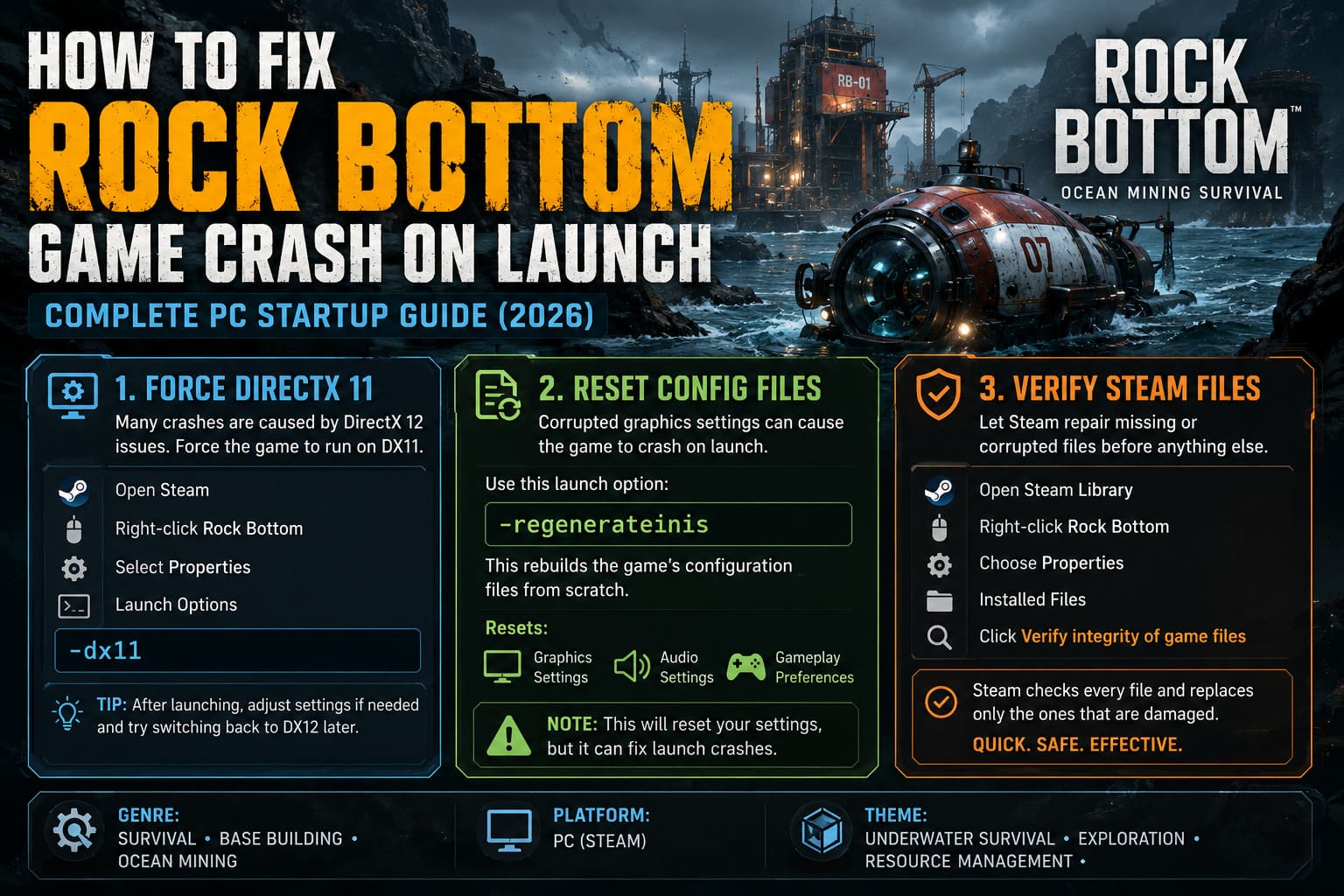
- Open Steam.
- Right-click Rock Bottom.
- Select Properties.
- Find Launch Options.
- Enter:
-dx11Launch the game again.
Should You Stay on DX11?
Not necessarily.
Once you’re inside the game, try changing your graphics settings, especially the anti-aliasing option, then switch back to DirectX 12 later if everything becomes stable.
Personally, I stayed on DX11 for several hours without noticing any meaningful gameplay difference.
Reset Broken Configuration Files
Another common problem comes from corrupted graphics settings.
If the game previously attempted to launch using an unsupported resolution or fullscreen mode, it may continue crashing every time.
Steam allows you to regenerate the game’s configuration.
Use this launch option:
-regenerateinisThis tells the game to rebuild its configuration files from scratch.
Keep in mind that it resets:
- graphics settings
- audio settings
- gameplay preferences
It’s a small price to pay if the game finally launches.
Verify Your Steam Files Before Doing Anything Extreme
I’ve lost count of how many times people completely reinstalled a game when Steam could have repaired it in five minutes.
To verify files:
- Open Steam Library
- Right-click Rock Bottom
- Choose Properties
- Open Installed Files
- Click Verify integrity of game files
Steam compares every installed file with the official version and downloads only the damaged ones.
This should always be one of your first troubleshooting steps.
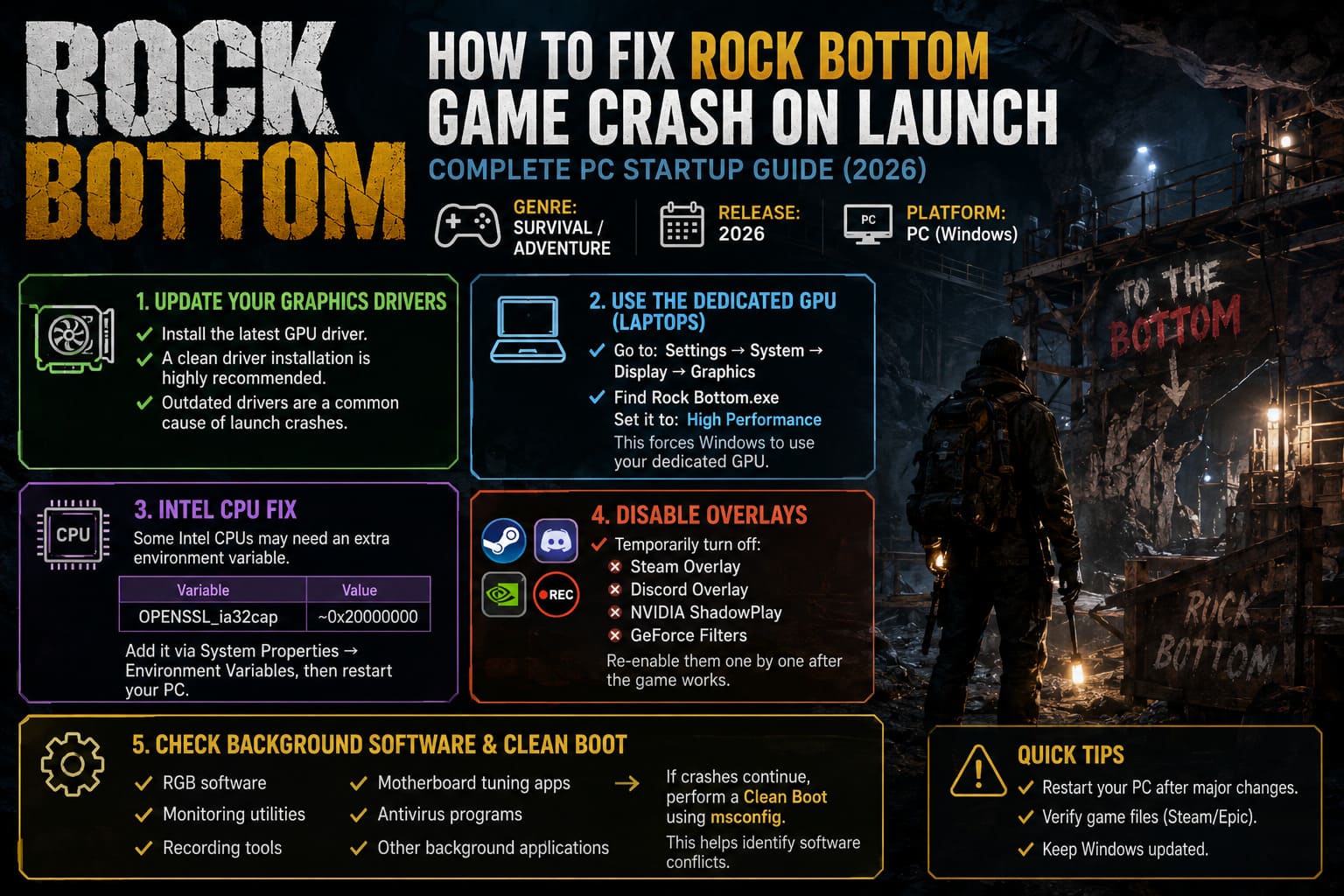
Graphics Drivers Matter More Than Most Players Think
A surprisingly large number of launch problems disappear after installing the newest graphics driver.
If you haven’t updated your GPU in months, do it before trying more advanced fixes.
I recommend performing a clean driver installation whenever possible.
Pay attention if you’re gaming on a laptop
Windows sometimes launches games using the integrated graphics processor instead of your dedicated GPU.
This causes poor performance—or worse—the game simply refuses to start.
Open:
Settings → System → Display → Graphics
Locate Rock Bottom.exe and assign it to:
High Performance
Doing this forces Windows to use your dedicated graphics card.
Intel CPU Users May Need One Extra Step
One issue that surprised many players involves certain Intel processors.
Some newer Intel CPUs can experience startup problems because of how specific cryptographic libraries initialize.
The workaround involves creating a Windows environment variable.
| Variable | Value |
|---|---|
| OPENSSL_ia32cap | ~0x20000000 |
After adding it through System Properties → Environment Variables, restart your computer before launching the game again.
This isn’t necessary for every Intel user, but if nothing else has worked, it’s worth trying.
Disable Every Overlay You Can
I’ve always liked using overlays for chatting or monitoring FPS, but they’re also responsible for more crashes than many people realize.
Several overlay applications hook directly into the rendering engine.
If one conflicts with the game, Rock Bottom may never reach the menu.
I temporarily disabled:
- Steam Overlay
- Discord Overlay
- NVIDIA ShadowPlay
- GeForce filters
The game launched noticeably more consistently afterward.
Once everything is working, you can re-enable them one by one to identify the culprit.
Don’t Ignore Windows Background Software
One lesson I’ve learned over years of PC gaming is that the game isn’t always the problem.
RGB software.
Monitoring utilities.
Recording tools.
Motherboard tuning applications.
Antivirus suites.
Any of these can interfere with a new game’s startup process.
If you’re still experiencing crashes, perform a Clean Boot using msconfig.
Running Windows with only essential services helps determine whether another application is causing the conflict.
My Recommended Troubleshooting Order
Instead of randomly trying dozens of fixes, I suggest following this sequence.
| Step | Difficulty | Success Rate |
|---|---|---|
| Force DX11 | Easy | Very High |
| Verify Steam Files | Easy | High |
| Update GPU Drivers | Easy | High |
| Set High Performance GPU | Easy | High (Laptop Users) |
| Reset Configuration Files | Easy | Medium |
| Disable Overlays | Easy | Medium |
| Intel Environment Variable | Medium | High (Affected Systems) |
| Clean Boot Windows | Medium | Medium |
What Didn’t Make Much Difference
During testing, I also came across plenty of suggestions that rarely solved the actual issue.
For example:
- reinstalling Visual C++ repeatedly
- disabling Windows Defender entirely
- reinstalling Steam
- deleting random DLL files
- installing unofficial community patches
Unless the developers specifically recommend those methods, I’d avoid them.
Most launch issues are solved by correcting configuration problems—not by making major changes to Windows.
Rock Bottom Guide 2026: Resource Farming and Skill Tree Meta
If the Game Finally Launches
Once Rock Bottom opens successfully, don’t immediately jump into a long mining session.
Take a few minutes to configure everything properly.
I recommend:
- selecting your monitor’s native resolution
- choosing the correct graphics API
- enabling borderless fullscreen if fullscreen causes issues
- saving settings before exiting
After that, restart the game once more to confirm everything loads correctly.
If it opens normally the second time, you’ve probably solved the problem permanently.
Rock Bottom Game Guide: Beginner Strategy, Tips, and Progression Build (2026)
Final Thoughts
Rock Bottom is exactly the kind of game that quietly steals your evening. You tell yourself you’ll dig one more layer, smelt one more batch of ore, upgrade one more machine—and suddenly it’s two in the morning.
That’s why launch issues can be especially frustrating. Fortunately, from everything I’ve seen, most startup crashes aren’t caused by weak hardware or serious bugs. They’re usually the result of graphics API conflicts, outdated drivers, corrupted configuration files, or software running quietly in the background.
If I had to recommend only three fixes, they’d be these:
- Launch the game with
-dx11. - Verify the game files through Steam.
- Update your graphics drivers and make sure Rock Bottom uses your dedicated GPU.
Those three steps alone solve the majority of startup problems reported by PC players.
If you’re still having trouble after trying everything above, keep an eye on future game updates. Early releases often receive hotfixes that improve compatibility with specific graphics cards, processors, and Windows configurations. Until then, a little troubleshooting is usually all that’s standing between you and another successful trip into the depths.