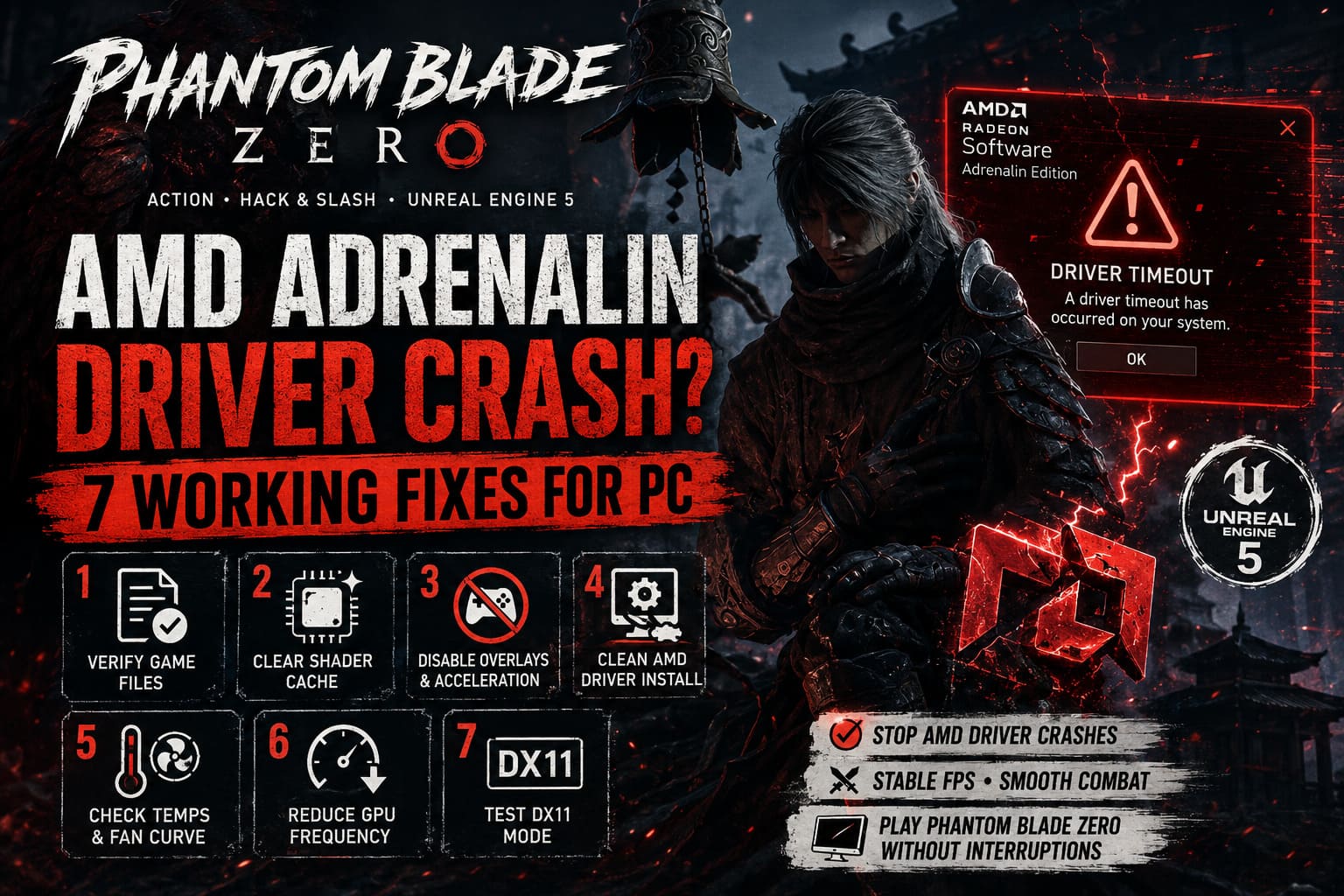
Phantom Blade Zero AMD Adrenalin Driver Crash: 7 Working Fixes for PC
I’ve played enough demanding PC games to know the difference between a game that simply needs a patch and a system that has a driver problem waiting to happen. Phantom Blade Zero is exactly the kind of game that can expose weaknesses in an otherwise perfectly stable PC. Its fast combat, heavy visual effects, dense environments, and aggressive GPU workload can push a Radeon card harder than many players expect.
For some AMD users, that pressure shows up in the ugliest possible way: the game freezes, the screen goes black for a moment, Windows recovers the graphics driver, and AMD Software Adrenalin reports a driver timeout. Sometimes the crash happens during a boss fight. Other times it occurs when loading into a new area, compiling shaders, or simply turning the camera toward a particularly busy scene.
The frustrating part is that a driver timeout doesn’t automatically mean your Radeon GPU is dying. In many cases, it is a software conflict, unstable tuning profile, corrupted shader cache, overheating spike, damaged game file, or interaction with another application using hardware acceleration.
I’d start with the simplest fixes before touching serious GPU tuning. There’s no reason to underclock your graphics card if a five-minute shader-cache reset solves the problem.
Phantom Blade Zero RTX 4060 DLSS Frame Generation Optimization Guide
1. Perform a Truly Clean AMD Driver Installation
If you have upgraded Radeon drivers repeatedly over months or years, your PC may have accumulated old components, profiles, and settings that don’t play nicely with a demanding new game. A normal driver update doesn’t always give you the clean slate you think it does.
This is one of the first things I would try if Phantom Blade Zero crashes specifically with an AMD driver timeout.
You can use AMD’s official cleanup utility or a trusted tool such as Display Driver Uninstaller. The important part is removing the existing display-driver installation rather than simply installing another package over the top.
- Download the desired stable AMD Adrenalin driver before removing the current one.
- Temporarily disconnect your internet connection so Windows doesn’t immediately install another display driver.
- Boot Windows into Safe Mode.
- Run the AMD cleanup utility or DDU and remove the existing Radeon driver.
- Restart the computer normally.
- Install the AMD Adrenalin package again using a clean/factory-reset installation when available.
- Reconnect to the internet after everything is installed.
I wouldn’t automatically assume the newest driver is the best driver for every game. If a brand-new release introduced your crashes, testing a previous stable WHQL package can be surprisingly effective.
2. Reduce the Maximum GPU Frequency
This is the fix that often gets overlooked because players assume factory settings are automatically perfect for every workload. Usually they are, but certain games can expose tiny stability margins that never appeared elsewhere.
If Phantom Blade Zero crashes after the GPU has been running at high utilization for several minutes, reducing the maximum boost frequency slightly is worth testing.
Open AMD Software Adrenalin and go to Performance > Tuning. Change the tuning profile to Custom and enable manual GPU controls. Depending on your Radeon model and driver version, the exact controls may look slightly different.
Don’t go crazy with the underclock. You aren’t trying to turn your expensive graphics card into a budget model. Instead, lower the maximum frequency modestly and test the game again.
For example, if your card is targeting an aggressive boost frequency, dropping the maximum by a small amount can sometimes eliminate those occasional instability spikes. You might lose a handful of frames per second, but a stable 60 FPS is infinitely better than 120 FPS followed by a desktop crash during a boss fight.
If this completely solves the problem, you’ve learned something useful: the original clock/voltage behavior was probably right on the edge of stability under this workload.
3. Clear the AMD and Game Shader Cache
Shader compilation is one of those PC gaming chores nobody enjoys, but it can make a huge difference when a game starts crashing around loading screens or when specific visual effects appear.
A corrupted shader cache can cause repeated crashes even after the underlying driver problem has been fixed. Instead of continuing to launch the game with potentially broken cached data, wipe it and allow the system to rebuild everything.
In AMD Adrenalin, look through the Graphics settings for the shader-cache reset option. The location can vary slightly between Adrenalin versions, so don’t panic if your menu doesn’t look identical to an older guide.
After clearing it, launch Phantom Blade Zero and give the game time to rebuild its shaders.
Don’t immediately skip through every loading screen and jump into the most demanding combat encounter you can find. Let the initial compilation finish. If the crashes were caused by bad cached shaders, this simple reset can make the game dramatically more reliable.
4. Test an Alternative DirectX Rendering Mode
Unreal Engine 5 games can be extremely demanding, and DirectX 12 is often where the most advanced rendering features live. Unfortunately, cutting-edge rendering can also expose driver problems that don’t appear in lighter games.
If your crashes seem directly connected to the DX12 rendering path, testing an alternative DirectX mode may be worthwhile if the current game build supports that launch parameter.
On Steam, open the game’s Properties and check the Launch Options field. A commonly tested parameter is:
-dx11
If Phantom Blade Zero recognizes the option in your particular build, launching with it can provide a useful troubleshooting test.
I wouldn’t treat DX11 as a guaranteed permanent solution. You may lose access to certain rendering features or experience different performance characteristics, and some modern games simply don’t support an alternative API despite accepting a launch parameter.
Still, troubleshooting is about narrowing things down. If the crashes disappear after changing the rendering path, that’s a huge clue that the problem is connected to the graphics API or its interaction with your driver.
5. Turn Off Overlays and Hardware Acceleration
This is one of my favorite troubleshooting steps because it costs absolutely nothing and can eliminate a ridiculous number of weird PC gaming problems.
While Phantom Blade Zero is running, you may have AMD’s overlay, Discord, Steam components, browser processes, recording software, monitoring utilities, and other applications all interacting with the GPU simultaneously.
Most of the time, that’s fine. But when a game is already pushing the graphics driver hard, removing unnecessary layers makes sense.
Start by disabling:
- AMD Adrenalin In-Game Overlay.
- AMD Instant Replay and desktop recording.
- Discord In-Game Overlay.
- Discord hardware acceleration.
- Hardware acceleration in browser applications running in the background.
- Extra recording or monitoring overlays you don’t actually need.
You don’t have to uninstall everything. Just eliminate the extra GPU hooks temporarily and test the game.
If Phantom Blade Zero suddenly becomes stable, re-enable the features one at a time. That’s a much better approach than switching ten settings simultaneously and having no idea which one actually fixed the problem.
6. Check Temperatures and Disable Zero RPM for Testing
Heat is another suspect, but don’t immediately blame temperature just because a crash occurs during an intense scene.
Modern Radeon cards can handle high temperatures, and a high GPU temperature by itself doesn’t prove that overheating caused the driver timeout. What matters is the behavior of the GPU under sustained load, including hotspot/junction temperatures and whether the card is experiencing sudden thermal or clock fluctuations.
AMD Adrenalin gives you useful monitoring information in the Performance section. Watch the GPU temperature, junction temperature, clock speed, utilization, and power behavior while playing.
For troubleshooting, you can also experiment with disabling Zero RPM so the fans begin spinning at lower temperatures. You can create a more aggressive fan curve if necessary.
For example, instead of allowing the card to sit completely passive until a relatively high temperature is reached, you can configure the fans to ramp up earlier.
Don’t blindly copy an extreme fan curve from someone else’s PC, though. Every cooler and case behaves differently. The goal is to determine whether temperature-related instability is involved, not to run your fans at maximum speed every second.
If the crashes disappear after improving cooling, you’ve got a useful lead. At that point, checking case airflow, dust buildup, GPU mounting, and the card’s overall thermal behavior makes more sense than endlessly reinstalling drivers.
7. Verify Phantom Blade Zero’s Game Files
Before blaming AMD, make sure the game itself isn’t broken.
A damaged game file can produce crashes that look suspiciously like driver problems. If the game crashes at the same location every time, immediately after loading a specific area, or when a particular effect appears, corrupted installation data becomes a much stronger possibility.
On Steam, open your library and find Phantom Blade Zero. Right-click the game, select Properties, then open Installed Files and choose Verify integrity of game files.
Steam will compare your local installation against the expected files and replace anything that doesn’t match.
This won’t fix every crash, but it’s so easy that there is little reason not to try it. I’ve lost count of how many supposedly complicated PC problems turned out to be one damaged file sitting quietly in a game directory.
Which Fix Should You Try First?
If I were sitting at my own PC and Phantom Blade Zero suddenly started throwing AMD driver timeouts, I wouldn’t change seven things at once. That makes troubleshooting almost impossible.
I’d work through the fixes in this order:
| Priority | Fix | Best For |
|---|---|---|
| 1 | Verify Game Files | Corrupted or missing game data |
| 2 | Clear Shader Cache | Crashes after loading or during effects |
| 3 | Disable Overlays | Software and background conflicts |
| 4 | Clean AMD Driver Install | Persistent driver-related crashes |
| 5 | Check GPU Temperatures | Crashes under sustained load |
| 6 | Reduce GPU Frequency | Possible clock/voltage instability |
| 7 | Test DX11 | Suspected rendering/API instability |
The important thing is to change one variable at a time. If you wipe the driver, clear the cache, underclock the GPU, disable every overlay, and change the rendering API simultaneously, you might fix the game but learn absolutely nothing about the original problem.
A Few Extra Things Worth Checking
There are several boring PC maintenance steps that can also matter when troubleshooting Radeon driver crashes.
Make sure Windows is fully updated, but avoid installing optional hardware components blindly just because they’re offered. Check that your motherboard BIOS isn’t years out of date, especially if you’re running a newer Ryzen platform. If your RAM has an aggressive EXPO profile enabled, temporarily testing at default memory settings can also help determine whether system-level instability is being mistaken for a GPU crash.
I’d also remove any aggressive GPU overclock or undervolt while troubleshooting. A profile that is completely stable in one game can fall apart in another because different engines hammer different parts of the GPU.
And don’t underestimate background applications. RGB utilities, hardware monitoring programs, browser tabs playing video, capture software, and third-party overlays can all become suspects when you’re chasing a mysterious driver timeout.
Final Thoughts
Phantom Blade Zero pushing an AMD Radeon driver into a timeout doesn’t automatically mean your graphics card is faulty. That’s the biggest thing I’d take away from these crashes.
Start with the boring fixes: verify the installation, clear shader data, disable overlays, and perform a clean driver installation if necessary. If the problem survives all of that, then start looking at GPU frequency, temperatures, power behavior, and rendering settings.
The best troubleshooting approach is methodical rather than dramatic. Don’t immediately start changing voltages or flashing BIOS files because someone on a forum claimed it fixed their machine. Find the setting that makes the crash disappear, reproduce the result, and only then decide whether you want to keep the workaround permanently.
Phantom Blade Zero is exactly the kind of game where a stable PC setup matters. Once the Radeon driver stops throwing a tantrum every time the engine gets busy, you can finally concentrate on what actually matters: fast combat, brutal encounters, and enjoying the game instead of staring at the Windows desktop.