Hololive Dreams Account Transfer Guide: How to Link Mobile Progress to Steam (2026)
There is something deeply satisfying about finally moving a mobile game onto a proper PC screen. No more squinting at tiny buttons. No more fighting your phone’s battery percentage while a 3D music performance turns your device into a pocket-sized space heater. And, most importantly, no more trying to enjoy Hololive’s colorful cast and flashy rhythm gameplay on a display that feels way too small for the spectacle.
That is exactly why the arrival of hololive Dreams on Steam is such a big deal for fans.
QualiArts’ hybrid rhythm RPG and theme park simulator has built its appeal around a surprisingly addictive combination of systems. You have rhythm gameplay, character collecting, gacha mechanics, park customization, progression, and a huge catalog of Hololive music. With more than 50 recognizable talents and over 150 songs available, there is a lot here for dedicated fans to sink their teeth into.
But if you have already spent dozens—or potentially hundreds—of hours building your mobile account, pulling rare characters, unlocking music, upgrading your theme park, and collecting everything that catches your eye, the Steam launch creates one immediate question:
How do you move your hololive Dreams account from Android or iOS to Steam without losing your progress?
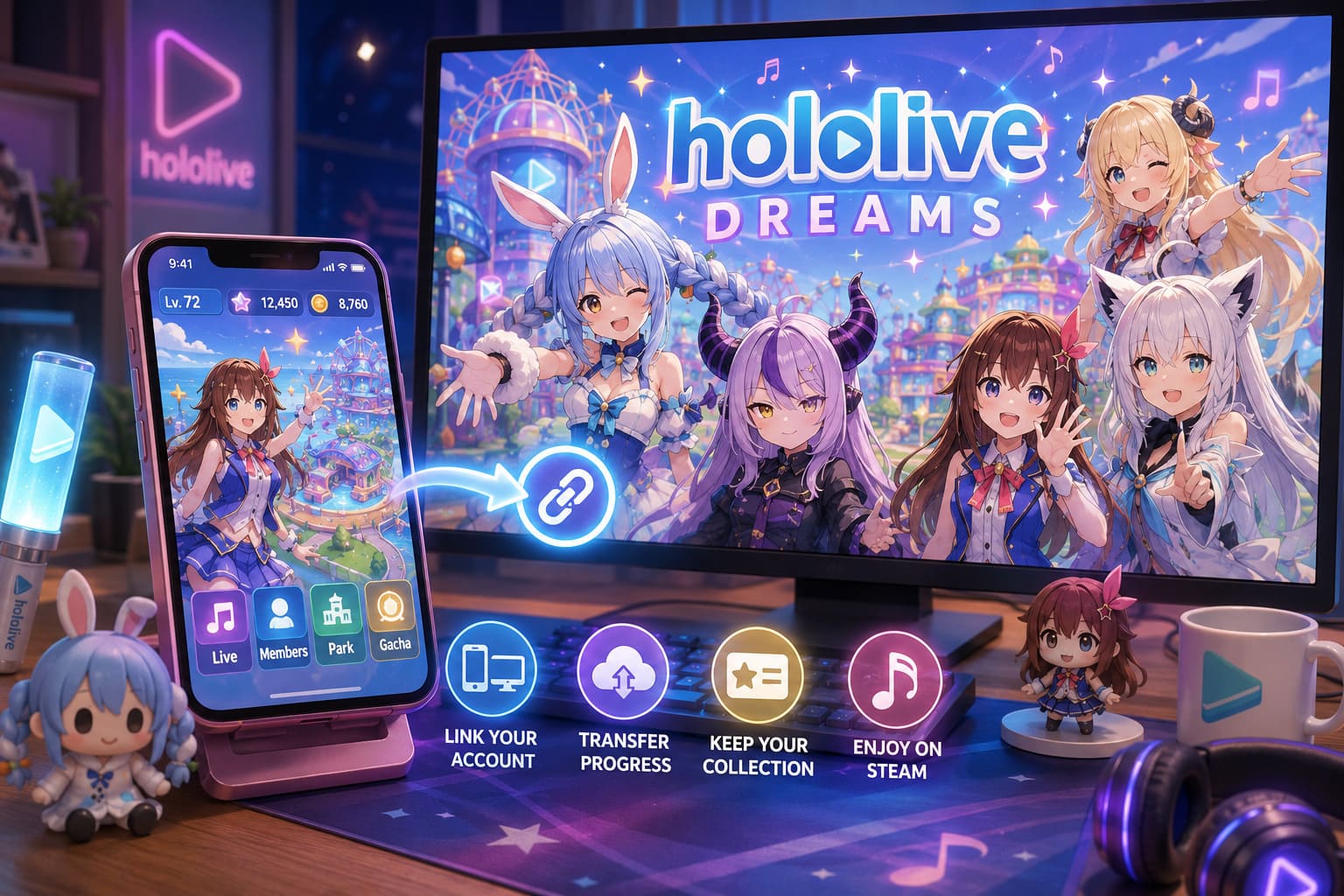
The good news is that cross-platform progression is supported. The bad news is that the process is not quite as idiot-proof as it should be. There are important rules regarding data transfers, account linking, existing Steam saves, and premium currency that you absolutely need to understand before pressing buttons at random.
As someone who has played enough live-service games to know that “I’ll just click around and figure it out” is sometimes the fastest route to disaster, I strongly recommend setting up your transfer properly the first time.
Here is everything you need to know about transferring your hololive Dreams mobile save to Steam in 2026.
Hololive Dreams Account Transfer: The Most Important Rule
Before you touch the Data Transfer menu, there is one thing you need to burn into your brain:
Hololive Dreams supports data transfers, but it does not merge two separate game accounts into one.
Those are completely different things.
If you have been playing on Android or iPhone and then launch the Steam version for the first time, the PC client may create or initialize a new temporary game profile. If you start playing that new Steam profile, spend resources, pull characters, or make progress, you should not expect the game to combine that data with your existing mobile account.
The mobile account you transfer becomes the account that replaces the existing temporary data on the destination platform.
In practical terms, imagine this:
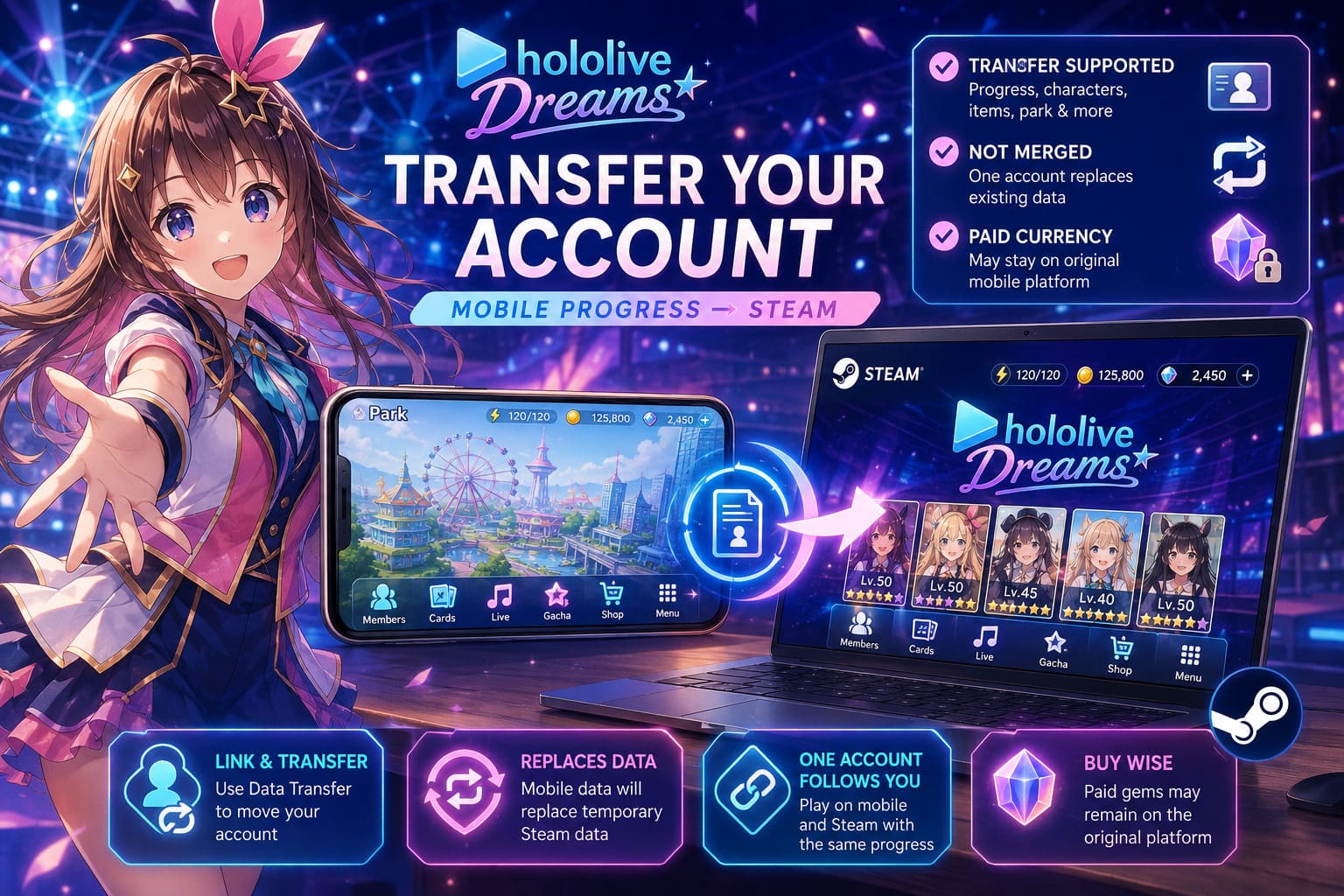
| Situation | What Happens |
|---|---|
| You have an established mobile account and an empty Steam profile | Mobile data transfers to Steam |
| You already played briefly on Steam | The transferred mobile data replaces the temporary Steam data |
| You want to combine mobile and Steam progress | Account merging is not supported |
| You transfer your account between supported platforms | Your main game progression follows the linked account |
| You purchased premium currency on mobile | Currency may remain tied to the original mobile platform |
That last point is especially important.
Do Not Assume Paid Currency Works Like Everything Else
One of the easiest mistakes to make with a cross-platform gacha game is assuming that every piece of data follows you everywhere.
Your characters, cards, unlocked content, music, items, park progression, and general game progress are designed to carry across your linked platforms. However, premium currency purchased through a platform-specific storefront can be subject to separate restrictions.
If you bought paid gems through Google Play or the Apple App Store, don’t assume those purchases will automatically become available in your Steam wallet.
This is the kind of thing that can cause a nasty surprise when you are ready to pull on a banner you’ve been saving for. Your account may be perfectly fine while your paid currency remains associated with the platform where it was originally purchased.
My advice? Treat premium currency as platform-specific unless the game explicitly confirms otherwise. If you have paid currency sitting on your mobile account, plan your purchases and gacha pulls accordingly.
How to Transfer Your Hololive Dreams Account From Mobile to Steam
The transfer process is relatively straightforward once you know where to look. The main idea is simple: your mobile device generates the credentials needed to identify your existing account, and the Steam version uses those credentials to retrieve your data.
Here’s the process I would follow.
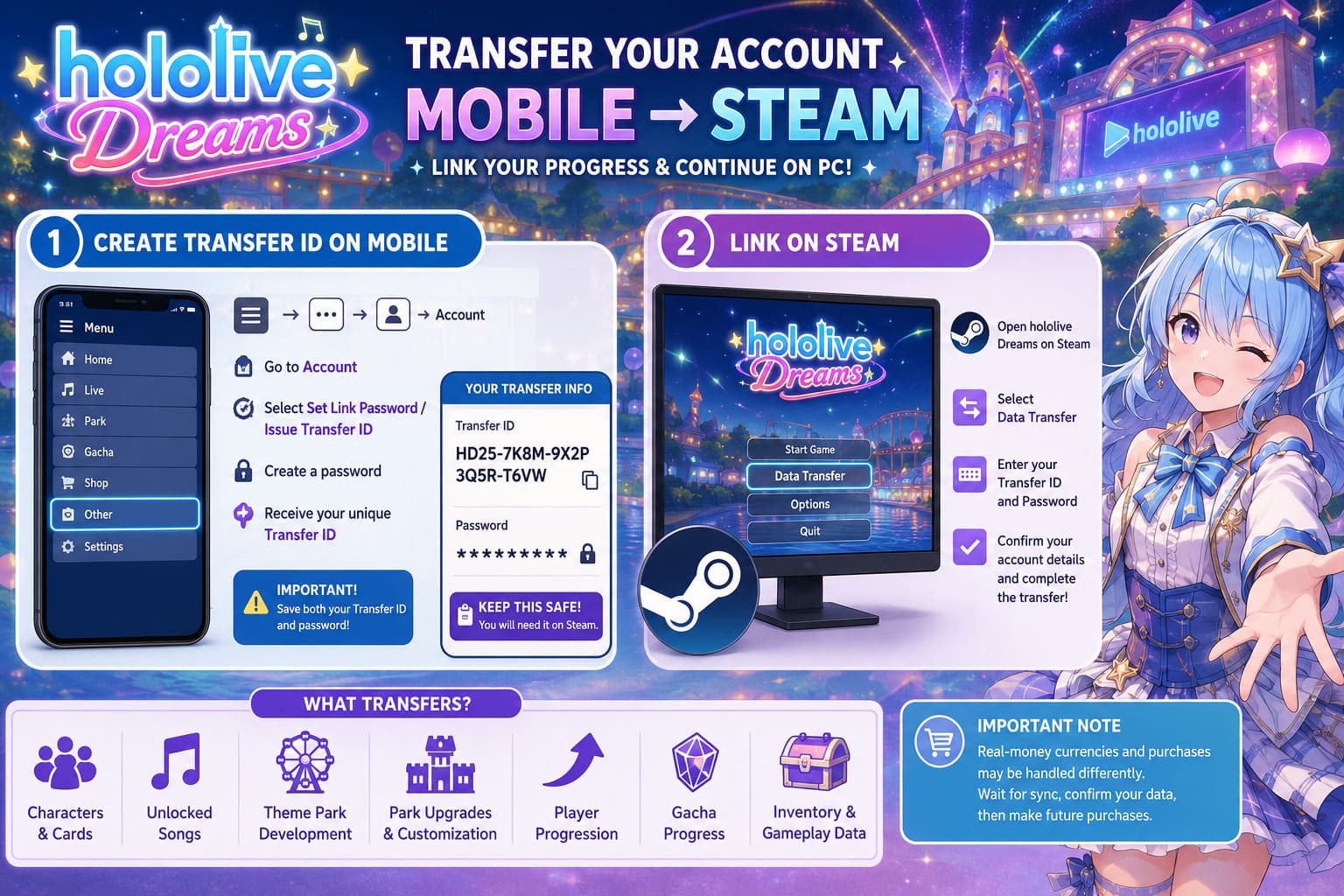
Step 1: Create Your Transfer ID on Mobile
Start with the device where your main hololive Dreams account currently lives.
Launch the game on your Android or iOS device and make sure you are logged into the correct profile. This sounds obvious, but double-check it anyway. If you have multiple accounts or have recently switched devices, you do not want to accidentally transfer the wrong save.
Once you reach the main interface, look for the game’s menu system.
Depending on the version of the interface, you should find a menu button represented by a hamburger icon, gear, or similar settings symbol. From there, navigate toward the account management section.
The general route should look something like:
Menu → Other → Account
Inside this section, look for an option related to account transfers or linking. The exact wording may vary depending on the game’s version or localization, but you are looking for something similar to:
- Set Link Password
- Issue Transfer ID
- Transfer ID
- Data Transfer
Once you find the appropriate option, the game should ask you to create a password for the transfer.
Choose a secure password that you can reliably enter again on Steam. Don’t make it unnecessarily complicated if you are going to mistype it six times, but definitely don’t use something obvious.
After confirming your password, the game should generate a unique Transfer ID or Link ID.
This ID is critical.
Write it down. Copy it somewhere safe. Take a screenshot if necessary.
Do not close the menu and assume you can easily recreate everything later. You want both the Transfer ID and the password available before moving to your PC.
Step 2: Open Hololive Dreams on Steam
Now move over to your Windows PC.
Launch the Steam version of hololive Dreams and pay attention to the title screen.
This is where I would slow down and resist the temptation to immediately start the game.
If the Steam client gives you an option to access a menu, settings screen, or data transfer function directly from the title screen, use it.
The goal is to find the game’s Data Transfer or Transfer from Another Device option before you start playing.
Depending on the version of the interface, the menu may be positioned around the edges of the title screen rather than directly in front of you. Look for an options icon, menu button, or similar control.
Once you find the data transfer section, select the option that allows you to use a previously generated Link ID.
You should then be prompted to enter:
- Your Transfer ID / Link ID generated on mobile.
- The password you created during the mobile setup.
Enter both carefully.
This is not the moment to rely on muscle memory. Check every character in the ID, especially if it contains a mixture of uppercase letters, lowercase letters, and numbers.
After submitting the credentials, the game should verify the account information.
If the confirmation screen displays details associated with your original mobile account—such as your player name, level, or other recognizable progression information—stop and verify that everything looks correct before accepting the transfer.
Once you are certain it is the correct account, confirm the transfer.
Your mobile save should then become available on Steam.
What Should Transfer to Steam?
For players worried about losing months of progress, the important stuff should follow your linked account.
Your transferred progression can include things such as:
- Character and card collection
- Unlocked songs and content
- Theme park development
- Park upgrades and customization
- Player progression
- Gacha-related account progress
- General inventory and gameplay data
The exact handling of individual currencies can vary, especially when real-money purchases are involved.
That is why I would personally avoid making any expensive purchases immediately before transferring accounts. Give the system time to synchronize, confirm that your main progression appears correctly on Steam, and then decide where you want to make future purchases.
Can You Link Hololive Dreams Through Google or Apple?
Depending on the account configuration and supported authentication options available in your version of the game, there may be an alternative to manually entering a Transfer ID and password.
Players who have already connected their mobile account through an external authentication service may be able to use the same account credentials during the Steam data transfer process.
For example, if your mobile account is associated with a supported Google or Apple account, you may see a corresponding login option in the Steam transfer interface.
The potential advantage is obvious: fewer random strings to copy and fewer opportunities to mistype a transfer password.
However, I would still recommend checking the account information displayed after authentication.
Never assume that signing into the correct Google or Apple account automatically means you selected the correct hololive Dreams save. If the game presents confirmation details, verify them before completing the transfer.
For players with complicated account histories, that extra ten seconds of checking could save a lot of frustration.
Hololive Dreams Steam Transfer Problems and Troubleshooting
The Steam launch has also raised questions about technical compatibility and account transfers. Not every problem is necessarily caused by the Data Transfer system itself.
Here are some of the issues players should keep in mind.
Steam Deck and Linux Compatibility
This is potentially the biggest headache for players who were hoping to move their mobile progression onto a Steam Deck.
According to the technical concerns discussed by members of the community, the Steam release uses strict anti-cheat and security components that may not play nicely with Linux or Proton-based environments.
If the game relies on a Windows-specific security driver, this can create serious compatibility problems for Steam Deck users.
Symptoms can include:
- The game refusing to launch
- Crashes during startup
- Black screens
- Anti-cheat initialization failures
- Security-related errors
If your plan is to transfer your mobile account specifically so you can play on a Steam Deck, check the latest compatibility situation before assuming everything will work.
A successful account transfer does not magically solve operating-system compatibility. Your account may be perfectly linked while the actual game refuses to run correctly on the device.
For now, players who encounter serious Linux or Steam Deck compatibility problems may have a better experience continuing to use the native Android or iOS version until official support or a technical workaround becomes available.
Check Your Windows System Clock
This is one of those troubleshooting steps that sounds ridiculous until it actually fixes your problem.
If your Steam client repeatedly throws connection errors, fails to communicate with the game servers, or disconnects shortly after you successfully transfer your account, check your PC’s system clock.
Live-service games are extremely sensitive to authentication and server communication. An incorrect system time can sometimes interfere with secure connections and authentication processes.
On Windows, go into your Time & Language settings and make sure automatic time synchronization is enabled.
Use the Sync Now option if necessary.
Then completely restart the game.
It’s a boring fix, but boring fixes are often the ones that work. I’ve lost count of how many “mysterious” PC game issues have turned out to be a clock, driver, cache, or overlay problem.
Steam Leaderboards May Not Work the Same Way
There is another important distinction between mobile and PC gameplay that competitive rhythm-game fans should know about.
Your overall account progression can carry over, but competitive score submission may not necessarily be treated identically across platforms.
The reasoning is understandable. Rhythm games can be heavily affected by input methods, keyboard configurations, macros, remapping tools, and other PC-specific advantages.
If Steam gameplay is excluded from certain global rankings, players who care about leaderboard placement may need to continue playing the rhythm portions on mobile.
For casual players, this probably won’t matter at all.
For the hardcore crowd chasing a spot near the top of the rankings, however, it is a major consideration. If your goal is to post the absolute best score on a specific Hololive track, check the current leaderboard rules before grinding for hours on Steam.
There is nothing worse than finally hitting that perfect run only to discover that the platform you used does not qualify for the ranking.
How to Fix Bluetooth Audio Sync Delay in hololive Dreams (2026 Mobile Guide)
My Advice Before You Transfer Your Account
If I were moving a long-term hololive Dreams account from mobile to Steam, this would be my personal checklist:
- Confirm that your mobile account is the correct one.
- Create your Transfer ID and password before launching the transfer process.
- Save your credentials somewhere secure.
- Do not intentionally build a second Steam account if you plan to transfer your mobile data.
- Remember that transfers are not account merges.
- Check your premium currency before assuming it will appear on Steam.
- Verify the account information shown during confirmation.
- Make sure your Windows system clock is synchronized.
- Check Steam Deck and Linux compatibility before transferring specifically for those devices.
- If leaderboards matter to you, confirm whether Steam scores qualify.
The biggest mistake is rushing.
I know the temptation. You install the Steam version, see the shiny PC graphics, and immediately want to jump in. But if you already have a loaded mobile account with rare characters and months of progress, taking a few minutes to set up the transfer correctly is absolutely worth it.
How to Fix Low FPS and Rhythm Mode Lag in hololive Dreams (2026 Performance Guide)
Final Verdict: Is Moving Hololive Dreams to Steam Worth It?
For fans who have been playing hololive Dreams primarily on mobile, the Steam version can be a genuinely better way to experience the game.
The larger display makes the colorful character models and music performances much easier to appreciate. Longer sessions are also more comfortable when you are not constantly worrying about battery life, overheating, or accidentally tapping the wrong part of a tiny touchscreen.
The account transfer system is the key to making that transition painless.
The golden rule is simple: transfer your existing mobile account rather than trying to combine it with a fresh Steam profile. Generate your Link ID and password, enter them through the Steam Data Transfer menu, verify that the displayed account information is correct, and only then finalize the process.
Just keep the platform-specific restrictions in mind. Paid currency can behave differently across storefronts, Steam Deck and Linux compatibility may be limited by security software, and competitive leaderboard rules may separate PC and mobile players.
Once those details are out of the way, though, the move to PC is hard to argue against. Hololive Dreams is the kind of game that benefits from being seen on a bigger screen. When the music kicks in, the chibi characters start performing, and your carefully built theme park fills the display, it finally feels like the game has room to breathe.
If you’ve already invested serious time into your mobile account, don’t start over on Steam. Transfer your existing progression, double-check everything before confirming, and enjoy your Hololive theme park on the big screen.