Phantom Blade Zero RTX 4060 DLSS Frame Generation Optimization Guide
If you are planning to play Phantom Blade Zero on an RTX 4060, there is a very specific sweet spot you should aim for. S-GAME’s action RPG is built around lightning-fast martial arts combat, aggressive enemy animations, dense environments and the kind of visual effects that can make a mid-range GPU sweat. The RTX 4060 is absolutely capable of delivering a great experience, but simply switching every graphics option to High and hoping for the best is not the way to do it.
The good news is that NVIDIA’s upscaling and frame-generation technologies give the RTX 4060 plenty of room to work with. The important part is understanding which features actually apply to the RTX 4060 and which settings are worth sacrificing when performance starts to dip. For this guide, I am focusing on real-world 1080p and 1440p gameplay, stable frame pacing, image quality and, most importantly, keeping controls responsive during those moments when a boss decides that your health bar looks too full.
Best Phantom Blade Zero RTX 3070 Optimization Guide: Achieve Stable 1440p 60FPS
What Kind of Performance Can You Expect From an RTX 4060?
The RTX 4060 is still a very capable 1080p gaming card, while 1440p becomes more dependent on the game’s optimization and your graphics settings. Phantom Blade Zero is not a lightweight title, either. Its Unreal Engine 5 technology, detailed environments, lighting effects and combat particles can put serious pressure on both GPU performance and VRAM.
For the RTX 4060, I would treat 1080p as the safest target if you want high settings and a high refresh-rate experience. At 1440p, DLSS becomes much more important, especially if you want to stay comfortably above 60 FPS rather than constantly bouncing between the 40s and 60s.
The card’s 8GB of VRAM is another factor that should not be ignored. You can crank textures and several other settings to their maximum, but that does not automatically make the game look dramatically better. In some situations, you are simply asking the GPU to store more data than it comfortably wants to handle, which can result in stutters when the game streams new areas.
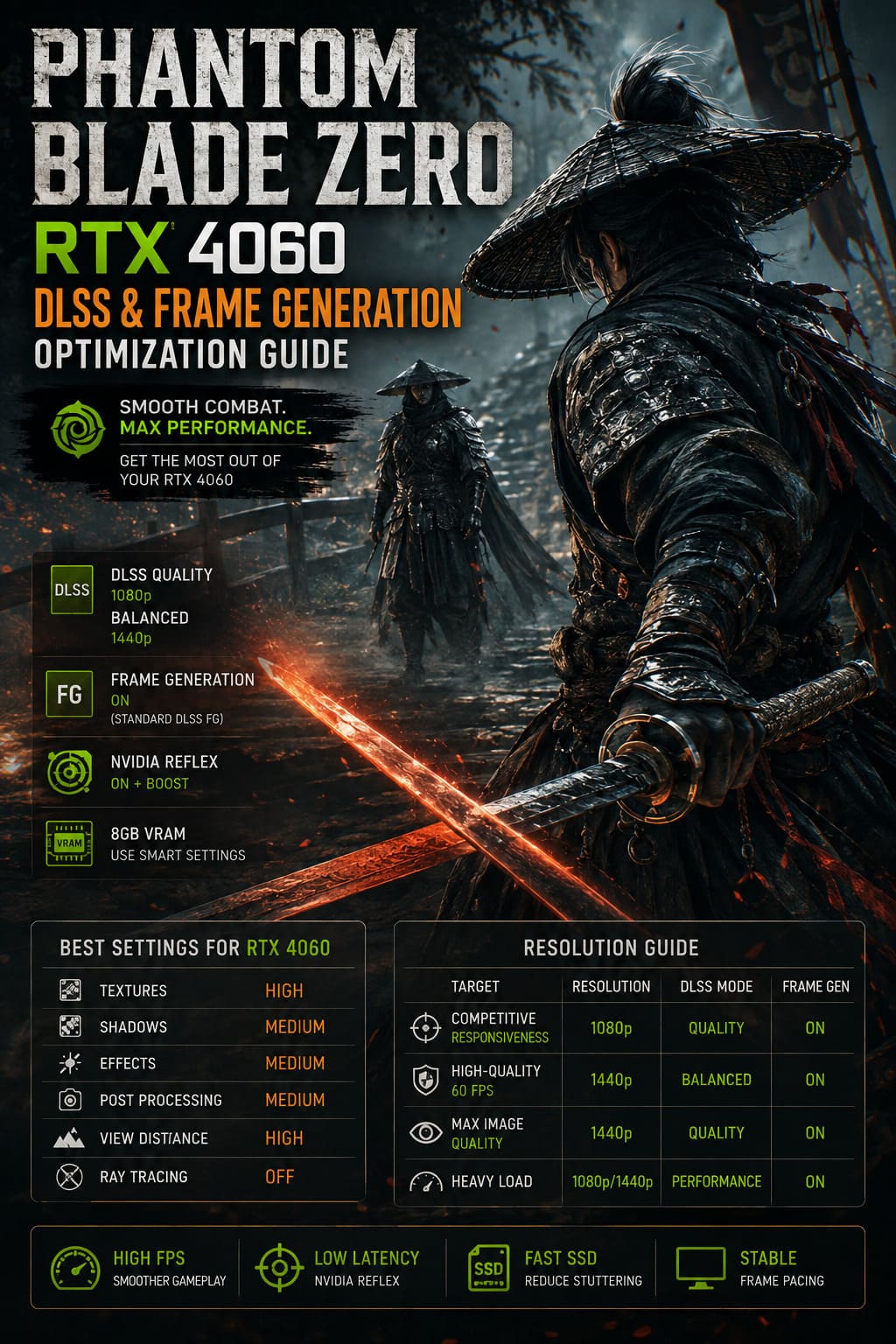
| Target | Recommended Resolution | DLSS Mode | Frame Generation | Ray Tracing |
|---|---|---|---|---|
| Competitive responsiveness | 1080p | Quality | On | Off |
| High-quality 60 FPS | 1440p | Balanced | On | Off |
| Maximum image quality | 1440p | Quality | On if available | Low |
| Heavy performance load | 1080p/1440p | Performance | On | Off |
These are starting points rather than sacred commandments. If your system has a powerful CPU, fast DDR5 memory and a high-speed NVMe SSD, you may be able to push several settings higher.
The Best DLSS Settings for RTX 4060
DLSS should be your first stop when optimizing Phantom Blade Zero. Rather than forcing the RTX 4060 to render every pixel at native resolution, DLSS renders internally at a lower resolution and reconstructs the final image using NVIDIA’s AI technology.
At 1080p, DLSS Quality is the setting I would start with. It usually gives you a much better balance than dropping straight to Performance mode, and the image should remain reasonably sharp during fast combat.
At 1440p, DLSS Balanced makes more sense if performance is your priority. If you have enough GPU headroom, Quality can still be worth trying, especially if you dislike the softer appearance that aggressive upscaling can sometimes produce.
I would avoid Performance mode unless you genuinely need the extra frames. Phantom Blade Zero is built around quick movement, sword clashes and visual detail, so a noticeably softer image can become irritating when you are constantly scanning the screen for enemy attacks.
Frame Generation: Turn It On Carefully
The RTX 4060 supports DLSS Frame Generation, which can generate additional frames between traditionally rendered frames. This can make the game appear significantly smoother, particularly when your underlying rendered frame rate is already reasonably high.
There is an important hardware distinction here, though. RTX 4060 does not support NVIDIA’s Multi Frame Generation features designed for GeForce RTX 50-series GPUs. If you see a guide claiming that an RTX 4060 can use RTX 50-series Multi Frame Generation in the same way, do not blindly copy those settings.
For an RTX 4060, the relevant feature is standard DLSS Frame Generation, assuming Phantom Blade Zero’s final PC implementation provides it in the version you are playing.
Frame Generation should also not be treated as a magic solution for terrible base performance. If the game is actually rendering at 30 FPS, generating extra frames does not suddenly turn the underlying responsiveness into native 60 FPS gameplay. You want a healthy base frame rate first.
NVIDIA Reflex Is Extremely Important
For a fast action game, raw FPS is only part of the equation. Input latency matters enormously, especially when you are trying to parry an attack that gives you roughly half a second to react.
If Phantom Blade Zero provides NVIDIA Reflex, I recommend enabling it. If the game offers On + Boost, that is a sensible choice when you want the GPU to maintain higher performance clocks and keep latency under control.
This becomes particularly relevant when Frame Generation is enabled. Generated frames can improve visual smoothness, but they do not replace the importance of a strong underlying render pipeline. Reflex helps keep the interaction between the CPU, game engine and GPU more responsive.
In other words, don’t chase a gigantic FPS number while ignoring how the game actually feels when you press the dodge button.
Recommended Phantom Blade Zero Graphics Settings
Here is where the RTX 4060 optimization gets interesting. You do not need to destroy the game’s visual quality to gain performance. A few carefully selected settings usually give much better results than dropping everything to Low.
Texture Quality: High or Medium
Textures are one of the settings where VRAM usage matters most. On a standard RTX 4060 with 8GB of VRAM, I would use High at 1080p and start with Medium or High at 1440p, depending on the game’s actual VRAM behavior.
Ultra textures are not automatically worth using. If they push memory usage too close to the limit, the resulting streaming problems can be far more distracting than the tiny improvement in texture detail.
Shadow Quality: Medium
Shadows are an easy place to recover performance.
Medium shadows are my preferred setting for the RTX 4060. High-quality shadows can look great in screenshots, but during actual gameplay you are moving, fighting and turning the camera constantly. The difference is much harder to notice than the performance hit.
Effects Quality: Medium
Phantom Blade Zero’s combat is packed with flashy effects. Sword trails, particles, explosions and other visual effects can become surprisingly expensive when multiple enemies are attacking simultaneously.
Set Effects Quality to Medium first. If your GPU has plenty of headroom, move it to High later.
Post Processing: Medium
Post-processing can include several effects that look impressive in still images but are not essential during gameplay.
Medium is a good compromise. If you dislike motion blur, disabling it separately can also make the game feel considerably clearer during rapid camera movement.
View Distance: High
This is one setting I would be reluctant to reduce aggressively.
A high view distance keeps distant geometry and environmental details visible and helps maintain the atmosphere of Phantom Blade Zero’s locations. If you need additional performance, reduce shadows and effects before destroying view distance.
Ray Tracing: Off or Low
Ray tracing is one of the easiest ways to make a mid-range GPU start questioning its life choices.
The RTX 4060 supports hardware ray tracing, but that does not mean you should automatically enable every RT option. If your priority is stable combat performance, Off or Low is the sensible starting point.
You can always enable ray tracing later and see how much performance you are willing to sacrifice for the visual upgrade.
My Recommended RTX 4060 Preset
If I were setting up Phantom Blade Zero on an RTX 4060 today, this is the configuration I would test first:
- Resolution: 1920×1080 for maximum performance or 2560×1440 for a sharper image
- Upscaling: NVIDIA DLSS
- DLSS Mode: Quality at 1080p, Balanced at 1440p
- Frame Generation: On, if available
- NVIDIA Reflex: On + Boost, if available
- Textures: High
- Shadows: Medium
- Effects: Medium
- Post Processing: Medium
- View Distance: High
- Ray Tracing: Off
- Motion Blur: Personal preference, but I prefer Off
This setup is deliberately conservative. I would rather have a stable frame rate during a difficult boss fight than gain a few extra visual effects that disappear the second twelve enemies start throwing swords at me.
Windows and NVIDIA Settings You Should Check
Graphics options inside the game are only half the optimization process. If you are experiencing random stutters, inconsistent clocks or strange performance drops, check Windows and your NVIDIA software as well.
Make sure Hardware-Accelerated GPU Scheduling (HAGS) is enabled if your Windows configuration and driver support it. Frame Generation relies on the modern Windows GPU scheduling pipeline, so keeping the system configuration current is important.
Your NVIDIA driver should also be up to date. New games frequently receive driver-side optimizations, shader fixes and compatibility improvements around launch. If you are using an old driver, troubleshooting performance problems becomes much harder because you are eliminating one of the easiest variables to fix.
In NVIDIA’s settings, Prefer Maximum Performance can be useful for troubleshooting situations where the GPU is aggressively changing power states. I would not blindly change every global NVIDIA setting, though. Global overrides can sometimes create problems elsewhere, so game-specific profiles are preferable when possible.
Do Not Ignore Your SSD
An SSD is particularly important for a modern Unreal Engine 5 game.
Phantom Blade Zero needs to stream large amounts of game data while you move through detailed environments. If the installation is sitting on a slow mechanical drive, you can run into loading delays and potentially more noticeable asset-streaming problems.
Ideally, install the game on a fast NVMe SSD and leave plenty of free space available. I like keeping roughly 15–20% of an SSD free when possible, not because Phantom Blade Zero requires exactly that amount, but because an almost-full system drive is rarely a good idea for gaming performance.
What About Stuttering on an RTX 4060?
If the game is running at a good average FPS but still feels awful, look beyond the FPS counter.
Shader compilation, asset streaming, CPU limitations and VRAM pressure can all create stutters. Dropping every graphics option to Low will not necessarily fix a CPU-side problem, and increasing DLSS will not magically solve a storage bottleneck.
Watch your GPU utilization and VRAM usage while playing. If GPU usage is sitting near 100%, reducing resolution, DLSS quality or expensive graphical effects should help. If GPU usage suddenly drops while the game freezes or stutters, the problem may be elsewhere in the pipeline.
This is why frame pacing is more important than chasing the highest possible average FPS. A steady experience at a lower number can feel dramatically better than a game jumping between 90, 55, 100 and 45 FPS.
1080p vs 1440p on RTX 4060
For most RTX 4060 owners, 1080p remains the easiest resolution to recommend.
At 1080p, DLSS Quality gives the GPU more breathing room, while the 4060’s 8GB VRAM is less likely to become a major limitation. This is the configuration I would choose if you have a 120Hz or 144Hz monitor and care heavily about responsiveness.
1440p is absolutely possible, but you need to be more selective. DLSS Balanced, Medium shadows, sensible texture settings and disabled ray tracing create a much more realistic target for the card.
If image quality is your top priority, you can start at DLSS Quality and gradually reduce individual settings until your frame rate stabilizes.
Final Verdict: Is RTX 4060 Good Enough for Phantom Blade Zero?
Yes, but you need to configure it intelligently.
The RTX 4060 is not a card designed to brute-force a demanding Unreal Engine 5 game with every graphical feature maxed out. That is not a criticism of the GPU; it is simply the reality of modern PC games. With DLSS Super Resolution, standard Frame Generation where supported, NVIDIA Reflex and sensible graphics settings, however, the card has a much better chance of delivering the smooth combat experience Phantom Blade Zero demands.
My biggest recommendation is simple: do not sacrifice responsiveness just to make the settings menu look impressive. Keep textures reasonable, lower shadows and effects before touching more important visual settings, leave ray tracing off if performance is struggling, and make sure the game is installed on a decent SSD.
Phantom Blade Zero looks like the kind of game where a perfectly timed dodge will matter more than whether a distant wall has the highest possible shadow resolution. Get the frame pacing right, keep input latency under control and let the RTX 4060 do what it does best.