Mortal Shell 2 Steam Deck Performance Review: Best Settings For 40 FPS
There are some games that make you appreciate having a Steam Deck in the first place. Mortal Shell 2 is one of them.
I have been playing a lot of modern releases lately, and honestly, I have become pretty demanding when it comes to handheld performance. If a game looks fantastic but runs like a slideshow, I am not going to pretend otherwise. On the other hand, I also don’t believe every game needs to hit 60 FPS to be enjoyable.
Mortal Shell 2 sits right in that interesting middle ground.
Cold Symmetry has taken the foundation of the original Mortal Shell and turned it into something much bigger, darker, and considerably more ambitious. The world is no longer built around the relatively compact structure of the first game. Instead, we get a much larger interconnected environment, eight playable Shells, deeper progression, firearms, and a faster combat system that feels noticeably more aggressive.
The obvious downside is that all of this comes with a price: Mortal Shell 2 is a demanding Unreal Engine 5 game, especially on handheld hardware.
So, after spending time testing different configurations, I wanted to answer the question that actually matters to Steam Deck owners: Can Mortal Shell 2 deliver a good experience at 40 FPS, or should you simply lock it to 30 FPS and move on?
My answer is surprisingly positive.
Mortal Shell 2 on Steam Deck: The Short Version
If you want the quick answer, here it is: yes, Mortal Shell 2 is absolutely playable on Steam Deck, but you need to forget about chasing a native 60 FPS experience.
For me, the sweet spot is 40 FPS with carefully adjusted settings. You don’t get desktop-level image quality, obviously, but the game still looks remarkably good on the small 800p display.
The default configuration is actually better than I expected. The game doesn’t immediately fall apart when you enter a large outdoor area, and the overall frame pacing is respectable. You will still see occasional dips and small stutters, particularly when moving between demanding areas, but it is nothing like some of the disastrous UE5 launches we have seen.
Out of the box, I would expect roughly 30–40 FPS depending on the location and action on screen.
The problem is that the automatic settings aren’t necessarily the settings I would personally use.
The game is quite aggressive with its internal scaling, and that can make the image look softer than it needs to be. Dark environments, fog, foliage, armor details, and distant objects can lose quite a bit of definition.
And that’s where the fun starts.
The Steam Deck Setting You Should Change First
One of the first things I recommend doing is unlocking the game’s complete graphics menu.
For some reason, Mortal Shell 2 limits several graphical options when it detects the Steam Deck environment. That means you don’t get the same level of control you would have on a regular PC.
Fortunately, there is a simple workaround.
Go to:
- Steam Library → Mortal Shell 2 → Properties → General → Launch Options
Then enter:
SteamDeck=0 %command%
That’s it.
The game will treat the Deck more like a conventional PC and expose additional graphical options.
This is one of those little Steam Deck tricks that I absolutely love. You don’t need to install some massive modification or spend an hour editing configuration files. A tiny launch command gives you much more control over the game’s performance profile.
Once this is enabled, you can properly tune things like Global Illumination, textures, shadows, anti-aliasing, view distance, and upscaling.
And believe me, that control is worth having.
Steam Deck LCD vs. Steam Deck OLED
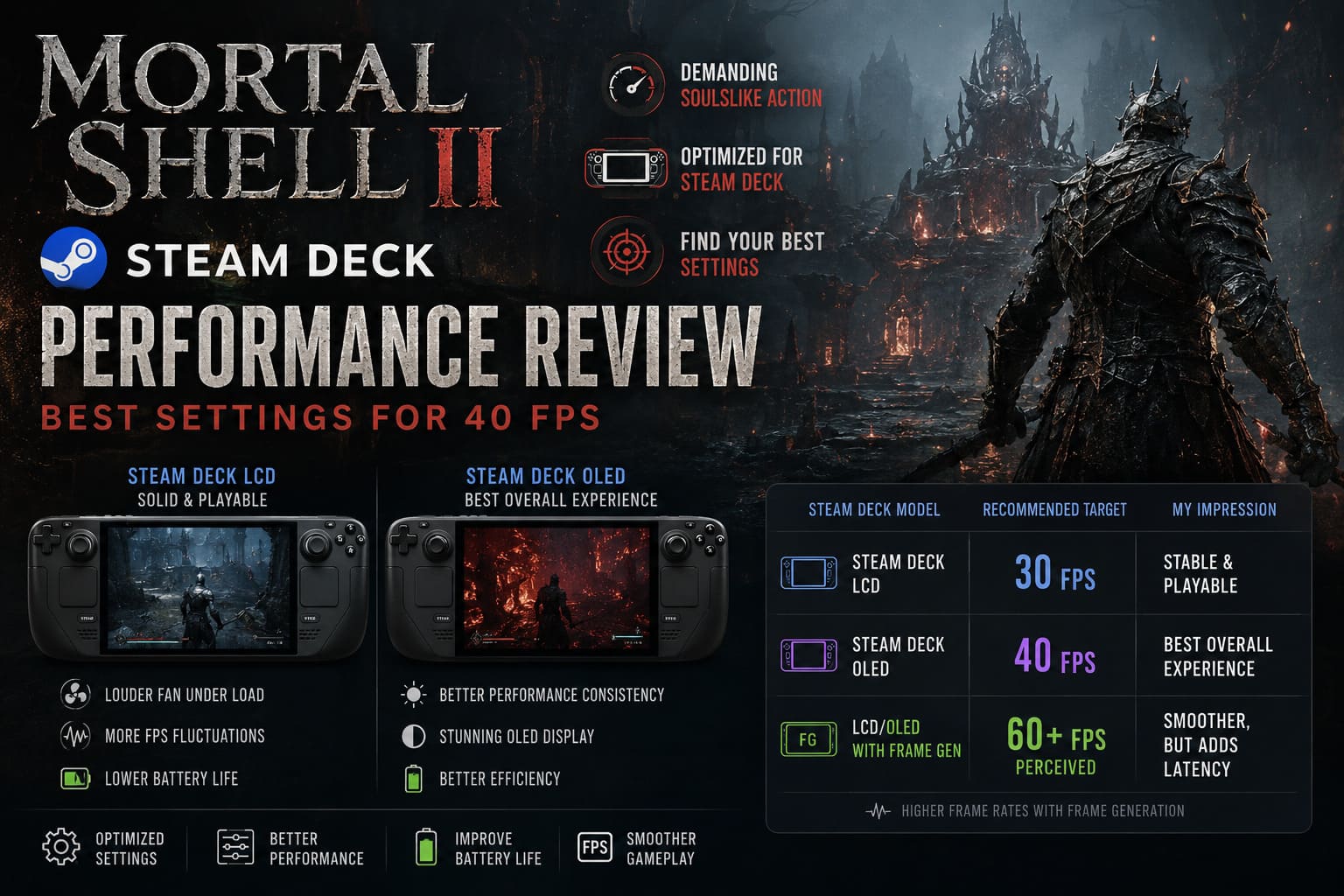
I tested the game with both Steam Deck versions in mind, and while the basic experience is similar, I definitely prefer Mortal Shell 2 on the OLED.
The LCD model is still perfectly usable. It simply has to work harder, particularly during longer sessions in larger areas.
Steam Deck LCD
The original Steam Deck can maintain a respectable experience, but the fan becomes much more noticeable under sustained load. When the game starts throwing more enemies, effects, environmental detail, and lighting calculations at the hardware, performance can become less consistent.
The biggest issue isn’t necessarily the average FPS.
It’s frame consistency.
A game running at 35 FPS with decent frame pacing can feel better than one bouncing between 40 and 28 constantly. Mortal Shell 2 occasionally reminds you that you’re playing a demanding modern game on handheld hardware.
Battery life also takes a serious hit when you let the system run unrestricted.
Steam Deck OLED
The OLED model is my preferred machine for this game.
The newer 6nm APU and improved memory configuration help it maintain performance more comfortably, while the OLED display itself is almost perfect for Mortal Shell 2.
This is a game built around darkness, shadows, glowing effects, corrupted environments, fire, and deep black tones.
The OLED screen makes those environments look fantastic.
That said, don’t expect miracles. The OLED doesn’t suddenly transform the Deck into a high-end gaming PC. The biggest improvement is that the experience feels more comfortable and visually impressive.
| Steam Deck Model | Recommended Target | My Impression |
|---|---|---|
| Steam Deck LCD | 30 FPS | Stable and playable |
| Steam Deck OLED | 40 FPS | Best overall experience |
| LCD/OLED with Frame Generation | 60 FPS+ perceived | Smooth, but adds latency |
TSR vs FSR 4.1: Which Upscaler Should You Use?
This is probably the most important visual setting after your frame-rate target.
Mortal Shell 2 gives you multiple upscaling options, including AMD FSR 4.1 and Unreal Engine’s TSR.
FSR is useful when you desperately need additional performance. Running FSR in a more aggressive mode can help push the frame rate higher, particularly in demanding areas.
The downside is obvious on a handheld screen.
Fine details can become unstable. Foliage may shimmer, armor can look slightly strange, and fog can lose some of its natural appearance.
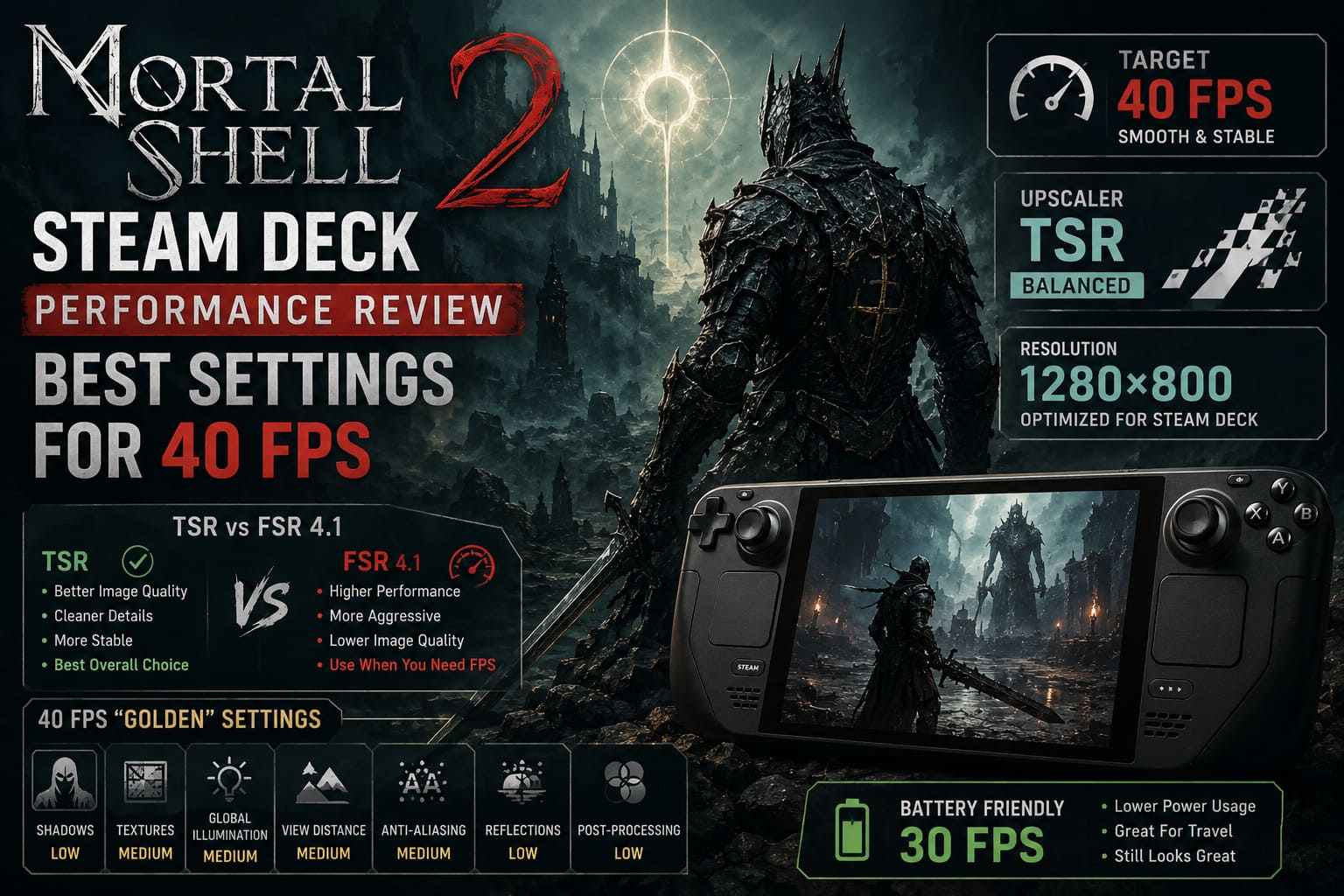
Personally, I prefer TSR Balanced.
It isn’t the fastest option, but the image looks considerably more coherent to my eyes. The atmosphere is cleaner, distant details hold together better, and the game’s cinematic dark-fantasy presentation survives the resolution reduction surprisingly well.
If you’re trying to squeeze every last frame out of the Steam Deck, use FSR.
If you want the game to look like an actual premium modern release, I would start with TSR Balanced.
For my own playthrough, TSR is the clear winner.
My Best Mortal Shell 2 40 FPS Steam Deck Settings
This is the configuration I would recommend to anyone who wants the best balance between image quality and performance.
The “Golden 40” Profile
- Resolution: 1280×800
- Display Mode: Fullscreen
- V-Sync: Off
- Upscaler: TSR
- Upscale Quality: Balanced
- Textures: Medium
- Shadows: Low
- Global Illumination: Medium
- Anti-Aliasing: Medium
- View Distance: Medium
- Visual Effects: Medium
- Reflections: Low
- Post-Processing: Low
- Hardware Ray Tracing: Off
- SteamOS Refresh Rate: 40Hz
- Frame Rate Limit: 40 FPS
The setting I would pay the most attention to here is Shadows.
Keeping shadows at Low saves a surprising amount of performance without completely destroying the visual presentation. Meanwhile, I prefer keeping textures at Medium because lowering them further makes the world noticeably uglier while providing relatively little benefit.
Global Illumination is another setting worth experimenting with.
I would personally leave it at Medium. Mortal Shell 2 relies heavily on lighting to create its atmosphere, and dropping everything to Low can make some environments feel strangely flat.
My Battery-Friendly 30 FPS Settings
If I’m playing on a plane, traveling, or simply sitting somewhere without a charger, I don’t care about 40 FPS nearly as much.
That’s when I switch to 30 FPS.
A locked 30 FPS is completely reasonable for Mortal Shell 2 because the game is slower and more deliberate than a competitive shooter. You aren’t trying to flick onto an enemy across the map.
For a battery-focused setup, I would use:
- Resolution: 1280×800
- Upscaler: TSR or FSR 4.1
- Upscale Quality: Quality
- Textures: Medium
- Shadows: Low
- Global Illumination: Low
- Anti-Aliasing: Low
- View Distance: Low
- Visual Effects: Low
- Reflections: Low
- Post-Processing: Low
- Frame Rate: 30 FPS
- Refresh Rate: 60Hz
- TDP Limit: 10–11W
The nice thing about this configuration is that it doesn’t turn the game into an ugly mess.
You’re making targeted sacrifices rather than simply dragging every slider to the bottom.
What About Lossless Scaling and Frame Generation?
This is where things get interesting.
If you’re comfortable experimenting with the Steam Deck ecosystem, LSFG-VK through Decky Loader can create a much smoother-looking experience by generating additional frames.
The basic idea is simple.
You can lock Mortal Shell 2 to a stable 30 or 40 FPS and then use frame generation to produce a higher perceived frame rate.
And yes, visually, it can look fantastic.
Running around the world at a generated 60 FPS can make camera movement feel dramatically smoother. Traversing large environments becomes much more pleasant, and the game feels considerably more fluid.
But I have one major warning.
I would not use frame generation for serious boss fights.
Mortal Shell 2 is a combat game first. Parrying, dodging, timing Harden correctly, and reacting to attacks are all extremely important.
Frame generation doesn’t create real input responsiveness.
It creates additional visual frames.
That distinction matters.
If you’re simply exploring, farming resources, or moving through an area you’ve already mastered, frame generation is fantastic. When you’re fighting a boss that can delete your health bar because you reacted 50 milliseconds too late, I would rather have genuine 40 FPS than generated frames sitting on top of a lower base frame rate.
Mortal Shell 2 Story and Ending Explained: Complete Lore Breakdown
Is 60 FPS Possible on Steam Deck?
Technically, you can get closer to the appearance of 60 FPS through aggressive settings and frame generation.
But native 60 FPS isn’t the target I would recommend.
Trying to force Mortal Shell 2 into a 60 FPS configuration means sacrificing too much image quality for too little benefit. At some point, you’re playing an atmospheric dark-fantasy RPG that looks like it has been smeared with Vaseline.
That’s not how I want to experience this game.
I’d much rather have:
40 FPS + good image quality + stable frame pacing
than:
60 FPS + aggressive upscaling + blurry textures + reduced settings everywhere.
That’s especially true on the Steam Deck’s 800p display, where a well-tuned 40 FPS presentation can look surprisingly sharp.
Mortal Shell 2 Item Database: All Weapons, Sidearms, Tarstones, and Key Items
My Verdict: Mortal Shell 2 Is One of the Better Steam Deck Experiences
After spending time with Mortal Shell 2, I’m genuinely impressed.
This is the kind of game that makes the Steam Deck feel special. You’re taking a technically demanding Unreal Engine 5 dark-fantasy RPG, reducing its settings intelligently, and still getting something that looks and feels like a proper modern console-quality experience in your hands.
No, it isn’t perfect.
There are moments where the hardware clearly reaches its limits. Large outdoor environments can cause drops, aggressive upscaling can produce visual artifacts, and the LCD model doesn’t have the same visual impact as the OLED.
But those issues don’t ruin the experience.
My personal recommendation is to target 40 FPS on the Steam Deck OLED using TSR Balanced, Medium textures, Low shadows, Medium Global Illumination, and a 40Hz refresh-rate lock.
If battery life matters more than responsiveness, switch to 30 FPS and reduce the heavier settings.
And if you want to experiment with frame generation, save it for exploration rather than relying on it during difficult combat.
Mortal Shell 2 is ambitious, beautiful, brutally atmospheric, and surprisingly well suited to handheld play once you stop trying to make it behave like a desktop PC.
For me, that’s the real victory here.
Steam Deck doesn’t need to run every game at Ultra settings and 60 FPS to be impressive. It just needs to make the compromises feel worthwhile. Mortal Shell 2 does exactly that.