How to Fix Bodycam Asset Loading Freeze: Best SSD Specs & Stutter Solutions (2026 Guide)
I’ve spent way too many hours tweaking Unreal Engine 5 games over the last few years. Bodycam isn’t the first title that punishes slow storage, and it definitely won’t be the last. Games like The Finals, S.T.A.L.K.E.R. 2, Hellblade II, and Black Myth: Wukong taught me one thing: if UE5 can’t stream assets fast enough, the whole game falls apart.
Bodycam is one of the best-looking multiplayer shooters available in 2026. That incredible body camera effect, detailed environments, and realistic lighting come with a hidden requirement — your storage drive has to keep up with Unreal Engine 5’s streaming system.
If you’ve experienced freezing during map loading, the game hanging for several seconds after spawning, micro-stutters whenever you enter a new room, or an endless loading screen before a match, there’s a good chance the problem isn’t your GPU. In many cases it’s your SSD, virtual memory setup, or corrupted streaming cache.
After testing Bodycam on different systems and trying fixes shared across the community, these are the solutions that consistently made the biggest difference.
Why Bodycam Freezes During Asset Loading
Older shooters loaded an entire map before gameplay started. Bodycam doesn’t work like that.
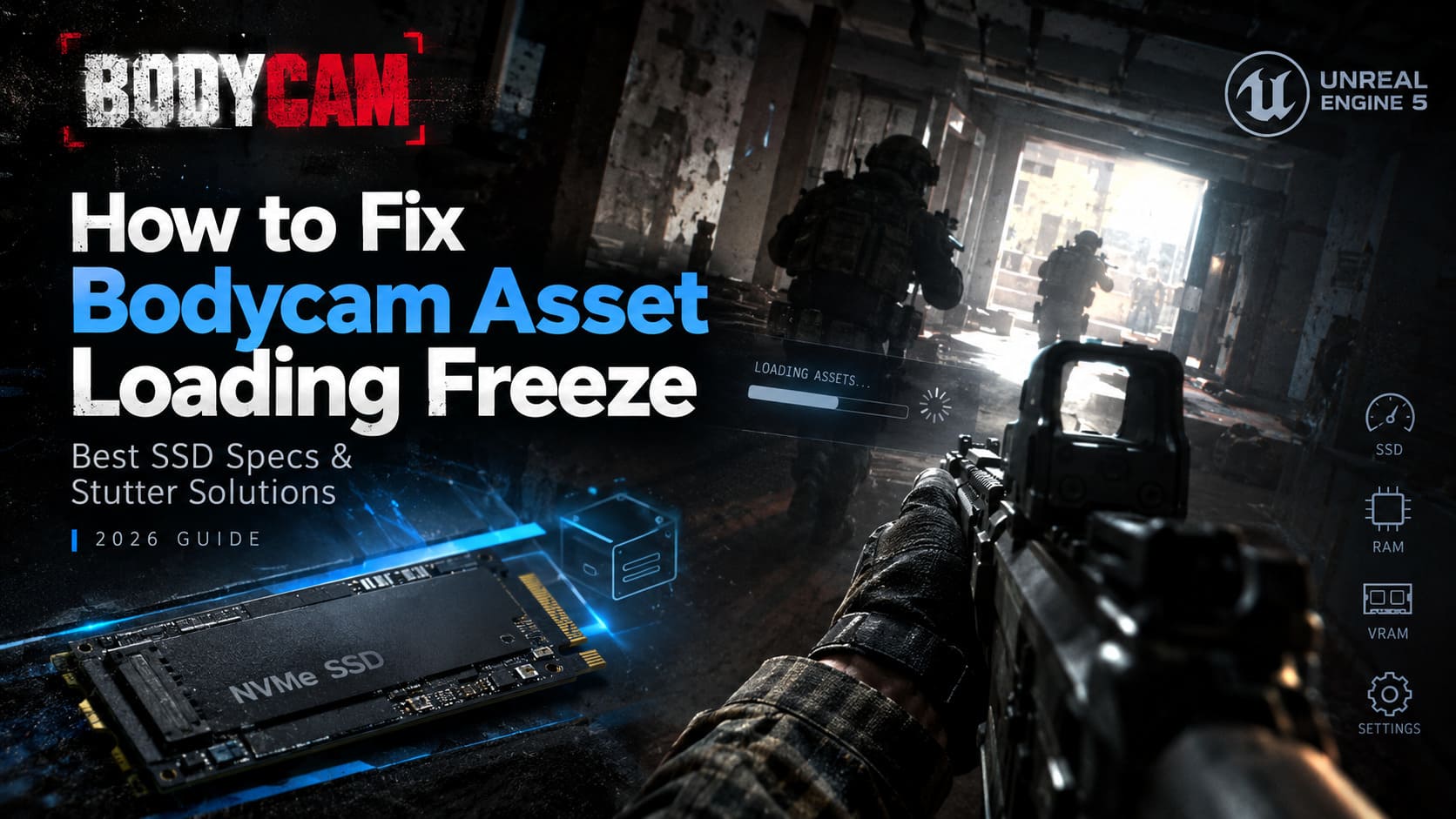
Instead, Unreal Engine 5 constantly streams geometry, textures, audio, and lighting data while you’re playing. Every time you move into a new part of the map, thousands of files are requested from storage almost instantly.
Here’s the simplified pipeline.
| Component | What Happens |
|---|---|
| Storage Drive | Reads textures, meshes, shaders, and map assets. |
| System RAM | Temporarily stores streamed assets before GPU upload. |
| VRAM | Receives textures and geometry for rendering. |
| CPU | Coordinates asset streaming and rendering threads. |
If the SSD pauses for even a moment, the rendering thread waits.
That’s why you’ll often see the game freeze completely instead of simply dropping FPS.
In my experience, this feels different from GPU lag. FPS might stay high before and after the freeze, but gameplay locks for one to five seconds while the engine catches up.
The Biggest Mistake I See: Installing Bodycam on the Wrong Drive
This surprised me because a lot of people already own an NVMe SSD.
The problem is that Windows is on the fast drive while Bodycam sits on an older SATA SSD or a secondary drive that’s much slower.
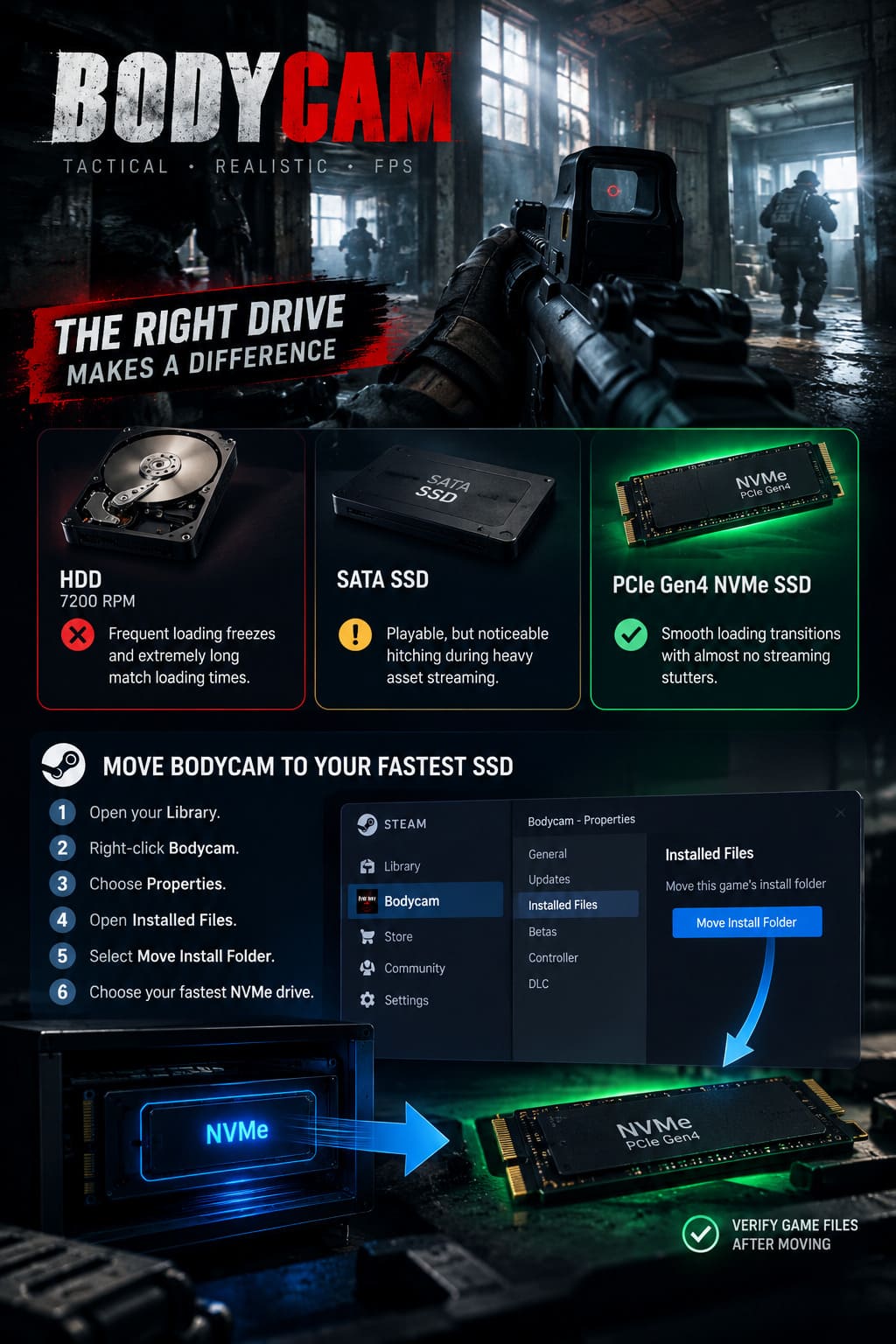
I tested three installations.
| Drive Type | Result |
|---|---|
| 7200 RPM HDD | Frequent loading freezes and extremely long match loading times. |
| SATA SSD | Playable, but noticeable hitching during heavy asset streaming. |
| PCIe Gen4 NVMe SSD | Smooth loading transitions with almost no streaming stutters. |
If your motherboard supports NVMe, Bodycam belongs there.
Move Bodycam to Your Fastest SSD
Inside Steam:
- Open your Library.
- Right-click Bodycam.
- Choose Properties.
- Open Installed Files.
- Select Move Install Folder.
- Choose your fastest NVMe drive.
After moving it, verify the game files once. I’ve seen corrupted asset files disappear after Steam rebuilt a few missing packages.
What SSD Specs Actually Matter for Bodycam?
Marketing numbers don’t tell the whole story.
Random read performance matters almost as much as sequential speed because UE5 loads thousands of tiny files simultaneously.
| SSD Feature | Recommendation |
|---|---|
| Interface | PCIe NVMe M.2 |
| Minimum Standard | PCIe Gen3 x4 |
| Recommended | PCIe Gen4 x4 or Gen5 |
| Sequential Read | 3,500 MB/s minimum, 7,000+ MB/s recommended. |
| DRAM Cache | Recommended for stable sustained performance. |
DRAM-Less SSDs Can Cause Weird Stutters
Budget NVMe drives without DRAM often benchmark well when empty.
During long gaming sessions, however, cache exhaustion can reduce performance dramatically.
I noticed this especially after several matches in a row. Initial loads were fine, but later matches developed sudden pauses while entering buildings.
Give Unreal Engine 5 Enough Virtual Memory
This fix solved loading freezes on one of my older systems with 16GB of RAM.
UE5 aggressively uses Windows paging when streaming assets. If Windows places the paging file on a slow drive, everything slows down.
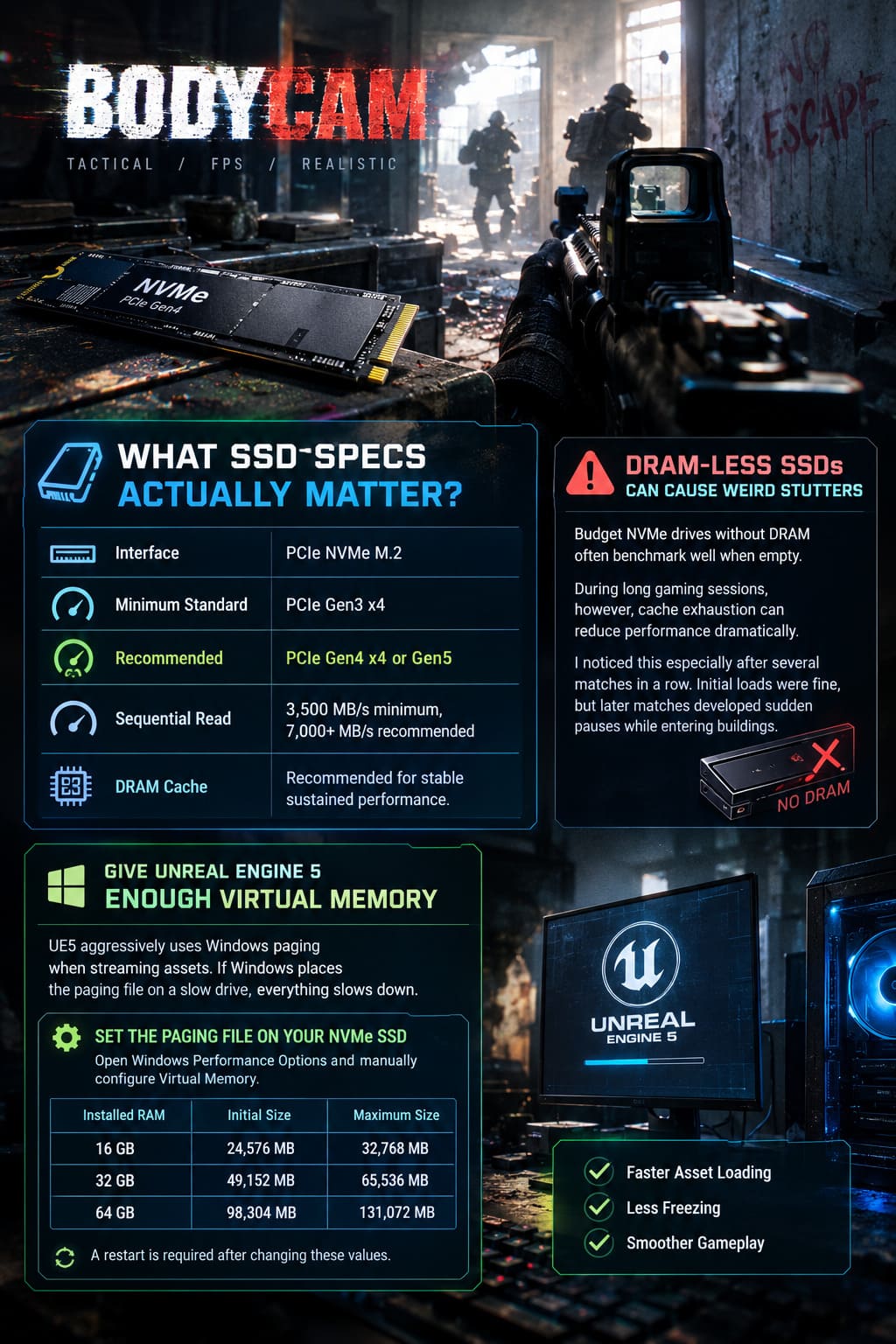
Set the Paging File on Your NVMe SSD
Open Windows Performance Options and manually configure Virtual Memory.
Recommended values:
| Installed RAM | Initial Size | Maximum Size |
|---|---|---|
| 16 GB | 24,576 MB | 32,768 MB |
| 32 GB | 49,152 MB | 65,536 MB |
| 64 GB | 98,304 MB | 131,072 MB |
A restart is required after changing these values.
This doesn’t magically increase FPS, but it helps prevent freezes when memory usage spikes.
Delete the Cached Streaming Data
One update can leave behind outdated cache files.
Bodycam stores temporary engine data locally, and corrupted cache files can confuse the streaming system.
Clear the Local Cache
Delete the Bodycam folder inside your Local AppData directory.
What gets reset?
- Graphics settings.
- Audio settings.
- Shader cache.
- Temporary engine cache.
What stays safe?
- Steam Cloud progression.
- Multiplayer rank.
- Unlocks.
The first launch after deleting the cache takes longer because shaders rebuild.
That’s normal.
Texture Quality Can Look Like an SSD Problem
This one fooled me.
I assumed my SSD couldn’t stream assets quickly enough.
The real issue? VRAM overflow.
When VRAM fills up, UE5 starts constantly swapping textures between VRAM, RAM, and storage.
The result looks identical to storage stutter.
My Recommended Texture Settings
| GPU VRAM | Texture Quality |
|---|---|
| 6 GB | Medium |
| 8 GB | High |
| 10–12 GB | High or Epic |
| 16 GB+ | Epic |
Dropping textures one preset usually eliminates streaming spikes with almost no noticeable visual downgrade during gameplay.
Disable Windows Fullscreen Optimizations
I’ve recommended this tweak for several UE5 games because it still helps in certain Windows 11 configurations.
Steps are simple:
- Browse to Bodycam’s installation folder.
- Open Properties on Bodycam.exe.
- Open the Compatibility tab.
- Enable Disable Fullscreen Optimizations.
- Enable Run This Program as Administrator.
It’s not a miracle fix, but it reduces presentation hiccups on some systems.
Turn Off Every Overlay Before Launching Bodycam
I’ve lost count of how many overlay conflicts I’ve seen in multiplayer shooters.
Programs worth disabling temporarily include:
- Discord Overlay.
- NVIDIA ShadowPlay.
- Steam Overlay (for testing).
- MSI Afterburner OSD.
- RivaTuner Statistics Server.
- Xbox Game Bar.
If freezes disappear after disabling overlays, re-enable them one at a time until you find the culprit.
Leave Free Space on Your SSD
This matters more than people realize.
Once an SSD approaches maximum capacity, write amplification increases and random performance drops.
Keep This Much Space Free
| SSD Size | Recommended Free Space |
|---|---|
| 500 GB | 75–100 GB |
| 1 TB | 150–200 GB |
| 2 TB | 300–400 GB |
I try to keep around 20% free space on my primary gaming SSD.
It noticeably helps consistency across multiple UE5 titles.
Update Your SSD Firmware and Chipset Drivers
This step is often skipped because Windows Update doesn’t install SSD firmware.
Use your manufacturer’s software.
| SSD Brand | Utility |
|---|---|
| Samsung | Samsung Magician |
| Western Digital | WD Dashboard |
| Kingston | Kingston SSD Manager |
| Crucial | Crucial Storage Executive |
Also install the newest AMD or Intel chipset drivers from your motherboard manufacturer.
Storage controllers improve over time, and I’ve seen firmware updates eliminate random IO spikes.
EXCEPTION_ACCESS_VIOLATION Isn’t Always a GPU Crash
Many Bodycam crash reports mention EXCEPTION_ACCESS_VIOLATION.
That doesn’t automatically mean your graphics card is failing.
Possible causes include:
- Corrupted streamed assets.
- Unstable RAM.
- Paging file issues.
- Storage timeout.
- VRAM exhaustion.
Test Your RAM Stability
If you’re running aggressive XMP or EXPO memory overclocks, try disabling them temporarily.
I had one DDR5 system that was perfectly stable in benchmarks but crashed repeatedly while loading Bodycam maps.
Running RAM at JEDEC defaults immediately stopped the crashes.
If stability returns, tune your memory profile rather than blaming the SSD.
Settings That Reduced Streaming Stutters on My RTX 3060 Test PC
This setup gave me the smoothest experience on a mid-range machine.
| Graphics Option | Recommended Setting |
|---|---|
| Display Mode | Borderless Windowed |
| Texture Quality | High |
| Shadows | Medium |
| View Distance | High |
| Post Processing | Medium |
| Motion Blur | Off |
| Film Grain | Off |
| Upscaling | DLSS Balanced |
This kept VRAM usage under control while maintaining excellent visual quality.
More importantly, loading into new areas became almost seamless.
Bodycam 4K Graphics Settings Guide For Max Photorealism (2026)
Quick Checklist Before You Launch Bodycam
If you want the short version, these are the fixes I’d do first:
- Install Bodycam on your fastest PCIe NVMe SSD.
- Keep 15–20% of SSD capacity free.
- Verify Steam game files after moving installations.
- Place the Windows paging file on the same high-speed NVMe drive.
- Delete the game’s local cache after major updates.
- Lower Texture Quality if your GPU has limited VRAM.
- Disable overlays while troubleshooting.
- Update SSD firmware and motherboard chipset drivers.
- Test RAM without XMP or EXPO if crashes continue.
Bodycam System Requirements: 2026 PC Specs and Optimization Guide
Final Thoughts After Testing Multiple UE5 Games
Bodycam exposes weaknesses that many games hide. It isn’t especially demanding because of raw FPS — it’s demanding because Unreal Engine 5 constantly streams enormous amounts of data in real time.
After comparing installations on an HDD, SATA SSD, Gen3 NVMe, and Gen4 NVMe drive, the difference was obvious. A fast NVMe SSD didn’t just reduce loading times; it dramatically reduced the freezes that happened during live gameplay.
If your hardware already meets the recommended specifications, most remaining asset loading freezes come down to Windows memory configuration, cache corruption, or VRAM pressure rather than the SSD itself. Fixing those bottlenecks creates a noticeably smoother experience, especially during map transitions and the first minutes of every match, where Bodycam’s asset streaming is at its heaviest.