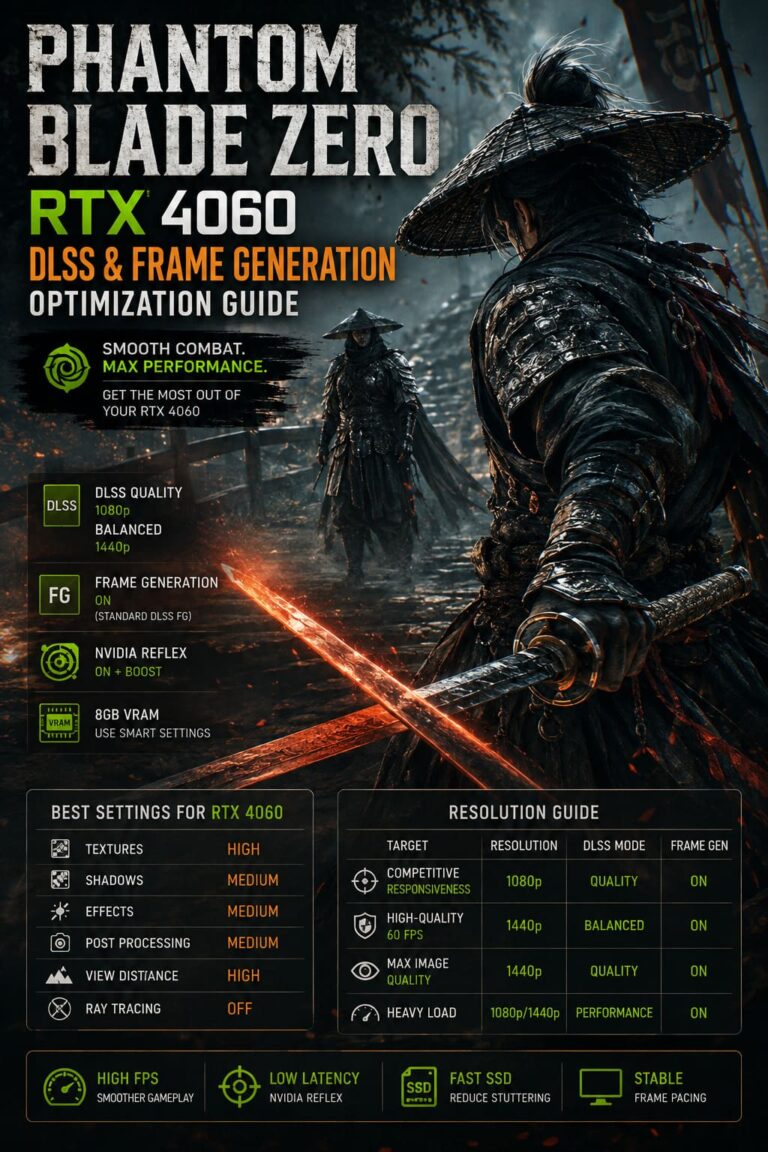
Serious Sam Shatterverse Low FPS, Stuttering & Lag Fix: 2026 PC Optimization Guide
Serious Sam Shatterverse is exactly the kind of shooter where performance problems become impossible to ignore. When the game is running properly, the sheer scale of the battles is fantastic: enemies are coming from every direction, explosions are filling the screen, and you are constantly moving instead of hiding behind cover.
But when the frame pacing falls apart, that same spectacle becomes a problem.
I have played plenty of shooters where a drop from 100 FPS to 75 FPS barely matters. Shatterverse is different. Even with a relatively high average frame rate, short freezes, inconsistent frame times, and sudden stutters can make aiming and movement feel considerably worse. The problem becomes especially obvious when a huge enemy wave appears, you enter a new area, or an explosion fills half the screen.
The good news is that you do not necessarily need a new GPU to improve the situation. After going through the usual PC troubleshooting routine, the biggest improvements come from controlling how the game streams assets, reducing a handful of expensive settings, and letting the graphics driver handle frame pacing.
Here is the setup I would use if I wanted Serious Sam Shatterverse to feel as smooth as possible without turning the game into a blurry low-detail mess.
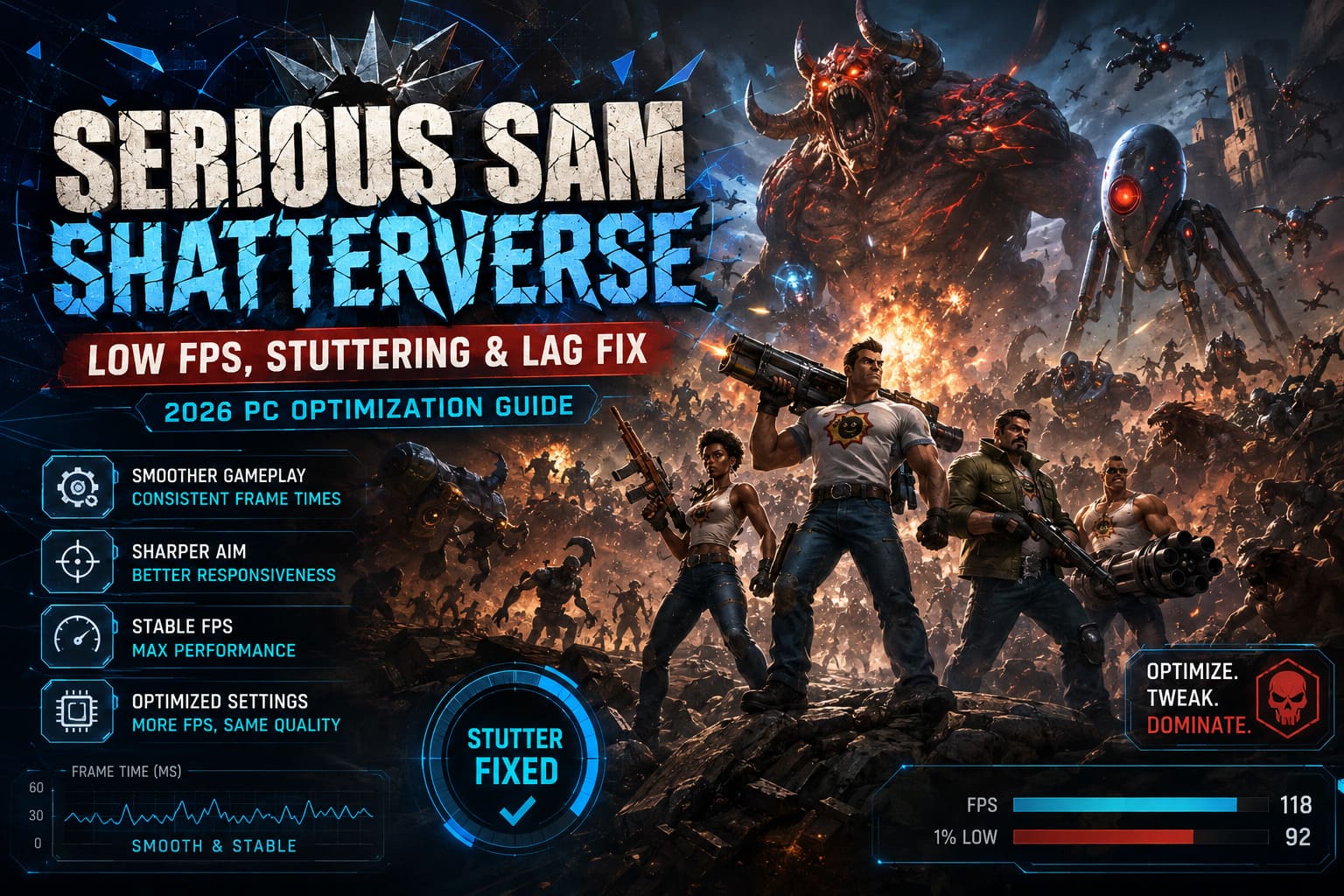
1. Start With the Game’s Configuration File
If there is one part of this guide I would try before spending hours randomly lowering graphics settings, it is the configuration file.
The Serious Engine has to deal with an absurd amount of information during large encounters. Textures, geometry, effects, physics objects, and other assets can be streamed while you are already fighting. In my experience with large-scale shooters, this is exactly the sort of situation that produces those annoying little pauses that an FPS counter often fails to explain.
First, launch the game once and then completely exit it. This gives the game a chance to create its configuration files.
Depending on the installation and version, check the Steam userdata directory, commonly found around:
C:\Program Files (x86)\Steam\userdata\[Your_Steam_ID]\257420\local\Look for a configuration file such as SeriousSam4.ini or a Shatterverse-specific .ini file.
Before editing anything, I strongly recommend making a backup. If something goes wrong, you can simply restore the original file instead of trying to remember what you changed.
Search for these settings and adjust them:
sim_fWorldPrecachingStreamingLoadingDoneThreshold = -1;
texs_ctMaxUnloadsPerFrame = -1;
texs_ctTooMuchLoadingTextures = -1;
texs_fTooMuchToLoadAtOnceMB = -1;
These values are aimed at changing how aggressively the engine handles asset streaming and texture loading.
CPU Thread Allocation
If you have a modern processor with plenty of threads, you can also experiment with:
ren_iMaxRenderThreads = 16;
thr_iMaxWorkerThreads = 16;
Do not blindly copy the number 16 if your CPU has fewer threads. Match these values to the hardware where appropriate.
One thing I have learned from tweaking PC games over the years is that more threads do not automatically equal better performance. Sometimes an engine behaves beautifully after giving it more room to work; sometimes forcing aggressive thread counts creates a different set of problems. Test the game after each change rather than changing twenty values at once.
2. Do Not Just Turn Everything to Low
This is where many PC optimization guides go wrong.
If your goal is better performance, setting every option to Low is an easy solution, but it is rarely the best one. Some settings have a huge performance impact while barely changing the image. Others can be reduced considerably without making the game look terrible.
For Shatterverse, I would start with the following:
| Setting | Recommended Value | Why |
|---|---|---|
| Ground Quality | Low | Reduces streaming and VRAM pressure |
| Max Debris | Medium/Low | Helps during explosions |
| Max Debris Per Model | Medium/Low | Reduces physics workload |
| Particle Density | Low/Medium | Useful during huge firefights |
| Anti-Aliasing | FXAA/Temporal | Avoids excessive rendering cost |
| Prebaked Lighting | Off | Can improve frame consistency |
| Dynamic Decals | Off if necessary | Helps during extremely busy battles |
Ground Quality Is Particularly Important
I would pay special attention to Ground Quality.
Open-world or large battlefield games constantly stream environmental information as you move. When a setting controls large amounts of terrain data, increasing it can create more VRAM pressure than you might expect.
If you are getting stutters specifically while sprinting through large outdoor areas, try lowering Ground Quality first.
You may notice a small reduction in environmental detail, but I would rather have slightly less impressive ground textures and stable frame times than gorgeous terrain followed by a half-second freeze during a firefight.
3. Experiment With DirectX 12 and DirectX 11
There is no universal API winner for every PC.
On a modern Windows 11 machine with a relatively recent GPU, DirectX 12 would be my first choice. It is generally the more logical starting point for modern hardware and can deliver better frame-time behavior depending on the system.
However, if you experience crashes, graphical glitches, or strange stuttering, test DirectX 11.
This is one of those situations where benchmarking for five minutes is more useful than reading twenty comments from people with completely different PCs.
Try the same area or combat scenario under both APIs and compare:
- Average FPS
- 1% lows
- Frame-time consistency
- Stutters when entering new areas
- Stutters during explosions
- Texture loading behavior
Do not judge the API purely by the highest FPS number. A game running at 100 FPS with terrible frame pacing can feel worse than one running at a stable 85 FPS.
4. Fix Frame Pacing Instead of Chasing Maximum FPS
This is probably the most important performance lesson I have picked up from playing PC games.
A high FPS number does not automatically mean smooth gameplay.
If Shatterverse reports 110–120 FPS but movement still feels uneven, you are probably dealing with inconsistent frame delivery rather than insufficient raw rendering power.
Start by disabling the game’s own:
VSync: Off
Frame Rate Limiter: Off
Then let your GPU driver handle synchronization and frame limiting.
For NVIDIA hardware, open the NVIDIA Control Panel and create a profile for the game. From there, you can configure vertical synchronization, refresh-rate behavior, and a maximum frame rate.
For a 144 Hz monitor, for example, a cap around 141 FPS is a sensible starting point. With a 240 Hz display, around 237 FPS follows the same idea.
The exact number is less important than avoiding unnecessary swings between the GPU rendering as fast as possible and suddenly hitting synchronization limits.
If you use RTSS, it is also a good option for applying a consistent frame-rate cap.
Why I Prefer an External FPS Cap
The reason is simple: it gives you one clear system controlling the frame rate.
When the game limiter, VSync, Windows, and the driver all have different ideas about when a frame should be delivered, you can end up with inconsistent frame pacing.
A stable 90 FPS can feel fantastic.
An unstable 120 FPS can feel awful.
5. Make Sure Shatterverse Uses the Correct GPU
This sounds obvious, but it is worth checking, especially on laptops.
Windows can occasionally assign a game to an integrated GPU when you obviously want the dedicated NVIDIA or AMD hardware doing the work.
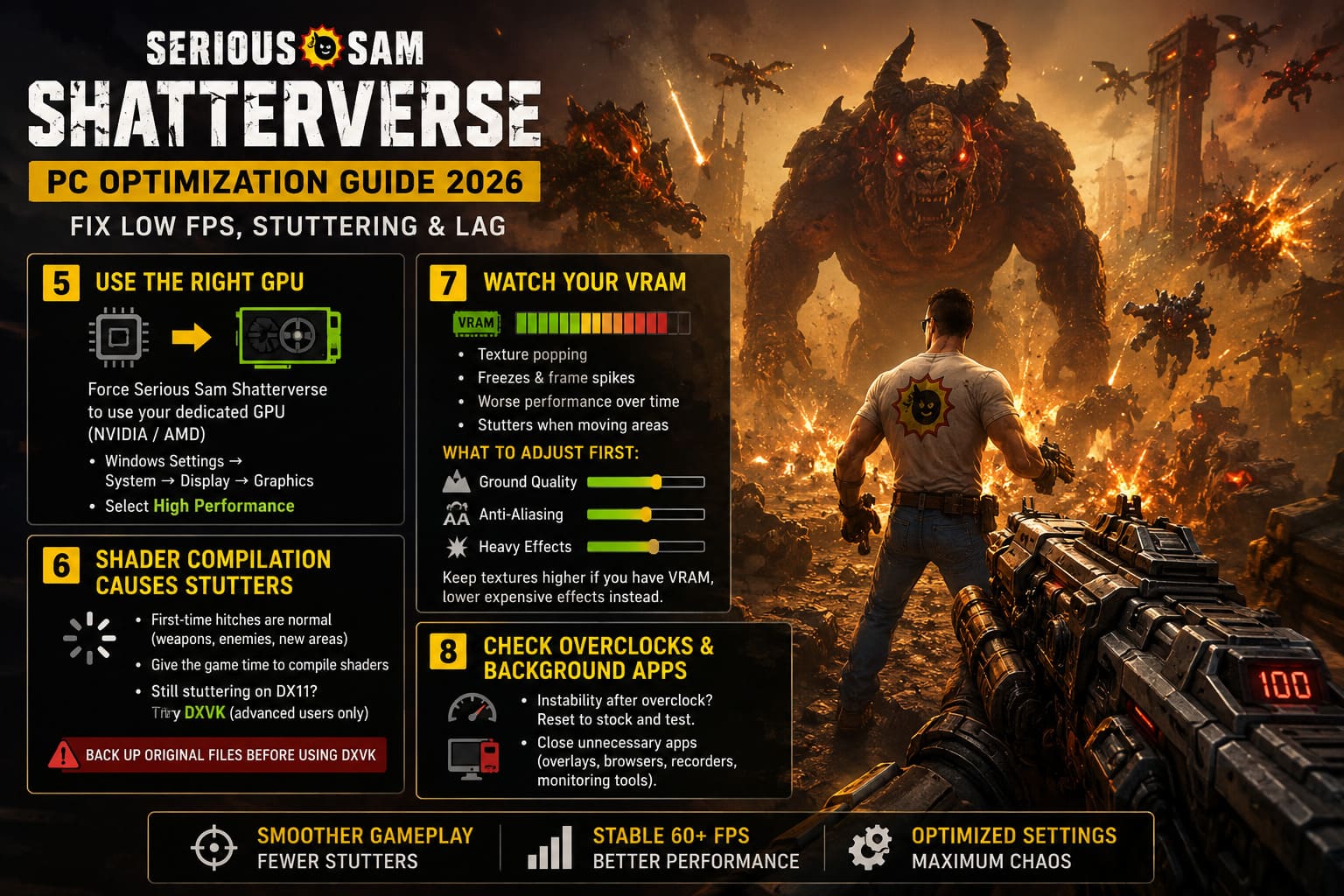
Go to:
Windows Settings → System → Display → Graphics
Find the game’s executable and select High Performance.
NVIDIA users can also open the NVIDIA Control Panel, find the game under Program Settings, and make sure the dedicated GPU is being used.
After changing this, restart the game.
If your GPU utilization suddenly makes much more sense and the frame rate improves dramatically, you have found the problem.
6. Shader Compilation Can Cause Those Horrible First-Time Stutters
One of the most irritating forms of stuttering is when the game freezes for a moment the first time something happens.
You fire a weapon.
Freeze.
A new enemy appears.
Freeze.
You enter an unfamiliar area.
Freeze again.
An enormous explosion happens.
Freeze again.
That behavior is often associated with shader compilation or asset preparation. The game encounters something it has not prepared yet and pauses while the necessary work is completed.
This is why I would not immediately assume your GPU is too weak.
Give the game some time after changing major graphics settings. Play through areas that previously caused stutters and see whether the behavior improves.
If native DirectX 11 continues to produce severe shader-related hitching, experienced PC users may also experiment with DXVK, which translates Direct3D calls through Vulkan.
For a DXVK setup, use the appropriate 64-bit DLL files for the DirectX version being translated and place them in the game’s executable directory. Always keep a backup of the original files first.
I would consider this an advanced troubleshooting step, not something every player needs to install immediately. If the game already behaves well under native DX12, there is little reason to complicate the setup.
7. Watch Your VRAM
Modern GPUs can have impressive amounts of VRAM, but Serious Sam Shatterverse can still put serious pressure on it.
If you are seeing:
- Texture popping
- Sudden freezes
- Large frame-time spikes
- Performance getting worse after extended play
- Stutters when moving between major areas
then VRAM usage deserves attention.
Rather than immediately reducing everything, start with the settings most closely connected to texture and environmental streaming.
Ground Quality is a good first target.
You can also reduce anti-aliasing and other expensive rendering options before sacrificing texture quality across the board.
If your GPU has plenty of VRAM, keeping texture quality relatively high while lowering more expensive effects is often a better visual compromise.
8. Do Not Overlook Overclocks and Background Software
If the game suddenly crashes or begins producing unusual performance problems after a GPU or CPU overclock, return the hardware to stock settings and test again.
Large-scale shooters can be surprisingly good stability tests. A system that survives every other game may still expose an unstable overclock when hundreds or thousands of objects are being processed simultaneously.
I would also temporarily close unnecessary background applications while troubleshooting.
You do not need to turn Windows into a sterile laboratory every time you play, but if you are trying to diagnose a 0.5-second hitch, eliminating overlays, monitoring tools, browser tabs, recording software, and unnecessary utilities can make the source of the problem much easier to identify.
Serious Sam Shatterverse Multiplayer Not Working With Friends Fix (2026)
My Recommended Serious Sam Shatterverse PC Settings
If I were setting up the game on a modern gaming PC today, this would be my starting profile:
| Category | Setting |
|---|---|
| Display Mode | Borderless or Fullscreen |
| Graphics API | DirectX 12 |
| VSync | Off In-Game |
| FPS Limit | Driver/RTSS |
| Frame Cap | Refresh Rate – 3 FPS |
| Ground Quality | Low |
| Debris | Medium |
| Debris Per Model | Medium |
| Particles | Low/Medium |
| Anti-Aliasing | FXAA/Temporal |
| Prebaked Lighting | Off |
| Dynamic Decals | Off if needed |
| Streaming Buffer | High/Ultra if VRAM allows |
| Overclock | Stock During Testing |
I would then increase individual settings one at a time.
That last part matters. If you change twelve options simultaneously and the stuttering disappears, you have no idea which change actually solved it.
Serious Sam Shatterverse Co-Op Guide: How to Play with Friends (2026)
Final Thoughts
Serious Sam Shatterverse is a game where stable frame times matter almost as much as average FPS. Its enormous battles put unusual pressure on streaming, CPU scheduling, GPU memory, shaders, physics, and rendering all at once.
The most useful changes are not necessarily the most obvious ones. Lowering every graphical setting can certainly increase FPS, but it does not address the underlying reason for those annoying freezes when entering new areas or starting massive encounters.
I would begin with the configuration-file streaming adjustments, then lower Ground Quality and debris settings, test DirectX 12 against DirectX 11, and finally establish a sensible external FPS cap.
If you are still experiencing severe stuttering after all of that, do not immediately assume your hardware is inadequate. Test VRAM usage, GPU assignment, shader behavior, background applications, and system stability before buying anything.
The goal is not to make Shatterverse look like a game from ten years ago. The goal is to preserve what makes it fun — enormous enemy waves, ridiculous explosions, and constant movement — while making sure your PC can actually deliver those moments without turning them into a slideshow.