How to Fix Wanderburg Low FPS Late Game: Complete Optimization Guide
If there is one thing that can ruin an otherwise fantastic roguelite run, it is watching your FPS slowly collapse just when your rolling fortress becomes truly ridiculous. Wanderburg has a brilliant concept: you build and control a gigantic medieval castle on wheels, roll through procedurally generated landscapes, tear apart settlements, collect resources, and fight other mobile fortresses. The problem is that the bigger and more complicated your creation becomes, the harder your PC may have to work.
Early runs can feel perfectly smooth. Then several hours later, your castle is covered in weapons, wheels, defensive structures, automated systems, and other moving parts, while enemies, explosions, debris, and projectiles fill the battlefield. Suddenly that comfortable 60 FPS experience turns into 35 FPS, 25 FPS, or even worse.
I’ve seen this kind of problem in plenty of simulation-heavy and physics-driven games, and the important thing to understand is that low late-game FPS in Wanderburg isn’t necessarily a sign that your GPU is too weak. In many situations, the CPU and the game’s simulation workload are the real culprits.
The good news is that there are several things you can change before you start blaming your hardware or abandoning a promising run.
Wanderburg Crashing on Launch Steam Fix: How to Stop Freezing, Black Screen, and Startup Crashes
Why Does Wanderburg Lose FPS in the Late Game?
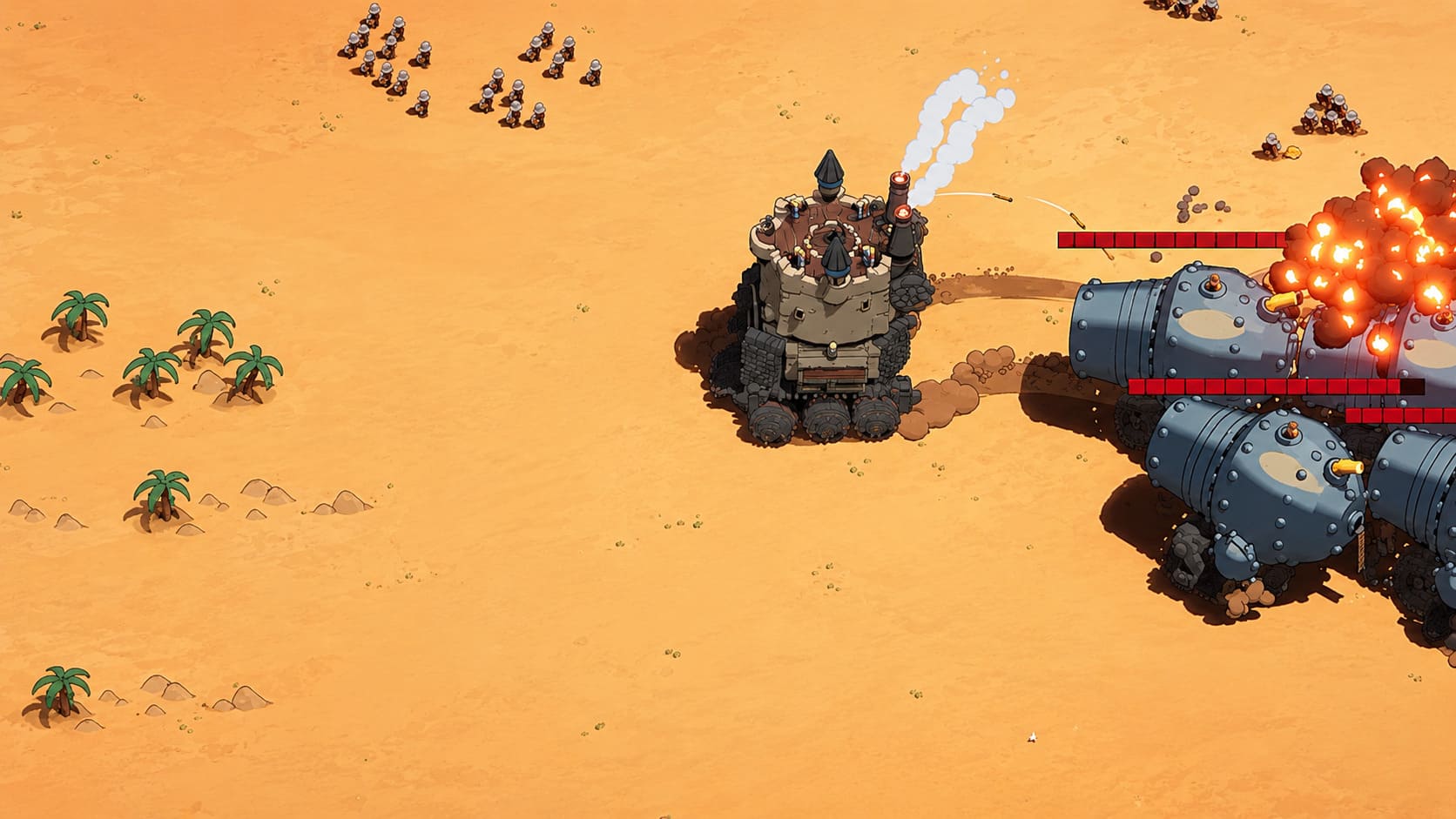
Wanderburg is not rendering a simple static scene. Your fortress is essentially a moving collection of interconnected systems. Wheels move, weapons track targets, projectiles travel through the environment, structures react to impacts, enemies perform their own actions, and the world continues generating and managing objects around you.
That workload can become particularly nasty once your fortress grows large.
A powerful graphics card can render the game’s visual style without much trouble, yet your CPU can still struggle to process everything happening behind the scenes. That’s why you may notice something strange in monitoring software: GPU usage isn’t necessarily sitting at 99% while your FPS is falling through the floor.
This is a classic CPU-bound situation. The GPU is waiting for the game to finish its calculations.
GPU Bottleneck vs CPU Bottleneck
| Problem | Typical Sign | What to Try |
|---|---|---|
| GPU Bottleneck | GPU usage stays near 95–100% | Lower resolution, shadows and effects |
| CPU Bottleneck | GPU usage falls while FPS drops | Reduce simulation-heavy settings and background CPU load |
| Thermal Throttling | FPS decreases after long sessions | Check CPU/GPU temperatures |
| Memory Pressure | Stutters become worse over time | Close background applications and restart the game |
| Storage Bottleneck | Stutters during loading or entering areas | Move the game to an SSD |
| Frame Pacing Issue | FPS looks acceptable but feels uneven | Adjust V-Sync and FPS limiting |
If your FPS drops specifically when the action becomes chaotic, don’t immediately crank every graphical setting down to Low. You may be attacking the wrong problem.
Start With Wanderburg’s Graphics Settings
The first thing I would do is make a few targeted changes rather than destroying the game’s visuals.
Wanderburg’s aesthetic is relatively clean compared with many modern games, so you can often lower demanding settings without turning the whole screen into a blurry mess.
Lower the Resolution Scale
If you’re playing at 1440p or 4K, try reducing the resolution scale to around 90% or 80%.
This reduces the number of pixels your GPU has to process while keeping the game’s overall presentation reasonably sharp. At 1440p, I would personally start at 90% before going any lower. If you’re desperate for additional performance, 80% is worth testing.
At native 4K, the difference can be much more noticeable because the GPU has substantially more pixels to push.
Reduce Particle Effects
This is one of the first settings I would touch during heavy combat.
Large battles can produce explosions, sparks, smoke, fragments, magical effects, and other visual clutter. When several weapons are firing at once, particle effects can pile up quickly.
Set Particle Quality to Medium or Low and test another late-game fight.
You might be surprised by the difference.
Lower Shadow Quality
Dynamic shadows can be surprisingly expensive, particularly when you have a huge moving structure surrounded by other objects.
Try Medium or Low shadow quality first. I wouldn’t sacrifice every visual setting immediately, but shadows are one of the easier compromises when chasing better performance.
The castle will still look good. You probably won’t miss those ultra-detailed shadows while trying not to get your fortress demolished.
Reduce Debris and Object Persistence
If Wanderburg provides options controlling debris, destroyed structures, or environmental object persistence, lower them.
A battlefield filled with wreckage looks cool, but every additional object the game has to track can contribute to the workload. The longer a session lasts, the more noticeable this can become.
Don’t Ignore Frame Pacing
Sometimes the problem isn’t simply the number shown by your FPS counter.
You can have 60 FPS and still experience horrible stuttering if individual frames are arriving unevenly. I’ve had games feel worse at a supposedly stable 60 FPS than another game running at 50 FPS with consistent frame times.
That is why frame pacing matters just as much as average FPS.
Try Disabling In-Game V-Sync
Start by testing Wanderburg with V-Sync disabled.
Depending on the engine and your refresh rate, traditional V-Sync can introduce additional latency or cause noticeable drops when the game cannot maintain the required refresh target.
If you have a 144Hz monitor and the game suddenly cannot maintain 144 FPS, the behavior can become particularly annoying.
Use a Stable FPS Cap
Instead of chasing the highest possible number, find a frame rate your PC can actually maintain during late-game gameplay.
- 60 FPS for a stable baseline.
- 72 FPS on a 144Hz display if your hardware can maintain it.
- 90 FPS if your system remains consistently above that level.
- Around 141 FPS for a 144Hz monitor when the hardware can genuinely sustain it.
A stable 60 FPS is far better than bouncing between 90, 55, 38, and 70 FPS every few seconds.
If you’re using an NVIDIA or AMD graphics card, an external frame-rate limiter can also be worth testing. The goal is simple: make frame delivery predictable instead of constantly pushing the hardware against its limit.
Watch Your CPU Usage During a Bad FPS Drop
This is probably the most useful troubleshooting step.
Run Wanderburg and monitor your CPU and GPU while playing normally. When the late-game slowdown appears, check what happens to both.
If GPU usage drops significantly while one or more CPU cores are heavily loaded, you have a strong indication that you’re dealing with a CPU-side bottleneck.
That’s important because lowering texture quality won’t magically fix a simulation bottleneck.
You can have an expensive high-end GPU sitting there doing relatively little while the processor is desperately trying to calculate everything happening inside your enormous rolling death machine.
Check Individual CPU Cores
Overall CPU usage can sometimes be misleading.
A game may not distribute its workload evenly across every CPU core. You could see something like 40–50% total CPU utilization while one or two cores are working extremely hard.
That’s why monitoring individual core activity can provide a much clearer picture.
Close Background Programs
This sounds boring, but it is one of those fixes that actually makes sense for CPU-heavy games.
Before launching a long Wanderburg session, close applications you don’t need. Browser tabs, launchers, recording software, RGB utilities, synchronization programs, and communication applications can all consume some combination of CPU, RAM, GPU resources, or disk activity.
You don’t need to turn Windows into a sterile laboratory, but removing unnecessary background workloads is worth doing.
Things Worth Testing
- Disable unnecessary Discord and Steam overlays.
- Turn off Xbox Game Bar if you don’t use it.
- Close browsers with dozens of active tabs.
- Disable hardware acceleration in background applications if they are consuming significant resources.
- Stop unnecessary recording or streaming software.
- Avoid running heavy downloads while playing.
Don’t expect a miracle from every single change. The idea is to eliminate unnecessary competition for system resources.
Check Your Power Plan
Windows power management can also affect performance.
If your system is using an aggressive power-saving configuration, the CPU may not maintain higher clocks as consistently as you would like during demanding workloads.
Open Windows power settings and check the active power plan. High Performance can be useful for troubleshooting performance problems.
I wouldn’t automatically recommend running every PC permanently in maximum-performance mode, especially on laptops, but it is a sensible test when you’re trying to determine whether power management is contributing to FPS drops.
Check Temperatures Before Blaming Wanderburg
Thermal throttling can create some very confusing performance problems.
Your PC might run Wanderburg perfectly for the first hour and then gradually become slower as temperatures rise. If the CPU or GPU reaches its thermal limits, the hardware can reduce clock speeds to protect itself.
Monitor temperatures while playing, especially during the moment your FPS starts collapsing.
Pay attention to:
- CPU temperature
- GPU temperature
- CPU clock speed
- GPU clock speed
- CPU usage
- GPU usage
- RAM usage
- VRAM usage
If clock speeds suddenly fall at the same time as temperatures become excessive, your performance problem may be cooling-related rather than a graphics-setting issue.
Dust buildup, poor airflow, an aging thermal solution, or an overly aggressive fan curve can all contribute.
Install Wanderburg on an SSD
If you’re still running games from a mechanical hard drive, moving Wanderburg to an SSD is worth considering.
An SSD won’t necessarily transform a CPU-bound 30 FPS scene into 100 FPS. That’s not what it does. Its advantage is faster data access, which can help reduce loading delays and asset-streaming problems.
If you experience sudden pauses when entering new regions or loading lots of new environmental data, storage performance deserves attention.
For modern PC gaming, an SSD should be the preferred location for Wanderburg whenever possible.
Update Your GPU Drivers
Graphics driver updates can include game-specific optimizations, bug fixes, and compatibility improvements.
Install the latest stable driver for your GPU from NVIDIA, AMD, or Intel and test the game again.
If you’ve repeatedly upgraded drivers over a long period and suspect something is corrupted, a clean driver installation can be worth trying. Tools such as DDU are commonly used for this purpose, but I would treat a complete driver wipe as a troubleshooting step rather than the first thing you do.
There is no reason to reinstall your entire driver stack because Wanderburg lost 10 FPS after your castle acquired another cannon.
Should You Use Frame Generation?
Frame generation can be useful, but there is an important catch.
Technologies that generate additional frames can make motion appear substantially smoother, but they do not remove the underlying CPU bottleneck. If Wanderburg is actually running at 25–30 FPS because the simulation is struggling, generated frames can improve perceived smoothness without making the game itself calculate everything faster.
That distinction matters.
Tools such as Lossless Scaling can be interesting for games that don’t offer native frame-generation support. If you experiment with external frame generation, start conservatively and pay attention to latency and visual artifacts.
A 30 FPS game converted into something that visually resembles 60 FPS can feel much nicer, but it isn’t equivalent to a genuine 60 FPS simulation.
Restart After Extremely Long Runs
This is a simple trick that is easy to overlook.
If performance gradually deteriorates over a very long session, completely closing Wanderburg and restarting it can tell you whether you’re dealing with accumulated memory usage, asset management, or a temporary game-state issue.
If the game returns to normal performance immediately after restarting and then slowly degrades again, that’s useful information.
Take note of how long it takes for the slowdown to appear. Ten minutes and four hours point toward very different problems.
My Recommended Wanderburg Optimization Setup
If I were sitting down for a serious late-game run, this is the configuration I would test first:
| Setting | Recommended Starting Point |
|---|---|
| Resolution Scale | 90% |
| Particle Quality | Medium |
| Shadows | Medium |
| V-Sync | Off for testing |
| FPS Cap | Stable target your PC can maintain |
| Background Overlays | Disabled |
| Power Plan | High Performance for testing |
| Game Storage | SSD |
| GPU Drivers | Current stable version |
| Frame Generation | Optional, after fixing native performance |
I wouldn’t immediately drop every setting to Low. Wanderburg is supposed to look good, and there is no reason to sacrifice visual quality if your actual limitation is CPU simulation.
What If Nothing Fixes the Late-Game FPS?
This is where I would stop tweaking and start looking at the game itself.
If your hardware is comfortably above the game’s requirements, temperatures are normal, drivers are current, background applications are under control, and the FPS still collapses specifically when your fortress reaches an enormous size, the game engine may simply be hitting a simulation limit.
That’s particularly believable for an Early Access game built around physics, procedural generation, modular construction, and lots of interactive entities.
In that situation, you cannot settings-menu your way out of every performance problem.
The best thing you can do is document exactly when the problem happens. Record your FPS, CPU/GPU usage, system specifications, approximate fortress size, and what is happening on screen when the slowdown occurs. That information is much more useful for developers than simply saying ‘the game is lagging.’
Final Thoughts
Wanderburg becomes more demanding for a very logical reason: your fortress keeps getting bigger, busier, and more complicated. The same systems that make building an absurd medieval machine so entertaining can eventually become the reason your frame rate starts falling apart.
I’d begin with particle quality, shadows, resolution scaling, frame pacing, and background applications. Then check CPU and GPU usage during an actual late-game slowdown instead of guessing which component is responsible.
If the GPU is barely working while the CPU is struggling, stop lowering textures and start focusing on CPU overhead and the game’s simulation workload. If the GPU is pinned at 100%, reduce rendering demands instead.
And if everything looks normal but Wanderburg still drops from a smooth experience into a slideshow only after your fortress reaches monstrous proportions, don’t assume your PC is broken. Sometimes you’ve simply built a castle so ridiculous that the game has to think about every single stupid little wheel, cannon, projectile, and piece of debris you’ve thrown onto it.
That is a performance problem, sure. But honestly, it is also a pretty funny reminder that you may have succeeded a little too well at building the ultimate rolling fortress.