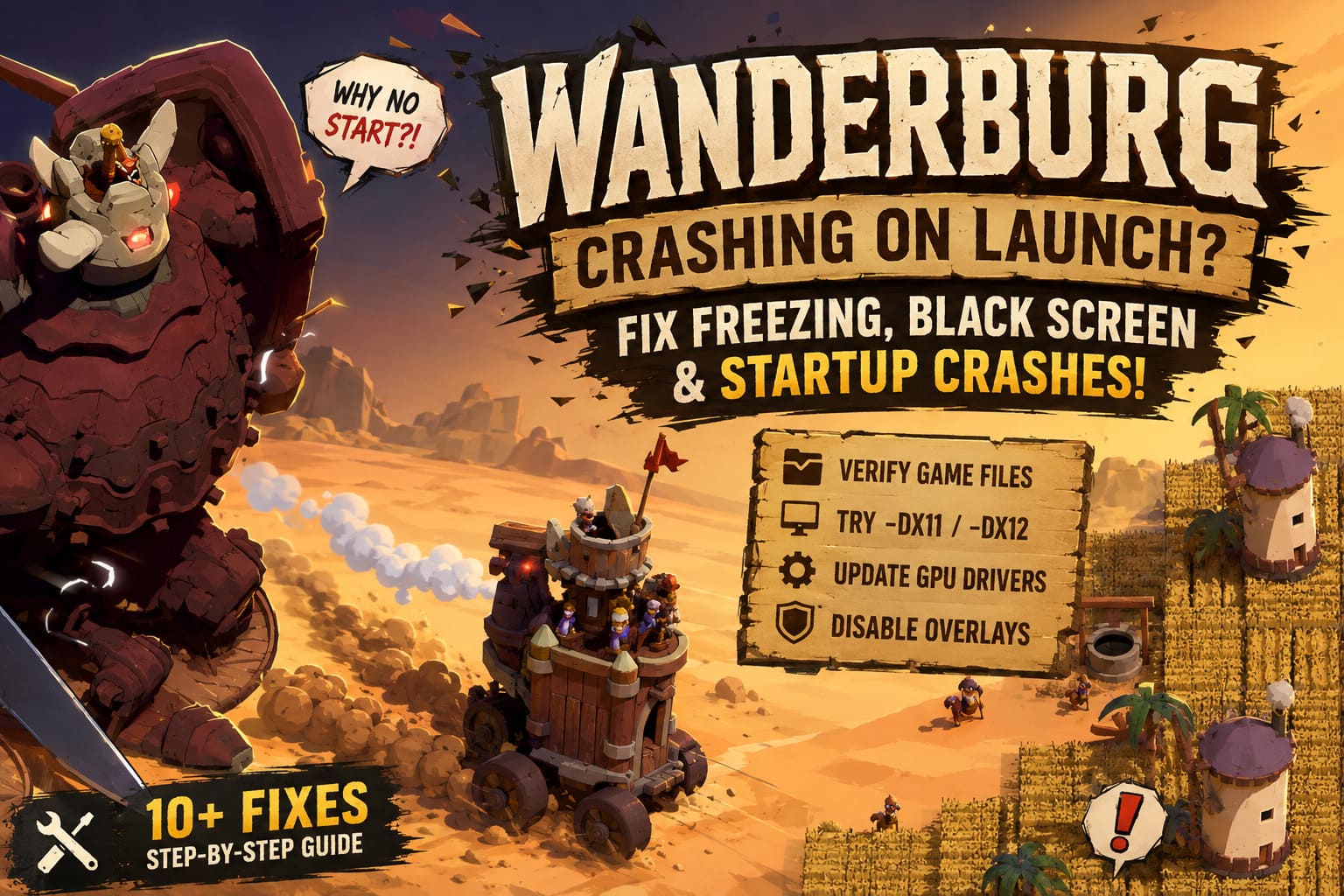
Wanderburg Crashing on Launch Steam Fix: How to Stop Freezing, Black Screen, and Startup Crashes
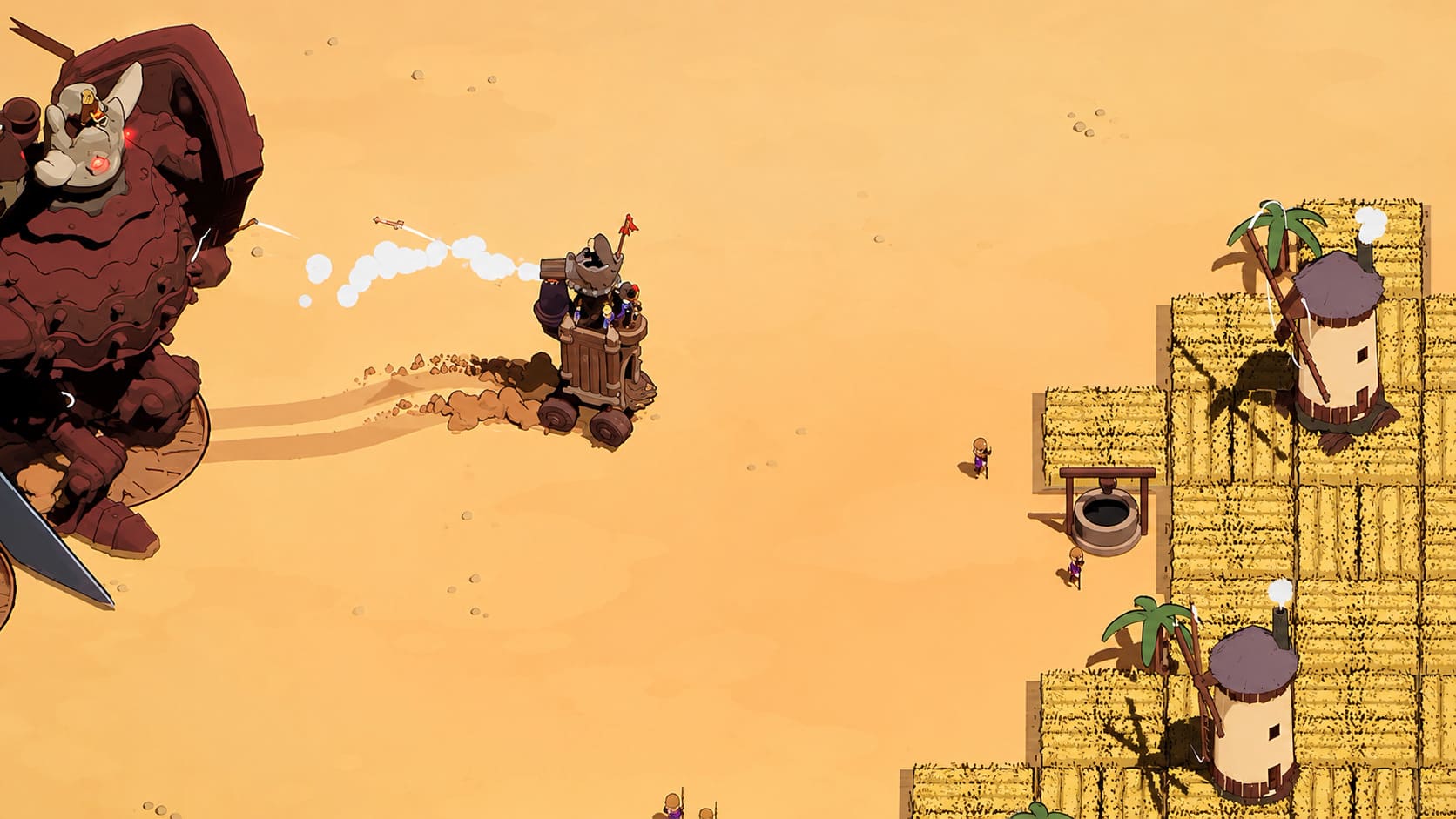
Wanderburg is the kind of game that immediately caught my attention. A moving medieval fortress, modular construction, survival combat, physics-driven destruction, and roguelike progression is a pretty wild combination, and after spending a lot of time with games that mix building and combat, I was genuinely curious to see how Randwerk would make the concept work. The problem is that some PC players are getting stopped before they even get a chance to enjoy it.
For some players, Wanderburg crashes immediately after pressing Play on Steam. Others get a black screen, a freeze during the opening logos, or a crash straight back to the Windows desktop. Those problems are especially annoying with an Early Access game because the usual PC troubleshooting tricks don’t always have the same result after a new patch changes files, drivers, shaders, or configuration data.
If Wanderburg refuses to start on your PC, don’t assume your hardware is automatically too weak. Launch failures can come from corrupted game files, graphics API conflicts, outdated drivers, fullscreen settings, overlays, permissions, or damaged temporary configuration data. I’ve put together the fixes I’d try myself, starting with the quickest solutions before moving into the more aggressive troubleshooting.
Wanderburg Game 2026 Ultimate Randwerk & Sidekick Publishing Roadmap Guide
Why Is Wanderburg Crashing on Launch?
There isn’t one universal cause behind every Wanderburg startup crash. Early Access games are constantly changing, and even a relatively small update can introduce a bad configuration file or expose an incompatibility that wasn’t obvious before the patch.
The symptoms can also look almost identical even when the underlying problem is completely different. A corrupted asset can cause a crash, while a DirectX conflict can produce a black screen, and a broken fullscreen configuration may simply kill the game before the main menu appears.
Before changing a dozen Windows settings at once, I recommend working through the fixes below in order. That way, if one solution fixes Wanderburg, you’ll actually know what caused the problem.
1. Verify Wanderburg’s Steam Files
This is the first thing I’d do after a failed update or suspiciously quick crash. Steam downloads thousands of individual game files, and one damaged or incomplete file can be enough to prevent the executable from initializing correctly.
The nice part is that you don’t have to reinstall the entire game. Steam can compare your local installation against the expected files and replace anything that is missing or damaged.
- Open Steam and go to your Library.
- Right-click Wanderburg and choose Properties.
- Open Installed Files.
- Select Verify integrity of game files.
- Let Steam finish the scan and download any replacement files.
- Restart Steam and launch Wanderburg again.
If Steam reports that files were reacquired, don’t immediately assume something is still broken. Try launching the game after the verification has completely finished. I’ve seen plenty of PC games go from instant crash to perfectly normal startup after a simple file check.
2. Try DirectX 11 Instead of DirectX 12
DirectX compatibility is one of the first things I’d test when a game crashes before reaching its menu. Wanderburg can place a serious workload on the GPU because of its physics, environments, construction systems, and other real-time effects, so the graphics API matters more than it might in a lightweight indie game.
If the default renderer is giving your system trouble, forcing another API can sometimes get you past the exact point where the game normally crashes. On Steam, you can experiment with launch options without modifying the installation itself.
- Right-click Wanderburg in your Steam Library.
- Select Properties.
- Stay on the General tab.
- Find the Launch Options field.
- Enter -dx11.
- Close the window and launch the game.
If DirectX 11 makes things worse or changes nothing, remove the command and test -dx12 instead. Don’t leave several random graphics commands stacked together while troubleshooting. One variable at a time makes it much easier to identify what is actually helping.
3. Force Wanderburg Into Windowed Mode
A black screen followed by a crash can sometimes be caused by a display configuration that the game doesn’t like. This is particularly worth checking if you’ve recently changed your monitor, resolution, refresh rate, HDR settings, or multi-monitor setup.
Try launching Wanderburg in windowed mode before touching more complicated Windows settings.
- Open Steam > Library.
- Right-click Wanderburg and choose Properties.
- Find the Launch Options field.
- Enter -windowed.
- Launch the game.
If that doesn’t work, some games also respond to the alternative -sw command. Once you successfully reach the menu, set the resolution to your monitor’s native resolution and then experiment with fullscreen or borderless mode.
Personally, I’d leave the game in borderless or windowed mode while troubleshooting rather than immediately switching back to exclusive fullscreen. It removes another possible source of weirdness while you’re trying to get a stable configuration.
4. Perform a Clean GPU Driver Installation
Your graphics driver is effectively the translator between Wanderburg and your GPU. When a new game build starts using rendering features that your current driver handles badly, the result can be anything from visual glitches to an outright crash during initialization.
Don’t just assume that Windows Update has installed the best driver for gaming. Check the latest driver available directly from your GPU manufacturer, especially if the current driver is several months old or you’ve recently upgraded your graphics card.
- NVIDIA: Check the latest Game Ready driver through NVIDIA’s software or official driver page.
- AMD: Use AMD Software: Adrenalin Edition to check for a current driver.
- Intel: Check Intel’s current graphics package if you’re using supported Intel hardware.
If a normal update doesn’t solve the crash, a clean driver installation is worth trying. This can remove old configuration data that survived several driver updates and is occasionally responsible for strange behavior in newer games.
After installing the driver, restart Windows completely. Don’t just close Steam and immediately launch Wanderburg again; give the system a clean reboot first.
5. Disable Fullscreen Optimizations and Test Administrator Access
Windows compatibility settings can occasionally become part of the problem, particularly when an older configuration or unusual permission setup collides with a newer game build. It’s not the first solution I’d reach for, but it’s quick enough to test.
- Right-click Wanderburg in Steam.
- Choose Manage > Browse local files.
- Locate the game’s executable.
- Right-click it and select Properties.
- Open the Compatibility tab.
- Test Disable fullscreen optimizations.
- If necessary, test Run this program as an administrator.
- Click Apply and launch the game.
I wouldn’t automatically force every game to run as administrator. It can solve certain permission problems, but it also changes how the application interacts with Windows. Treat it as a troubleshooting test rather than a mandatory gaming setting.
6. Clear Steam’s Download Cache
If Wanderburg started crashing immediately after an update, Steam’s temporary download data is another reasonable suspect. A broken download cache can occasionally cause strange behavior when Steam is updating or validating game content.
Open Steam’s settings and look for the Downloads section. There you’ll find the option to clear the download cache. Steam will restart and may require you to sign in again afterward, so don’t panic when the client closes.
Once Steam has restarted, let any pending downloads finish before launching Wanderburg. If the game was patched recently, I’d also run the file verification process again afterward.
7. Reset Wanderburg’s Local Configuration
Sometimes the game files themselves are completely healthy while the user configuration is the thing that’s broken. A bad resolution, graphics option, shader setting, or leftover configuration from an older build can survive an update and continue crashing the game.
Press Windows Key + R, enter %localappdata%, and look for a Wanderburg- or Randwerk-related folder. If you find configuration or cache files, back them up before deleting anything.
Be careful with save data. Don’t blindly delete the entire folder just because it has the game’s name. Save files and configuration files can live in the same general area, and losing progress over a troubleshooting attempt is absolutely not worth it.
8. Turn Off Overlays and Monitoring Software
This is one of those boring PC fixes that I end up using more often than I’d like. Overlays hook themselves into games to provide recording, chat, performance monitoring, screenshots, or hardware statistics. Most of the time they work perfectly, but a new game build can expose an incompatibility.
For a clean troubleshooting run, temporarily disable:
- Steam Overlay
- Discord Overlay
- NVIDIA or AMD recording overlays
- MSI Afterburner / RivaTuner overlays
- Other FPS counters and hardware monitoring applications
Don’t uninstall everything. Just close the applications or disable their overlays and test Wanderburg again. If the game suddenly launches, you’ve narrowed the problem down considerably.
9. Check Antivirus Interference
Security software can occasionally quarantine or block a newly updated executable or one of its supporting files. This is particularly annoying because the game can appear completely broken while Windows Security is quietly preventing something from loading.
Check your antivirus quarantine and protection history first. If Wanderburg or one of its files has been flagged, investigate the detection before allowing it. If you’re confident the installation is legitimate, you can test a temporary exclusion for the game’s installation folder.
Don’t permanently disable your antivirus just to make one game run. A temporary, controlled test is much safer than leaving Windows unprotected.
10. Restart After Every Major Change
This sounds almost too simple, but it matters when you’re changing drivers, Steam components, Windows compatibility settings, or background software. If you’ve tried six fixes without restarting, you don’t really know which state Windows is currently running in.
After a driver replacement or major system-level change, reboot. After a simple Steam launch-option adjustment, a reboot usually isn’t necessary, but restarting the game completely is. PC troubleshooting gets much easier when you’re testing one clean configuration at a time.
Quick Wanderburg Crash Troubleshooting Checklist
| Problem | First Fix To Try | What You’re Testing |
|---|---|---|
| Crash immediately after Play | Verify game files | Corrupted or missing files |
| Black screen at startup | Use -windowed | Resolution/fullscreen conflict |
| Crash during graphics initialization | Try -dx11 or -dx12 | Graphics API compatibility |
| Crash after a GPU driver update | Clean driver installation | Driver/configuration conflict |
| Game closes with overlays active | Disable overlays | Third-party injection conflicts |
| Crash after a recent patch | Clear cache + verify files | Broken update data |
What If Nothing Fixes Wanderburg?
If you’ve gone through all of these steps and Wanderburg still crashes before the menu, I’d stop randomly changing Windows settings. At that point, the crash may be tied to a specific hardware configuration, driver version, game build, or bug that requires a developer-side fix.
Write down exactly when the crash happens. “The game crashes” isn’t particularly useful, but “the game reaches the publisher logo, freezes for five seconds, then closes without an error” gives developers something concrete to investigate.
It’s also worth checking whether other games using the same GPU and graphics API are stable. If everything else runs normally, that points more strongly toward Wanderburg itself rather than a failing graphics card or unstable Windows installation.
My Recommended Order for Fixing Wanderburg
If I were sitting at my own PC with Wanderburg crashing on launch, I wouldn’t jump straight into registry edits or reinstall Windows. I’d go through the problem in this order: verify files, try DirectX 11, launch windowed, disable overlays, update the GPU driver, reset the game’s configuration, and only then investigate antivirus or deeper Windows issues.
That approach is fast, reversible, and doesn’t create unnecessary problems while you’re trying to solve the original one. The good news is that most startup crashes aren’t a sign that your PC is dying; they’re usually a software conflict somewhere between the game, driver, Windows, and the current build.
Final Thoughts
Wanderburg has a concept that deserves to work properly. A medieval fortress that actually moves, evolves, and fights its way through a hostile world is exactly the sort of weird PC gaming idea that can become incredibly addictive when all the systems click together. Getting kicked back to the desktop before you can even see the castle is obviously a terrible first impression.
For now, Steam file verification, DirectX testing, windowed mode, fresh GPU drivers, and disabling overlays are the fixes I’d put at the top of the list. Early Access builds can change quickly, so a solution that works today might be unnecessary after a future patch, while a new crash can appear after an update that worked perfectly yesterday.
If you’ve tried everything here and the game still refuses to launch, keep your crash behavior, hardware specifications, GPU driver version, and recent changes recorded. That’s far more useful than repeatedly reinstalling the same files and hoping the PC gods suddenly decide to cooperate.