How to Fix Divinum (Sigil Games) Crashing on Startup on Windows 11 PC
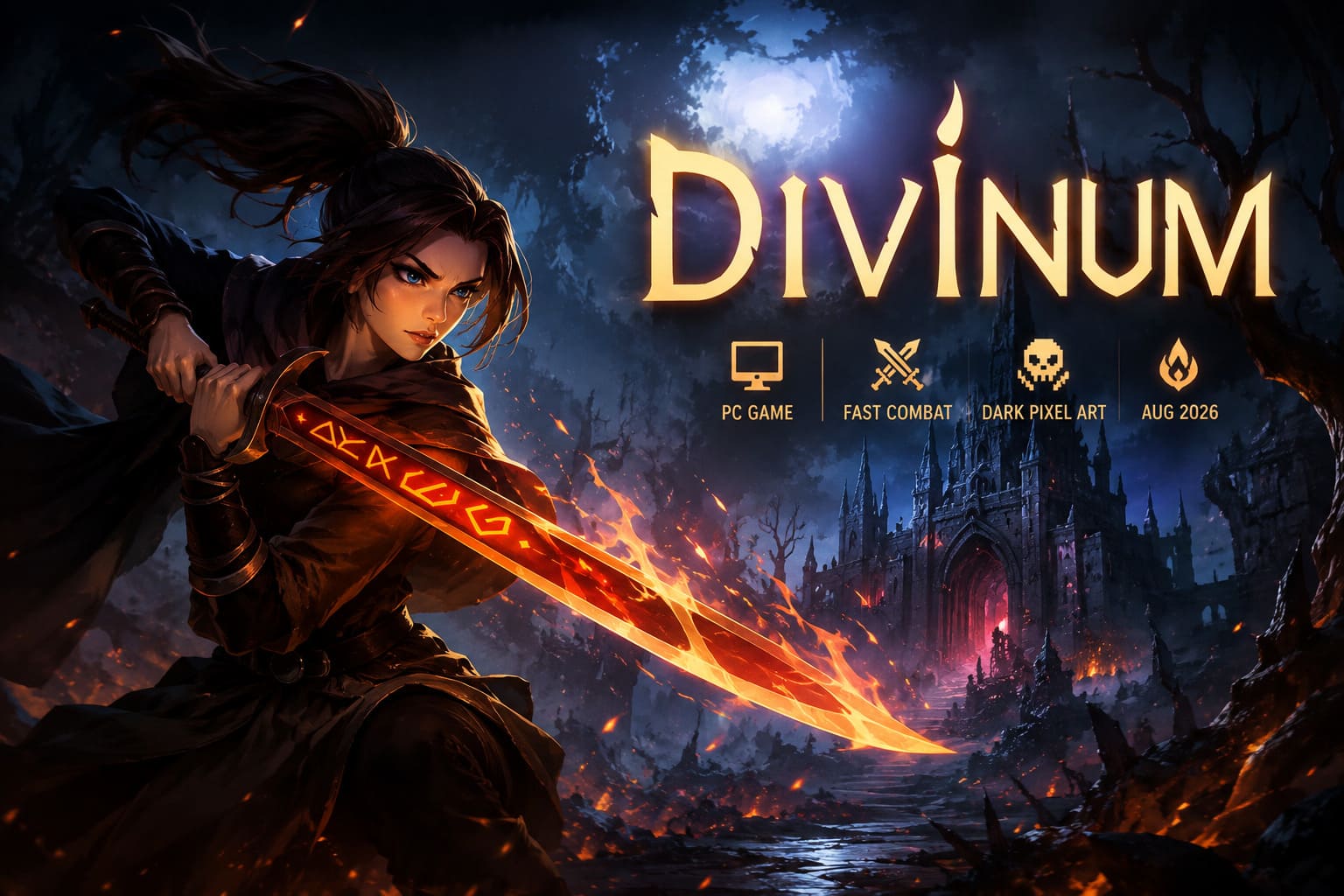
Divinum has one of those openings that immediately tells you what kind of game you’re dealing with. The combat is fast, the pixel art is dark and stylish, and Fjor’s journey wastes very little time getting violent. That’s exactly why a crash to desktop before you even reach the main menu is so frustrating.
Since its August 2026 PC launch, some players have reported Divinum crashing on startup, freezing during the loading process, displaying a black screen for a few seconds, or simply disappearing back to the Windows desktop with absolutely no useful error message.
I’ve dealt with enough PC launch disasters to know the feeling. You spend ten minutes updating everything, hit Play, watch a black window appear, and then… nothing. No crash report. No explanation. Just Windows staring back at you.
The good news is that startup crashes are often caused by something outside the game itself. Windows 11 graphics settings, GPU selection, damaged files, overlays, drivers, permissions, and cached configuration data can all interfere with the first stages of the game’s boot process.
Here are 9 practical fixes for Divinum crashing on startup, starting with the easy stuff and moving toward the more aggressive troubleshooting steps.
Quick Fix Checklist for Divinum Startup Crashes
| Fix | What It Targets | Difficulty |
|---|---|---|
| Verify Game Files | Missing or corrupted files | Easy |
| Run as Administrator | Permission problems | Easy |
| Toggle HAGS | GPU scheduling conflicts | Easy |
| Force Dedicated GPU | Wrong GPU selection | Easy |
| Reinstall GPU Drivers | Driver corruption | Medium |
| Clear AppData | Broken configuration | Medium |
| Disable Overlays | Software conflicts | Easy |
| Repair DirectX / Visual C++ | Missing runtime components | Medium |
| Add Security Exclusion | Antivirus interference | Medium |
If you want my advice, don’t jump straight to driver removal or deleting folders. Start at the top and test Divinum after every major change. It makes finding the actual culprit much easier.
1. Verify Divinum’s Game Files First
This is boring advice, but boring advice saves a ridiculous amount of time.
If Divinum was interrupted while downloading, a patch didn’t install correctly, or one of the game’s assets became corrupted, the executable can fail during initialization. You might never receive an error explaining what went wrong.
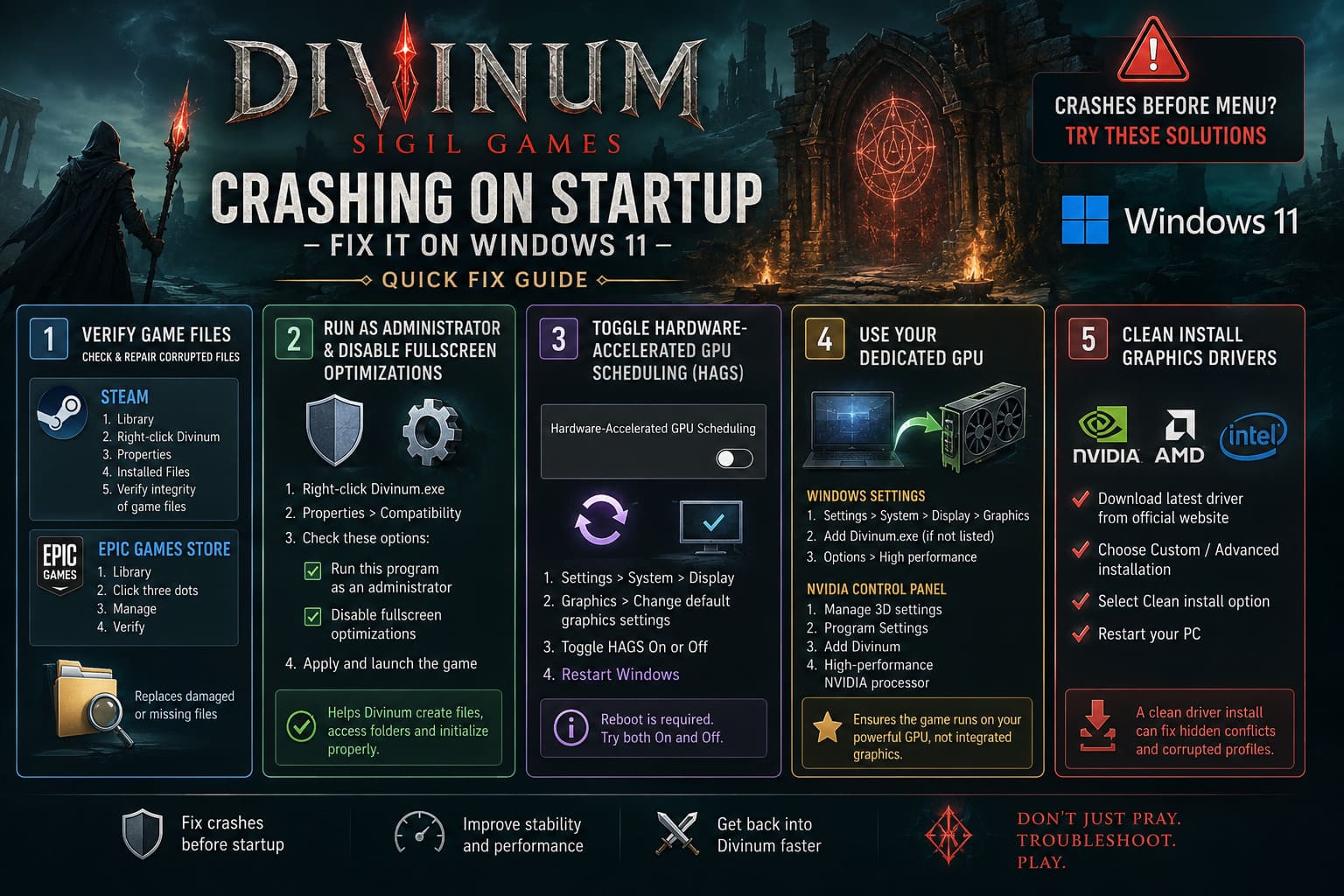
Steam
- Open Steam and go to your Library.
- Right-click Divinum.
- Select Properties.
- Open Installed Files.
- Click Verify integrity of game files.
- Let Steam complete the scan and replace anything it finds damaged or missing.
Epic Games Store
- Open the Epic Games Launcher.
- Go to Library.
- Find Divinum and click the three dots below the game.
- Select Manage.
- Click Verify.
After verification finishes, restart the launcher and try the game again.
Don’t skip this step just because the download completed successfully. A game can install without obvious problems and still end up with a damaged file somewhere in the pile.
2. Run Divinum as Administrator and Disable Fullscreen Optimizations
Windows 11 can sometimes get overly protective about what applications are allowed to access during startup.
If Divinum is failing while creating configuration files, accessing temporary directories, or initializing its display environment, administrator privileges are worth testing.
Find the game’s executable, usually Divinum.exe.
On Steam, you can get there by going to:
Library → Divinum → Manage → Browse local files
Then:
- Right-click Divinum.exe.
- Select Properties.
- Open the Compatibility tab.
- Enable Run this program as an administrator.
- Enable Disable fullscreen optimizations.
- Click Apply, then OK.
Launch the game again.
I wouldn’t leave compatibility settings enabled forever if they don’t help. They are troubleshooting switches, not magic performance boosts.
3. Toggle Hardware-Accelerated GPU Scheduling
This is one of the Windows 11 settings I’d test when a game crashes before reaching its menu.
Hardware-Accelerated GPU Scheduling (HAGS) changes how Windows handles certain GPU scheduling tasks. It can be perfectly fine for one game and unexpectedly troublesome for another depending on the graphics driver and system configuration.
To test it:
- Press Windows + I.
- Go to System → Display.
- Select Graphics.
- Open Change default graphics settings.
- Find Hardware-Accelerated GPU Scheduling.
- If it’s enabled, turn it off.
- If it’s already disabled, try enabling it instead.
- Restart Windows before testing Divinum.
That reboot matters. Don’t change the switch and immediately launch the game.
If Divinum suddenly starts after changing HAGS, you’ve probably found a system-level conflict rather than a broken installation.
4. Make Sure Windows Is Using Your Dedicated GPU
Laptop users should pay particularly close attention here.
A system with Intel or AMD integrated graphics plus an NVIDIA GeForce or AMD Radeon GPU can occasionally launch an application on the wrong graphics processor. Normally Windows handles this automatically, but when you’re troubleshooting a crash, there’s no reason to leave that variable floating around.
Go to:
Settings → System → Display → Graphics
If Divinum isn’t listed, click Browse and add Divinum.exe manually.
Select the game, choose Options, then select:
High performance
Save the setting and launch the game again.
NVIDIA Control Panel
If you’re using an NVIDIA GPU, you can also check the driver-level preference:
- Open NVIDIA Control Panel.
- Select Manage 3D settings.
- Open Program Settings.
- Add Divinum.
- Select the High-performance NVIDIA processor.
- Apply the change.
This is especially useful on gaming laptops where integrated and dedicated graphics are constantly switching roles.
5. Perform a Clean Graphics Driver Installation
If Divinum still crashes instantly, I’d start looking hard at the graphics driver.
A normal driver update doesn’t always remove every problematic profile or configuration. A clean installation gives Windows and the game a much cleaner starting point.
Download the current driver directly from your GPU manufacturer’s official website.
For NVIDIA, use the GeForce driver download service. For AMD, use Radeon Drivers and Support. Intel users should use Intel’s official Download Center.
During installation, select the Custom / Advanced installation option if available and choose the clean-install option.
Then restart your PC.
Don’t install five other graphics utilities at the same time. Test Divinum first.
If the game launches afterward, you have a much better idea of what was actually causing the problem.
6. Reset Divinum’s Local Configuration
This is one of my favorite fixes for stubborn PC games because corrupted configuration files can survive reinstallations.
You can have a perfectly healthy game installation while the local settings are completely messed up.
Press:
Windows + R
Type:
%localappdata%
and press Enter.
Look for folders associated with Divinum or Sigil Games.
Before deleting anything, make a backup. Copy the relevant folder somewhere safe, such as your desktop.
Then remove the original configuration folder and launch Divinum.
The game should recreate fresh configuration data.
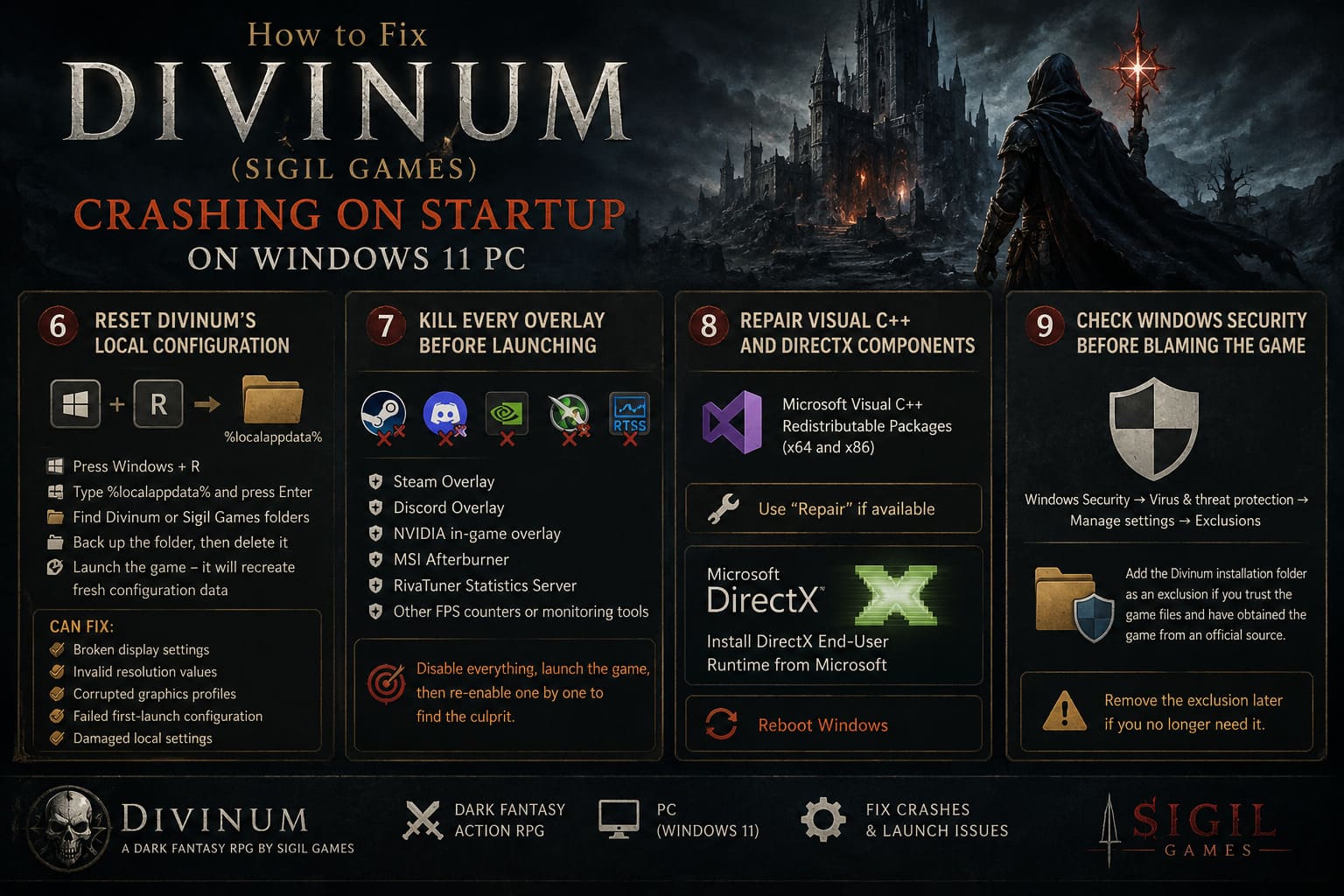
This can fix problems involving:
- Broken display settings
- Invalid resolution values
- Corrupted graphics profiles
- Failed first-launch configuration
- Damaged local settings
If you’ve previously forced unusual resolutions, display modes, or graphics options, this step becomes even more interesting.
7. Kill Every Overlay Before Launching
PC gamers love overlays.
Steam overlay. Discord overlay. NVIDIA overlay. FPS counters. Hardware monitoring. Recording software. RGB utilities. Performance graphs covering half the screen.
They’re useful… right up until they aren’t.
Overlay software can inject itself into a game’s rendering process. If two applications fight over the same presentation layer during startup, the result can be a crash before the player even sees the menu.
For troubleshooting, temporarily disable:
- Steam Overlay
- Discord Overlay
- NVIDIA in-game overlay
- MSI Afterburner
- RivaTuner Statistics Server
- Other FPS counters or monitoring tools
For MSI Afterburner and RivaTuner, don’t just close the visible window. Check the Windows system tray and make sure the related processes are actually shut down.
Then launch Divinum with as clean an environment as possible.
If it works, start re-enabling your utilities one at a time.
That’s how you find the troublemaker.
8. Repair Visual C++ and DirectX Components
Sometimes Windows has the game files, the GPU driver is current, and everything looks normal — but a required runtime component is damaged or missing.
Divinum can depend on Microsoft runtime libraries that aren’t obvious to the player.
Install or repair the current Microsoft Visual C++ Redistributable packages, including the x64 and x86 versions where applicable.
When an installer offers Repair, use it.
You can also install the official DirectX End-User Runtime components from Microsoft.
Afterward, reboot Windows.
This isn’t the sexiest troubleshooting step imaginable, but missing runtime libraries have caused countless PC games to fail spectacularly before the first frame appears.
9. Check Windows Security Before Blaming the Game
There’s one final culprit that’s easy to overlook: antivirus protection.
Windows Security can occasionally interfere with applications that create files, unpack assets, or access directories during startup. Usually that’s a good thing. When it incorrectly blocks a legitimate game process, it’s considerably less helpful.
Open:
Windows Security → Virus & threat protection → Manage settings → Exclusions
You can add the Divinum installation folder as an exclusion only if you trust the game files and have obtained the game from an official source.
After adding the exclusion, launch Divinum again.
I recommend removing the exclusion later if you no longer need it. There’s no reason to permanently weaken antivirus scanning for a troubleshooting experiment.
Divinum Combat Guide: 7 Advanced Tips and Tricks for Beginners (Sigil Games)
What Should You Try First?
If you don’t want to spend your entire afternoon messing around in Windows menus, use this order:
First: verify the game files.
Second: disable overlays and monitoring applications.
Third: force Divinum to use the dedicated GPU.
Fourth: test HAGS.
Fifth: reset the game’s local configuration.
Sixth: clean-install the GPU driver.
Seventh: repair Visual C++ and DirectX components.
Finally: investigate Windows Security and other system-level restrictions.
This progression starts with low-risk fixes and gradually gets more invasive.
Divinum System Requirements: Can You Run the 2026 Metroidvania on PC?
Final Thoughts: Don’t Reinstall Divinum Just Yet
A startup crash doesn’t automatically mean Divinum itself is broken.
That’s the mistake I see players make all the time: uninstall, reinstall, wait for the entire download, launch the game again… and get exactly the same black screen.
If the underlying problem is a GPU driver, Windows graphics setting, corrupted AppData configuration, overlay, or permission issue, reinstalling the game changes almost nothing.
The most useful clues are when the crash happens.
If Divinum crashes immediately after pressing Play, investigate files, drivers, GPU selection, permissions, and overlays. If it reaches a loading screen before dying, configuration and runtime components become more interesting. If disabling overlays suddenly fixes everything, you’ve found your answer without touching the installation.
And honestly, that’s the outcome you want.
Get Windows out of the game’s way, give Divinum a clean launch environment, and hopefully Fjor can finally get through that first screen without being sacrificed to the Windows 11 crash gods.