How to Fix Wanderburg Infinite Loading Screen in World Generation (2026 Guide)
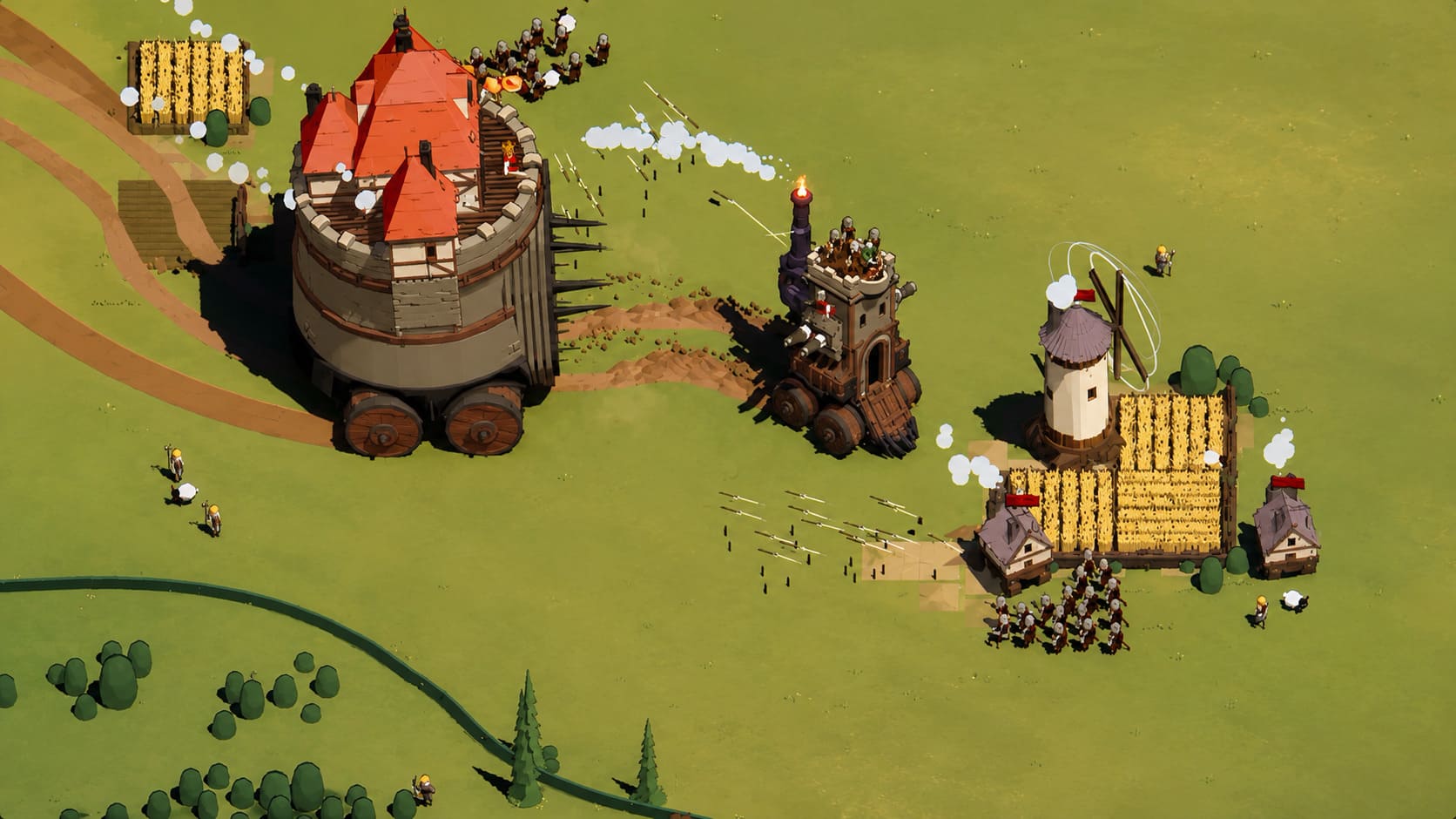
Wanderburg is the kind of weird little PC game that can grab you before you even realize what happened. The idea of driving a gigantic medieval castle around on wheels, chasing settlements and scavenging your way through a hostile procedural world sounds completely ridiculous on paper, yet it works surprisingly well in practice. Randwerk has built something that feels fresh, chaotic, and just unpredictable enough to make every run worth starting.
That makes the Wanderburg infinite loading screen during world generation especially annoying. You finally get everything ready, start a new run, and instead of watching your ridiculous rolling fortress enter the world, you’re staring at a loading screen that seems to have forgotten what it’s supposed to do. Sometimes the progress bar stops moving, while in other cases the game appears active but never actually finishes generating the map.
If you’re dealing with this problem in 2026, don’t immediately assume your PC can’t handle Wanderburg. Early Access games can have strange interactions between saves, configuration files, procedural generation systems, drivers, and background software. I’ve run into enough of these situations with PC games to know that the fastest solution is usually a methodical troubleshooting pass rather than randomly reinstalling everything.
How to Fix Wanderburg Black Screen on Startup in Windows 11
Why Does Wanderburg Get Stuck During World Generation?
Wanderburg’s procedural systems have a lot of work to do when creating a new world. The game needs to assemble terrain, points of interest, resources, enemies, settlements, and other gameplay elements before your run can properly begin. A problem anywhere in that chain can leave the loading process apparently frozen.
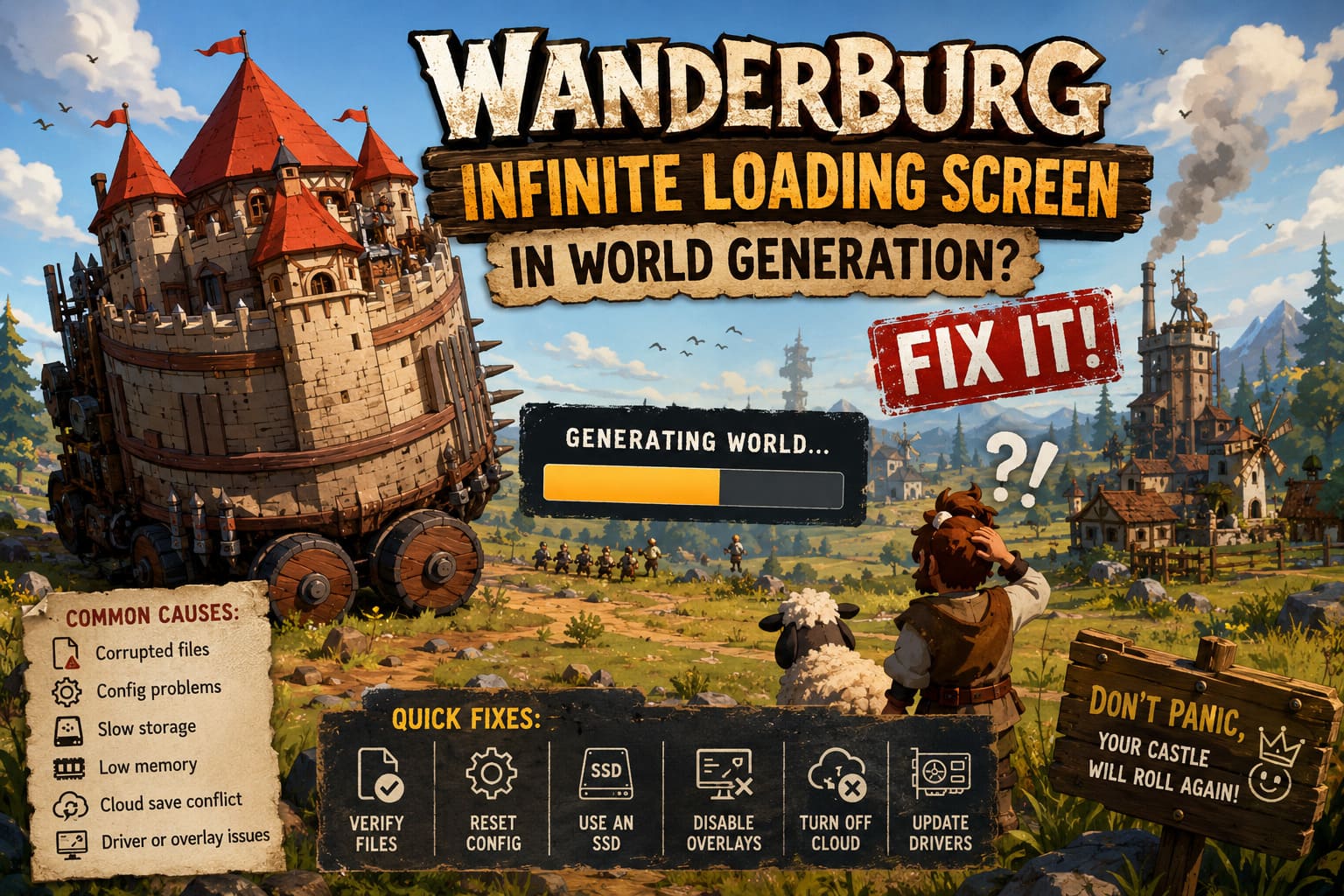
There isn’t necessarily one universal cause. In my experience with games that rely heavily on procedural generation, a loading freeze is often caused by corrupted game data, problematic configuration files, insufficient available memory, slow storage, outdated drivers, or a conflict with another application.
| Possible Cause | Typical Symptom | What to Try |
|---|---|---|
| Corrupted game files | Loading freezes after an update or crash | Verify Steam files |
| Broken configuration | Repeated loading failure after changing settings | Reset configuration files |
| Slow storage | Extremely long or inconsistent generation times | Move the game to an SSD |
| Memory pressure | Freeze, stuttering, or crash during generation | Close background applications |
| Cloud save conflict | Problem follows an existing save | Temporarily disable Steam Cloud |
| Driver or overlay conflict | Freeze occurs during rendering initialization | Update drivers and disable overlays |
1. Give Wanderburg More Time Before Killing the Process
This sounds almost too obvious, but don’t overlook it. Procedural generation doesn’t always behave like a traditional loading screen. If the game is creating a particularly complicated world, disk activity or CPU usage can remain high even when the progress indicator looks completely useless.
Before reaching for Task Manager, give the game several extra minutes and check whether your CPU or storage drive is still doing meaningful work. If the process is completely idle for a long period and nothing changes, you’ve probably got a genuine loading problem rather than a slow generation sequence.
My rule: if the game is still actively using CPU or disk resources, wait. If everything sits at essentially zero activity for several minutes, start troubleshooting.
2. Verify Wanderburg’s Game Files in Steam
This is the first proper fix I’d try because it’s quick, safe, and doesn’t require touching your saves manually. An interrupted update, unexpected crash, or failed download can leave a single damaged asset that causes the procedural generator to choke when it tries to access it.
- Open Steam and go to your Library.
- Right-click Wanderburg and choose Properties.
- Open Installed Files.
- Select Verify integrity of game files.
- Allow Steam to complete the scan.
- Launch Wanderburg again and test world generation.
Don’t panic if Steam reports that some files need to be reacquired. That’s exactly what this process is designed to handle. Once the repair finishes, restart Steam before testing the game again.
3. Reset Wanderburg’s Configuration Files
If the problem started after changing graphics options, resolution, controller settings, or other configuration options, a damaged configuration file becomes a much stronger suspect. Games sometimes keep bad settings even after you change them back, and Early Access builds can be particularly temperamental about configuration data.
Completely close Wanderburg and Steam first. Press Windows + R, enter %LOCALAPPDATA%, and look for a folder associated with Wanderburg or its developer. The exact folder structure can change between builds, so don’t blindly delete random directories.
If you find configuration or options files, make a backup copy somewhere safe before removing or moving them. Look for names containing terms such as options, config, settings, or GameOptionsSave. After restarting the game, it should create fresh default configuration data.
Don’t delete save files unless you’re absolutely certain they are disposable. A configuration reset and a save wipe are two very different things, and there’s no reason to sacrifice a run just to troubleshoot a loading screen.
4. Try a Fresh World Instead of Your Existing Save
This is one of the most useful diagnostic tests. If a new world generates correctly but an older save gets stuck, your PC probably isn’t the main problem. The issue is much more likely connected to that particular save or the state stored inside it.
On the other hand, if every new world freezes during generation, the investigation should move toward installation files, drivers, memory, storage, or software conflicts.
It’s a simple test, but it can save a ridiculous amount of time. I’ve spent far too long reinstalling games only to discover that one specific save was the actual culprit.
5. Move Wanderburg to an SSD
If you’re still running games from an old mechanical HDD, this is worth testing. Wanderburg doesn’t necessarily require an NVMe drive just to function, but procedural games can generate a lot of small read/write operations while assembling their worlds. A struggling HDD can turn an already demanding process into a painfully slow one.
Steam makes moving the installation fairly painless:
- Open your Steam Library.
- Right-click Wanderburg and select Properties.
- Open Installed Files.
- Choose Move install folder.
- Select an available SSD library.
- Let Steam finish moving the files.
- Launch the game and test world generation again.
You don’t need an expensive top-end NVMe drive. A decent SATA SSD is already a huge step up from a mechanical hard drive for this kind of workload. Also make sure the destination drive has comfortable free space rather than running nearly full.
6. Check Your Available RAM
World generation can be surprisingly hungry for system memory, especially when other applications are running in the background. If you’ve got a browser with dozens of tabs open, Discord, recording software, launchers, RGB utilities, and several other applications running simultaneously, close the unnecessary stuff before testing Wanderburg.
Open Task Manager with Ctrl + Shift + Esc and check memory usage while launching the game. If your RAM is already heavily occupied before Wanderburg begins generating its world, freeing some memory can make the difference between a successful load and a frozen screen.
I wouldn’t immediately start modifying Windows virtual memory settings just because a game takes a while to load. The Windows paging file is useful, but manually forcing strange values isn’t a magic performance button. Start by making sure your physical RAM isn’t being consumed by ten applications you forgot were running.
7. Temporarily Disable Steam Cloud
Cloud synchronization is convenient right up until two versions of the same game data disagree about which one should win. If Wanderburg crashes or closes unexpectedly while saving, a synchronization conflict can potentially make troubleshooting much harder.
You can temporarily disable Steam Cloud for Wanderburg from its Steam properties. Then launch the game and test whether a completely fresh world generates normally.
Back up important saves first. Don’t disable cloud synchronization and start deleting files without knowing where your local saves are stored. The goal here is to isolate a synchronization problem, not accidentally erase your progress.
8. Update Your GPU Driver
Graphics drivers aren’t normally the first thing I’d blame for a pure world-generation freeze, but the boundary between simulation, rendering, and asset initialization isn’t always as clean as we’d like. If Wanderburg locks up when the world is transitioning from loading into playable space, a driver issue is worth eliminating.
Install the latest stable driver available for your graphics card and reboot Windows afterward. Don’t judge the result until you’ve actually restarted the system. Driver installations can leave components in a half-updated state until rebooting completes the process.
9. Turn Off Overlays and Background Hooking Software
This is another classic PC gaming headache. Steam Overlay, Discord Overlay, NVIDIA or AMD recording features, performance monitors, RGB utilities, screen capture software, and similar programs can hook into games at exactly the wrong moment.
For one troubleshooting session, turn off anything you don’t need. Start with Discord Overlay and GPU recording/performance overlays, then test Wanderburg with as clean a background environment as possible.
If the infinite loading screen disappears, don’t immediately conclude that Wanderburg itself is broken. Re-enable your background programs one at a time until you identify the offender.
10. Don’t Immediately Change the Windows Paging File
You’ll find plenty of PC troubleshooting guides recommending huge manual pagefile values whenever a game freezes. I’d treat that advice with caution. Windows generally manages virtual memory well, and manually assigning arbitrary numbers can create more confusion than it solves.
If you’re experiencing memory-related crashes, first check your actual RAM usage and make sure the system drive has enough free space. If you’re consistently running out of physical memory, adding RAM is a much more meaningful long-term solution than trying to brute-force everything through a gigantic paging file.
What If None of These Wanderburg Fixes Work?
If Wanderburg still hangs during world generation after verifying files, resetting configuration data, testing a new save, updating drivers, disabling overlays, and moving the installation to an SSD, I’d stop changing random Windows settings. At that point, there’s a reasonable chance you’re looking at a game-side bug rather than something wrong with your hardware.
Pay attention to whether the problem began immediately after a particular Wanderburg update. Early Access games can introduce bugs that affect only certain hardware configurations or save states, and sometimes there simply isn’t a clever workaround until the developer patches the underlying issue.
If you can reproduce the problem consistently, collect the game’s logs and crash information before contacting support. Include your hardware specifications, Windows version, GPU driver version, whether the game is installed on an SSD or HDD, and whether a brand-new world produces the same result.
My Recommended Order of Fixes
If I were sitting at my own PC with Wanderburg stuck on the world-generation screen, I wouldn’t perform every solution randomly. I’d work through the fixes from least invasive to most useful for diagnosis.
- Wait and check CPU/disk activity.
- Verify the game files through Steam.
- Test a completely new world.
- Reset configuration files after backing them up.
- Disable Steam Cloud temporarily.
- Close overlays and background applications.
- Update GPU drivers and restart Windows.
- Move the installation to an SSD if necessary.
This order gives you useful information at every stage instead of simply throwing ten different changes at the PC at once. That’s important because if the problem suddenly disappears, you’ll actually know what fixed it.
Wanderburg Infinite Loading Screen: Final Verdict
The Wanderburg infinite loading screen during world generation is frustrating precisely because the game itself is so easy to get hooked on. The rolling castle concept is bizarre in the best possible way, and getting blocked before a new run even begins feels like the game is refusing to let you have your fun.
Fortunately, you don’t need to start with extreme measures. Steam file verification, configuration resets, fresh-world testing, disabling cloud synchronization, shutting down overlays, and checking storage and memory cover most of the practical troubleshooting ground without putting your saves at unnecessary risk.
If none of that changes anything, don’t keep hammering your Windows installation with increasingly obscure tweaks. Early Access software can absolutely have genuine bugs, and sometimes the correct answer is waiting for the next patch while providing the developers with useful logs and reproduction steps.
For now, I’d focus on identifying whether the freeze affects one save or every new world. That single distinction tells you more about the problem than most generic “boost your performance” guides ever will.