The Blood of Dawnwalker PC Performance Guide: Best Settings for High FPS
The Blood of Dawnwalker is one of those games where I found myself constantly torn between staring at the scenery and staring at the FPS counter. Rebel Wolves has built a seriously atmospheric dark fantasy world, and the combination of medieval settlements, vampires, dense forests, dynamic lighting, fog, NPC crowds, and Unreal Engine 5 effects can make even a powerful PC work surprisingly hard.
After playing a lot of demanding Unreal Engine games, I’ve learned one thing: dropping every setting to Low is rarely the best solution. You usually lose a huge amount of visual quality for a relatively small performance gain. Dawnwalker is no different.
The good news is that you can get a much smoother experience without turning Vale Sangora into a blurry, lifeless version of itself. The settings below are the ones I’d start with if my goal was stable 60 FPS, good image quality, and fewer traversal stutters.
How Demanding Is The Blood of Dawnwalker on PC?
Dawnwalker is a heavy game, particularly when you push native resolution and maximum visual settings. Unreal Engine 5 is doing a lot behind the scenes, from detailed environments and dynamic shadows to volumetric effects and large streaming areas.
The official minimum configuration targets 1080p at around 30 FPS using Low settings and upscaling, which tells you quite a bit about the game’s appetite for hardware.
| Component | Minimum Target |
|---|---|
| Operating System | Windows 10/11 64-bit |
| CPU | Ryzen 7 2700X / Core i5-11400F |
| RAM | 16 GB |
| GPU | Radeon RX 580 / GeForce GTX 1060 6 GB |
| DirectX | DirectX 12 |
| Storage | 60 GB SSD |
I’d strongly recommend treating the SSD requirement seriously. Modern open-world UE5 games stream an enormous amount of data while you move around the map. A mechanical hard drive is simply not where I’d want Dawnwalker installed.
The GPU matters, but don’t ignore the processor. When I see FPS dropping specifically while entering busy settlements or moving quickly through the world, I immediately start looking at CPU-heavy settings rather than simply lowering texture quality.
My Recommended Graphics Settings for 60 FPS
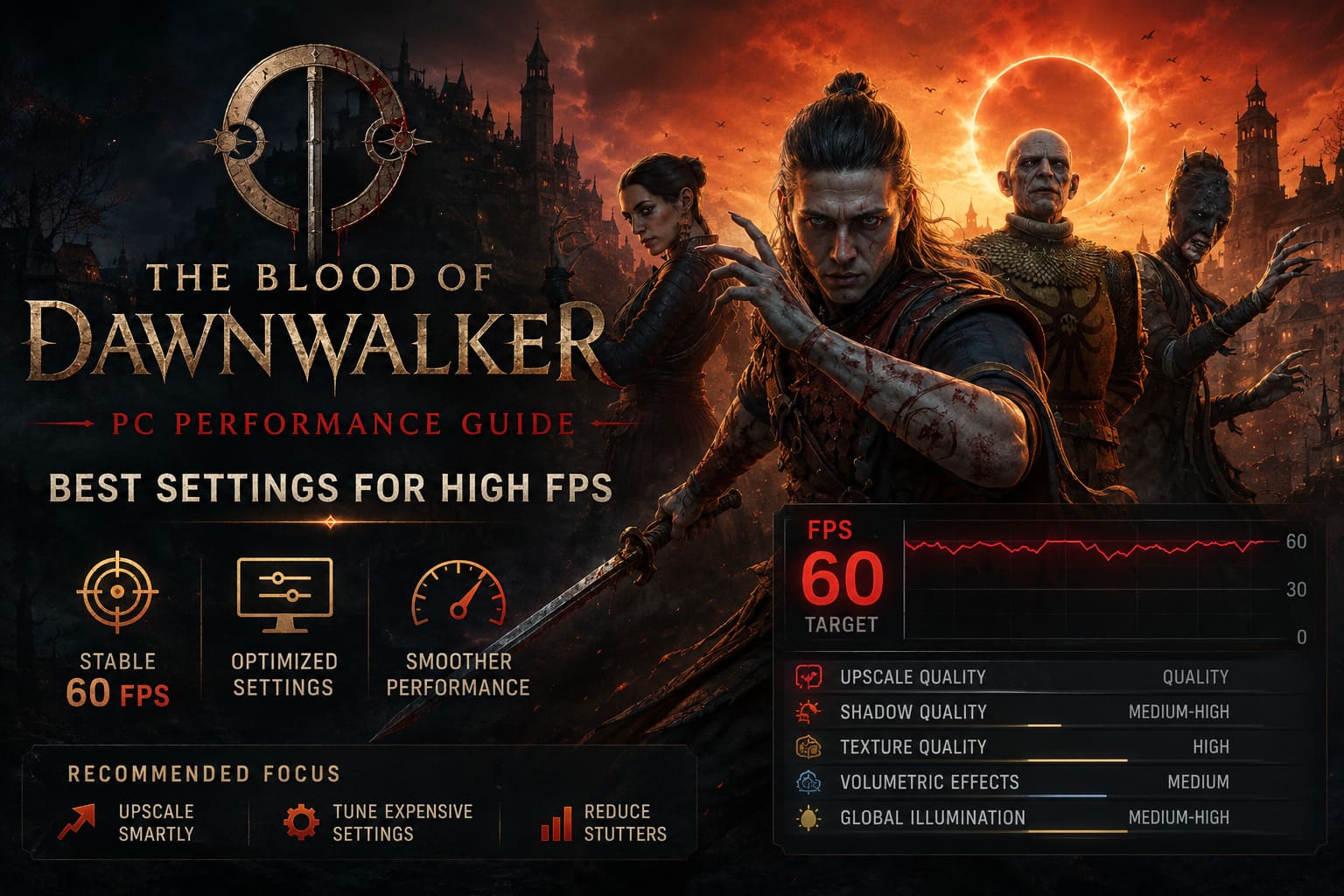
If you’re looking for the shortest answer, this is the setup I’d try first:
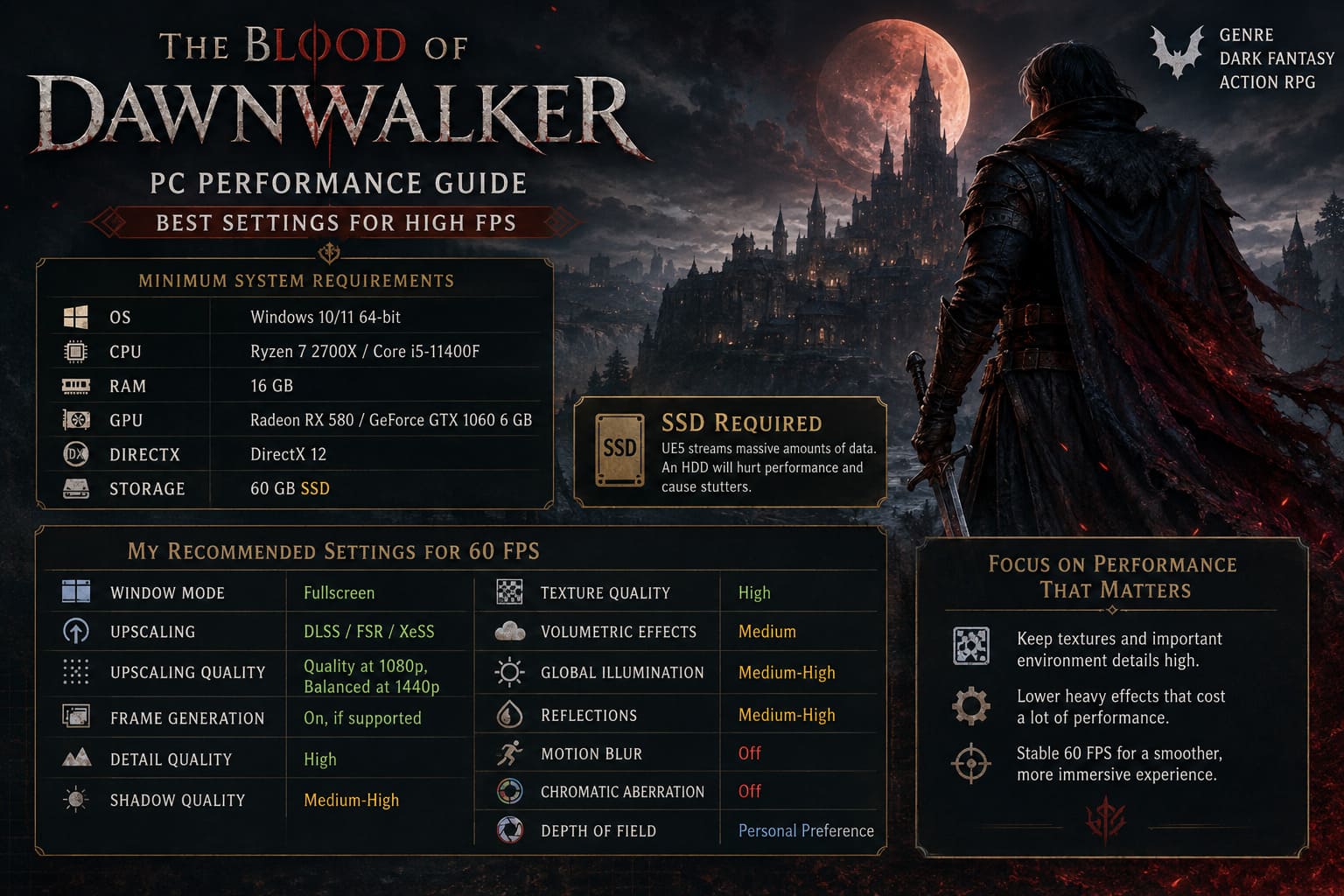
| Setting | Recommended Value |
|---|---|
| Window Mode | Fullscreen |
| Upscaling | DLSS / FSR / XeSS |
| Upscaling Quality | Quality at 1080p, Balanced at 1440p |
| Frame Generation | On, if supported |
| Detail Quality | High |
| Shadow Quality | Medium-High |
| Texture Quality | High |
| Volumetric Effects | Medium |
| Global Illumination | Medium-High |
| Reflections | Medium-High |
| Motion Blur | Off |
| Chromatic Aberration | Off |
| Depth of Field | Personal Preference |
This is not a “set everything to Medium and forget it” preset. I prefer keeping textures and the important environmental details relatively high while cutting back on effects that cost a lot of performance for something I barely notice during normal gameplay.
1. Start With Your Upscaling Technology
Upscaling is probably the most important performance setting in Dawnwalker.
If you have an NVIDIA GPU, I’d start with DLSS. AMD users should look at FSR, while compatible Intel hardware can use XeSS.
The right quality mode depends heavily on your resolution.
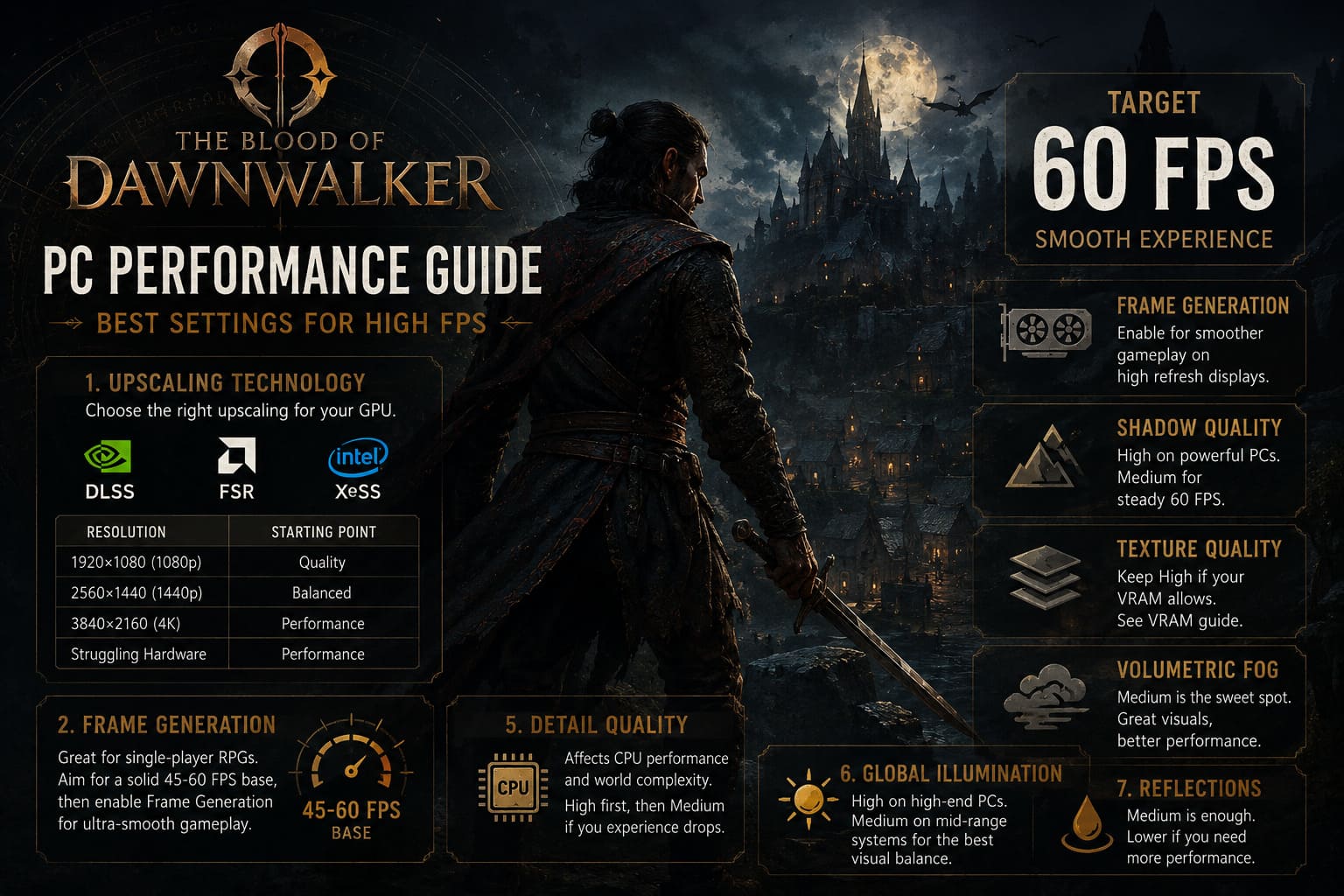
| Resolution | Starting Point |
|---|---|
| 1920×1080 | Quality |
| 2560×1440 | Balanced |
| 3840×2160 | Performance |
| Struggling Hardware | Performance |
Personally, I wouldn’t immediately jump to Performance mode at 1080p. The image can become noticeably soft, especially around vegetation, fences, hair, particles, and other fine details.
At 1440p, Balanced is a much more sensible compromise. At 4K, however, Performance mode can make a lot of sense because the internal rendering resolution remains high enough to produce a respectable final image.
If you’re chasing 60 FPS, upscaling should be adjusted before you start destroying every other graphical setting.
2. Don’t Underestimate Frame Generation
Frame Generation is particularly useful in a game like Dawnwalker.
This isn’t a competitive shooter where every millisecond of input latency can determine whether you win or lose. It’s a single-player RPG built around exploration, combat, dialogue, and atmosphere.
That makes Frame Generation much easier to recommend.
If your hardware can already produce a reasonably healthy base frame rate, turning Frame Generation on can make the game feel considerably smoother on a high-refresh display.
There is an important distinction, though: generated frames don’t magically make the underlying game simulation faster. If your real FPS is extremely low, Frame Generation isn’t going to fix the fundamental problem.
I’d rather have a solid 45-60 FPS base with Frame Generation than try to turn a 25 FPS experience into something that merely looks like 60.
3. Shadow Quality Is One of the First Settings I’d Lower
This is one of my favorite optimization tricks in demanding games because shadows are often expensive and relatively easy to sacrifice.
Dawnwalker’s atmosphere relies heavily on lighting. Torches, candles, moonlight, interiors, forests, and medieval streets all look better with high-quality shadows, but maximum shadow settings aren’t essential.
My preference is High on a powerful GPU and Medium on a mid-range system.
Going from Ultra to High can produce a useful performance improvement while preserving most of the visual character. Medium becomes more attractive if you’re trying to maintain a strict 60 FPS target.
I wouldn’t start by lowering textures. Shadows are the better first target.
4. Keep Texture Quality High If Your VRAM Allows It
Texture quality is a different story.
Unlike shadows, textures are primarily limited by your GPU’s VRAM capacity. Lowering them can help prevent asset streaming problems when you’re close to the VRAM limit, but if you have enough memory available, there’s little reason to make the world look worse.
As a rough guideline:
| VRAM | Texture Recommendation |
|---|---|
| 16 GB+ | Ultra |
| 10-12 GB | High / Ultra |
| 8 GB | High |
| 6 GB or less | Medium |
If you’re experiencing blurry textures, sudden texture swaps, or stuttering when entering new areas, don’t automatically assume the GPU itself is too slow.
VRAM pressure can be the real problem.
In that situation, dropping textures one step can actually improve consistency more than lowering several unrelated settings.
5. Detail Quality Can Affect CPU Performance
This is where things get interesting.
A lot of players focus exclusively on GPU settings when troubleshooting FPS. In an open-world RPG, that’s a mistake.
Detail-related settings can influence environmental complexity, object rendering, world simulation, and other features that may place additional pressure on the CPU.
If your GPU usage isn’t close to 95-100% while your FPS is dropping, I’d experiment with Detail Quality.
Start at High. If you still get major drops while moving through dense settlements or rapidly traversing the world, try Medium.
This is especially relevant for players with a powerful graphics card paired with an older processor.
6. Volumetric Fog Is Beautiful — And Expensive
The fog and atmospheric lighting are a major part of Dawnwalker’s visual identity. Unfortunately, volumetric effects can be costly.
This is another setting where I prefer Medium.
The difference between maximum and medium volumetric quality is often much less obvious during actual gameplay than it appears when comparing screenshots side by side.
When you’re walking through a dark forest at night, you’re paying attention to enemies, paths, lighting, combat, and the environment as a whole. You’re rarely stopping to inspect the exact quality of the fog.
Medium volumetrics are an excellent performance compromise.
7. Global Illumination and Reflections
These settings are worth adjusting after shadows and volumetrics.
Global illumination contributes significantly to how natural the world looks. Going too low can make interiors and outdoor areas look noticeably flatter.
For that reason, I’d keep it at High on a strong PC and Medium on a mid-range system.
Reflections are easier to sacrifice. If you’re desperate for performance, Medium is perfectly reasonable.
The biggest mistake is making huge visual compromises everywhere instead of targeting the expensive settings individually.
My High-End Preset
For a modern high-end GPU, I’d start here:
- Fullscreen
- DLSS or FSR Quality
- Frame Generation On
- Detail Quality High
- Shadow Quality High
- Texture Quality Ultra
- Volumetric Effects Medium
- Global Illumination High
- Reflections High
- Motion Blur Off
- Chromatic Aberration Off
- Depth of Field On
This should preserve the game’s cinematic presentation while avoiding some of the unnecessary cost of a completely maxed-out preset.
My Mid-Range Preset
For RTX 30-series, RX 6000-series, and similar hardware, I’d use a more conservative configuration:
- Fullscreen
- DLSS / FSR Balanced
- Frame Generation On if available
- Detail Quality Medium
- Shadow Quality Medium
- Texture Quality High
- Volumetric Effects Medium
- Global Illumination Medium
- Reflections Medium
- Motion Blur Off
- Chromatic Aberration Off
If performance is still unstable, lower Detail Quality and Shadows before touching textures.
Windows Tweaks That Are Actually Worth Trying
There are dozens of Windows “FPS boost” guides online recommending registry edits, mysterious optimizer programs, and other questionable tricks. I wouldn’t bother.
I’d stick with the basics.
Check Your Virtual Memory
Open Advanced System Settings → Performance → Advanced → Virtual Memory.
A system-managed paging file on a fast SSD is usually the safest approach. If you’re manually configuring it, make sure Windows has enough room to handle memory spikes.
I wouldn’t blindly apply huge custom values just because an optimization guide says so. If your system has 16 or 32 GB of RAM, the important thing is avoiding a situation where the paging file is disabled or severely restricted.
Try Hardware-Accelerated GPU Scheduling
Windows’ Hardware-Accelerated GPU Scheduling (HAGS) can be worth testing.
Go to:
Settings → System → Display → Graphics → Default Graphics Settings
Then look for Hardware-Accelerated GPU Scheduling.
If your system behaves better with it enabled, leave it on. If you notice unusual stuttering or instability, test the opposite setting. PC optimization isn’t always universal, especially across different driver versions and hardware combinations.
Use a Sensible Power Plan
For desktop PCs, High Performance can be useful if Windows is aggressively managing CPU power states.
That said, I wouldn’t expect a miracle FPS boost from changing the power plan. It is more of a consistency tweak than a magical performance button.
Close Background Programs
This sounds obvious, but I’ve personally seen background software cause more trouble than a slightly wrong graphics setting.
Before launching Dawnwalker, close things you don’t need:
- Browser tabs with heavy video content
- Recording software
- Unnecessary launchers
- Hardware monitoring utilities
- Background downloads
- Overlays you don’t actually use
You don’t need to turn your PC into a sterile gaming machine. Just remove the obvious resource hogs.
Clear Your Shader Cache After Driver or Game Updates
Shader compilation and caching can cause stutters in Unreal Engine games.
If you’ve updated your GPU driver, installed a major game patch, or suddenly started seeing unusual hitching, clearing the DirectX shader cache can be worth trying.
Windows provides this functionality through Disk Cleanup, while NVIDIA and AMD also manage shader caches through their respective driver software.
After clearing the cache, expect some temporary shader compilation behavior while the game rebuilds what it needs. Don’t judge performance from the first few minutes alone.
The Blood of Dawnwalker Best Builds Guide: Elite Human and Vampire Combat Meta
What I’d Change First When FPS Drops
If I were sitting at my own PC and Dawnwalker suddenly started running badly, I wouldn’t change ten settings at once.
I’d work through them in this order:
- Check GPU and VRAM usage.
- Adjust upscaling quality.
- Lower shadows.
- Lower volumetric effects.
- Reduce Detail Quality if the CPU is struggling.
- Lower Global Illumination and Reflections.
- Reduce textures only if VRAM is becoming a problem.
This approach makes it much easier to identify what’s actually causing the performance issue.
The Blood of Dawnwalker NPC Guide: Every Major Character & Faction Explained
Final Thoughts
The Blood of Dawnwalker is the kind of PC game where chasing maximum settings isn’t necessarily the smartest way to play. I’ve seen this pattern across plenty of demanding RPGs: Ultra looks fantastic in screenshots, but High with a few carefully chosen Medium settings often feels almost identical during normal gameplay.
For most players, I’d aim for a stable 60 FPS rather than an unstable 75-90 FPS. Smooth frame pacing makes exploration and combat feel better, and the game still retains the dark, cinematic look that makes its world worth exploring in the first place.
My personal sweet spot would be High textures, High or Medium shadows, Medium volumetrics, sensible global illumination, and DLSS/FSR Quality or Balanced depending on resolution. Add Frame Generation if your hardware supports it and your base frame rate is already healthy.
Don’t be afraid to experiment. PC performance is rarely one-size-fits-all, and the best settings for an RTX 4070 with a fast modern CPU won’t necessarily be the best settings for an older processor paired with a high-end GPU.
The goal isn’t to make Dawnwalker look worse.
The goal is to spend your hardware budget where your eyes actually notice it.