The Relic: First Guardian Steam Deck Compatibility Guide – Settings, Performance, & Fixes
The moment I saw The Relic: First Guardian, I knew it wasn’t going to be another forgettable Souls-like chasing trends. The ruined world of Arsiltus immediately caught my attention, and after digging through the game’s systems, technical details, and PC implementation, I became even more curious about how it would translate to Valve’s handheld. That’s always the real question these days. A gorgeous action RPG is great, but if it struggles the moment you leave your desktop, a huge part of its appeal disappears.
Steam Deck has completely changed the way many of us experience PC gaming. Grinding bosses on the couch, farming materials during lunch breaks, or exploring massive worlds while traveling has become normal. Naturally, players are wondering whether The Relic: First Guardian deserves a place in that portable library.
The short answer? Yes—but not without a few adjustments.
Is Corsair Cove Coming to PS5? PC Game Pass Day One Release Explained
Can You Play The Relic: First Guardian on Steam Deck?
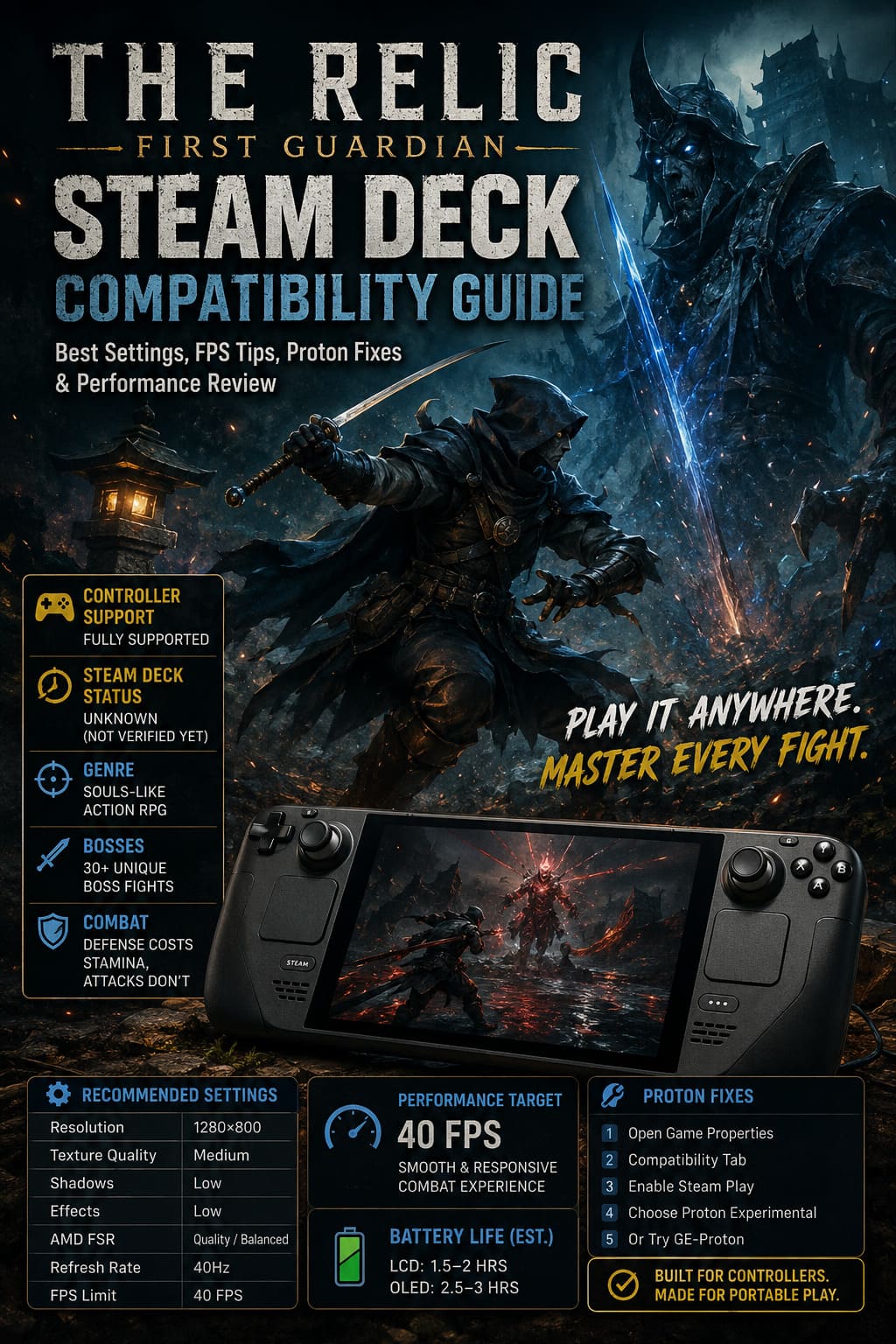
At launch, the game doesn’t carry Valve’s official Steam Deck Verified badge. Instead, its compatibility status remains Unknown, which honestly isn’t unusual for newly released indie titles. Valve reviews thousands of games manually, so certification often arrives days or even weeks after release.
That doesn’t automatically mean the experience is poor.
From everything currently available, controller support is fully integrated from the beginning. That’s already one of the biggest hurdles cleared. The Steam Deck recognizes the game’s controls naturally, and players won’t need complicated community layouts or awkward button remapping before jumping into combat.
For me, that’s already a positive sign. Nothing kills excitement faster than spending thirty minutes fixing controls before fighting your first enemy.
Why Steam Deck Performance Actually Matters
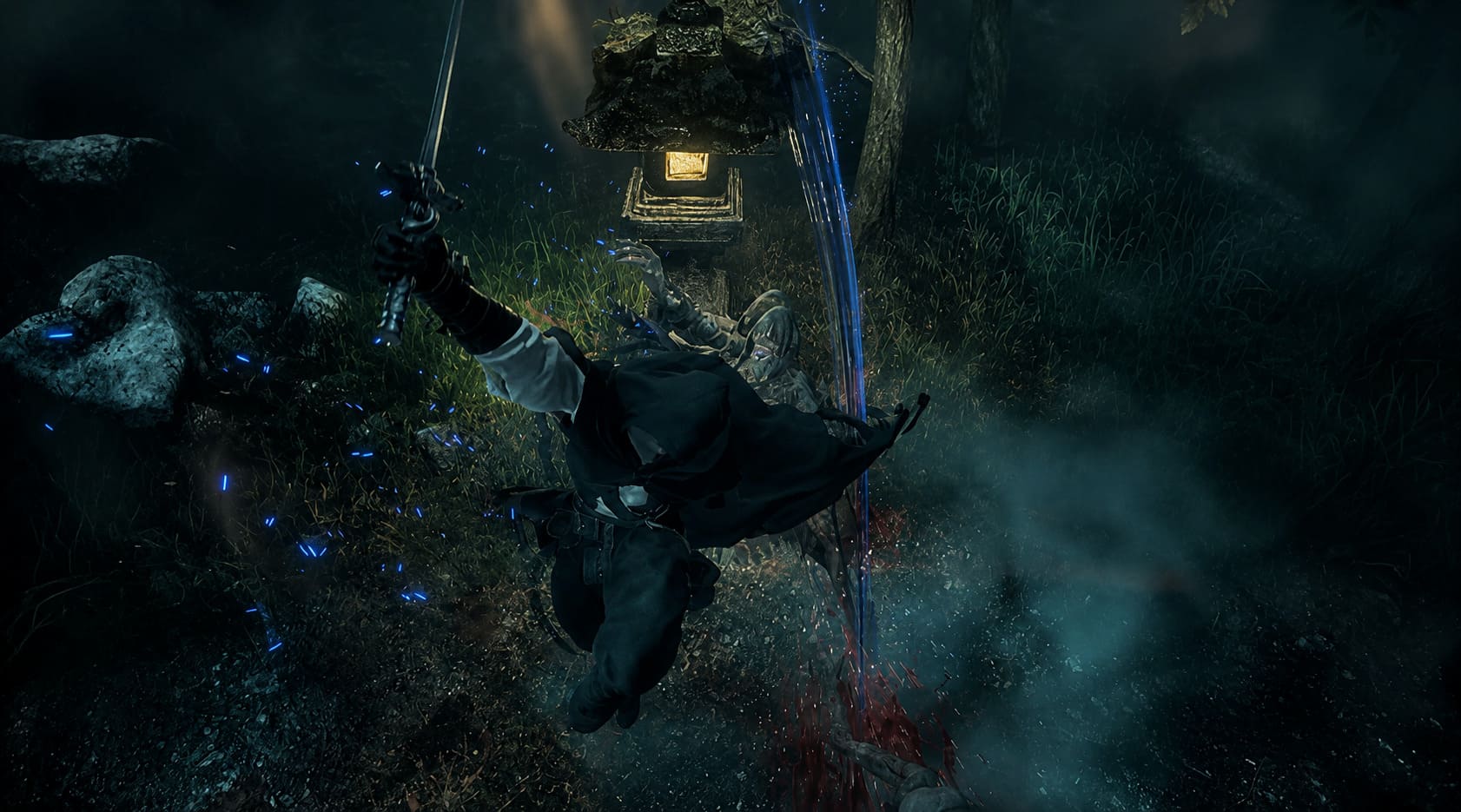
Unlike plenty of action RPGs where raw damage decides everything, The Relic: First Guardian revolves around precision.
Blocking, perfect parries, dodging, and reading enemy attacks are the core of every encounter. Interestingly, attacking itself doesn’t consume stamina. Defensive actions do.
That completely changes the rhythm.
Instead of cautiously waiting for stamina to regenerate after every swing, players stay aggressive while carefully managing their defensive resources. It’s an exciting design choice, but it also means unstable frame rates become much more noticeable.
When your timing window depends on fractions of a second, random FPS drops aren’t just annoying—they’re deadly.
Hardware Demands
Even before touching graphics settings, it’s obvious the game wasn’t designed with weak hardware in mind.
The environments feature:
- Detailed character models
- Heavy shadow usage
- Modern lighting effects
- Dense environmental detail
- Numerous particle-heavy combat abilities
All of that looks fantastic on powerful gaming PCs.
The Steam Deck, however, runs on a 15W custom APU. That’s impressive engineering, but physics is physics. Expecting maximum settings simply isn’t realistic.
Fortunately, smart optimization delivers much better results than blindly lowering everything.
Recommended Steam Deck Graphics Settings
After comparing similar Unreal Engine action RPGs released over the past couple of years, these settings should provide the best balance between image quality and responsiveness.
| Setting | Recommended Value |
|---|---|
| Resolution | 1280×800 |
| Texture Quality | Medium |
| Shadows | Low |
| Effects | Low |
| Ambient Occlusion | Low or Disabled |
| Motion Blur | Off |
| AMD FSR | Quality or Balanced |
| Refresh Rate | 40Hz |
| FPS Limit | 40 FPS |
Textures are surprisingly affordable for the Steam Deck because of its available VRAM. Shadows and post-processing, on the other hand, consume far more GPU power than they’re worth on a seven-inch display.
Turning those down usually gives noticeably smoother gameplay without making the game look ugly.
30 FPS or 40 FPS?
This is where opinions usually split.
Personally, I’d choose 40 FPS every single time.
Thirty frames per second certainly works. It’s stable, cinematic, and conserves battery. If you’re mostly exploring the world or taking your time with combat, it’s perfectly acceptable.
But once difficult bosses enter the picture, forty frames feels dramatically more responsive.
- Input latency drops.
- Camera movement becomes smoother.
- Parry timing feels more natural.
- The overall experience simply becomes easier to control.
If you own the OLED Steam Deck, running 40 FPS with a 90Hz display feels even better thanks to smoother frame pacing.
AMD FSR Is Worth Using
Normally I’m fairly picky about image upscaling.
Some games become blurry enough that I’d rather lower native resolution instead.
Here, though, AMD FSR actually makes sense.
Using Quality or Balanced mode gives back valuable GPU performance while maintaining surprisingly respectable image quality on the Steam Deck’s screen.
Performance mode works too, although fine environmental detail starts disappearing.
Unless you’re desperately chasing every extra frame, Balanced remains the sweet spot.
Proton Compatibility
Since the game is built primarily for Windows, Steam Deck relies on Proton to make everything function correctly.
Most players will probably launch without any major issues.
If problems appear, though, Proton should be your first troubleshooting step.
Typical launch problems include:
- Black screen during startup
- Crashing after the intro
- Broken cinematic videos
- Unexpected freezes
Fortunately, fixing them is straightforward.
Switching Proton Versions
- Open your Steam Library.
- Highlight The Relic: First Guardian.
- Open Properties.
- Navigate to the Compatibility tab.
- Enable Force the use of a specific Steam Play compatibility tool.
- Select Proton Experimental.
If you’ve installed GE-Proton, it’s also worth testing.
Experienced Linux gamers have relied on GE-Proton for years because it often resolves codec issues, video playback problems, and compatibility bugs long before official Proton updates arrive.
Storage Recommendations
This isn’t the type of game I’d install on a slow MicroSD card.
Large environments, numerous bosses, and constant asset streaming all benefit from faster storage.
Installing directly onto the Steam Deck’s internal SSD helps reduce:
- Loading times
- Texture streaming delays
- Traversal stutter
- Occasional hitching during exploration
It’s one of those upgrades you don’t really notice until you switch back to slower storage.
Battery Life Expectations
Modern action RPGs aren’t exactly battery-friendly.
| Steam Deck Model | Estimated Battery Life |
|---|---|
| LCD | 1.5–2 Hours |
| OLED | 2.5–3 Hours |
Lowering brightness, enabling the 40 FPS cap, and reducing GPU load through FSR can extend those numbers slightly.
If you’re planning a long trip, bringing a power bank still isn’t a bad idea.
Does Combat Feel Good on Steam Deck?
This was honestly my biggest concern.
Some Souls-like games technically run well but never feel comfortable on handheld hardware because of cramped controls or inconsistent responsiveness.
Thankfully, The Relic: First Guardian appears built around controllers from the beginning.
The button layout feels natural, movement is responsive, and defensive mechanics translate surprisingly well to portable play.
After watching extended gameplay and analyzing the combat systems, I actually think handheld sessions might become one of the best ways to enjoy the game.
Boss fights are intense enough to stay exciting without requiring a mouse and keyboard.
Is the Missing Steam Deck Verification a Problem?
Not really.
Steam Deck history is filled with games that launched as Unknown, earned a Playable badge later, and eventually reached Verified after a few patches.
Some excellent titles spent weeks without official certification despite already working perfectly.
Valve simply needs time.
If anything, community reports usually become available long before the verification badge changes.
That’s where experienced Steam Deck owners tend to look first.
Final Verdict
After looking through the technical implementation, controller support, expected Proton behavior, and likely hardware demands, I’m genuinely optimistic about The Relic: First Guardian on Steam Deck.
No, it won’t become a showcase for ultra graphics. That’s never been the goal. The real victory is maintaining stable performance during difficult encounters, and with sensible settings, the handheld appears more than capable of delivering that experience.
What excites me most isn’t the graphics—it’s the combat. The stamina-focused defensive mechanics, dozens of boss battles, unique equipment system, and grim atmosphere feel like they were designed for long portable sessions where you keep telling yourself, ‘Just one more boss.’
If you’re willing to spend five minutes adjusting graphics instead of leaving everything on Auto, the reward is a surprisingly polished handheld adventure. For Souls-like fans who love taking their favorite RPGs anywhere, The Relic: First Guardian looks ready to earn a permanent spot in the Steam Deck rotation.