How to Fix Tyr Crashing on Startup on PC (Steam Guide 2026)
There are few things more annoying than buying a game on Steam, installing it, and then watching it disappear before you even reach the main menu. Tyr crashing on startup is exactly that kind of problem. You click Play, Steam briefly says the game is running, and then—nothing. Sometimes you get a black screen, sometimes the process closes immediately, and occasionally Windows gives you absolutely no useful error message.
After playing a lot of PC games over the years, I’ve learned that startup crashes are rarely caused by one mysterious problem. More often, it’s a combination of a damaged game file, a problematic driver, an overlay, a missing runtime, or a hardware setting that another game simply happens to tolerate.
The good news is that you don’t need to reinstall Windows or start changing random registry entries. I’ve put together the fixes I would personally try, starting with the safest and quickest solutions first.
This guide applies to Tyr on Windows 10 and Windows 11 through Steam and is designed to help with launch crashes, black screens, instant closing, and failed startup.
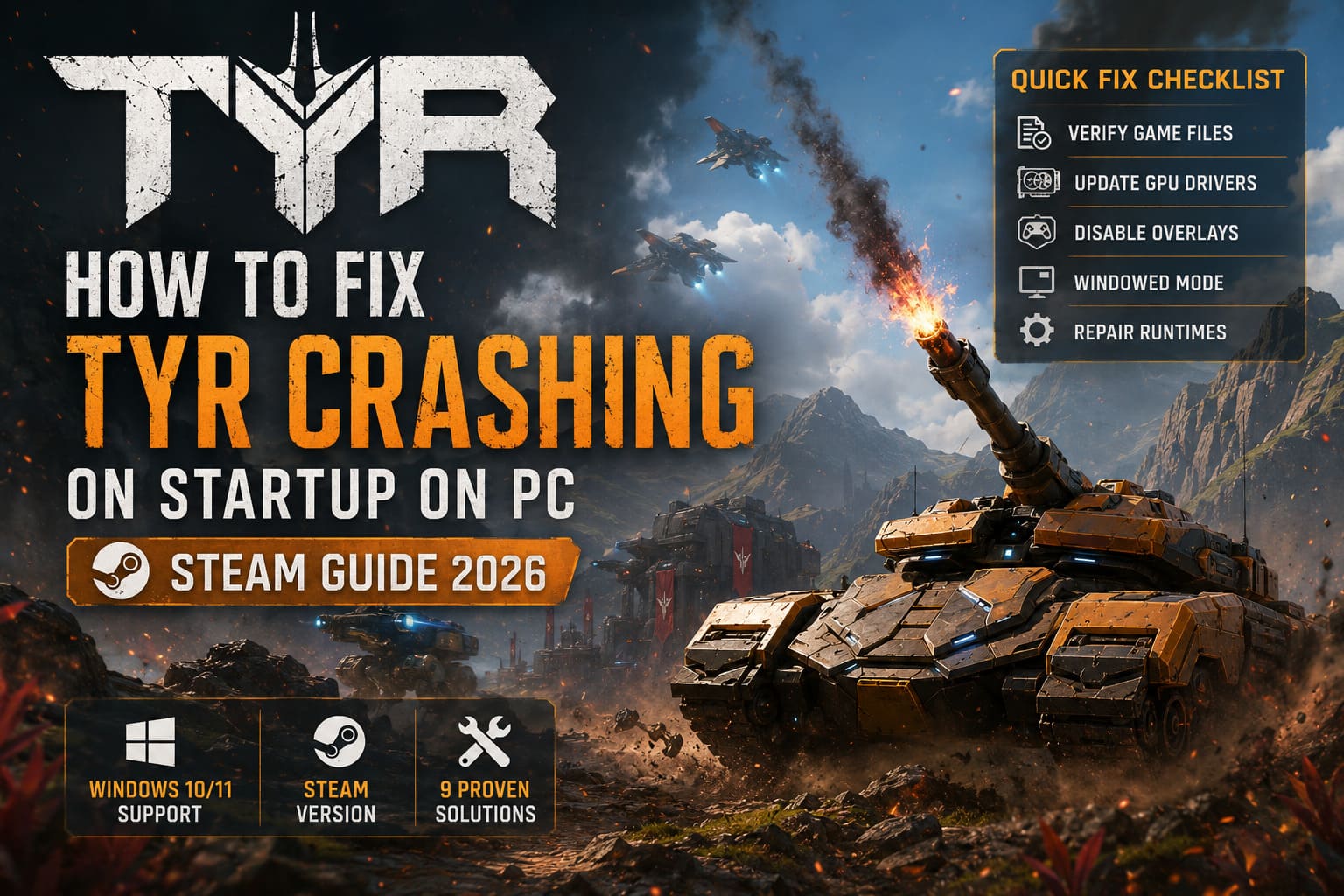
Quick Fix Checklist
Before getting into the detailed steps, here is the order I’d recommend:
| Fix | What It Solves | Difficulty |
|---|---|---|
| Verify Game Files | Corrupted or missing files | Easy |
| Run as Administrator | Permission conflicts | Easy |
| Clean GPU Driver | Driver corruption | Medium |
| Check Antivirus | Blocked game files | Easy |
| Try Launch Options | Display/API problems | Easy |
| Repair Runtimes | Missing DLL components | Easy |
| Clear Steam Cache | Steam download/cache issues | Easy |
| Disable Overlays | Software conflicts | Easy |
| Remove Overclocks | Hardware instability | Medium |
My advice: don’t jump straight to the complicated fixes. In my experience, the first, fifth, and eighth solutions are particularly worth testing before you start changing BIOS settings.
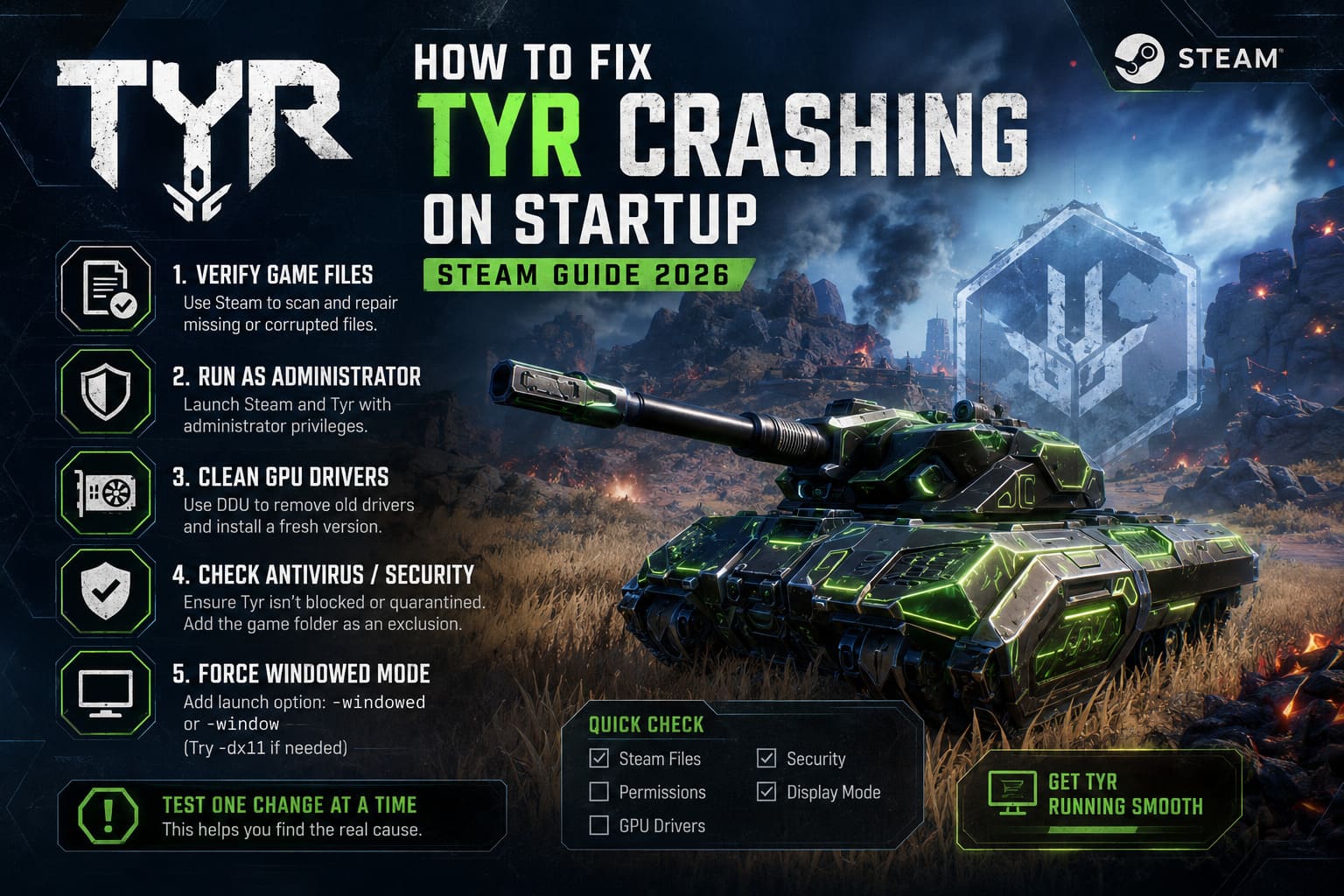
1. Verify Tyr’s Game Files Through Steam
This is always my first step when a Steam game crashes immediately.
Game installations aren’t always perfect. An update can fail, a file can become corrupted, or a small dependency can disappear without Steam making the problem obvious. You may have 99% of the installation working perfectly, but one important executable or asset can prevent the game from starting.
To verify Tyr:
- Open Steam and go to your Library.
- Right-click Tyr.
- Select Properties.
- Open Installed Files.
- Select Verify integrity of game files.
- Let Steam complete the scan.
If Steam finds damaged or missing files, it should automatically download replacements.
Don’t skip this step just because the game installed successfully. A successful installation doesn’t necessarily mean every file is still intact.
2. Try Running Steam and Tyr as Administrator
Windows permissions can occasionally interfere with games, especially when a title needs to create configuration files or access folders protected by Windows.
I don’t consider administrator mode a universal solution, but it’s a very quick test.
First, completely close Steam. Then right-click your Steam shortcut and choose Run as administrator.
Try launching Tyr again.
If that fixes the crash, you can make the change permanent through:
Steam.exe → Properties → Compatibility → Run this program as an administrator
You can also locate Tyr’s executable through:
Steam → Tyr → Properties → Installed Files → Browse
Find the main .exe file and test administrator mode there as well.
If this doesn’t change anything, I wouldn’t leave administrator mode enabled indefinitely without a reason. Move on to the next fix.
3. Perform a Clean GPU Driver Installation
This is one of the fixes I take seriously when a game crashes before displaying its menu.
A normal driver update doesn’t always remove every component of an older installation. After enough driver updates, especially across different GPU generations, you can end up with configuration remnants that cause strange behavior.
For a proper clean installation, use Display Driver Uninstaller (DDU).
The general process is:
- Download DDU from a reputable source.
- Download the newest driver for your NVIDIA, AMD, or Intel GPU directly from the manufacturer’s website.
- Boot Windows into Safe Mode.
- Launch DDU.
- Select your GPU manufacturer.
- Choose Clean and restart.
- After Windows boots normally, install the fresh driver package.
Personally, I’d especially consider this step if Tyr started crashing immediately after a GPU driver update.
Don’t use random third-party driver packages. Get the replacement driver directly from the GPU manufacturer.
4. Check Windows Security and Your Antivirus
Antivirus software is useful, but occasionally it can be a little too aggressive with newly installed games.
If Tyr launches for a fraction of a second and then instantly closes, check whether Windows Security or your third-party antivirus has quarantined or blocked one of the game’s files.
In Windows Security, go to:
Virus & threat protection → Manage settings → Exclusions
From there, you can add the Tyr installation directory as an exclusion if you have confirmed that the files are legitimate.
I recommend doing this only for a trusted game installation and only when antivirus interference is actually suspected. You don’t want to disable Windows protection globally just to get one game working.
If your antivirus has a quarantine/history section, check that first. It may tell you exactly what was blocked.
5. Force Tyr Into Windowed Mode
A black screen followed by a crash can sometimes point toward a display configuration problem.
This is particularly worth trying if you recently changed:
- Monitor resolution
- Refresh rate
- HDR settings
- Multi-monitor configuration
- GPU driver settings
Steam lets you add launch commands without modifying the game itself.
Open:
Steam → Library → Tyr → Properties → General → Launch Options
-windowedYou can also test:
-windowDepending on the game’s engine and implementation, one may work while the other does nothing.
If you suspect a graphics API problem, you can also test an alternative DirectX command supported by the game. For example, -dx11 may help with some titles, while other games support a DirectX 12 command instead.
However, don’t blindly stack every possible launch command together. Test one change at a time. Otherwise, you won’t know which option actually fixed the problem.
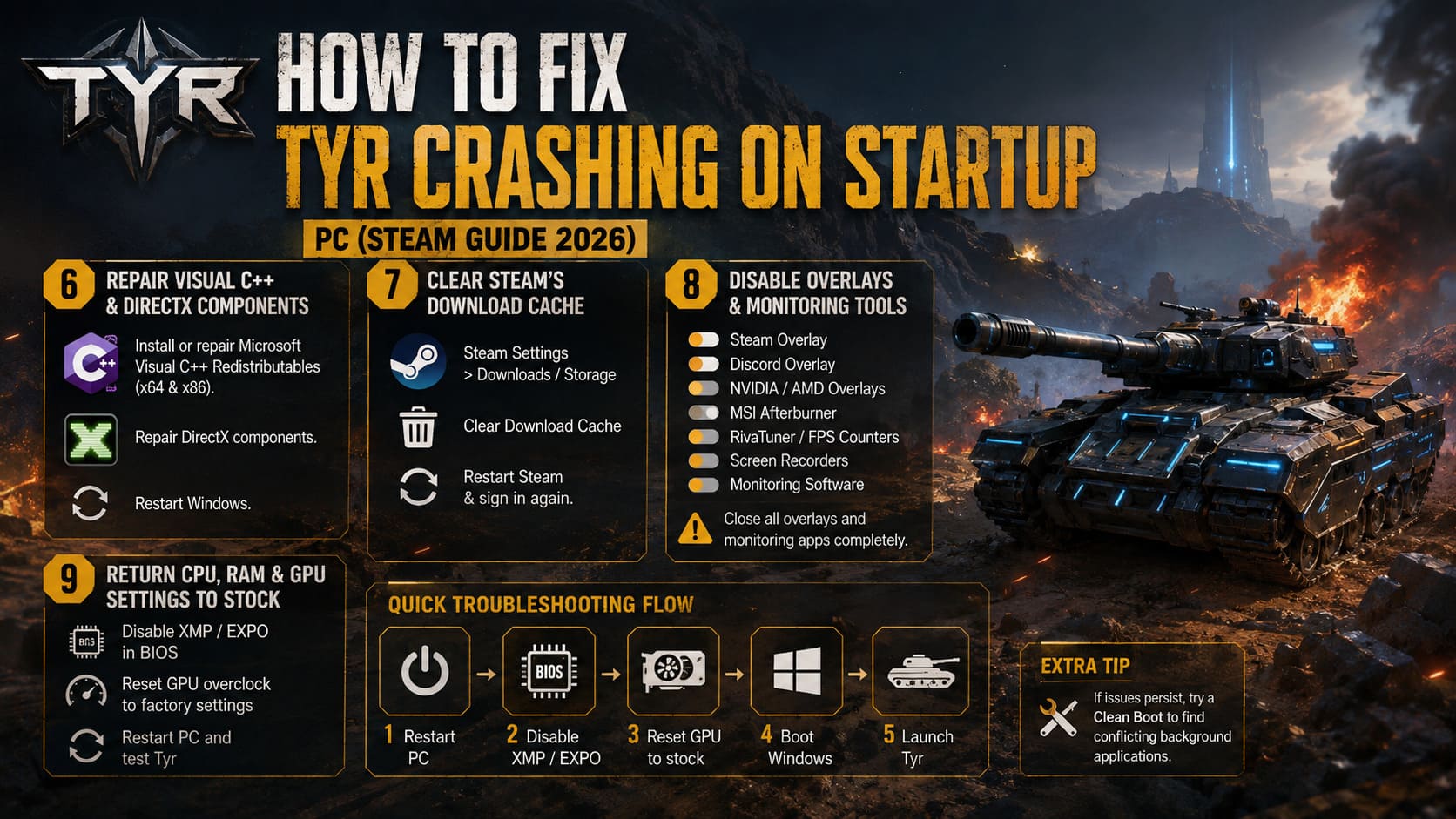
6. Repair Visual C++ and DirectX Components
This is one of those boring PC maintenance fixes that doesn’t look impressive but can save hours of troubleshooting.
Many Windows games rely on Microsoft runtime components. If one of those components is missing or damaged, the game can crash before you ever see the menu.
Install or repair the supported Microsoft Visual C++ Redistributables, including the x64 and x86 versions where applicable.
It’s also worth repairing the DirectX components required by older and newer PC games.
After installing or repairing these packages, restart Windows.
Don’t assume that having a newer DirectX version automatically means every legacy runtime component is present. Different games can depend on different libraries.
7. Clear Steam’s Download Cache
If Tyr previously worked and suddenly refuses to launch after an update, Steam’s cache is another thing I’d check.
Open Steam and navigate to its settings. Depending on your Steam version, the relevant options may appear under Downloads or Storage.
Look for Clear Download Cache and confirm the operation.
Steam will restart and may require you to sign in again.
This won’t normally delete your installed games, but it clears temporary Steam data that can occasionally become problematic.
I wouldn’t use this as the first solution for every crash, but it’s a worthwhile step when the problem appeared after an update or Steam-related change.
8. Disable Steam, Discord, GPU and Monitoring Overlays
This is probably one of my favorite troubleshooting steps because I’ve seen overlays cause ridiculous problems in PC games.
The game itself may be completely fine, while another application injects code into the rendering pipeline during startup.
Temporarily disable:
- Steam Overlay
- Discord Overlay
- NVIDIA/AMD recording overlays
- MSI Afterburner
- RivaTuner Statistics Server
- FPS counters
- Screen-recording utilities
- Other hardware-monitoring software
For Steam, check the game’s properties and disable the Steam Overlay.
For Discord, disable its in-game overlay as well.
Then completely close monitoring programs rather than simply minimizing them.
If Tyr suddenly starts working, you’ve found a major clue.
Try a Clean Boot If Nothing Else Works
If you have a lot of software running with Windows, a clean boot can help identify a conflicting background application.
Use Windows’ System Configuration tool, hide Microsoft services, disable the remaining third-party services, and restart.
If Tyr works after the clean boot, re-enable your applications gradually until you identify the culprit.
This takes longer, but it is much more useful than randomly uninstalling programs.
9. Return CPU, RAM and GPU Settings to Stock
This is the last major fix I’d try before assuming the game itself has a bug.
Overclocking can be perfectly stable in one game and unstable in another.
Your PC might survive hours of one title, pass several benchmarks, and then crash Tyr during the first 20 seconds of startup. Games can stress different parts of the system in completely different ways.
If you use XMP or EXPO, temporarily disable the memory profile in your BIOS and test the game at default RAM settings.
Likewise, if you’ve overclocked your GPU with MSI Afterburner or another utility, restore the GPU to its factory settings.
The basic troubleshooting process is:
- Restart your computer.
- Enter BIOS using the appropriate motherboard key, commonly Delete or F2.
- Disable XMP or EXPO temporarily.
- Save the BIOS changes.
- Reset GPU overclocking settings to stock.
- Boot Windows.
- Test Tyr again.
If the game suddenly works, you have identified a system stability issue rather than a broken game installation.
What If Tyr Still Crashes?
If you’ve gone through all nine fixes and Tyr still refuses to launch, don’t immediately start deleting random Windows folders.
At that point, I’d collect some useful information first.
- Windows Event Viewer
- Tyr crash logs
- Steam launch behavior
- GPU driver version
- Windows version
- Whether the crash happens before or after the splash screen
- Whether the game produces a black screen
- Whether other games are crashing
The distinction matters.
If only Tyr crashes, the problem may be related to the game’s files, configuration, compatibility, or a specific game-side bug.
If several games are crashing, I’d start investigating the GPU driver, RAM stability, Windows installation, temperatures, and hardware configuration instead.
Tyr Tank Shooter Beginner Guide: Best Tips, Tricks, and Strategies (2026)
My Recommended Order
If I were sitting at my own PC and Tyr suddenly stopped launching, I wouldn’t spend an entire afternoon applying every tweak on the internet.
I’d do this:
Verify files → disable overlays → try windowed mode → check antivirus → repair Visual C++/DirectX → clean GPU driver → clear Steam cache → test stock hardware settings.
That sequence gives you a good balance between low-risk fixes and deeper troubleshooting.
The biggest mistake is changing five things simultaneously. If the game suddenly launches, you won’t know what solved it—and you may accidentally introduce another problem.
Tyr PC System Requirements: Minimum Storage Specs & GB Needed (2026)
Final Thoughts
A Tyr startup crash on PC can look much more serious than it actually is. In my experience with PC gaming, the majority of launch problems come down to relatively ordinary issues: corrupted files, conflicting overlays, graphics drivers, missing runtime components, or unstable hardware settings.
Start with the simple fixes and work downward. Verifying the Steam installation costs almost nothing, disabling overlays takes a minute, and testing windowed mode is harmless. Only move into DDU, BIOS changes, or clean-boot troubleshooting when the simpler solutions don’t work.
And if you’ve recently updated your GPU driver, changed your monitor setup, enabled an XMP/EXPO profile, or installed a new monitoring utility, pay particular attention to those changes. The timing of the problem is often the biggest clue.
With a methodical approach, you should be able to determine whether Tyr is suffering from a damaged installation, a Windows/software conflict, or a deeper hardware stability problem—and get back into the game without resorting to a complete Windows reinstall.