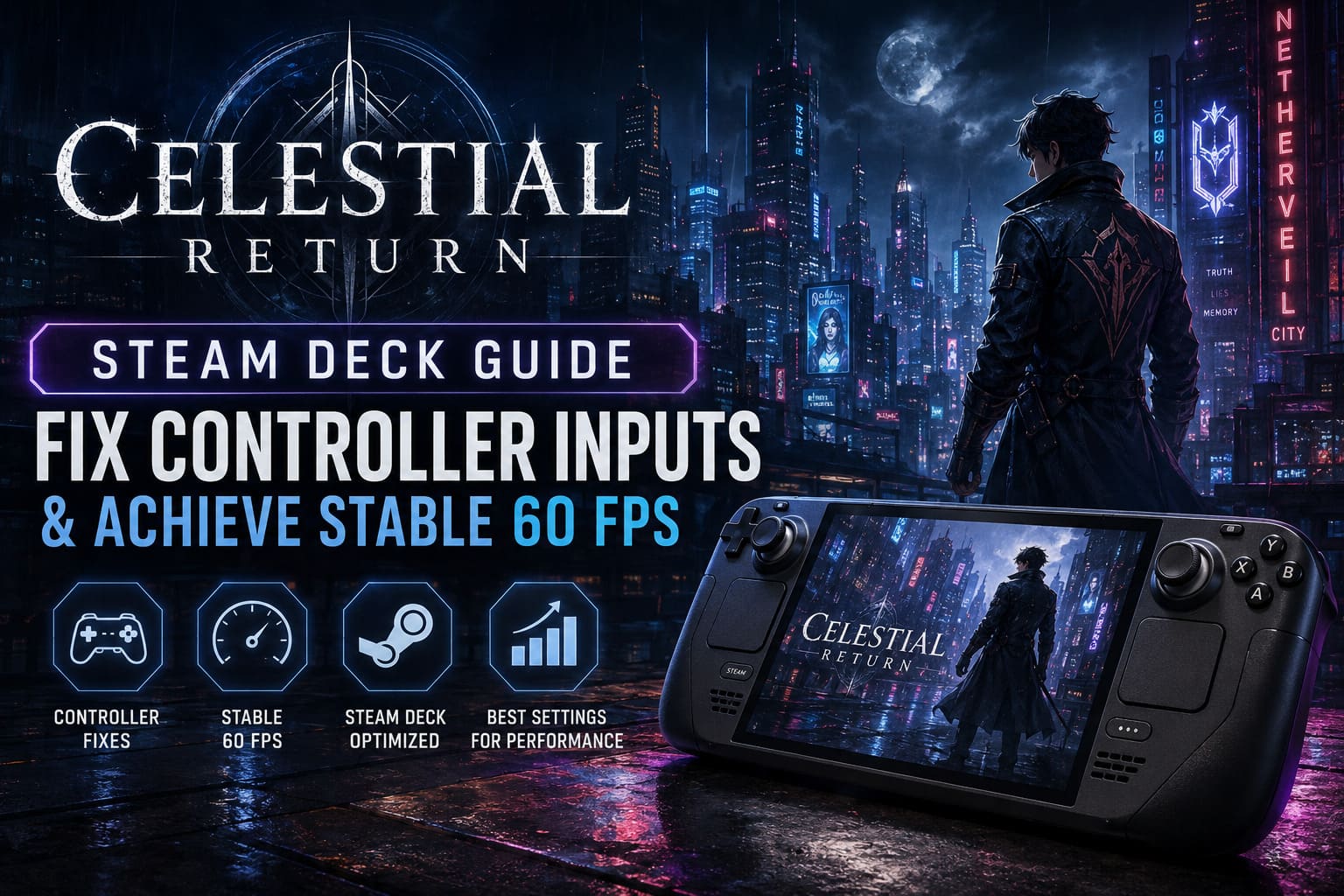
Celestial Return Steam Deck Guide: Fix Controller Inputs & Achieve Stable 60 FPS
When a brand-new RPG lands on Steam, my Steam Deck is usually the first place I install it. There’s something satisfying about taking a huge story-driven adventure wherever I want, especially when the game has a world as stylish as Celestial Return. The rain-soaked streets of Netherveil City, the detective mechanics, and the cyberpunk atmosphere immediately pulled me in.
Unfortunately, my first few hours weren’t nearly as enjoyable as I expected.
Instead of investigating crime scenes, I spent more time fighting with controller issues than actual enemies. Buttons stopped responding, menus constantly switched between keyboard and controller prompts, and performance wasn’t nearly as stable as I hoped. After digging through community discussions, experimenting with SteamOS settings, and testing different Proton versions myself, I finally found a setup that made the experience feel polished.
If you’re trying to enjoy Celestial Return on a Steam Deck, these are the methods that genuinely worked for me.
Why Celestial Return Feels Unfinished on Steam Deck
I don’t think the game is badly optimized overall, but it definitely feels like it launched with a few rough edges for Linux-based handhelds.
The biggest issue comes from how the game communicates with Steam Input. Sometimes it recognizes the built-in controls immediately, while other times it behaves as if no controller exists at all.
Common symptoms include:
- Analog sticks refusing to work.
- Buttons becoming completely unresponsive.
- Controller prompts constantly changing to keyboard icons.
- Incorrect Xbox or PlayStation button layouts.
- Random control failures after waking the Steam Deck from Sleep Mode.
The good news is that these problems usually aren’t permanent. In most cases, they’re caused by Steam Input, Proton, or cached configuration files rather than the game itself.
My First Fix: Reset Controller Priority
The first solution I always recommend is surprisingly simple.
Steam occasionally assigns the wrong device as Player One, especially if you’ve connected an external controller before or docked the Deck recently.
While the game is running, follow these steps:
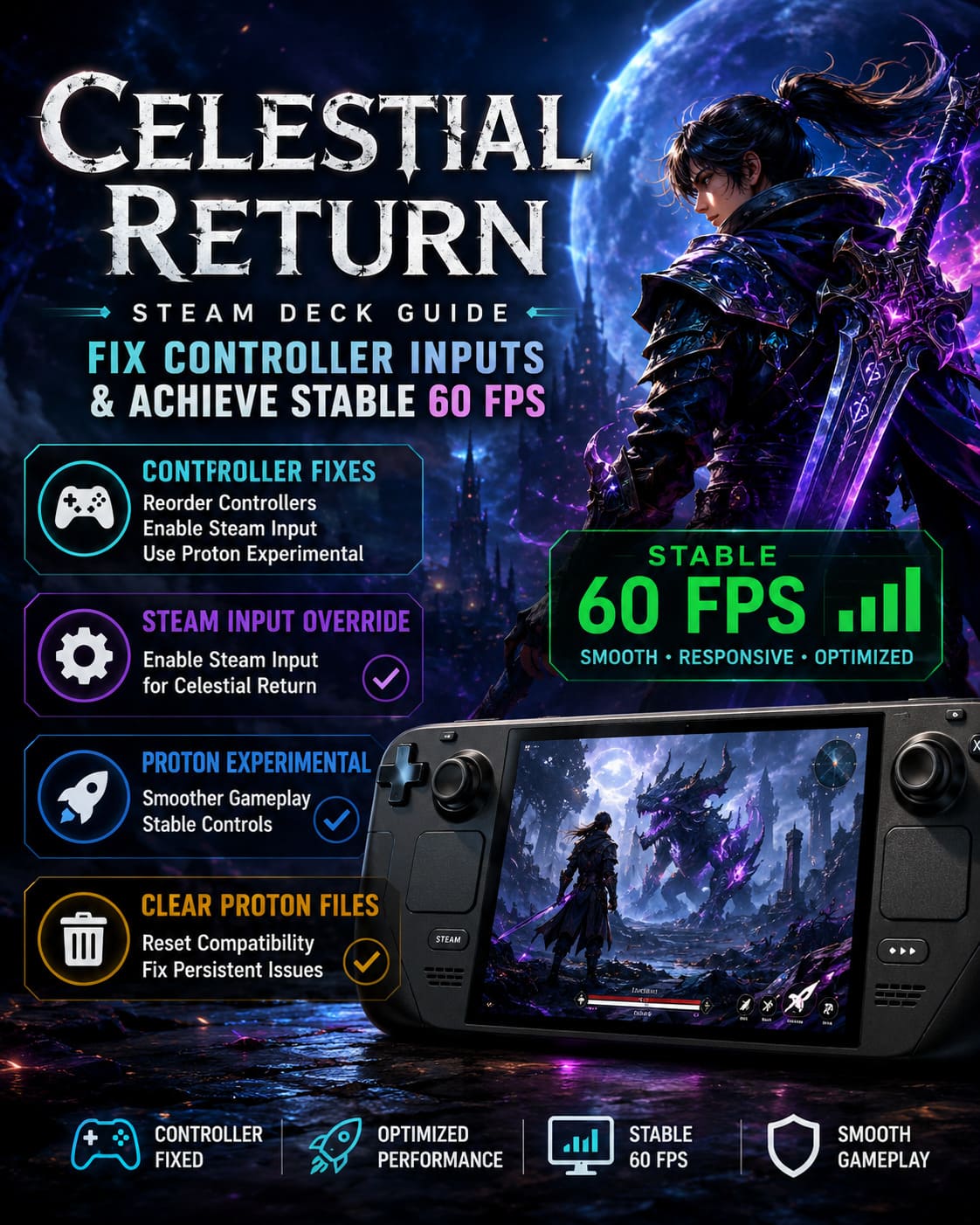
- Press the Steam button.
- Open Controller Settings.
- Select Reorder Controllers.
- Make sure the Steam Deck is assigned as Controller 1.
- If it already is, temporarily move it to another slot before switching it back.
It sounds almost too easy, but this fixed the issue for me on the very first attempt.
Sometimes the game only needs Steam to refresh its active controller assignment.
Steam Input Override Made the Biggest Difference
If controller reordering didn’t solve everything, forcing Steam Input was my next step.
Instead of relying on automatic detection, I manually enabled Steam Input specifically for Celestial Return.
The process only takes a minute:
- Open the game’s Properties.
- Navigate to the Controller tab.
- Change the override from Default to Enable Steam Input.
- Restart the Steam Deck before launching the game again.
After doing this, my controls immediately became more consistent.
Menus stopped flickering between keyboard and controller layouts, and every button behaved exactly as expected.
Proton Experimental Is Worth Trying
I’ve learned one thing after years of gaming on Linux-based handhelds: never underestimate Proton updates.
Switching Celestial Return to Proton Experimental immediately eliminated several strange input quirks that appeared under the default compatibility layer.
If you already use Proton GE, that’s another excellent option.
Changing compatibility only takes a few clicks:
| Compatibility Tool | My Experience | Recommendation |
|---|---|---|
| Default Proton | Occasional controller bugs | Acceptable |
| Proton Experimental | Stable controls and smoother gameplay | Recommended |
| Proton GE | Excellent compatibility | Great alternative |
For me, Proton Experimental delivered the most reliable experience.
Clearing Proton Files Can Save Hours of Frustration
One mistake I made early on was constantly changing controller layouts and graphics settings.
Eventually I realized the game had accumulated a messy Proton prefix that seemed to confuse everything.
Deleting Proton files sounds scary, but it only resets the compatibility environment—it doesn’t erase your save files.
After rebuilding the prefix, several strange controller problems disappeared completely.
If you’ve experimented with multiple layouts, I highly recommend starting fresh before spending hours troubleshooting.
Xbox vs PlayStation Controller Prompts
Another thing I noticed is that controller prompts don’t always match the device you’re using.
With an Xbox controller, Steam Input generally works perfectly because most PC games expect XInput by default.
PlayStation controllers are a little different.
If you’re using a DualSense or DualShock 4 and want native PlayStation icons instead of Xbox prompts, try disabling Steam Input specifically for Celestial Return.
Connecting the controller through a reliable USB-C cable also seemed more consistent than Bluetooth during my testing.
It’s a small detail, but seeing the correct button icons makes long RPG sessions much less confusing.
My Steam Deck Graphics Settings
After solving the controller issues, I focused on performance.
Celestial Return isn’t the most demanding game released this year, but Netherveil City’s lighting system and atmospheric effects can easily push the Steam Deck harder than expected.
This is the configuration I eventually settled on.
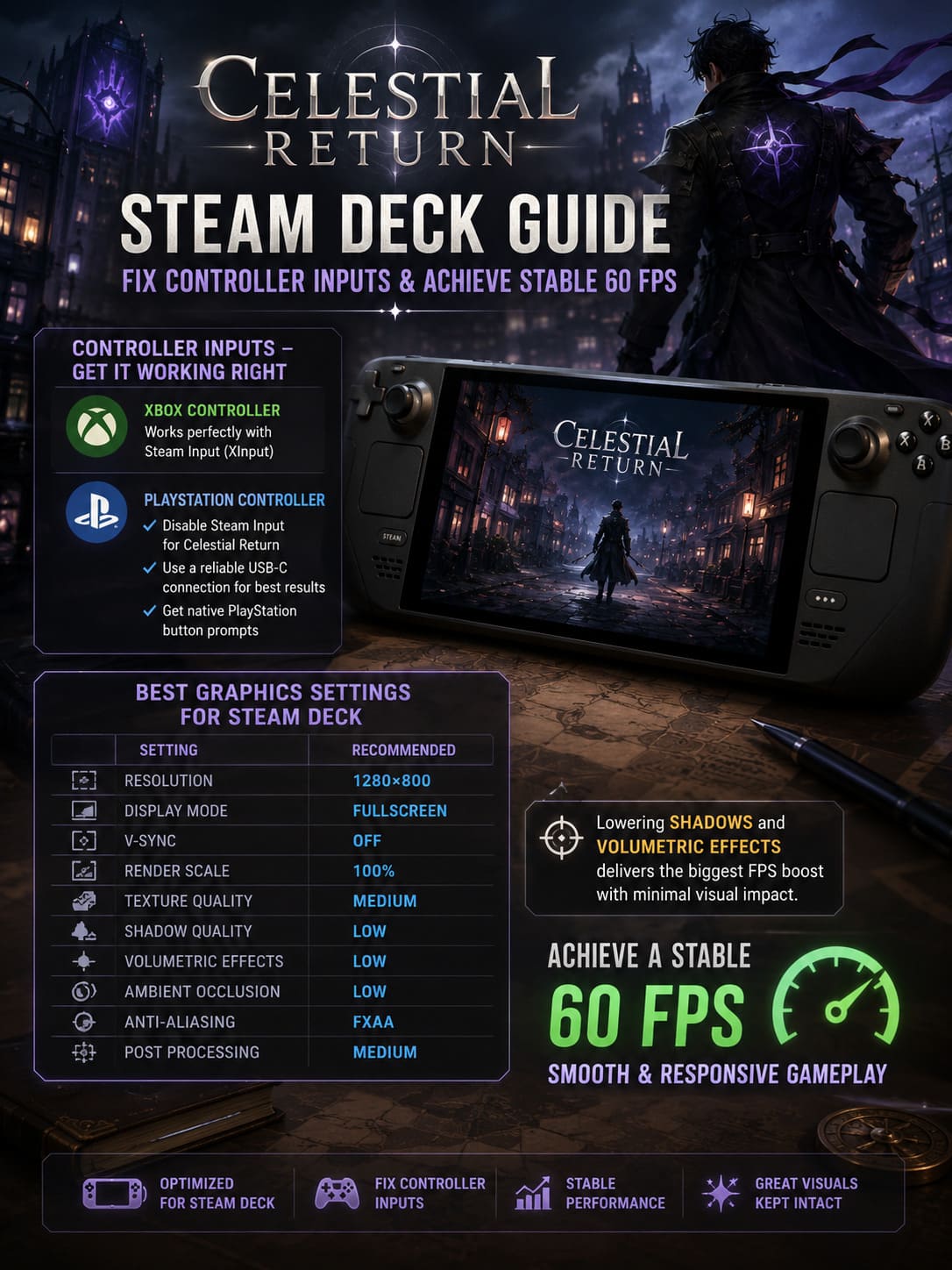
| Setting | Recommended Value |
|---|---|
| Resolution | 1280×800 |
| Display Mode | Fullscreen |
| V-Sync | Off |
| Render Scale | 100% |
| Texture Quality | Medium |
| Shadow Quality | Low |
| Volumetric Effects | Low |
| Ambient Occlusion | Low |
| Anti-Aliasing | FXAA |
| Post Processing | Medium |
Visually, the game still looks fantastic.
The biggest performance improvement came from lowering shadows and volumetric effects rather than sacrificing image clarity.
Keeping the native resolution also preserves readable dialogue and UI elements, which is especially important in a detective-focused RPG where you’ll spend plenty of time reading clues.
SteamOS Settings That Actually Helped
Many players spend all their time tweaking graphics while ignoring SteamOS itself.
I found the Quick Access Menu just as important.
My preferred setup looks like this:
- Frame Rate Limit: 60 FPS.
- Refresh Rate: 60 Hz.
- Allow Tearing: Enabled.
- TDP: Unlimited for best performance (12W if battery life matters).
- Manual GPU Clock: Around 1300 MHz.
On the OLED Steam Deck, another excellent option is running the display at 90 Hz while locking gameplay to 45 FPS.
This creates an incredibly smooth experience while noticeably extending battery life.
Personally, I still preferred targeting 60 FPS because menu navigation and camera movement simply felt more responsive.
How to Fix Celestial Return Crash on Launch, Freezing, and Black Screen on PC (Steam Guide)
Can You Really Hold 60 FPS?
This is probably the question I see most often.
The answer is simple: mostly, yes.
During indoor exploration, investigations, dialogue scenes, and smaller districts, my frame rate stayed very close to 60 FPS.
Large outdoor environments with heavy lighting, rain effects, and crowded NPC areas occasionally caused brief drops.
Thankfully, lowering shadows to Low and reducing volumetric effects removed nearly all of those noticeable dips.
I wouldn’t describe the experience as a perfect locked 60 FPS from beginning to end, but it’s absolutely stable enough that I stopped thinking about performance and simply enjoyed the game.
For a handheld, that’s exactly what I want.
Celestial Return Guide: Detective Howard Backstory and Personality Choices Explained
Final Thoughts
Celestial Return quickly became one of my favorite RPGs to play on the Steam Deck once I got past the launch-day issues.
The detective gameplay works surprisingly well with handheld controls, the cyberpunk atmosphere looks fantastic on the Deck’s display, and the performance is much better than first impressions suggest.
If I had to prioritize the fixes that mattered most, it would be:
- Reorder your controllers inside SteamOS.
- Force Steam Input if controls stop responding.
- Switch to Proton Experimental.
- Delete Proton files if you’ve already experimented with multiple controller layouts.
- Lower shadows and volumetric effects before reducing resolution.
Those five changes transformed my experience from frustrating to genuinely enjoyable.
Launch-week problems are becoming increasingly common with PC releases, especially on Linux-based handhelds, but this is one of those cases where a few small adjustments make an enormous difference.
Once everything is configured properly, Celestial Return feels right at home on the Steam Deck. The controls become reliable, performance remains impressively smooth, and Netherveil City’s neon skyline is exactly the kind of world I love exploring from the comfort of a handheld. If you’re planning to sink dozens of hours into this detective adventure, spending ten minutes optimizing your setup is well worth the effort.