WARDOGS Steam Overlay Fix: How to Turn Off Overlay and Fix Beta Crashes
WARDOGS is the kind of tactical shooter where small performance problems become much more noticeable than they would in a slower game. When a firefight suddenly turns into a 100-player battle around a destructible base, you really don’t want a background feature fighting for system resources at the same time.
After spending a lot of time with PC shooters, I’ve learned that overlays are one of those things I normally leave enabled because they’re convenient—until a particular game starts behaving badly. Steam’s overlay is useful for messaging friends, checking guides, taking screenshots, or quickly browsing something without leaving the game. But when I’m troubleshooting crashes or inconsistent frame pacing, it’s one of the first features I switch off.
That’s especially worth trying with WARDOGS during its beta and Early Access period. Early builds can be unpredictable, and an overlay that works perfectly in one game can occasionally contribute to crashes, stuttering, or strange input behavior in another.
The good news is that disabling the Steam Overlay for WARDOGS takes less than a minute.
Why I Would Disable the Steam Overlay First
The Steam Overlay isn’t inherently bad. I’ve used it in hundreds of games without ever having a problem. The issue is that it adds another layer of software interaction between Steam, Windows, your GPU driver, and the game itself.
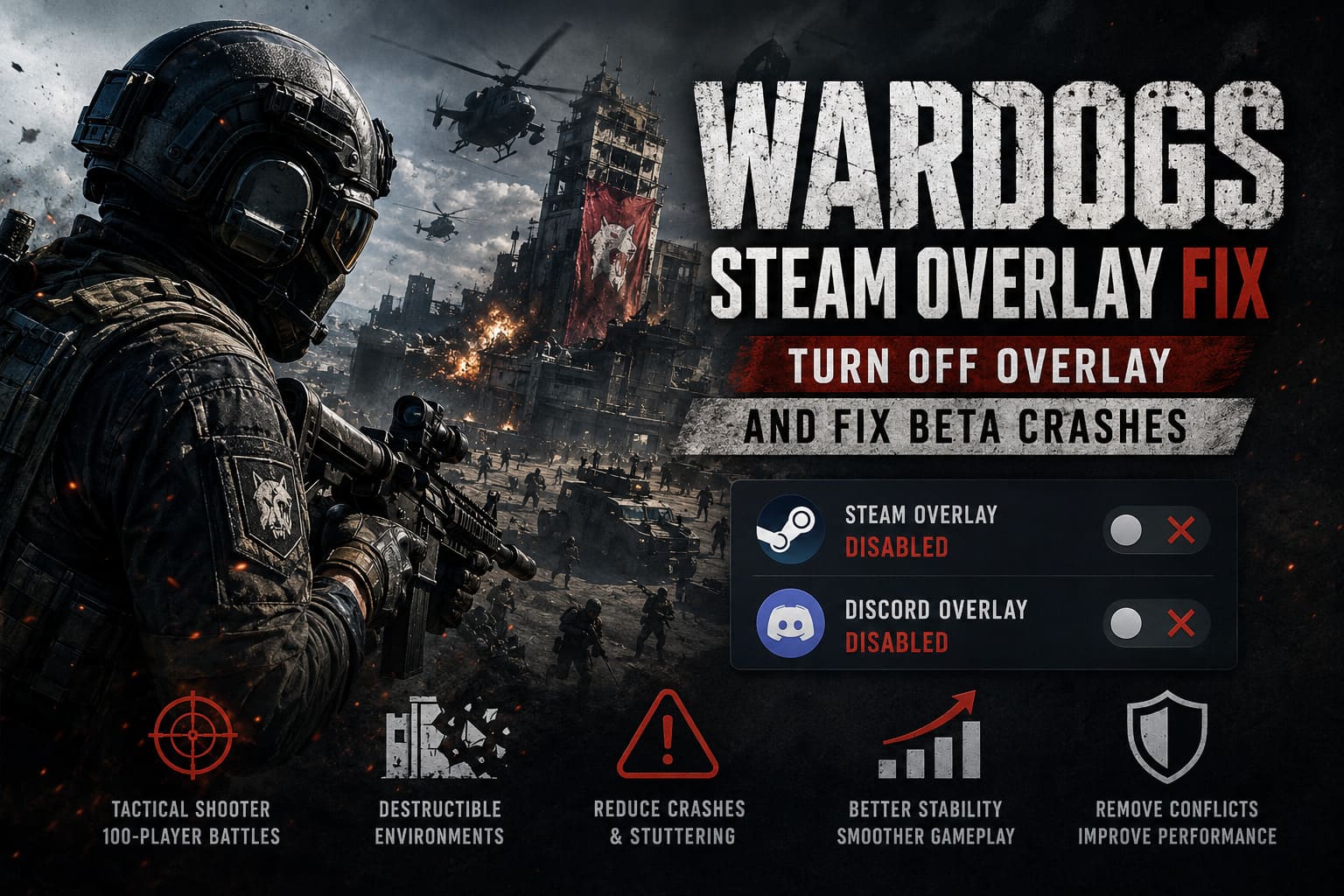
WARDOGS already has a lot happening behind the scenes. Large multiplayer matches, destructible environments, vehicles, effects, voice communication, and networking can all put pressure on your CPU and GPU.
When performance is already borderline, removing unnecessary background features is simply good troubleshooting practice.
- Frame-time spikes, particularly when the overlay is activated during gameplay.
- Input inconsistencies, especially if another application is also using an overlay or capture hook.
- Crashes or freezes, depending on how the game interacts with third-party software.
- Extra background activity, which is rarely useful when you’re trying to squeeze every bit of consistency from a competitive shooter.
I wouldn’t promise that disabling Steam Overlay will magically add 20 FPS. In my experience, that’s not how these fixes usually work. What you’re looking for is better stability and more consistent frame times, not some miracle performance transformation.
How to Disable Steam Overlay Only for WARDOGS
This is the method I’d recommend trying first.
There’s no reason to disable the Steam Overlay everywhere if WARDOGS is the only game giving you trouble. Keeping it enabled globally also means you can continue using Steam’s normal features in other games.
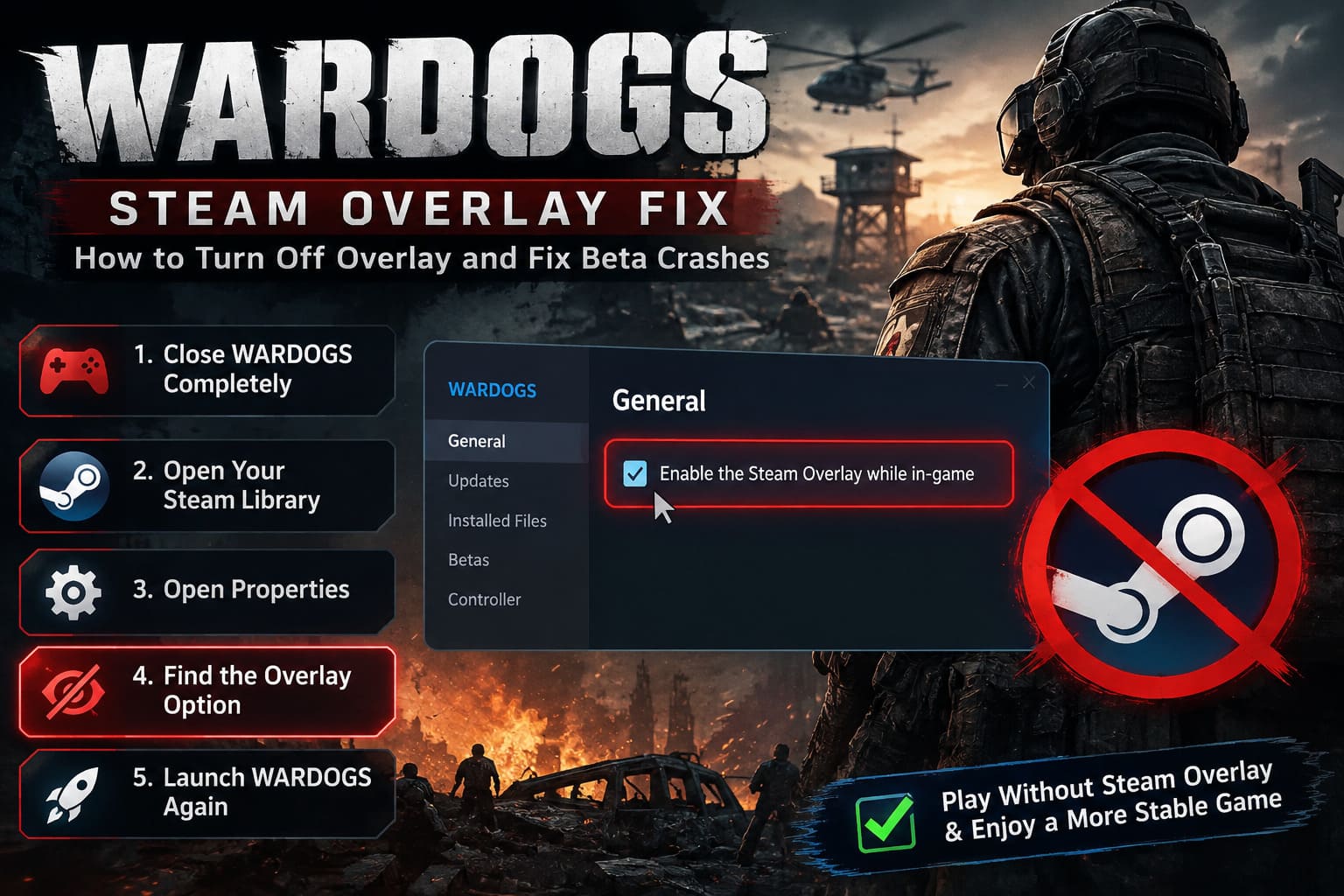
Step 1: Close WARDOGS Completely
Make sure WARDOGS isn’t running.
If you’ve just experienced a crash, give Steam a few seconds to finish closing the game process. You can also check Task Manager if you’re unsure whether the executable has completely disappeared.
Step 2: Open Your Steam Library
Launch Steam and go to your Library.
Find WARDOGS or the relevant WARDOGS Playtest entry if you’re playing through a separate beta build.
Step 3: Open Properties
Right-click WARDOGS in your library.
Select Properties from the menu.
You’ll be presented with the game’s configuration window.
Step 4: Find the Overlay Option
Stay on the General section.
Look for the option referring to:
Enable the Steam Overlay while in-game
Switch it off.
That’s it. There normally isn’t anything else you need to configure for this particular test.
Step 5: Launch WARDOGS Again
Close the properties window and start the game normally.
I recommend playing for at least a few matches before deciding whether the change helped. A single smooth match doesn’t tell you much, particularly in a game where match size and destruction can dramatically change the workload.
If the crashes disappear or the frame-time feels noticeably more consistent, you’ve found a useful configuration change.
Should You Disable Steam Overlay Globally?
Only if you want to.
Steam also allows you to disable its overlay across your entire library. This is useful if you’re troubleshooting several games or simply don’t use the feature.
Open Steam and go to:
Steam → Settings → In Game
You’ll find the global Steam Overlay option there. Turn off Enable the Steam Overlay while in-game.
Personally, I prefer the per-game approach. I use the Steam Overlay regularly for screenshots, quick messages, and checking information, so disabling it everywhere would be more annoying than helpful.
For WARDOGS specifically, I’d test the individual setting first.
Don’t Forget Discord Overlay
Here’s something I’ve learned the hard way after troubleshooting PC games: disabling one overlay doesn’t necessarily mean you’ve removed all overlays.
Discord is probably the next application I’d check.
If you’re playing WARDOGS with friends, there’s a good chance Discord is running in the background. That’s perfectly normal, but its in-game overlay adds another layer to the game.
To disable it, open Discord and enter User Settings.
Find the Game Overlay section and turn off the option for the in-game overlay.
You can then restart WARDOGS and see whether anything changes.
This is especially worth testing if your symptoms are more like random stutters, freezes when opening menus, or crashes that happen while communicating with teammates.
Again, don’t assume Discord is automatically the culprit. Test one change at a time.
What About FPS?
This is where I think a lot of optimization guides get carried away.
You’ll sometimes see claims that disabling an overlay automatically gives you a massive FPS increase. I wouldn’t rely on that.
In a demanding multiplayer shooter, your frame rate is influenced by your GPU, CPU, memory, resolution, graphics settings, background applications, drivers, and what’s happening in the actual match.
The Steam Overlay may have a relatively small effect on average FPS—or none at all.
Frame-time consistency is more important here.
For example, imagine your game normally runs around 90 FPS but occasionally drops hard during explosions and large firefights. If disabling the overlay makes those sudden drops less frequent, the game can feel considerably smoother even if your average FPS number barely changes.
That’s the kind of improvement I’d actually care about in WARDOGS.
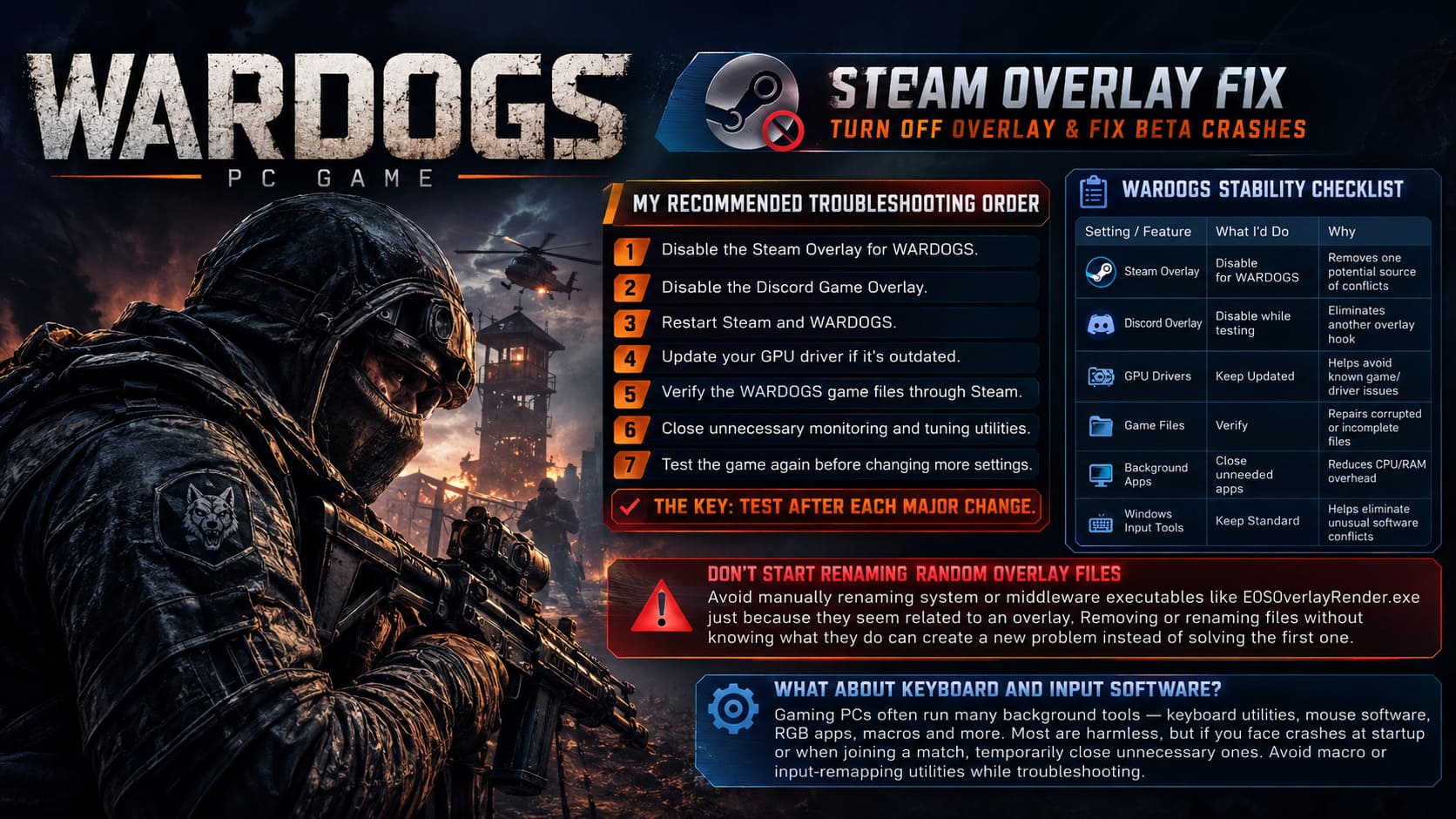
My Recommended Overlay Troubleshooting Order
If WARDOGS is crashing or stuttering, I wouldn’t start changing twenty Windows settings simultaneously. That makes it almost impossible to figure out what actually fixed the problem.
This is the order I’d personally use:
- Disable the Steam Overlay for WARDOGS.
- Disable the Discord Game Overlay.
- Restart Steam and WARDOGS.
- Update your GPU driver if you’re running an old version.
- Verify the WARDOGS game files through Steam.
- Close unnecessary monitoring, recording, and tuning utilities.
- Test the game again before changing additional settings.
The important part is testing after each major change.
If you disable five different programs and suddenly WARDOGS stops crashing, you’ve learned almost nothing about the original problem.
A Quick WARDOGS Stability Checklist
| Setting or Feature | What I’d Do | Why |
|---|---|---|
| Steam Overlay | Disable for WARDOGS | Removes one potential source of conflicts |
| Discord Overlay | Disable while testing | Eliminates another overlay hook |
| GPU Drivers | Keep Updated | Helps avoid known game/driver issues |
| Game Files | Verify | Repairs corrupted or incomplete files |
| Background Apps | Close Unneeded Apps | Reduces CPU/RAM overhead |
| Windows Input Tools | Keep Standard | Helps eliminate unusual software conflicts |
Don’t Start Renaming Random Overlay Files
One part of PC troubleshooting advice I tend to avoid is manually renaming system or middleware executables just because they appear to be related to an overlay.
You may see recommendations involving files such as EOSOverlayRender.exe and instructions to rename them so they can’t launch.
I wouldn’t make that my first move.
Modern games can rely on shared services for authentication, networking, achievements, or cross-platform functionality. Removing or renaming files without understanding exactly what they do can create a second problem while you’re trying to solve the first.
Use normal application settings whenever possible.
If WARDOGS specifically identifies a particular third-party application as incompatible, that’s a different situation. But randomly modifying installed executables is not where I’d start.
What About Keyboard and Input Software?
This is another area that’s easy to overlook.
Gaming PCs often have much more software running than we realize: keyboard utilities, mouse software, RGB applications, macro tools, language input services, recording software, hardware monitoring tools, and various launchers.
Most of these are harmless.
However, if you’re dealing with an unusual crash that happens during startup or immediately after joining a match, temporarily reducing the number of applications interacting with the game can be useful.
I’d especially avoid running unnecessary macro, input-remapping, or injection-style utilities while troubleshooting.
You don’t necessarily need to uninstall anything. The goal is simply to establish a clean baseline.
WARDOGS Drone Guide: How to Master FPV Kamikaze Drones in Bulkhead’s Shooter
How I’d Test WARDOGS After Making the Changes
This is probably the most important part of the whole process.
Don’t launch WARDOGS, look at the FPS counter for thirty seconds, and decide that the fix didn’t work.
Play a few matches.
Try to reproduce the situation that normally causes the problem. If WARDOGS crashes when joining a large battle, test that. If you experience stutters when approaching heavily destructible areas, deliberately spend some time in those situations.
Keep an eye on frame-time behavior rather than just average FPS.
If the game feels smoother, crashes less frequently, or stops freezing when opening the overlay-related interface, then disabling the Steam Overlay was worth doing.
If absolutely nothing changes, simply turn it back on and move to the next troubleshooting step.
WARDOGS Economy Guide: How to Buy Weapons, Manage the Buy Menu, and Build Meta Loadouts (2026)
Final Verdict
For me, disabling the Steam Overlay is one of those low-risk PC troubleshooting steps that’s worth trying before doing anything complicated.
I wouldn’t call it a guaranteed WARDOGS performance fix, and I definitely wouldn’t expect it to transform a low-end PC into a high-end machine. That’s not what overlays do.
What it can do is remove one additional software layer from an already demanding multiplayer game.
And when you’re dealing with beta software, crashes, strange stutters, or inconsistent frame pacing, sometimes the best solution is surprisingly simple.
Start with the WARDOGS-specific Steam Overlay toggle. If that doesn’t help, move on to Discord Overlay, drivers, game-file verification, and background applications. Change one thing at a time and test properly.
After years of playing PC games and troubleshooting far too many mysterious crashes, that’s the approach I trust most: keep the configuration simple, remove variables, reproduce the problem, and only then start making bigger changes.
For a game like WARDOGS, where a split-second of input delay or a sudden frame-time spike can make the difference between winning and losing a firefight, stability is more valuable than another flashy optimization tweak.